


If 4K Video Downloader is not working, first note whether it fails before showing download options, during the transfer, or after saving the file. This guide covers the original 4K Video Downloader and 4K Video Downloader Plus; menus and licensing can differ between them.
In this article
Part 1. Why Is 4K Video Downloader Not Working? 8 Common Errors
A failed download is a symptom, not a diagnosis. Use this table to choose your first check rather than reinstalling the app for every error.
| Symptom | What to check | Start here |
|---|---|---|
| Failed to download / can’t download | The task may fail while fetching the media or saving the output. Check whether the title and format options appeared first. | Fix 1, Fix 2, Fix 8 |
| Can’t find valid format / failed to find valid format | The app did not offer a usable download option. Inspect per-video choices before assuming a disk or playback fault. | Fix 4 |
| Can’t parse this link / stuck on parsing | The page has not been resolved into download options. Check the exact URL, supported site, and app build. | Fix 3, Fix 4 |
| Stuck on retrieving information / stuck at 0% | Distinguish a title that never loads from a recognized task whose transfer never starts. | Fix 1, Fix 5, Fix 8 |
| Only downloading 10 seconds / incomplete file | Compare the saved duration with the full source and check whether the file is incomplete or only playback is stopping. | Fix 10 |
| Video not available / unsupported site | The source may have been removed, restricted, or may not be supported. A visible page does not guarantee downloadable media. | Fix 3 |
| Unknown error / crashes / app not opening | The message alone does not identify a cause. Record what triggered it, then isolate a single task. | Fix 5, Fix 11, Fix 12 |
| Can’t create file / insufficient disk space | The selected output folder may be full, disconnected, or unwritable. | Fix 6, Fix 8 |

Save Supported Videos, Then Convert for Your Device
Part 2. 12 Fixes When 4K Video Downloader Doesn’t Work
Work through the checks that match your symptom. Change one variable at a time and retry the same authorized public video.
Fix 1: Check the Connection When a Download Fails
For a “failed to download” message or a task stuck at 0%, try one short, public video you have permission to save. Pause the rest of the queue so you can see whether a single task starts.
- Open the same video in a browser and confirm that it plays through, rather than showing a removed-video notice.
- If ordinary websites also fail to load, restore your connection before retrying the downloader.
- If browsing works but several supported videos fail, continue with the update and folder checks below.
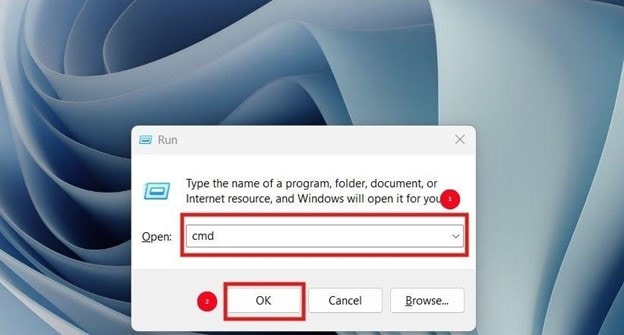
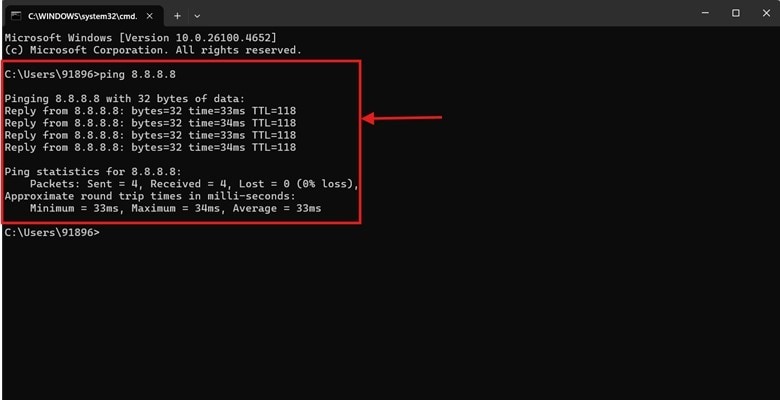
On Windows, an optional connection check is to open Command Prompt and run ping 8.8.8.8. Timeouts can help identify a connection problem, but a successful ping does not prove that a video server is reachable; some networks also block ping.
Fix 2: Update the Correct 4K Download App
When 4K Video Downloader stopped working without a change to your settings, rule out an outdated build before reinstalling. In 4K Video Downloader Plus, choose Tools > Check for Updates. Use the publisher’s official downloads page for installers.
Check the product name as well as the version: the original 4K Video Downloader, Plus, and 4K YouTube to MP3 are different applications. Do not assume an installer or license for one belongs to another. After updating, retry the same single URL so you can judge whether anything changed.
Fix 3: Confirm the Supported Site and Video Availability
If 4K Video Downloader says “video not available”, open the individual video page first. A deleted video, an unsupported site, and a service-side failure need different responses. Test a second authorized public video from the same site, then one from another supported site.
One failing URL suggests a video-specific issue; failures across one site suggest a site-specific issue; failures across sites point you toward the app, connection, or output folder. These are diagnostic clues, not proof of a particular fault. Use the platform’s official download or creator export for restricted content.
Fix 4: Fix Parsing and “Can’t Find Valid Format” Errors
If 4K Video Downloader can’t parse this link, copy the full individual video URL again. Avoid a profile page, search page, or a link to a different clip. If it stays on retrieving information without showing a title or format choices, record that state separately from a transfer failure.
If it can’t find valid format or reports “failed to find valid format,” try Manual Mode rather than reusing saved Smart Mode choices. Select only a format and quality actually offered for that video. See the publisher’s explanation of Smart Mode and Manual Mode.
Only 1080p instead of 4K? Confirm that the source itself offers 4K, then inspect the per-video choices. Some high-resolution options may require MKV rather than MP4. Changing the filename extension cannot create a missing quality option, and converting a 1080p file does not recover the original 4K source detail.
Fix 5: Restart a Stuck App or “Retrieving Information” Task
For 4K Video Downloader stuck on parsing or an unresponsive queue, record the affected URL, close the application fully, and reopen it. Retry one task after restarting the computer if necessary.
If the same URL still fails while other videos work, repeated restarts are unlikely to isolate the problem further. Return to the source and format checks. If every task hangs, record the app version and proceed to the conflict and reinstall checks.
Save Supported Videos, Then Convert for Your Device
Fix 6: Free Disk Space Without Deleting Your Downloads
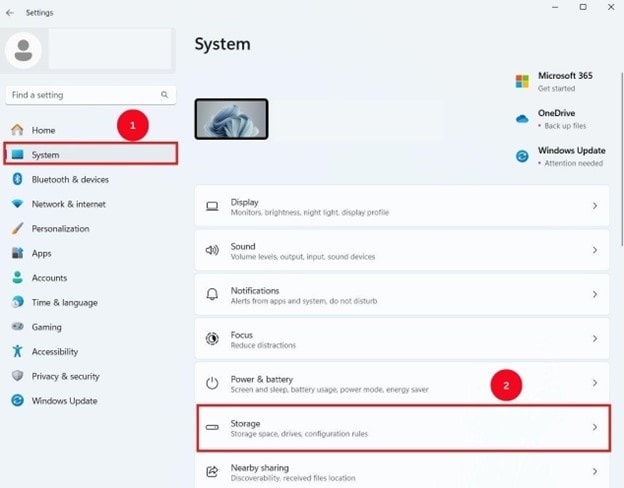
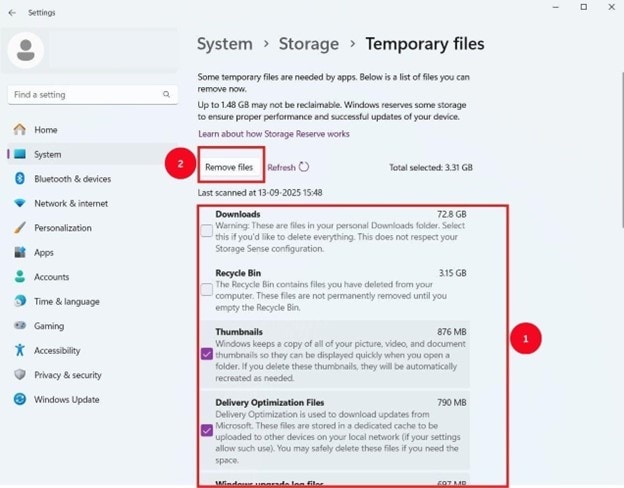
Use this check when storage is low or a transfer stops while writing a file. On Windows, open Settings > System > Storage > Temporary files and review each selected category before removing anything. Keep your Downloads folder and any files you still need.
This frees device storage; it does not specifically clear 4K Video Downloader’s app cache or repair a site parser. Keep error logs until a support case is resolved. On Mac, review available storage in system settings and move only files you recognize.
Fix 7: Check Firewall and Antivirus Permissions
If security software reports that it blocked the downloader, inspect that alert and the app’s network permission. Confirm that the installed app came from the official publisher before allowing it. On a managed computer, ask the administrator to review the block.
Keep protection enabled while diagnosing other causes. A missing format or unavailable video does not by itself prove that antivirus software is responsible.
Fix 8: Change the Download Folder for 0% or File-Creation Errors
If a video is recognized but cannot be saved, select a local destination with free space and permission to create files. Avoid a disconnected external drive or a network location that is currently unavailable.
Create a small test file in the proposed folder, then select that folder as the downloader’s destination and retry one video. If a local folder works but the old location does not, focus on that location’s permissions or availability. This is particularly useful for “can’t create file” errors; it is a separate check from parsing.
Fix 9: Check Proxy or VPN Settings
A stale proxy configuration or a VPN connection problem can interrupt traffic. If you use either service, check its status and remove obsolete proxy settings. Retry through your normal permitted connection when appropriate.
Changing networks does not make an unsupported or removed video available. For access-restricted media, use the source platform’s permitted download or export method rather than treating an access restriction as an app bug.
Fix 10: Close Heavy Programs and Check 10-Second or Unplayable Files
Close unnecessary high-load apps if the downloader freezes or the computer runs out of resources. Pause other download tasks before retesting. This can help isolate a resource problem, but does not repair an unsupported URL.
4K Downloader only doing 10 seconds? Compare the source duration with the duration shown for the saved file. Play it in a second player and seek past ten seconds. If the file is short in both players while the source is longer, keep the original for comparison and retry the full video URL as a new task. If the file has the full duration but stops in one player, investigate playback compatibility instead.
Downloaded but no sound or won’t play? Try VLC media player. If a complete file works there but not on your target device, the UniConverter Converter workflow can help produce a compatible output. A converter cannot restore seconds or an audio track missing from the saved source.
Fix 11: Reinstall After an App Crash or Damaged Update
If the app will not open or repeatedly crashes, compare your system with the publisher’s current system requirements before reinstalling. An unsupported operating system is different from an interrupted installation.
- Keep your downloaded videos, required license details, and error screenshots.
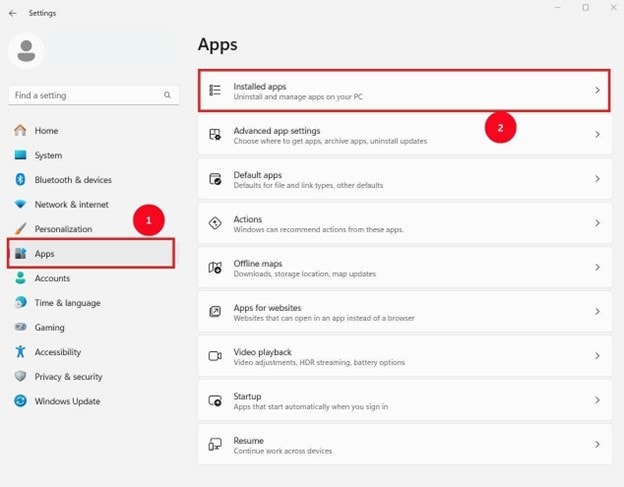
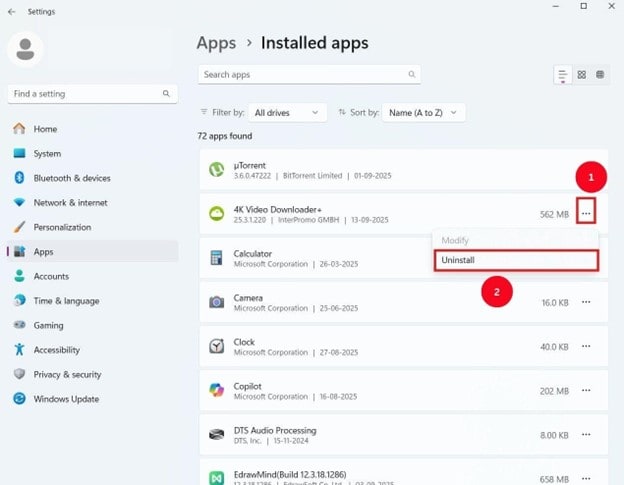
- On Windows, open Settings > Apps > Installed apps, locate the exact 4K Download product, and uninstall it. On Mac, follow the publisher’s uninstall guidance for that product.
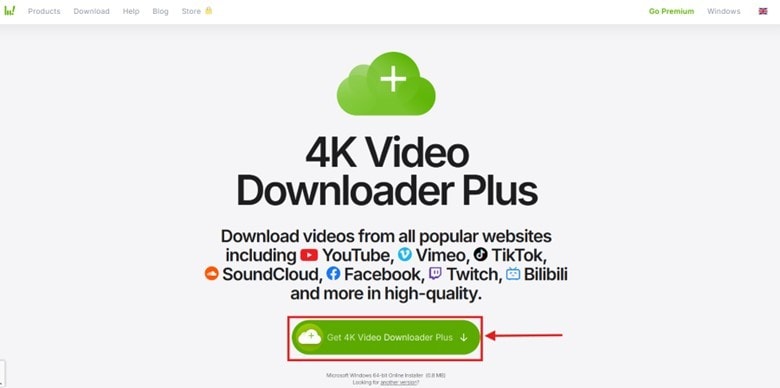
- Install the correct app from the official downloads page, then test one public, supported video.
If an ordinary reinstall leaves the same fault, follow the publisher’s app-specific reset guidance with support rather than deleting unrelated registry entries or system folders.
Fix 12: Report an Unknown Error to 4K Download Support
To report a bug in 4K Video Downloader, use the publisher’s troubleshooting page’s support contact. Send the affected URL, exact error screenshot, product and version, operating system/build, and the checks already completed. Do not send passwords or publish license keys.
For a 4K Downloader unknown error, also state whether the title appeared, format choices loaded, progress moved beyond 0%, or a file was created. Those details give support a reproducible starting point. If several videos from one site fail after an update, describe that pattern instead of assuming that every local setting is damaged.
Save Supported Videos, Then Convert for Your Device
Part 3. 3 Alternatives for Downloading, Conversion, and Playback
Choose an alternative according to what failed. A second downloader may help with a supported public source; a player or converter helps only after you have a usable local file. No alternative guarantees access to an unavailable video.
1. Wondershare UniConverter
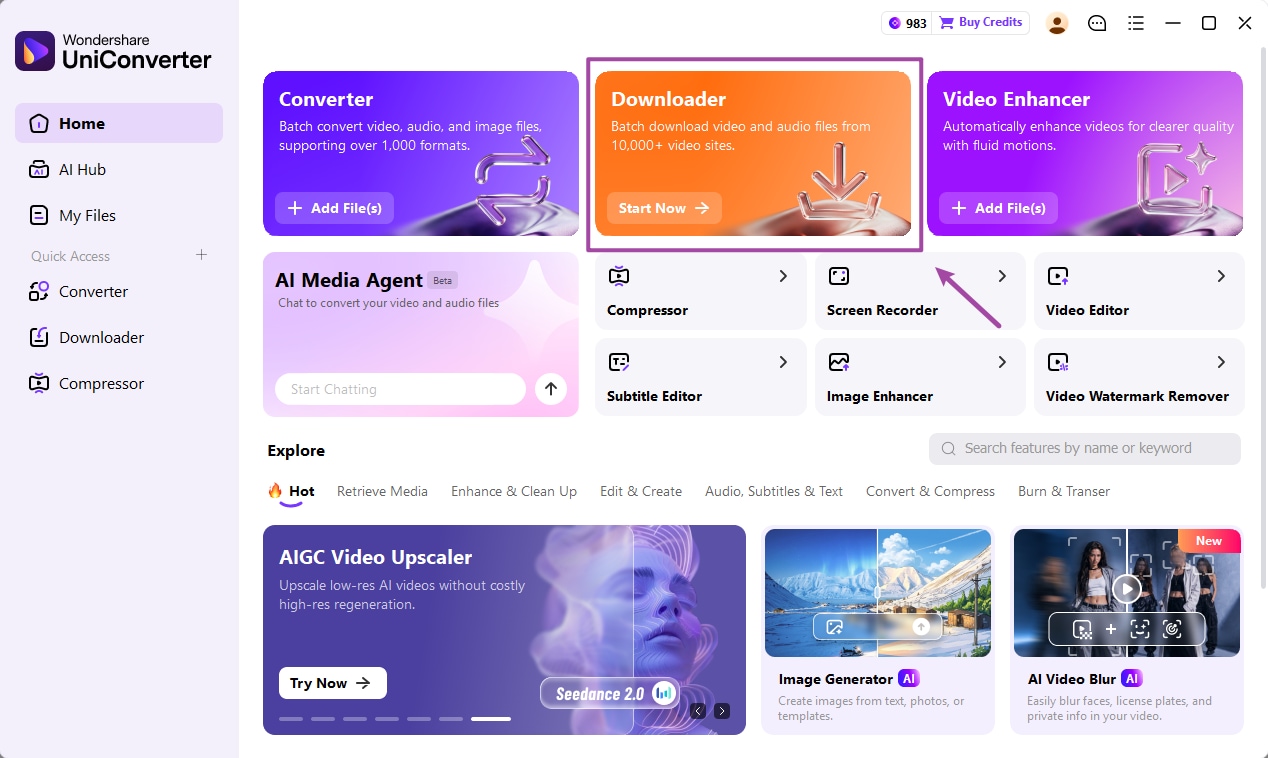
UniConverter is useful when you want a desktop download queue and a conversion step for complete files. For a supported public URL you are authorized to save, follow the official Downloader guide:
- Open Downloader from Home or the left navigation.
- Paste the URL into the input field. For several supported links, enter one per line. Keep Download Video selected, then click Download.
- Check progress in Downloading, then open Finished and the saved file location. Use Save to to change the destination.
If a complete file needs conversion, open Converter, choose Add Files, select an output in Convert to, and click Convert All. Check the result in Finished. Verify duration, audio, and playback on the target device. Source compatibility still determines whether a URL can be downloaded; conversion cannot supply missing source data.
Save Supported Videos, Then Convert for Your Device
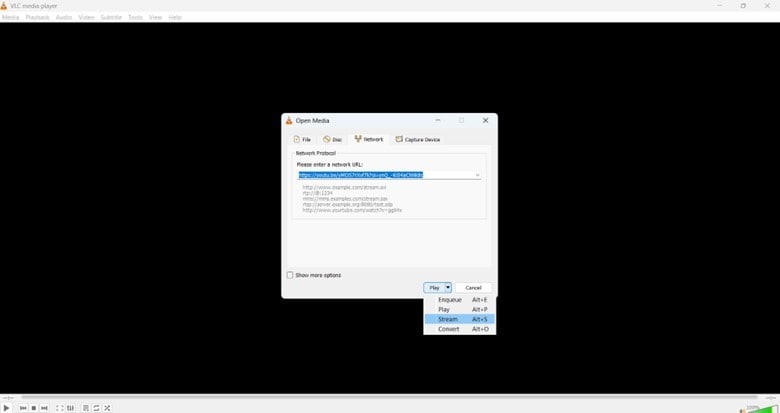
2. VLC media player
Use VLC to check a downloaded file in another player. If it plays correctly there, you have a useful clue that the original playback app or device has a compatibility issue. VLC is not a universal video-page downloader, and success with local playback does not establish that it can retrieve a particular website URL.
3. yt-dlp
yt-dlp is an open-source command-line downloader for users comfortable with installation, dependencies, and diagnostic output. Its official project is on GitHub; a similarly named online form is a separate service. Site support and extractor behavior can change, so it is an advanced alternative rather than a guaranteed fix for every URL.
| Tool | Useful for | Practical limitation |
|---|---|---|
| UniConverter | Supported URL downloads followed by local conversion | Cannot recover a missing source stream through conversion |
| VLC media player | Checking local playback in a second player | Not a universal webpage downloader |
| yt-dlp | Command-line download workflows and diagnostics | Requires technical setup; support varies by site |
Conclusion
When 4K Video Downloader fails to download, identify the stage first: URL parsing, media transfer, writing the output, or playing the saved file. Start with the matching fix, keep a record of the result, and escalate a reproducible error to support. Use UniConverter when a supported download-and-convert workflow fits, or a second player when the file is already complete.
FAQs
Why did 4K Video Downloader fail to download?
The message can reflect a source-site change, an unavailable video, a connection interruption, or a file-saving problem. If no format choices load, investigate parsing first. If the video is recognized but the transfer fails, check the connection and destination folder before reinstalling.
Why can’t 4K Video Downloader find a valid format?
The app has not offered a usable option for that video. Update the app, confirm the full individual video URL, and inspect the choices in Manual Mode. Choose only a format and quality that appears; renaming a file or freeing disk space does not create an unavailable stream.
Why is 4K Video Downloader stuck on retrieving information?
If the title and download choices never appear, the task has not completed the information or parsing stage. Check the URL and source availability, update the app, and compare one other supported public video. If the title appears but progress stays at 0%, check the transfer and save location instead.
Why is 4K Downloader only downloading 10 seconds?
Check whether the source itself is a short clip, then compare its full duration with the saved file in two players. A genuinely short output needs a fresh download of the full authorized source URL. If only one player stops early, investigate playback compatibility. Conversion cannot restore missing footage.
Why does 4K Video Downloader say “not activated”?
Confirm the exact application and the product named in the purchase confirmation. The original 4K Video Downloader and Plus have different licensing paths. The publisher states that a license upgraded to Plus cannot then activate the original application. Use the publisher’s license recovery or support for a rejected key.
Is 4K Video Downloader completely free, and what is the daily limit?
4K Video Downloader Plus offers a free tier with quantity limitations. The allowance depends on the product and plan; the limit shown in the installed app and the publisher’s current plan details apply. A reached download allowance is different from a parsing error, and upgrading does not guarantee that an unavailable video will work.
Why does it download only 1080p instead of 4K?
Check that the source offers 4K and that saved Smart Mode settings are not selecting a lower resolution. Inspect Manual Mode options; some high-resolution choices may be available in MKV rather than MP4. A 4K label in a video title does not prove that a downloadable 4K stream is available.
Why does a downloaded video have no audio or fail to play?
Test the saved file in a second player. If it works there, convert the complete file to a format supported by the target device. If both players show missing audio or an incomplete duration, obtain a complete authorized source file; conversion cannot add a source track that was never saved.
How do I report a 4K Video Downloader unknown error?
Send the affected URL, error screenshot, exact product and version, operating system/build, and completed checks through the publisher’s support page. Include whether format choices appeared, progress moved beyond 0%, and a local file was created. Keep passwords and license keys out of public reports.
Sources: 4K Download troubleshooting; license upgrade FAQ; Plus product and free-tier details.

