


In the fast-paced world of social media, Facebook Reels have become a primary source of entertainment, education, and inspiration. However, Meta does not provide a direct "Save" button for every video, leaving many users searching for a reliable Facebook Reels save by link solution.
This guide dives deep into the four most effective methods to save Facebook Reels by link, ranging from professional software to quick online fixes. By mastering these tools, you can build your offline library, share content across platforms, and ensure you never lose your favorite clips to a refreshed news feed.
In this article
Part 1. Method 1: Batch Process Facebook Reels Saver
UniConverter
When you need a robust, professional-grade solution for you to Save Facebook Reels by link, Wondershare UniConverter stands out as the industry leader. Unlike basic online tools that handle one file at a time, UniConverter is designed for power users who demand efficiency and quality. It is the ultimate choice for content creators and archivists because of its unique ability to save FB Reels link in batches and convert Facebook videos to MP4 —meaning you can save entire playlists or multiple links simultaneously without waiting. Not limited to downloading Facebook videos, it can offer you with Facebook audio downloading solution. Furthermore, it ensures your saves are free from intrusive ads and can be saved in stunning 4K or even 8K resolution where available. Beyond just video, it offers the flexibility to extract high-fidelity audio (MP3), making it a versatile tool for every media need.
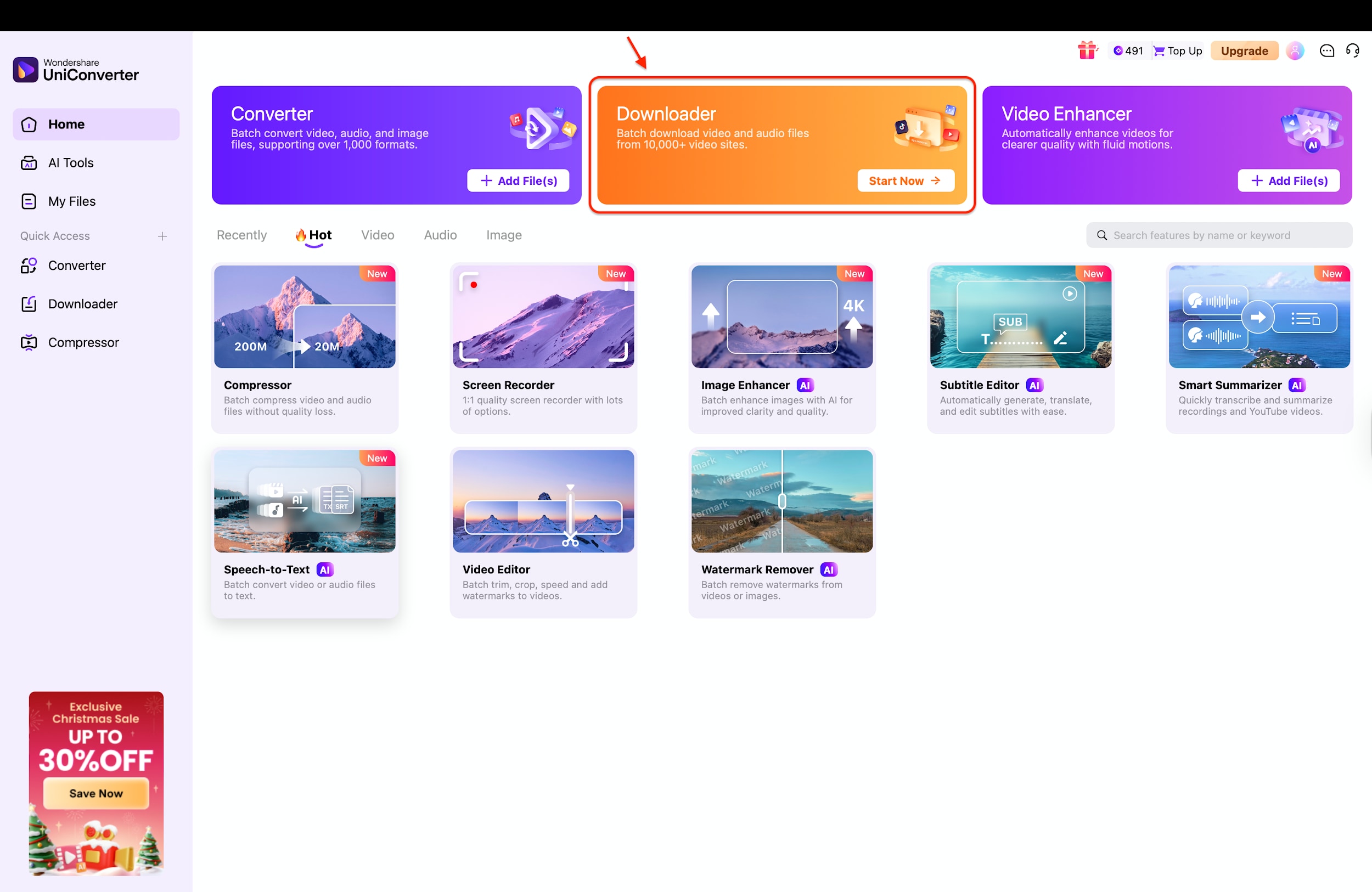
Step-by-Step Guide to Batch Save Reels
Step 1: Launch UniConverter and Select Saver
Save and install Wondershare UniConverter 17 (or the latest version) on your Windows or Mac computer. Launch the software to access the main Home interface. From the grid of available tools, click on the "Saver" card. This specialized section is optimized to handle high-speed video extraction from thousands of sites, including Facebook.
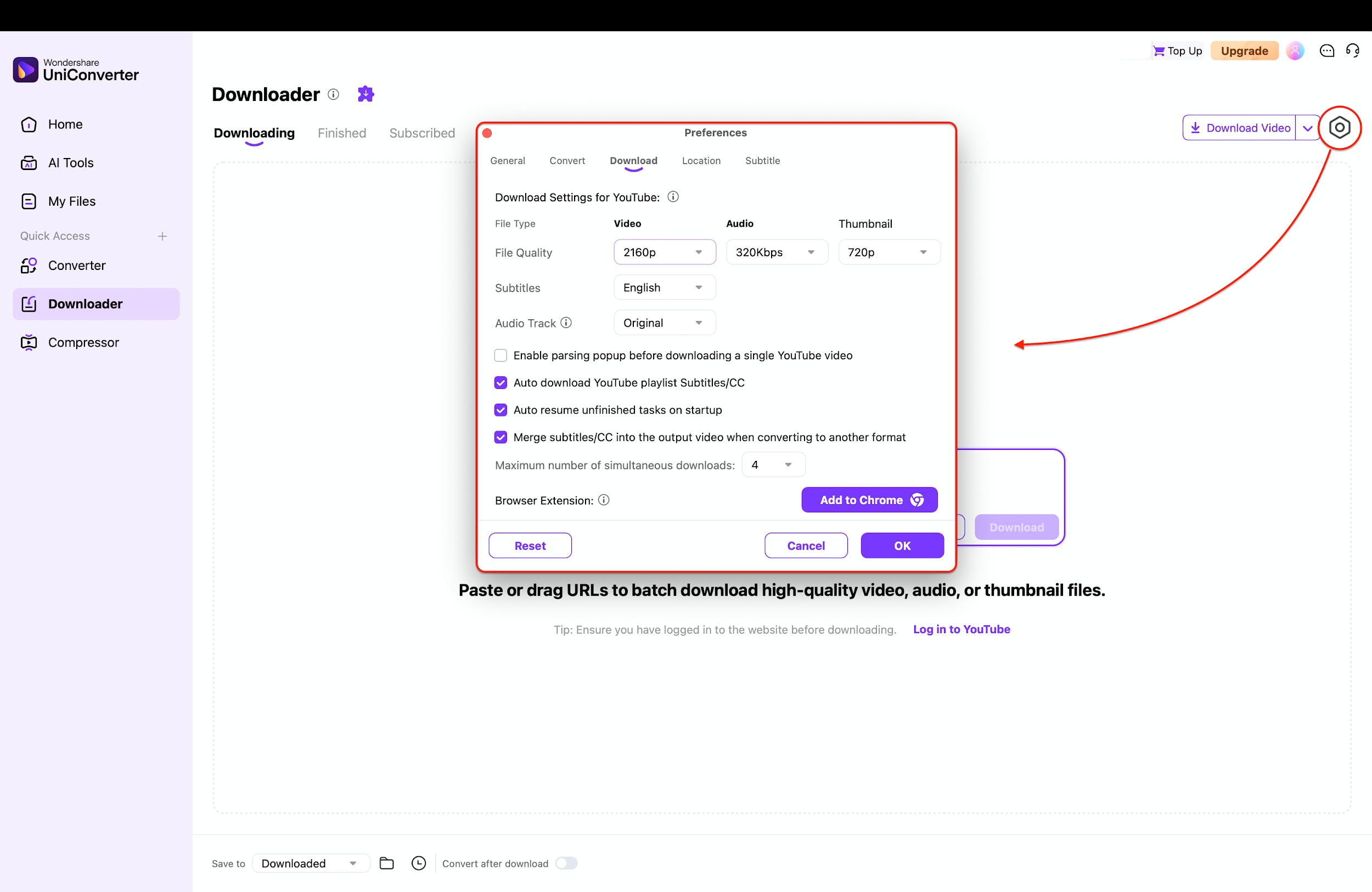
Step 2: Set High-Quality Save Preferences
Before pasting your links, it is recommended to configure your quality settings to ensure you get the best resolution (up to 4K/8K). Click the Settings (Gear) icon in the top-right corner of the Saver interface. In the "Save" tab, you can set your preferred "File Quality" (e.g., 2160p), default subtitle language, and even enable "Merge subtitles/CC" to burn captions directly into the video. Click OK to save these settings.
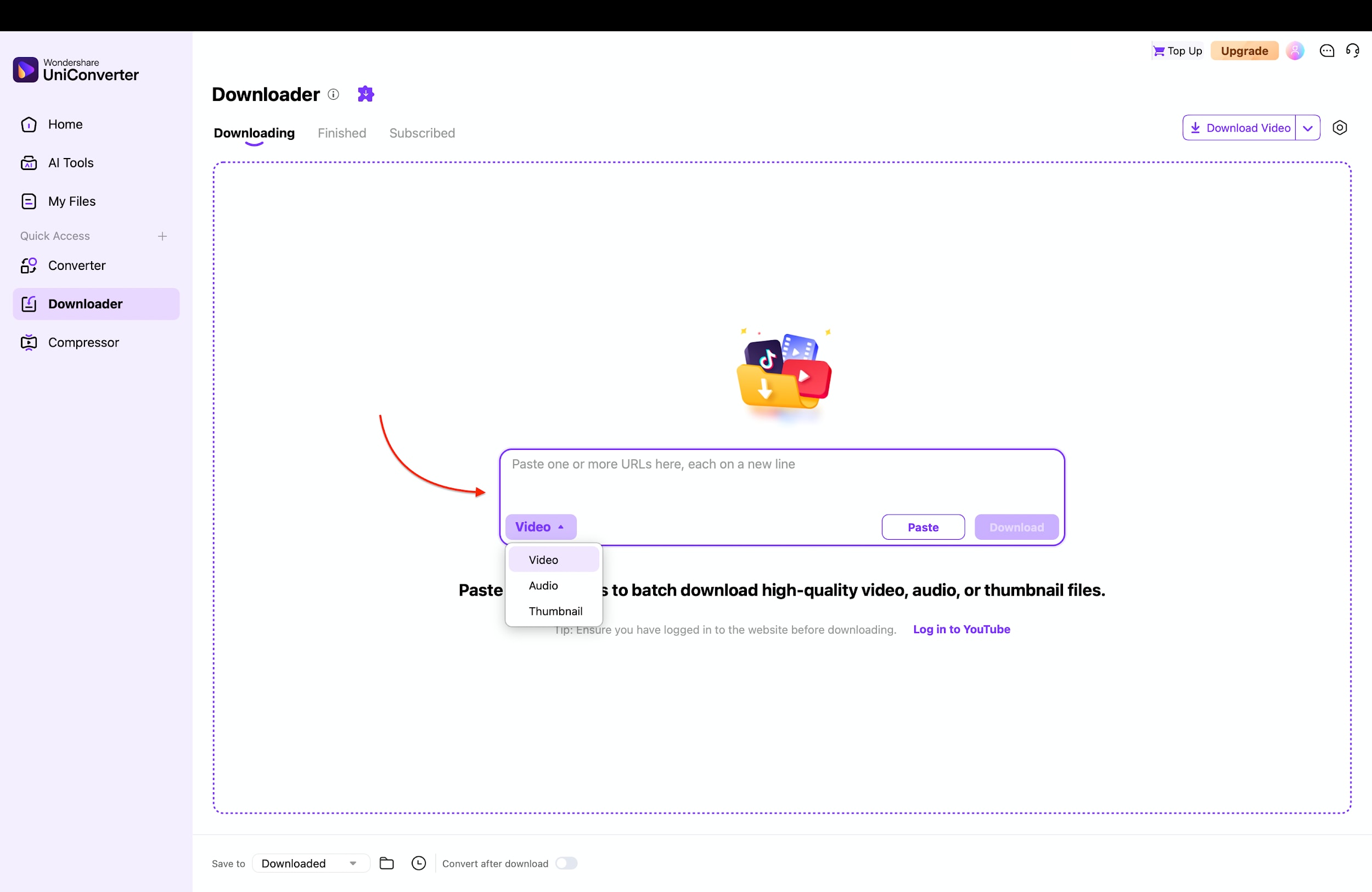
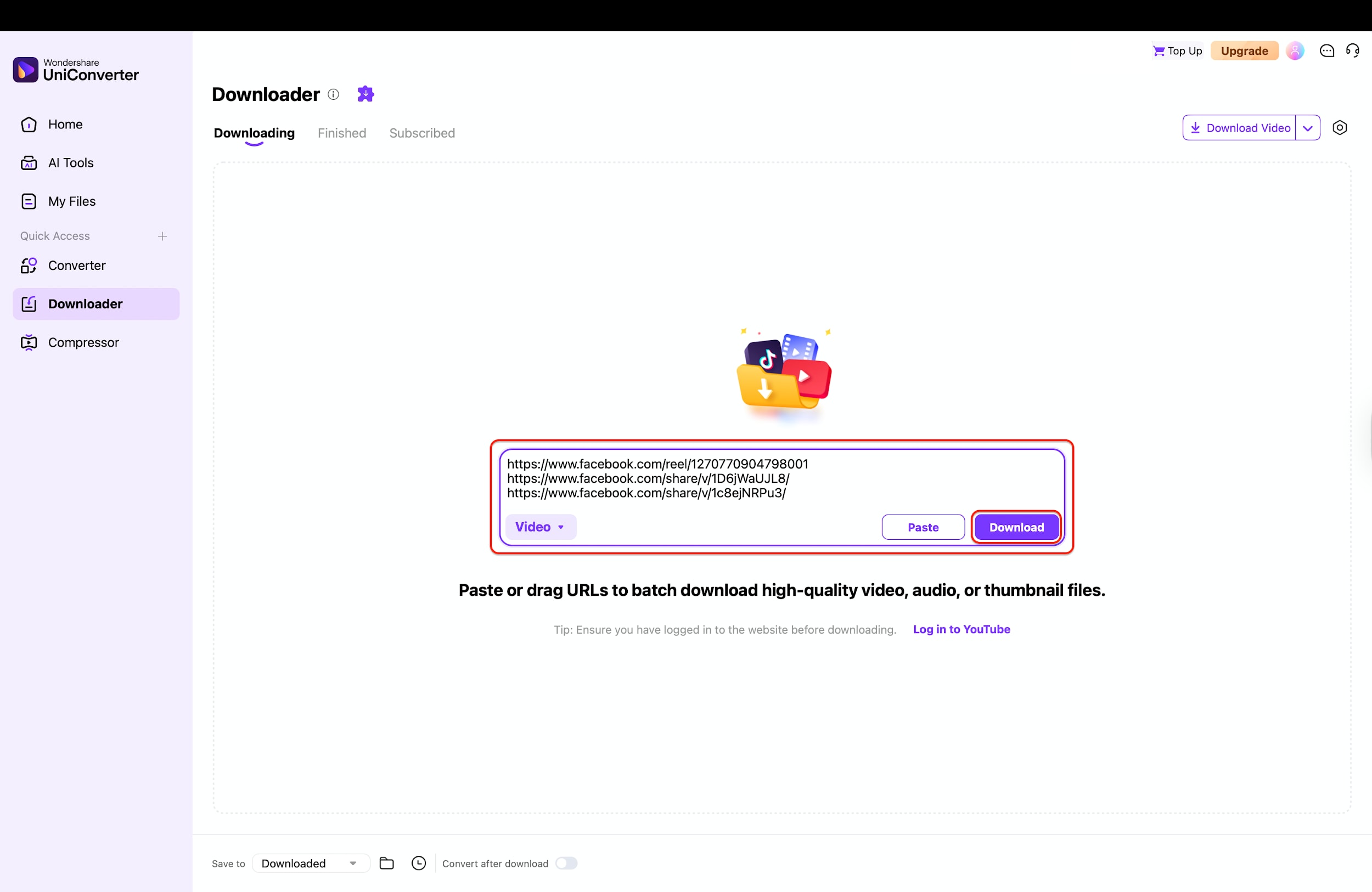
Step 3: Paste Multiple Reel Links
Return to the Saver interface. Click the "Paste Link" icon or the document icon in the upper-left area. A dialog box will appear allowing you to paste multiple Facebook Reels copy link save URLs (one per line). In this dialog, you can also use the dropdown menu to choose whether to save the "Video", "Audio" (MP3), or just the "Thumbnail".
Step 4: Start Batch Save
Once you paste your links and click "Save," the software will parse the URLs and list them in the queue. You will see a batch list of your videos with their file sizes and durations. Click the "Save" button (or "Start All") to begin the process. Thanks to UniConverter's high-speed engine, your FB link Reels saving tasks will process simultaneously, saving them to your designated folder.
Pros and Cons
Pros:
- Batch saveing allows you to save unlimited Reels simultaneously to save time.
- Supports high-quality saves up to 4K and 8K resolution.
- Provides a 100% clean interface with no pop-ups or malware risks.
- Easily extracts audio to convert video links directly to MP3.
Cons:
- Requires software installation on a PC or Mac.
- Full speed and batch features require a license (Free trial available).

Stable Facebook Reels Link Downloader You Can Trust
Part 2. Method 2: Online Facebook Reels Saver
SnapSave
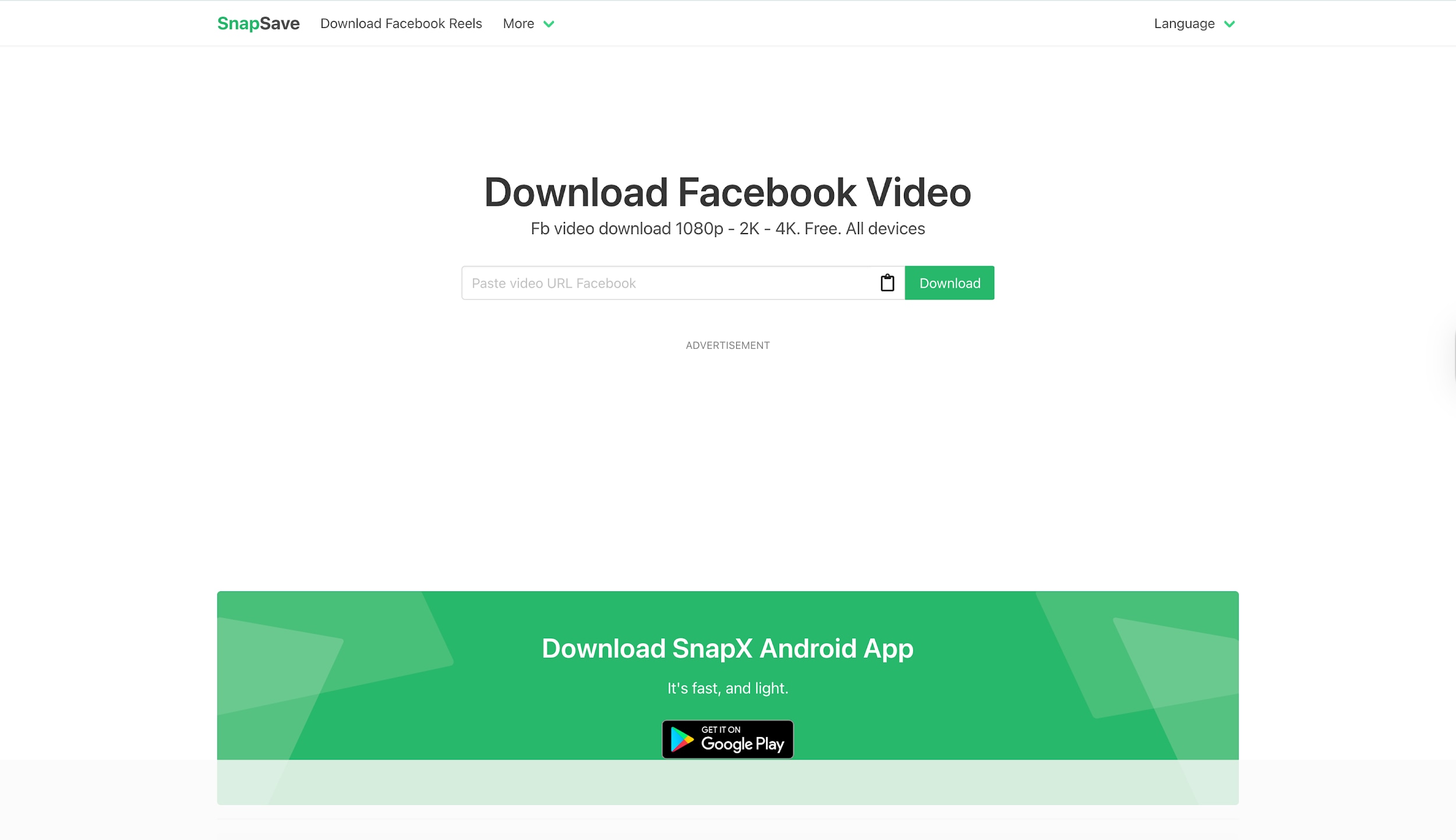
For users who need a quick, on-the-fly solution without installing software, SnapSave is a highly popular online tool to save Facebook Reels by link. It operates entirely within your web browser, making it accessible from computers, tablets, and smartphones alike. SnapSave specializes in processing Facebook Reels copy link save requests rapidly, often providing video quality up to 1080p Full HD. It is an excellent choice for the casual user who wants to grab a single video to share with a friend on WhatsApp or keep for personal viewing. However, users should be aware that as a free service, it relies on advertising revenue, so navigating through ads is part of the experience.
Step-by-Step Guide to Using SnapSave
Step 1: Get the Reel Link
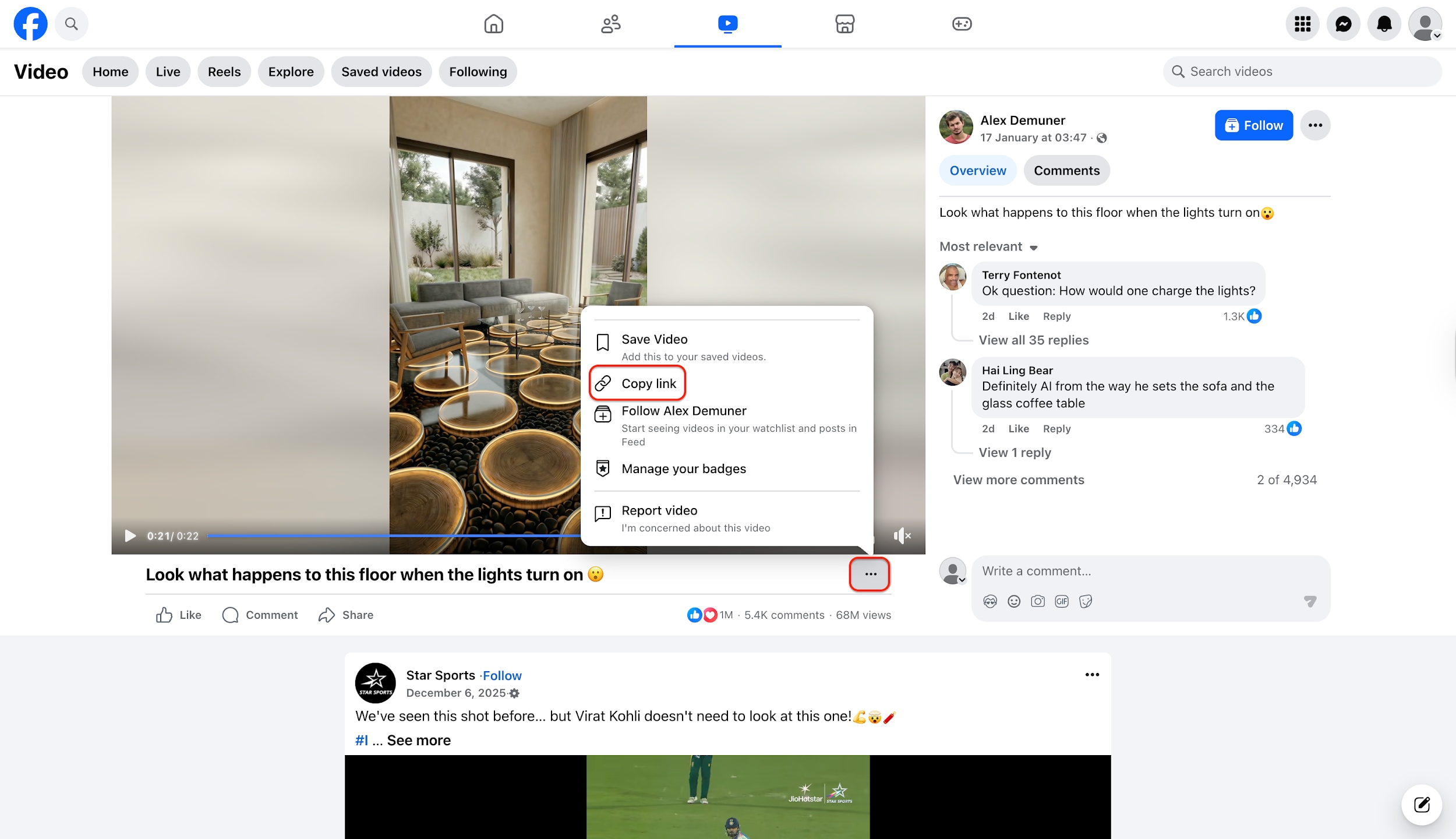
First, navigate to the specific Facebook Reel you wish to save using your preferred web browser or the mobile app. Locate and click on the three horizontal dots (...) or the "Share" button associated with the video post to open the options menu. From the list of available actions, select "Copy link" to save the video's unique URL to your clipboard for the next step.
Step 2: Paste the Link on SnapSave
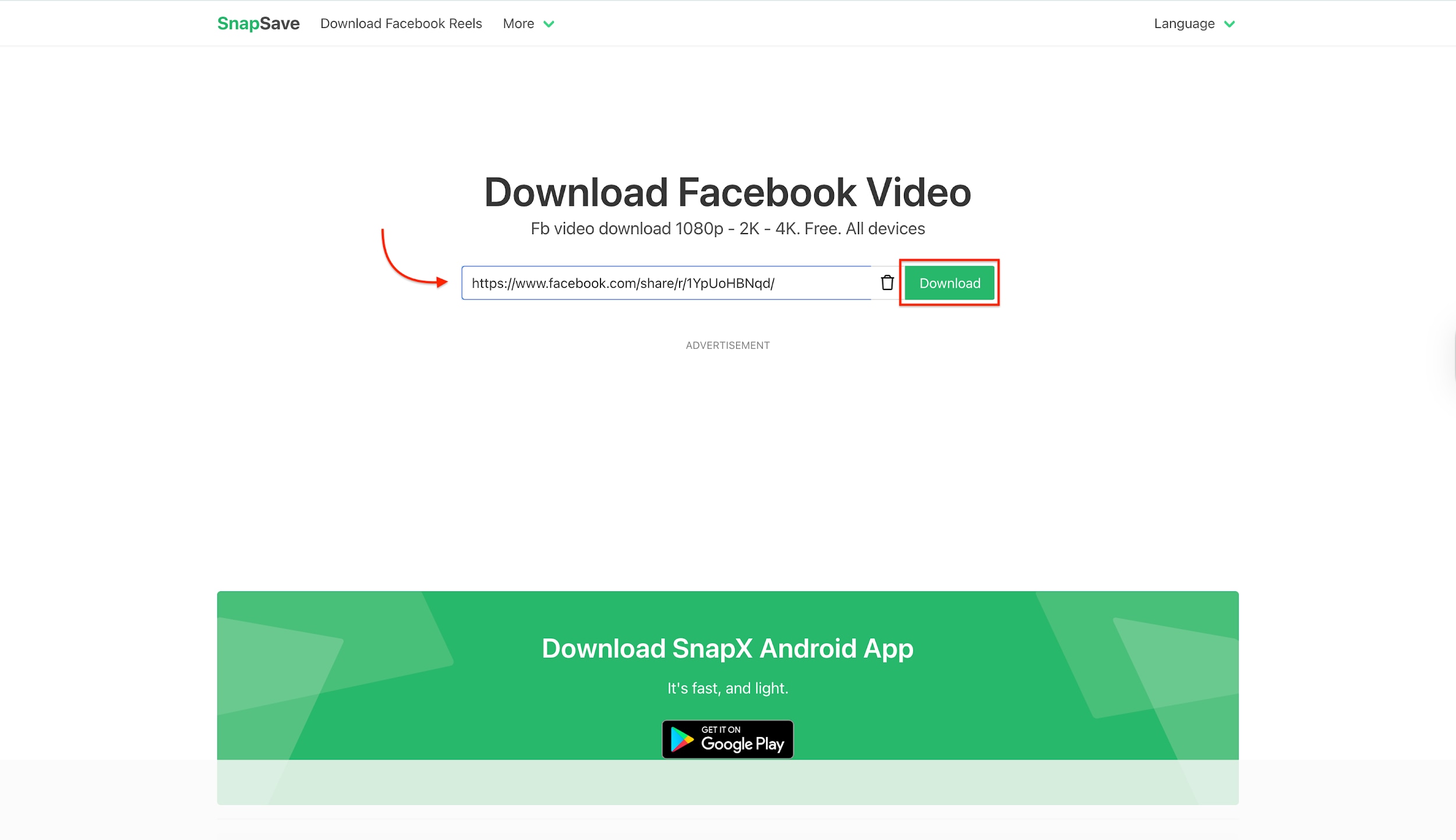
Open a new tab in your browser and visit the official SnapSave website. In the prominent white input box at the center of the page, right-click and paste the save link FB reel you just copied. Once the link is inserted, click the green "Save" button located next to the text field to initiate the video search process.
Step 3: Select Quality and Watch Ad
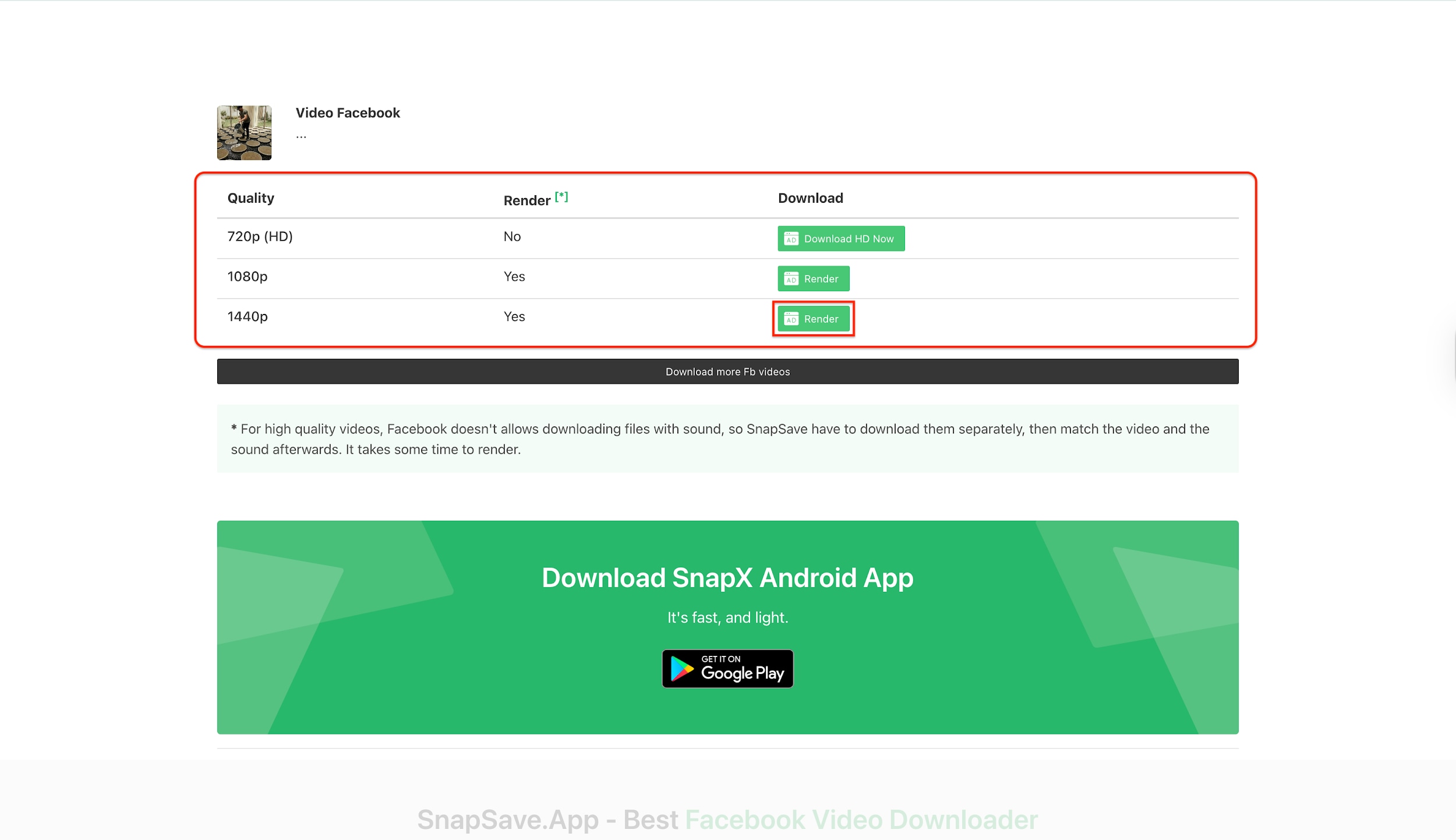
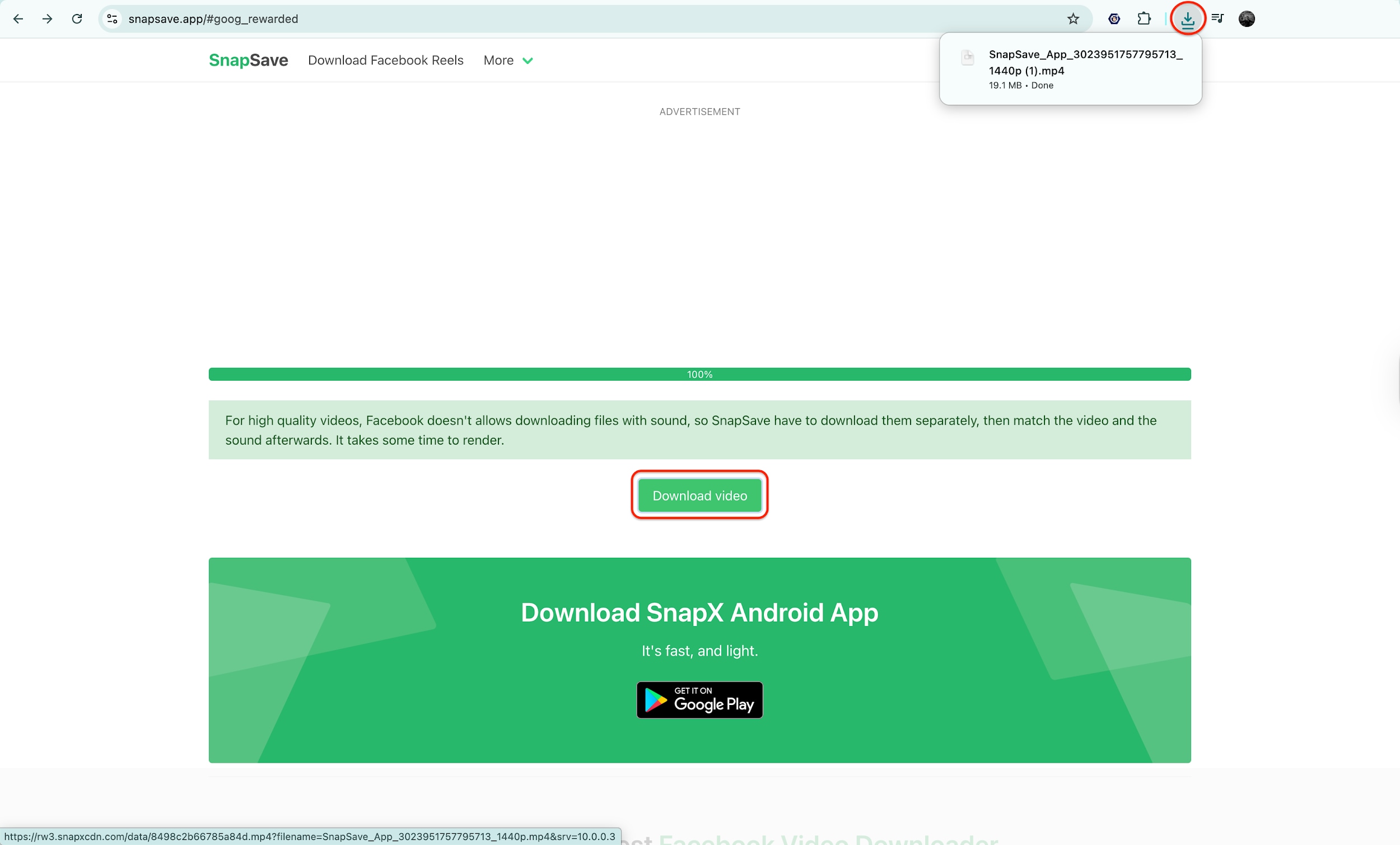
Identify your desired video resolution (e.g., 1080p) from the list and click the green "Render" button next to it. Upon clicking, a video advertisement of approximately 30 seconds will automatically play on your screen while the server prepares your file. You must wait for this 30-second commercial to finish playing completely before the tool will allow you to proceed to the final save.
Step 4: Save the Final Video File
Once the 30-second video advertisement concludes, the interface will update to reveal the final "Save video" button. Click this newly appeared button to instantly save the Facebook Reels link save file to your device's default storage folder. If any additional pop-ups appear during this final click, simply close them to ensure your file saves correctly.
Pros and Cons
Pros:
- Works directly in any browser (Chrome, Safari, etc.) with no installation required.
- Usable on all major platforms including Android, iPhone, Windows, and Mac.
- Free to use for basic single-file saves.
- Simple interface that is very easy for beginners to understand.
Cons:
- Frequent pop-ups and banner ads can be intrusive and annoying.
- Online servers process your link, which is less secure than local software.
- Save speeds can be inconsistent based on server load.
Part 3. Method 3: Mobile Facebook Reels Saver Apps
Video Downloader for Facebook
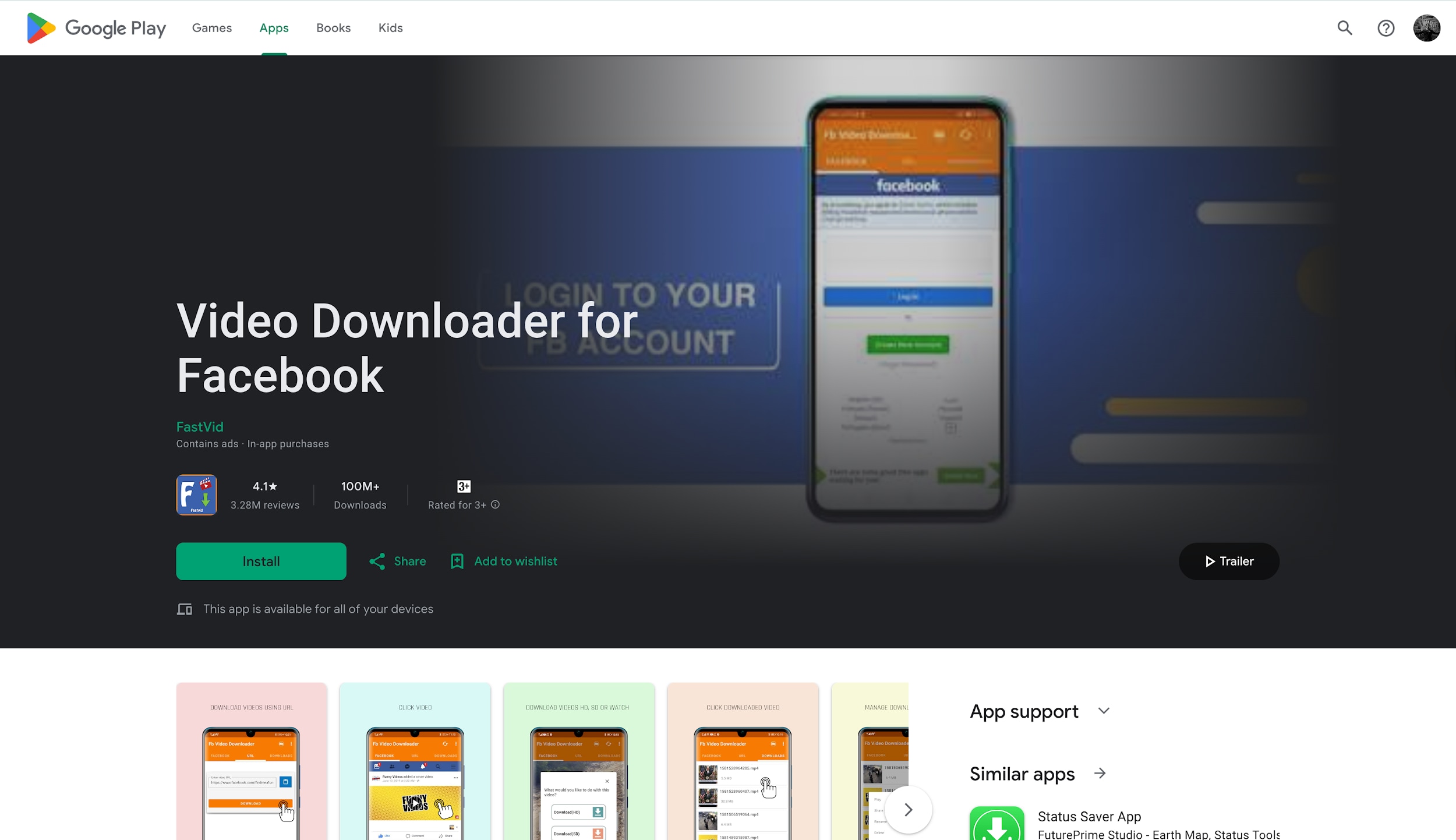
If you are a mobile-first user who constantly browses Facebook on your phone, a dedicated app might be the most convenient way to save Reels from Facebook link. Apps like "Video Saver for Facebook" (Android) bridge the gap effectively. It often allows you to link to save Facebook Reels directly into your phone's gallery, eliminating the need to transfer files from a computer. It is perfect for social media managers or enthusiasts who want to repost content quickly (with permission) or save data by viewing videos offline. While convenient, be mindful that many free apps on the Play Store or App Store are ad-supported.
Step-by-Step Guide (Mobile App)
Step 1: Install the App from Play Store
Open the Google Play Store on your Android device and search for "Video Saver for Facebook" or use the direct link provided above. specific app developed by the relevant publisher (often listed as generic names like "Video Saver") and tap the "Install" button to begin the save. Wait for the installation to complete and the app icon to appear on your home screen before proceeding.
Step 2: Copy the Reel Link on Facebook
Launch your official Facebook app and navigate to the specific Reel you wish to save for offline viewing. Tap on the "Share" button (arrow icon) or the three dots located at the bottom or side of the video player. From the menu that slides up, select the "Copy link" option to save the video's URL to your phone's clipboard.
Step 3: Paste Link in the Saver App
Open the "Video Saver for Facebook" app you just installed; it may automatically detect the link you just copied from your clipboard. If it does not auto-detect, tap the specific field labeled "Paste Link" and insert the URL manually. Click the "Save" button to let the app fetch the video details from the Facebook servers.
Step 4: Save to Gallery
Select your preferred video quality, such as "HD Video" or "SD Video," from the options that appear after processing. The app will immediately start saveing the file, which will be saved directly to your phone's "Gallery" or "Saves" folder. Once finished, you can watch the Reel offline or share it via other apps without using any mobile data.
Pros and Cons
Pros:
- Saves videos instantly to your phone's camera roll or gallery.
- Eliminates the need to switch to a computer or open a browser.
- Smart clipboard detection speeds up the process significantly.
- Perfect for watching Reels on the go without consuming mobile data.
Cons:
- Some poorly optimized apps can drain battery and data in the background.
- Free versions are often cluttered with full-screen ads.
- Apps are frequently removed from Apple/Google stores for policy violations.
Part 4. Method 4: Facebook Reels Saver Chrome Extension
Video Downloader Plus
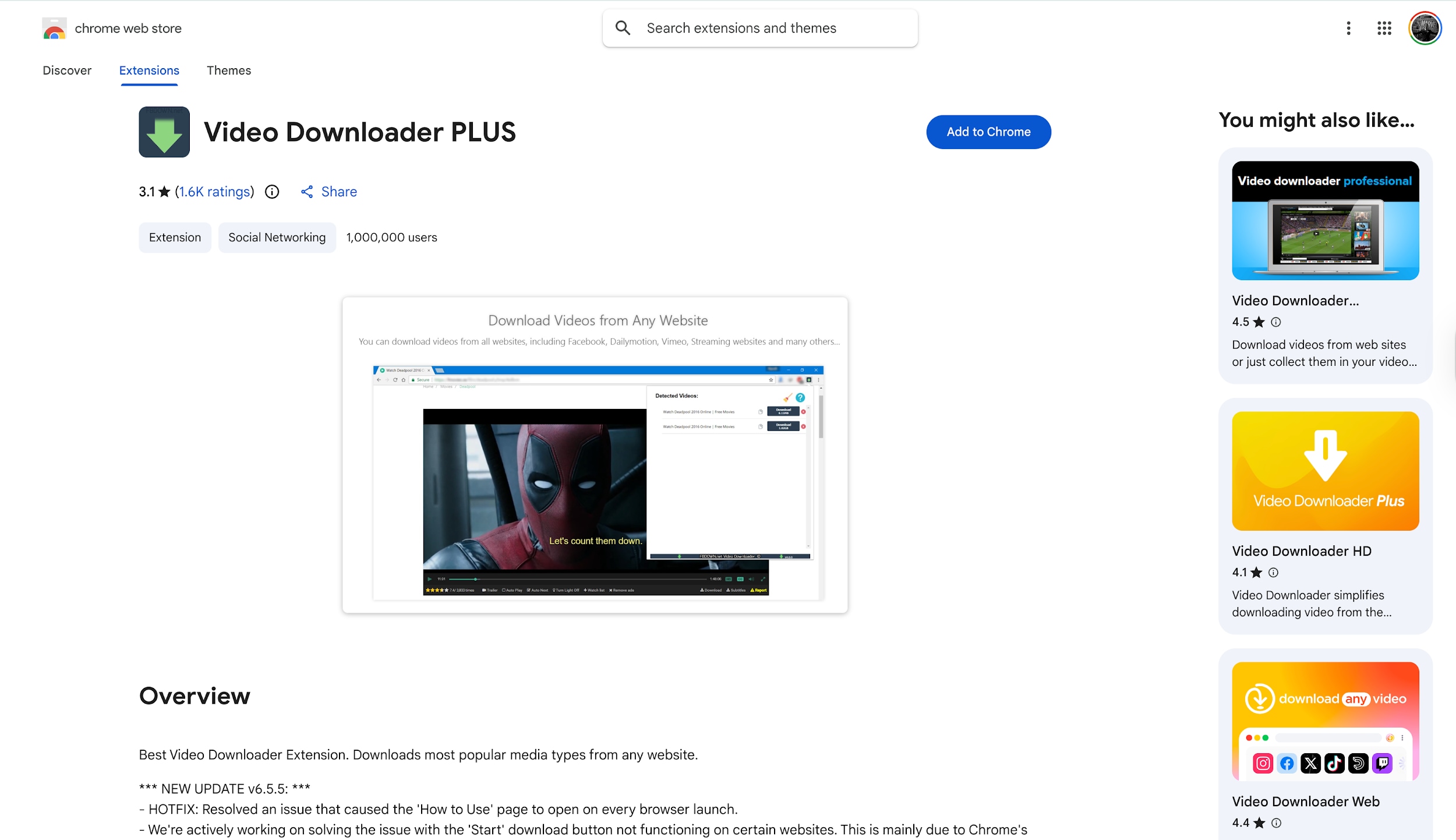
For desktop users who want the fastest possible workflow, a browser extension is a game-changer. Extensions like "Video Saver Plus" integrate directly into your browser, allowing you to save Facebook Reels by link while you surf. You don't need to copy-paste URLs manually or visit third-party websites. Once installed, a small save icon appears over the video or in your browser toolbar whenever a Reel is playing. This method is incredibly efficient for users who want to curate a collection of videos rapidly without leaving the Facebook tab. It streamlines the Facebook link save Reels process into a single click.
Step-by-Step Guide (Video Saver Plus)
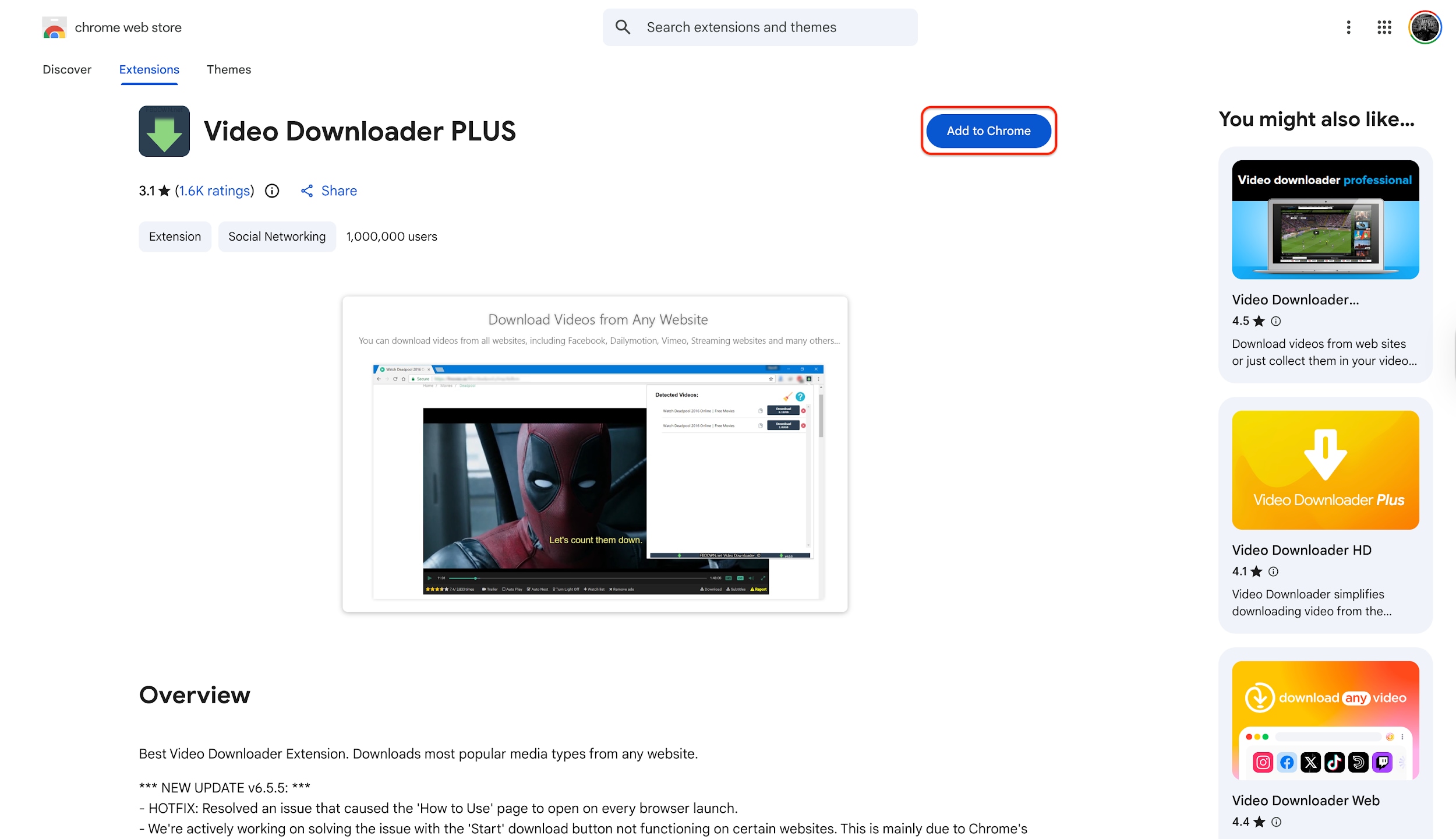
Step 1: Add Extension to Chrome
Visit the Chrome Web Store and search for "Video Saver Plus" to locate the official extension page. Click the blue "Add to Chrome" button on the right side of the screen to begin the installation process. A confirmation pop-up will appear; simply accept it to install the tool into your browser's toolbar.
Step 2: Play the Reel on Facebook
Navigate to Facebook and start playing the Reel or video you wish to save to your computer. The extension requires the media to be actively playing in your tab for it to detect the source file correctly. Ensure the video is not muted if you want to verify the audio track before saveing.
Step 3: Detect and Select Video
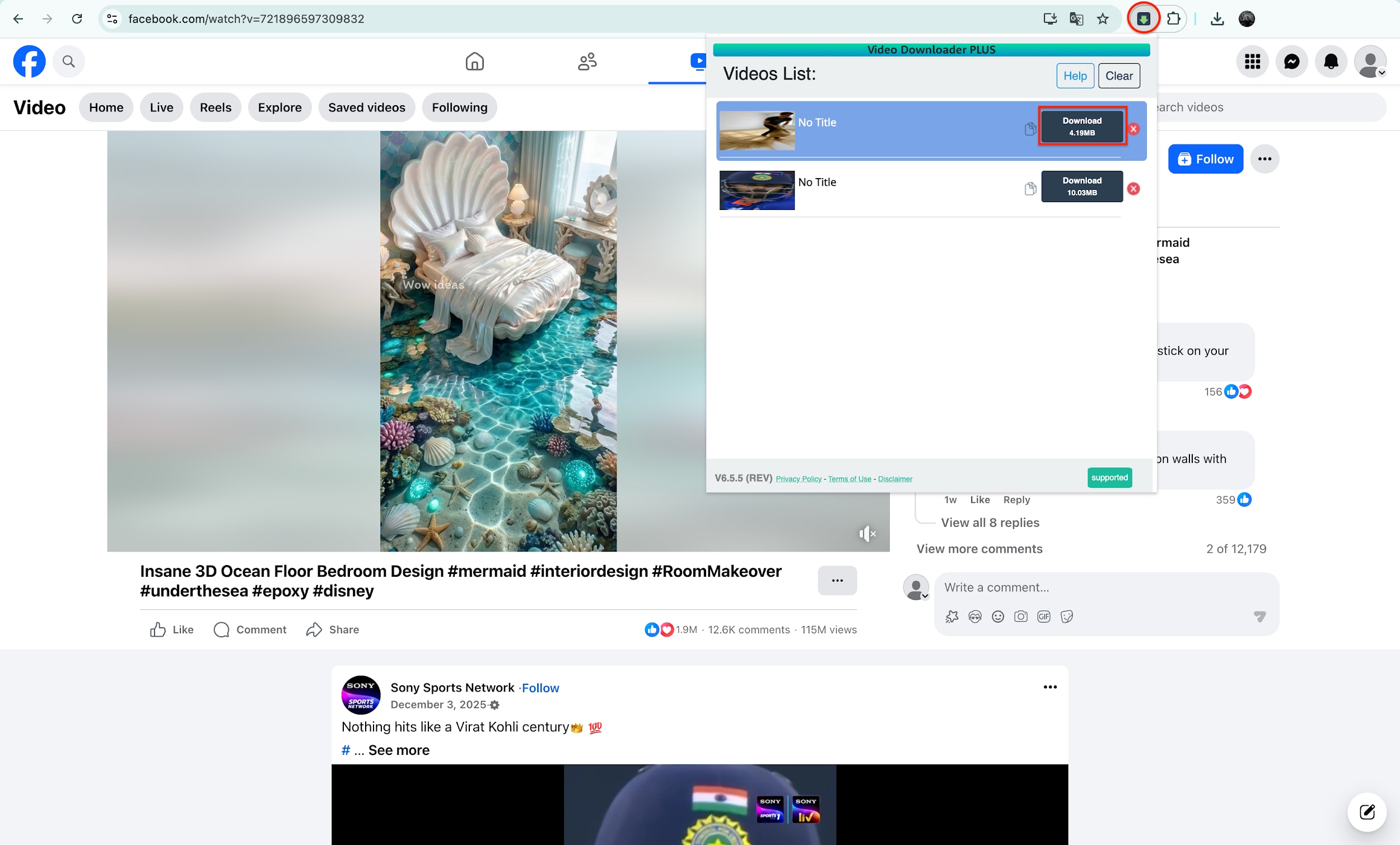
Click the extension's icon (a small arrow) in the top-right corner of your browser toolbar to reveal the detected videos list. A dropdown menu will appear showing all saveable media files found on the current page, along with their file sizes (e.g., 4.19MB, 10.03MB). Identify the correct video file by checking the size or thumbnail preview provided in the list.
Step 4: Save to Computer
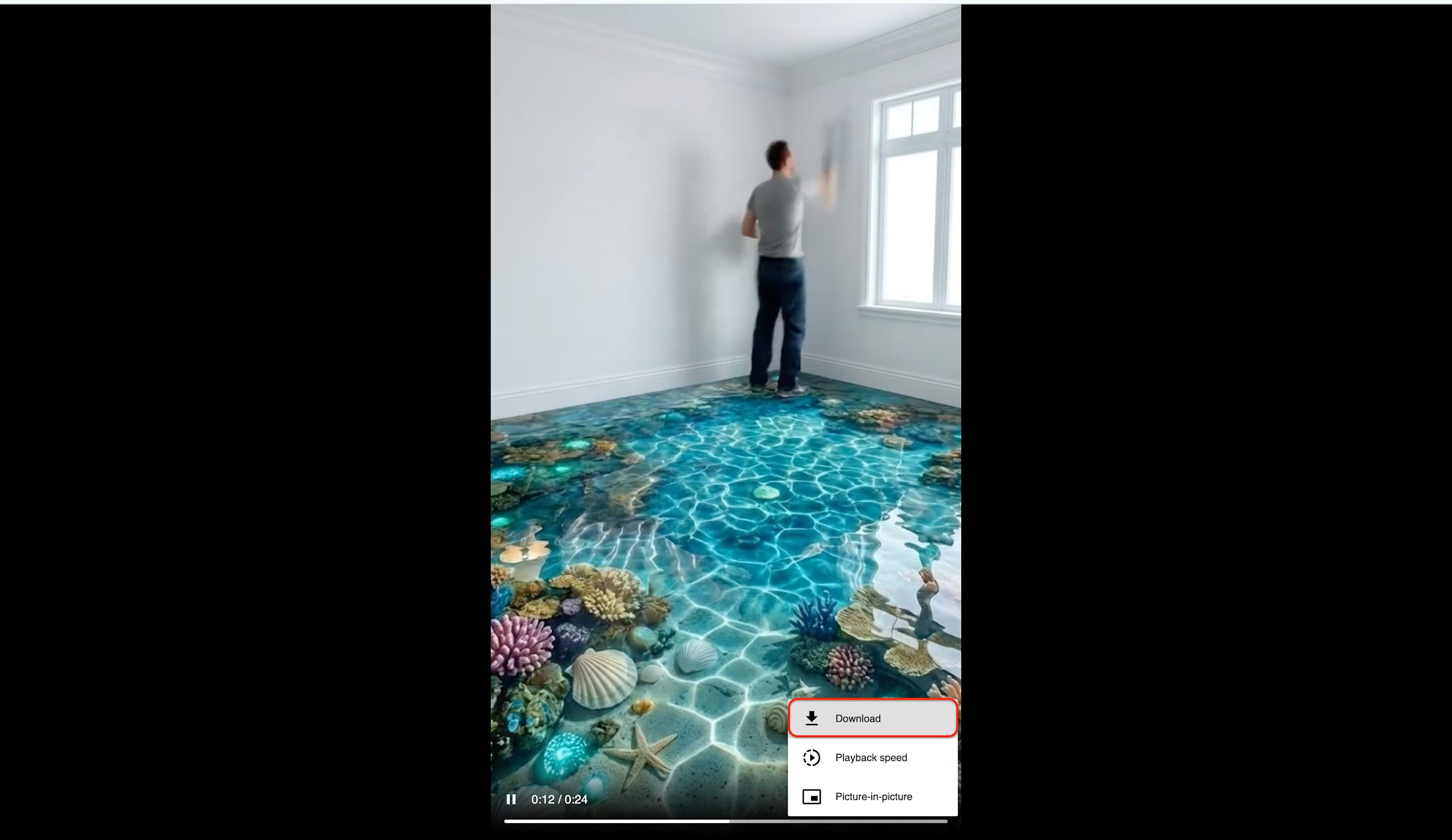
Click the blue "Save" button located next to your desired video file in the extension's list. The file will immediately begin saveing to your computer's default "Saves" folder without any further prompts. You can now open the file to watch your high-quality Facebook Reel offline whenever you like.
Pros:
- Enables one-click saves for the fastest desktop experience.
- Eliminates the manual step of copying and pasting URLs.
- Feels like a native part of the browser experience.
- Most extensions offer core features completely for free.
Cons:
- Does not work on the Facebook mobile app.
- Extensions require permission to read data on websites you visit.
- Facebook updates often break extension functionality temporarily.
Part 5. Important Precautions Before You Save
While tools to save Facebook Reels by link are powerful, they must be used responsibly. Here are critical factors to consider to ensure your safety and compliance.
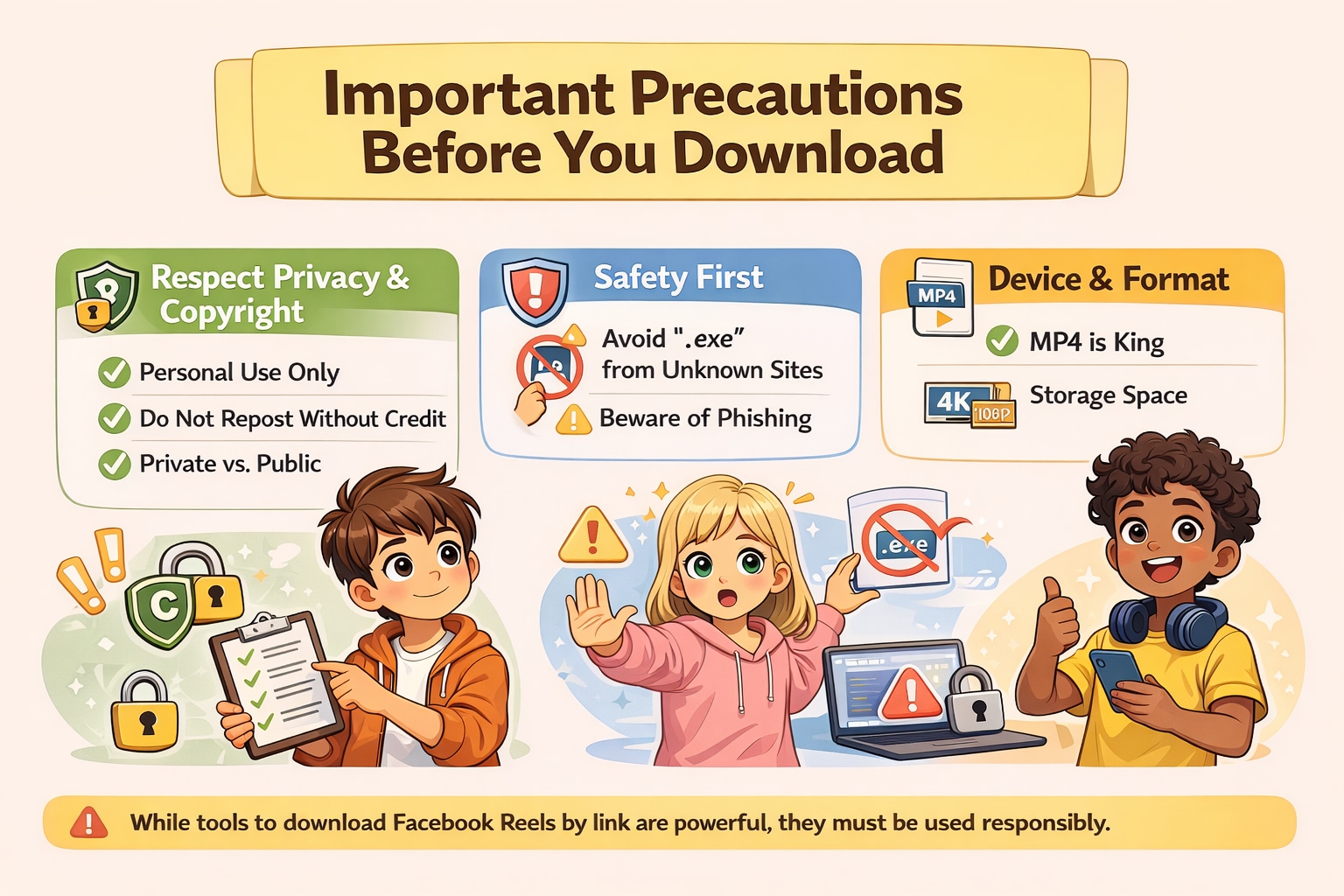
Respect Privacy & Copyright
Just because you can save link FB Reels content doesn't mean you own it. Creators put immense effort into their Reels.
Personal Use Only: Save videos for your own offline viewing or archiving.
Do Not Repost Without Credit: Never upload someone else's Reel to your own account (on FB, TikTok, or YouTube) without explicit permission or proper attribution.
Private vs. Public: Respect the privacy settings of the uploader. Avoid using tools to bypass privacy locks on private profiles.
Safety First
The internet is full of "free Savers" that are actually malware traps.
Avoid ".exe" from Unknown Sites: Only install software from reputable developers like Wondershare. If an online tool asks you to save an .exe file to save a video, cancel immediately.
Beware of Phishing: Never enter your Facebook password into a third-party Saver app or site. Legitimate tools like UniConverter or SnapSave do not require your login credentials to save public videos.
Device & Format
Ensure your device can play the files you save.
MP4 is King: Always choose MP4 format as it is compatible with almost every device (iPhone, Android, PC, TV).
Storage Space: 4K and 1080p videos take up significant space. If you are using a mobile app, ensure your phone has enough storage to accommodate your saveed library.
Conclusion
In this article, you've discovered various methods to save Facebook Reels by link effortlessly. From comprehensive software like Wondershare UniConverter to quick online tools like SnapSave and convenient mobile apps, there's something for everyone. Each option has its strengths and weaknesses, but one consistent factor is the importance of choosing the right tool for your specific needs—whether it's speed, quality, or convenience.
If you want an effective, safe, and professional solution, Wondershare UniConverter stands out as an excellent choice. Its advanced features allow you to batch download playlists, remove ads, and save videos in pristine 4K quality without the risks associated with free online tools.
FAQs
-
1. Is it legal to save Facebook Reels?
It is generally legal to save videos for personal offline viewing. However, redistributing, selling, or reposting the content without the creator’s permission may violate copyright laws and Facebook’s terms of service. -
2. Can I save private Facebook Reels by link?
Most standard Facebook Reels savers cannot access private Reels because they are restricted to specific audiences. You usually need account access to view them, and saving private Reels typically requires screen recording rather than a direct link download. -
3. Why do some saved Facebook Reels have no sound?
This often happens due to copyrighted music. If Facebook has muted the audio because of copyright claims, the saved video will also be silent. Another possibility is selecting a video-only stream in the saver settings without audio. -
4. How can I save Facebook Reels in 4K?
To save Reels in 4K, the original video must have been uploaded in 4K. If it was, professional tools like Wondershare UniConverter can detect and download the high-resolution source, while many online tools limit quality to 1080p. -
5. Is it safe to use online Facebook Reels savers?
Some online tools are safe, but many display aggressive ads or pop-ups that can be risky. For better privacy and security, dedicated desktop software like UniConverter is recommended, as it avoids ads and does not track browsing activity.

