


In the world of mobile video editing, InShot reigns supreme as a favorite for social media creators. But as we step into 2026, a burning question remains for many aspiring editors and content creators: Is there an official InShot for PC? While the convenience of editing on a phone is undeniable, the precision and power of a desktop setup are often necessary for professional results.
This comprehensive guide digs deep into the current status of the InShot desktop version, explains exactly how to get InShot for PC free download working via safe workarounds, and introduces you to powerful alternatives that might make you switch from mobile forever. Whether you are on Windows 10, Windows 11, or a MacBook Air, we have the solutions you need.
Quick Answer
No, InShot does not have an official native desktop app for Windows. To use it on a computer, you usually need an Android emulator, although a native desktop alternative is often more practical.
Table of Contents
Despite the massive popularity of the app, it is crucial to clarify the situation immediately: There is no official InShot for PC application. InShot is primarily developed and maintained as a mobile application, exclusive to iOS and Android operating systems.
As of 2026, the developers have not released a native .exe (for Windows) or .dmg (for Mac) file. Users searching for "InShot for PC free download" or "InShot desktop" should be extremely cautious. Any website claiming to offer a direct desktop installer for InShot is likely distributing fake software, which could contain malware or viruses. The only legitimate way to experience the InShot interface on a computer is through the emulation method we will discuss next.
Part 2. The Workaround: Using InShot on a PC with an Android Emulator
If you are determined to use the InShot app download for PC without switching software, the only reliable method is by using an Android emulator. An emulator is software that simulates an Android device on your computer, allowing you to run mobile apps on your InShot for Windows or Mac setup.
How to Run InShot on PC:
The only way to enjoy InShot on your computer is by using an Android emulator. This clever tool simulates a mobile phone on your desktop, letting you access the full app on a bigger screen without any complex hacks. Get set up in minutes with this simple 3-step guide:
Step 1: Download and Set Up the Emulator
Start by visiting the official website of a trusted Android emulator, such as BlueStacks or NoxPlayer, to download the free software for your Windows or Mac computer. Open the downloaded installer file and follow the simple on-screen instructions to set up the program, just as you would with any other PC software. Once the installation is complete, launch the emulator and wait a moment for it to load a screen that looks exactly like an Android tablet.
Step 2: Install InShot from the Play Store
Click the Google Play Store icon in the emulator window, then sign in with your standard Google account to access the app library. Type "InShot Video Editor" into the search bar at the top, select the official app, and click the "Install" button. The application will download automatically and appear on the emulator's home screen, ready for you to open just like on a smartphone.
Step 3: Import Your Videos and Start Editing
Open the InShot app. First, use the emulator's "Media Manager" or "Import" tool to drag and drop video files from your computer folders into the emulator's gallery. Once your photos or videos are successfully imported, tap "Video" in InShot to select them and add them to the main editing timeline. You can now use your mouse to click and drag to trim clips or add effects, enjoying the benefits of editing on a much larger screen.
Part 3. Why Consider an InShot Alternative for Desktop?
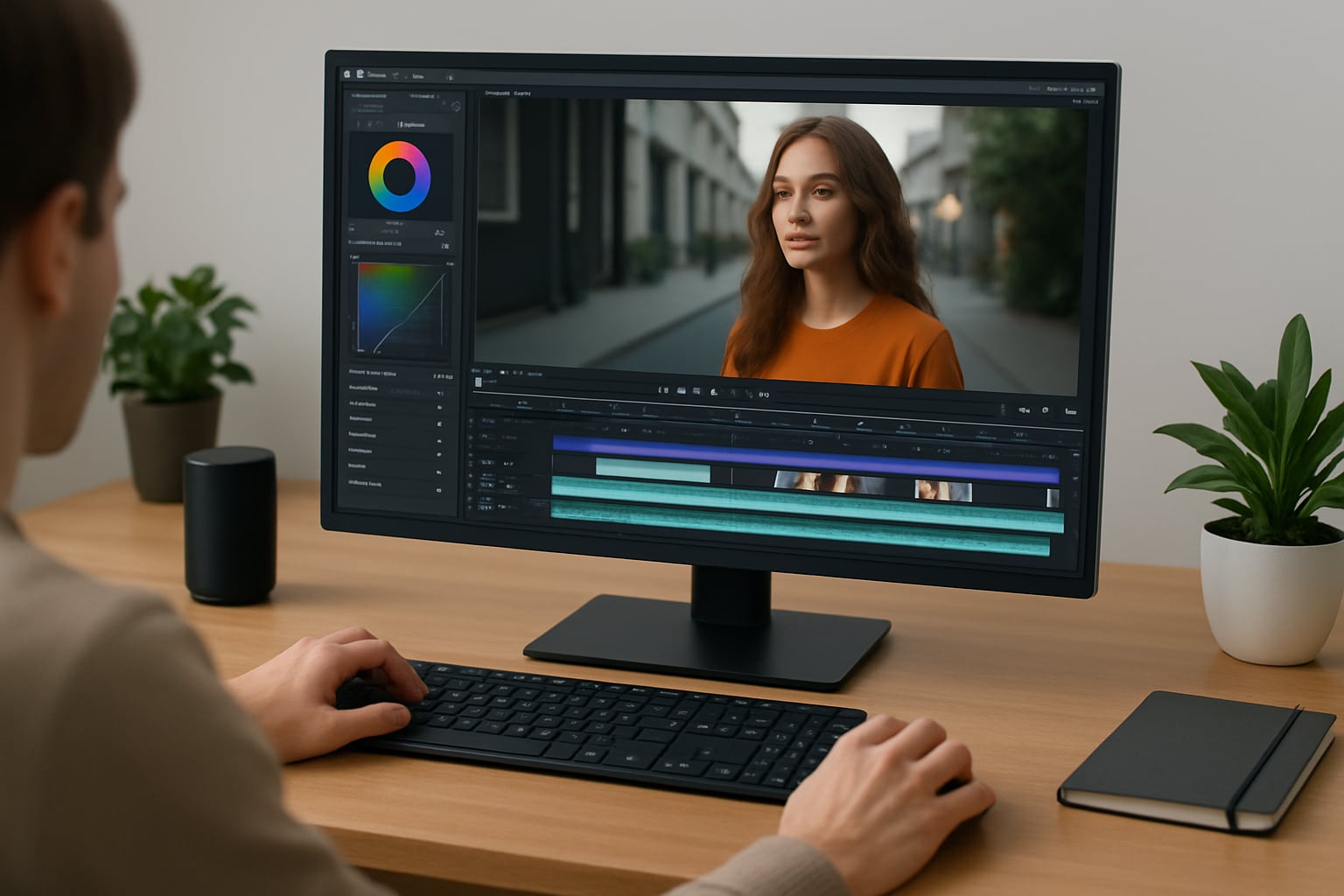
The Power of a Native Desktop App:
Precise Edits: A larger monitor allows for frame-by-frame accuracy that is hard to achieve on a touchscreen.
Better Performance: Desktop software utilizes your PC's dedicated GPU and RAM, rendering high-resolution (4K) videos much faster than a mobile app running inside an emulator.
Advanced Features: Desktop tools offer features like color grading, motion tracking, and advanced audio mixing that mobile apps often lack.
Efficient File Management: Drag-and-drop functionality and easy access to terabytes of storage make managing large projects seamless.
Overcoming Mobile Limitations: InShot on mobile (and in emulators) often comes with limitations such as interface ads, export watermarks in the free version, and a restricted toolset. Furthermore, desktop alternatives support keyboard hotkeys (Ctrl+C, Ctrl+V, J/K/L cuts), which significantly speed up the editing workflow compared to tapping on a screen.
Part 4. Top 5 InShot Alternatives for PC & Mac in 2026
If you are ready to upgrade your editing game, here are the top 5 alternatives that outperform the InShot for PC Windows 7, 10, and 11 workaround.
| Tool | Best For | Why Choose It | Watch Out For |
|---|---|---|---|
| UniConverter | All-in-one desktop editing | More than editing: convert, compress, subtitle, AI tools | Trial limits apply |
| CapCut Desktop | Short-form content | Fast, familiar, and social-friendly | Some Pro-only features |
| Filmora | Beginner creators | Easy effects and creative editing tools | Watermark on free exports |
| Clipchamp | Windows users | Simple and easy to access | Premium limits on some features |
| Movavi | Light editing needs | Fast and beginner-friendly | Fewer advanced tools |
1. Wondershare UniConverter
Best All-in-One Video Toolbox for Desktop
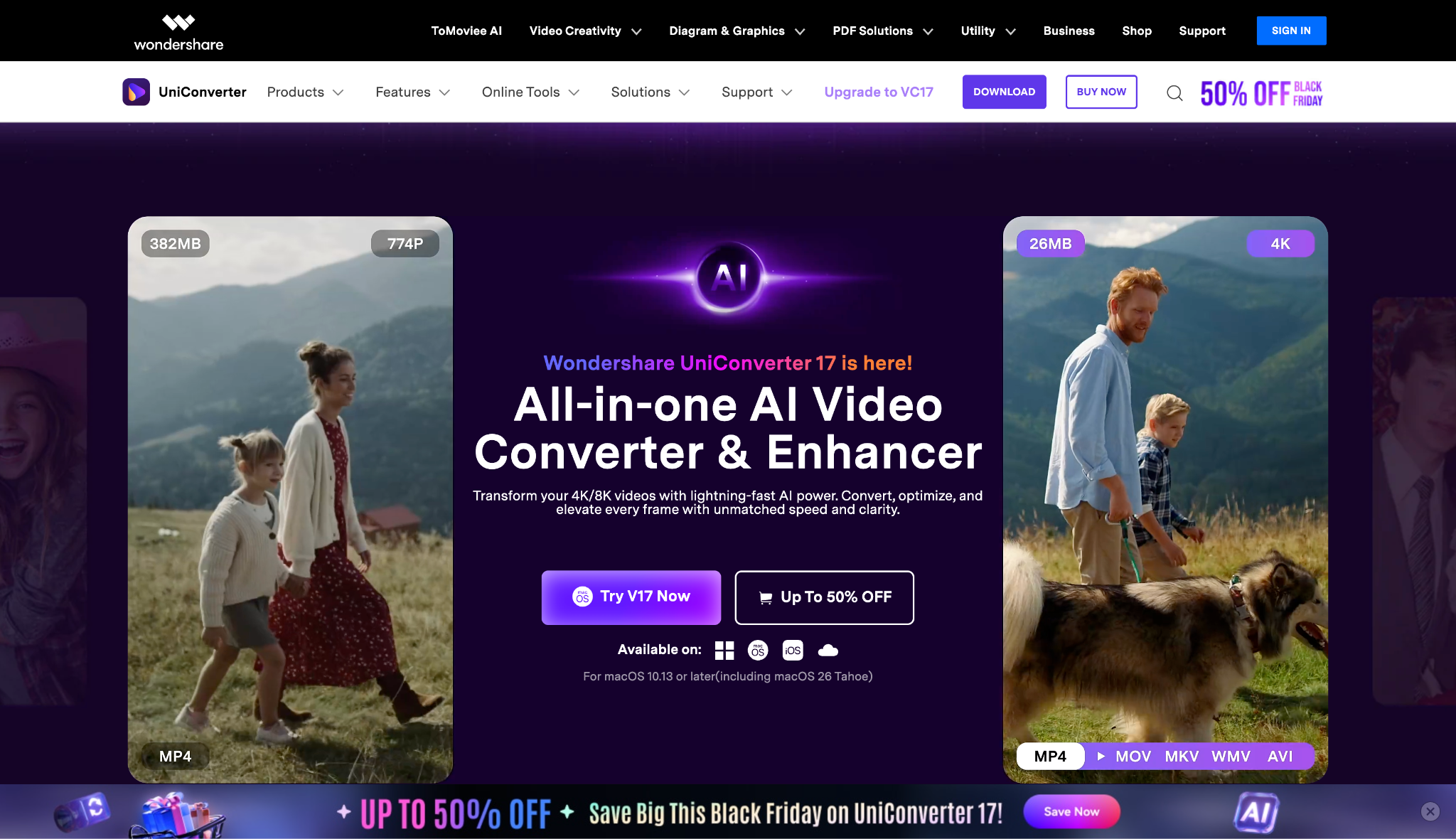
Dialect Support: Excellent (Supports multiple languages and regional nuances via AI).
Live or File-Based TTS: File-Based (Generate high-quality AI voiceovers from text).
Pricing Plans:
- Quarterly Plan: ~$23.99 (billed quarterly for education)
- Annual Plan: ~$31.99/year (Best Value under education plan)
- Perpetual Plan: ~$60.19 (One-time fee for a lifetime license)
- One-year subscription: Starts at ~$59.99/year for an individual.
- Note: Includes a 30-day money-back guarantee and free customer support.

Easy to Use InShot Alternative for PC
2. CapCut Desktop
Best Free Social Media Editor
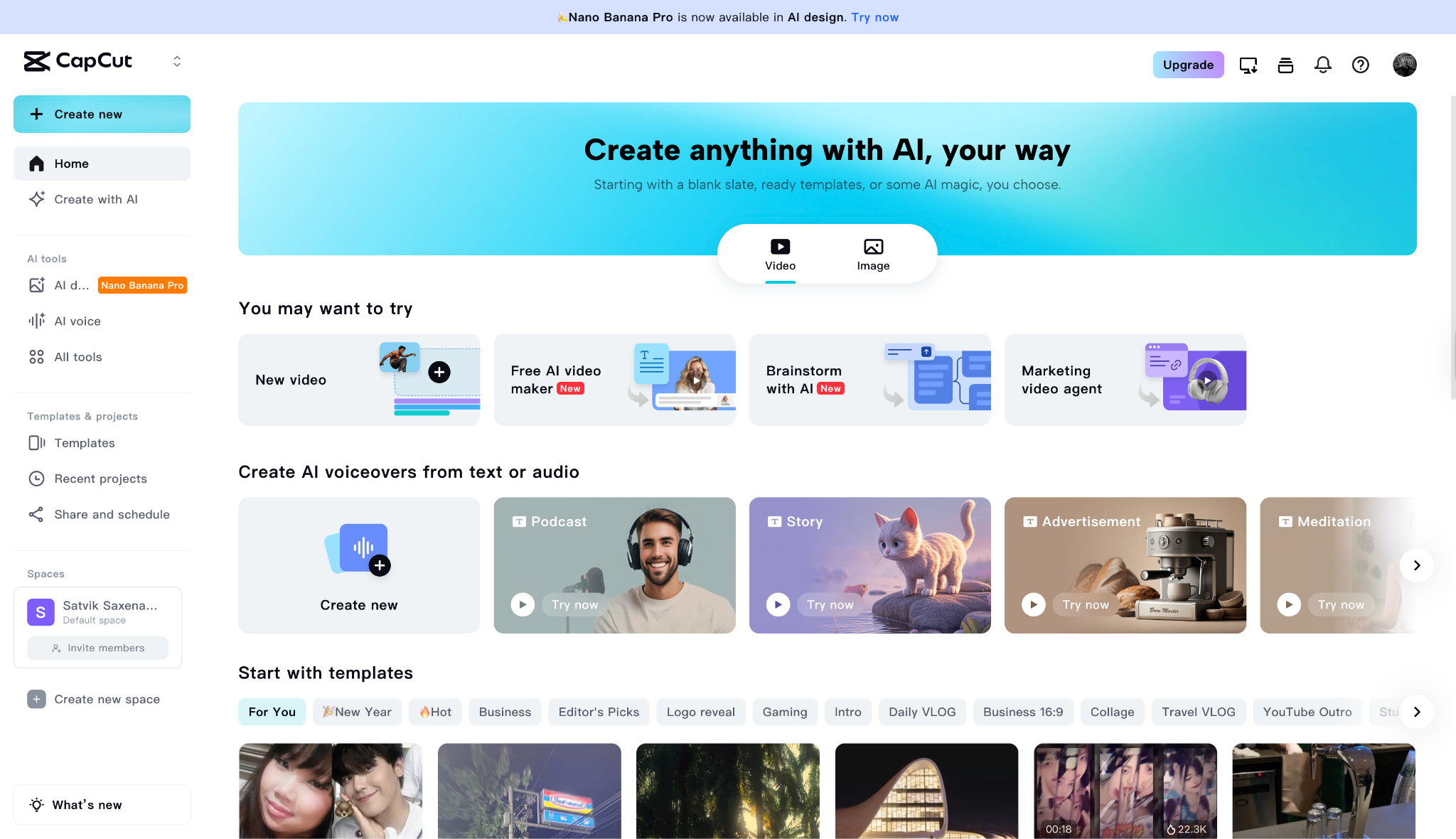
Dialect Support: Strong (16+ languages supported for captions/TTS).
Live or File-Based TTS: File-Based (Generates audio clips on timeline).
Starting Price: Free (Pro starts from ~$3.99 for the first month).
3. Filmora
Best for Creative Storytelling & Beginners
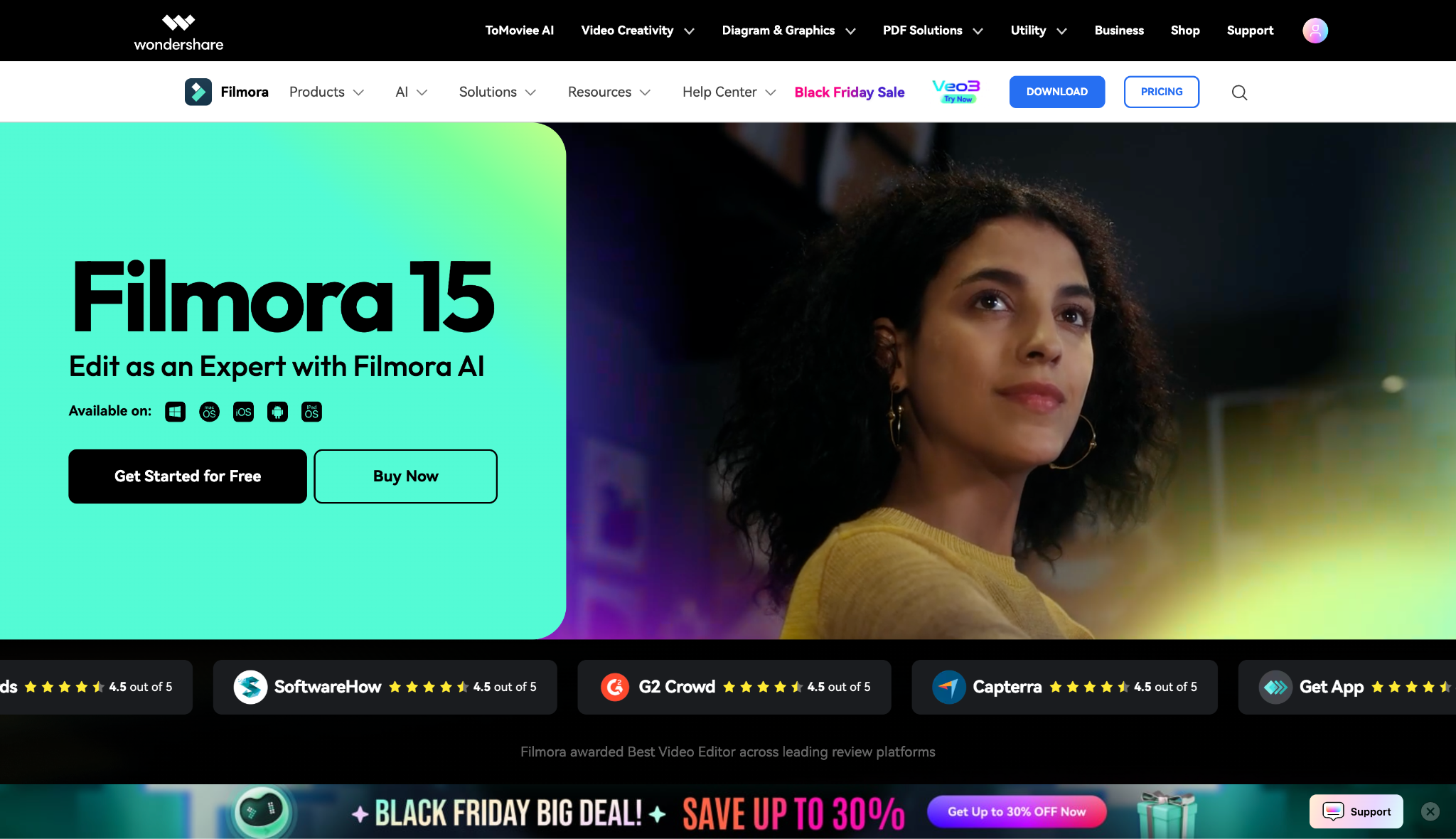
Dialect Support: Good (Supports 28 languages for TTS).
Live or File-Based TTS: File-Based.
Starting Price: $4.49/month for Windows and $5.99/month for Mac.
4. Clipchamp
Best Built-in Option for Windows Users
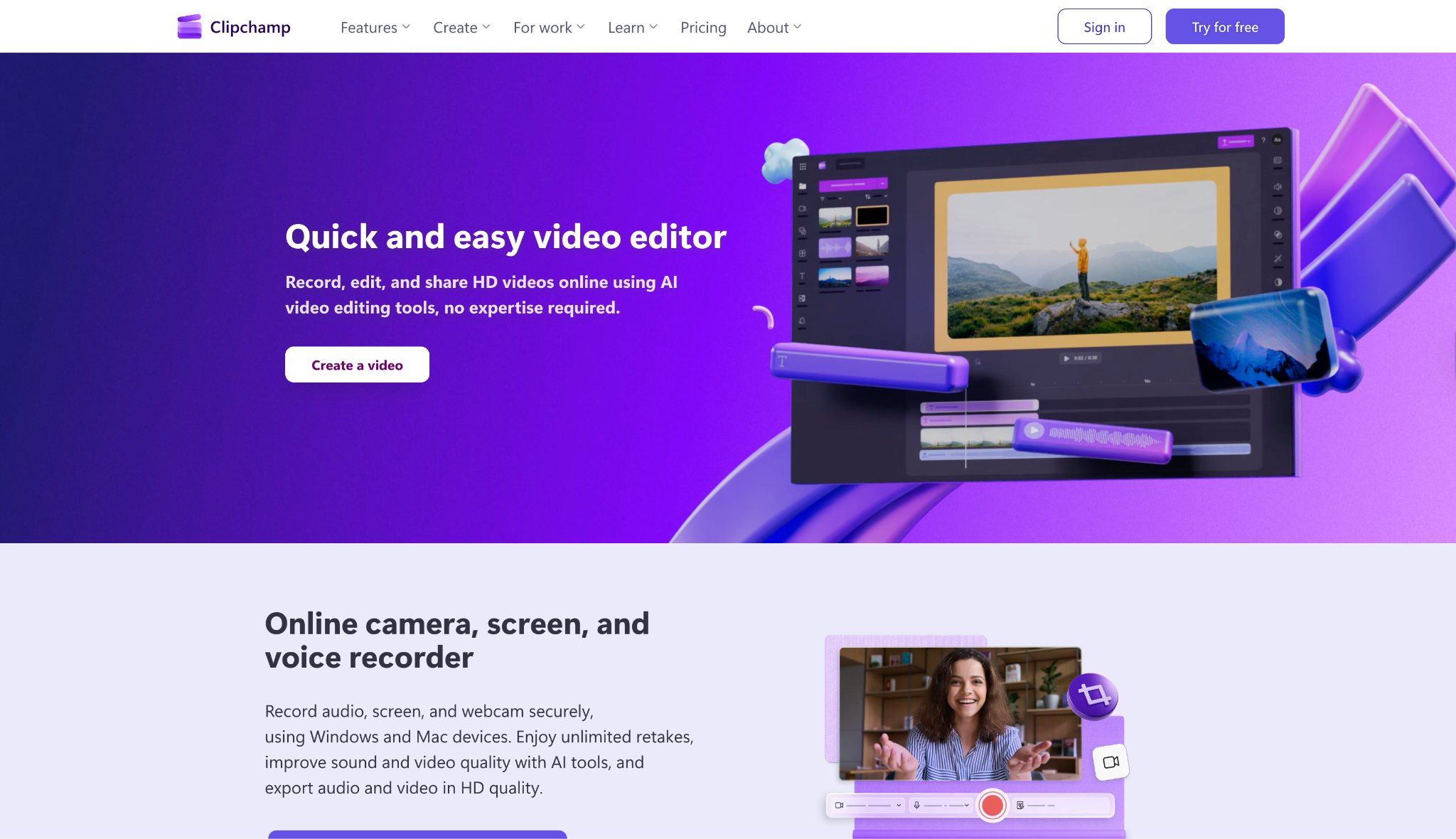
Dialect Support: Excellent (80+ languages via Azure AI).
Live or File-Based TTS: File-Based (Generates to timeline).
Starting Price: Free (Premium ~$11.99/mo).
5. Movavi Video Editor
Best Lightweight & Simple Editor
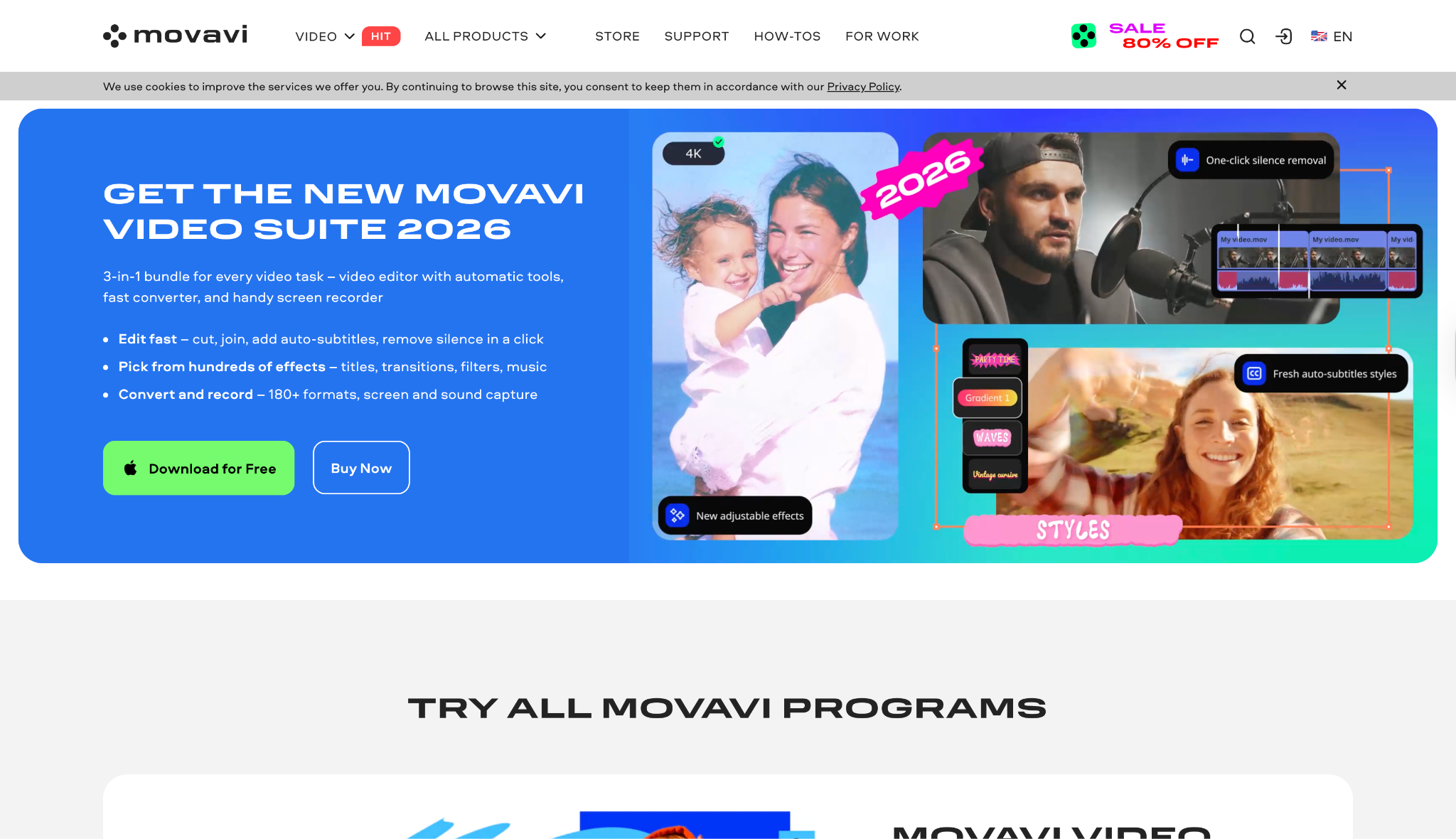
Dialect Support: N/A (Focuses on manual editing/subtitles).
Live or File-Based TTS: N/A (Third-party tools needed).
Starting Price: ~$64.95/year.
Part 5. How to Choose the Right InShot Alternative for You
Choosing the right tool depends on your specific needs:
For Beginners & Ease of Use: Movavi or Filmora. Both mimic the linear, simple logic of InShot but on a bigger screen.
For Social Media Creators: CapCut Desktop. If you edit for TikTok or Reels, the trending effects and vertical video optimization are unmatched.
For Enthusiasts Wanting Power & Features: UniConverter. It offers the most versatility—downloading assets, converting formats, and editing with AI—making it a complete media hub.
For Professionals & Aspiring Filmmakers: Filmora (for intermediate) or moving up to advanced tools like DaVinci Resolve (not listed but implied for pros). For quick professional business edits, Clipchamp is also strong.
Easy to Use InShot Alternative for PC
Conclusion
While there is no official "InShot for PC" in 2026, you are not out of luck. You can technically run the mobile app via an emulator, but the experience is often clunky. The smarter move is to embrace a native desktop application designed to maximize your computer's potential. Tools like CapCut and Filmora offer a familiar feel, but for a truly comprehensive solution, Wondershare UniConverter stands out.
UniConverter doesn't just edit; it solves the complete workflow of a modern creator—from downloading research materials with subtitles to converting high-res footage and generating AI voiceovers. If you want to move beyond simple cuts and unlock a full suite of video tools, give Wondershare UniConverter a try today. It's the upgrade your creative process deserves.
FAQs
1. Is there an official InShot for PC download?
No. At the moment, there is no official native InShot for PC download for Windows. If you see websites offering a direct InShot desktop installer, you should be careful and verify the source before downloading anything.
2. Is InShot available for PC users who want a bigger editing screen?
InShot is mainly built for mobile devices, not as a full desktop editor. That is why many users looking for InShot for PC eventually choose either an emulator-based setup or a desktop alternative with similar editing features.
3. What should I use instead of InShot desktop?
If you want an InShot desktop alternative, the best choice depends on your workflow. Some users prefer lightweight editors for simple cuts, while others need desktop tools with better export control, more effects, and smoother performance than a mobile-style app.
4. Does the InShot free version still have a watermark in 2026?
The InShot free version may still include export limitations such as a watermark, depending on the version and features you use. This is one reason why some users searching for InShot PC or InShot for desktop decide to switch to a native editor instead.
5. Why do people search for an InShot video editor on PC?
Many creators want a larger screen, easier file management, more precise controls, and a more stable editing experience. That is why searches for an InShot video editor on PC, InShot PC, and InShot for PC continue to grow.

