


If you’ve stumbled across a VP4 video file, chances are it comes from early 2000s archives, legacy video platforms, or older digital cameras that used On2 codecs. Unfortunately, VP4 is practically extinct in today’s video landscape. Unlike modern codecs such as H.264, HEVC, or VP9, VP4 is not natively supported by Windows, macOS, iOS, or Android players.
This leads to frustrating scenarios: you double-click on a VP4 video and your media player throws an error, or you try uploading it to YouTube and the platform rejects the file outright. That’s why converting VP4 into a standard format like MP4 (H.264) or MOV (ProRes) is essential for playback, editing, and sharing.
In this article
- What is VP4 Codec and VP4 Use Cases
- Why Convert VP4 Files and Common Challenges in VP4 Conversion
- How to Choose the Best VP4 Converter Tool (With Comparison Table)
- Why Choose UniConverter for VP4 Conversion (Step-by-Step Guide)
- Pro Tips for the Best VP4 Conversion Results
- The Future of VP4 Codec – Outdated or Evolving?
- Conclusion
- FAQs
Part 1: What is VP4 Codec and VP4 Use Cases
VP4 is part of the On2 Video Processing (VP) family, developed in the early 2000s. It followed VP3 and preceded VP5/VP6. While not as well-known as VP6 (famous for Flash Video), VP4 marked a transitional point in internet video history.
Key Features of VP4:
- Improved compression efficiency compared to VP3
- Focused on low-bitrate web streaming
- Proprietary codec by On2 (not open-source)
- Designed for legacy streaming services, CD-ROMs, and early online video
Common Use Cases of VP4 (Back in the Day):
- Early Web Streaming: Many experimental streaming platforms used VP4 when bandwidth was limited.
- Digital Archives: Some early-2000s multimedia CD-ROMs included VP4 videos.
- Corporate Training Videos: Companies used VP4 for internal low-bitrate training videos.
- Prototype Media Players: Before H.264 became dominant, VP4 filled the gap for efficient online video.
Though revolutionary for its time, VP4 is now obsolete. If you find VP4 videos today, they are typically archival files in AVI or proprietary containers.
Part 2: Why Convert VP4 Files and Common Challenges in VP4 Conversion
Why Convert VP4 Files?
- Compatibility Issues: VP4 is unsupported on modern media players and devices.
- Editing Limitations: Software like Adobe Premiere, Final Cut, or DaVinci Resolve cannot natively decode VP4.
- Sharing Restrictions: Platforms such as YouTube, Facebook, or TikTok reject VP4 uploads.
- Future-Proofing: Keeping VP4 files risks permanent inaccessibility if codecs disappear entirely.
Common Challenges in VP4 Conversion
- Lack of Player Support – Few players can even open VP4 files.
Fix: Use a professional converter that supports legacy codecs.
- Quality Loss – Re-encoding from VP4 may introduce artifacts.
Fix: Convert using high-quality modes (e.g., constant bitrate or ProRes).
- File Expansion – Some VP4 conversions to older codecs (like MPEG-2) balloon file size.
Fix: Choose H.264 or HEVC for balance between size and quality.
- Batch Conversion Needs – Legacy archives often include dozens of VP4 files.
Fix: Use a converter with batch processing (like UniConverter desktop).
- Audio Desyncs – VP4 files may use unusual audio codecs, leading to silent or unsynced audio.
Fix: Convert audio to AAC or MP3 during re-encoding.

Fast & Reliable VP4 Codec Converter
Part 3: How to Choose the Best VP4 Converter Tool (With Comparison Table)
When selecting a VP4 converter, you need to prioritize compatibility with legacy codecs, along with speed, output quality, and supported formats. Not all converters handle VP4 smoothly, so choosing the right tool saves time and prevents frustration.
Key Considerations:
- Legacy Codec Support – The converter must recognize VP4 in AVI or other containers.
- Batch Conversion – Essential for handling archives.
- GPU Acceleration – Reduces conversion times dramatically.
- Output Range – MP4, MOV, AVI, MKV, ProRes, and HEVC support is crucial.
- Ease of Use – An intuitive interface ensures non-technical users can still work with old formats.
Here based on the considerations we listed, we simply summairzed a table of mainstream converters on the internet. You can have a quick glance and choose which to pick based on your actual demand.
|
Feature |
||||
|
Batch conversion |
Yes (high-speed, queue folders) |
Yes |
Limited |
Queue-based |
|
Preset coverage |
1,000+ formats (MP4, AVI, MOV, MKV, etc.) |
Good but not exhaustive |
Minimal |
Good, cloud-reliant |
|
Compression controls |
Codec, resolution, bitrate, target size |
Granular; expert-friendly |
Basic quality slider |
Profile-driven |
|
Ease of use |
Very easy; visual guidance |
Moderate learning curve |
Easy but limited feedback |
Easy; network dependent |
|
Privacy |
Local/offline (desktop) or online (web) |
Local |
Local |
Cloud-only |
UniConverterclearly stands out as the most user-friendly VP4 converter with both legacy support and modern output options.
Part 4: Why Choose UniConverter for VP4 Conversion (Step-by-Step Guide)
When you need to convert VP4 files,UniConverter offers the perfect balance between speed, compatibility, and quality. Unlike many free tools that fail to recognize the VP4 codec or struggle with stability, UniConverter ensures smooth decoding of legacy formats while delivering outputs in modern standards like MP4 (H.264), MOV (ProRes), AVI, MKV, and HEVC. With GPU acceleration, batch conversion, and advanced settings, it allows users to preserve video quality while saving time.

Why UniConverter is the Best Choice for VP4 Conversion
- Wide Format Support: Convert VP4 to MP4, MOV, AVI, MKV, HEVC, and even ProRes.
- High-Speed Conversion: Up to 130x faster with GPU acceleration.
- Batch Processing: Handle multiple VP4 archives at once.
- Flexible Options: Adjust bitrate, resolution, codec, and audio settings.
- End-to-End Workflow: Convert → Compress → Edit → Add Subtitles → Export.
- Cross-Platform: Works on Windows/macOS with cloud sync access.
How to Convert VP4 with UniConverter Desktop
Step 1: Install and Launch UniConverter
Download and install UniConverter Media Converter. Launch the program after setup.

Step 2: Import VP4 Files
Click Add Files or drag your VP4 archives directly into the interface.

Step 3: Choose Output Format
Select MP4 (H.264) for universal playback, MOV (ProRes) for editing, or HEVC for efficient storage.

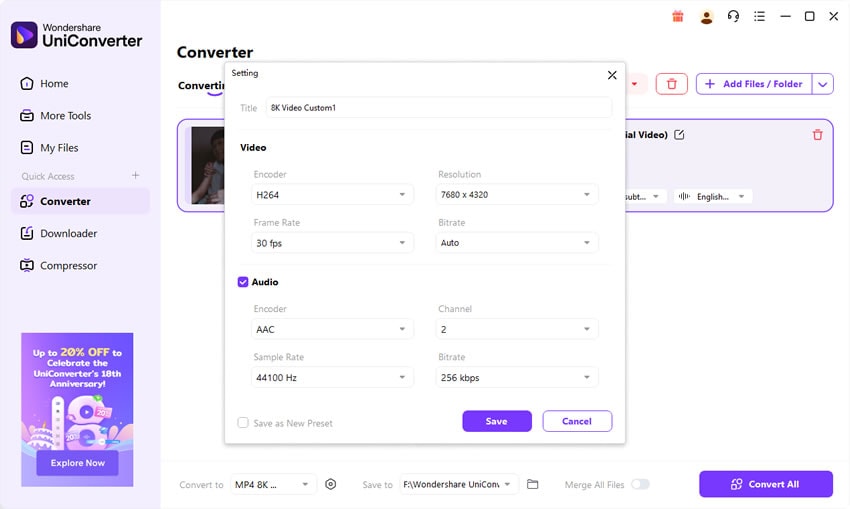
Step 4: Adjust Settings
Fine-tune bitrate, resolution, or frame rate. Enable GPU acceleration for faster results.

Step 5: Convert and Save
Click Convert to process your VP4 files. Once finished, open the target folder to access your new videos.

Fast & Reliable VP4 Codec Converter
Part 5: Pro Tips for the Best VP4 Conversion Results
To ensure the highest quality while converting VP4, keep these pro tips in mind:
- Choose the Right Output Codec: MP4 (H.264) for universal playback, HEVC for smaller sizes, ProRes for editing.
- Preserve Original Resolution: Avoid unnecessary downscaling; keep 480p/720p if original was low-bitrate.
- Use Constant Quality Mode: Prevents blocky artifacts during conversion.
- Convert Audio Carefully: VP4 may include odd audio codecs—convert to AAC or MP3 for maximum compatibility.
- Batch Conversion: Save time by converting entire folders at once.
- Enable GPU Acceleration: Cuts processing time significantly for longer files.
- Keep a Master Copy: Archive one ProRes or high-bitrate H.264 version for safety.
Part 6: The Future of VP4 Codec – Outdated or Evolving?
VP4’s Legacy
VP4 was more than just a codec—it represented a transitional era in online video. Developed by On2 Technologies, it improved compression efficiency compared to VP3 and laid the groundwork for VP5 and VP6, which would later gain broader recognition. In its time, VP4 enabled low-bitrate video streaming when internet bandwidth was limited, making it possible for early platforms and multimedia publishers to deliver watchable video without overwhelming networks. For archivists and technologists, VP4 remains a historical milestone, reminding us how codec innovation often happens in iterative steps.
Why VP4 is Obsolete
Despite its contributions, VP4 never achieved mainstream adoption. The reasons are clear:
- No Hardware Support: Modern GPUs and CPUs don’t include VP4 decoders, forcing all decoding to be done via software, which is inefficient.
- No Streaming Adoption: Major services like YouTube, Netflix, or social platforms never supported VP4, choosing H.264 and later VP9/AV1.
- No Editing Integration: Professional editing tools such as Adobe Premiere, Final Cut, or DaVinci Resolve phased out VP4 support decades ago, making it impractical in production environments.
Lessons from VP4
The short lifespan of VP4 highlights a critical lesson: even technically advanced formats can vanish without industry-wide adoption. VP4 was efficient for its time, but without hardware acceleration and streaming partnerships, it could not compete with codecs that had stronger ecosystems. It underscores the importance of designing codecs with forward compatibility and integration in mind.
Future Outlook
Unlike VP9 or AV1, VP4 has no active development or successor projects. It is firmly a legacy codec, with relevance limited to researchers, archivists, and enthusiasts handling old multimedia collections. For everyday users, the only viable path forward is conversion into modern formats such as MP4 (H.264), HEVC, or MOV (ProRes). In short, VP4’s role is now historical rather than practical—valuable for what it taught the industry, but not a codec that will evolve further.
Conclusion
VP4 may be obsolete, but its files still exist in archives, corporate libraries, and personal collections. To ensure accessibility, converting VP4 to MP4, MOV, or HEVC is the only viable path forward. With its wide format support, GPU acceleration, and batch conversion features,UniConverter is the best tool for this task.
Fast & Reliable VP4 Codec Converter
FAQs
-
1. What is the best format to convert VP4 into?
MP4 (H.264 + AAC) is the safest choice for playback on all devices. -
2. Can VLC play VP4 files?
Some older VLC builds might, but modern versions often fail. Conversion is recommended. -
3. Why is my VP4 video out of sync after conversion?
VP4 often carried unusual audio codecs. Always convert audio to AAC or MP3. -
4. Will converting VP4 reduce quality?
Some loss is inevitable, but using high-bitrate H.264 or ProRes ensures minimal degradation. -
5. Is VP4 still in use anywhere?
No. VP4 has been fully replaced by H.264, VP9, and AV1 in streaming and editing industries.

