The Snow codec was an experimental wavelet-based video codec from the FFmpeg team in the early 2000s. Because it never became standardized, you’ll rarely see Snow codec files in everyday use. However, old research archives, test videos, or experimental projects might still contain Snow-encoded clips. These files won’t play in most media players or editing software.
That’s why a Snow codec to MP4 conversion is often required. With the right tool, you can convert Snow codec files into universally supported formats for editing, playback, or online sharing.
In this article
- What is Snow Codec and Why Convert Snow Codec Files
- Common Problems and Fix for Converting Snow Codec Files
- Pros, Cons, and Considerations to Convert Snow Codec
- Quick Comparison: Tools for Converting Snow Codec
- Easiest Solution: Convert Snow Codec with UniConverter
- Easily Batch Convert Snow Codec Files Step-by-Step (with Tips)
- Conclusion
- FAQs
Part 1: What is Snow Codec and Why Convert Snow Codec Files
Snow codec was built using wavelet compression, which works very differently from block-based codecs like H.264. Instead of splitting video into small squares, wavelets look at the image at multiple levels, capturing both fine details and larger patterns. This approach was meant to deliver better efficiency and reduce common problems like blocky or noisy artifacts.
The idea behind Snow was to create a next-generation codec with higher quality at lower bitrates. It showed promise, especially in avoiding the visual flaws seen in older formats. But Snow never gained real adoption. H.264 became the industry standard, with strong support from hardware and software. Wavelet codecs like Snow were also slower to encode and lacked a large ecosystem. As a result, Snow remained an interesting experiment rather than a mainstream video technology.
Facts about Snow Codec
Origin: FFmpeg experimental codec.
Core technology: Wavelet compression.
Support: Minimal, no hardware decoding.
File presence: Only inside containers like AVI, MKV.
Adoption: Never standardized, abandoned by mainstream.
Why You Need Snow Codec Conversion
Compatibility: Players like VLC may partially decode Snow, but most fail.
Editing: Premiere, Final Cut, and DaVinci Resolve reject Snow codec.
Sharing: Platforms (YouTube, TikTok, Instagram) do not accept Snow codec uploads.
Archiving: Converting Snow codec to MP4 or MOV ensures future access.
Performance: Snow playback is CPU-heavy, often laggy.
Part 2. Common Problems and Fix for Converting Snow Codec Files
Users typically face a few predictable hurdles when trying to open or edit Snow codec files. Understanding these challenges helps you choose the right conversion settings and avoid hours of trial and error.
1. Playback Failures
What Happens: The file refuses to open, or you get audio without video, or video without audio. Sometimes it just throws an error and quits.
Pro Tip: Don’t waste hours hunting for ancient plug-ins or “miracle” players. Most of that old software no longer works. Converting straight to MP4 will solve it in minutes.
2. Import Errors in Editing Programs
What Happens: Your video editor — whether it’s Adobe Premiere, Final Cut Pro, or something else — either won’t import the file at all or freezes partway through.
Pro Tip: For editing purposes, convert Snow codec to a format designed for stability, such as MOV with Apple ProRes.
3. Oversized Files
What Happens: A short clip eats up an absurd amount of space because older compression methods were inefficient.
Pro Tip: Re-encode with HEVC (H.265) to shrink the size by as much as 90% while keeping quality high.
4. Sharing Headaches
What Happens: Colleagues or clients can’t watch the file without installing special software they’ve never heard of.
Pro Tip: Keep a converted MP4 copy on hand — it’s the universal language of video and plays almost anywhere.
5. Unreliable Streaming
What Happens: Even if it plays fine on your computer, it may stutter, buffer, or fail completely when streamed online.
Pro Tip: Use a web-optimized MP4 preset when you convert so it starts playing smoothly without long delays.
Part 3. Pros, Cons, and Considerations to Convert Snow Codec
Converting is the most dependable way to make a Snow codec file usable, but how you set up that conversion can make a big difference. The right choices can give you crisp, smooth video with a small file size. The wrong ones can leave you with noticeable artifacts or a sluggish workflow.
Pros
- Universal Compatibility – An MP4 file will play on nearly anything — computers, phones, tablets, browsers, and editing software.
- Smaller File Sizes – Using modern codecs like H.264 or H.265, you can keep the quality high while cutting storage needs dramatically.
- Stable Editing – Standardized containers reduce the random freezes and decoding errors that plague old formats.
- Future-Proofing – MP4 and MOV are industry standards that will be supported for years, keeping your content accessible.
Cons
- Transcoding Time – High-resolution or long clips can take a while to process, especially on older machines.
- Quality Loss from Bad Settings – Pushing the bitrate too low can introduce ugly artifacts and color banding.
- Lost Metadata – Special tags in the original Snow codec file might not transfer cleanly into MP4.
Pro Tip for Best Results
To avoid problems, stick with constant-quality encoding or a well-balanced bitrate. Keep your resolution the same unless you have a clear reason to change it. If your computer supports it, enable hardware acceleration — it can save you a lot of time. UniConverter makes these settings easy to find, so you can convert Snow codec files without needing deep technical expertise.
Part 4. Quick Comparison: Tools for Converting Snow Codec
Before you decide how to convert Snow codec files, it helps to know how different tools stack up. Some programs focus on speed, others on fine-tuned control, and a few try to balance both. Below is a quick side-by-side look at UniConverter and other popular options so you can choose the one that best fits your workflow.
Here is a high-level comparison between UniConverter and other popular options. For reference, HandBrake (official site), VLC (official site), and CloudConvert (official site) are common tools used alongside or instead of a dedicated converter.
|
Feature |
UniConverter |
HandBrake |
VLC |
CloudConvert |
|
Snow codec handling |
Broad import support and guided presets |
Powerful but technical configuration |
Basic conversion; varies by build |
Server-side support varies by codec |
|
Batch conversion |
Yes (high-speed, queue folders) |
Yes |
Limited |
Queue-based |
|
Preset coverage |
1,000+ formats (MP4, AVI, MOV, MKV, etc.) |
Good but not exhaustive |
Minimal |
Good, cloud-reliant |
|
Compression controls |
Codec, resolution, bitrate, target size |
Granular; expert-friendly |
Basic quality slider |
Profile-driven |
|
Ease of use |
Very easy; visual guidance |
Moderate learning curve |
Easy but limited feedback |
Easy; network dependent |
|
Privacy |
Local/offline (desktop) or online (web) |
Local |
Local |
Cloud-only |
Part 5. Easiest Solution: Convert Snow Codec with UniConverter
Why Pick UniConverter to Convert Snow Codec (Online & Desktop)
Compared to other solutions, UniConverter offers two complementary paths depending on your workload and control needs. The online tool is great for quick fixes, while the desktop app is designed for deep conversion at scale.
Free Online Converter: Launch the web tool, upload a Snow codec file, pick MP4/AVI/MOV/MKV, and convert in the browser. It’s ideal for single clips or quick sharing when you don’t want to install software.
Desktop Converter: Batch-process large libraries with consistent presets, merge or trim clips, adjust frame rate and resolution, and configure codec profiles. You can reduce file size by up to 90% with careful bitrate and resolution choices while preserving visible detail.
Feature Overview of UniConverter
- Supports 1,000+ formats for universal delivery.
- Fine control over codec, resolution, bitrate, and compression.
- Batch conversion and folder queues to save time.
- Hardware acceleration for faster transcodes on supported GPUs.
Part 6. Easily Batch Convert Snow Codec Files Step-by-Step (with Tips)
Steps Guide for Desktop Conversion
The following workflow balances quality and speed. It also scales from single files to large folders of Snow codec sources.
Step 1: Install and Open the Software
Download and open VC Media Converter Desktop on Windows or macOS. Once setup is complete, launch the program.

Step 2: Import Snow Codec Files
Click “Add Files” to load one or more Snow codec clips; you can drag-and-drop. You can import single clips or multiple files at once.

Step 3: Choose Output Format
Select MP4 (H.264/H.265) for widest compatibility or MOV for editor-friendly workflows. For archiving, MKV is a solid choice. Set audio to AAC or MP3 for smooth playback across devices.

Step 4: Adjust Settings and Enable Acceleration
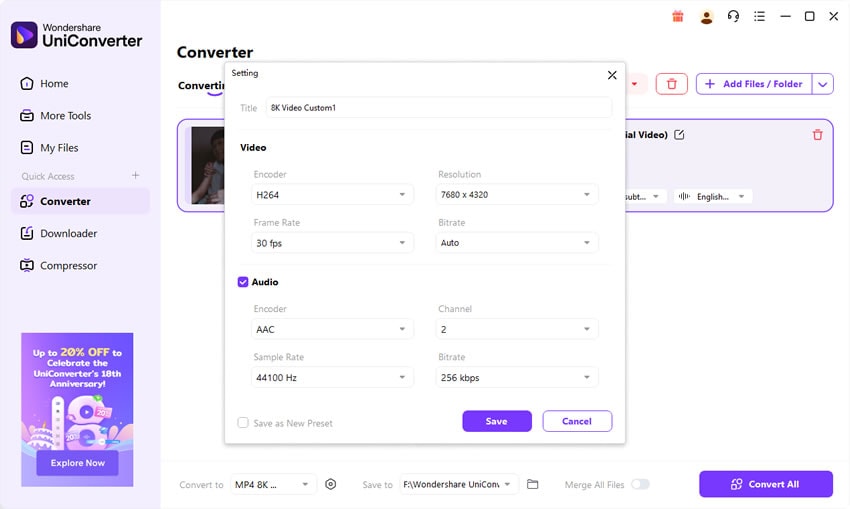
If needed, open the settings panel to fine-tune bitrate, resolution, and frame rate. Keeping the original resolution often preserves quality. You can also enable GPU acceleration through Intel, NVIDIA, or AMD graphics for much faster conversions.

Step 5: Start Conversion and Save Files
Choose the destination folder and click Convert. When it finishes, open the folder to access your new MP4, MOV, HEVC, or MKV videos.

Pro tips: If your source is already heavily compressed, avoid dropping the bitrate too far. For heavy edits, consider higher bitrates to preserve detail during grading and effects. For web streaming, H.264 High Profile at a balanced bitrate is a safe default; HEVC (H.265) yields smaller files but may reduce compatibility on older devices.
Conclusion
Snow codec belongs to a legacy ecosystem and rarely plays smoothly on modern devices or inside current editing suites. Converting to MP4, MOV, AVI, or MKV solves compatibility barriers, reduces file sizes, and stabilizes your workflow for editing, review, and publishing. Whether you use the lightweight online tool or the full desktop application, UniConverter gives you quality-first conversion with the granular controls professionals need and the simplicity beginners appreciate.
Standardize your media today — convert Snow codec to modern formats with UniConverter and future-proof your library for every platform and project.

Easy to Use Batch Snow Codec Converter
FAQs
-
1. What’s the best format to convert Snow codec to?
MP4 (H.264 + AAC) is best for everyday playback. MOV (ProRes) is best for editing workflows. -
2. Can VLC play Snow codec videos directly?
Sometimes, but playback is inconsistent. Conversion is recommended for stability. -
3. Why did my Snow codec video get larger after conversion?
Snow uses wavelet compression, so converting to block-based codecs like H.264 or ProRes may increase file size. Use HEVC for smaller output. -
4. Is there a free Snow codec converter?
Yes. VC offers a free Snow codec converter online for files under 100MB. For bulk tasks and pro features, the desktop version is ideal. -
5. Is Snow codec still supported or updated?
No. Snow has been abandoned. The only way to use Snow files today is through conversion with reliable software like VC.