

If you want to get rid of any words, subtitles, or logo from a video, it's better to have a text remover to help you delete text from videos. Nowadays, there are so many text-removing tools that can achieve the magical erasing work instead of cropping or blurring the words. Thus, we find the 14 best text watermark removers that work perfectly online and offline. Let's jump right in!
Quick Answer: If you want to remove text from video online free, browser-based tools like Kapwing and Clideo are convenient for simple edits. If you want better quality, less blur, and more control over subtitles, logos, or watermarks, a desktop video text remover like UniConverter is usually the better choice.
Part 1. Top 14 Text Removers to Remove Text from Video [Online & Offline]
Here are the upcoming tool to remove text on videos.
Tool 1 UniConverter Text Remover
Wondershare UniConverter give you a chance to remove any text watermark from a video. It runs smoothly on macOS and Windows computers, giving you more control over your editing sessions. You can erase any text or logo without blurring. Even better, you can replace the removed watermark or image logo with a custom watermark.

UniConverter Watermark Remover can achieve to remove text, people, brand logo, watermark, emoji, subtitles, captions, or anything unwanted object in 1-Click. Bring you a clear and high-quality video creation.
Tool 2 Kapwing
Kapwing is a popular online video editor that provides a simple and easy-to-use tool for removing text from videos. It offers a range of video editing tools and supports various video formats. With Kapwing, users can easily remove text from videos without any hassle.

Pros
Free to use
Easy to use interface
No need to download software
Cons
Limited advanced editing features
Only supports a few video formats
Comparison with UniConverter:
Kapwing is a great option for those who need to remove text from videos quickly and easily, but it may not offer as many advanced editing features as UniConverter. Additionally, UniConverter supports a wider range of video formats and provides faster video processing.
Tool 3 Clideo
Clideo is an online video editing tool that provides a wide range of features, including text removal. With its simple and intuitive interface, Clideo is perfect for those who want to remove text from videos without any hassle.

Pros
Simple and intuitive interface
Supports multiple video formats
Fast processing times
Cons
Limited advanced editing features
May not be suitable for professional use
Comparison with UniConverter:
Clideo is a great option for those who want to remove text from videos quickly and easily, but it may not offer as many advanced editing features as UniConverter. Additionally, UniConverter provides faster processing times and support for a wider range of video formats.
Tool 4 Animoto
Animoto is an online video editor that allows users to remove text from videos easily. With its user-friendly interface and simple tools, Animoto is a great option for those who want to remove text from videos without any fuss.

Pros
Easy-to-use interface
No need to download software
Supports a wide range of video formats
Cons
Limited advanced editing features
May not be suitable for professional use
Comparison with UniConverter:
Animoto is a great option for those who want to remove text from videos quickly and easily, but it may not offer as many advanced editing features as UniConverter. Additionally, UniConverter provides faster processing times and more customization options.
Tool 5 Adobe Premiere Pro
Adobe Premiere Pro is a popular video editing software with advanced tools for removing text from videos and high-quality video output. However, it has a steep learning curve and requires a powerful computer to run smoothly.

Pros
Advanced video editing tools
High-quality video output
Supports a wide range of video formats
Cons
Expensive
Steep learning curve
Requires a powerful computer to run smoothly
Comparison with UniConverter:
While Adobe Premiere Pro offers advanced video editing tools, it may not be the most user-friendly option for beginners. Additionally, it is quite expensive compared to UniConverter. UniConverter provides an intuitive interface and easy-to-use tools for removing text from videos, as well as support for a wide range of video formats.

Remove Text from Video without Blur
 Learn More >
Tool 6 Final Cut Pro
Final Cut Pro is a popular video editing software for Mac users, with a user-friendly interface and powerful editing tools for removing text from videos. However, it is only available for Mac users and can be expensive.

Pros
User-friendly interface
Powerful video editing tools
High-quality video output
Cons
Only available for Mac users
Expensive
Steep learning curve for beginners
Comparison with UniConverter:
Final Cut Pro is a great option for Mac users, but it may not be the most accessible option for users on other platforms. UniConverter provides an easy-to-use interface and simple tools for removing text from videos, with support for a wide range of video formats.
Tool 7 DaVinci Resolve
DaVinci Resolve is a professional video editing software with advanced features for removing text from videos and high-quality video output. However, it can be difficult for beginners to learn and requires a powerful computer to run smoothly.

Pros
Advanced video editing tools
High-quality video output
Supports a wide range of video formats
Cons
Steep learning curve for beginners
Requires a powerful computer to run smoothly
Some features only available in paid version
Comparison with UniConverter:
DaVinci Resolve offers advanced features for professional video editing, but it may not be the best option for beginners. UniConverter provides a simple and user-friendly interface with easy-to-use tools for removing text from videos, as well as support for a wide range of video formats.
Tool 8 VideoProc
VideoProc is a comprehensive video processing software that includes features such as video editing, resizing, and transcoding. With a user-friendly interface and advanced video processing capabilities, it is a great option for removing text from videos.

Pros
Easy-to-use interface
Fast video processing speed
Supports a wide range of video formats
Advanced video editing features
Cons
Limited free trial version
No cloud storage or collaboration features
Limited audio editing capabilities
Comparison with UniConverter:
VideoProc offers similar video editing and processing capabilities as UniConverter, but with a more intuitive and streamlined interface. However, UniConverter offers additional features such as DVD burning and video compression that VideoProc does not have. Overall, both are great options for removing text from videos, but UniConverter may be more suitable for those in need of a wider range of multimedia tools.
Tool 9 Avidemux
Avidemux is a free and open-source video editing software with basic tools for removing text from videos and high-quality video output. However, it may not offer advanced features for professional video editing.

Pros
Free and open-source
Simple and easy-to-use interface
High-quality video output
Cons
Limited advanced features for professional video editing
May not be as user-friendly as other options
Comparison with UniConverter:
Avidemux offers a free and open-source option for video editing, but it may not offer advanced features for professional video editing. UniConverter provides an intuitive interface with easy-to-use tools for removing text from videos, as well as support for a wide range of video formats. Additionally, UniConverter offers a powerful batch processing feature, allowing users to remove text from multiple videos at once, which can save significant time and effort.
Tool 10 Video Eraser
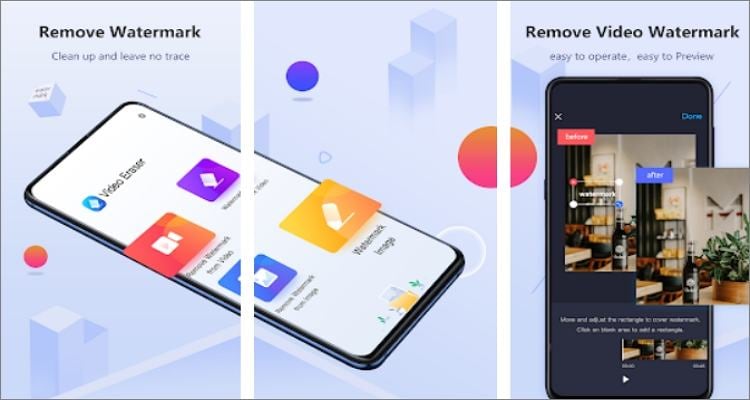
Video Eraser is a beautiful watermark and logo cleaner that runs on Android and iOS. This app can conveniently remove watermarks from typical video and image formats and make the background clearer. Also, Video Eraser allows you to replace the removed watermarks with custom texts, drawings, and icons. Furthermore, it comes with a practical screen recorder and video editor for cropping your video.
System available: iOS/Android
Pros
Add texts, watermarks, icons, and drawings to videos.
Smooth screen recorder.
Intuitive video editor for cropping.
Cons
It leaves a noticeable blur after replacing watermarks.
Slow upload speed.
UniConverter Video Text Remover supports removing any text, stickers, logos, and unwanted objects from videos and images. You will get a pure screen for your video without damaging the quality and color of the original video file.
Learn More >
Tool 11 TouchRetouch
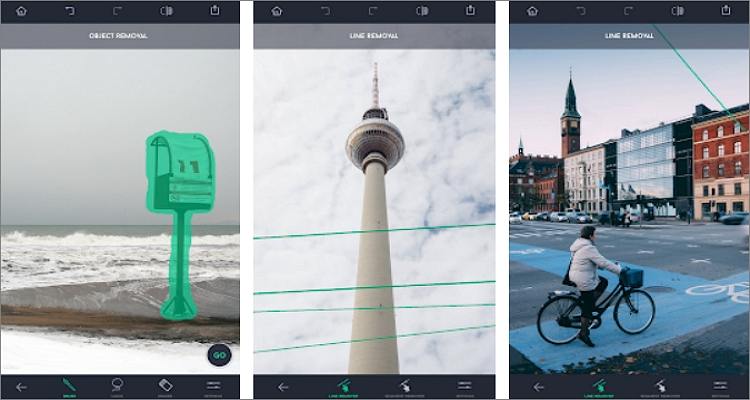
For $1.99 on Play Store and App Store, is TouchRetouch worth the price? Well, the high rating on both platforms tells you this app is a darling to many video creators. With it, you can remove unwanted texts and objects from photos instantly and without blurring. Also, users can remove objects like skin blemishes, wrinkles, and pimples with a mere screen tap. Plus, you can erase power lines, wires, and posts from photos.
System available: iOS/Android
Pros
Remove photo objects like pimples, skin blemishes, and more.
Adjust effects like opacity, hardness, and stamp size.
It comes with an in-app video tutorial.
Cons
Not free to download.
It doesn't remove red-eye.
Tool 12 Remove & Add Watermark
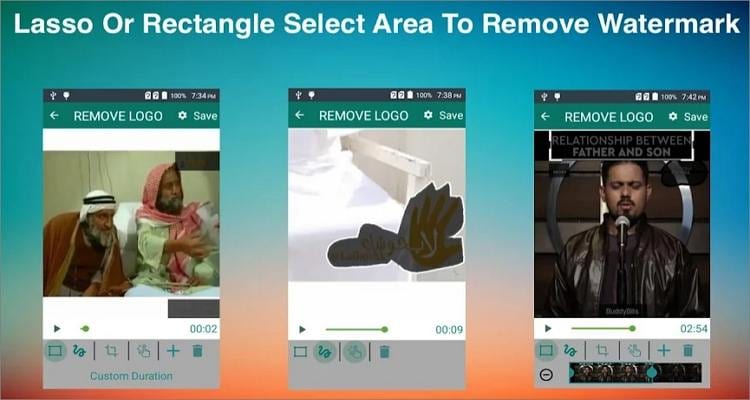
Remove & Add Watermark is a straightforward app to watermark text on videos and images. Here, creators can add watermark texts and logos to their videos with multiple customization options like animating the watermark. Users can also erase a watermark by choosing a lasso type and draw the watermarked area to remove the watermark without leaving a blur. But sadly, it only supports MP4 outputs.
System available: Android only
Pros
It converts any video to MP4 before processing.
Remove watermarks without leaving any blur.
Customize watermark text with unique fonts, colors, and sizes.
Cons
It supports MP4 exports only.
It has disturbing adverts.
Tool 13 InPaint
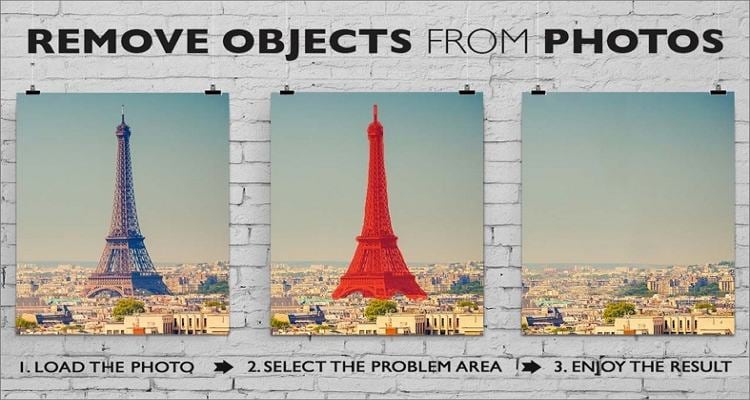
InPaint is another paid graphics software that's simple to use and allows you to erase unwanted watermarks and logos within seconds. It can remove unwanted photo objects like wires and power lines from pictures. Also, you can delete date stamps and perform digital facial retouchings, such as removing wrinkles and pimples. And surprisingly, you can erase background people and objects from your photos.
System available: Android/iOS
Pros
Straightforward user interface.
Erase date stamps from photos.
It supports digital facial retouching.
Cons
Users must pay $1.99 to download it.
No video editing functions.
Tool 14 Unwanted Object Remover
As the name suggests, Unwanted Object Remover will erase any unwanted text or object from your photo. It's straightforward and comes with a digital facial retouch tool for erasing wrinkles and skin blemishes from face pictures. Also, Unwanted Object Remover can erase objects like trash cans, street lights, stop lights, power lines, and wires with ease. Additionally, you can undo and redo your things.
System available: Android only

Pros
A digital facial retouch tool.
Remove human-made objects like street lights and trash cans.
Delete texts, logos, and stamps from photos.
Cons
Annoying ads.
Can crash during the project.
Quick Comparison: Best Video Text Remover Tools
| Tool | Type | Platform | Best For | Free Option | Blur Risk | Key Strength |
|---|---|---|---|---|---|---|
| UniConverter | Desktop | Windows, Mac | Better quality control and watermark removal | Trial | Low | Remove text, logos, subtitles, and unwanted objects with more editing control |
| Kapwing | Online | Browser | Quick browser-based edits | Yes | Medium | Easy interface for simple text removal and online editing |
| Clideo | Online | Browser | Simple text removal tasks | Yes | Medium | Beginner-friendly tool with fast processing |
| Animoto | Online | Browser | Basic beginner-friendly editing | Limited | Medium | Easy to use for simple video edits without software download |
| Adobe Premiere Pro | Desktop | Windows, Mac | Professional editing workflows | No | Low | Advanced video editing tools and high-quality output |
| Final Cut Pro | Desktop | Mac | Mac-based professional editing | No | Low | Strong performance and pro-level editing for Apple users |
| DaVinci Resolve | Desktop | Windows, Mac, Linux | Advanced post-production work | Yes | Low | Professional editing and color tools with a free version available |
| VideoProc | Desktop | Windows, Mac | Fast all-in-one video processing | Trial | Low | Combines editing, resizing, transcoding, and text removal tools |
| Avidemux | Desktop | Windows, Mac, Linux | Free basic desktop editing | Yes | Medium | Open-source option for simple video cleanup tasks |
| Video Eraser | Mobile | iOS, Android | Phone-based quick cleanup | Yes | Medium | Remove and replace watermarks, texts, and logos on mobile |
| TouchRetouch | Mobile | iOS, Android | Removing text and objects from photos | No | Medium | Popular for object cleanup and retouching on mobile devices |
| Remove & Add Watermark | Mobile | Android | Removing and replacing watermarks on MP4 videos | Yes | Low | Supports lasso-based watermark removal and text customization |
| InPaint | Mobile | iOS, Android | Removing unwanted text and objects from images | No | Medium | Simple interface for deleting logos, date stamps, and background objects |
| Unwanted Object Remover | Mobile | Android | Basic object and text cleanup on phones | Yes | Medium | Useful for removing text, logos, and small unwanted objects quickly |
Part 2. How to Choose the Best Tool to Remove Text from Video
The best video text remover depends on the type of text you want to erase, the device you use, and how much quality loss you can accept. Before choosing a tool, compare the following factors:
- Text type: Some tools work better for subtitles, while others are better for logos, captions, or corner watermarks.
- Blur control: If you want to remove text from video without obvious blur, choose a tool with object removal or AI-based cleanup instead of simple masking.
- Platform: Online tools are convenient for quick edits, while desktop software usually gives you better quality control and supports larger files.
- Ease of use: Beginners may prefer browser-based or one-click tools, while advanced users may want more detailed editing options.
- Output quality: Check whether the tool keeps the original resolution, color, and sharpness after text removal.
- Extra features: Some tools also let you replace removed text with a custom watermark, trim the video, or process multiple files in batch.
If you only need a fast edit, an online video text remover free tool may be enough. But if you often work with subtitles, logos, or large videos, a desktop solution is usually more stable and delivers better results.
Part 3. How to remove text from video with UniConverter
UniConverter can also apply text watermarks to videos easily. So, without dilly-dallying much, below are the easy steps:
Here are the steps to remove text from video with UniConverter:
Step 1 Launch the Watermark Editor tool.
Download and install UniConverter from the button above. Launch it and click 'Tools', then find 'Remove Watermark ...' or 'Watermark Editor' from the 'AI Lab' section to open the watermark editing window.

Step 2 Upload a video to remove text or watermark.
Tap the 'Remove Watermark' tab and upload the video file that you want to remove the text.

Step 3 Choose the text area that needs to delete.
Tap the 'Select Area' button to drag the lasso function to the watermarked area and crop it to cover the watermark or logo.

Step 4 Preview the video and remove the watermark.
Once you've selected the watermark area, enable the 'Preview' toggle and click play to preview the video. Then press 'Remove Watermark' to let AI achieve the text removing work.

Part 4. FAQs About Removing Text from Video
-
How can I remove text from video online free?
You can use online tools like Kapwing, Clideo, or VEED to remove text from video for free. They are convenient for quick browser-based edits, although free plans may limit export quality, file size, or advanced features. -
What is the best video text remover without blur?
If you want to avoid obvious blur, choose a tool with object removal or AI-based cleanup instead of simple cropping or masking. Desktop tools usually offer better quality control than basic online editors. -
Can I remove subtitles, captions, or logos from a video?
Yes. Many video text remover tools can erase burned-in subtitles, captions, logos, and corner watermarks. The final result depends on the background complexity and the quality of the removal tool. -
Is there a free video text remover for Windows and Mac?
Yes. Some online tools work on both Windows and Mac through a browser, while desktop software is better if you need larger file support, more stable processing, and better export quality. -
What is the easiest way to remove text from video?
The easiest way is to upload the video, select the text area, preview the result, and export the cleaned file. Online tools are faster for simple edits, while desktop tools are usually better for more accurate removal.
Conclusion
All in all, removing text and image watermarks from a video removes unnecessary distractions during your playback sessions. Therefore, use one of the apps above to make your video watermark-free and more entertaining to watch. I recommend Wondershare UniConverter because you'll enjoy a host of additional features like a watermark adder, cropper, trimmer, converter, and more.

