


One of the main reasons to find a reliable Cobalt Tools alternative is its restriction on downloading YouTube videos, which makes it less reliable for users who frequently need to download videos. If you are also facing the same error while downloading videos, having other tools similar to Cobalt Tools is important.
This guide has the top 5 Cobalt Tools alternatives. These tools not only work smoothly but also support batch downloading, letting you download a complete playlist at once. Let's first understand what Cobalt Tools is, its key features, pros, and cons. Later on, you will understand whether it is safe to use and which Cobalt Tools alternatives are available.
In this article
Key Takeaways
[Tool Reliability Issues] Cobalt Tools often fails due to YouTube restrictions, mobile instability, and lack of batch download support.
[Common Pain Points] Users face connection errors, failed downloads, and inconsistent performance across browsers and devices.
[Better Alternatives] Tools like 4K Video Downloader, SnapDownloader, MediaHuman, and VidPaw offer more stable downloads with batch and high-quality support.
[All-in-One Solution] Wondershare UniConverter provides reliable batch downloading, conversion, and editing features, ideal for consistent and professional workflows.
Part 1.Is Cobalt Tools still a reliable downloader in 2026?
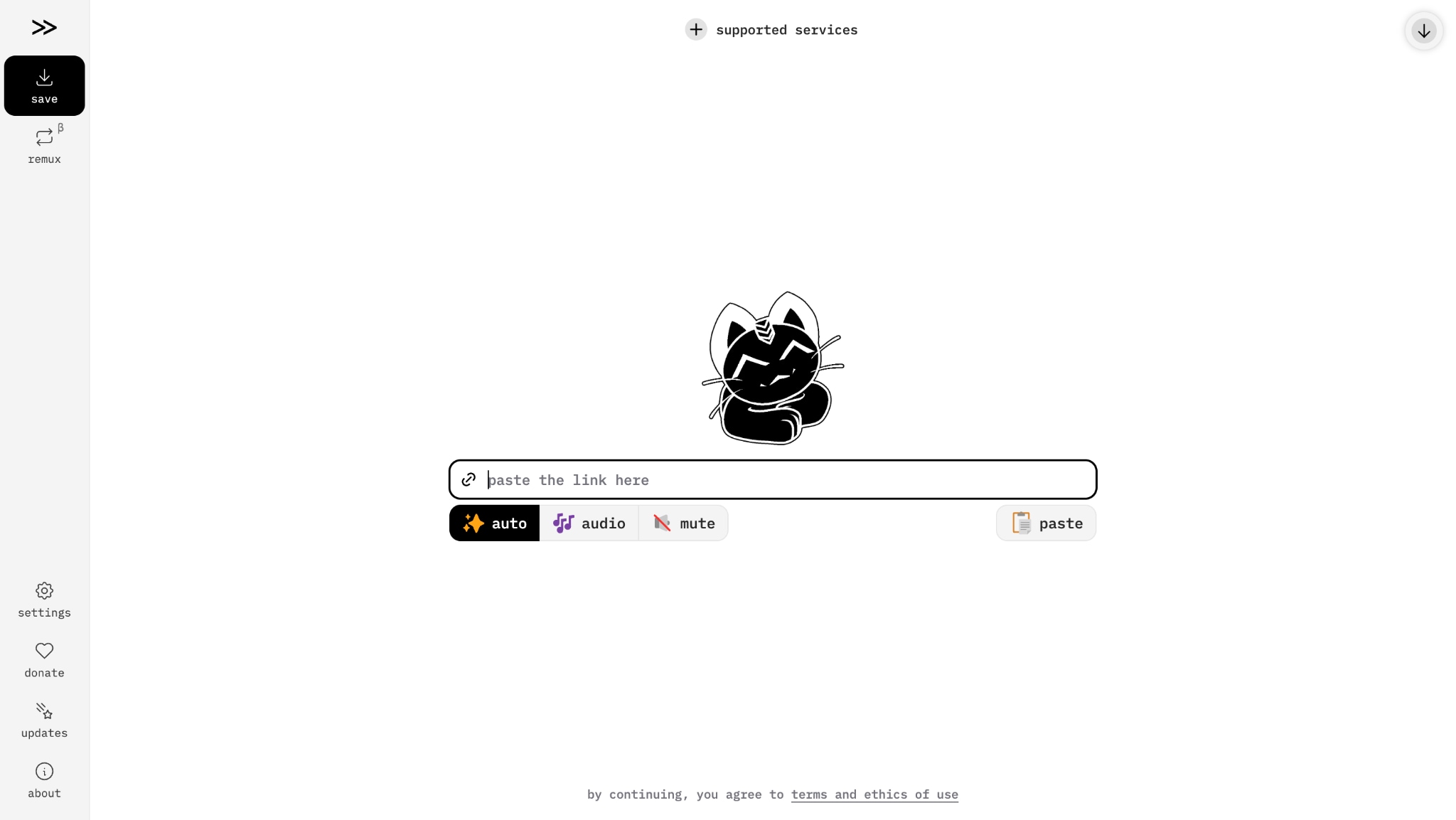
Cobalt Tools is a free, browser-based media downloader that allows you to download video and audio from multiple platforms. Simply paste a link, and the tool instantly downloads content without registration. It supports various platforms, such as YouTube, TikTok, Instagram, Facebook, Twitter, and 20+ others. There are no ads, paywalls, or tracking, making it a straightforward solution for content extraction.
After using it and going through numerous Cobalt Tools reviews, we have got its key features, pros, cons, and limitations:
Key Features of Cobalt Tools
- It supports 30+ platforms, including YouTube, TikTok, Reddit, and more.
- It supports multiple download formats, such as MP3, MP4, and more.
- It offers cross-device compatibility (iOS, Android, Windows, and browsers).
- It offers a completely ad-free experience with no registration required.
- Its keyboard shortcuts enhance productivity.
Why Look for a Cobalt Tools Alternative?
You should look for a Cobalt Tools alternative due to YouTube's blocking of bulk downloads and a higher failure rate for mobile downloads. Here we will understand the main reasons one by one:
- YouTube download restrictions are blocking the main instance functionality
- Poor mobile performance is affecting smartphone users
- Service instability following recent updates
- No batch downloading or playlist download support
- Inconsistent reliability across different platforms and browsers
- Frequent errors during peak usage times
- Limited customer support for troubleshooting issues
Part 2. Is Cobalt Tools Safe and Legit?
When considering any online downloader, the first question that comes to mind is: Is Cobalt Tools safe to use? This concern is valid, especially with so many questionable websites offering similar services. Let's clear up the confusion around Cobalt Tools' safety and legality.
Is It a Virus?
Cobalt Tools is legitimate software, not malware. Security scans confirm its authenticity, and it uses HTTPS encryption to protect data. Some antivirus programs may flag it, but this is typically a "false positive." Such tools often use techniques that resemble malicious software, like automating browser actions, which can trigger heuristic alerts. To ensure safety, always download Cobalt Tools from its official website and avoid third-party clones, which may contain actual viruses.
Is It Legal?
The tool itself is legal, but its use often violates platform Terms of Service. YouTube, TikTok, and others explicitly prohibit downloading content without permission. While personal, offline use carries lower risk, any commercial use—like re-uploading or monetizing—violates copyright law and can lead to serious consequences. Platforms also enforce these rules technically, banning accounts, blocking IP addresses (a common issue for Cobalt Tools), and limiting users who exhibit suspicious download behavior.
Use Cobalt Tools Responsibly
Are Cobalt Tools safe from a security perspective? Yes, when accessed from the official website. But is it legally and ethically risk-free? Not entirely. To use Cobalt Tools responsibly, keep these guidelines in mind:
- Only download content you have permission to download or content in the public domain.
- Avoid redistributing, re-uploading, or monetizing downloaded videos without proper authorization.
- Understand that downloading from platforms like YouTube violates their Terms of Service, which could result in account restrictions.
- Be aware of potential IP bans if platforms detect excessive downloading activity.
- Use downloaded content strictly for personal, educational, or fair-use purposes with proper attribution.
Part 3. Why is Cobalt Tools not working, and how can you fix it?
If you're experiencing problems with Cobalt Tools not working, you're not alone. Many users face downloading errors or connectivity issues. Here are the most common problems and practical solutions to get you back on track quickly.
Issue 1: Connection & Proxy Errors
Signs: "Can't connect," "IP blocked," timeouts, or the site not loading.
This happens because platforms like YouTube aggressively block automated requests from Cobalt Tools' main server. YouTube's network restrictions actively detect and block bulk downloads, making the service unreliable.
Fixes
- Check Your Internet Connection: Ensure you have a stable, fast connection. Unstable networks are a common culprit for timeouts and failed downloads.
- Clear Browser Cache and Cookies: Stale cached data can prevent proper communication with the site. Clear your browser cache and try again.
- Test With a Different Browser: Switch to Chrome, Firefox, or Edge to determine if the issue is browser-specific.
- Disable Ad Blockers and Extensions: Some ad blockers interfere with Cobalt Tools' functionality. Temporarily disable them and retry.
- Use a VPN or a Residential Proxy: If Cobalt Tools is blocked in your region, a VPN or residential proxy can help bypass location-based restrictions. However, be aware that platforms detect and block proxy activity, so this provides only temporary relief.
- Check if the Website is Down: Visit a site status checker to confirm whether cobalt.tools is experiencing downtime.
Issue 2: Processing & File Errors
Signs: Empty files (0 bytes), videos downloading without sound, processing worker crashes, or download buttons showing no response.
This typically occurs when your device or browser encounters issues during the conversion process. Common causes include insufficient storage space, outdated browsers, disabled JavaScript, or antivirus software interfering with processing.
Fixes
- Ensure Sufficient Storage Space: Your device needs enough free space to process and save files. Check your storage and free up space if needed.
- Update Your Browser: Outdated browsers do not support modern web standards. Update Chrome, Firefox, or Edge to the latest version.
- Enable JavaScript: Cobalt Tools relies on JavaScript and web workers to process files. Verify if JavaScript is enabled in your browser settings.
- Disable Conflicting Antivirus Software: Some antivirus programs interfere with the processing. Temporarily disable your antivirus and try again.
- Restart Your Browser and Computer: A simple restart often resolves temporary processing glitches.
- Wait a Few Minutes and Retry: If you see "file tunnel empty," it means the server detected a block. Wait 15 minutes before retrying, as the system usually recovers automatically.
Part 4. Top 5 Cobalt Tools Alternatives 2026
Finding something similar to Cobalt Tools software doesn't have to be complicated. If you're looking for more reliable video and audio downloaders with better stability and additional features like batch downloading, these five Cobalt Tools alternatives deliver consistent results.
1. Wondershare UniConverter
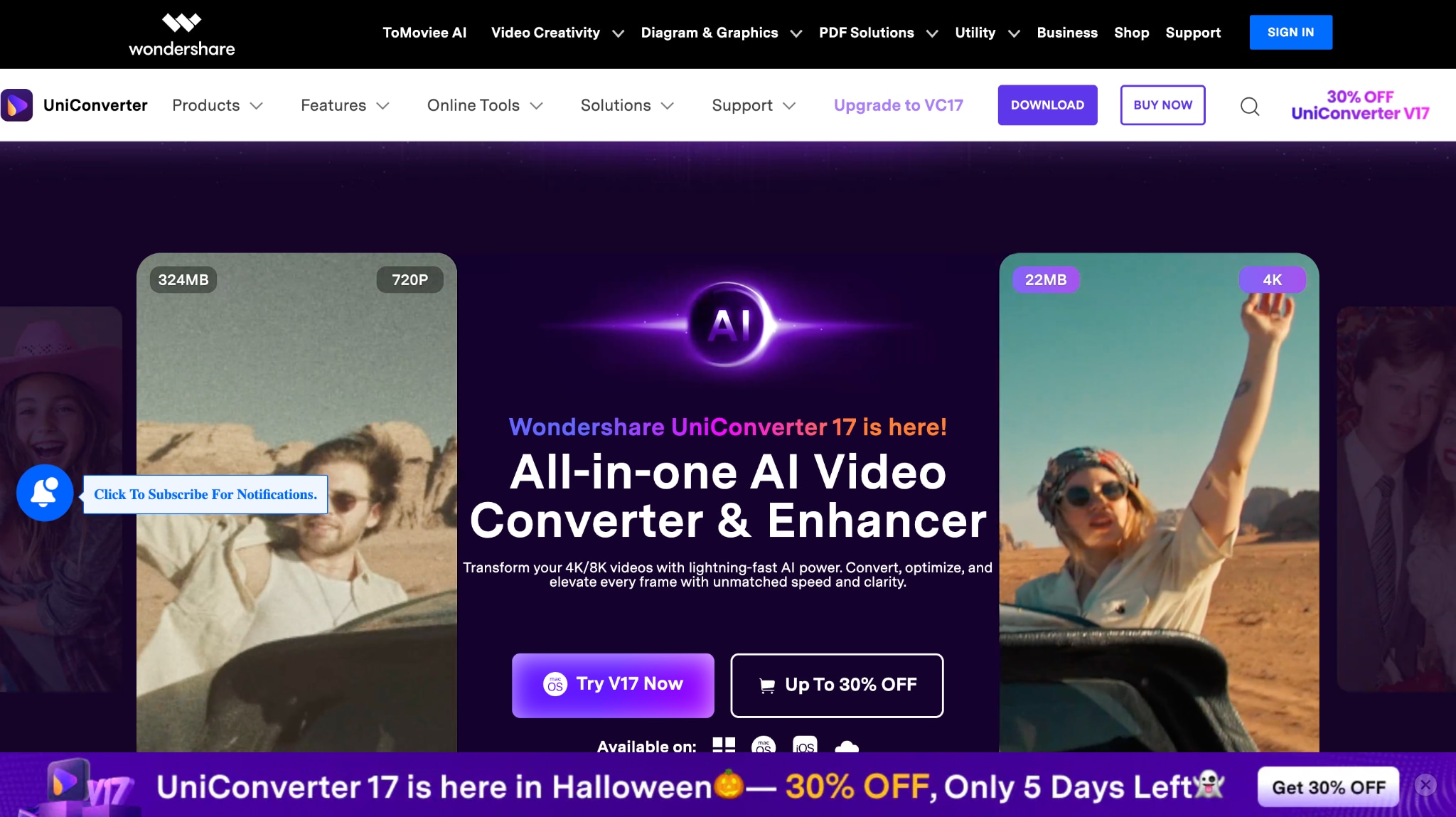
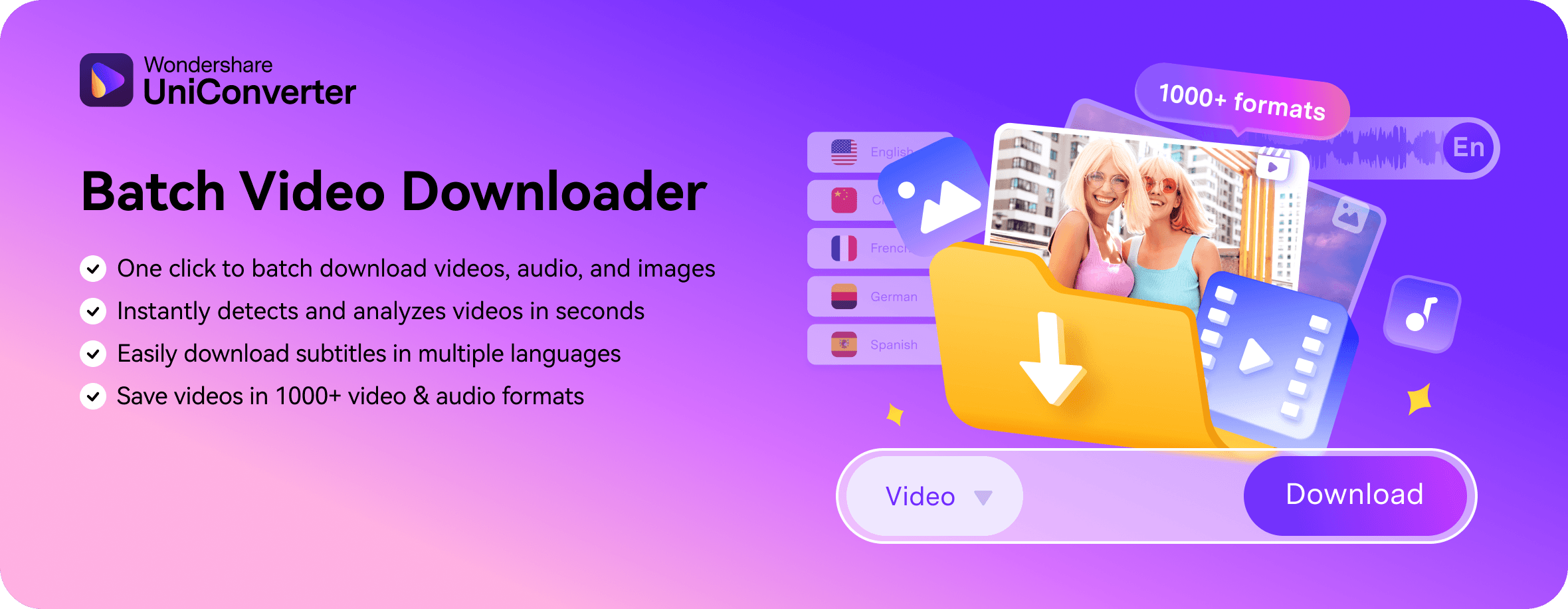
Wondershare UniConverter is a comprehensive, all-in-one media toolkit that goes beyond simple downloading. It allows you to download videos from 30+ platforms, convert files to 1000+ formats, edit videos, compress files, and even extract audio. The desktop application features batch downloading capabilities, letting you download entire playlists at once.
UniConverter also offers a YouTube Chrome extension for quick downloads directly from your browser. With a user-friendly drag-and-drop interface and AI-powered enhancements, it's ideal for content creators who need more than just a downloader. The software supports Windows and Mac devices and includes built-in options for video compression, watermark removal, and subtitle editing.
Safety Review: 5/5
Starting Price: $9.99/month
Supported Devices: Windows, Mac, and Web

Easy to Use Cobalt Tools Alternative
2. 4K Downloader
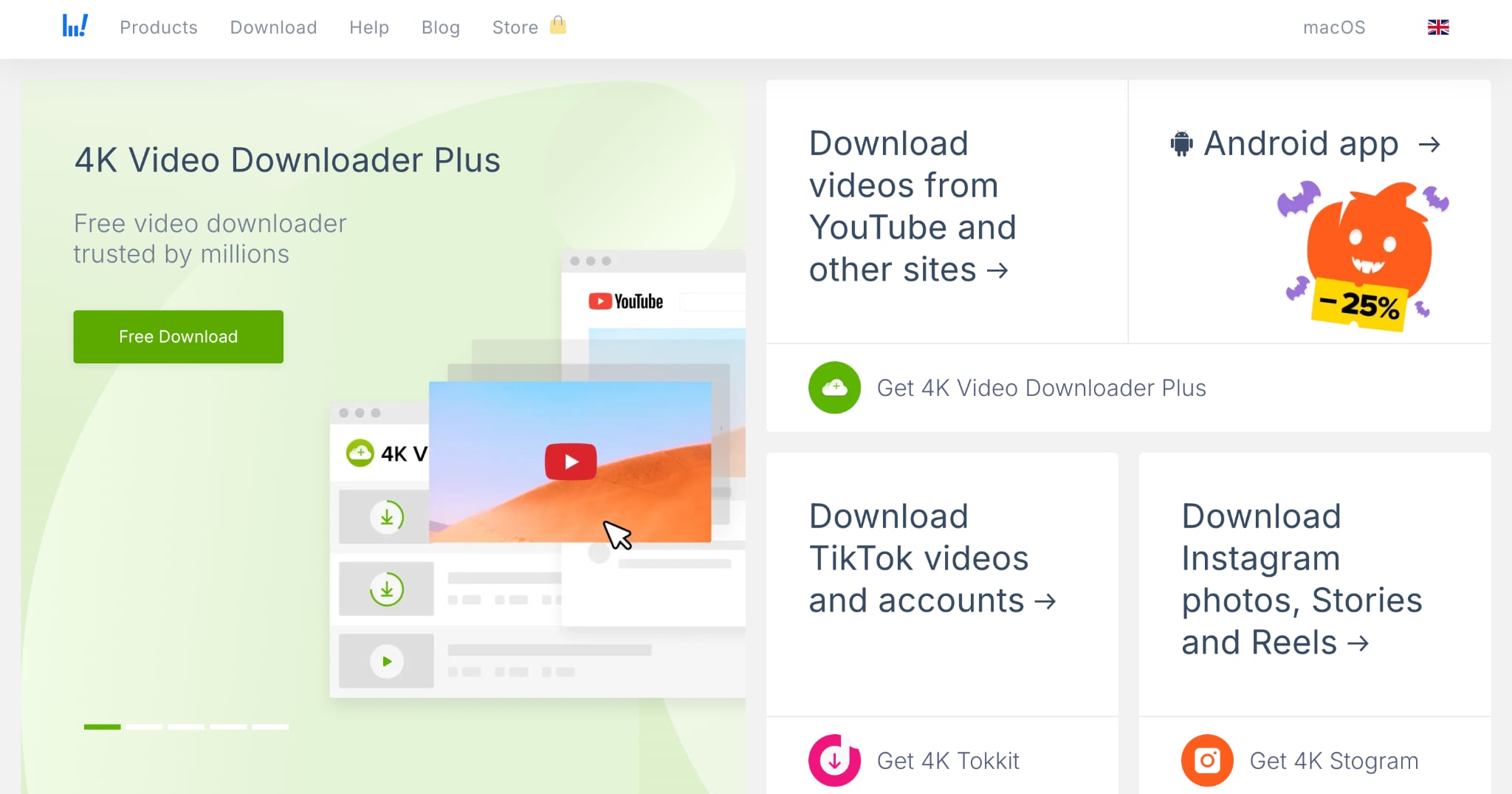
4K Video Downloader Plus is a desktop application designed specifically for high-quality video downloads. It supports downloading from YouTube, Vimeo, Facebook, Twitch, and 11+ other platforms. The tool features one-click playlist and channel downloads, automatic subscription functionality for new uploads. The interface is straightforward, making it accessible even for beginners. Built-in proxy support helps bypass geo-restrictions, and you can download private playlists with in-app browser authentication.
Safety Review: 4/5
Starting Price: $17/license
Supported Devices: Windows and Mac
3. SnapDownloader
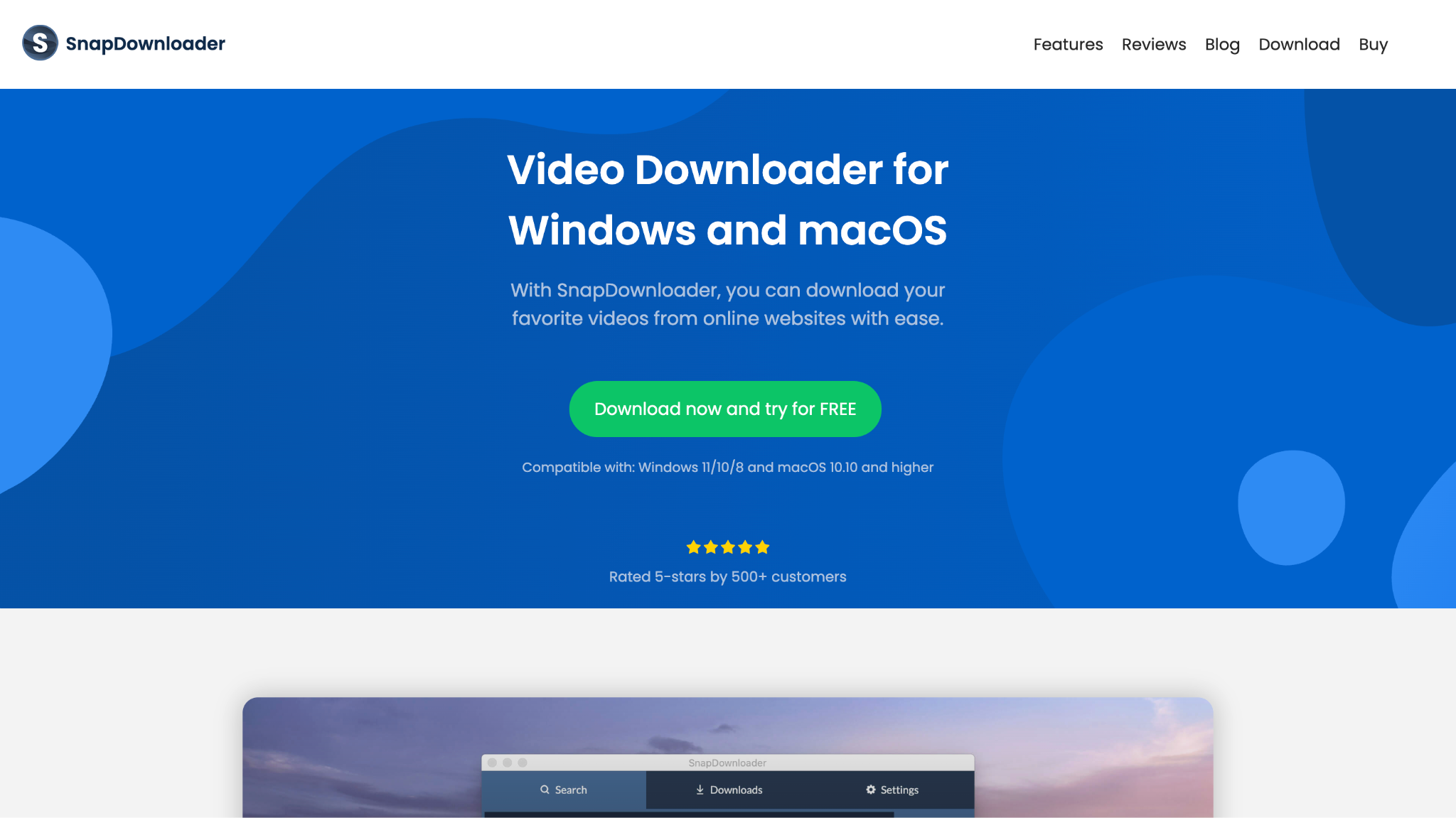
SnapDownloader is a cross-platform downloader supporting Windows and macOS. It handles 900+ websites, including YouTube, Facebook, Twitter, Reddit, and Vimeo, making it incredibly versatile. The tool allows batch downloading, scheduling downloads for specific dates and times, and supports video quality up to 8K. You can extract audio, download playlists and channels, and set up proxy connections to bypass geo-restrictions.
Safety Review: 4/5
Starting Price: $7.99/month
Supported Devices: Windows and Mac
4. MediaHuman
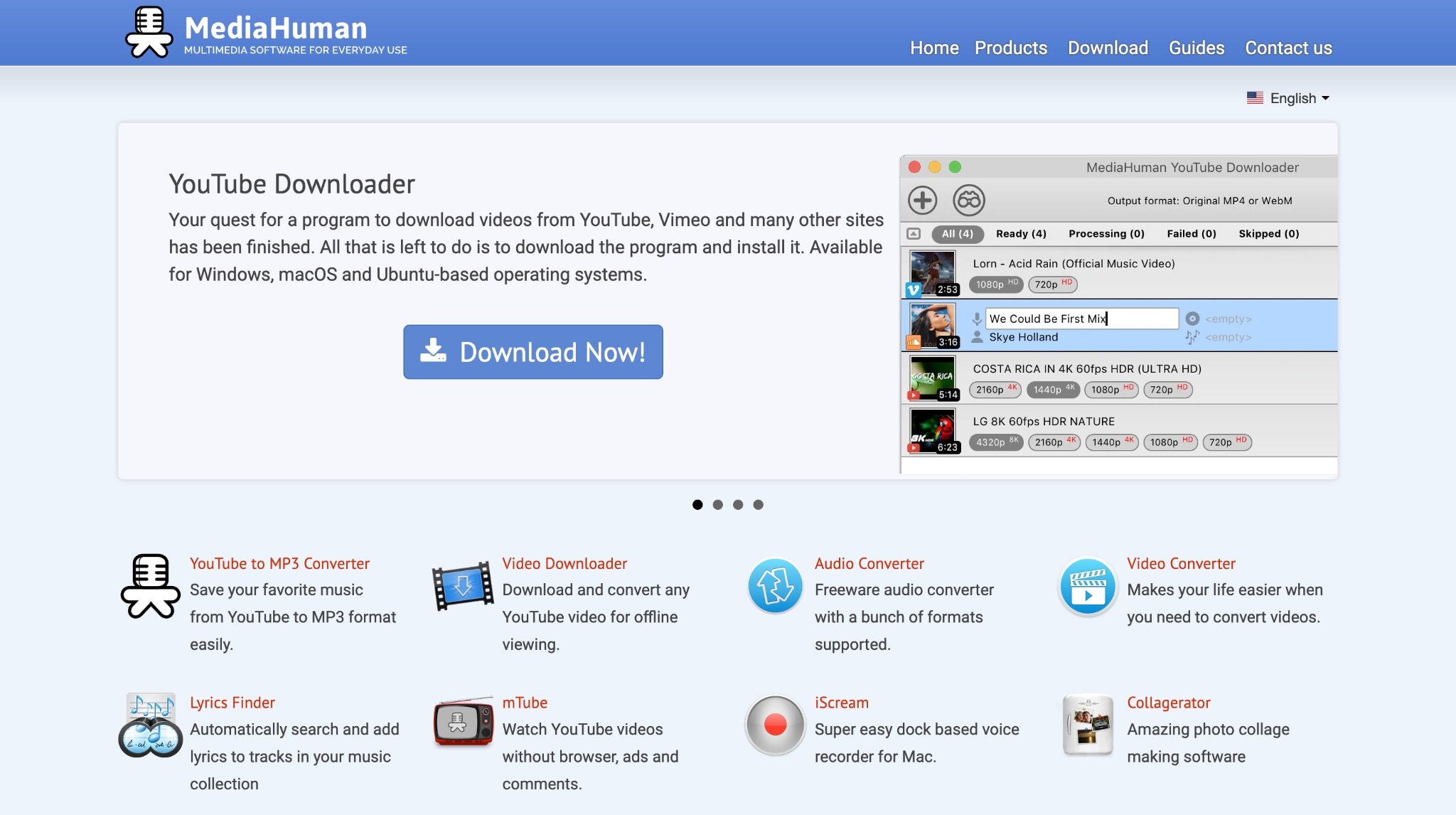
MediaHuman is a lightweight desktop application focused on simple, fast video downloads from YouTube and 6+ other platforms, including Vimeo, Dailymotion, SoundCloud, and TikTok. You can batch download multiple videos simultaneously, extract audio as MP3 or M4A, download entire playlists or channels, and set automatic downloads for new content. The interface is beginner-friendly, with essential controls prominently displayed. MediaHuman supports high-quality downloads, including 4K and 8K formats, while maintaining excellent download speeds.
Safety Review: 4/5
Starting Price: $19.99/month
Supported Devices: Windows and Mac
5. VidPaw
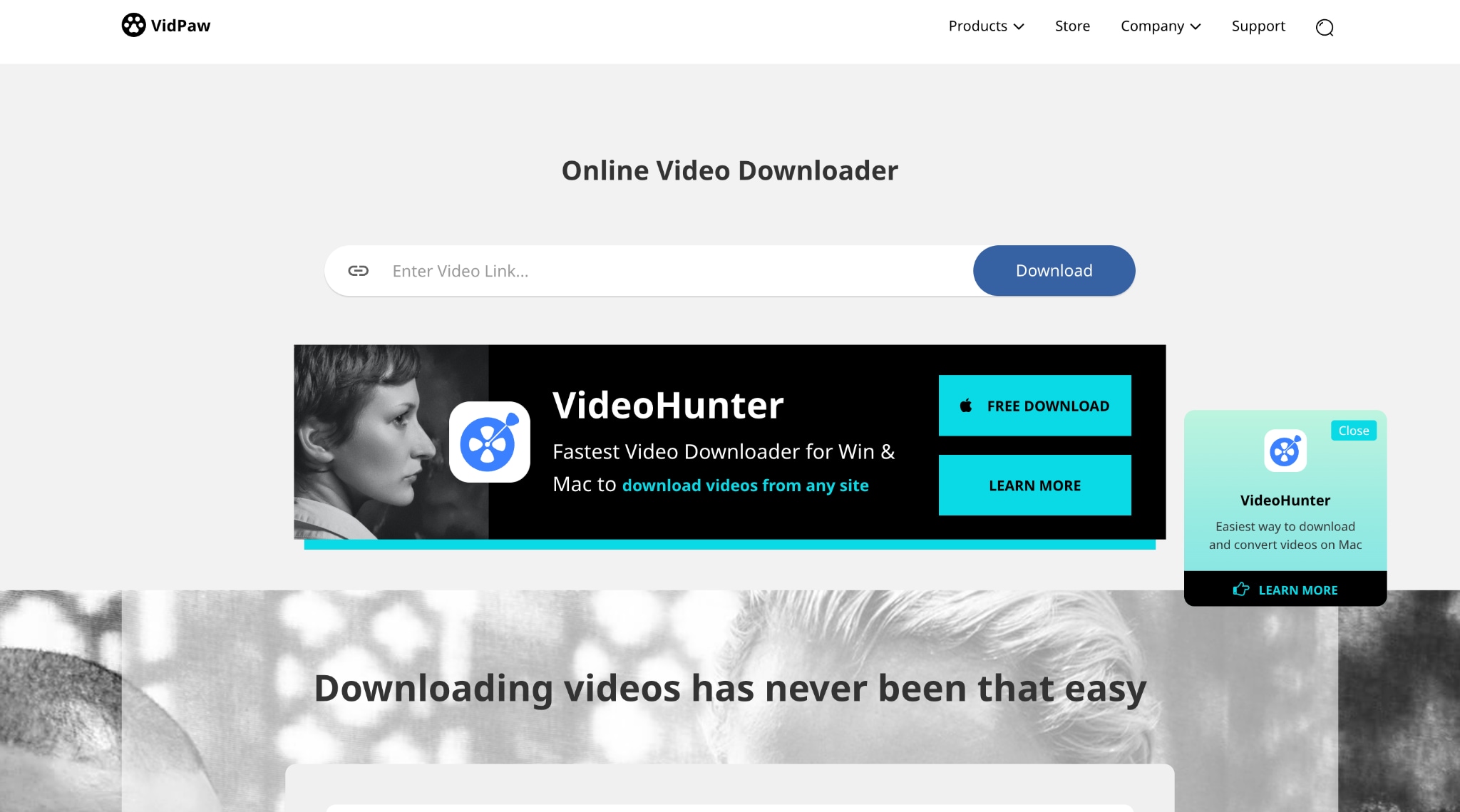
VidPaw is a versatile online and desktop video downloader supporting 1000+ websites without requiring registration or personal information. The tool allows downloading videos in up to 8K quality, with options for MP4, 3GP, and WebM formats, and for audio extraction at multiple quality levels (64-320 kbps). VidPaw features batch downloading, no advertisements or intrusive pop-ups, and a clean, beginner-friendly interface. Both the online version and desktop application are available for Windows, Mac, iPhone, iPad, and Android devices.
Safety Review: 4/5
Starting Price: Free
Supported Devices: Windows, Mac, iPhone, iPad, Android, and Web
Part 5. At-a-Glance Comparison Table of Cobalt Tools Alternatives
Here is a quick comparison table of the best tools to help you understand which tool you should choose as an alternative to Cobalt Tools:
How We Tested Cobalt.tools Alternatives
We reviewed Cobalt.tools alternatives based on download reliability, YouTube support, batch workflow performance, output flexibility, cross-device usability, and overall value.
- download consistency across repeated tasks
- YouTube and audio extraction support
- playlist or batch workflow practicality
- format flexibility and device compatibility
- overall value for long-term use
| App Name | Supported Formats | Unique Edge | Best For |
|---|---|---|---|
| Wondershare UniConverter | 1000+ formats (MP4, MKV, MOV, AVI, FLAC, etc.) | Batch download, audio, video, and image editing features in one place, no ads | Content creators needing multiple tools in one |
| 4K Video Downloader Plus | MP4, MKV, WebM, MP3 | Automatic channel subscription, smart mode | Users wanting automatic new content downloads |
| SnapDownloader | MP4, MP3, AVI, WMA, AAC | Scheduled downloading, VR video support | Users wanting schedule automation and support |
| MediaHuman | MP4, 3GP, WebM, MP3, M4A | Smart clipboard monitoring, lightweight | YouTube-focused users wanting a lightweight solution |
| VidPaw | MP4, 3GP, WebM, MP3 | 1000+ website support, completely free, no registration | Users wanting maximum platform variety with no cost |
Conclusion
When searching for a Cobalt Tools alternative, reliability and functionality should be your top priorities. While Cobalt Tools offers a free, browser-based solution, its YouTube restrictions and mobile performance issues make it unreliable for consistent use. Wondershare UniConverter stands out as the best comprehensive alternative, combining powerful downloading, video editing, format conversion, and batch processing into one all-in-one platform. For content creators needing professional features and consistent performance, UniConverter delivers the reliability that Cobalt Tools cannot. Try Wondershare UniConverter today and enjoy seamless, feature-rich media management.

