


Have you tried converting your video only to end up reducing its clarity? Many video converters, in an attempt to decrease file size, often employ lossy compression, which removes redundant data and reduces resolution. If you don’t want that, opt for video transcoders. Unlike typical converters, these perform a complex process of transcoding and maintain original quality.
The best transcoding software supports a variety of output file formats and offers additional features like video editing tools or batch conversions. This guide breaks down the top 10 media transcoders for creators and professionals. Perhaps you’re creating YouTube content, editing a social media post, or prepping for presentations; these tools deliver speed, quality, and ease of use.
In this article
Part 1. Best 3 Easy-to-Use Media Transcoders
Creators who are just starting might want to convert their media without having to juggle through complex settings. These media transcoders are simple and easy to use, and best suited for beginners.
1. Wondershare UnConverter
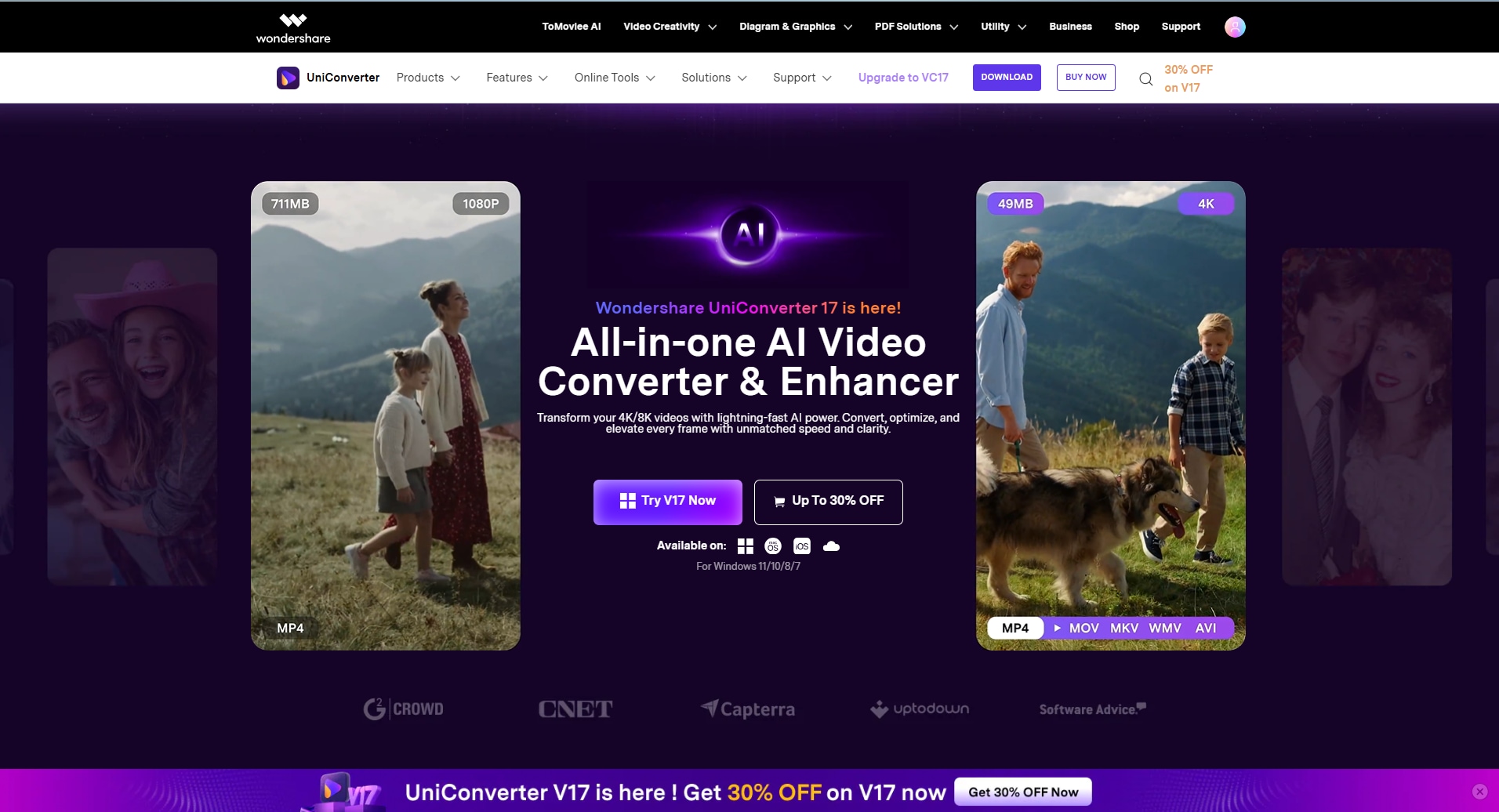
Wondershare UniConverter achieves the pole position by combining intuitiveness, plenty of features, fast conversions, and excellent output. It supports 1000+ file formats, including support for 4K and 8K files. Turn on its “High Speed Conversion” to activate its hardware acceleration that utilizes lossless compression techniques to convert and transcode 4K videos in batches without a quality loss.
Besides conversion, this transcoding solution doubles up as an all-in-one editing tool. You can use its Auto Cutter, Smart Trim, Auto Crop, and AI video enhancer to customize your videos. At the same time, there are similar tools to use for your audio and image files.
Best For: Creators and professionals who need a simple yet all-around media transcoding and editing platform.

Easy to Use Video Transcoder
2. VideoProc
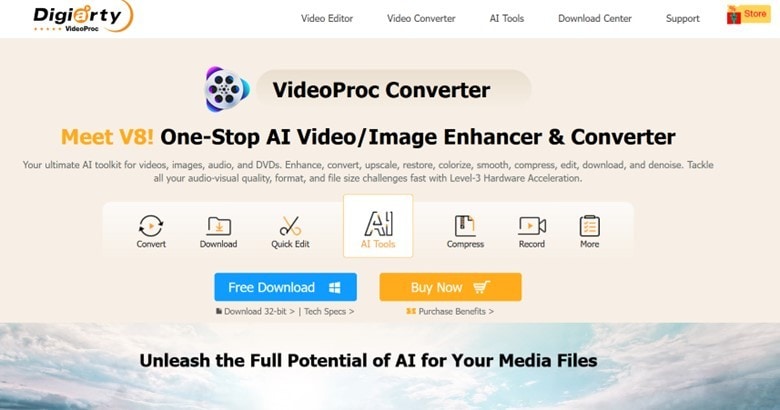
The ability to maintain quality, ensuring a smoother video editing process, reducing frustration, and ultimately saving time are the qualities of an efficient media transcoder. VideoProc Converter AI ticks all the boxes. It supports 420+ output formats, including codecs like H.264, H.265, and even DVDs.
Thanks to its advanced level-3 GPU acceleration coupled with AMD “3D Now” and hyper-threading tech, media conversion is incredibly fast. Not only that, its next-gen encoding tech retains around 99% of the original quality while reducing file size by 90%.
Best For: Best for creators and professionals who quickly need to convert, edit, and enhance their video files.
3. Movavi
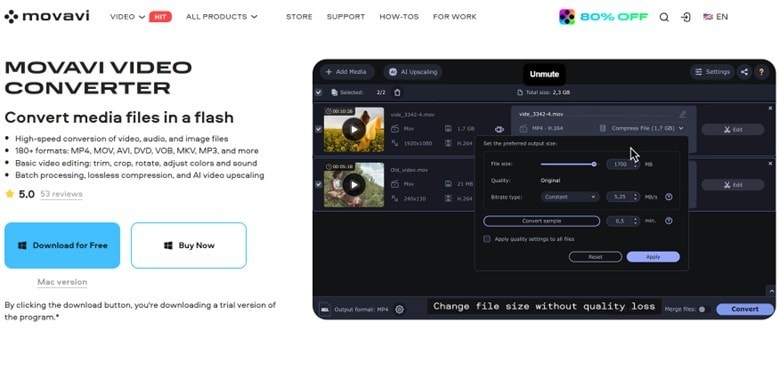
Movavi Video Encoder is a staple transcoder for many, thanks to its reliable and fast nature, support for multiple file formats, and lossless media output. Converting media files with Movavi is simple, as you simply drag a file, pick a preset like YouTube, iPhone, or 1080p, and hit convert. Its SuperSpeed mode activates the GPU acceleration in the background and performs a lightning-speed conversion. Besides, its batch conversion feature saves time by transcoding multiple files simultaneously.
Best For: Beginners and general users who perform basic video conversions quickly and easily.
Part 2. Best 4 Open Source Media Transcoders
A tight budget is no excuse to opt for a low-quality media transcoder. The following open-source and free software are efficient with top-notch benefits.
1. Handbrake
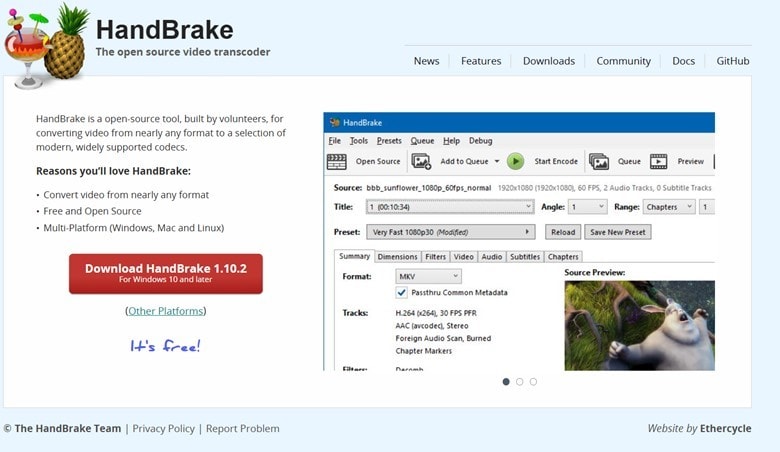
HandBrake is a free and open-source media transcoding software, known for its reliability, intuitiveness, and wide-format support. Despite its straightforward interface, it provides creators and video editors with control over the output settings. One can customize the video resolution, frame rate, bitrate, and other properties.
The support for modern GPU encoding in HandBrake transcoder is a big plus, as it can accelerate the entire process by 2x to 3x while maintaining the quality. Furthermore, an adopted x265 encoding allows the software to create high-quality videos that don’t take up much space.
Best For: Individuals or content creators who need a simple way to convert or compress videos.
2. FFmpeg
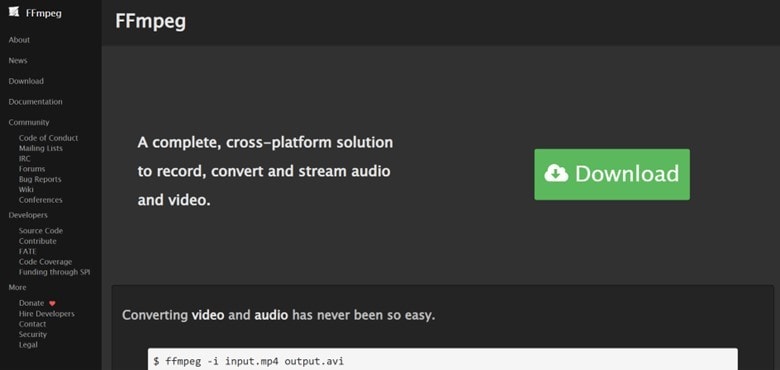
FFmpeg is another popular open-source hardware transcoder with its excellent video conversion capabilities. Aside from the staple formats like H.261/H.262, ProRes, and ATI VCR1/VCR2, it also supports outdated and legacy formats such as 3GP and FLV. So, if you have a whole library of videos to modernize, you’re in luck with Ffmpeg.
Although the transcoding abilities of the FFmpeg transcoder are top-tier, it might not benefit everyone. Its installation is complicated and runs a command-line interface, which necessitates a certain level of proficiency and a solid understanding of multimedia concepts like bitrates, codecs, and formats.
Best For: Advanced users or engineers with a knowledge of the command-line environment.
Easy to Use Video Transcoder
3. VideoLan
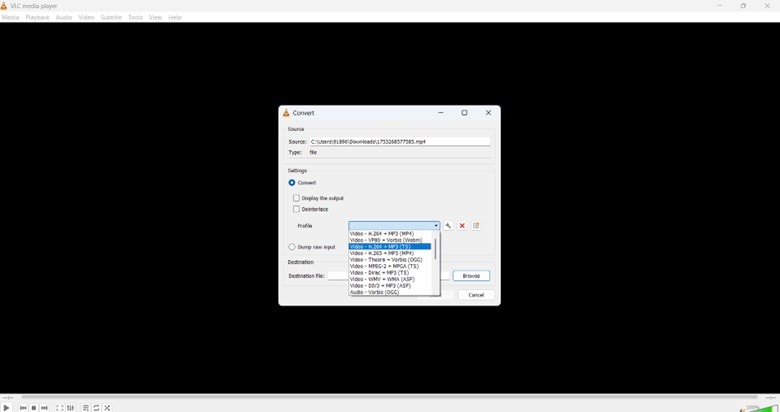
VLC is a popular media player on Windows and macOS that supports multiple file formats, but what many don’t know is that it can also be used as a media transcoder. It can batch convert your media files into various formats (VP3/VP5/VP6/VP8, DVD, WMV, HEVC, MPEG-1/2) and a wide range of codecs without compromising quality.
Besides, similar to most open-source transcoders, the interface isn’t intuitive, but it gets the job done. It’s basically a practical choice for users who occasionally need to convert a file without the need for additional software.
Best For: Everyday users who need a quick conversion of audio and video files for compatibility.
4. Freemake
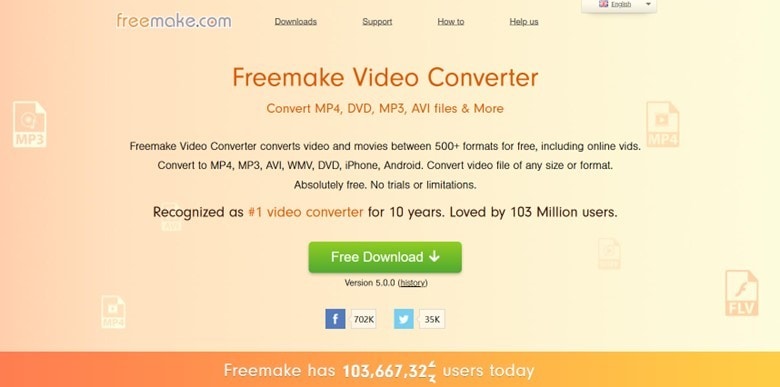
Freemake is more than your typical video converter, and provides a DVD ripper, audio converter, and music player, without requiring you to pay a dime. The online tool supports the most common codecs and output formats, but falls short when converting 4K UHD videos. However, it compensates for its limitation by supporting integration with video-hosting platforms like Vimeo, which automatically uploads your converted videos. So, it saves you the hassle of downloading and manually uploading your creations.
Best For: Suitable for creators for batch conversions and automatic publishing.
Part 3. Best 3 Online Cloud-based Transcoders
If you prefer accessibility and real-time collaboration over others, then cloud-based transcoding software is a great choice. The following are the best tools that you can try out.
1. Mux
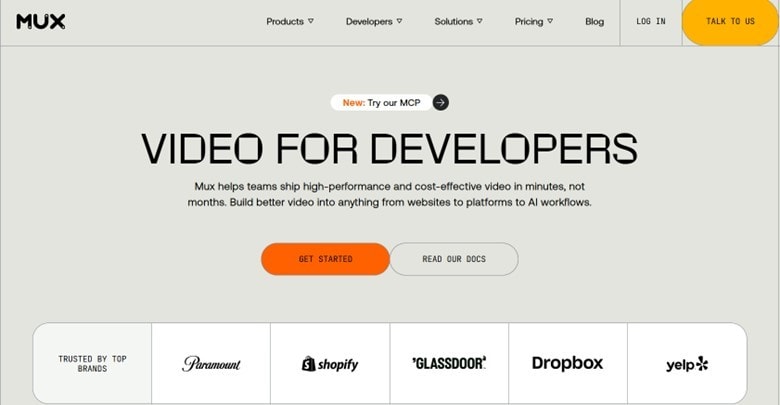
Imagine an online software that performs lossless video format conversion, stores and streams the videos, and provides insights into streaming quality and viewer engagement. These are the basic Mux Video features, and you can access them without paying anything.
Unlike open-source tools like Freemake Video Converter, it supports the latest editable file formats like ProRes, H.265, and VP9. However, its interface is cluttered, and it may take you some time to get accustomed to its features.
Best For: Professionals who need multipurpose conversion and streaming software.
2. CloudConvert
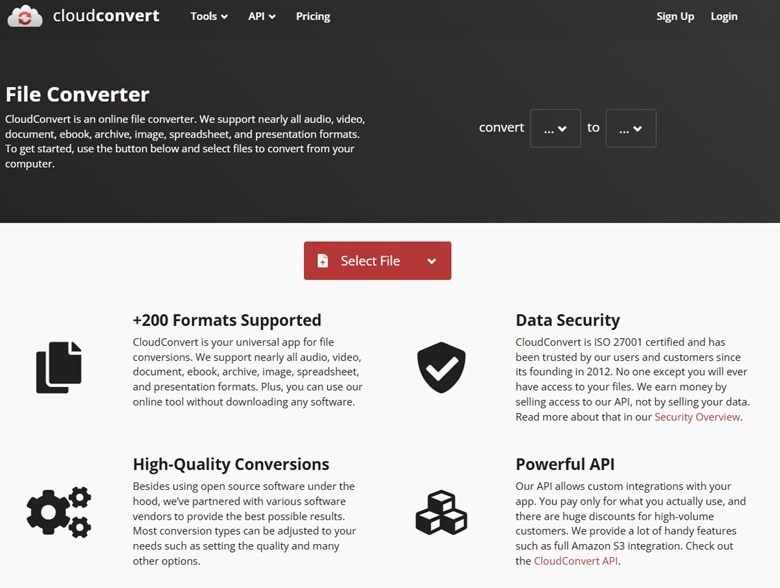
If you are looking for a transcoding solution to convert your media files quickly and effortlessly, then try using CloudConvert. The free-to-use online tool supports 200+ file formats and offers GPU-based encoding for H.264, HEVC, and AV1 formats. It not only ensures a performance upgrade for HEVC and AV1 encoding, but the output barely loses any pixels or data. Although it offers a free file format conversion, GPU encoding comes at a cost. It can get expensive if you convert multiple files at once.
Best For: Casual users and professionals who need quick, on-the-fly conversions with added encoding abilities.
3. FreeConvert
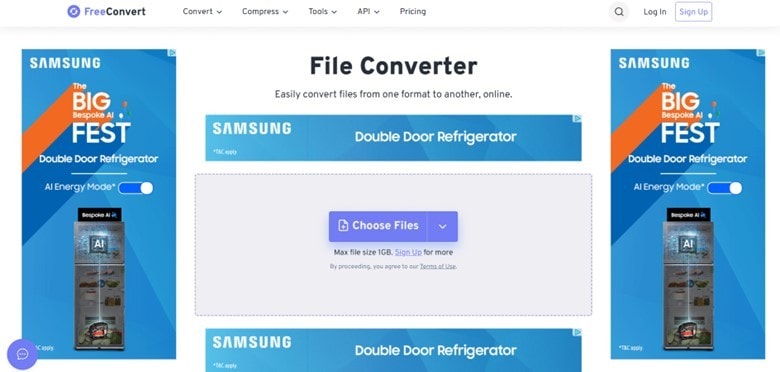
FreeConvert is another free, cloud-based media transcoder with support for 1500+ file formats. It’s a versatile tool that lets you upload files from devices, Dropbox, Google Drive, URL, and OneDrive, and it is compatible with most platforms. Not only that, there are tons of advanced options to fine-tune your conversions. For example, you can choose to output in its original size or a custom value and set image quality and compression levels. Most of its features are available for free, but you might encounter pop-up ads and unwanted add-ons.
Best For: Individuals and businesses needing to convert various file types without losing the quality.
Part 4. Quick Comparison Table for the Best 10 Media Transcoders
Selecting the best media transcoders shouldn’t be difficult. Just figure out the features you need, and evaluate the tool’s output quality, supported formats, user interface, and other features.
Here’s a comparison table of the top ten options for you to make a decision:
| Tools | Ease of Use | Deployment Type | File Formats Supported | Supported Platforms | Customer Support |
|---|---|---|---|---|---|
| Wondershare UniConverter | User-friendly | Local installation | 1000+ | Windows, Mac | Excellent |
| VideoProc Converter AI | User-friendly | Local installation | 420+ | Windows, Mac | Good |
| Movavi Video Converter | User-friendly | Local installation | 180+ | Windows, Mac | Average |
| HandBrake | Advanced | Local installation | Almost every format, including MP4 or M4V, MKV, MOV, MPG or MPEG, AVI, and WMV | Windows, Mac, Linux | Underwhelming |
| FFmpeg | Advanced | Local installation | Numerous popular options include H264/H265, VP8/9, AAC, Opus, and more. | Windows, Mac, Linux, Android, iOS | Underwhelming |
| VLC | Advanced | Local installation | Extensive formats, including MP4, MKV, AVI, MOV, and FLV. | Windows, Mac, Android, iOS | Average |
| Freemake Video Converter | Basic skills | Local installation | 500+ | Windows | Average |
| Mux Video | Advanced | Online cloud-based | Plenty of supported formats, including H.264, VP9, and more. | Windows, Mac, Android, iOS | Underwhelming |
| CloudConvert | User-friendly | Online cloud-based | 200+ | Windows, Mac, Android, iOS | Average |
| FreeConvert | Basic Skills | Online cloud-based | 500+ | Windows, Mac, Android, iOS | Average |
Easy to Use Video Transcoder
Part 5. Extended Knowledge: Should I Transcode or Transmux Videos?
Whether you transcode or transmux videos depends on the use case. Transcoding and transmuxing, although they can be confusing at times, are distinct processes.
Transmuxing, unlike transcoding, involves changing the format of a digital file without changing the actual content. Imagine you have a video file in MP4 format and want to change its file format. Transmuxing takes the audio and video files and puts them into your desired container, such as MKV and WebM. So, use it when you need to deliver a video in a different format while maintaining its compatibility with the devices.
On the other hand, use hardware transcoding when you need to modify the audio and video data itself. It may involve adjusting the resolution, reducing the bitrate, and converting the audio bitrate.
Conclusion
Picking the right video transcoder depends on your use case, skill levels, and budget. If you’re a beginner, use tools like Movavi Video Converter or VideoProc Converter AI. At the same time, select tools like HandBrake and VLC come in handy. However, for most users, Wondershare UniConverter is the best media transcoding software, thanks to its intuitive interface, cross-platform compatibility, powerful GPU acceleration, and efficient batch processing. Also, it entails basic editing tools to trim, cut, crop, and enhance the media quality. So, try it today and give your media a professional look!
FAQs
-
What does a video encoder do?
A video encoder compresses the raw data into a smaller and more manageable format. They use complex algorithms to detect unnecessary data in the video file (spatial or temporal) and remove it. This helps maintain quality while reducing file size simultaneously. -
Which encoder is better, H.264 or H.265?
H.265 is typically better than H.264 as it offers up to 50% more compression efficiency. This helps save storage space while maintaining quality, making it ideal for streaming high-resolution content, such as 4K and 8K. -
Which video encoder is good?
A good video encoder depends on your needs, ease of use, budget, and available features. Wondershare UniConverter meets these requirements and is suitable for both beginners and professionals. -
Which codec is best for YouTube?
H.264 (AVC) is generally considered the best codec for YouTube. It’s often paired up with the AAC-LC audio codec, using the MP4 container. However, YouTube also supports AV1, a newer and more efficient codec that offers better quality and smaller file sizes.

