


Imagine being able to "talk" to your photos—telling them to change a background, swap an outfit, or remove a stranger, all with a simple text message. This isn't science fiction; it's Nano Banana image editing. As the quirky yet powerful codename for Google's latest Gemini-based image models, Nano Banana has taken the digital art world by storm. Whether you are looking for a Nano Banana image editor free solution or advanced Nano Banana image editing prompts, this tool promises to democratize design.
In this deep dive, we'll explore how to master this Nano Banana ai image editor, create stunning visuals, and polish them to perfection using professional tools like Wondershare UniConverter.
In this article
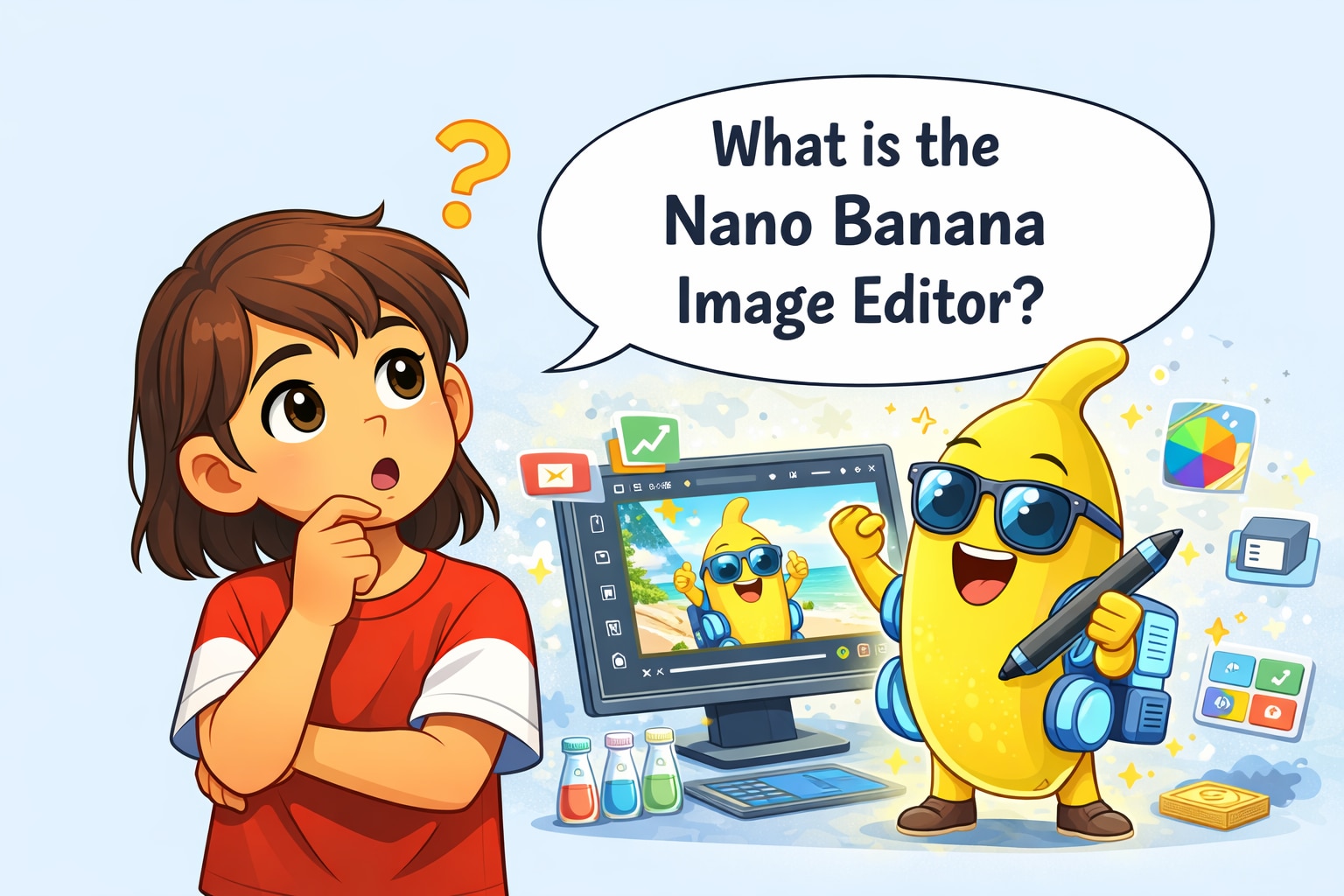
Part 1: What Is the Nano Banana Image Editor?
The "Free" Aspect
For creators on a budget, the Nano Banana image editor free version is highly accessible through the standard Gemini app interface. Users can generate and edit images without an upfront subscription, though this "free tier" often comes with limitations such as:
Watermarks: Images may include an invisible SynthID or visible watermark to identify them as AI-generated.
Quotas: There may be daily limits on how many images you can generate or edit before needing to wait or upgrade.
Resolution: Free outputs might be limited to standard HD (1024x1024), whereas "Pro" versions allow for higher resolution.
Comparison
How does it stack up against the old guard?
Traditional Editors (Photoshop/GIMP): Require manual selection, layer management, and technical know-how. You move sliders and paint pixels.
Nano Banana: You use words. Instead of spending 20 minutes masking a subject, you simply type, "Change background to a Parisian cafe," and the Nano Banana image editing engine handles the lighting, perspective, and shadows automatically.
Part 2: Key Features of the Nano Banana AI Image Editor
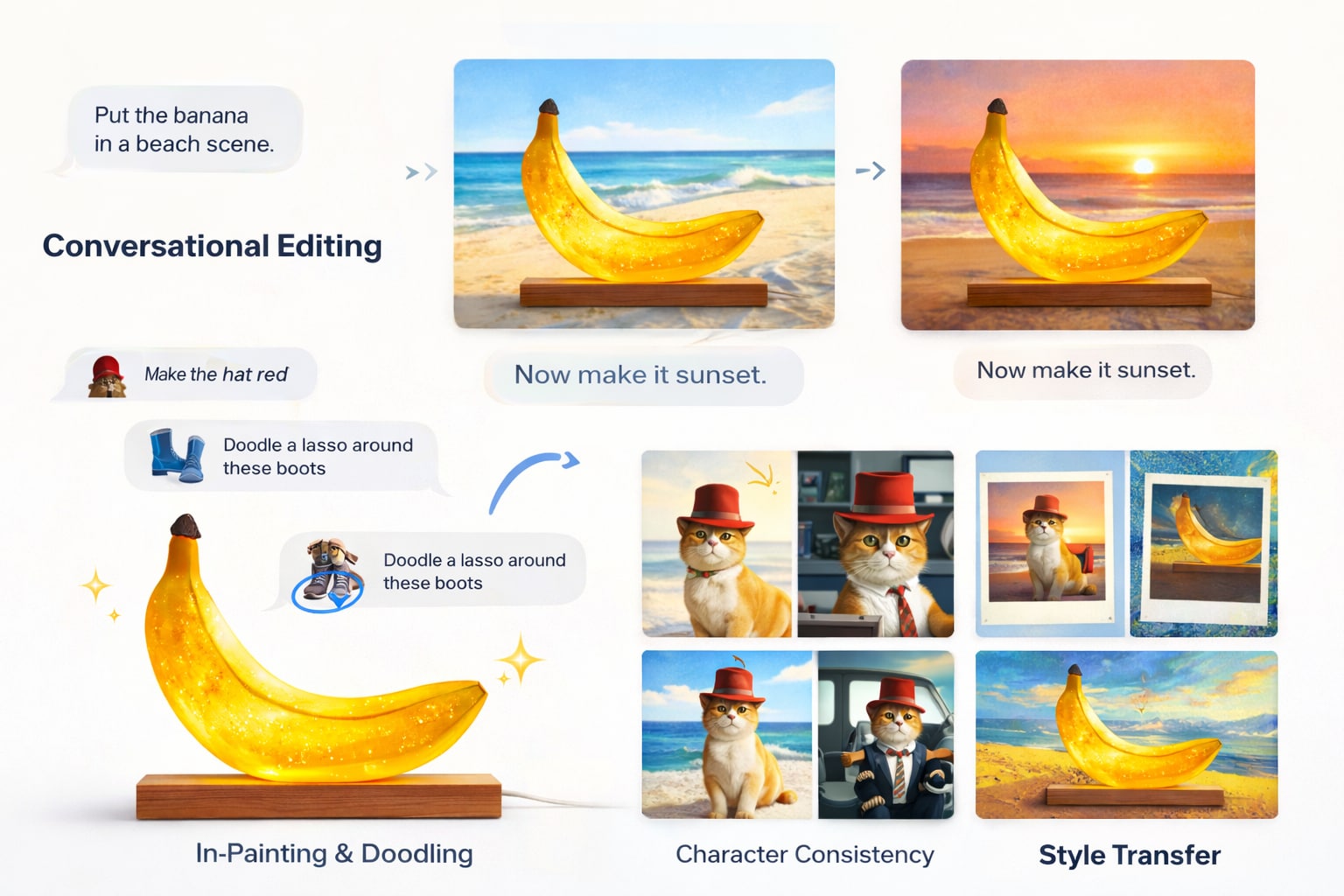
Conversational Editing
The standout feature is "Chat to Edit." You don't just generate an image once; you iterate on it. If the AI creates a cat in a hat, you can follow up with, "Make the hat red," or "Now put him on a skateboard." The AI remembers the context, making the nano banana tutorial process feel like a conversation with a graphic designer.
In-Painting & Doodling
Sometimes words aren't enough. Nano Banana allows users to "doodle" or mask a specific area of an image. You can crudely circle a pair of boots and type, "Change these shoes to sneakers." The AI focuses only on the selected pixels, preserving the rest of the image perfectly.
Character Consistency
One of the biggest hurdles in AI art has been keeping faces the same across different shots. Nano Banana excels at character consistency. You can generate a character and then place them in various scenarios—at the beach, in an office, or flying a plane—while maintaining their facial features and identity.
Style Transfer
Want to change the entire vibe? The tool supports robust style transfer. You can upload a reference photo or use a nano banana image editing prompt like, "Make this look like a 90s Polaroid" or "Render this in the style of Van Gogh." The AI repaints the image to match the requested aesthetic without losing the original composition.
Part 3: A Step-by-Step Guide: Nano Banana Tutorial
Ready to start? Here is a simple how to use nano banana guide to get you editing in minutes.
Steps Guide to Use Nano Banana
Step 1: Select the Advanced Model
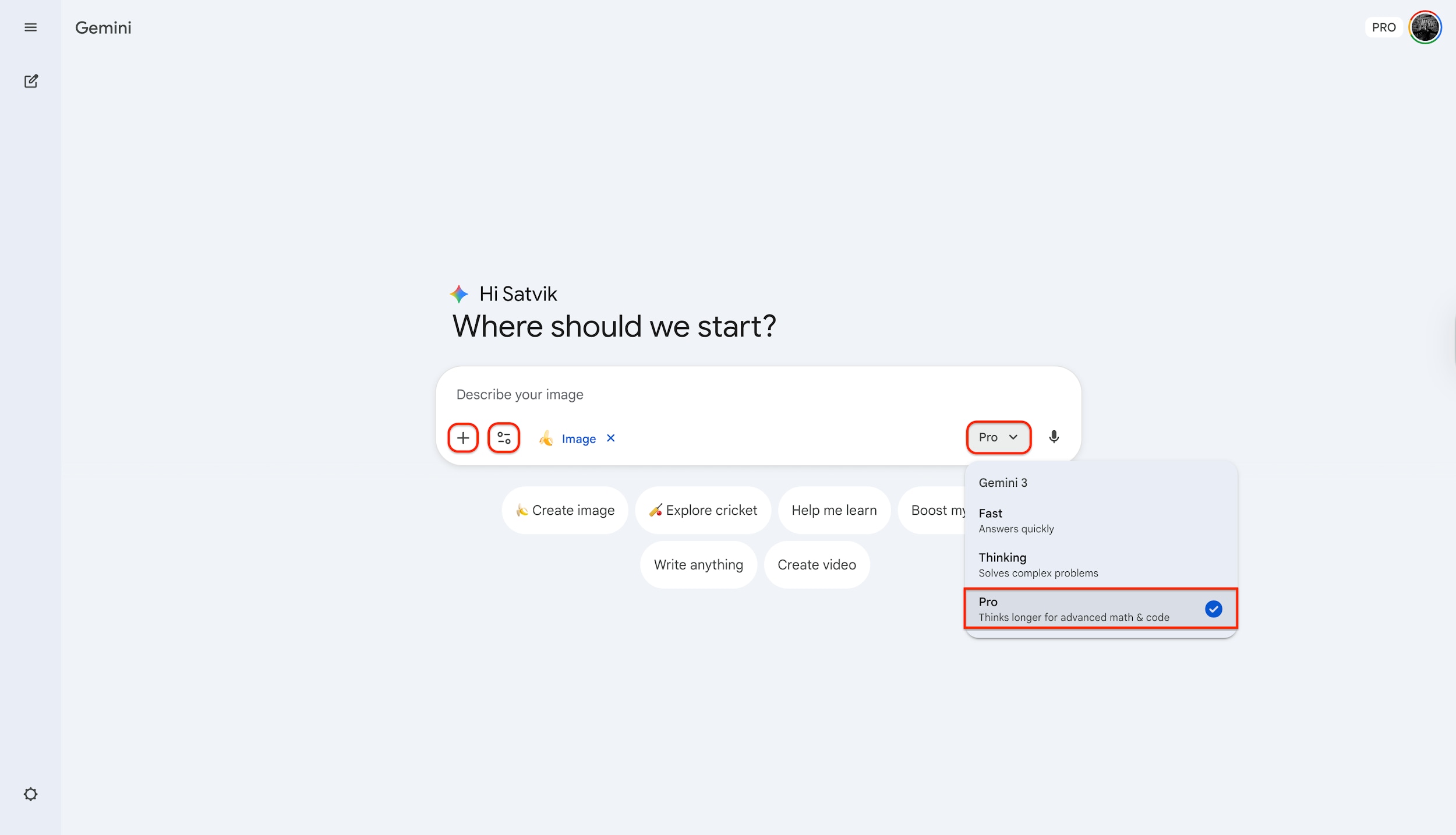
Launch the Gemini interface and locate the model selection menu on the right side of the prompt bar. Click the dropdown arrow and specifically select "Pro" mode (Gemini 3 Pro) to activate the advanced Nano Banana capabilities. This ensures you are using the most powerful engine designed for high-fidelity image generation rather than the standard "Fast" model.
Step 2: Enter Your Descriptive Prompt
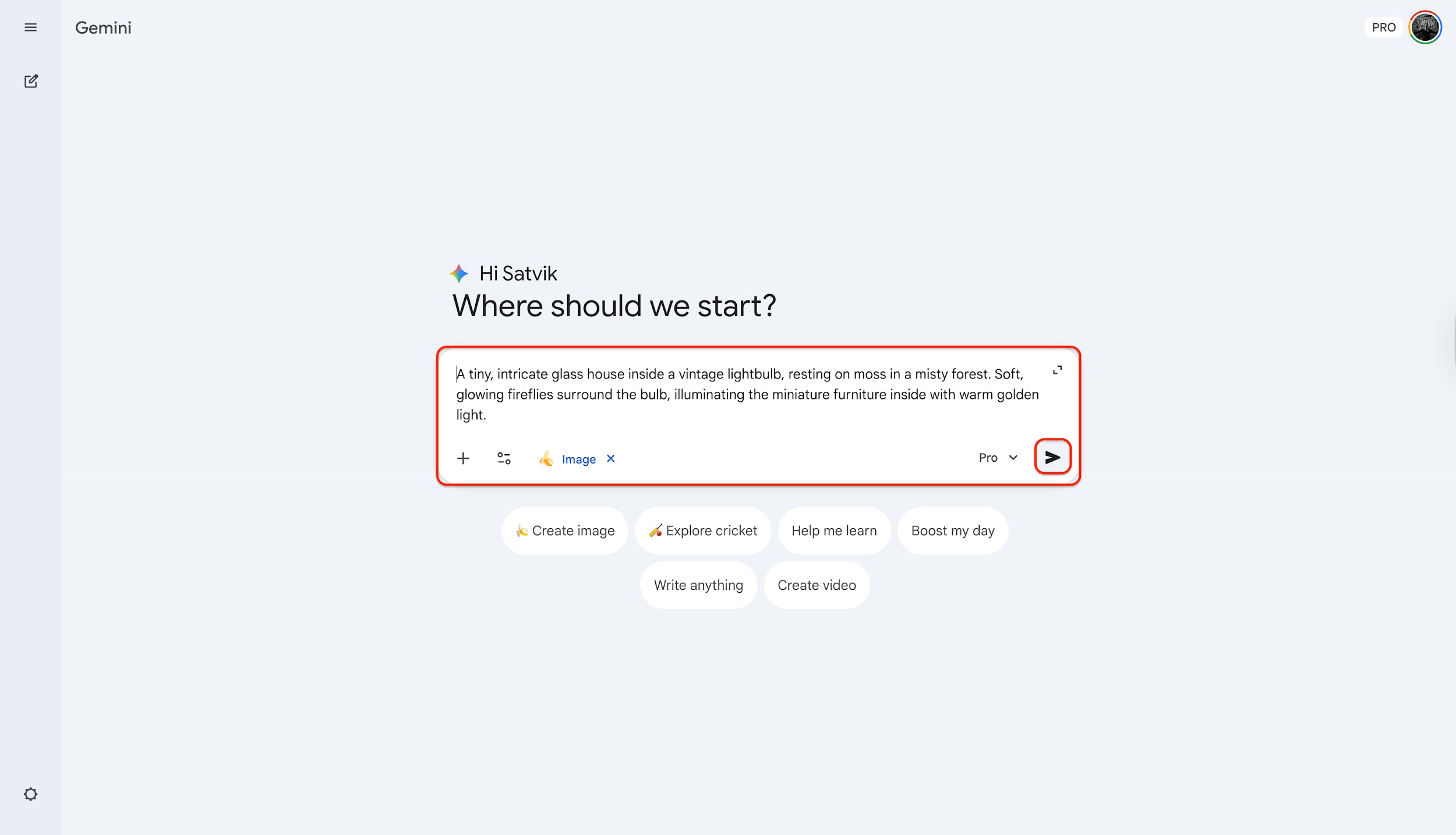
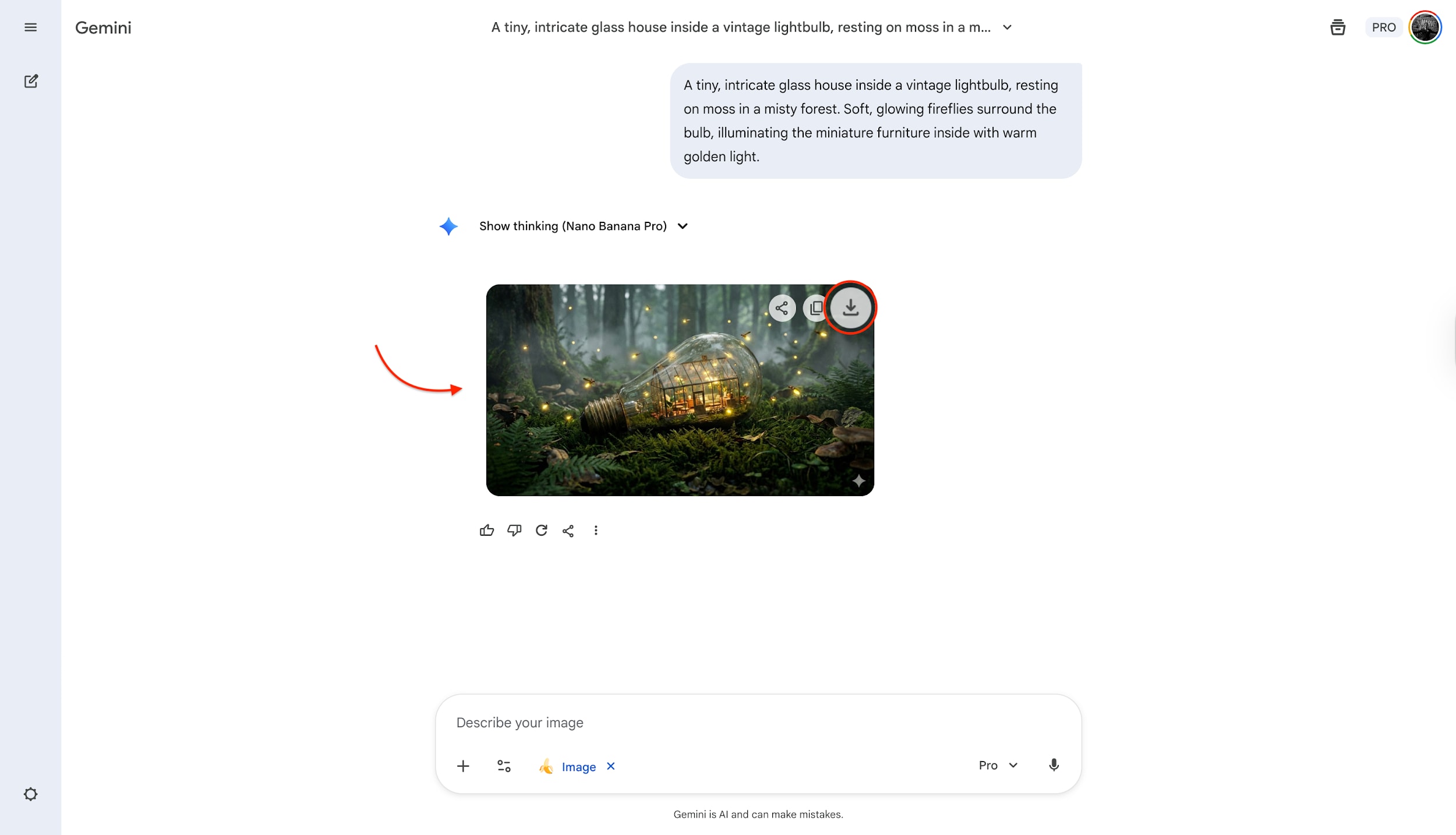
In the "Describe your image" text field, type a rich and detailed prompt, such as "A tiny, intricate glass house inside a vintage lightbulb, resting on moss in a misty forest. Soft, glowing fireflies surround the bulb, illuminating the miniature furniture inside with warm golden light." Be sure to include specific details about lighting, mood, and subjects to give the AI clear direction on what to create. Click the "Send" arrow button on the right to submit your request and initiate the generation process.
Step 3: Review and Download Your Art
Watch as the Nano Banana Pro engine brings your idea to life directly within the conversation window. Once the image appears, hover your mouse over the visual to reveal the overlay options menu. Click the "Download full size" icon (the downward arrow) to save your high-quality creation instantly to your computer for sharing or editing.
Pro Tip: The 'Chat-to-Refine' Secret: Don't start over if the image isn't perfect! Simply type a follow-up command like "Make the lighting moodier" or "Change the background to a sunset", and the AI will adjust your existing image while keeping the main subject consistent.
Part 4: Bonus: Improve the Quality with Image Enhancer
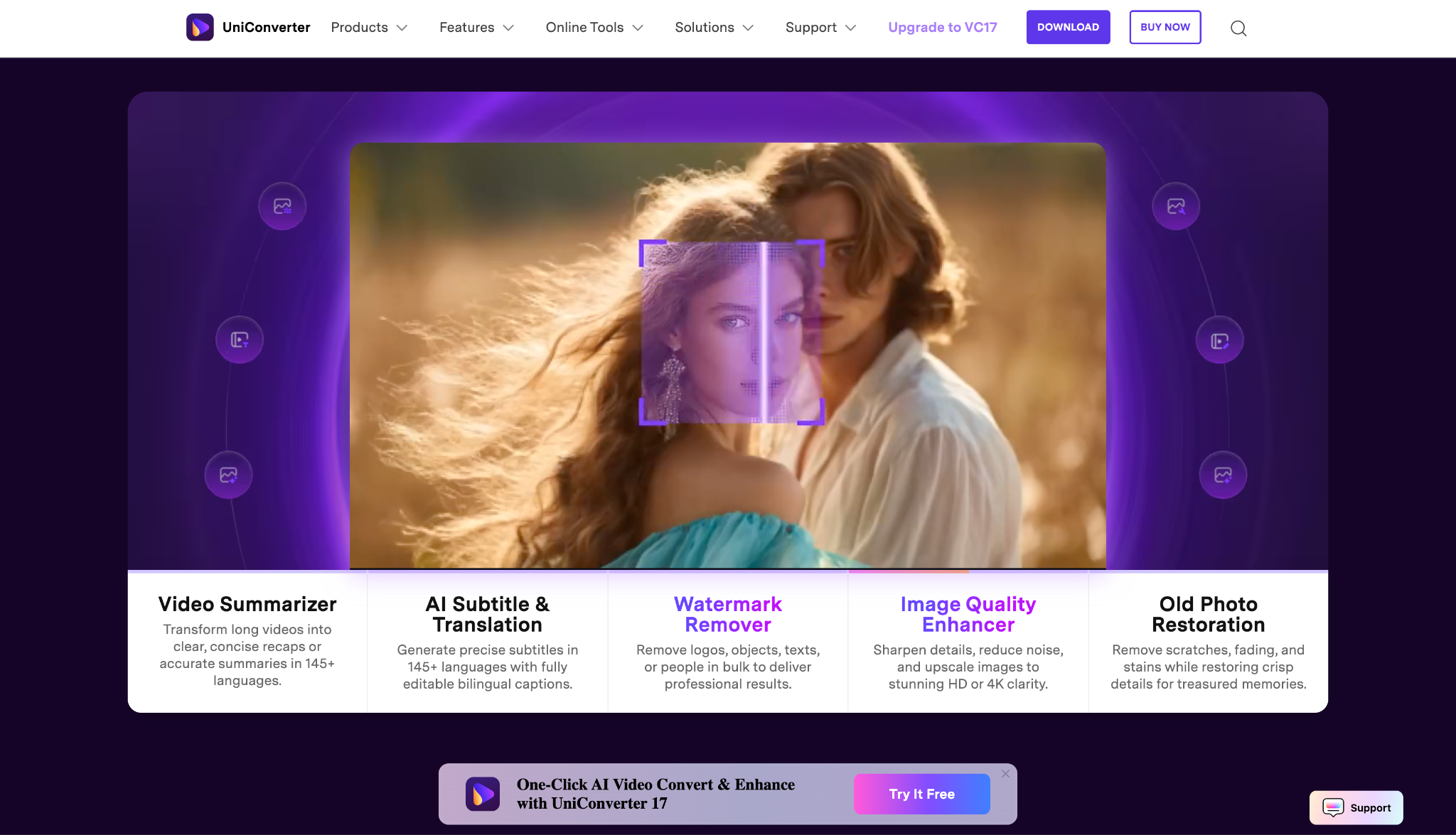
While Nano Banana image editing is fantastic for creativity and composition, AI-generated images can sometimes suffer from low resolution, softness, or artifacts. This is where Wondershare UniConverter comes in. As a comprehensive media toolbox, UniConverter offers a powerful AI Image Enhancer designed to upscale and clarify your digital art, ensuring it's print-ready and professional. With UniConverter, you can easily upscale images to 4K quality, and enalrge images without lossing quality.
Key Features of UniConverter Image Enhancer
AI Upscaling: enhance image resolution up to 4K or 8K without losing quality.
Denoising: Automatically removes grain and "noise" often found in low-light or AI-generated photos.
Face Enhancement: specifically detects and sharpens facial details, correcting the "waxy" look some AI generators produce.
Color Restoration: Intelligently balances colors to make dull images pop.
Step-by-Step Guide: Enhancing Your Nano Banana Art
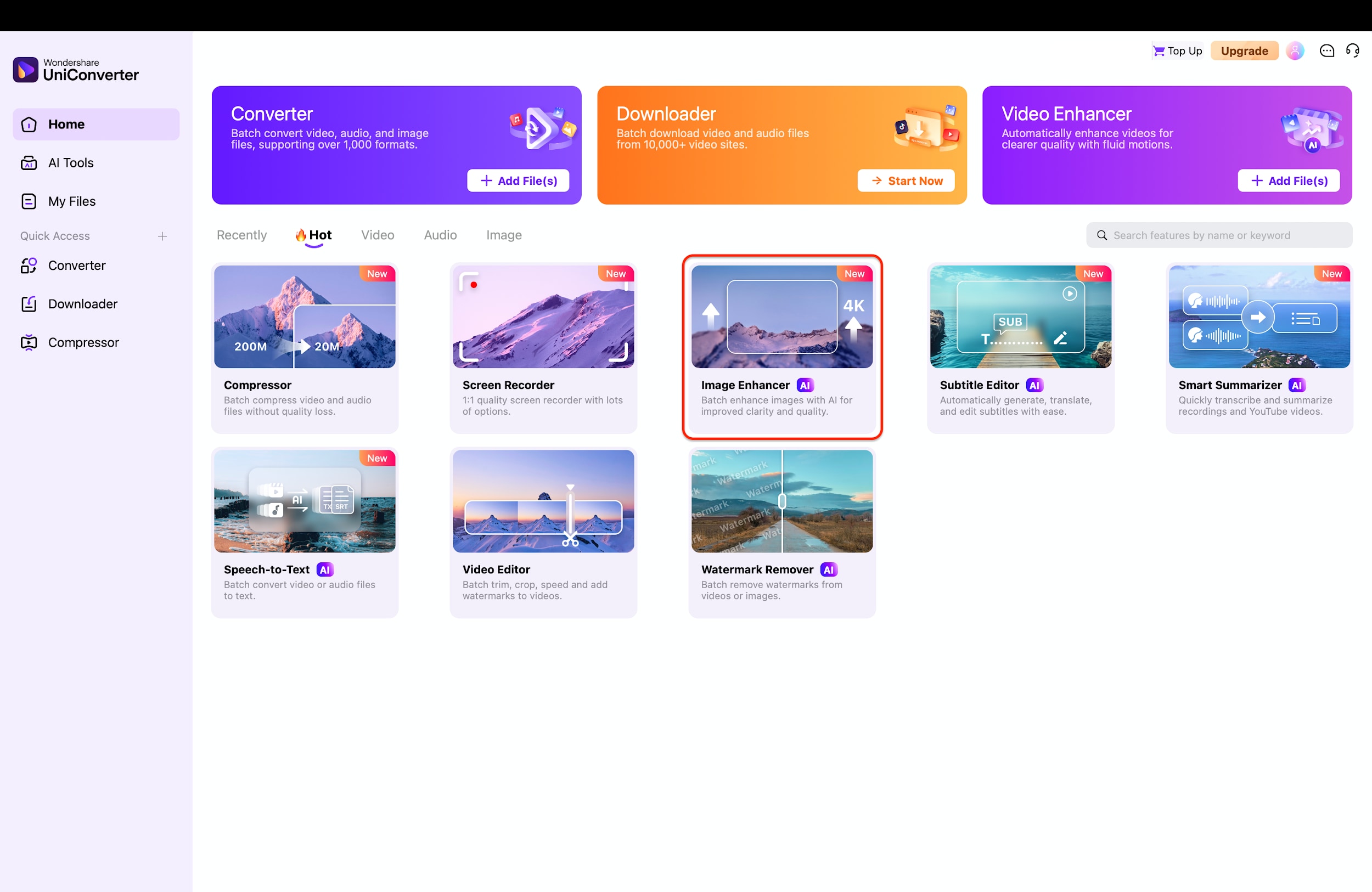
Step 1: Access the Image Enhancer Tool
Launch Wondershare UniConverter and navigate to the main "Home" interface where all the quick access tools are listed. Locate the "Image Enhancer" tile, which is clearly marked with an AI badge and a camera icon. Click on this specific tool to open the dedicated enhancement workspace designed for upscaling and clarifying images.
Step 2: Import Your AI Image
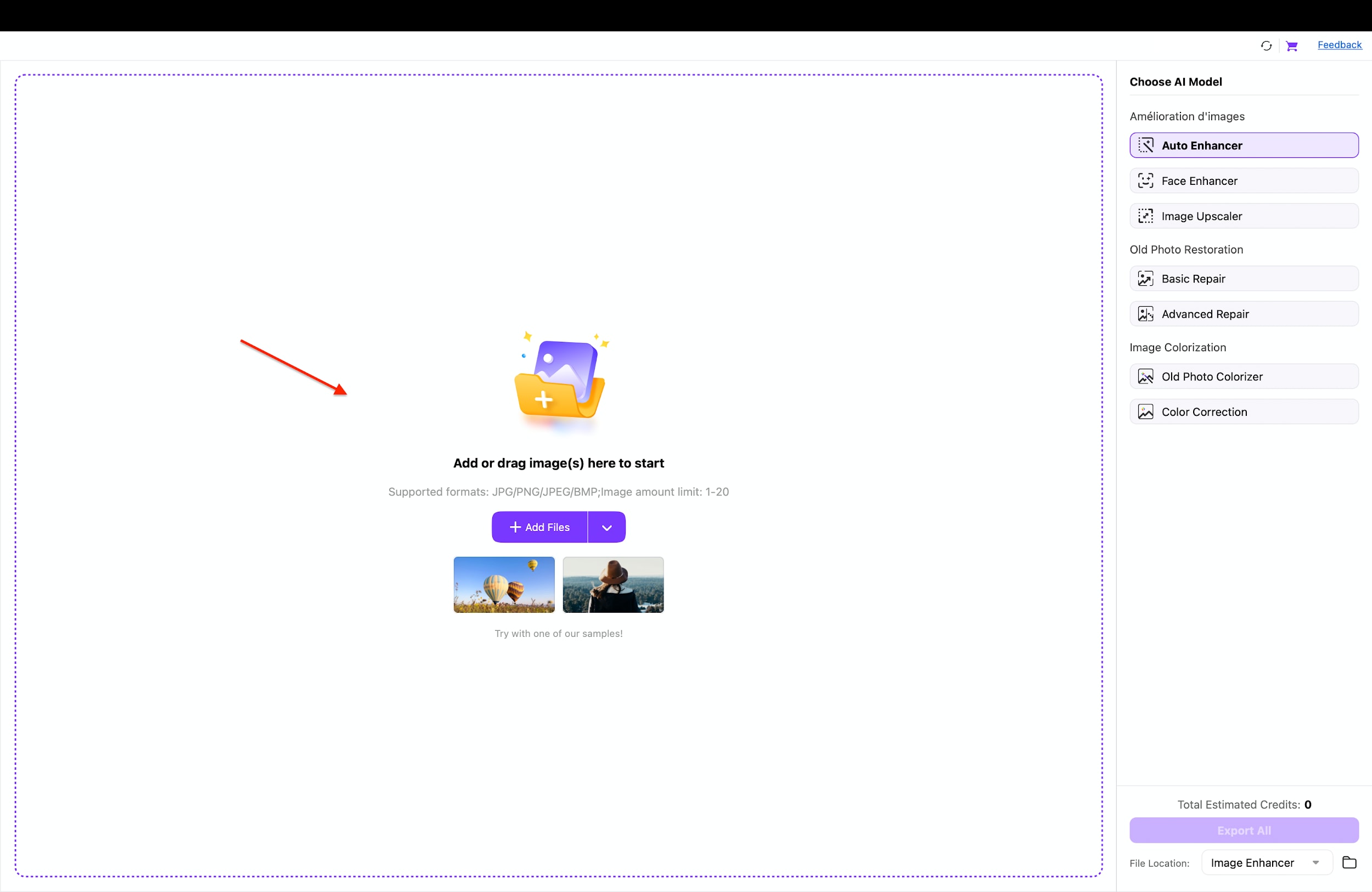
Once the tool opens to the file selection screen, click the central "Add Files" button or the large folder icon to browse your computer. Alternatively, you can simply drag and drop your saved Nano Banana image directly into the center of the window. This prepares your low-resolution generation for professional processing without any complex setup.
Step 3: Select Upscaling Model and Export
On the right-hand side panel, select the "Image Upscaler" model and choose your desired magnification, such as "4X", to drastically increase resolution. Review the real-time preview in the center to see the difference between the original blur and the sharp new version. Finally, click the purple "Export All" button at the bottom right to save your enhanced, print-ready masterpiece.
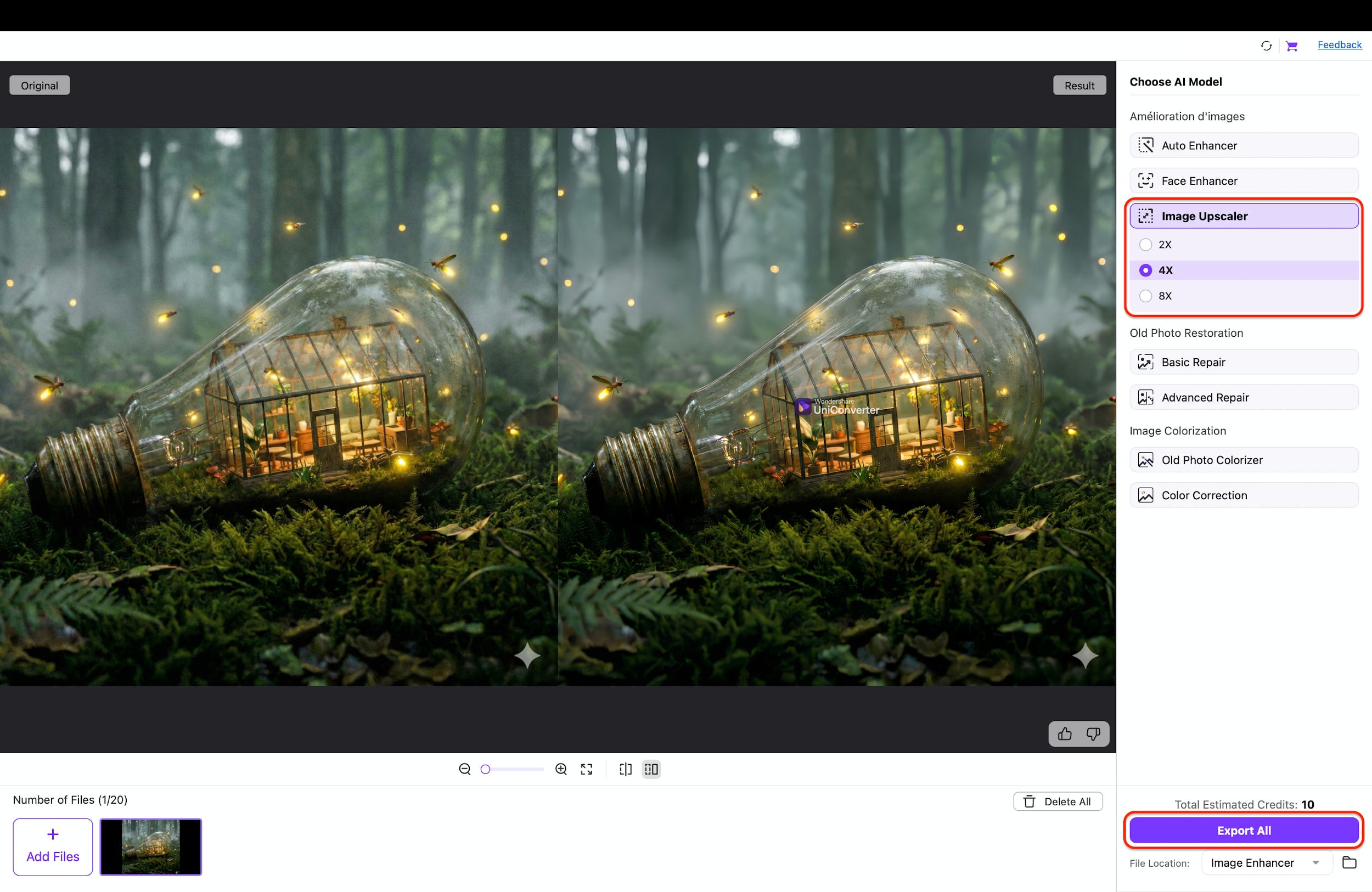
Pro Tip: Fix AI Faces Instantly – If your Nano Banana generation features a person, don't just upscale! Toggle the "Face Enhancer" option (visible just above "Image Upscaler") to specifically reconstruct and sharpen facial features that AI often renders poorly.

Advanced Image Enhancement Powered by Nano Banana AI
Part 5: Top Use Cases for Nano Banana
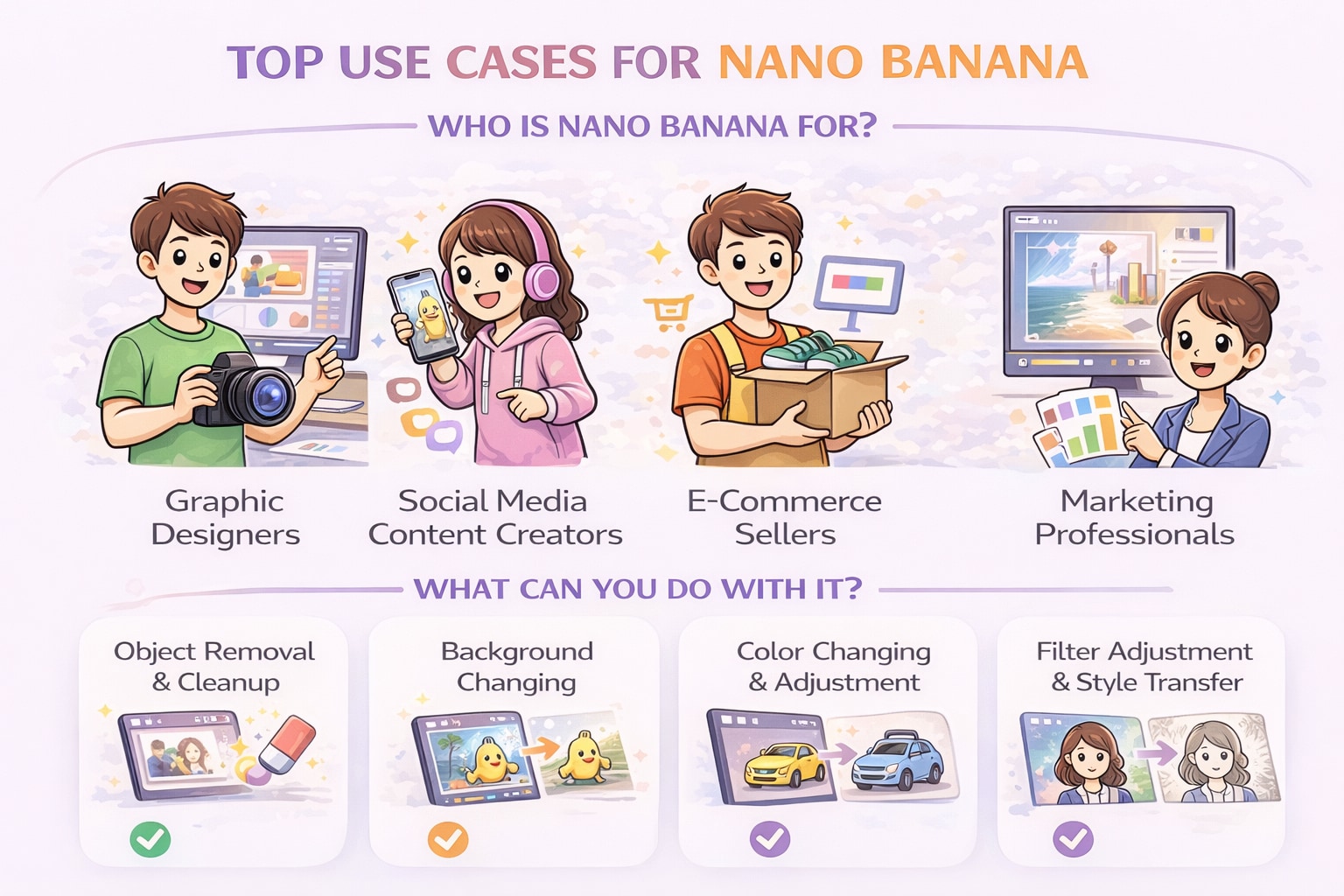
Who is Nano Banana For?
Graphic Designers
The Nano Banana image editor accelerates workflows by allowing designers to mock up concepts rapidly without complex layering. It acts as an instant brainstorming partner, visualizing ideas in seconds before committing to final renders.
Social Media Content Creators
Creators use Nano Banana image editing to resize visuals or generate trending backgrounds tailored for Instagram and TikTok. This tool helps maintain consistent posting schedules by turning text ideas into engagement-ready assets without a design team.
E-Commerce Sellers
Small business owners can effortlessly clean up product photography using Nano Banana image editing prompts. By removing cluttered backgrounds or fixing lighting, sellers create trustworthy, studio-quality listings that drive higher conversion rates.
Marketing Professionals
Marketers can produce multiple ad variations instantly, testing different messages using just a few words. The Nano Banana AI image editor allows for real-time A/B testing of visual concepts, ensuring brand messaging stays fresh.
What Can You Do With It?
Object Removal & Cleanup
Seamlessly erase unwanted photobombers, text, or clutter that distracts from the main subject. The AI intelligently fills the gap with context-aware pixels, ensuring the final image looks natural and untouched.
Background Changing
Instantly swap dull environments for professional studio settings or scenic landscapes. This feature is essential for transforming casual snapshots into professional-grade assets suitable for websites.
Color Changing & Adjustment
Precisely alter specific items, like a dress or car, to match a brand palette. The Nano Banana tutorial method makes this as easy as typing instructions while maintaining original shadows and textures.
Filter Adjustment & Style Transfer
Transform the entire aesthetic, turning photos into sketches or cyberpunk art. This Nano Banana image editor free capability empowers users to experiment with limitless artistic styles unique to their vision.
Part 6. Conclusion
Nano Banana image editing represents a massive leap forward in digital creativity, simplifying the art of visual storytelling by turning text into pixels. Whether you are using the Nano Banana image editor free version for fun or leveraging the Pro features for work, the ability to chat with your canvas changes the game entirely. It removes the technical barrier to entry, allowing anyone to visualize their ideas instantly.
However, creation is just the first step. To ensure your AI masterpieces are crisp, clear, and professional, high-quality post-processing is essential. This is where Wondershare UniConverter proves invaluable. Its robust AI Image Enhancer allows you to upscale and refine your Nano Banana creations, removing artifacts and boosting resolution effortlessly. Start experimenting with Nano Banana today, and let UniConverter provide that final professional polish!
FAQs
-
1. Is the Nano Banana image editor safe for commercial use?
Generally, yes—especially when using the Pro tier, which typically includes commercial usage rights. However, always review the official Terms of Service for Google Gemini/Nano Banana, as AI content regulations and usage rights may vary by region. -
2. How does Nano Banana compare to Photoshop Generative Fill?
Nano Banana is typically faster and more conversational, making it ideal for rapid ideation and large creative changes. Photoshop Generative Fill provides greater precision and deeper integration into professional workflows, though it has a steeper learning curve. -
3. Can I use Nano Banana on mobile devices?
Yes. Nano Banana is accessible through the Gemini app on both Android and iOS devices, allowing convenient mobile image editing. -
4. What should I do if the AI distorts faces?
If facial features appear distorted, try regenerating the image with a more detailed prompt. You can also refine the result using a face enhancement tool such as the Face Enhancer in Wondershare UniConverter to improve sharpness and clarity. -
5. How do I reduce the file size of my Nano Banana edits?
AI-generated images can be large in size. Using an image compression tool like Wondershare UniConverter’s Image Compressor can significantly reduce file size while maintaining visual quality, making the images more suitable for web use.

