


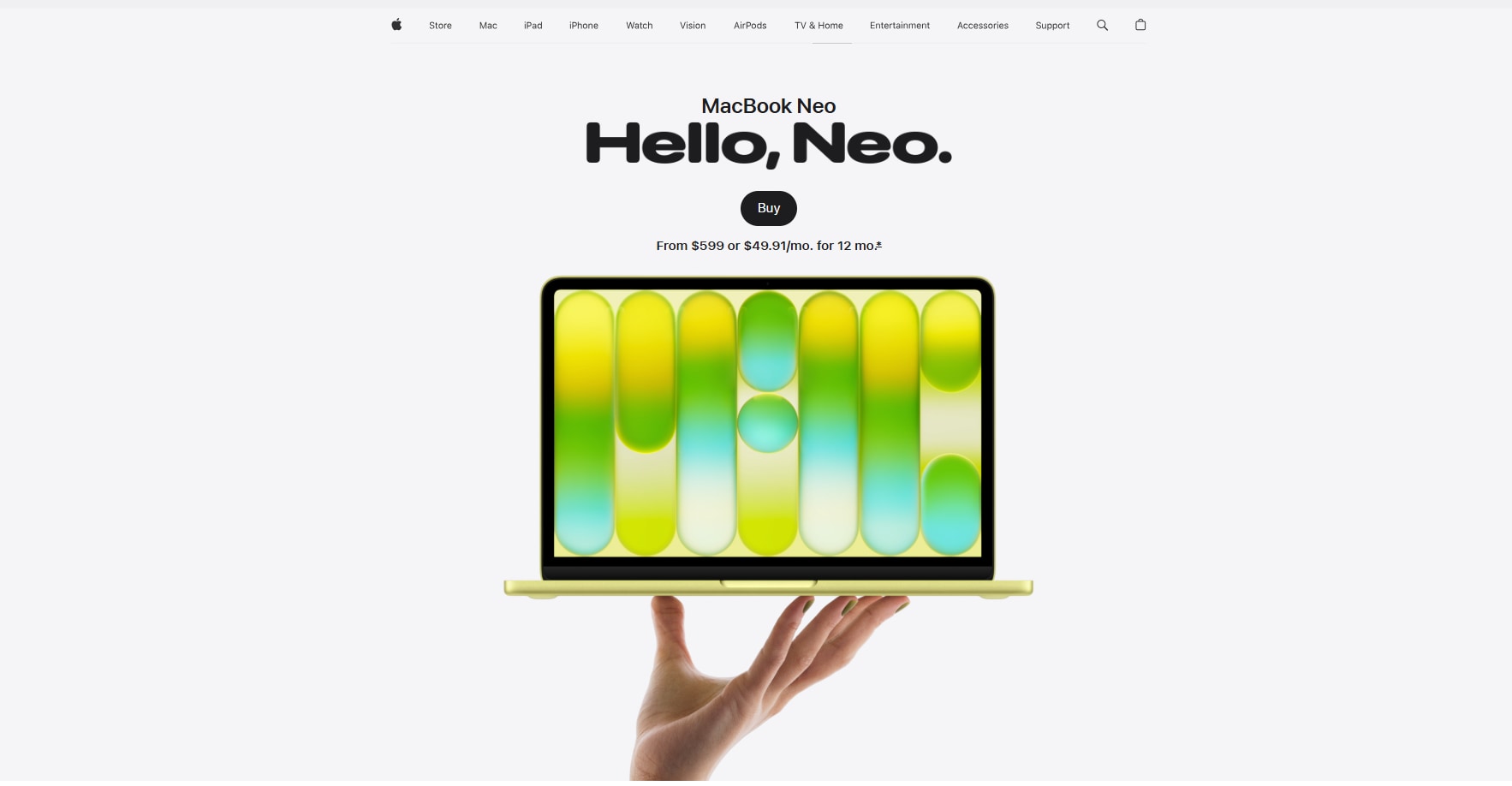
Apple expanded its Mac lineup in 2026 with the introduction of MacBook Neo, a new entry-level model designed to deliver smoother performance and stronger multimedia capabilities at a more accessible level. With an upgraded camera, a vibrant Liquid Retina display, and an enhanced audio system, MacBook Neo makes everyday activities—like video streaming, virtual meetings, and light content creation—feel noticeably more immersive. These improvements make it an attractive option if you regularly watch, edit, or share video and audio content.
In this article, you’ll discover how to maximize macbook neo video and audio display features, see how its multimedia performance compares with earlier Mac devices, and learn how using reliable video and audio conversion tools can help you streamline your media workflow and ensure smooth playback across formats.
In this article
- Why MacBook Neo Gain Its Popularity
- MacBook Neo vs Previous MacBooks: Performance for Media Tasks
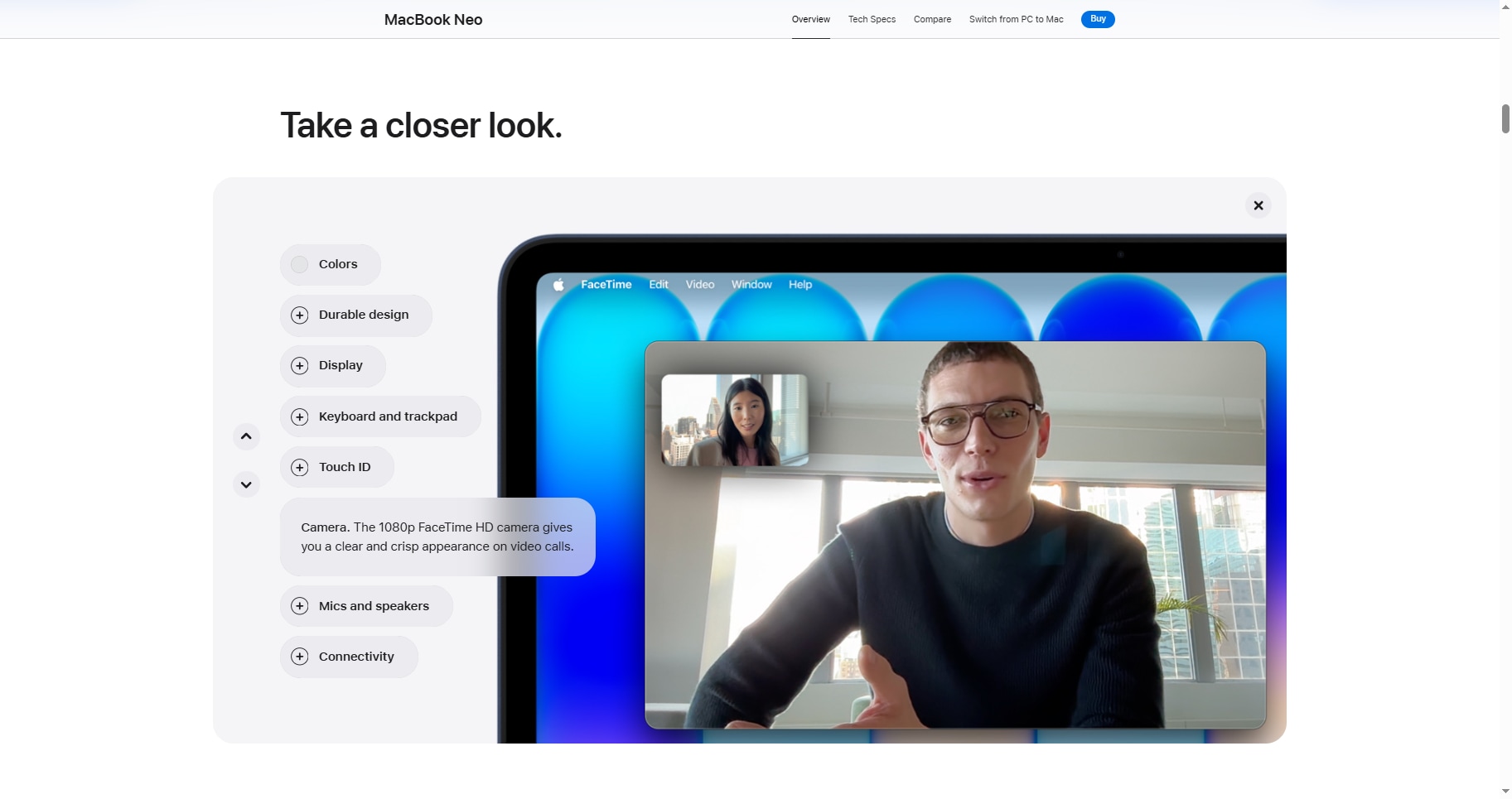
- Camera Improvements of MacBook Neo for Video & Audio
- Display Improvements of MacBook Neo for Video Editing & Playback
- Possible Video and Audio Processing Issues on MacBook Neo
- How to Use UniConverter to Convert Video Files on MacBook Neo
- Conclusion
- FAQ
Part 1.Why MacBook Neo Gain Its Popularity
Since its release, MacBook Neo has quickly attracted attention among students, creators, and everyday laptop users. Apple designed the device to combine modern performance, efficient media processing, and an affordable price point, making it a practical option for users who want a reliable Mac experience without purchasing higher-end models.
1. Affordable Entry Into the Mac Ecosystem
One of the biggest reasons for MacBook Neo’s popularity is its accessible pricing compared with other Mac devices. Apple positioned the laptop as an entry-level model, allowing more users to experience macOS without investing in higher-end MacBook Pro or MacBook Air models.
This strategy appeals especially to:
- students and educators
- first-time Mac users
- casual content creators
- users switching from Windows laptops
By lowering the cost barrier while maintaining Apple’s design quality and ecosystem integration, MacBook Neo has expanded the reach of the Mac lineup.
2. Efficient Performance for Everyday Media Workflows
MacBook Neo is optimized for efficient everyday multimedia tasks, especially compared with older entry-level Mac devices. While previous MacBook Air models such as the M1 or M2 versions focused on overall computing performance, MacBook Neo emphasizes power-efficient media processing, which is particularly helpful for users who frequently handle video and audio files.
| Feature | MacBook Neo | MacBook Air (M1/M2) |
| Media processing efficiency | Optimized for lightweight video and audio tasks | Designed for broader computing workloads |
| Battery use during video playback | Lower power consumption | Higher energy usage during long playback |
| Everyday media workflows | Faster for streaming, converting, and exporting small media files | Better for heavy editing projects |
Compared with older Mac devices, MacBook Neo provides a more efficient balance between performance and battery life, making it particularly suitable for users who work with short-form video, podcasts, and social media content rather than large professional editing projects.
With improvements in hardware efficiency, display quality, and multimedia capabilities, MacBook Neo has become a popular choice for tasks such as video streaming, content creation, and everyday media processing.
Part 2. MacBook Neo vs Previous MacBooks: Performance for Media Tasks
MacBook Neo is optimized for efficient everyday multimedia tasks, especially compared with older entry-level Mac devices. While previous MacBook Air models such as the M1 or M2 versions focused on overall computing performance, MacBook Neo emphasizes power-efficient media processing, which is particularly helpful for users who frequently handle video and audio files.
Efficient Performance for Everyday Media Workflows
MacBook Neo is optimized for efficient multimedia tasks, particularly when compared with earlier entry-level Mac devices. While MacBook Air (M1/M2) models focus on balanced computing performance and MacBook Pro devices target professional workloads such as 8K editing and large rendering tasks, MacBook Neo positions itself as a device that handles everyday video and audio workflows with high efficiency and lower power consumption.
Display Improvements Compared With Previous Mac Devices
| Feature | MacBook Neo | MacBook Air (M1/M2) | MacBook Pro (M3 / Pro series) |
| Chip architecture | A18 Pro | Apple M1 / M2 | Apple M3 Pro / Max |
| Media engine | Optimized for lightweight media tasks | Balanced performance | Dedicated pro media engine |
| Video playback battery | ~16 hours | ~15–18 hours | ~20+ hours |
| Video encoding capability | Efficient for social media exports | Moderate editing workflows | Heavy professional editing |
| Target media tasks | Streaming, converting, exporting short clips | Video editing, photo editing | 4K/8K production & rendering |
In practical terms, this means MacBook Neo performs smoothly in common media scenarios such as:
- streaming high-resolution videos
- exporting short social media clips
- converting video formats
- extracting audio from video files
Audio System Improvements Compared With Previous Mac Devices
| Display Feature | MacBook Neo | MacBook Air | MacBook Pro |
| Display size | 13-inch | 13–15 inch | 14–16 inch |
| Resolution | 2560 × 1664 | 2560 × 1664 | Up to 3456 × 2234 |
| Brightness | 500 nits | 500 nits | 1600 nits HDR peak |
| Color support | P3 wide color | P3 | P3 + Pro-level color accuracy |
| Refresh rate | 60 Hz | 60 Hz | ProMotion 120 Hz |
These improvements bring noticeable benefits:
- The three-microphone array captures voices clearly from multiple directions, similar to how studio microphones isolate speakers during a podcast recording.
- Spatial audio expands the soundstage, making movies and music feel more immersive—closer to listening through a compact surround-sound setup rather than standard laptop speakers.
Compared with older Mac devices, MacBook Neo provides a more efficient balance between performance and battery life, making it particularly suitable for users who work with short-form video, podcasts, and social media content rather than large professional editing projects.
Camera Improvements Compared With Previous Mac Devices
| Feature | MacBook Neo | MacBook Air (M1/M2) | MacBook Pro (latest models) |
| Camera resolution | 1080p FaceTime HD | 1080p FaceTime HD | 12MP FaceTime camera |
| Image processing | Basic ISP processing | Computational video ISP | Advanced ISP + AI processing |
| Center Stage | Not supported | Not supported | Supported (in some models) |
| Intended use | Video calls, meetings | Video calls, light streaming | Professional streaming & recording |
Based on the specifications, the camera on MacBook Neo represents a modest upgrade rather than a major innovation. The 1080p FaceTime HD camera provides clearer video compared with the 720p webcams used in older MacBooks, which can improve sharpness during video calls or online meetings. However, the difference becomes less noticeable when compared with recent MacBook Air models that already feature 1080p cameras. In contrast, MacBook Pro models offer a more advanced 12MP camera with enhanced image processing, making them better suited for professional streaming or recording.
Overall, MacBook Neo’s camera is adequate for everyday communication but remains a standard-level webcam within the Mac lineup.
Part 3.How to Maximize MacBook Neo Video and Audio Display Features
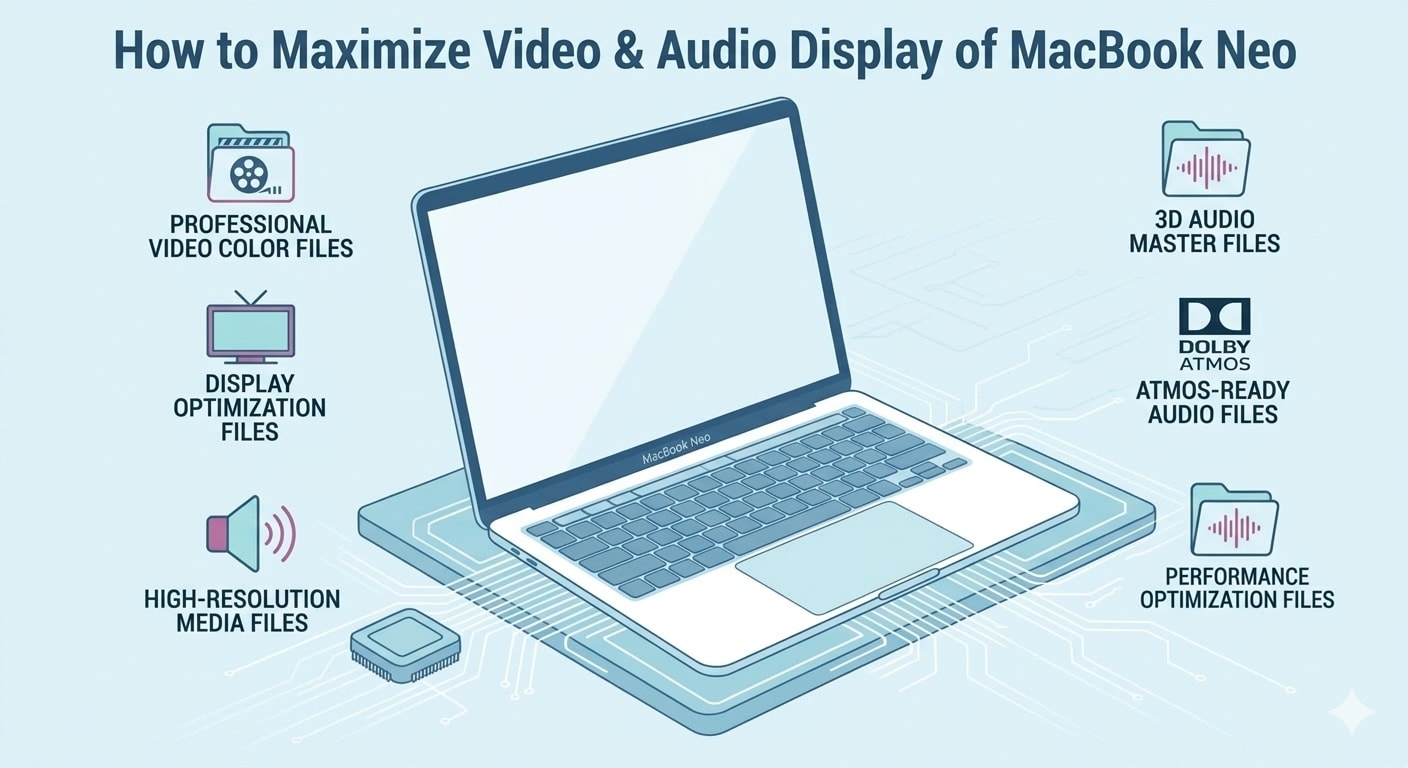
MacBook Neo offers a balanced multimedia experience thanks to its Liquid Retina display, stereo speaker system, and efficient media processing hardware. However, users can further improve video clarity and audio quality by adjusting system settings and adopting better media workflows. Optimizing these features allows MacBook Neo to perform more effectively for streaming, video playback, online meetings, and everyday content creation.
1. Optimize Display Settings for Clearer Video Playback
MacBook Neo’s 13-inch Liquid Retina display (2560 × 1664 resolution, P3 wide color, up to 500 nits brightness) can deliver sharp and vibrant visuals. Proper display settings help users take full advantage of these capabilities.
Recommended display adjustments include:
- Enable True Tone: Allows the display to adapt color temperature to ambient lighting for more natural visuals.
- Use default Retina resolution scaling: Keeps images and videos sharp by maintaining the display’s native pixel density.
- Adjust brightness based on environment: Around 70–80% brightness indoors helps maintain clarity while reducing glare.
- Use color-accurate apps for media viewing or editing: Apps that support P3 wide color display richer and more accurate video colors.
These settings can noticeably improve use cases below:
- movie and streaming playback
- video preview during editing
- overall visual comfort during long viewing sessions
2. Enhance Audio Output for Better Media Experience
MacBook Neo includes high-fidelity stereo speakers and a multi-microphone array, which provide clear sound for both playback and recording. Adjusting system audio settings can help maximize this hardware.
To improve audio performance:
- Enable Spatial Audio when supported: Creates a wider soundstage when watching movies or listening to music.
- Adjust sound balance in macOS settings: Ensures audio output remains centered and clear.
- Keep the speaker area unobstructed: Avoid covering speaker grills to maintain full sound projection.
- Use the built-in microphone array in quieter environments: Reduces background noise during recordings or meetings.
These adjustments improve use cases below:
- clarity in video conferences
- immersive movie watching
- voice recording quality for podcasts or voiceovers
3. Optimize Video and Audio Processing Workflows
MacBook Neo’s media capabilities are further improved when users adopt efficient file formats and workflows. Proper media optimization helps maintain smooth playback and faster processing.
Useful workflow practices include:
- Export videos using H.264 or H.265 codecs: These formats balance video quality with smaller file sizes.
- Convert videos into widely compatible formats such as MP4: Ensures smooth playback across devices and platforms.
- Compress large media files before sharing or uploading: Reduces storage usage and upload times.
- Batch process media files when working with multiple videos or audio tracks: Saves time during conversion or exporting.
These strategies help MacBook Neo perform better when:
- exporting short video projects
- sharing media on social platforms
- managing large video or audio libraries
By combining optimized display settings, audio adjustments, and efficient media workflows, users can take fuller advantage of MacBook Neo’s multimedia hardware while improving the overall experience of watching, editing, and processing video or audio content.
Part 4. Possible Video and Audio Processing Issues on MacBook Neo
Even though MacBook Neo offers solid multimedia capabilities, you may still encounter several challenges when working with video and audio files. These issues usually come from format compatibility, large file sizes, or processing efficiency, rather than the hardware itself. When you frequently edit, convert, or share media content, understanding these common issues can help you manage files more smoothly and avoid interruptions in your workflow.
1. Limited Support for Certain Video Formats
When you try to open some video files on MacBook Neo, you may notice that not every format plays smoothly. macOS applications like QuickTime Player mainly support formats such as MP4 and MOV. If you download or receive files in formats like MKV, AVI, or FLV, they may not open properly or may fail to load entirely.
Quick solutions
- Convert the file to a widely supported format such as MP4 (H.264).
- Use a universal media player that supports more video codecs.
- Re-export the video from the original editing software using Mac-compatible formats.
2. Large Video Files Taking Up Storage Space
High-resolution videos, especially 4K recordings, can quickly consume storage space on MacBook Neo. Large files may also slow down transfers, editing, or sharing workflows when multiple media projects accumulate.
Quick solutions
- Compress videos using H.265/HEVC encoding to reduce file size.
- Move large projects to external SSD storage or cloud storage.
- Export social media videos in 1080p instead of 4K when high resolution is unnecessary.
3. Slower Export Speeds During Media Processing
When exporting or converting several media files, the process may take longer than expected. Background applications, inefficient export settings, or large video resolutions can slow down rendering performance.
Quick solutions
- Enable hardware-accelerated encoding (H.264/H.265) during export.
- Close unnecessary background apps before processing media files.
- Export multiple files using batch processing tools to save time.
4. Difficulty Extracting Audio From Video Files
You may sometimes want to extract audio from a video—such as turning an interview recording into a podcast or saving background music from a clip. macOS does not always provide a direct option for converting videos into audio formats like MP3 or WAV.
Quick solutions
- Convert video files directly into MP3 or AAC audio formats using a media converter.
- Export audio tracks from editing software if the video project allows it.
- Batch extract audio from multiple videos to speed up the process.
5. Playback Compatibility Across Different Devices
A video that plays perfectly on MacBook Neo may not work the same way on smartphones, tablets, or web platforms. Differences in codecs, bitrate settings, or file formats may cause playback errors or reduced quality.
Quick solutions
- Convert videos to MP4 with H.264 codec, which works on most devices.
- Use standard resolutions such as 1080p for better cross-device compatibility.
- Optimize files using platform presets (YouTube, TikTok, or mobile devices).
Part 5. How to Use UniConverter to Convert Video Files on MacBook Neo
MacBook Neo brings noticeable upgrades in display quality, audio output, and hardware acceleration, allowing videos to play smoother and sound clearer than before. However, these improvements can also expose compatibility issues with older or less common media formats that macOS apps may not fully support.
To take full advantage of MacBook Neo’s enhanced multimedia capabilities, converting media files into optimized formats is often the most practical solution. Wondershare UniConverter for Mac provides a reliable and efficient way to handle this task. Designed specifically for macOS, it supports high-speed conversion with Apple hardware acceleration, helping you process large video files quickly while maintaining quality. UniConverter also offers wide format compatibility, allowing you to convert older or uncommon media formats into macOS-friendly options like MP4, MOV, or AAC for smooth playback in QuickTime, Final Cut Pro, and other Apple applications.
Beyond simple conversion, the Mac version of UniConverter includes batch processing, high-quality compression, and basic editing tools, making it easier to prepare videos for streaming, editing, or sharing across different devices. With these features, MacBook Neo users can streamline their media workflow and ensure their video and audio files play seamlessly across macOS software and external displays.
How to Convert Files for MacBook Neo Compatibility Using UniConverter
Step 1.Install and launch UniConverter
Open UniConverter on your MacBook Neo and select the Converter module from the main interface.

Step 2.Import the media files
Click Add Files or drag and drop your video or audio files directly into the workspace.

Step 3.Choose a compatible output format
Select formats widely supported by macOS such as:
- MP4 (H.264 / H.265) for smooth playback
- MOV for editing in Apple software
- MP3 or AAC for audio compatibility
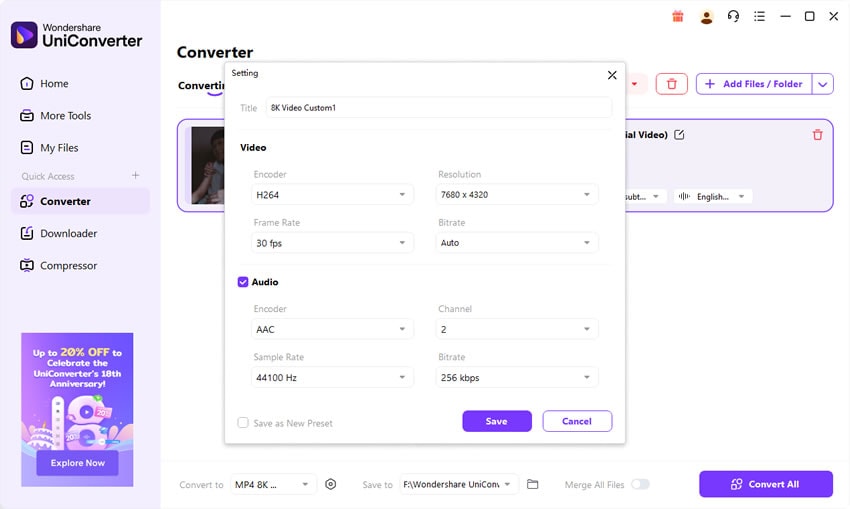
Step 4.Adjust output settings if needed
You can optimize parameters like resolution, bitrate, and audio channels to match MacBook Neo’s display and sound capabilities.
Step 5.Start the conversion
Click Convert to process the files. Once finished, the converted media will play smoothly on macOS players and editing applications.

By converting media into optimized formats, you ensure that MacBook Neo’s upgraded display and audio systems deliver the best possible viewing and listening experience without compatibility interruptions.

Video Converter for Mac Neo with Wide Format Support
Part 6. Conclusion
MacBook Neo brings a balanced upgrade to Apple’s Mac lineup by focusing on accessible performance and improved multimedia capabilities. While it may not replace higher-end MacBook Pro models for professional production workflows, it offers a practical solution for users who frequently work with short-form video, podcasts, and social media media content.
At the same time, media compatibility and file size management can still present challenges when handling different video and audio formats. By using reliable conversion tools such as UniConverter, you can ensure smoother playback, faster media processing, and better compatibility across devices. With the right workflow, you can maximize macbook neo video and audio display features and enjoyable experience for everyday multimedia tasks.
Part 7. FAQ
-
1. Which video formats play natively on MacBook Neo?
macOS on MacBook Neo supports several modern codecs with hardware acceleration, including HEVC (H.265), H.264, AV1 decoding, and Apple ProRes/ProRes RAW through the device’s media engine. -
2. What format is recommended for editing on MacBook Neo?
For smoother editing in applications such as iMovie or Final Cut Pro, converting footage to Apple ProRes in a MOV container is often recommended. This improves timeline performance but results in larger file sizes. -
3. Are older formats like MPEG-4 or AVI supported?
Many common containers such as MP4, M4V, and MOV with H.264 or HEVC codecs work well. However, legacy codecs inside AVI files or older MPEG-4 variants may require conversion before they can play smoothly. -
4. What’s the best workflow when a video won’t import into iMovie or Final Cut on Neo?
A common solution is to convert the source file to H.264 or ProRes in a MOV or MP4 container using tools such as UniConverter, HandBrake, VideoProc, or MacX Video Converter Pro, and then re-import the converted file into the editor. -
5. Are these converters optimized for Apple silicon like A18 Pro?
Many modern video converters support hardware acceleration on Apple silicon, allowing them to utilize the built-in media engine for faster H.264 and HEVC processing compared with CPU-only encoding.

