


Struggling to find the right Mac Neo Video Editing Tools that actually deliver smooth performance, fast rendering, and professional-quality results without overwhelming complexity? Many Mac users face issues like lagging timelines, limited features, or tools that don’t fully utilize Apple Silicon power.
This guide is designed to solve those pain points by helping you discover modern, AI-powered solutions that make editing faster, easier, and more efficient. Instead of wasting hours on complicated software, you’ll learn how to achieve stunning videos with less effort and better results. Whether you're creating content for YouTube, social media, or professional projects, the right Mac Neo Video Editing Tools can transform your workflow and help you produce high-quality videos effortlessly.
In this article
Part 1: Key Features to Look for in Mac Neo Video Editing Tools
1. AI-Powered Editing
Modern Mac Neo video editing tools come with AI features like auto-cut, scene detection, and background removal. These tools reduce manual work and speed up the editing process significantly. They help creators achieve professional results even without advanced editing skills.
2. Apple Silicon Optimization
Top tools are optimized for Apple Silicon chips like M1, M2, and newer versions. This ensures faster rendering, smoother playback, and better multitasking performance. It also helps in handling high-resolution videos without lag.
3. Multi-Track Timeline Editing
A flexible multi-track timeline allows users to work with multiple video, audio, and effect layers. This is essential for complex edits, storytelling, and professional video production. It gives users full control over how their content is structured.
4. High-Resolution Support (4K/8K)
Mac Neo video editing tools support high-resolution formats like 4K and even 8K videos. This ensures crisp visuals and future-ready content creation. It is especially useful for filmmakers, YouTubers, and content creators aiming for premium quality.
5. Built-in Effects and Transitions
These tools include a wide range of filters, transitions, and visual effects. Users can enhance videos creatively without needing third-party plugins. This saves time and improves the overall production quality.
Part 2: Comparison Table of Video Editing Tools for Mac Neo
| Tool Name | Best For | Skill Level | Key Strength | Pricing | MAC Optimization | AI Features |
| Adobe Premiere Pro | Advanced projects & teams | Advanced | Industry-standard editing | Subscription | Good | Yes |
| Final Cut Pro | Professional editing | Advanced | Magnetic timeline & performance | One-time purchase | Highly Optimized | Yes |
| Wondershare UniConverter | Quick editing + conversion | Beginner | All-in-one tool (edit + convert) | Paid (Free trial) | Optimized | Yes |
| DaVinci Resolve | Color grading & cinematic edits | Advanced | Best color correction tools | Free + Paid | Good | Yes |
| iMovie | Basic editing | Beginner | Simple & free tool | Free | Native | Limited |
| CapCut | Social media content | Beginner | AI templates & fast editing | Free | Good | Yes |
| Filmora | YouTubers & creators | Beginner–Intermediate | Easy UI + effects library | Free + Paid | Good | Yes |
| Kdenlive | Free open-source editing | Intermediate | Flexible & customizable | Free | Moderate | Limited |
| Adobe Premiere Rush | Quick edits & mobile creators | Beginner | Fast editing + cloud sync | Subscription | Good | Basic |
| Apple Motion | Motion graphics & VFX | Advanced | Animation & visual effects | One-time purchase | Native | Limited |
Part 3: 10 Best Mac Neo Video Editing Tools (Top Picks)
1. Adobe Premiere Pro
Adobe Premiere Pro is an industry-standard Mac neo video editing tool used by professionals worldwide. It offers powerful editing capabilities along with AI features powered by Adobe Sensei. The software supports multi-format editing and integrates well with other Adobe apps. It is suitable for complex projects like films, ads, and YouTube videos. Its timeline flexibility allows detailed control over edits. Though powerful, it requires some learning. It is ideal for advanced users and teams. It also supports collaborative workflows for teams. The cloud-based environment allows access to projects from different devices. Frequent updates ensure the software stays modern and feature-rich.
Features:
Multi-track timeline editing
AI-powered editing tools
Advanced color grading
Integration with Adobe apps
Cloud collaboration
2. Final Cut Pro
Final Cut Pro is one of the most powerful Mac neo video editing tools available. It is optimized for Apple Silicon, ensuring fast rendering and smooth playback. The software offers professional-grade editing features and a magnetic timeline. It supports high-resolution formats including 4K and 8K editing. Advanced tools like color grading and multicam editing make it ideal for professionals. Its integration with macOS enhances workflow efficiency. It’s widely used by filmmakers and YouTubers. The tool also supports advanced media organization for large projects. Background rendering helps speed up the editing process. Its professional ecosystem makes it a top choice for serious video editors.
Features:
Magnetic timeline editing
Multicam editing support
Advanced color grading tools
360-degree video editing
High-resolution export (4K/8K)
3. Wondershare UniConverter
Wondershare UniConverter is an all-in-one solution that combines video editing with powerful conversion features. It is ideal for users who want fast editing along with format compatibility. The tool is highly optimized for macOS, delivering exceptional performance on modern Mac systems. It fully supports Apple Silicon chips (M1–M4) with hardware-accelerated processing, enabling significantly faster video conversion and editing. By leveraging Apple’s Neural Engine, GPU cores, and Metal rendering, it can process even 4K and 8K videos in real time while maintaining high quality. Its simple interface makes it perfect for beginners and content creators. You can edit, compress, and convert videos without switching tools. It also supports batch processing for efficiency.
Overall, it's a practical Mac Neo tool for quick and smooth workflows. The software also includes AI-powered utilities that simplify tasks like video enhancement and noise removal. It works well for users who frequently deal with different video formats. Because of its lightweight design, it runs smoothly even on mid-range Mac devices.
Features:
Video editing (trim, crop, merge)
High-speed video conversion
AI-based enhancement tools
Batch processing support
Multiple format export

Fast & Smooth Video Editor & Processor for Mac Neo
4. DaVinci Resolve
DaVinci Resolve is a professional-grade Mac neo video editing tool known for its advanced color grading capabilities. It combines editing, VFX, and audio tools in one platform. The software is widely used in film production and post-production. It offers a free version with powerful features, making it accessible to many users. Its node-based editing system provides deep control. However, it has a steeper learning curve. It’s ideal for cinematic and professional editing. The software also supports collaborative editing for large teams. Its advanced audio engine improves post-production sound quality. Many filmmakers rely on it for high-end color correction.
Features:
Advanced color grading
Fusion VFX tools
Fairlight audio engine
Multi-user collaboration
HDR editing support
5. iMovie
iMovie is a beginner-friendly video editing tool pre-installed on most Mac devices. It offers a simple interface that makes editing easy for new users. Despite being free, it includes essential editing features and templates. It supports 4K video editing and smooth performance on Mac. The drag-and-drop timeline simplifies workflow. It is perfect for basic editing and quick projects. However, it lacks advanced professional features. iMovie also includes ready-made themes for storytelling videos. It allows quick sharing directly to social platforms. This makes it ideal for casual creators and students. It also integrates seamlessly with other Apple apps like Photos and iCloud for easy media access. Additionally, its intuitive design helps users complete projects faster without needing prior editing experience.
Features:
Drag-and-drop editing
Built-in templates
4K video support
Basic transitions and effects
Easy export options
6. CapCut
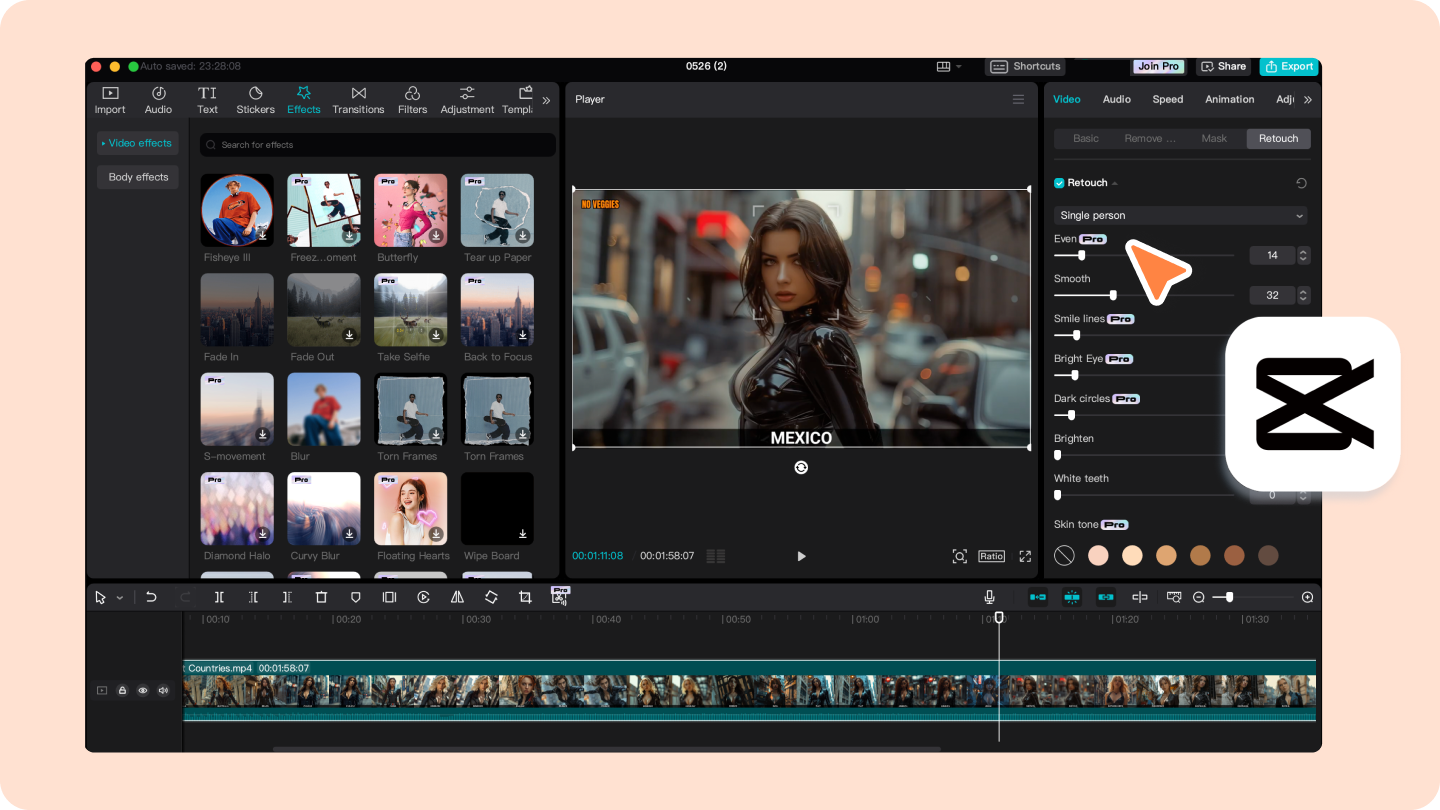
CapCut is a modern AI-powered video editing tool popular among social media creators. It is ideal for editing short-form content like reels and TikTok videos. This Mac neo video editing tool offers templates, effects, and auto-editing features. It is lightweight and easy to use on Mac devices. CapCut focuses on speed and creativity rather than complex editing. It’s perfect for quick and trendy content creation. The tool also includes AI subtitles and voice effects. Social media export options make publishing quick and easy. It is widely used by influencers and digital creators. It also offers a large library of trending music and sound effects to enhance engagement. The cloud sync feature allows users to access and edit projects across multiple devices seamlessly. Regular updates ensure new effects, templates, and AI tools are added to keep up with social media trends.
Features:
AI auto-editing tools
Built-in templates
Effects and transitions
Social media optimization
Fast export
7. Filmora
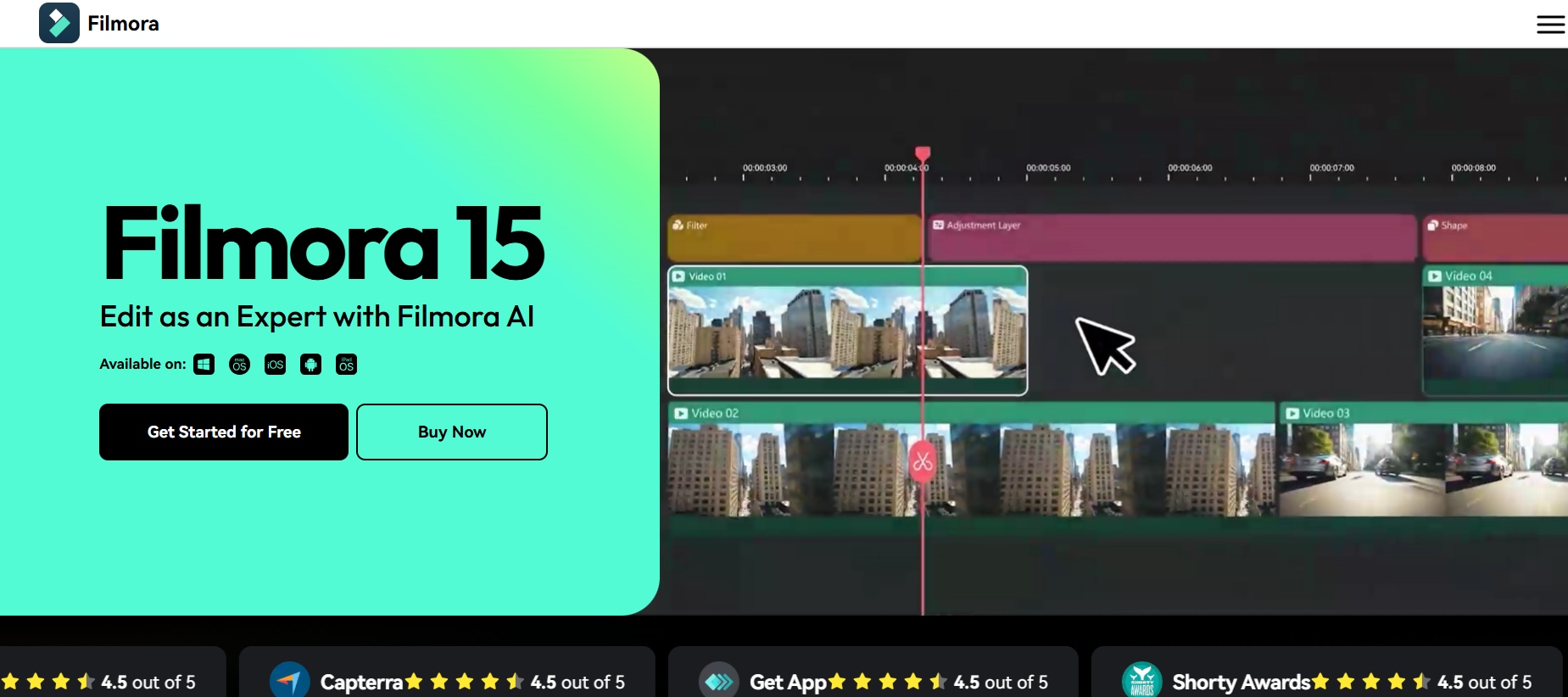
Filmora is a beginner-to-intermediate Mac neo video editing tool with a clean interface. It offers a balance between simplicity and advanced features. The software includes AI tools, effects, and transitions for creative editing. It supports Mac optimization and smooth performance. Filmora is ideal for YouTubers and content creators. It helps users create polished videos quickly. The tool also provides a large effects library for creative projects. Built-in templates help speed up editing. Its learning curve is easier than most professional editors. It also includes regular updates with new AI features and creative assets to enhance editing capabilities. The software supports direct export to social media platforms, saving time for creators. Additionally, Filmora offers built-in tutorials and guides, making it easier for beginners to learn quickly.
Features:
Drag-and-drop editing
AI tools and effects
Built-in templates
Audio editing features
Multi-format export
8. Kdenlive
Kdenlive is a free and open-source video editing tool available for Mac users. It offers a wide range of features suitable for both beginners and advanced users. The Mac neo video editing software supports multiple formats and flexible editing options. It is ideal for users who prefer free tools without subscriptions. While powerful, its interface may feel less polished. It’s a good choice for budget-conscious creators. The software also allows extensive customization. Community contributions frequently improve its functionality. It works well for simple and intermediate editing tasks. It also supports proxy editing, which helps improve performance when working with high-resolution files. Frequent updates from the open-source community ensure continuous improvements and bug fixes. Additionally, it provides customizable shortcuts and layouts, allowing users to tailor the workspace to their editing style.
Features:
Multi-track editing
Wide format support
Custom effects
Proxy editing
Open-source flexibility
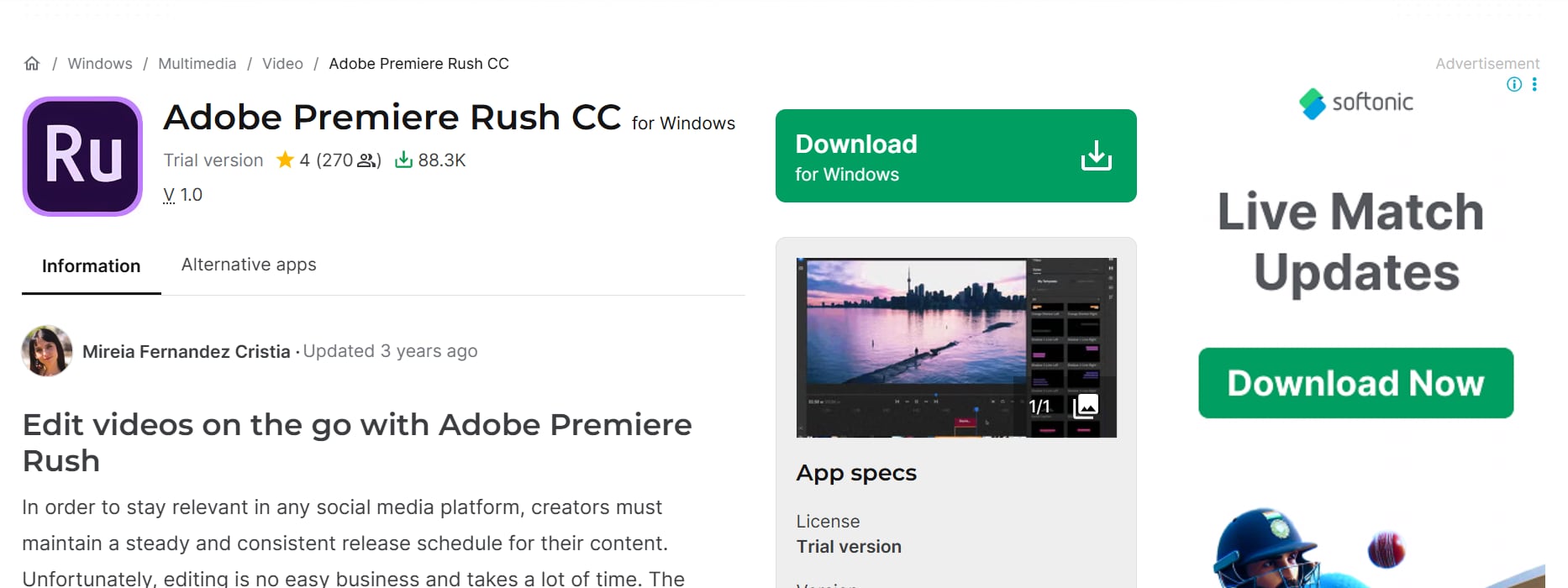
9. Adobe Premiere Rush
Adobe Premiere Rush is a simplified version of Premiere Pro designed for quick Mac neo video editing. It is ideal for beginners and social media creators. The tool allows fast editing and direct sharing to platforms like YouTube. It syncs projects across devices for flexibility. It’s perfect for users who want speed and simplicity. The interface is clean and easy to navigate. Built-in templates simplify content creation. It works well for vloggers and mobile content creators. It also includes basic color correction and audio adjustment tools for quick enhancements. The auto-sync feature ensures your projects are always updated across devices. Users can easily resize videos for different platforms like Instagram, YouTube, and TikTok. Regular updates from Adobe keep the tool optimized with new features and improved performance.
Features:
Simple timeline editing
Cross-device syncing
Built-in templates
Direct social sharing
Cloud storage
10. Apple Motion
Apple Motion is a powerful motion graphics and visual effects tool for Mac users. It works seamlessly with Final Cut Pro for advanced editing workflows. The software is ideal for creating titles, animations, and visual effects. It provides professional tools for motion design. Though not a full editor, it enhances video projects significantly. It is widely used for creating animated graphics. Real-time previews help speed up design work. Motion is ideal for editors who want cinematic effects. It also supports advanced keyframe controls for precise animation adjustments. The intuitive interface allows users to create complex motion graphics with ease. Additionally, its performance is optimized for Mac hardware, ensuring smooth and responsive editing even for heavy projects.
Features:
Motion graphics creation
2D and 3D effects
Real-time previews
Integration with Final Cut Pro
Advanced animation tools
Particle effects system
Part 4: Common Issues and Fixes of Common Video Editing Problems
Even the best Mac Neo Video Editing Tools can run into occasional hiccups during use. Understanding these common issues—and how to fix them—can save you time and keep your editing workflow smooth:
1. Slow Rendering Speed
Issue: Video exports take too long or the timeline feels laggy during editing.Fix: Enable hardware acceleration, reduce preview quality, and close background apps to free up system resources.
2. App Crashes or Freezes
Issue: The editing software crashes unexpectedly while working on projects.
Fix: Update the software and macOS, clear cache files, and ensure your Mac meets the tool’s system requirements.
3. Compatibility Issues with File Formats
Issue: Certain video or audio files fail to import or play correctly.
Fix: Convert files to supported formats like MP4 or MOV using a reliable converter before importing.
4. Export Errors or Failed Renders
Issue: Videos fail to export or get stuck during the rendering process.
Fix: Check export settings, ensure enough storage space, and try exporting in a different format or resolution.
5. Audio Out of Sync
Issue: Audio does not match the video timeline after editing or exporting.
Fix: Re-sync audio manually, use built-in sync tools, and ensure frame rate consistency throughout the project.
Part 5: Conclusion
Choosing the right Mac Neo video editing tool ultimately comes down to your editing needs, skill level, and performance expectations. From AI-powered features to seamless Apple Silicon optimization, the right software can significantly improve your workflow and help you create high-quality content with ease. Tools like Wondershare UniConverter stand out for their simplicity, fast processing, and versatile features, making them a great choice for both beginners and content creators.
Part 6: FAQ
-
1. Do I really need advanced video editors for MacBook Neo, or are basic tools enough?
It depends on your needs. For simple edits, basic tools like iMovie are often sufficient. However, for professional projects, advanced editors with features like multi-track timelines, color grading, and AI tools provide greater flexibility and control. -
2. Why should I use a video converter for Mac Neo before editing?
Some raw video formats may not be fully compatible with editing software. Converting files into formats like MP4 or MOV can improve compatibility, ensure smoother playback, and reduce errors during editing or exporting. -
3. How can I edit videos on Mac without prior experience?
Beginners can start with user-friendly video editors that offer drag-and-drop timelines and guided tools. Focus on basic tasks such as trimming clips, adding music, and applying simple transitions before exploring more advanced features. -
4. What features should I look for in a Mac tool for editing Reels videos?
A good tool for editing Reels should support vertical video formats, quick trimming, filters, and fast exporting. Built-in templates and AI features can also help streamline content creation for social media. -
5. Is there a difference between a video editor for TikTok and YouTube on Mac?
Yes. TikTok-focused editors prioritize short-form, vertical content with quick edits and effects, while YouTube editors are designed for longer videos, offering advanced timelines, higher resolutions, and more detailed editing controls.

