


Physical media collections hold immense value in 2026. You might want to back up your favorite movies to a hard drive or a home server. To do this effectively, many users choose to rip DVD with MakeMKV. This tool extracts data losslessly, giving you an exact digital copy of your disc. As a reliable MakeMKV DVD ripper, it bypasses standard protections easily. However, raw extraction results in massive file sizes. In this guide, you will learn exactly how to digitize your collection. We will also compare top alternatives to help you compress and manage your media files efficiently.
In this article
- Step-by-Step Guide: How to Rip DVD with MakeMKV
- The MakeMKV Limitation: Dealing with Massive File Sizes
- Quick Comparison: Top MakeMKV Alternatives at a Glance
- Top 5 All-in-One Alternatives to Make MKV DVD Copies
- Bonus: The Perfect Solution to Compress Massive MakeMKV Files using UniConverter
- Conclusion
- FAQs
Key Takeaways
[Storage Challenges] MakeMKV creates lossless DVD backups but results in massive file sizes that quickly consume storage.
[Playback Limitations] MKV files may not work on Apple devices or older players, causing compatibility issues.
[Workflow Complexity] Users often need a second tool like HandBrake, DVDFab, WinX DVD Ripper, or VLC to compress and convert files.
[Optimized Solution] Wondershare UniConverter enables direct compression, format conversion, and batch processing for efficient media management.
Part 1. Step-by-Step Guide: How to Rip DVD with MakeMKV
You can easily digitize your media collection using MakeMKV. The interface is somewhat dated, but the process is highly straightforward. Follow these steps to extract your first movie.
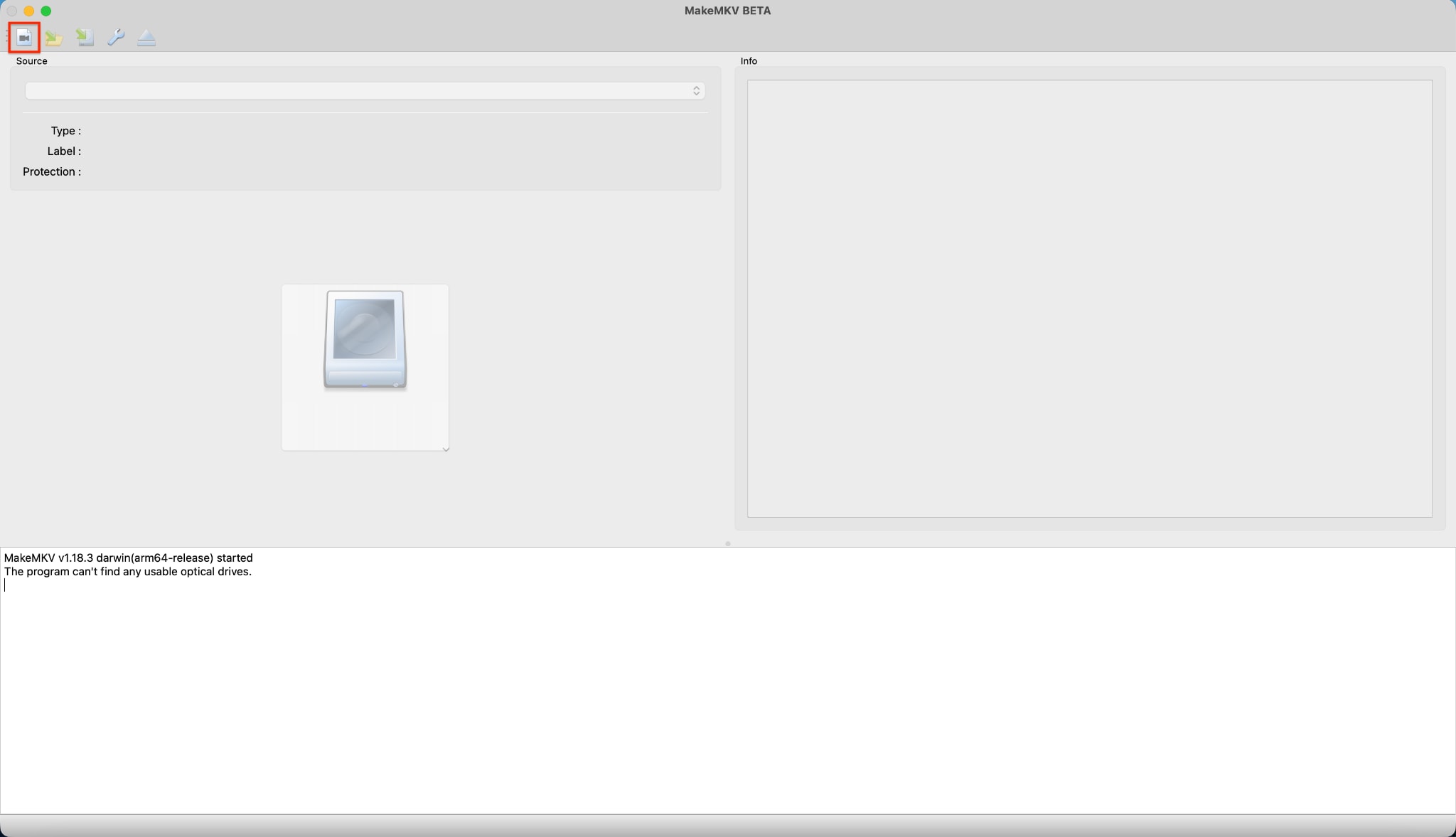
Step 1: Open Your Files or Scan Your Disc
First, launch the MakeMKV software on your computer to begin the extraction process. You can start by clicking the small folder icon located at the top left corner of the screen. This allows you to locate and open the specific video files you want to process.
Step 2: Handle Unsupported Video Formats
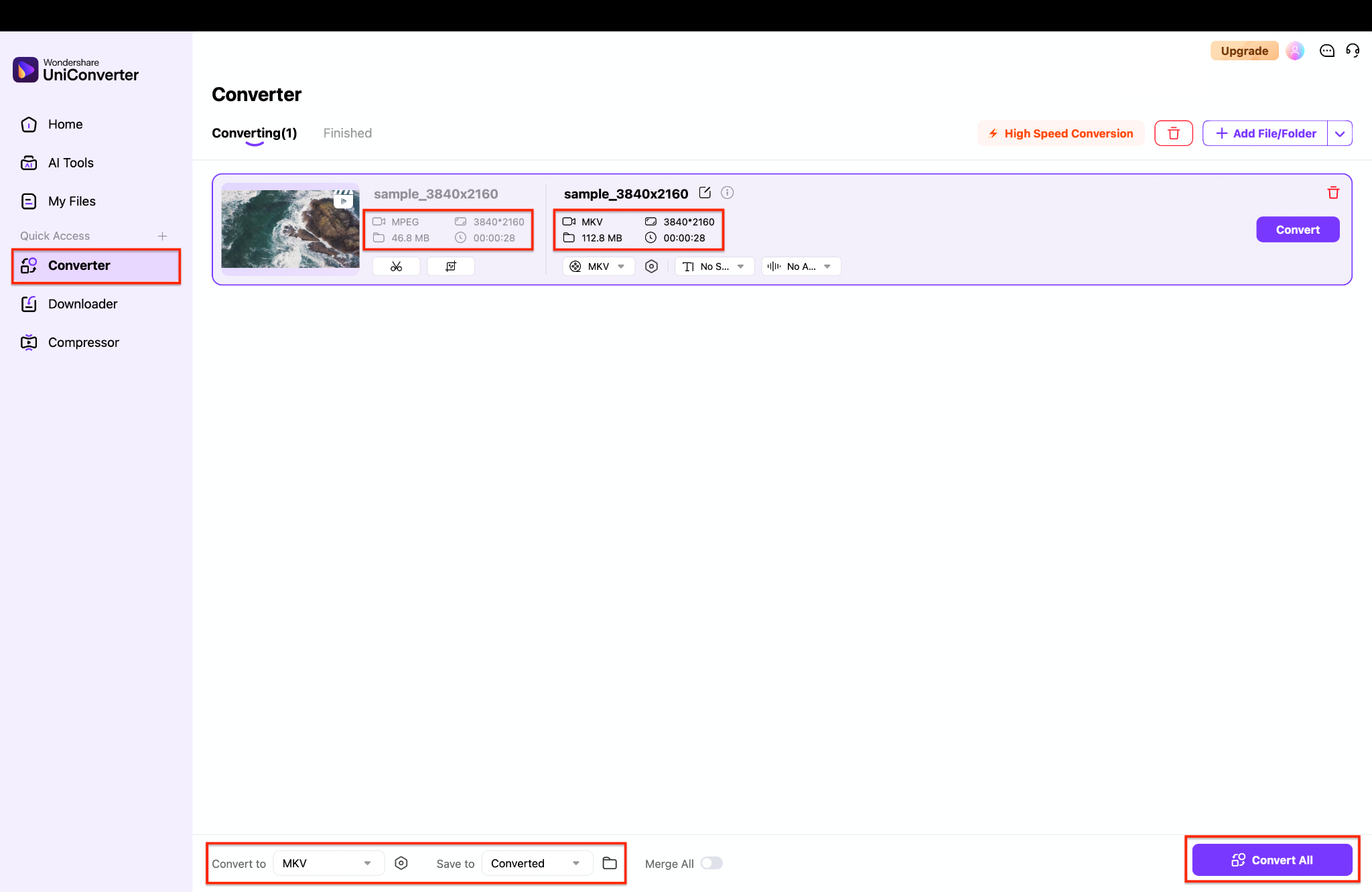
If you have a DVD, directly scan it; however, the second option is for digital files, though MakeMKV sometimes fails to read MPEG files. In that case, you can open Wondershare UniConverter, access the Converter tab on the left panel, and import your unsupported MPEG video. From there, simply convert it into an MKV file, which is a native and familiar format that MakeMKV can easily read.
Step 3: Select the Titles You Want to Extract
Once your files are successfully loaded into the program, you will see a list of available video titles on the left side. You must check the boxes next to the specific clips or movies you want to extract.
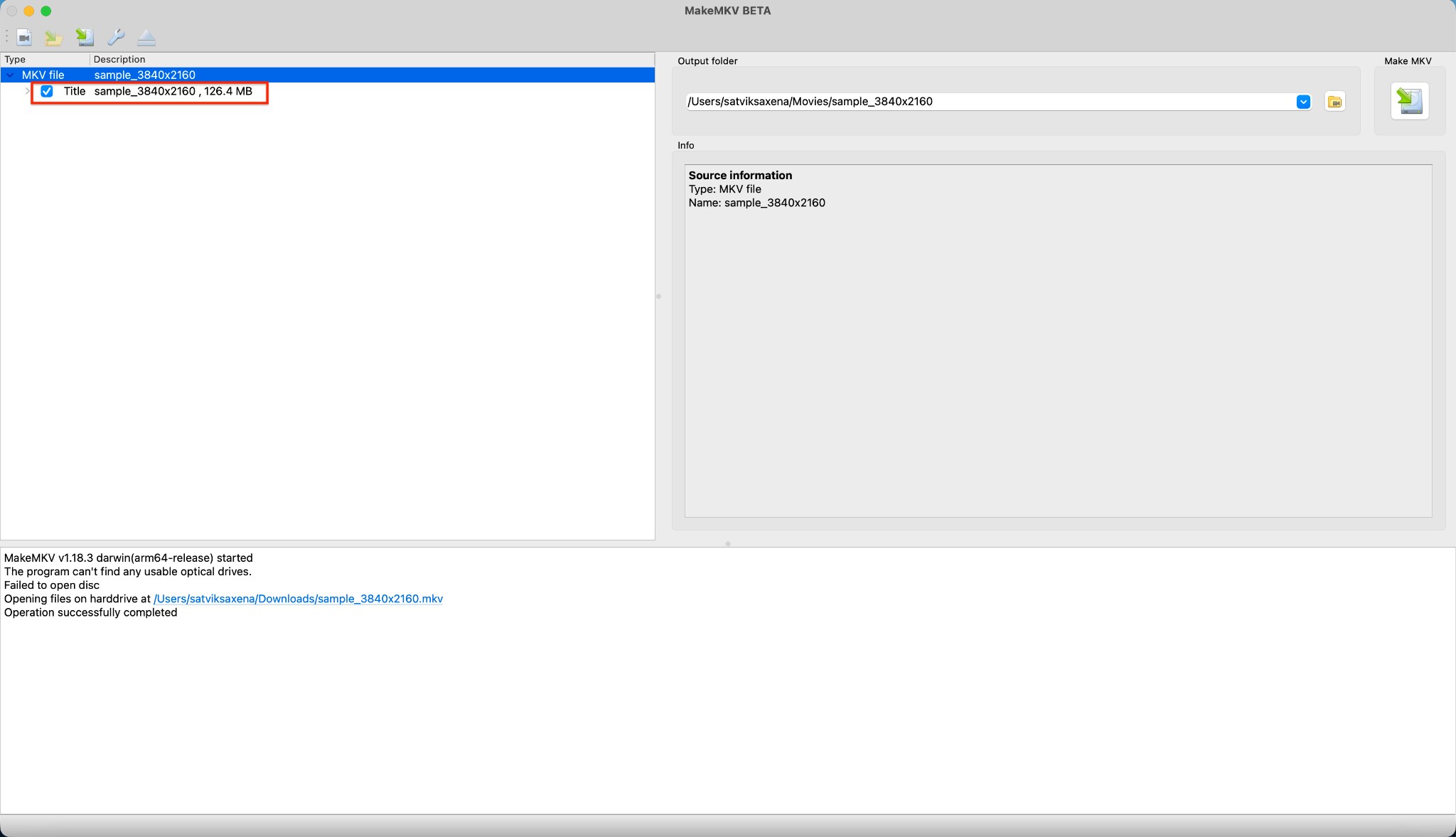
Pro Tip: Always uncheck extra foreign language audio tracks and director commentaries if you do not need them, as this drastically reduces your final file size.
Step 4: Choose the Output Folder and Save
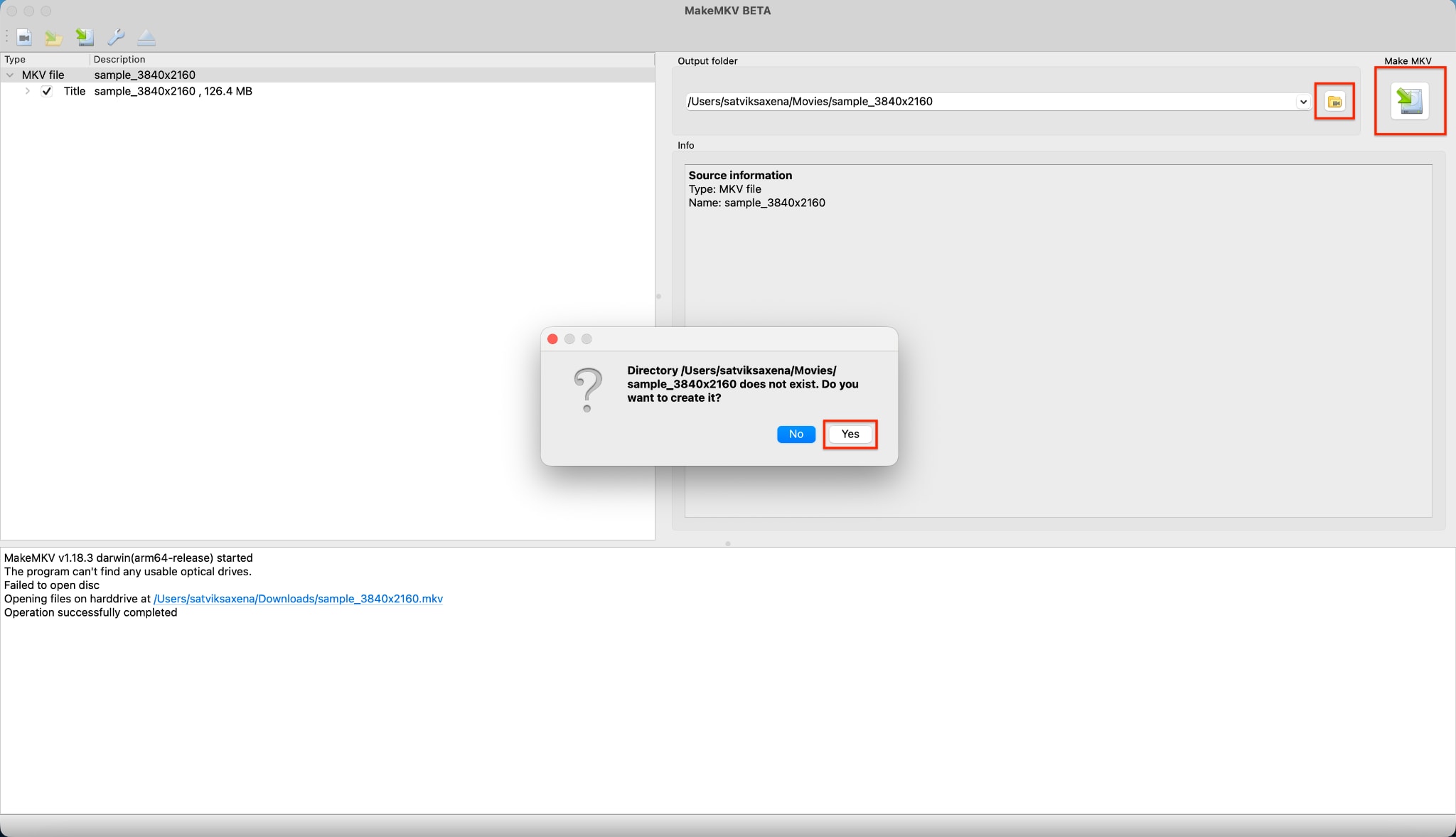
Navigate to the output folder section on the right side and click the yellow folder icon to select where your files will be saved. Next, click the large "Make MKV" button featuring a green arrow to begin the extraction process. If a pop-up window asks to create a new directory for your files, simply click "Yes" to confirm and proceed.
Part 2. The MakeMKV Limitation: Dealing with Massive File Sizes
While MakeMKV is excellent for raw data extraction, it has notable drawbacks. The software simply copies data; it does not optimize it. This creates challenges for everyday media consumption.
The Storage Reality
Because MakeMKV is not an encoder, a standard rip will eat up hard drive space incredibly fast. A 1:1 copy retains all the massive data footprint of the physical disc. If you back up a collection of 50 Blu-rays, you could easily fill a 1.5 Terabyte hard drive. This storage reality makes building a large digital library very expensive.
Format Constraints
Standard MKV files struggle to play natively on Apple devices, older smart TVs, or mobile phones. The MKV format is a container, and many native media players lack the necessary codecs to decode it. You often encounter "format not supported" errors when transferring these files to your iPad or iPhone.
The Necessity of a Compressor
To solve these issues, most users must use a secondary compression tool to make the files usable. You need a video converter to shrink the file size and change the container from MKV to a widely supported format like MP4. Compressing the file allows you to store more movies and play them on any device without hassle.
Part 3. Quick Comparison: Top MakeMKV Alternatives at a Glance
You can bypass the two-step workflow by using software that extracts and compresses simultaneously. Review the table below to compare the best tools available in 2026.
| Tool Name | Best For | Output Formats | Bypasses Protections? | Hardware Acceleration |
| Wondershare UniConverter | All-in-one compression & conversion | MP4, HEVC, MKV, 1000+ | Yes | Full GPU |
| DVDFab DVD Ripper | Heavyweight decryption | MP4, MKV | Yes | Partial |
| HandBrake | Open-source tweaking | MP4, MKV, WebM | No (Requires plugins) | CPU-heavy |
| WinX DVD Ripper Platinum | Fast standard DVD backups | MP4, MOV, AVI | Yes | Level-3 GPU |
| VLC Media Player | Free basic playback & rips | MP4, OGG | No | None |
Part 4. Top 5 All-in-One Alternatives to Make MKV DVD Copies
If you want to save hard drive space immediately, an all-in-one alternative is your best choice. Here are detailed reviews of the top five tools to help you digitize your media.
1. Wondershare UniConverter (Top All-in-One Recommendation)
You can easily solve the massive file size problem using Wondershare UniConverter. It acts as an efficient, all-in-one multimedia toolbox for modern users. You can compress heavy media files without losing noticeable quality. UniConverter can easily helps you rip DVDs or Blurays, or burn CDs and DVDs. Alternatively, you can read standard discs and convert them directly to compressed formats like MP4 or ISO files in one single step. This saves you significant time and hard drive space. It is designed to simplify your workflow, making it ideal for both beginners and experienced video enthusiasts looking for speed and reliability.

Key Features:
Converts media to over 1,000 different video and audio formats.
Offers dedicated Batch Compress capabilities for large file libraries.
Utilizes GPU acceleration for processing speeds up to 130x faster.
Includes built-in video editing tools for trimming and cropping.

Easy DVD Ripper for Quick Digital Conversion
2. DVDFab DVD Ripper (The Heavyweight)
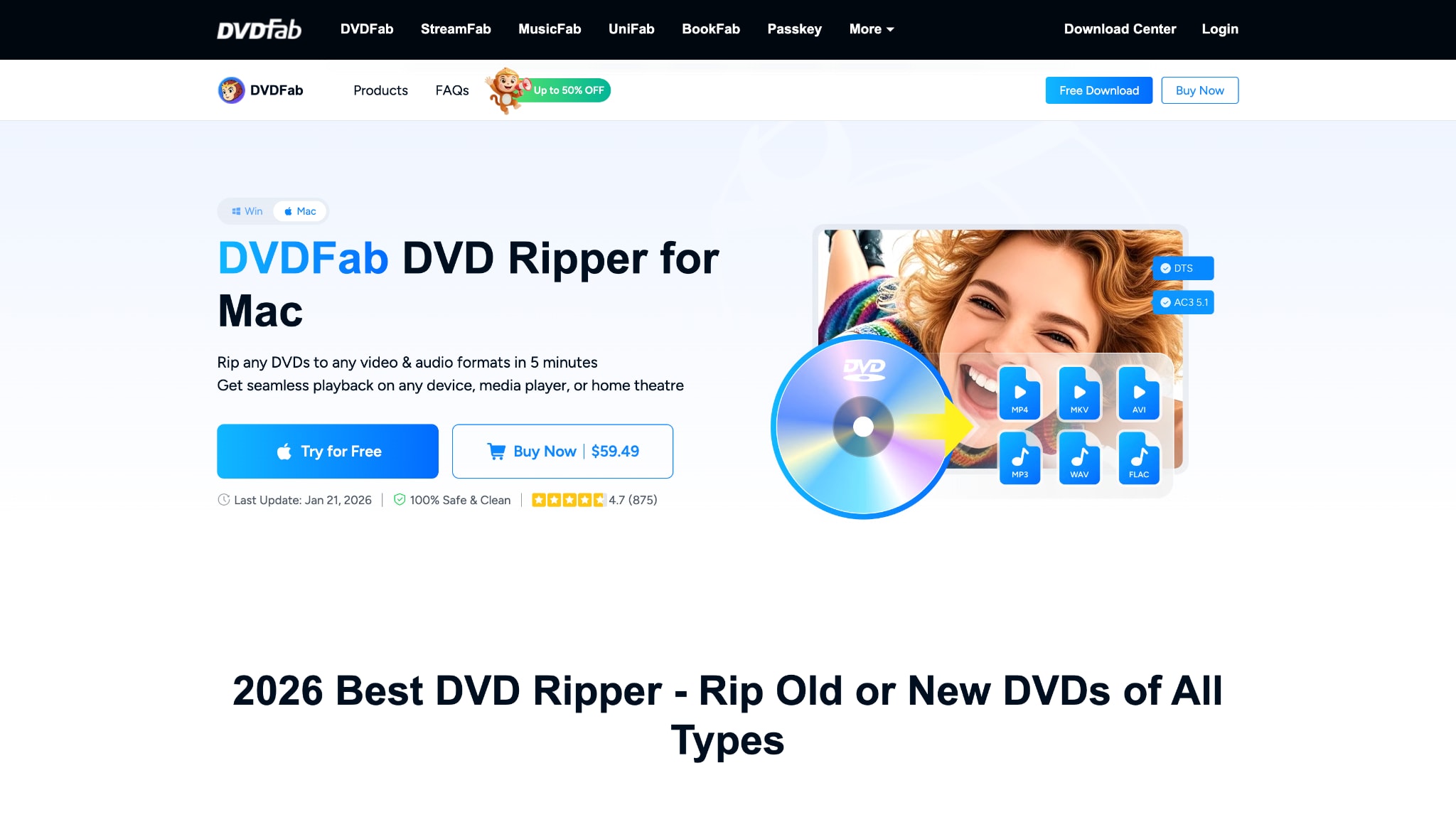
DVDFab DVD Ripper is a premium alternative built for users dealing with stubborn media. It is highly effective when you need to bypass strict encryption, but want your files compressed immediately. It eliminates the need for using two separate programs. The software is robust, continuously updated, and designed for heavy-duty media archiving. It serves as a dependable tool for users with large, commercial media collections.
Key Features:
Removes the latest AACS and CSS protections automatically.
Outputs files directly to mobile-friendly formats.
Supports upscaling basic video to higher resolutions.
Allows customization of audio streams and subtitles.
3. HandBrake (The Free Compressor Companion)
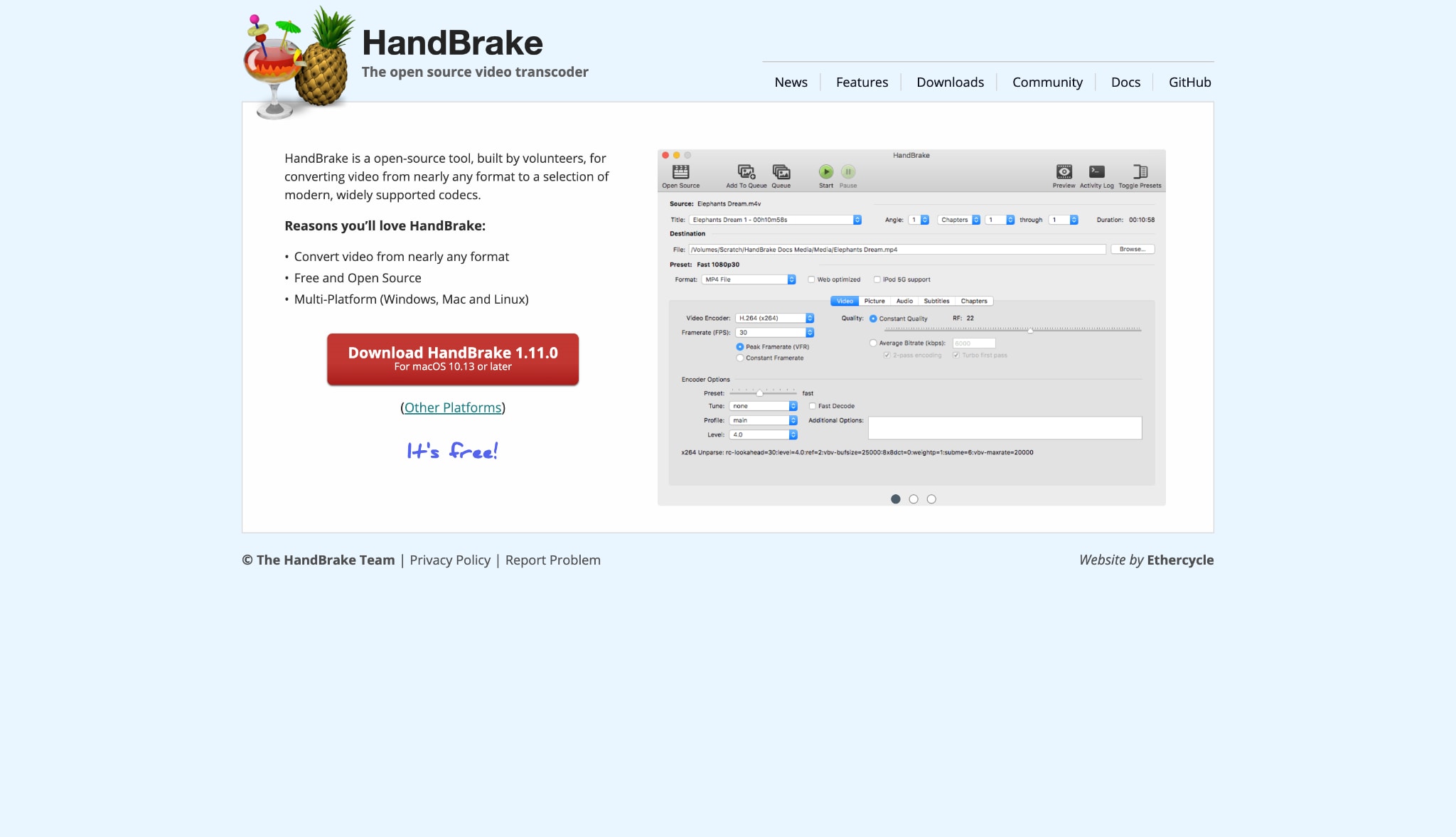
HandBrake is the traditional, open-source route for media compression. It does not extract protected discs on its own. Instead, users typically extract a raw file first, and then feed it into HandBrake. The software allows you to compress the video into an MP4 or MKV container using highly efficient codecs. It is completely free, making it a favorite among budget-conscious users who do not mind a steeper learning curve.
Key Features:
100% free and open-source video transcoder.
Extensive library of built-in device presets.
Supports modern video codecs like H.264 and H.265 (HEVC).
Advanced filtering options for deinterlacing and cropping.
4. WinX DVD Ripper Platinum (The Speed Demon)
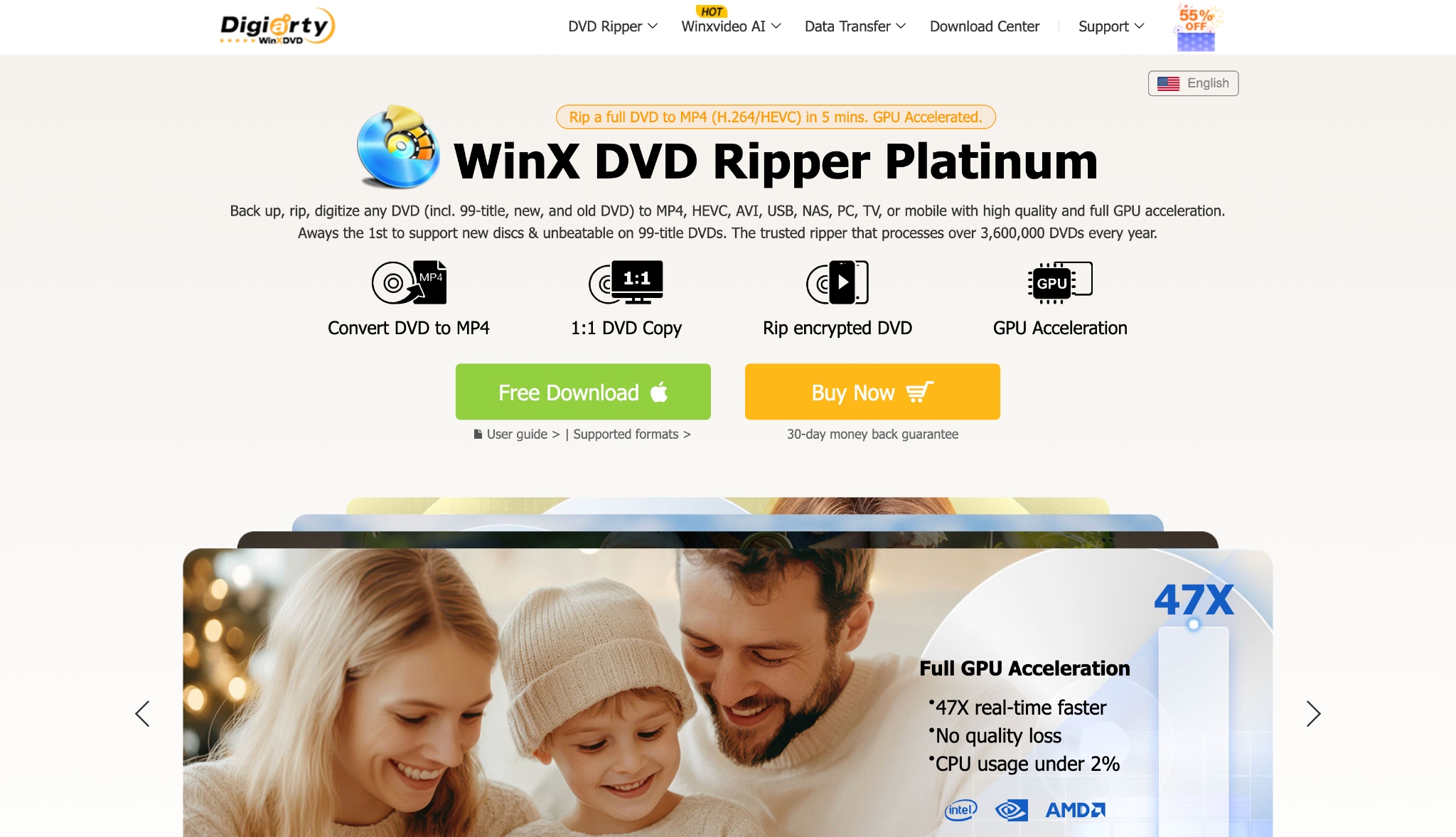
WinX DVD Ripper Platinum focuses strictly on speed and ease of use. It is a streamlined tool meant for users who want quick, standard digital backups. By utilizing Level-3 hardware acceleration, it processes files incredibly fast. It reads the disc, bypasses standard protections, and creates a compressed MP4 file in minutes. This tool is excellent if you value convenience and fast turnaround times over complex customization.
Key Features:
Level-3 hardware acceleration for rapid media processing.
Clones discs to ISO images at a 1:1 ratio.
Built-in profiles optimized for modern smartphones and tablets.
Safe Mode feature to prevent errors during extraction.
5. VLC Media Player (The Free Fallback)
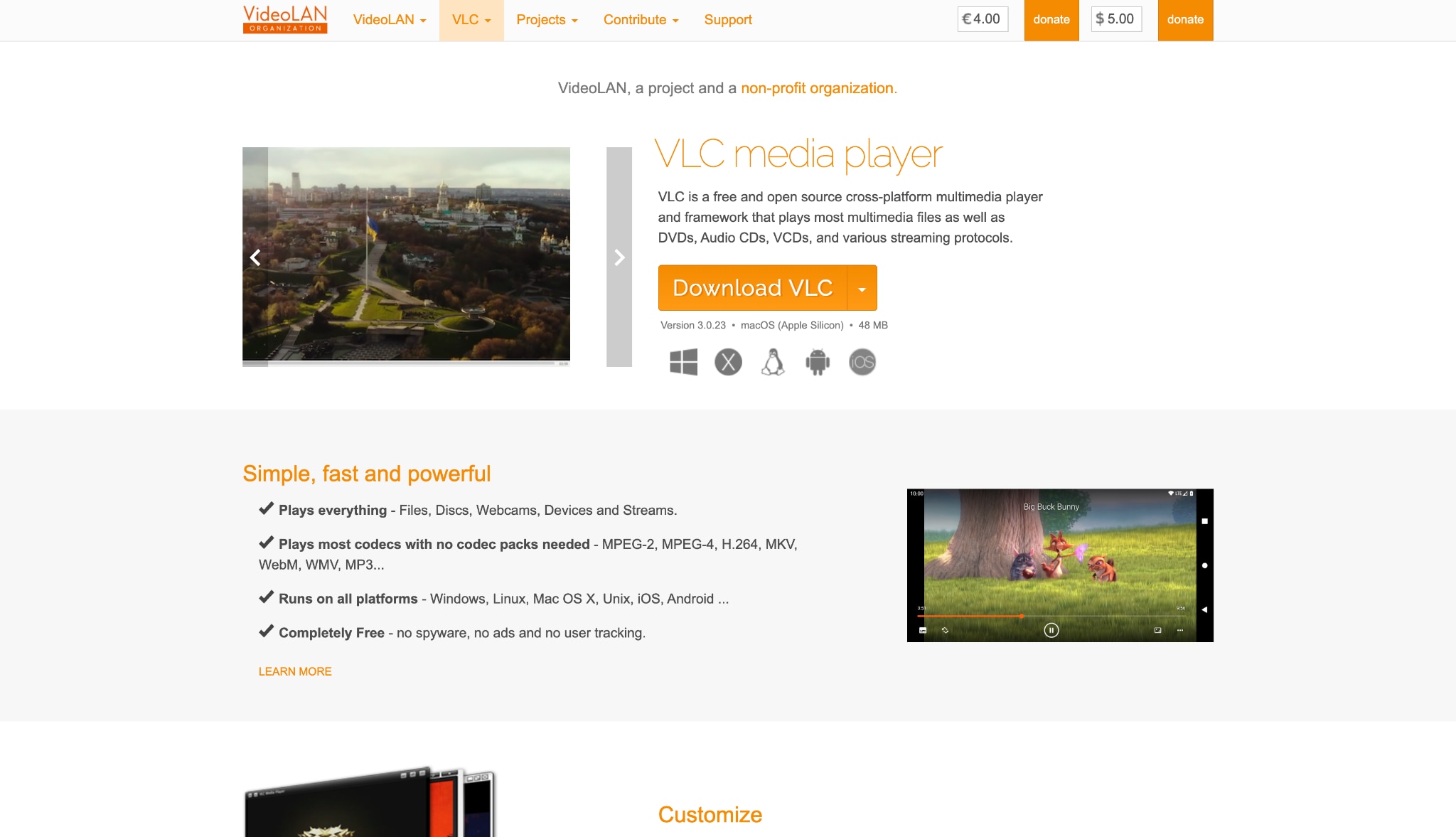
VLC Media Player is famous for playing almost any media format, but it also includes a hidden extraction feature. It serves as a great free fallback if you only need to back up homemade or unencrypted discs. You do not need to download extra software if VLC is already installed on your computer. While it lacks the power of dedicated rippers, it handles basic conversion tasks efficiently for casual users.
Key Features:
Universally compatible open-source media player.
Hidden "Convert/Save" feature for basic media extraction.
Supports direct output to standard MP4 and OGG formats.
Customizable playback and streaming capabilities.
Part 5. Bonus: The Perfect Solution to Compress Massive MakeMKV Files using UniConverter
If you already used MakeMKV and are stuck with a massive 30GB file, you can easily compress it. You can shrink the file size while maintaining excellent quality using UniConverter. Follow these simple steps to optimize your media.
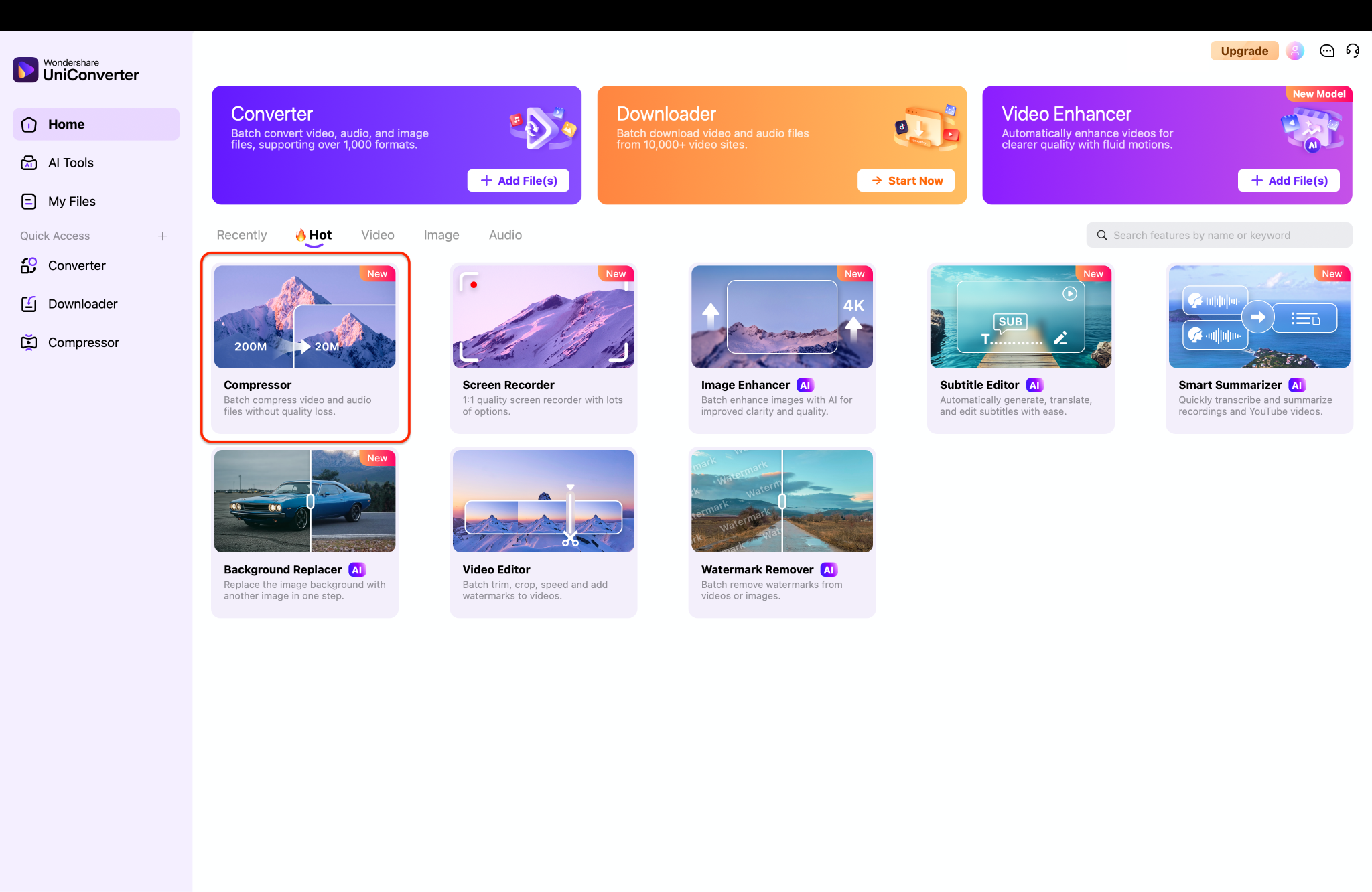
Step 1: Open the Compressor Tool
Launch Wondershare UniConverter on your computer to access the main dashboard. Navigate to the Home tab and locate the "Compressor" feature under the Hot tools section. Click on this option to open the dedicated file reduction workspace.
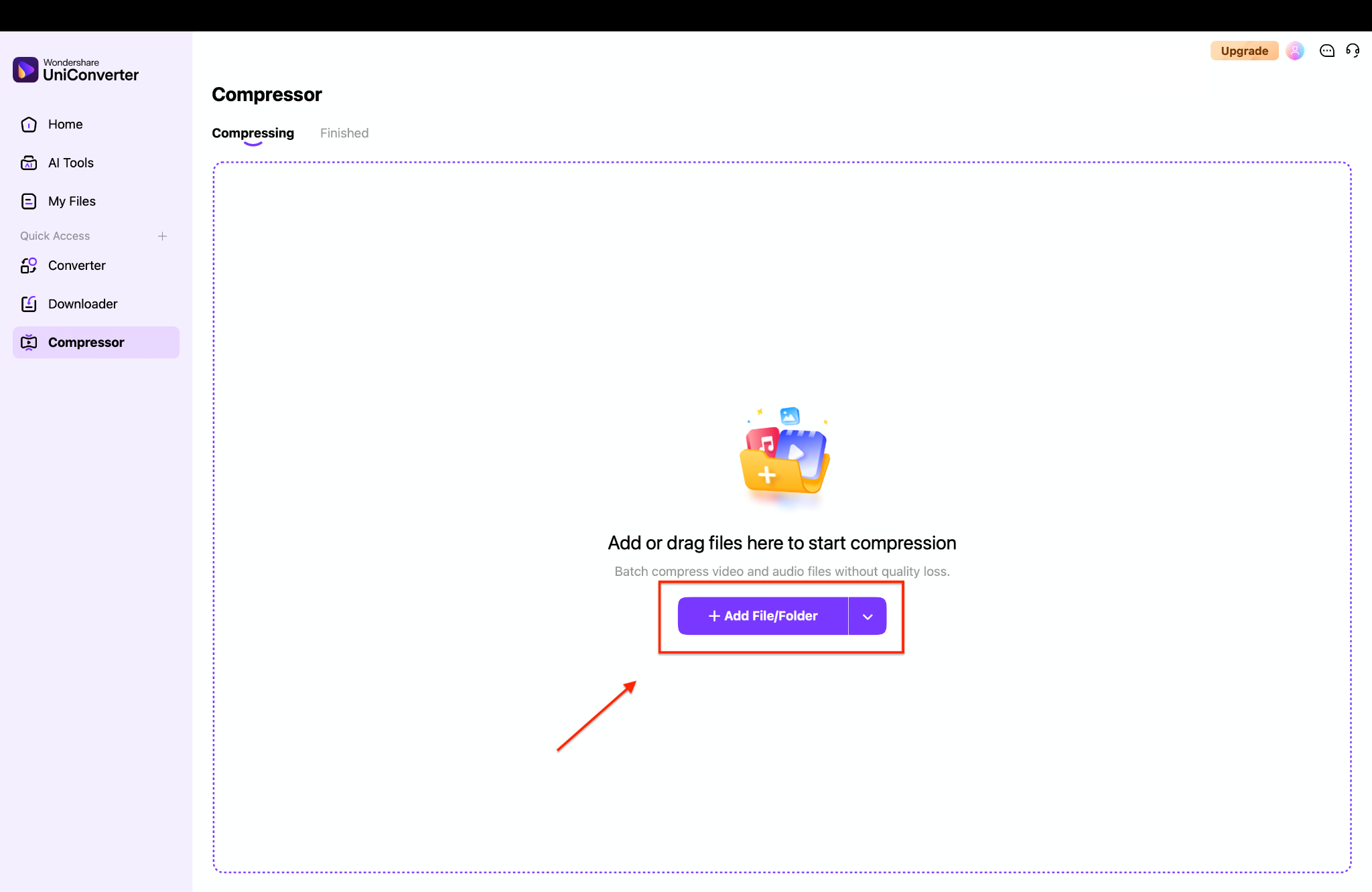
Step 2: Import Your Massive Video
You will now see a clean workspace designed specifically for shrinking large media files. Click the purple "Add File/Folder" button in the center of the screen to browse your computer's storage. Alternatively, you can simply drag and drop your massive MakeMKV videos directly into this window.
Step 3: Adjust the File Size Settings
Click the settings icon to open the compression menu, where you can choose an output format like MP4 or MOV and adjust the file size using the slider. You can also expand the "Advanced settings" section to manually tweak the video resolution, frame rate, and audio encoders.
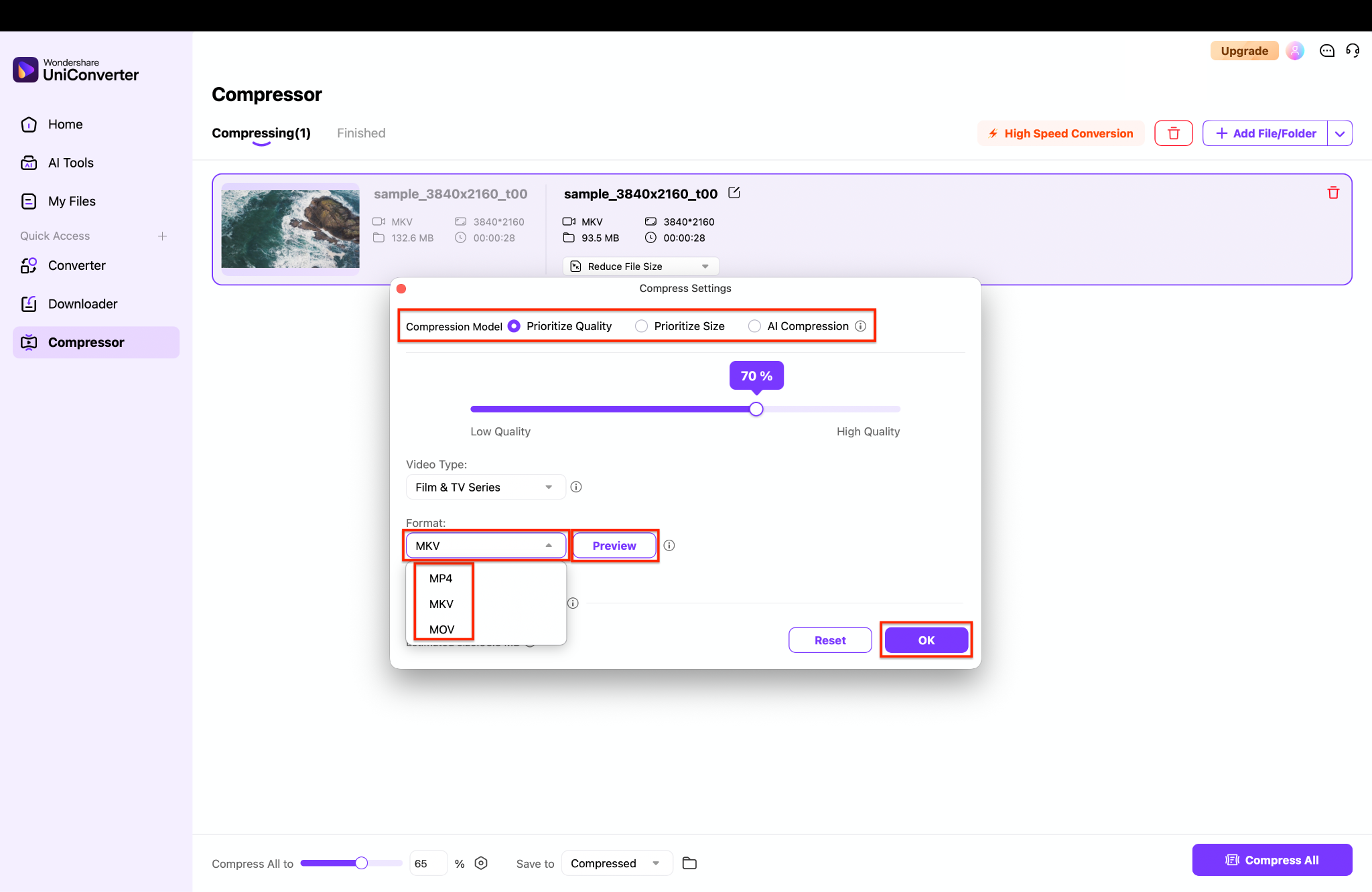
Pro Tip: Always utilize the "Preview" button before clicking OK to ensure your chosen compression level maintains an acceptable visual quality.
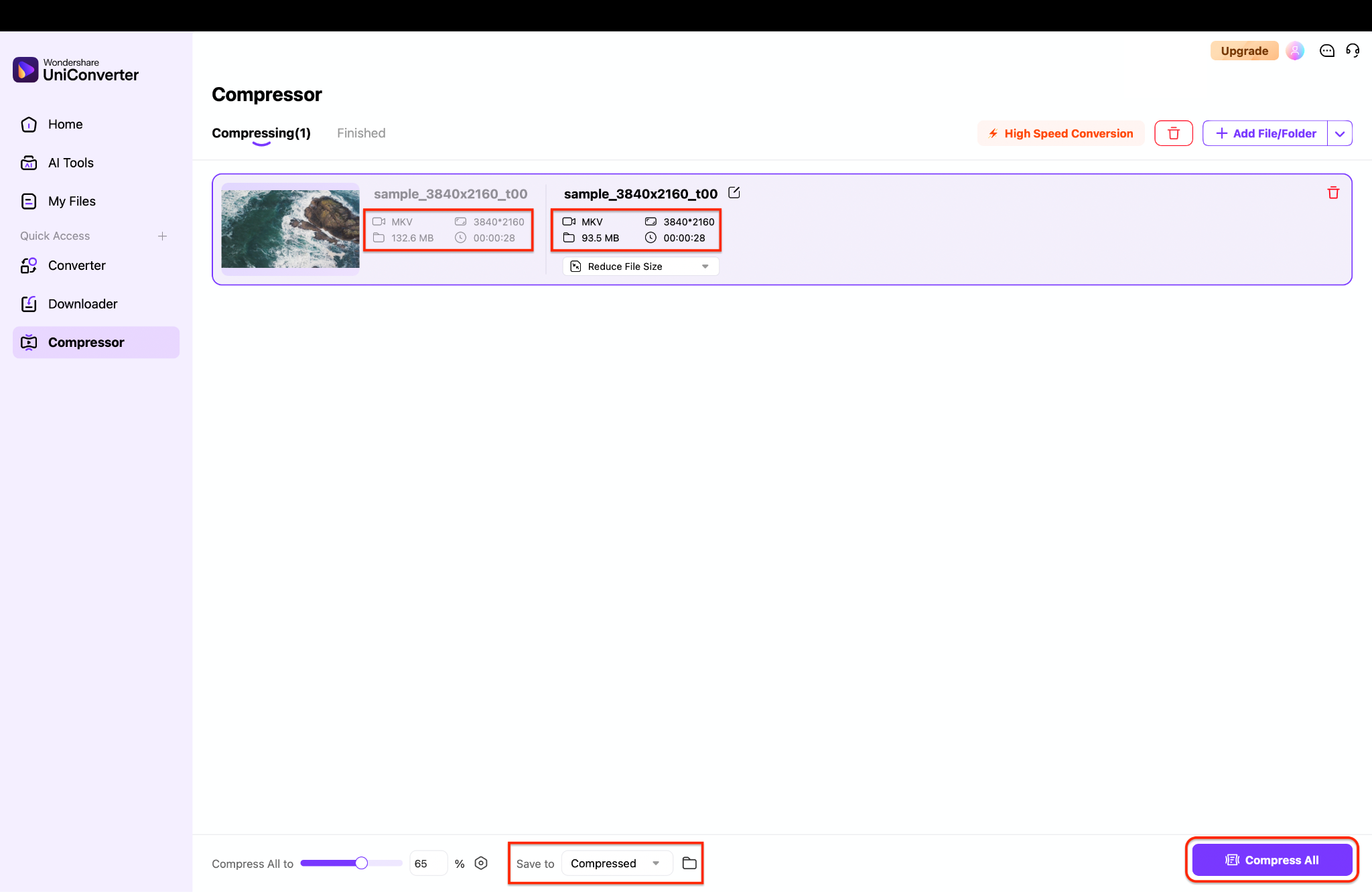
Step 4: Choose the Destination and Compress
Review the estimated final file size displayed directly next to your original video details. Go to the "Save to" dropdown menu at the bottom to choose exactly where your newly compressed file will be stored. Finally, click the purple "Compress All" button to let the software shrink your video efficiently.
Part 6. Conclusion
Building a digital library takes time and the right tools. When you rip dvd with MakeMKV, you get a pure, lossless backup. Whether you want to make MKV DVD files or make MKV blu ray archives, MakeMKV is highly dependable. However, massive file sizes often require a secondary step. If you regularly rip blu ray MakeMKV style, you need a smart way to store them. We recommend using Wondershare UniConverter to compress and convert your heavy files into universally playable formats. Try UniConverter today to simplify your video processing and enjoy your media anywhere.
Part 7. FAQs
-
1. Is MakeMKV completely free to use?
MakeMKV is free for standard DVDs. However, the MakeMKV blu ray ripper feature requires a new beta key every 30 days or a one-time lifetime license purchase. -
2. How do I compress the large files after I rip DVD with MakeMKV?
Since MakeMKV creates a 1:1 uncompressed copy, you need to import the resulting MKV file into a video compressor like Wondershare UniConverter, adjust the bitrate settings, and export it as an MP4 to reduce the size by up to 80%. -
3. Does MakeMKV reduce video quality?
No. The primary benefit of using MakeMKV is that it leaves the original video and audio streams completely untouched. -
4. Why can't I play my MakeMKV files on my iPhone or Mac?
Apple devices do not natively support the MKV container format. You will either need a third-party player like VLC or use an alternative compressor to transcode the MKV into an Apple-friendly MP4. -
5. Can MakeMKV rip encrypted Blu-rays in 2026?
Yes, MakeMKV actively updates its hash keys to bypass standard AACS and BD+ protections, making it highly reliable when you need to rip blu ray with MakeMKV.

