


A content creator has hours of video footage from a recent trip and wants to share it as a single, captivating story. To create a video collage online can transform scattered footage into a cohesive, visually appealing presentation. With the right tools, anyone can combine multiple videos, add transitions, music, and effects without needing advanced editing skills.
Online platforms simplify the process by offering templates and drag-and-drop features that make the collage more engaging and polished. This guide explores the best tools, practical tips, and a step-by-step process to help you craft a stunning video collage that captures every memorable moment beautifully.
In this article
- Advantages of Video Collages
- Popular Video Collage Styles to Inspire You
- How to Make a Video Collage (Step by Step)
- Try Best Video Collage Editor Online for Free & Paid Users
- How to Use Desktop Tools for Professional Video Collage
- How to Easily Enhance Raw Videos for Your Video Collage
- 5 Design Tips to Improve Your Video Collage
- Conclusion
- Frequently Asked Questions
Key Takeaways
[Creative Storytelling Needs] Video collages combine multiple clips into one engaging story, ideal for social media, events, and marketing content.
[Online Tool Options] Tools like Kapwing, Canva, and Invideo offer templates and easy drag-and-drop editing but may limit advanced features.
[Common Limitations] Online editors can suffer from slow performance, watermarks, or restricted customization on complex projects.
[Professional Workflow] Wondershare UniConverter enhances video quality, supports batch processing, and enables advanced editing for polished collage creation.
Part 1. Advantages of Video Collages
The rise of social media and digital storytelling has made it easier than ever to capture moments creatively, which is why a collage with video has become so popular. Here are some of the reasons why these images are popular nowadays:
Attention-Grabbing Format: Combining multiple clips into a single dynamic video naturally draws viewers' eyes. People are drawn to visually rich content that keeps them engaged.
Storytelling Efficiency: A collage in video allows complex narratives to be communicated quickly. It condenses information, making stories easier to follow and more impactful.
Emotional Impact: Blending visuals, motion, and sometimes sound amplifies emotional engagement. Video collages evoke feelings more effectively than single clips or static images.
Trendiness & Shareability: The format aligns with current social media content trends. Making a video collage online increases the likelihood that the content will be shared widely.
Creative Flexibility: Video collages offer limitless possibilities for style, layout, and timing. This flexibility allows creators to experiment and make unique, eye-catching content.
Part 2. Common Video Collage Styles
For anyone looking to get creative, a collage of videos can take many forms. Exploring different styles can inspire you to make collage projects that are visually engaging, fun, and shareable across social media or personal collections. Provided below are some of the popular collage styles that you can try for your collection:
Multi‑Clip Grid Collages
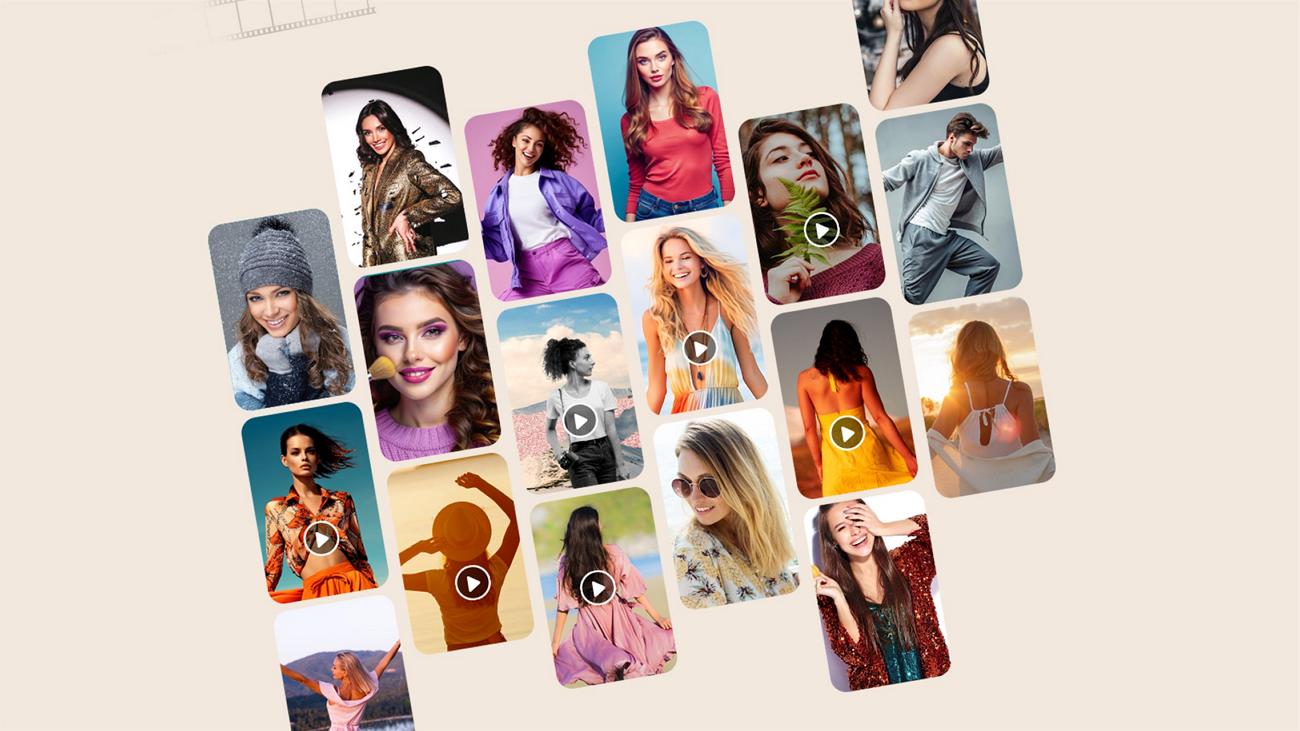
A multi-clip grid displays several video clips simultaneously, creating a dynamic overview of moments. This style allows collage in video to highlight multiple perspectives at once, making it ideal for storytelling where every clip contributes to a larger narrative.
Picture + Video Combos
Combining photos with video clips adds depth and context to any story. Creating a video in collage format allows collage projects to blend static and moving visuals, resulting in a more expressive and engaging presentation.

Audio‑Driven Collages
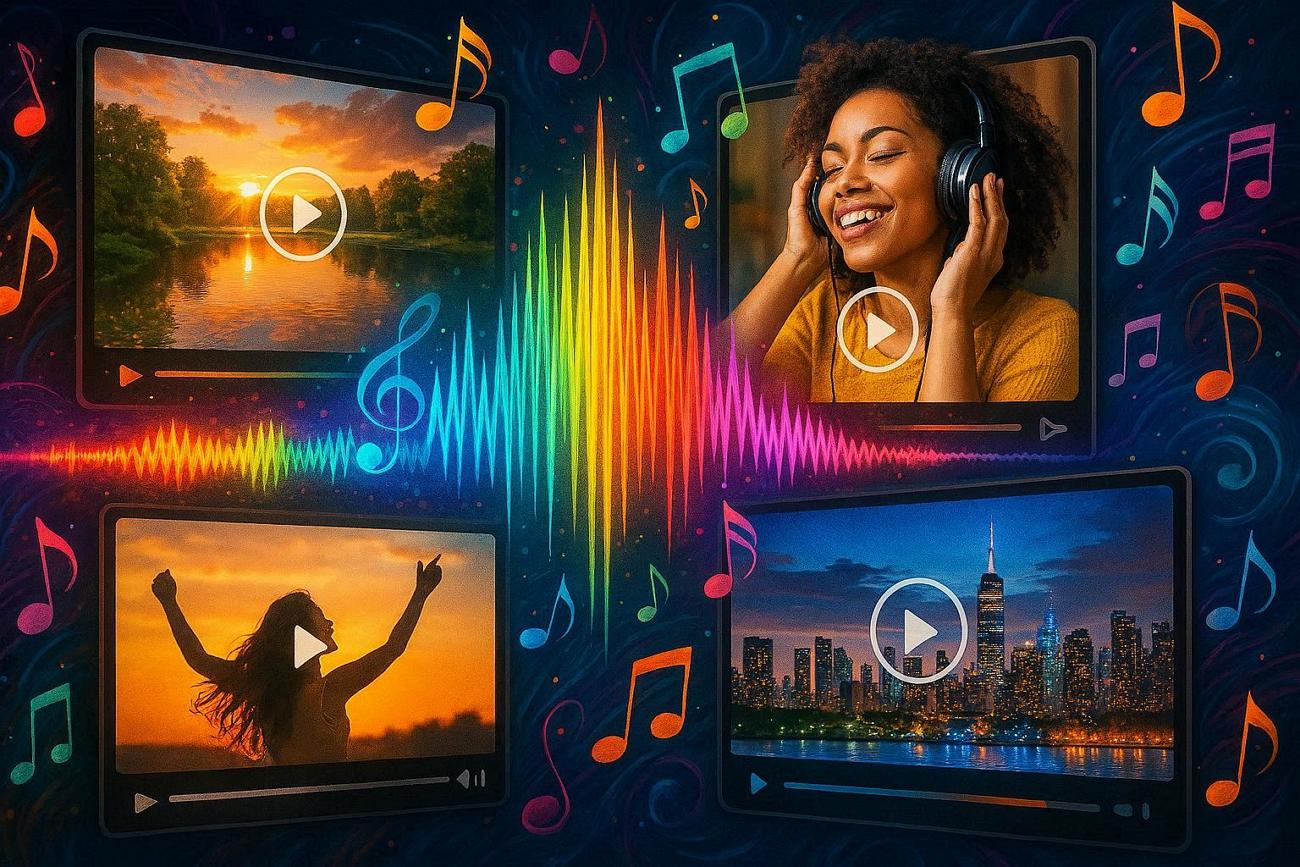
Syncing visuals with music, voiceovers, or sound effects amplifies the emotional impact. Making a collage with video and audio together produces immersive content that keeps viewers connected to the story.
Vertical & Square Collages for Mobile
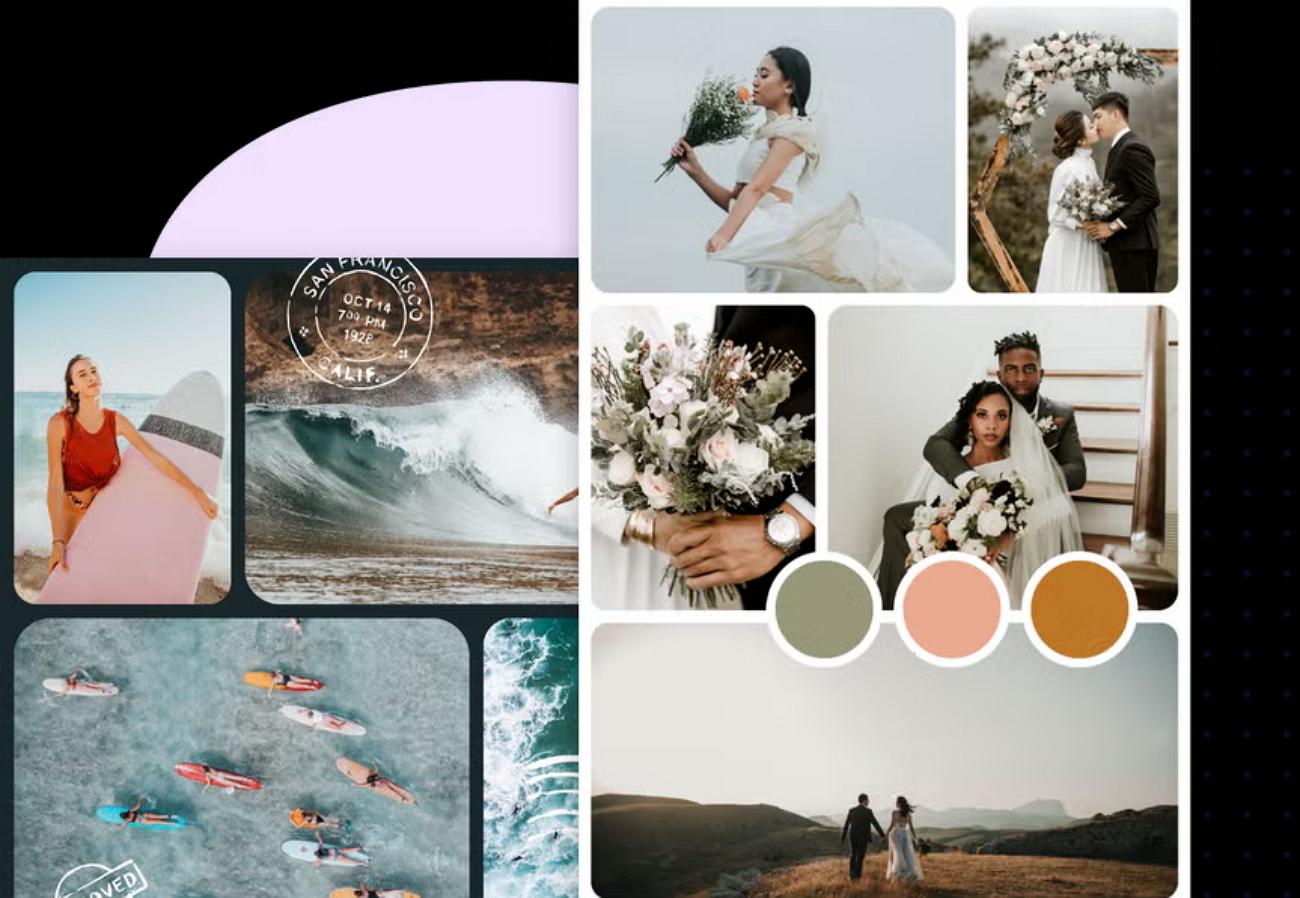
Vertical or square formats are optimized for smartphone viewing and social media sharing. Video collage online in these dimensions ensures the collage in the video looks polished, visually balanced, and easily digestible on any device.
Where to Use Your Video Collage Creatively
Once your video collage is ready, knowing where to use it creatively can maximize its impact. A collage with video can serve multiple purposes. Here are some of the ways you can use these creative visuals:
Social Media Posts: Share your video collage on platforms like Instagram, TikTok, or Facebook. College in video makes posts more eye-catching and encourages higher engagement.
Personal Memories: Compile travel clips, family gatherings, or celebrations into one cohesive video. Making a video collage preserves moments in a fun and immersive way.
Marketing & Promotions: Use video collages to showcase products, events, or campaigns creatively. Video in collage format helps communicate messages quickly and attract the viewer's attention.
Educational Content: Combine instructional clips, slides, or demonstrations into one engaging video. A collage with video simplifies complex ideas and keeps learners interested.
Event Highlights: Summarize conferences, weddings, or performances into a concise highlight reel. Making a collage in video format ensures memorable moments are captured and easy to share.
Part 3. How to Make a Video Collage (Step by Step)
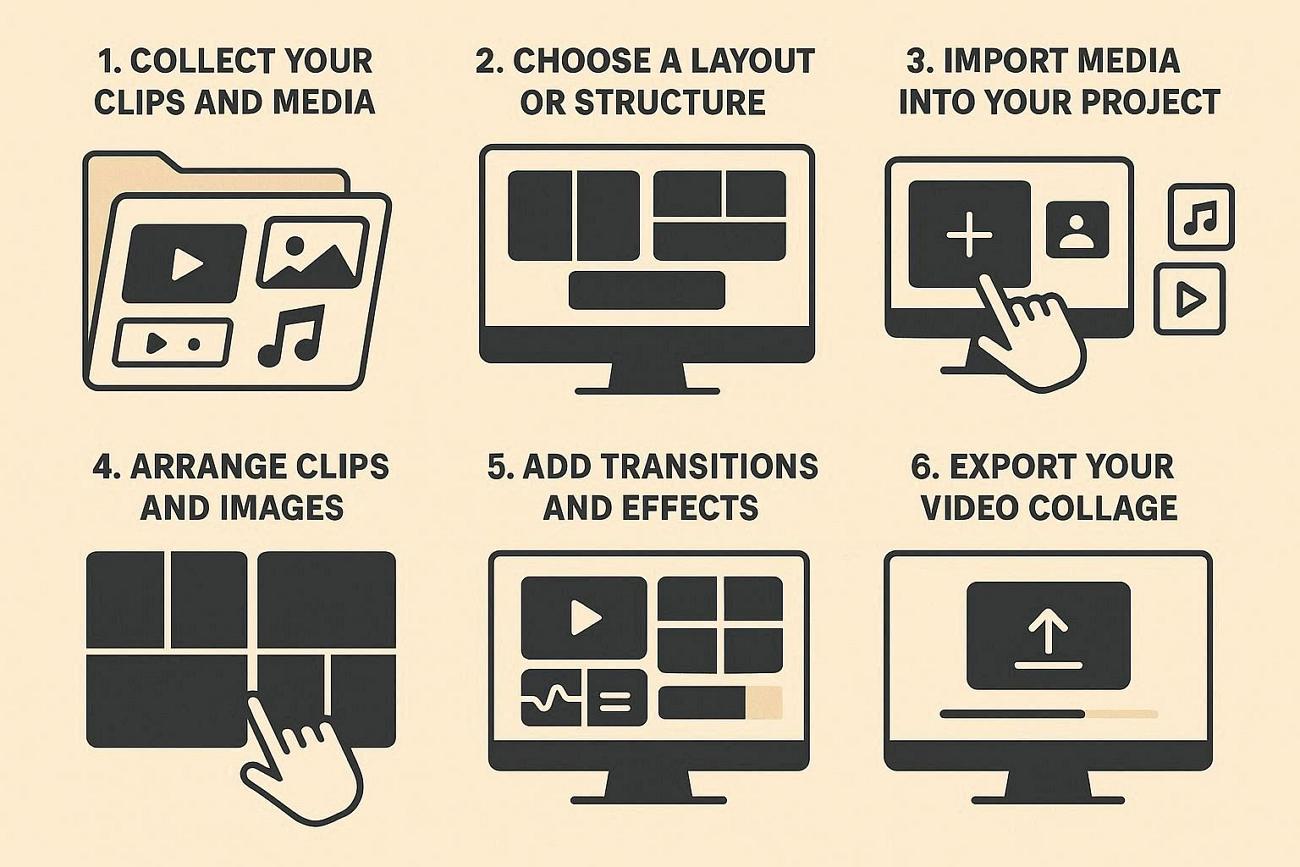
Creating a visually appealing video doesn't have to be complicated. Learning how to make a video collage online involves a few clear steps that help you organize clips. Provided below is a general workflow for you to create these visually appealing videos:
Step 1. Collect Your Clips and Media
Gather all video clips, images, and audio you want to include. Having everything ready ensures a smoother workflow when you start creating your collage.
Step 2. Choose a Layout or Structure
Decide how many clips or images will appear on screen simultaneously. Plan the arrangement to balance visuals and make the college engaging.
Step 3. Import Media into Your Project
Bring all collected media into your editing interface. This step sets the foundation for arranging clips and designing your video collage.
Step 4. Arrange Clips and Images
Place your videos and photos in the chosen layout. Adjust sizes, positions, and sequence to create a coherent visual flow.
Step 5. Add Transitions and Effects
Incorporate transitions, animations, or visual effects to enhance movement between clips. This makes the collage in the video more dynamic and polished.
Step 6. Export Your Video Collage
Finalize the project by exporting it in the desired format. Now your video collage online is ready to share or showcase anywhere.
Part 4. Try Best Video Collage Editor Online for Free & Paid Users
With a variety of free and paid editors available, anyone can combine clips, add effects, and produce visually engaging collages quickly. Mentioned below are some of the top options that you can try to create a collage with video:
1. Kapwing
Kapwing's video collage maker lets you combine videos, GIFs, images, and music into multimedia collages directly in your browser. It provides templates, drag‑and‑drop placement, and the ability to add text or adjust timing effortlessly. As the tool is entirely online, you can access it from any device without installing software. To learn how to use this tool to make a collage, read the steps provided below:
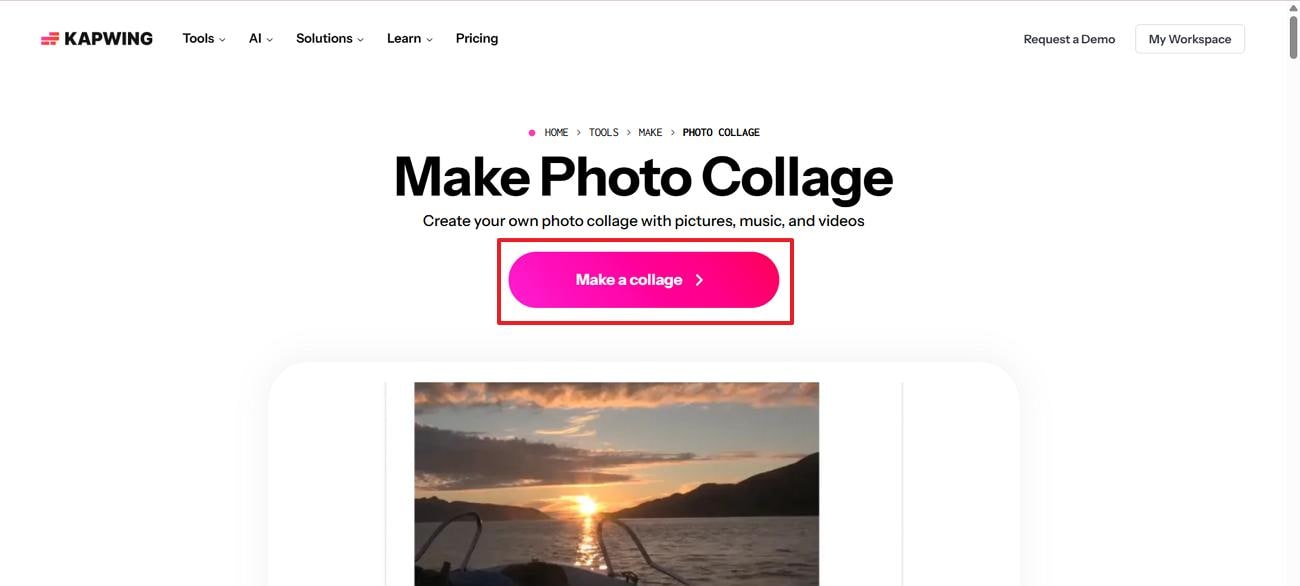
Step 1. Begin by accessing the collage maker on your browser and pressing the "Make a Collage" button to execute the process.
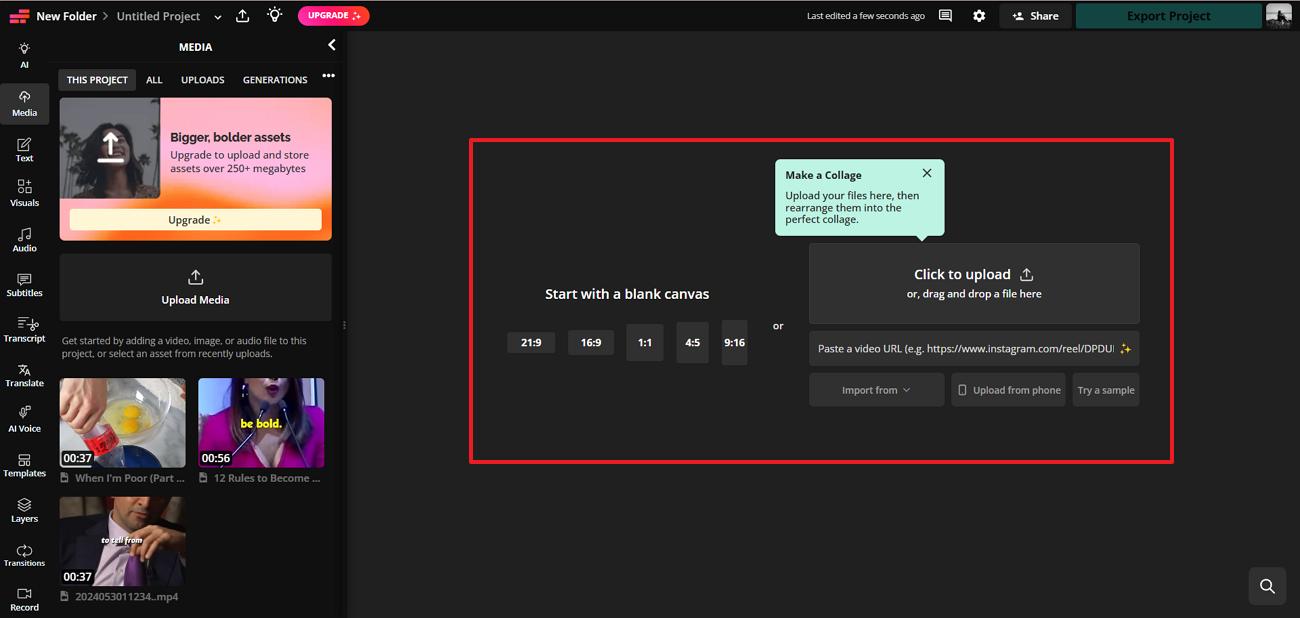
Step 2. In the following interface, import the videos for which you want to create the collage from your device's storage.
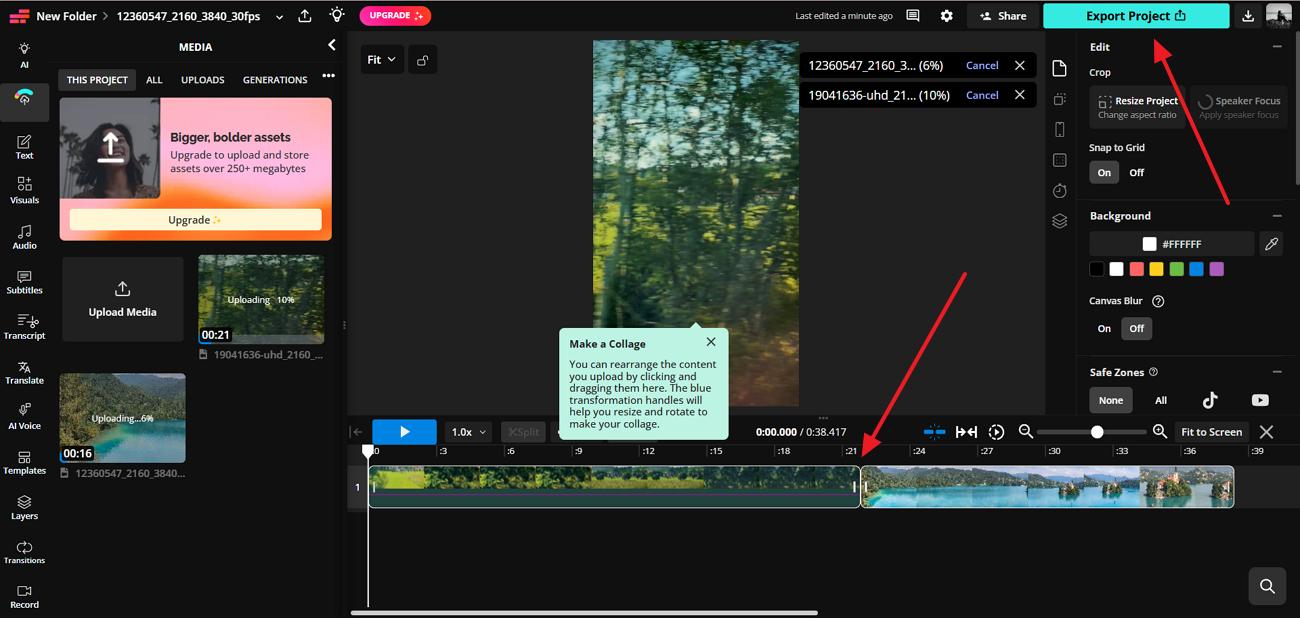
Step 3. Once the clips are added, rearrange them or crop them if required. You can also perform other enhancements using the editing features of the tool. When you are done with the editing, hit the "Export Project" button to save the collage video to your device.
2. Invideo AI
This video collage online maker offers a large selection of customizable templates and an extensive media library. Users can merge photos and clips, add transitions, effects, music, and animations to produce collage videos. With a focus on creative flexibility and template variety, it's designed to help both simple and polished collage projects. Follow the steps mentioned next to learn how to craft video montage with Invideo AI:
Step 1. Once you have accessed the tool on your browser, click the "Create Video Collage Online" button to start.
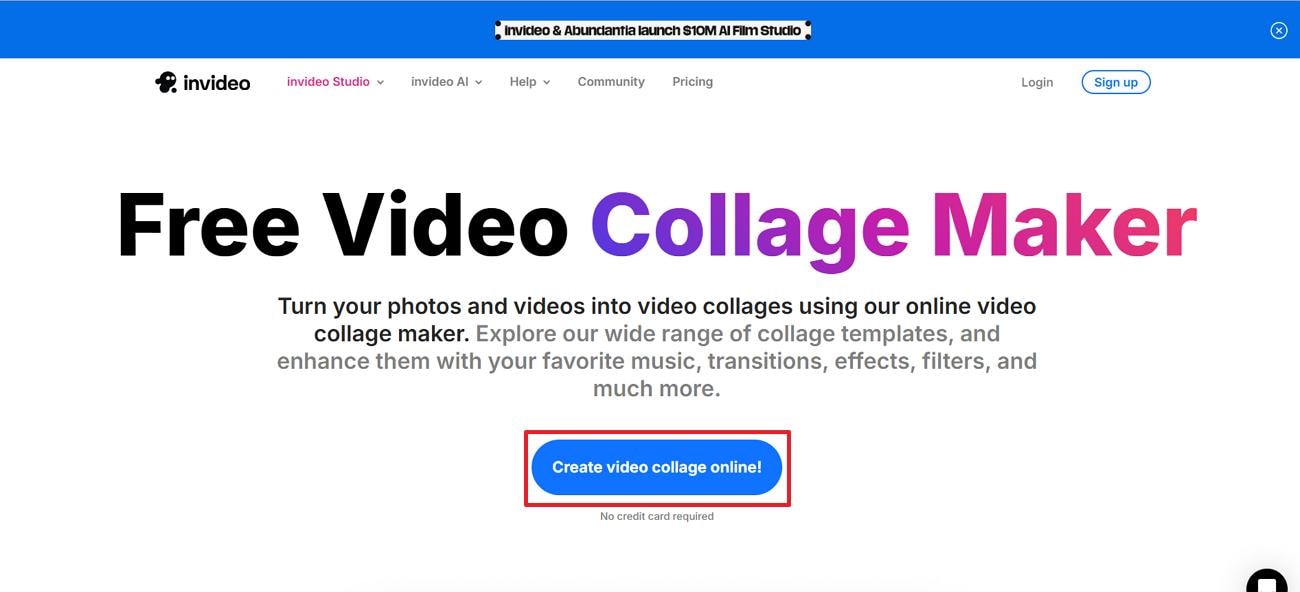
Step 2. Now, enable the "Templates" section from the left and select your desired collage template by clicking on it.
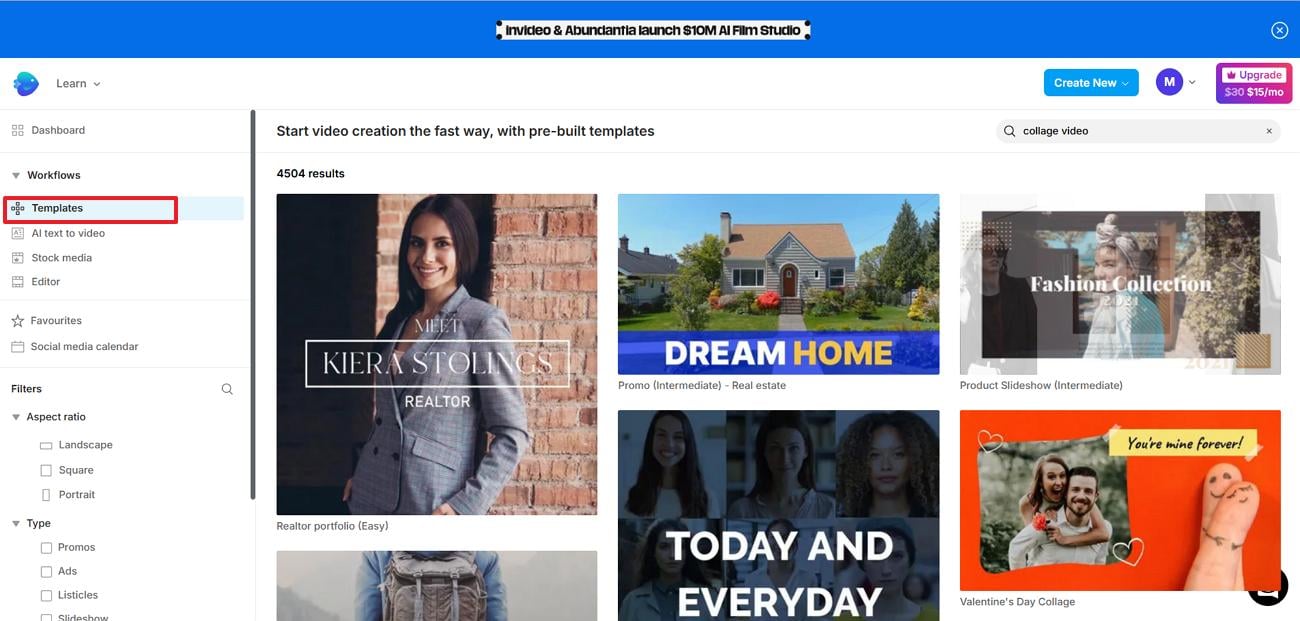
Step 3. Preview the template in the following interface and press the "Use Template" option to begin the process.
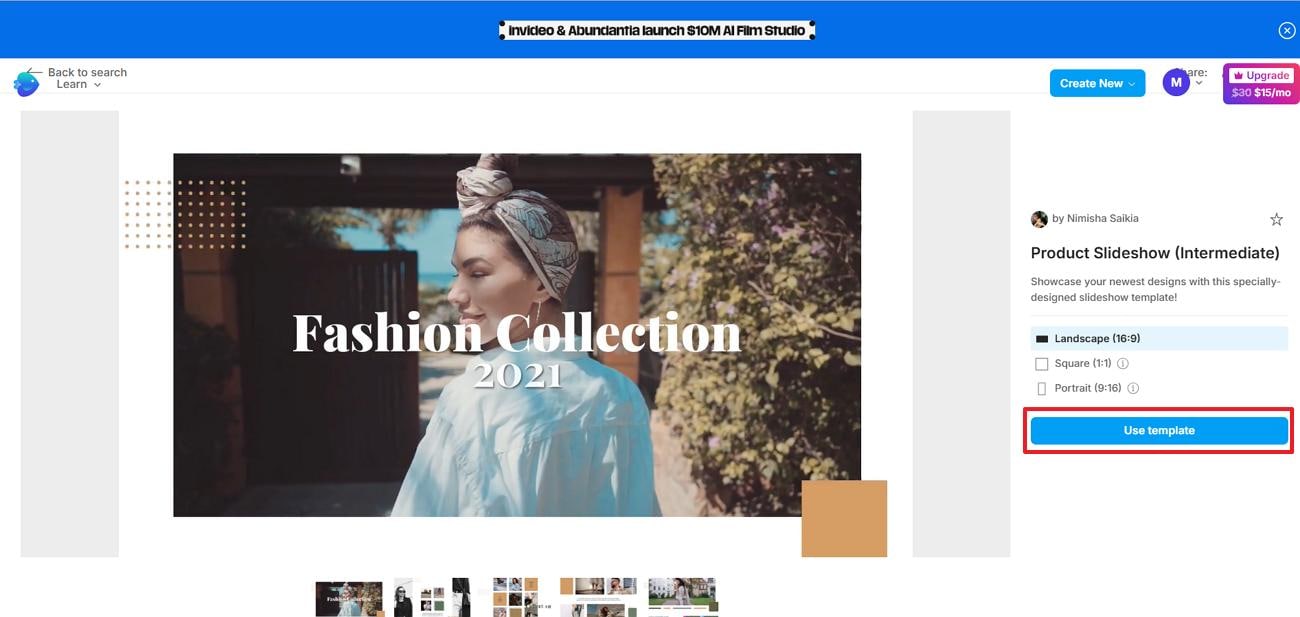
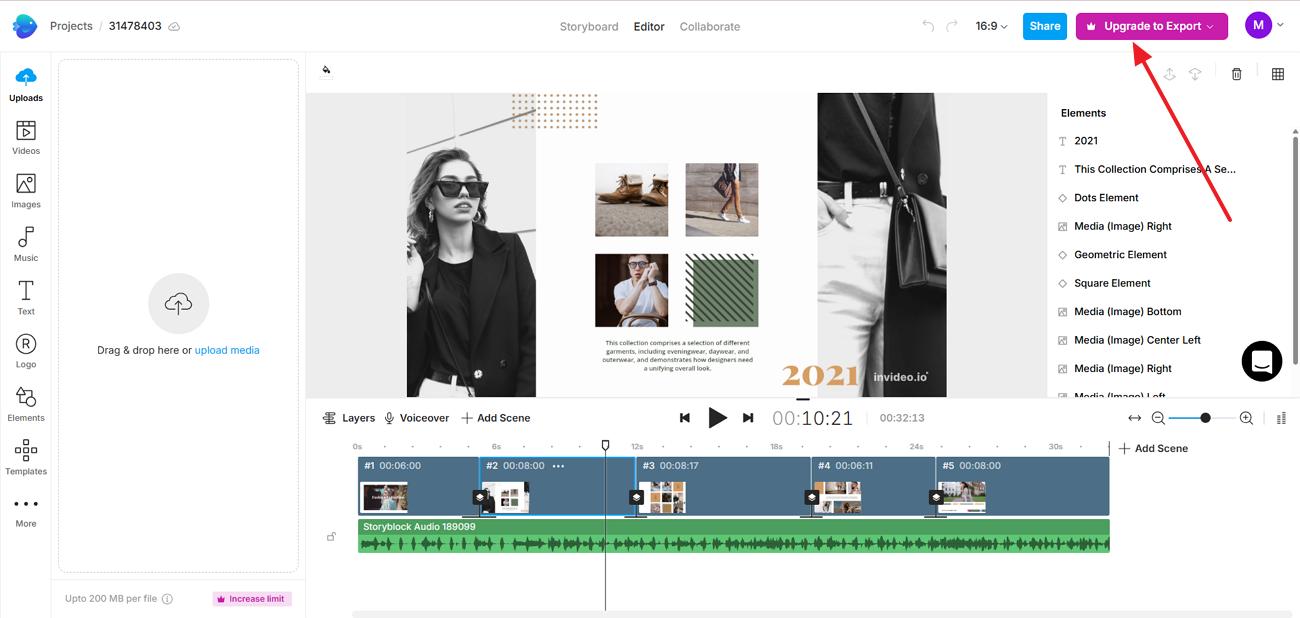
Step 4. In the next window, upload your videos for collage and edit them using the features offered by the tool. Once done, press the "Export" button at the top right corner to save the video collage to your device.
3. Canva
The video collage creator enables you to drag and drop clips and photos into animated layouts, supported by a vast library of design elements and templates. You can trim, arrange, and decorate your video collage, and include audio tracks for added impact. The interface emphasizes ease of use and visual storytelling. Read the steps provided below to know how to use this tool for video collage creation:
Step 1. After accessing the tool on your browser, click on the "Create a Video Collage" option.
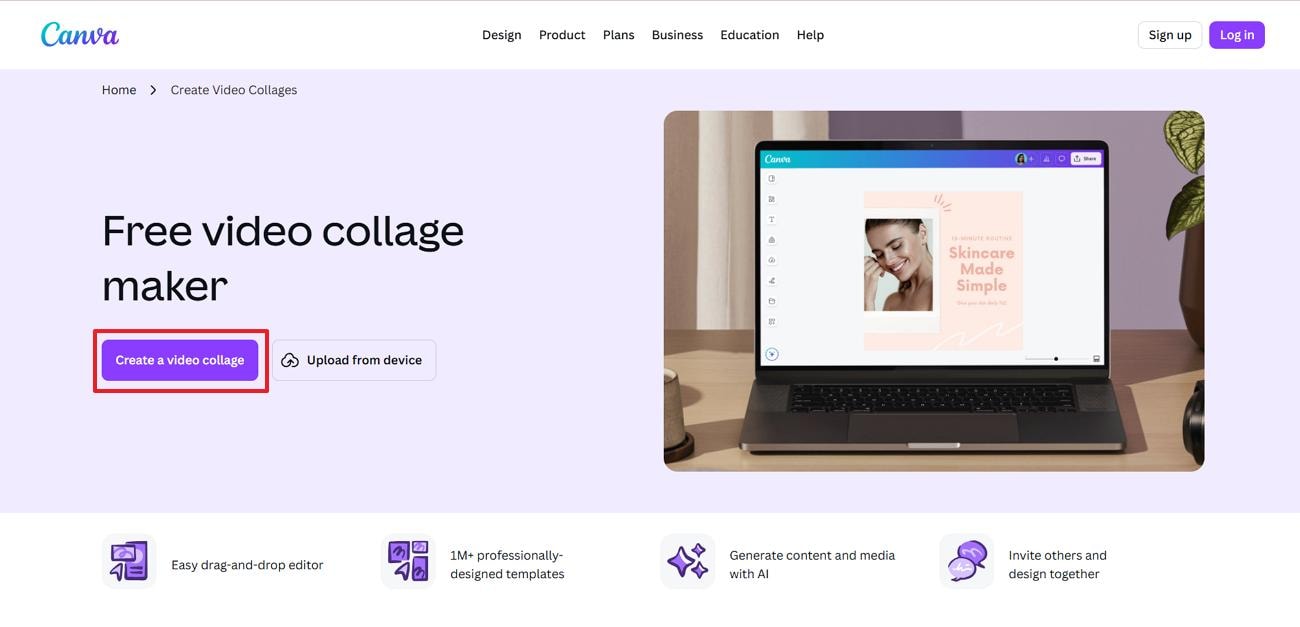
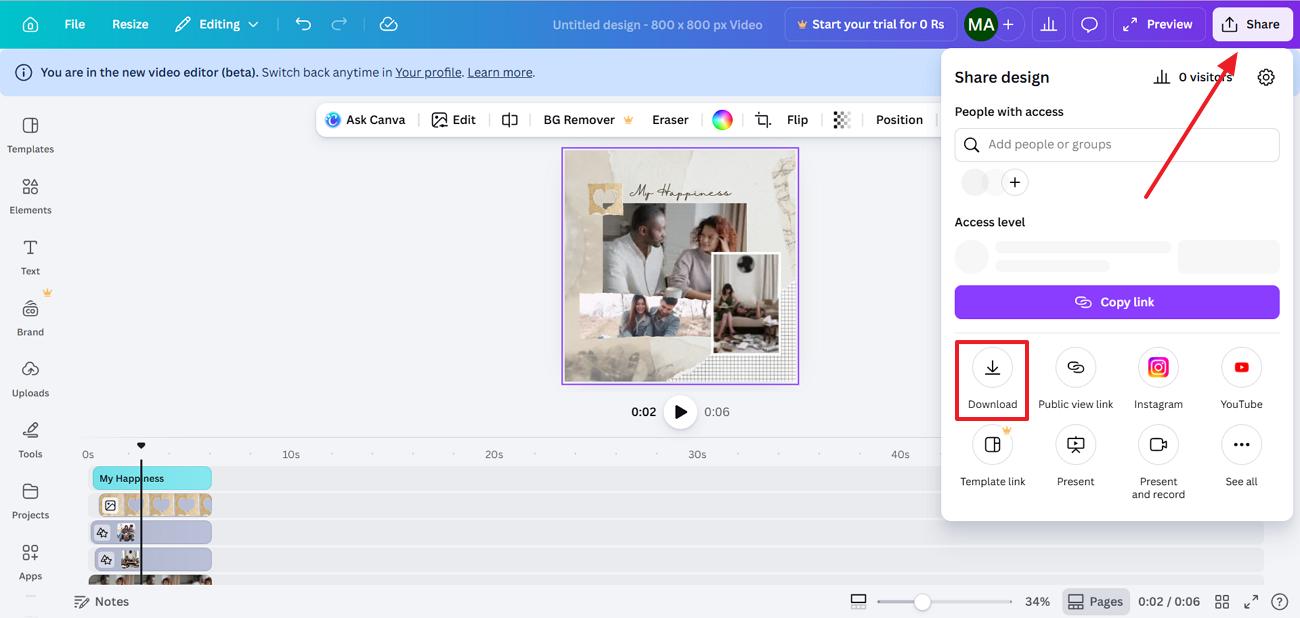
Step 2. Now, select the template from the left and upload your videos by clicking on the clip within the preview window. Apply edits and hit the "Share" button located at the top right corner. Finally, press the "Export" button to save the video collage to your device.
Part 5. How to Use Desktop Tools for Professional Video Collages
For creators seeking more control and advanced features, desktop software provides powerful options to craft a video collage. Mentioned below are some of the top desktop tools that you can try for creating a montage of your videos:
2. DaVinci Resolve
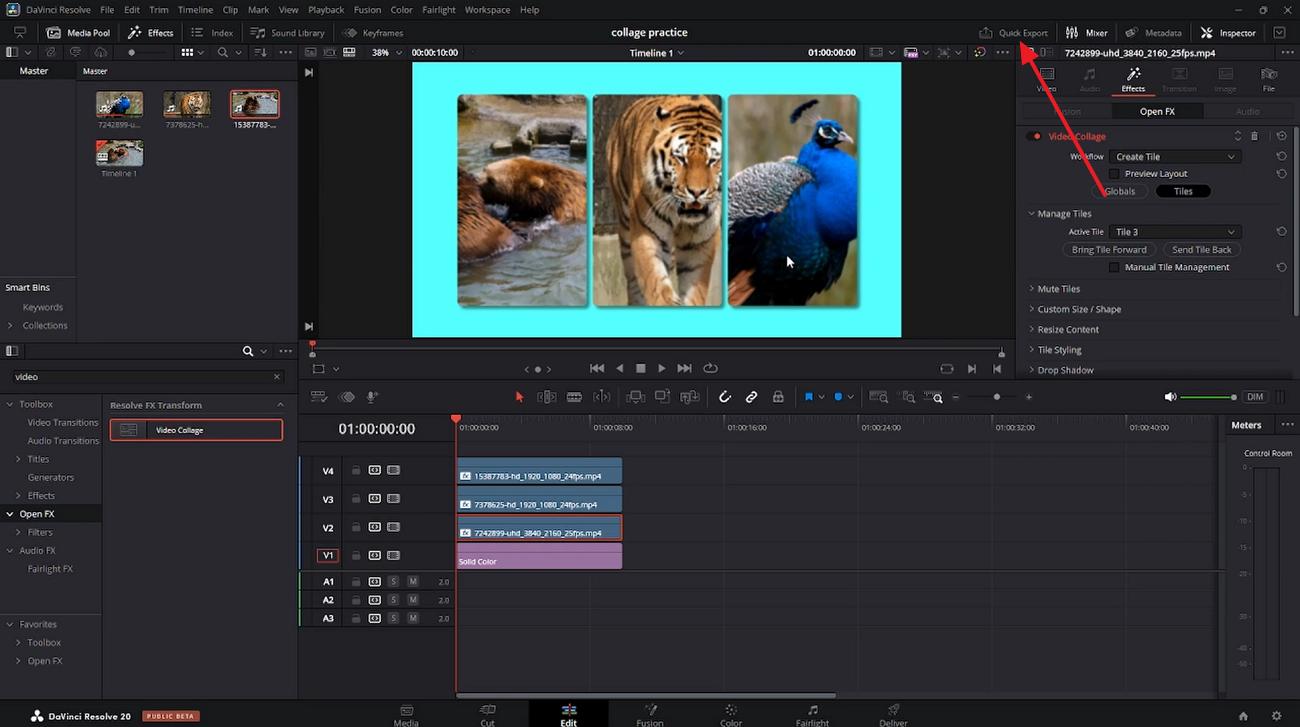
DaVinci Resolve offers powerful tools to create beautiful montages using its video collage effect. Users can layer multiple clips, resize frames, and arrange layouts precisely. Advanced node-based compositing enables seamless blending, transitions, and effects, making it ideal for creating professional, visually dynamic video collage compositions. Follow the steps mentioned below to learn how to use the tool for video collage creation:
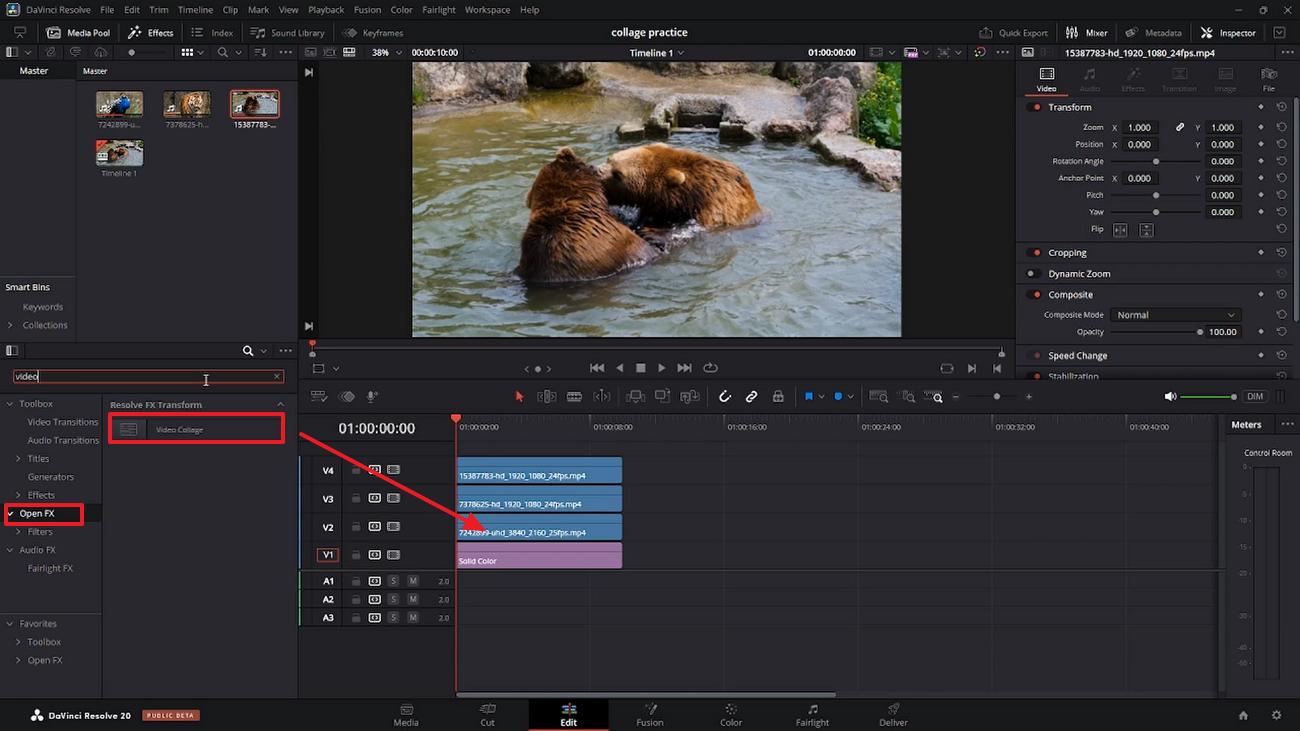
Step 1. Start by importing your videos to the tools interface and drag them to the editing timeline. Next, head to the left section and search for "Video Collage" under the "Open FX" option. Now, drag the effect to the video on the timeline to apply it to the video.
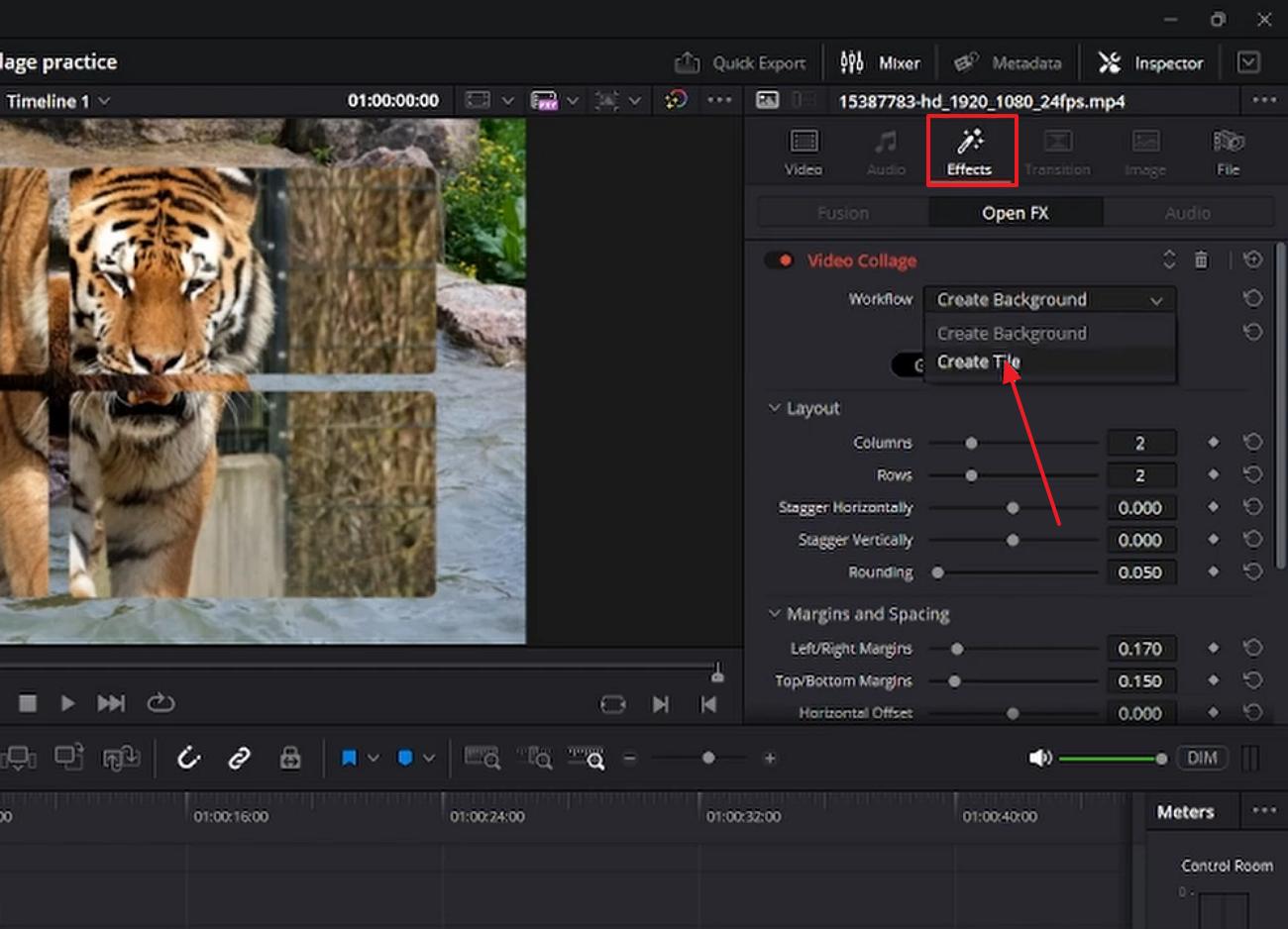
Step 2. Head to the "Effects" tab on the right and select workflow as "Tile" by expanding its drop-down menu.
Step 3. Repeat the same process for each video on the timeline and create a video collage. Once done, press the "Quick Export" option to successfully save the video to your device.
3. Adobe Express
This tool provides an easy way to create video collage projects with drag-and-drop functionality and ready-made layouts. Users can combine clips, add text, music, and transitions quickly. Its cloud-based platform ensures accessibility, making it suitable for beginners seeking fast, visually appealing collage-style videos. Read the steps provided below to learn how to create a collage with videos and images using Adobe Express:
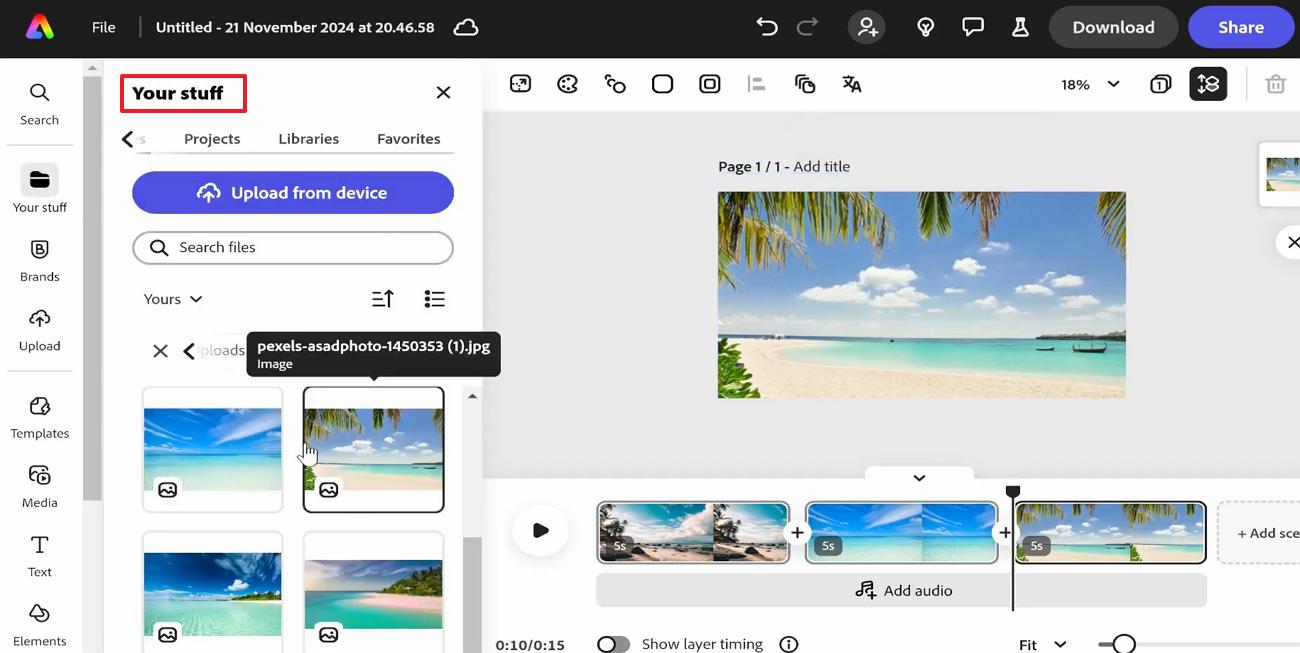
Step 1. Begin by launching Adobe Express on your device and importing the images and videos to the tools interface. Next, access them within the tool under the "My Stuff" section. Now, start dragging the clips to the timeline one by one to create a video slideshow.
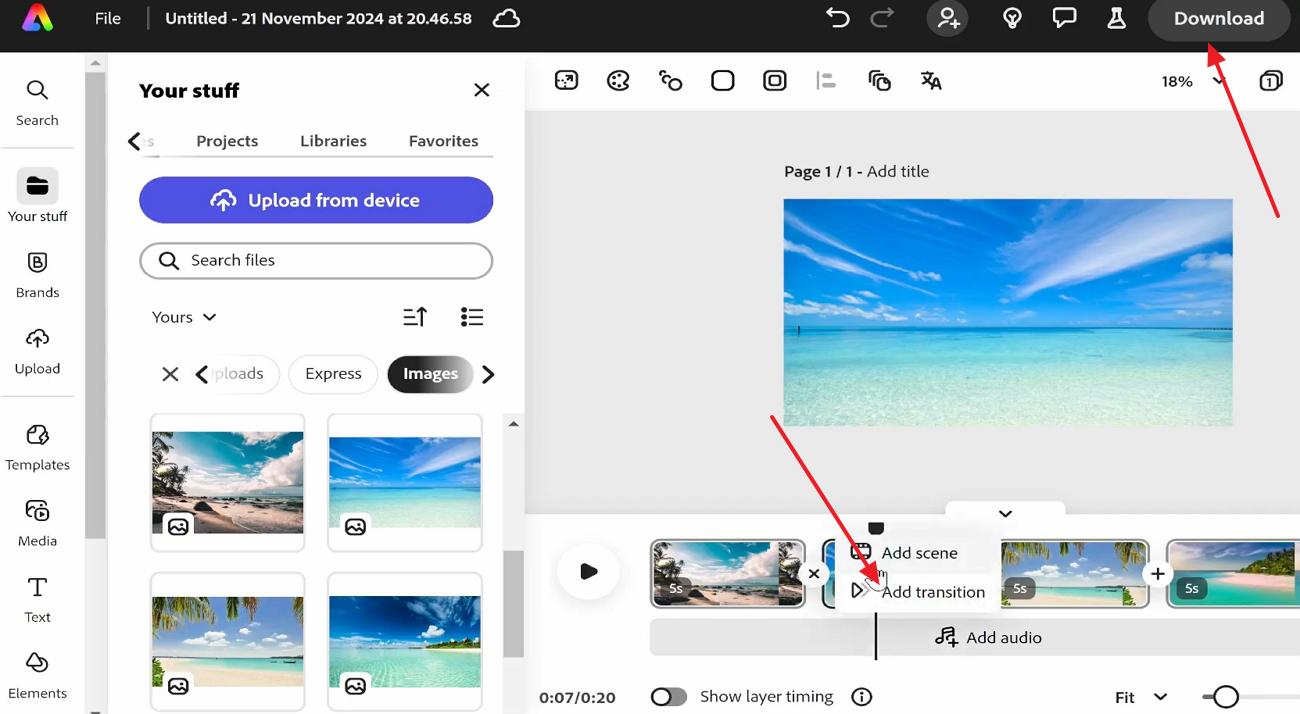
Step 2. Once all the slides are successfully added, right-click on the timeline and press "Add Transition" to apply transitions between them. Once done, press the "Download" button to export the results to your device.
Part 6. How to Easily Enhance Raw Videos for Your Video Collage
1. UniConverter - Video Enhancer
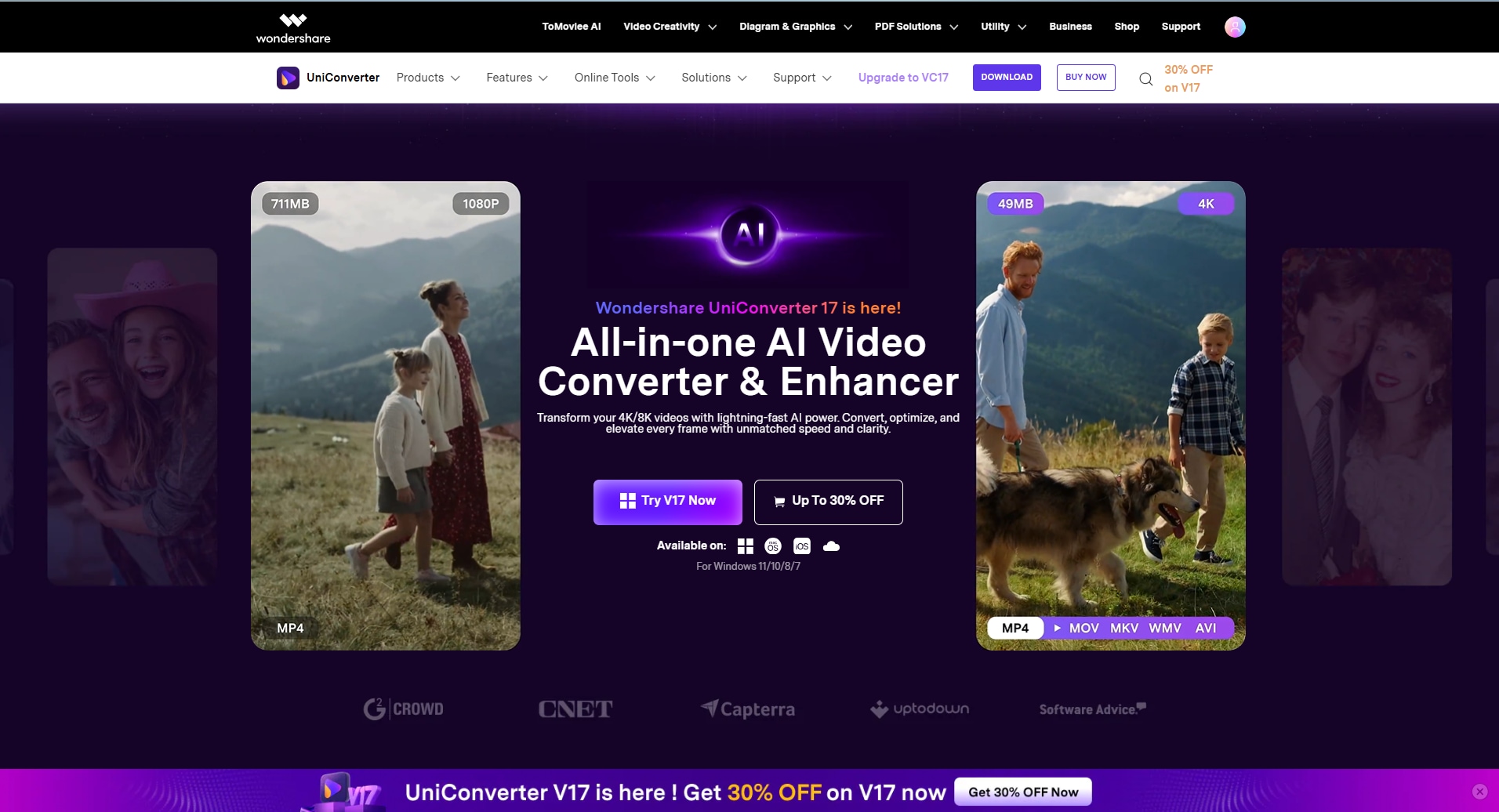
UniConverter Video Enhancer is a powerful desktop solution designed to improve the quality of raw video footage before turning it into a polished video collage. It uses advanced AI technology to upscale resolution, reduce noise, and enhance details, ensuring every clip looks sharp and professional. This makes it especially useful when working with mixed-quality source files in a collage project.
In addition to quality enhancement, UniConverter supports format conversion, allowing you to prepare or cut video clips for seamless integration into your final video. Its batch processing capability enables users to enhance multiple clips at once, saving significant time during pre-editing workflows. Whether you're working with old footage or low-resolution clips, UniConverter ensures consistent visual quality across your collage.
Key Features Offered by UniConverter
AI Upscaling: Improve video resolution (e.g., SD to HD or 4K) for clearer, sharper visuals.
Noise Reduction: Remove grain and visual noise from low-quality or poorly lit footage.
Video Stabilization: Smooth shaky clips to create more professional-looking visuals.
Color Enhancement: Automatically adjust brightness, contrast, and color balance for better visual appeal.
Comprehensive Steps for Enhancing Videos with UniConverter
As discussed, UniConverter provides a powerful AI video enhancer to prepare your clips for collage creation. Follow the steps below to learn how to use this feature effectively:
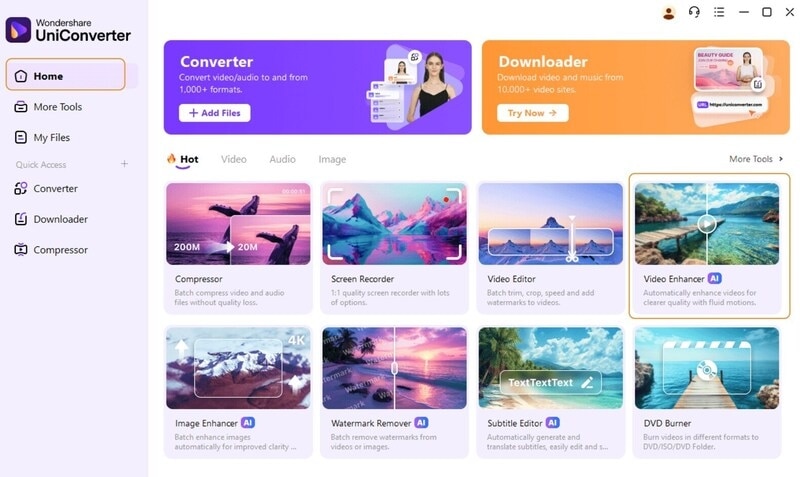
Step 1. Launch UniConverter and Access Video Enhancer
Open UniConverter on your device and select the "Video Enhancer" feature from the main interface.
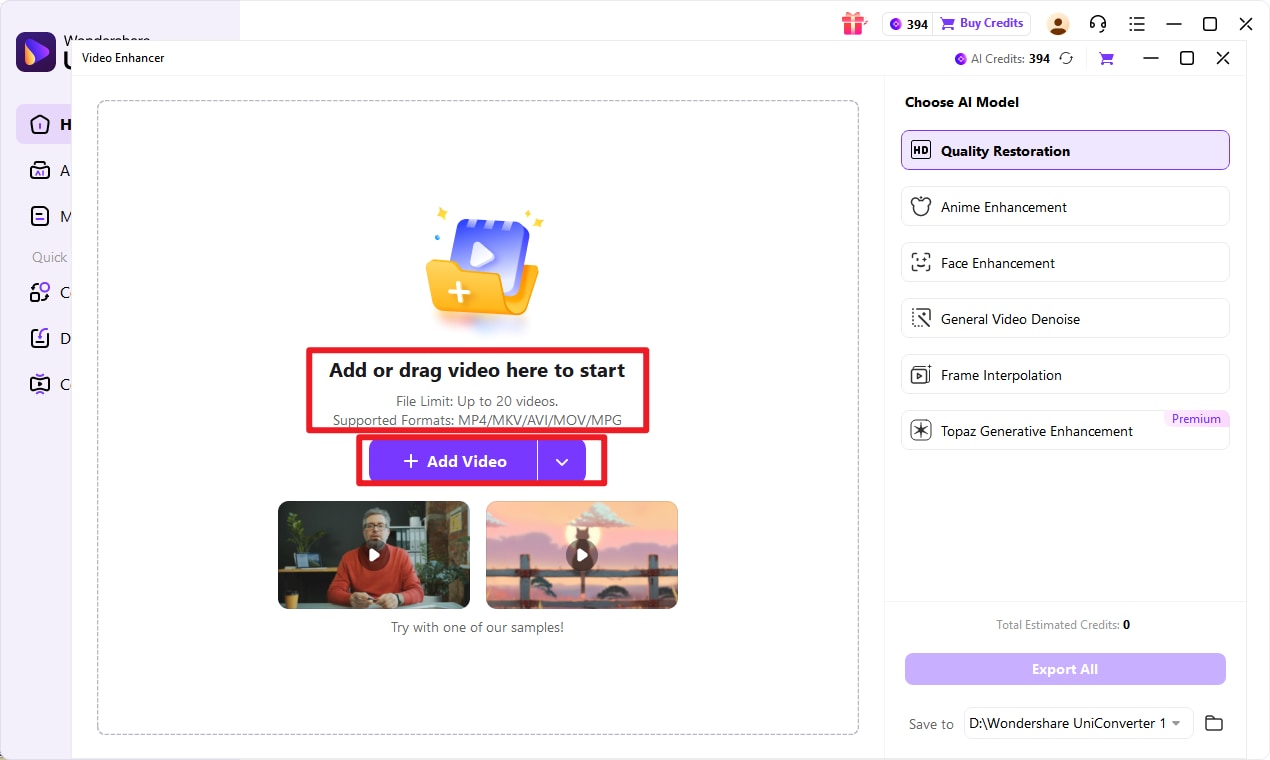
Step 2. Import Raw Video Clips
Click the "Add Video" button to upload the raw or low-quality footage you want to enhance.
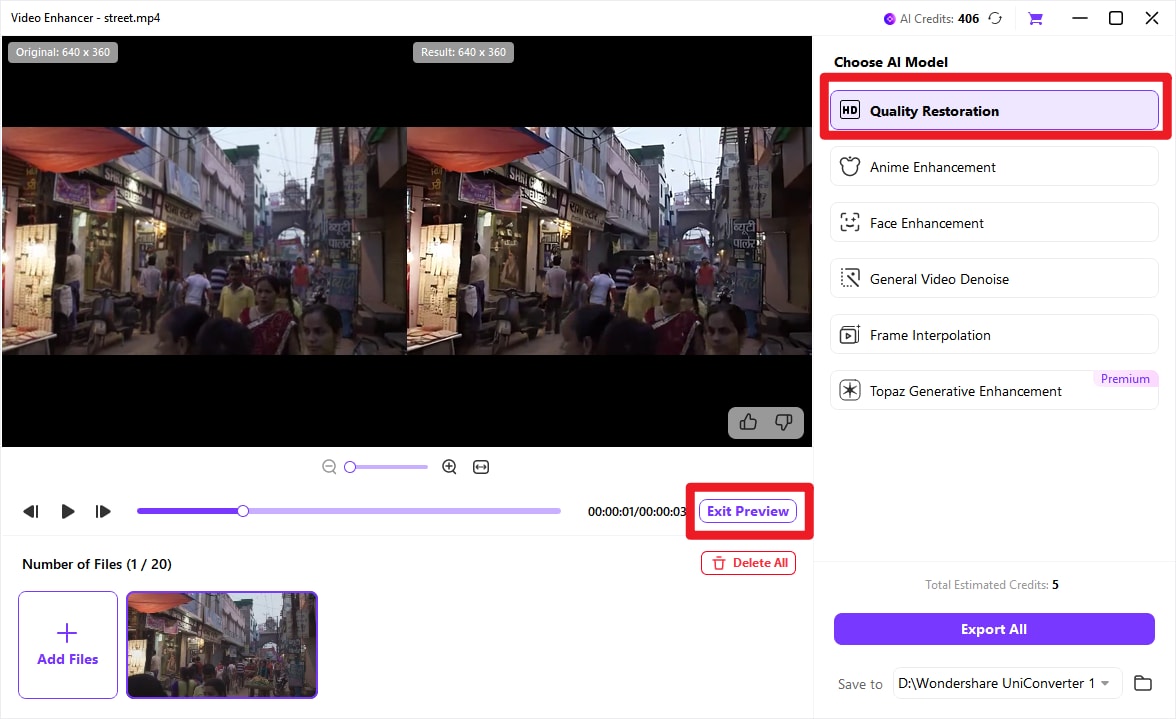
Step 3. Apply Enhancement and Export
Choose the desired AI enhancement options such as upscaling or noise reduction. Once processing is complete, click "Export" to save the improved videos, ready for use in your video collage project.

Collage Video Enhancer for Sharper Multi-Clip Videos
Part 7. 5 Design Tips to Improve Your Video Collage
Creating a visually engaging video collage online is not just about combining clips; it's about making each element work together seamlessly. Mentioned below are some of the design tips which you can follow to make the most out of your video collages:
Consistent Color Palette: Use matching or complementary colors across clips. Maintaining color consistency enhances cohesion and visual appeal in your video collage online.
Balanced Layouts: Arrange clips and images evenly to avoid clutter. Balanced placement ensures viewers can follow the story effortlessly.
Use of Transitions: Smooth transitions between clips make the collage feel fluid. Avoid abrupt cuts that can distract or confuse viewers.
Incorporate Text & Labels: Adding captions or titles helps communicate context. Text should be legible and harmonize with your video in the collage design.
Focus on Key Moments: Highlight the most important clips or images. Prioritizing impactful moments keeps your video collage online engaging and memorable.
Conclusion
To sum it up, this article provided a detailed guide on how to create a video collage online. From understanding popular styles and creative uses to step-by-step instructions, readers now have everything needed to produce polished collages. For those seeking advanced features like precise cropping, speed adjustments, filters, and high-quality exports, UniConverter stands out as a versatile and reliable solution.
Frequently Asked Questions
-
1. What is a video collage?
A video collage combines multiple clips, images, or audio into a single cohesive video. It allows creators to tell stories in a visually engaging format. -
2. How can I make a video collage online easily?
You can make a video collage online using browser-based editors with drag-and-drop features. For more advanced editing, UniConverter provides professional tools and effects for polished results. -
3. Which tool is best for creating a professional video collage?
For high-quality, detailed editing, UniConverter is highly recommended. It allows trimming, cropping, filters, and precise audio syncing. -
4. Can I add music or text to my video collage?
Yes, adding captions or audio enhances storytelling and engagement. UniConverter enables accurate text placement and synchronized music integration. -
5. Are there free options to create a video collage online?
Yes, free editors exist for basic collage creation with templates and simple tools. However, paid options like UniConverter offer advanced features, better customization, and high-quality exports.

