


Xvid is a popular MPEG-4 video codec commonly used in AVI files for its efficient compression and high-quality video. When you encounter playback issues with AVI files, it may be because they were encoded with Xvid.
This article will walk you through the requirements for the Xvid codec for VLC media player, the reasons why such codec errors occur, and how you can convert the video to a compatible format and play it on your system.
In this article
- What is the Xvid Video Codec for VLC?
- How the Xvid Video Codec Works in VLC on Windows and Mac (Playback, Settings & Compatibility)
- Xvid Codec in VLC for Android: Playback Limits, Issues & Best Fixes
- How to Fix Xvid Codec for VLC Issues in Media Player?
- How to Fix Xvid Codec for VLC Issues in Wondershare UniConverter?
- Common Xvid Playback Problems and Fixes
- FAQs
- Conclusion
Part 1. What is the Xvid Video Codec for VLC?
The Xvid video codec for VLC supports Xvid-encoded videos in VLC Media Player. The Xvid codec maintains video quality while keeping file sizes small. Hence, the Xvid codec is popular for storing movies in AVI format because it supports high-quality playback.
Xvid codec files use motion estimates to track changes and reduce file size without compromise in video quality. Xvid codec can be stored in formats like AVI, MKV, and MP4.
Why Does VLC Sometimes Fail to Play Xvid Videos: Xvid Video Codec for VLC Issues?
VLC may fail to open Xvid-encoded files due to underlying issues with the software, file, or hardware. The most common reasons behind Xvid codec for VLC player playback problems are:
Outdated VLC Version: An older version of VLC may have bugs or limited decoding improvements that affect the Xvid playback. This is because older builds may struggle with certain AVI or MKV container structures, and compatibility patches may be missing.
Corrupted Xvid Video File: In some cases, the issue is not with the Xvid codec but with the file itself. This could happen due to incomplete downloads, damaged AVI headers, improper file transfers, and storage corruption.
Hardware Acceleration Issues: VLC uses hardware acceleration to improve playback performance. However, GPU driver conflicts, device hardware limitations, and unsupported acceleration settings may result in interference with Xvide decoding.
Part 2. How the Xvid Video Codec Works in VLC on Windows and Mac (Playback, Settings & Compatibility)
The Xvid codec is built directly into VLC Media Player and works on both Windows and Mac. However, the playback behavior depends on the platform's performance and system configuration. Knowing how the Xvid video codec works in VLC will help you optimize playback and avoid common issues.
Platform-Specific Behavior
VLC uses the same core decoding engine across both Windows and MacOS. On Windows, VLC uses internal codec libraries that work smoothly with AVI files encoded using Xvid. On Mac, VLC bypasses macOS QuickTime limitations and handles older AVI and Xvid combinations without a performance drop.
Compatibility Differences
Although Xvid is natively supported by VLC, the compatibility may vary based on the container format, the audio codec inside the file, the resolution, and file corruption. Even if you try to separate the VLC Xvid codec, sync issues may happen. For instance, an MKV file with Xvid video and an uncommon audio codec may cause playback issues.
Settings Optimization
If Xvid videos lag or stutter, adjusting VLC settings can improve the performance of the video file. You can try out simple troubleshooting by increasing fiel caching for smoother playback of large AVI files, and switching between DirectX, OpenGL, or Automatic when display issues occur.
Part 3. Xvid Codec in VLC for Android: Playback Limits, Issues & Best Fixes
The Xvid video codec for VLC playback on Android can behave differently compared to the desktop version. VLC for Android supports Xvid; however, hardware limitations can prevent smooth playback.
Android Limitations with Xvid
Android devices rely heavily on hardware decoding, and the device chipset does not support MPEG-4 Part 2, resulting in performance issues. Some common Xvid video codec VLC Android-related issues include lag or stuttering on high-resolution AVI files and black screen during playback.
VLC Android vs Desktop VLC
VLC on desktop supports powerful video playback, while the Android VLC may face performance issues. On a desktop, VLC handles large AVI files efficiently with high performance for high bitrate Xvid files. On an Android device, Xvid codecs rely more on hardware specifications and performance varies by device chipset.
Part 4. How to Fix Xvid Codec for VLC Issues in Media Player?
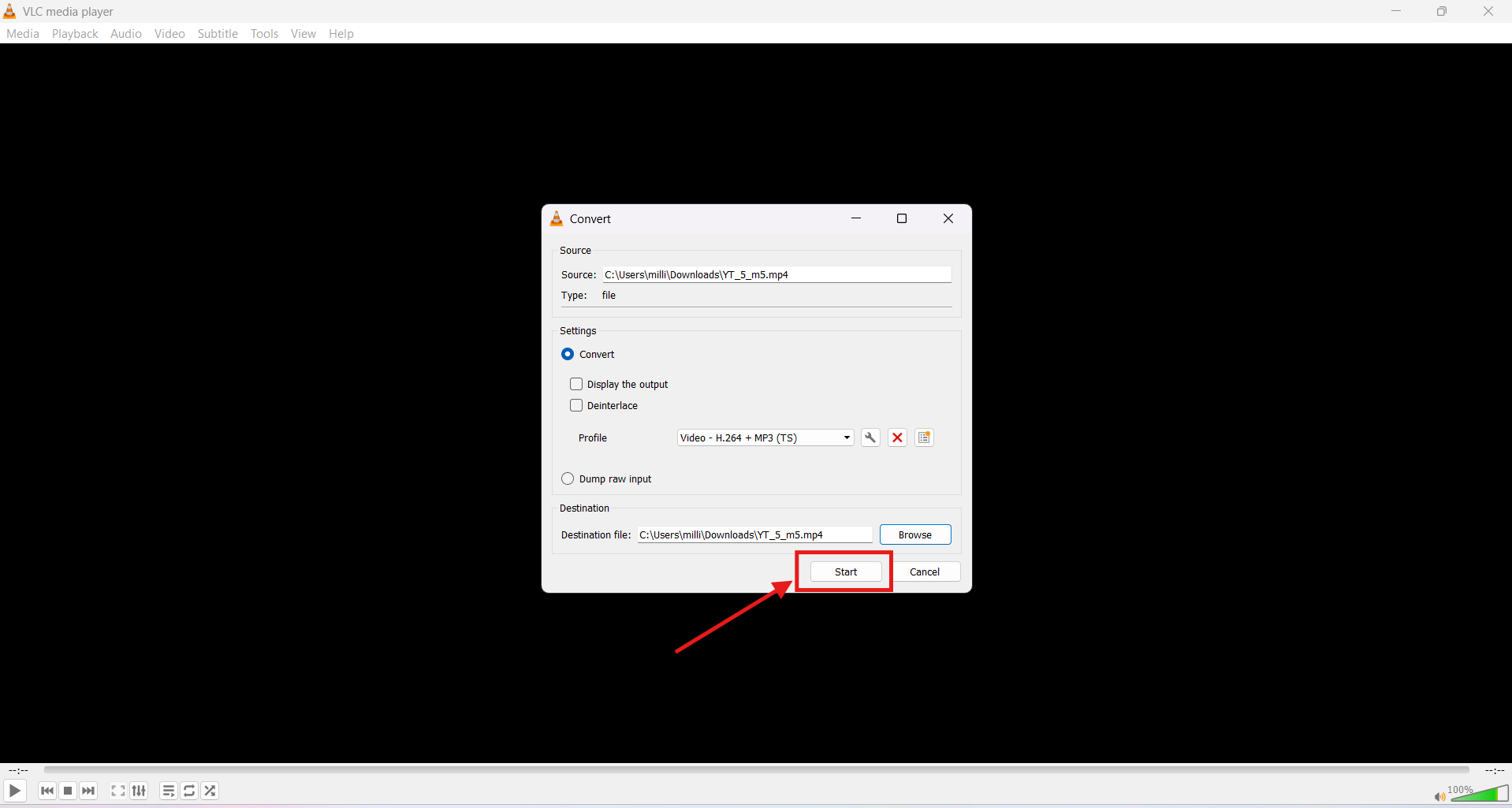
To fix the Xvid codec issue with the built-in conversion functionality to convert the video and then play the video instantly, follow the steps mentioned below:
Steps Guide on How to Fix Xvid Codec for VLC
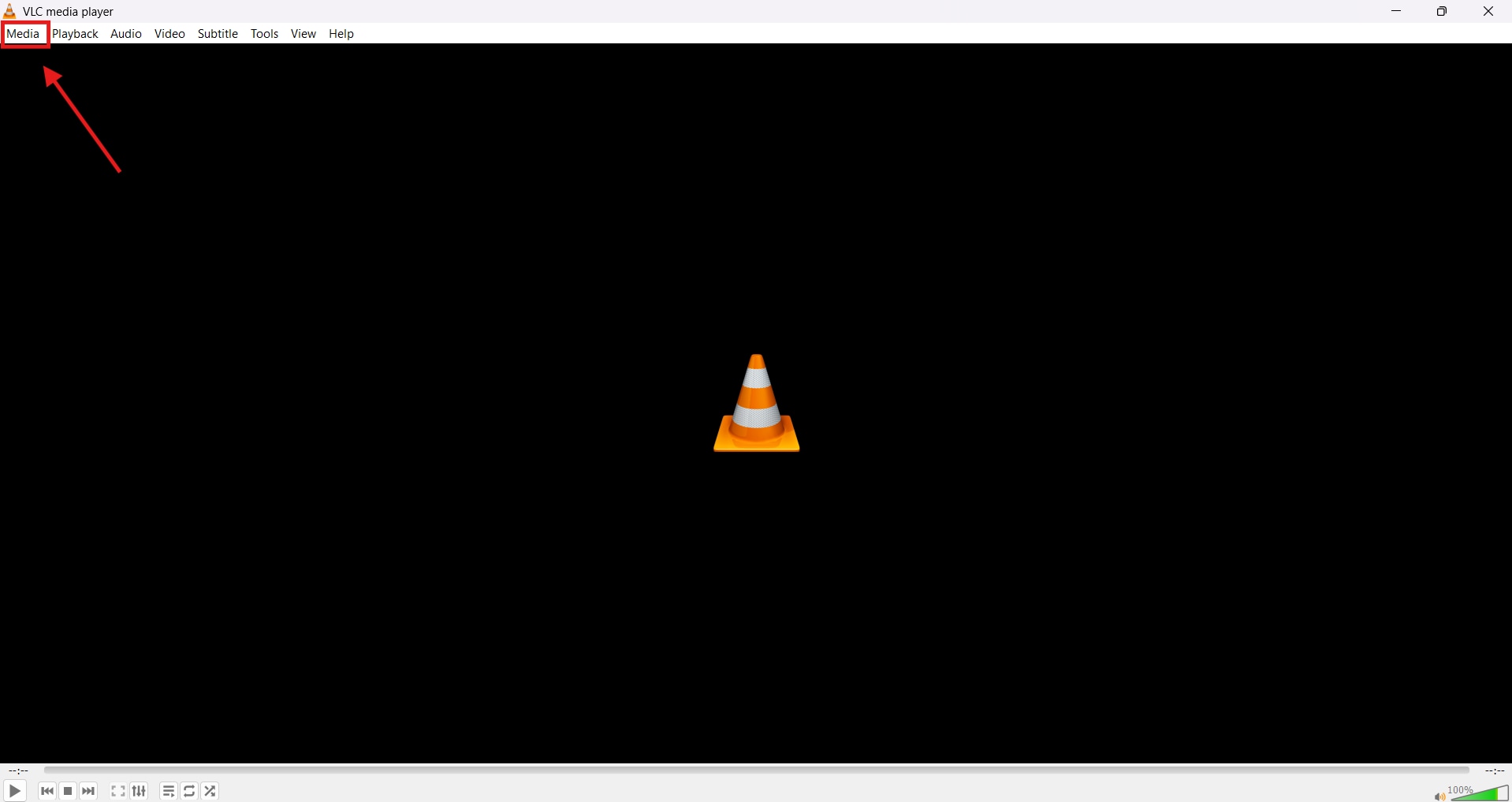
Step 1. Lauch VLC
Launch the latest version of VLC Media Player on your device and click on the “Media” button on the top left in the menu bar.
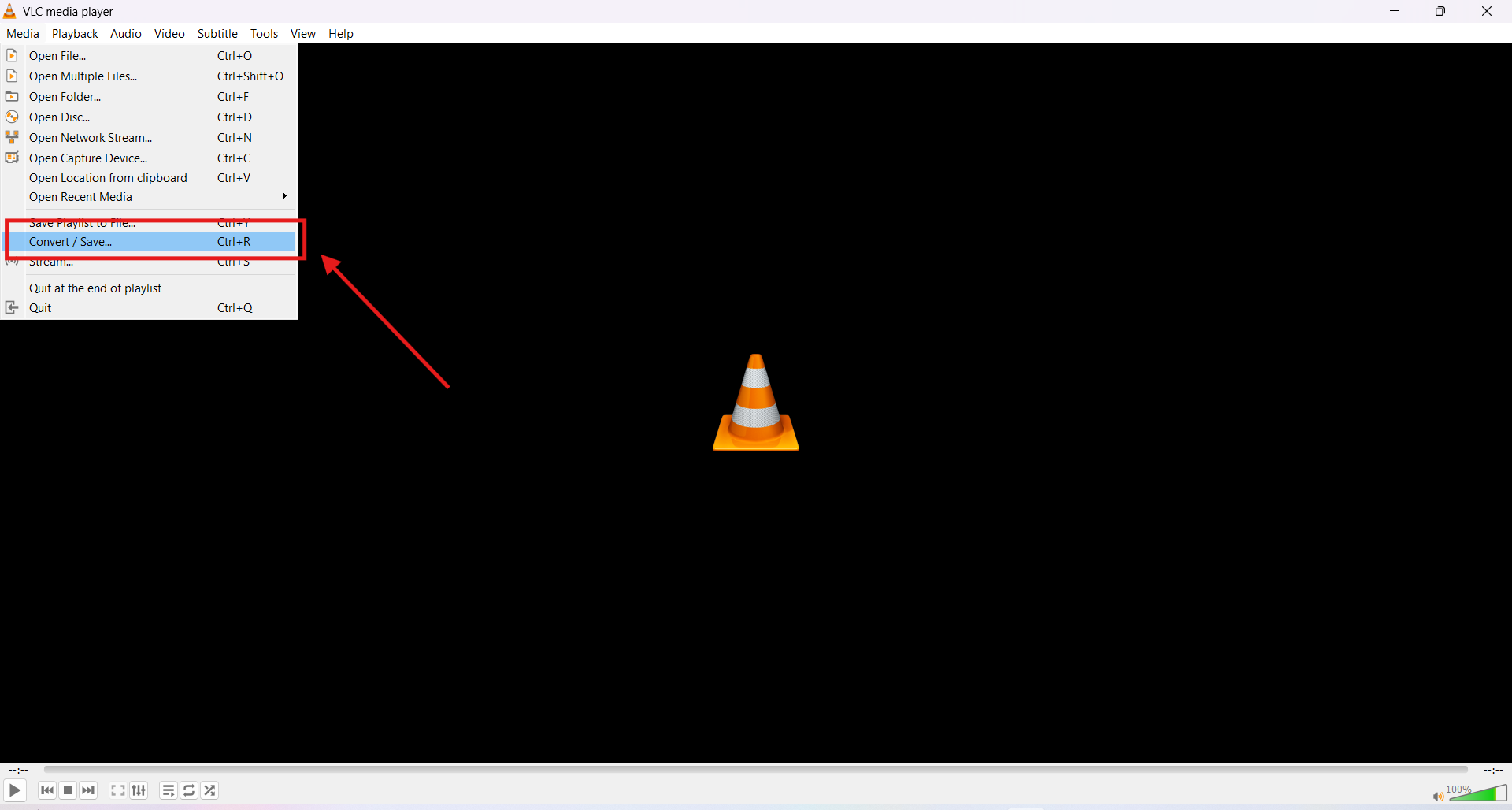
Step 2. Convert/Save
Click on the “Convert/Save” option.
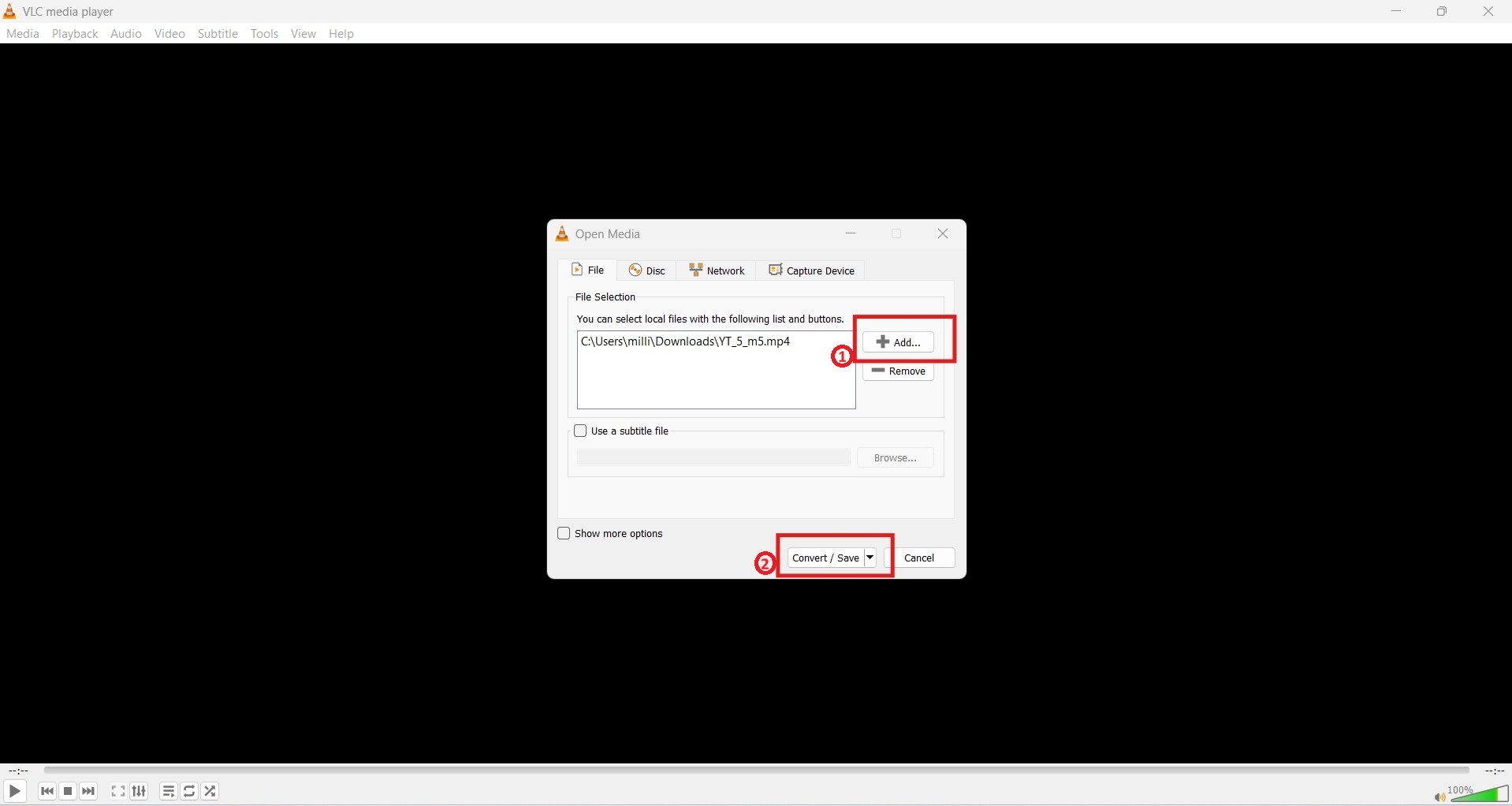
Step 3. Upload the Video
Use the “Add” icon to upload the video file, and then click on the “Convert/Save” button.
Step 4. Choose the compatible codec format as per your requirement from the drop-down menu.
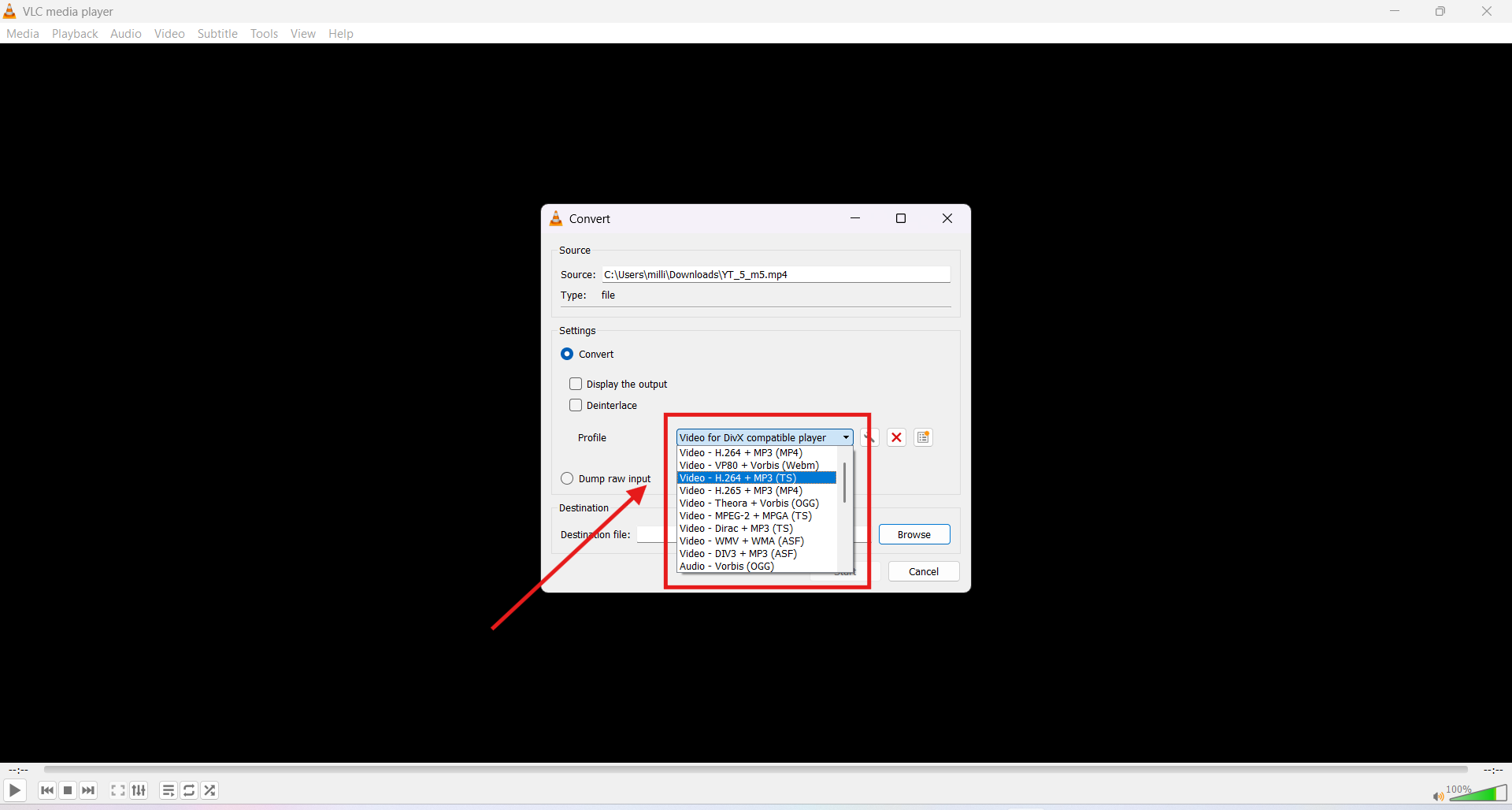
Step 5. Click on the “Start” button to start the process.
Part 5. How to Fix Xvid Codec for VLC Issues in Wondershare UniConverter?
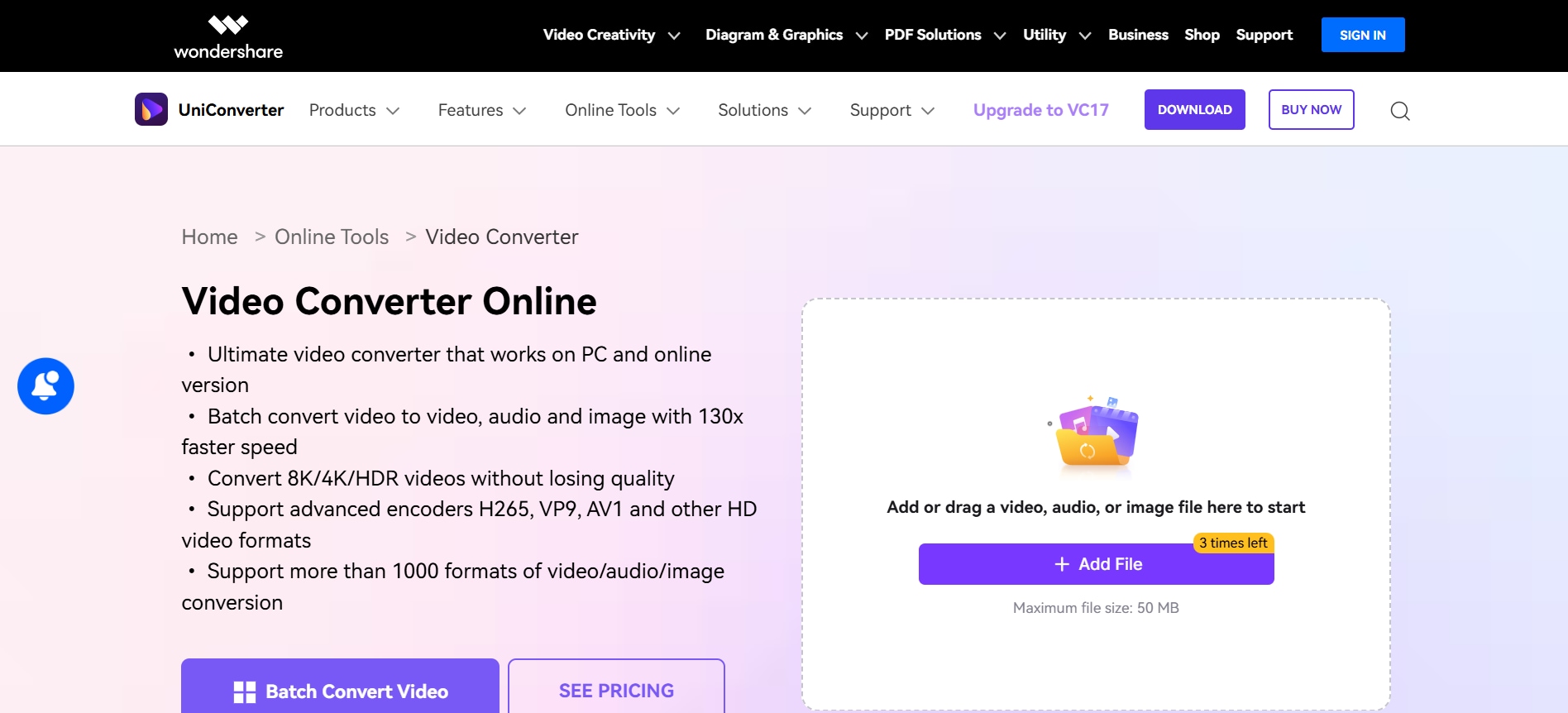
You can use Wondershare UniConverter to convert and fix videos with Xvid codec errors easily with minimal technical expertise. Using VLC Media Player may feel complicated and overwhelming for certain users.
The batch conversion feature in Wondershare UniConverter lets you convert multiple videos into a universally supported format like MP4 (H.264). It supports most commonly seen formats, both video codecs and video containers. The online converter works effectively on mobile devices, which helps you overcome inconsistent playback issues.
Key Features
- With batch processing, you can easily convert multiple files at once, which saves your time and streamlines the workflow.
- The AI-powered subtitle editor lets you edit or extract subtitle files in your video or podcast.
- You can use the video background changer to change the background of the video as per the application preferences.
- The video trimmer tool lets you trim and cut long videos into short, engaging videos.
How to Convert Xvid Files with UniConverter
Follow these simple steps to convert a corrupted Xvid codec error video quickly:
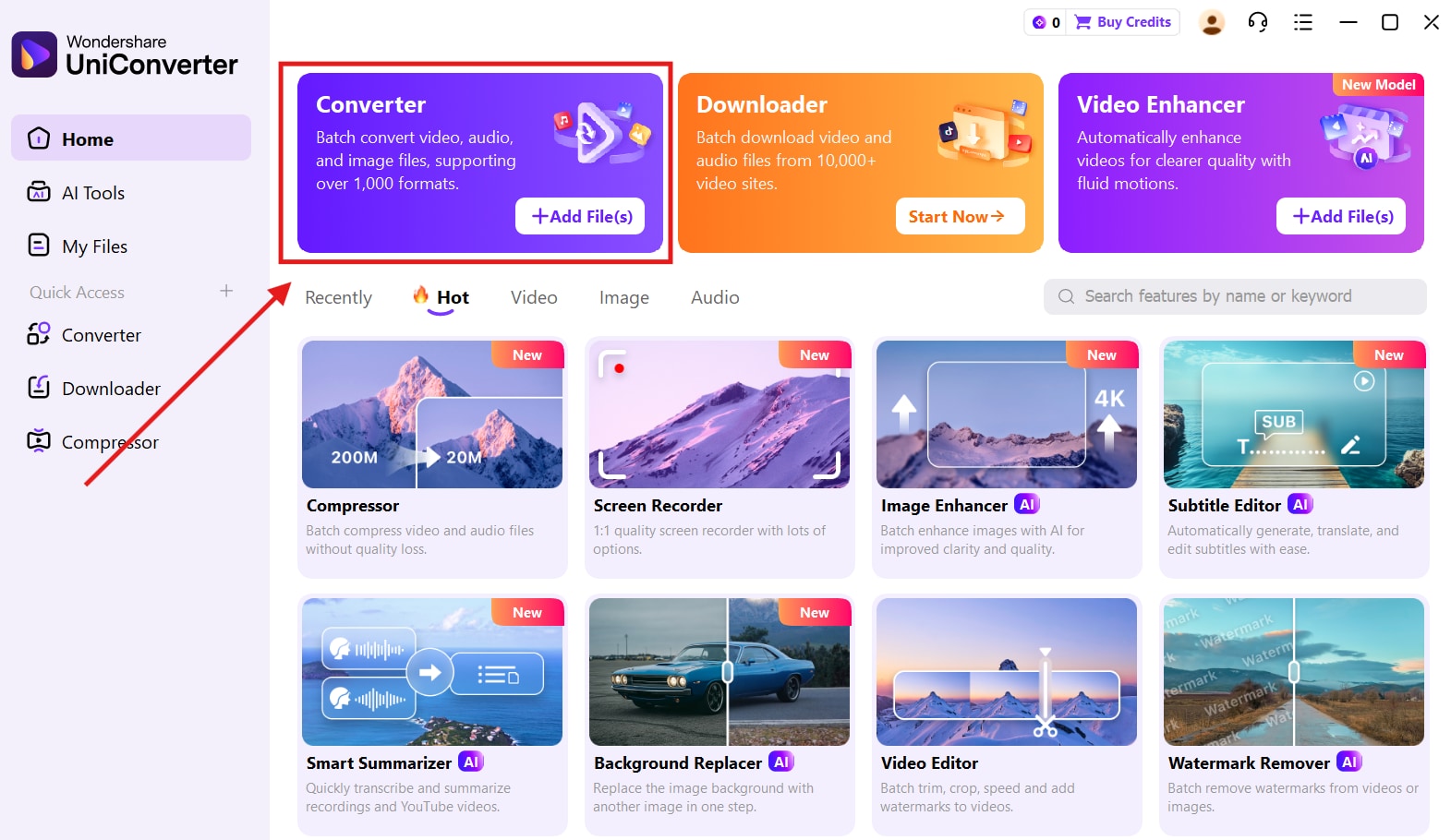
Step 1. On your Wondershare UniConverter dashboard, click on the “Converter” option.
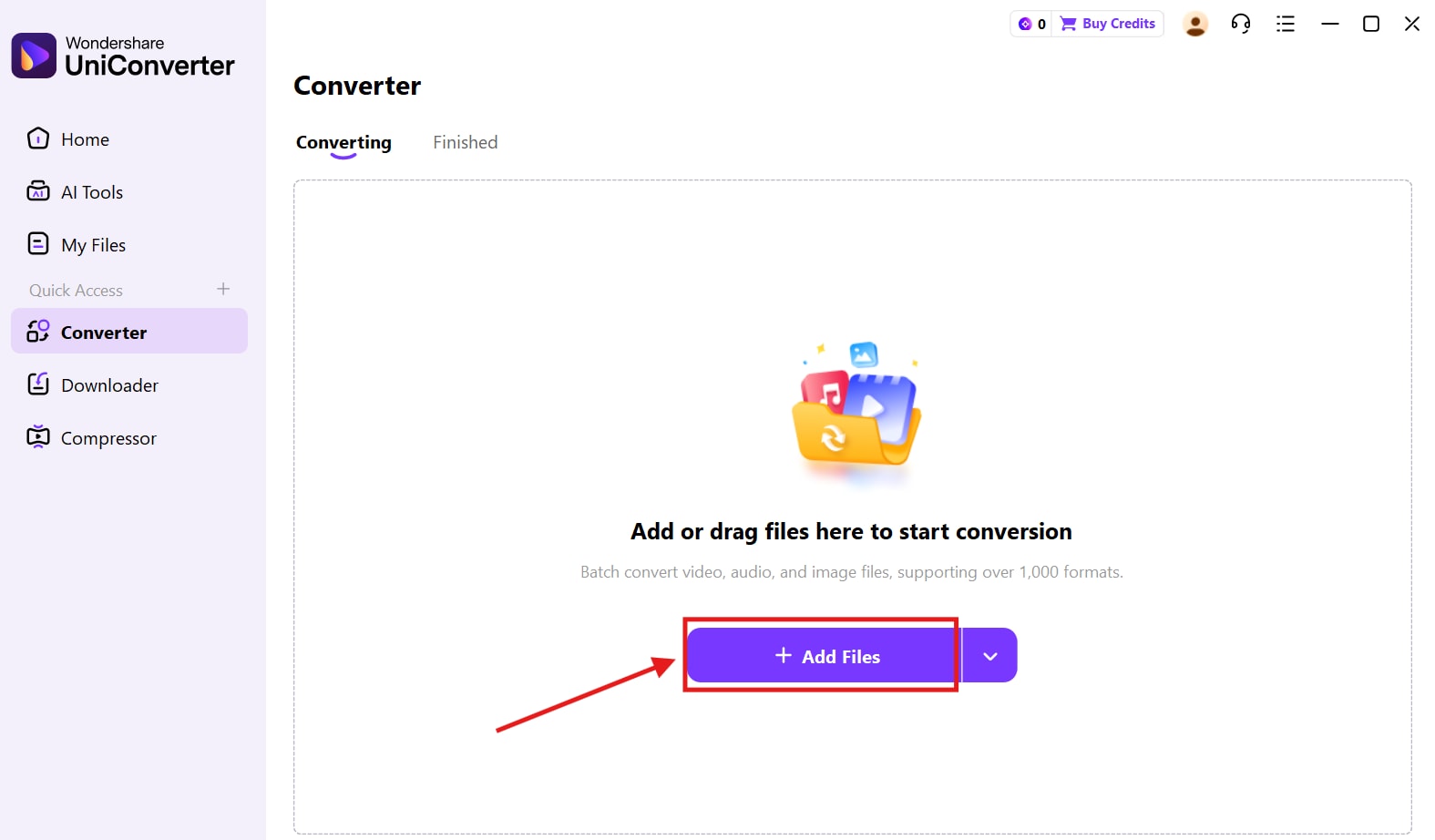
Step 2. Click on “Add Files” to upload the unsupported video file.
Step 3. Use the “Video Format” drop-down menu and click on the format that is compatible with your device. Click on the “Convert” button to save the converted compatible file to your device.
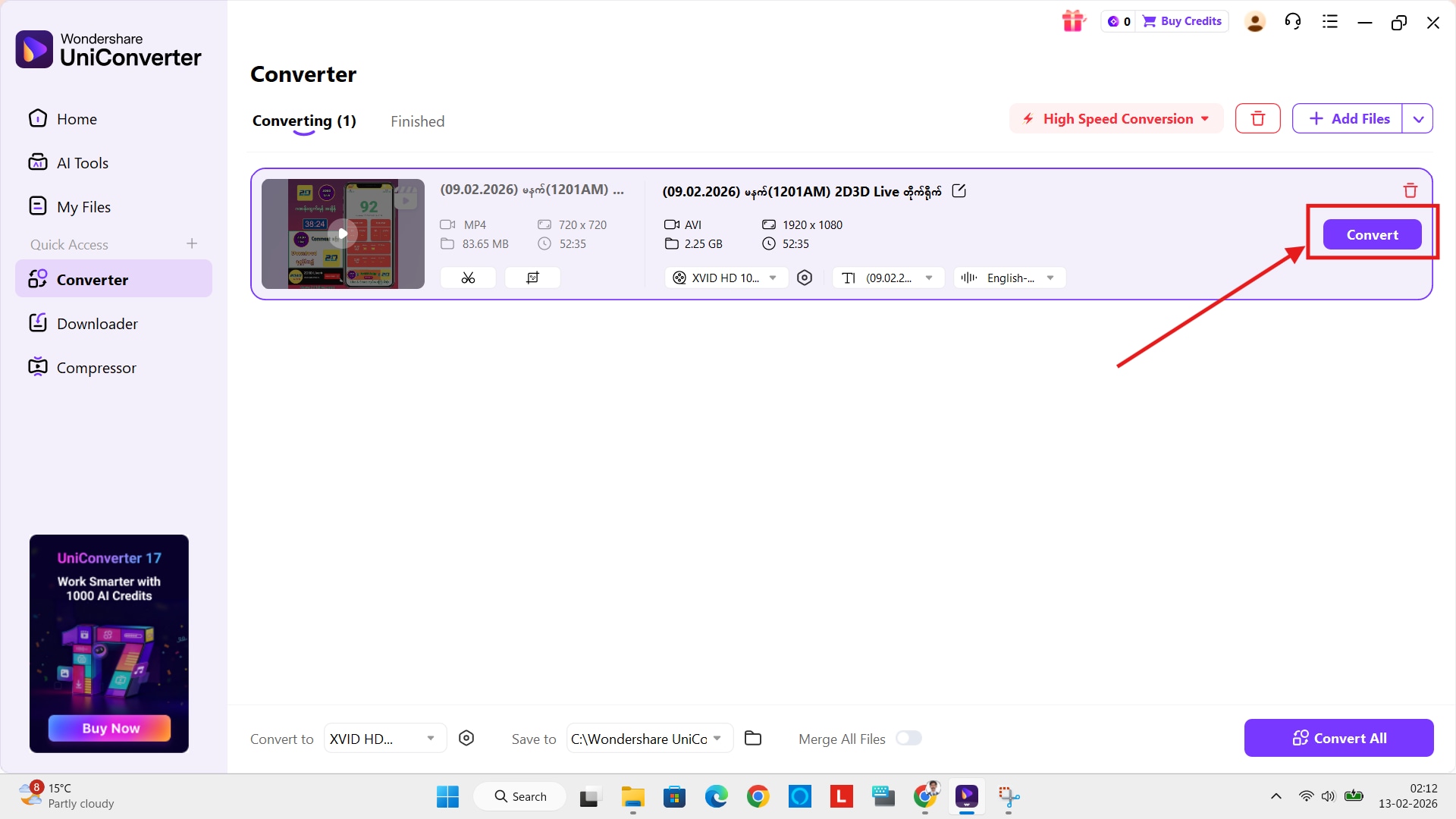

Easy Xvid Video Converter — A Smarter VLC Alternative
Other Quick Methods to Fix Xvid Issues in VLC
- To fix the Xvid codec issue, you can try any of the following quick fixes:
- Update the VLC Media Player to the latest version to improve the decoding support.
- Disable Hardware Decoding in VLC Media Player if the video freezes or lags.
- Fix any issues with the Xvid codec for Android download installed on your mobile device.
- Increase file caching in the VLC settings for smoother playback.
- Re-download the file if corruption is suspected.
Part 6. Common Xvid Playback Problems and Fixes
Some common Xvid playback issues may occur due to file incompatibility or device hardware limitations. Below are the most common Xvid playback issues and how to fix them.
Xvid Video Plays Without Sound
When the video plays without sound, it is not necessarily a codec error, but it could happen because of damage in the audio stream or misconfiguration.
How to Fix it:
Update the VLC to the latest version, and check the audio track to ensure the correct track is selected. If the issue still persists, try converting the video to MP4 format.
Xvid Video Lag or Stutter
Video lag or stutter happens on old, low-powered laptops or Android TVs because of high bitrate or large file size, resulting in insufficient device performance.
How to Fix it:
Disable hardware acceleration in VLC settings, and install the Xvid video codec download for Android TV. Further, moving the file to internal storage will improve the input codec performance.
Conclusion
Xvid Video Codec for VLC Media Player ensures that you do not have to download a separate codec file and install it on your system. If your Xvid video does not play smoothly, you can adjust the playback functionality on your VLC Media Player or convert the video into a different format.
If adjusting VLC settings does not resolve the issue, converting the Xvid file into a more universally compatible format like MP4 (H.264) is often the most reliable solution. In such cases, Wondershare UniConverter provides a practical alternative. It allows you to convert Xvid videos into device-friendly formats while preserving video quality. Try Wondershare UniConverter for faster results without complexity.
FAQs
-
1. Is Xvid better than H.264 for video quality?
Not necessarily. Xvid and H.264 use different compression methods, but H.264 is generally more efficient, delivering similar or better quality at smaller file sizes. This is why H.264 is more widely used today. -
2. Can I install the Xvid codec separately for VLC?
No. VLC Media Player already includes built-in support for Xvid and many other codecs, so there is no need to install additional codec packs. Keeping VLC updated is the safest option. -
3. How does Xvid affect video file size?
Xvid compresses video to reduce file size while maintaining acceptable quality. However, newer codecs like H.264 and H.265 typically achieve better compression, resulting in smaller files at similar or higher quality. -
4. Is Xvid still used today?
Xvid is mostly found in older video files and AVI archives. While still usable, it has largely been replaced by more efficient modern codecs such as H.264 and H.265. -
5. Why does my Xvid file show the wrong duration?
This issue is often caused by file corruption or incorrect indexing in AVI containers. Re-encoding or converting the file to a modern format can help rebuild the metadata and fix playback duration problems.

