


When dealing with legacy video files, old web archives, or historical streaming content, you may come across videos encoded with VP7. Although it is no longer widely used today, VP7 played an important role in the evolution of online video compression. Understanding what VP7 is, how it was used, and why it declined can help video professionals, archivists, and developers make better decisions when handling older media files.
In this article, we’ll explore what VP7 is, its use cases, advantages and limitations, its history, and whether VP7 has any future relevance in modern video workflows.
In this article
Part 1. VP7 Origin
What Is VP7?
VP7 was created at a time when watching videos online was very different from today. Internet speeds were much slower, and most people did not have fast broadband connections. Streaming a large video file often meant long loading times and constant buffering. To solve this problem, VP7 was designed by On2 Technologies in the mid-2000s to compress videos into smaller sizes while still keeping acceptable quality. It is a codec (coder–decoder) defines how video data is compressed for storage or transmission and then decompressed for playback.
Belongs to the VP (Video Processor) codec family and was designed primarily for web-based video streaming, VP7 worked especially well with Flash-based video players, which were the standard for online video back then. In short, VP7 existed to make online video load faster, stream more smoothly, and work on limited internet connections—something that was crucial in the early days of web video.
Key Characteristics of VP7
- Video codec, not a container format
- Commonly packaged in FLV (Flash Video) files
- Optimized for low-bitrate streaming
- Predecessor to VP8 and VP9
Part 2. Historical Development of VP7
At a time, VP7 was actually a good solution. Before YouTube dominated video streaming and before MP4 became the default video format, the internet relied on very different technology. In the mid-2000s, online video had to work with slow connections, limited hardware, and browser-based players. VP7 emerged during this period as a solution designed specifically for early web streaming.
Adoption in the Flash Era
VP7 gained attention when:
- Flash Player was the dominant web video technology
- Streaming platforms needed smaller file sizes
- HTML5 video had not yet become mainstream
However, VP7’s lifespan was relatively short.
Google and the End of VP7
In 2010, Google acquired On2 Technologies. Instead of continuing VP7, Google:
- Open-sourced VP8
- Promoted VP8 and later VP9 as royalty-free alternatives
- Shifted focus away from VP7 entirely
As a result, VP7 was quickly overshadowed by newer codecs.
Part 3. Why VP7 Didn’t Survive
Although VP7 worked well in the past, it struggles to function in today’s video environment. Most issues come from the fact that modern video technology has completely moved on.
Main Reasons VP7 Didn’t Survive
- No Support on Modern Devices
VP7 is not supported by most smartphones, smart TVs, game consoles, or modern media players, causing videos to fail or refuse to open.
-
Flash Dependency
VP7 was heavily tied to Adobe Flash, which has been officially discontinued. Without Flash, many VP7 videos lose their original playback environment.
-
Lack of Hardware Acceleration
VP7 relies on CPU decoding only. This leads to slow playback, high system usage, and poor performance compared to modern codecs.
-
Incompatibility with Online Platforms
Popular platforms like YouTube, Instagram, and TikTok do not accept VP7 videos, forcing users to convert them first.
-
Editing Software Limitations
Many modern video editors cannot import VP7 files properly, making editing difficult or impossible.
Together, these limitations make VP7 a major source of playback, editing, and sharing problems today. Therefore VP7 is no longer used in
modern video production.
Part 4. Pros and Cons of VP7
Despite being outdated, VP7 had several strengths for its time.
Pros of VP7 Codec
1. Good Compression Efficiency (for Its Era)
Compared to older codecs, VP7:
- Delivered smaller file sizes
- Maintained reasonable visual quality
- Performed well at low bitrates
2. Web-Friendly Design
VP7 was optimized for:
- Online playback
- Streaming rather than local storage
- Software decoding in browsers and Flash Player
3. Foundation for Future VP Codecs
VP7 helped shape later codecs:
- VP8 inherited architectural concepts
- VP9 and AV1 benefited indirectly from early VP research
Cons of VP7 Codec
1. Obsolete Technology
- No longer actively developed
- Unsupported by modern browsers
- Incompatible with HTML5 video standards
2. Poor Device Compatibility
VP7 is not supported by:
- Modern smartphones
- Smart TVs
- Most hardware media players
- Current video editing software
3. No Hardware Acceleration
VP7 relies on:
- CPU-based decoding
- No GPU or hardware acceleration, which leads to inefficient playback on modern systems.
4. Tied to Flash (Now Discontinued)
Because VP7 was closely associated with Flash:
- Flash Player’s discontinuation effectively ended VP7 usage
- Security concerns further discouraged its adoption
VP7 vs Modern Video Codecs (Easy Comparison)
| Codec | Status | Typical Use |
|---|---|---|
| VP7 | Obsolete | Legacy Flash videos |
| VP8 | Limited | Early HTML5 video |
| VP9 | Active | YouTube, web streaming |
| H.264 (AVC) | Very common | Universal playback |
| H.265 (HEVC) | Modern | 4K/8K, efficiency |
| AV1 | Emerging | Next-generation streaming |

Stable VP7 to MP4 Converter for Legacy Files
Part 5. When Do You Need to Convert VP7 Codec
Why VP7 Causes Problems Today
VP7 causes problems today because modern video technology has moved far beyond it. Most current devices, browsers, and media players no longer support VP7 decoding, which means videos may fail to play or show errors. VP7 also lacks hardware acceleration, so even when playback is possible, it can be slow and use excessive CPU resources. In addition, VP7 is closely tied to Adobe Flash, which has been officially discontinued for security and performance reasons. As a result, VP7 videos often become incompatible with today’s software, platforms, and streaming services.
When You Definitely Should Convert VP7
You should convert VP7 videos if you want to:
- Watch them on Windows, macOS, iOS, or Android
- Upload them to YouTube, Instagram, TikTok, or Facebook
- Edit them in Premiere Pro, Final Cut, or DaVinci Resolve
- Store them for long-term use without worrying about compatibility
In rare cases, you may keep VP7 files if:
- You’re preserving original archival material
- You need the file for historical or research purposes
- You’re maintaining legacy systems that still rely on Flash
Even then, it’s recommended to keep a converted copy alongside the original.
Part 6. Why Choose UniConverter for VP7 Video Codec Conversion
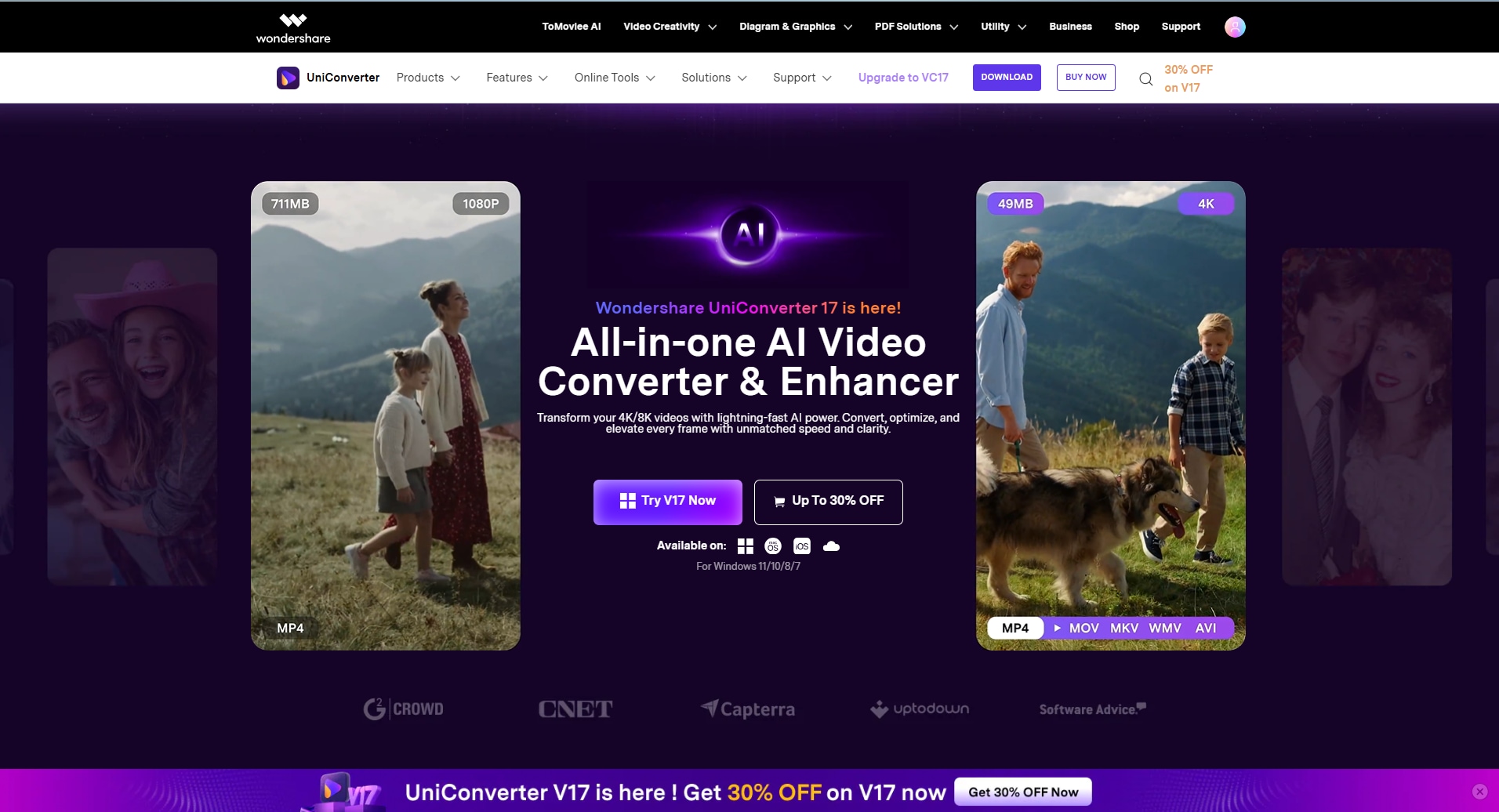
When you need to convert VP7 video codec files, Wondershare UniConverter makes the process simpler, faster, and far more reliable than most traditional tools. VP7 is an older and less-supported codec, which often leads to playback errors, editing failures, or upload rejections. UniConverter solves these problems by offering both quick online conversion and full-featured desktop workflows for more demanding tasks.
Whether you are dealing with legacy VP7 files from old web videos or archived projects, UniConverter helps you convert them into modern, widely supported formats like MP4, MOV, HEVC, or MKV with ease.
Why UniConverter Is a Great Choice for VP7 Conversion
- Broad Codec & Format Support – Convert VP7 videos to MP4 (H.264), MOV, AVI, HEVC, MKV, and other modern formats for smooth playback and editing.
- High-Speed Performance – Up to 130× faster conversion with GPU acceleration, even when processing long or multiple VP7 clips.
- Flexible Output Settings – Customize resolution, bitrate, frame rate, and codec to match playback, editing, or archiving needs.
- All-in-One Workflow – Convert VP7 videos, compress file size, edit clips, generate subtitles, and export in one single tool.
- Online + Desktop Options – Use the free online version for quick VP7 conversions, or the desktop version for batch processing and advanced controls.
- Cross-Platform Compatibility – Works on Windows and macOS, ensuring VP7 files are converted for any modern device or platform.
Batch VP7 Video Converter for Archives
How to Convert VP7 Video Codec with UniConverter (Desktop Version)
Step 1: Install and Launch UniConverter Media Converter
Start by downloading and installing UniConverter Media Converter Desktop on your computer. Once the installation is complete, open the software.
Make sure your system meets basic requirements such as a supported Windows or macOS version, sufficient disk space, and available RAM.

Step 2: Import VP7 Video Files
Click the Add Files button or simply drag and drop your VP7 videos into the main interface.
VC can automatically detect VP7 streams even when they are wrapped inside containers like AVI or FLV. You can import single videos or multiple VP7 files at the same time for batch conversion.

Step 3: Select the Output Format
Choose the output format that best fits your needs:
- MP4 (H.264) – Best for universal playback on phones, TVs, and browsers
- MOV – Recommended for editing workflows
- HEVC (H.265) – Smaller file size with high quality
- MKV – Ideal for archiving legacy VP7 content
Also make sure to select a compatible audio format such as AAC or MP3 to avoid playback issues.

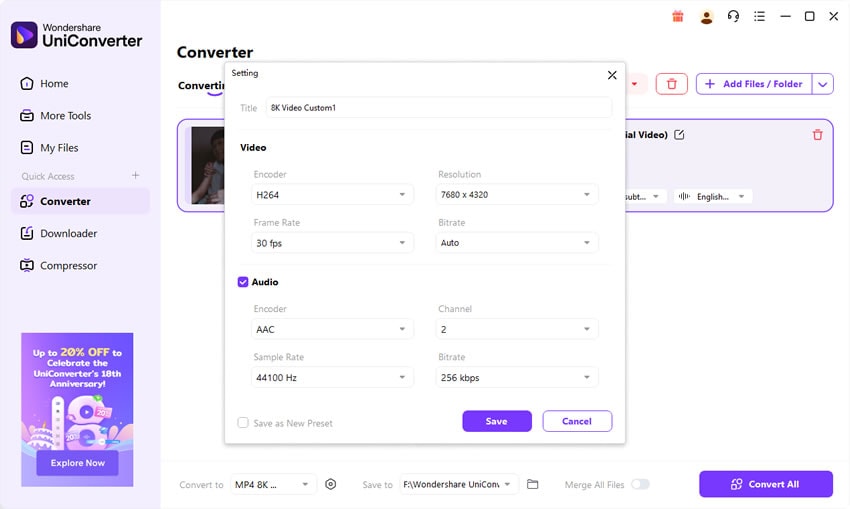
Step 4: Adjust Output Settings and Enable Acceleration
If necessary, open the settings panel to fine-tune bitrate, resolution, and frame rate.
Keeping the original resolution usually helps preserve quality when converting older VP7 videos.
Enable GPU acceleration (Intel, NVIDIA, or AMD) to significantly reduce conversion time, especially when processing multiple files.

Step 5: Convert and Save Your Files
Choose the destination folder for your converted videos, then click Convert.
VC will process the VP7 files and export them into your selected modern format. Once completed, you can immediately play, edit, or upload the converted videos without compatibility issues.

Part 7. Best Practices When Handling VP7 Files
When dealing with VP7 videos, taking the right approach early can save time, prevent quality loss, and reduce frustration. Because VP7 is an
outdated codec, it should be handled carefully rather than treated like modern video formats.
Recommended Best Practices
-
Convert VP7 Videos as Soon as Possible
VP7 is no longer supported by most devices and platforms. Converting it to a modern format like MP4 (H.264) ensures the video can be played, shared, and edited without issues. -
Avoid Repeated Conversions
Every time a video is re-encoded, some quality is lost. Try to convert VP7 only once and keep that converted version as your main working file. -
Preserve Original Resolution and Frame Rate
Changing resolution or frame rate during conversion can cause blur or motion problems. Keeping the original settings helps maintain visual quality. -
Choose Widely Supported Audio Codecs
VP7 videos may use uncommon audio formats. Converting audio to AAC improves compatibility across devices and platforms. -
Keep an Original Backup
If the VP7 file has historical or archival value, store the original file safely even after conversion. -
Test Playback After Conversion
Always check the converted file on multiple devices to ensure smooth playback and correct audio.
Following these best practices makes VP7 files easier to manage and future-proofs your video content.
Conclusion
VP7 played an important role in the early days of online video, helping websites stream content when internet speeds were limited. However, as technology evolved, VP7 became outdated and incompatible with modern devices, players, and platforms. Today, VP7 is mainly found in legacy or archived videos and often causes playback or editing issues. The best solution is to use video converters like Wondershare UniConverter which can efficiently helps convert VP7 videos into widely supported formats, ensuring smooth viewing, easy sharing, and long-term usability in today’s digital environment.
FAQ
-
1. How does VP7 compare to H.264?
At the time of its release, VP7 was considered roughly comparable to H.264 in visual quality and compression efficiency. Some evaluations suggested slightly smaller file sizes than early H.264 implementations at similar quality, though the difference was modest and not consistently documented. -
2. What containers and file extensions does VP7 use?
VP7 video is most commonly stored in the Matroska container, typically using the.mkvfile extension. In technical references, VP7 in Matroska is often categorized as a storage-focused codec rather than a browser-native streaming format. -
3. What are the FOURCC codes for VP7?
The usual FOURCC identifiers for VP7 areVP70andVP71. These codes allow media players and encoders to recognize and decode VP7 streams within containers like AVI or Matroska. -
4. Is VP7 open source or royalty-free?
No. VP7 was licensed as proprietary technology by On2 Technologies. Later codecs in the same lineage—most notably VP8 and VP9—were released as royalty-free, which greatly increased their adoption across browsers and platforms. -
5. What are typical use cases for VP7?
Historically, VP7 was used for bandwidth-constrained internet video delivery and certain commercial streaming or conferencing products in the mid-2000s. Today, its main use is decoding, preserving, or transcoding legacy VP7 content into modern formats. -
6. How do I play or transcode VP7 video today?
VP7 files can often still be decoded using multimedia frameworks that retain legacy codec support, then transcoded to modern formats such as H.264, H.265/HEVC, or AV1. In archival workflows, VP7 content is commonly extracted from Matroska containers and converted to more widely supported codecs for long-term use.

