


Ever tried to rewatch a streamable video only to find it’s been taken down or locked behind a login wall? Yeah, we’ve all been there—mid-scroll, mid-laugh, mid-"wait, I need that." Whether it’s a tutorial, a reel, or a clip you just have to save, finding a way to download streamable video content shouldn’t feel like hacking into the Pentagon. You want tools that work fast, don’t break your device (or your trust), and actually do what they promise. This guide listed curated tools for who are looking to keep what we watch without jumping through hoops.
- [Download Demand] Streamable videos can disappear or be restricted, making offline saving essential for access.
- [Tool Variety] Options include desktop tools like UniConverter, SnapDownloader, Vividl, plus online and mobile apps.
- [Feature Differences] Desktop tools support batch downloads and conversion, while online/mobile tools focus on quick access.
- [Efficient Solution] Wondershare UniConverter enables fast batch downloading, format conversion, and high-quality output in one workflow.
In this article
Part 1: Quick Comparison of 9 Best Streamable Video Downloaders
| Tool Name | Platform | Pricing | Ads Density | Batch Download Support |
| Wondershare UniConverter | Desktop (Windows/macOS) | Freemium (Paid version unlocks all features) | No ads | Yes (Full support) |
| SnapDownloader | Desktop (Windows/macOS) | One-time paid license | No ads | Yes (Up to 100 links) |
| Vividly | Desktop (Windows) | Free (Open-source | No ads | Yes |
| Streamabledl.com | Web-based (Browser) | Free | Low ads (light banner ads) | No |
| AceThinker | Web-based (Browser) | Freemium (Pro version for HD/batch) | Moderate (pop-up upsells) | Limited (Paid version only) |
| GiveFastLink | Web-based (Browser) | Free | Moderate (banner + sidebar ads) | No |
| SnapTube | Mobile (Android) | Free | Moderate (some bundled ads) | Yes (basic batch support) |
| Video Downloader | Mobile (Android) | Free | Moderate (some bundled ads) | Partial (queue only) |
| VideoFK | Web-based (Mobile/Desktop | Free | No ads | No |

Easy to Use Batch Streamble Video Downloader
Part 2: Best 3 Easy-to-use Streamable Videos on Desktop
1. Wondershare UniConverter
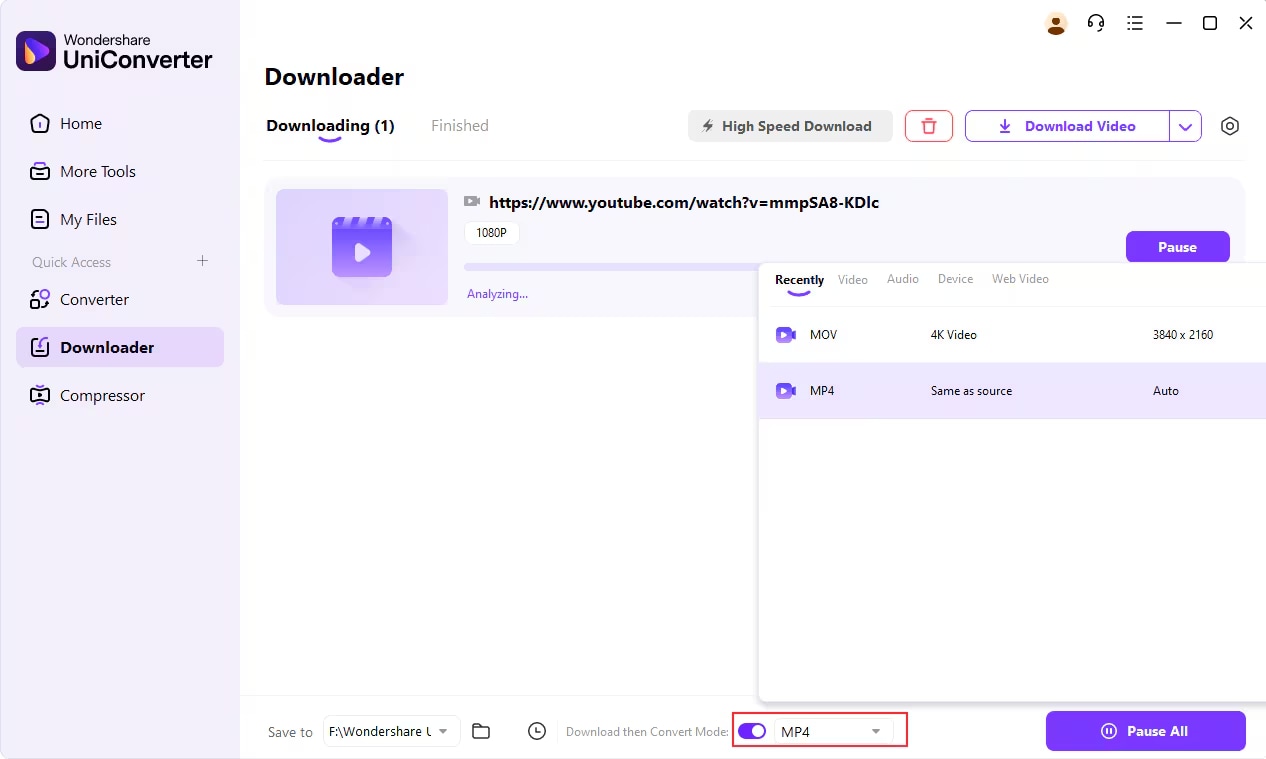
If you're looking for a one-stop solution that makes downloading streamable videos feel effortless, Wondershare UniConverter checks nearly every box. It’s not just a video downloader, it’s a full multimedia toolbox that handles video conversion, compression, screen recording, DVD burning, and more. But what really sets it apart is its Downloader tab, where you can paste any video URL (including embedded links) and instantly batch download multiple files in your preferred format and quality. With over 10,000 site support, it’s a powerhouse for creators, editors, or anyone who hates buffering.
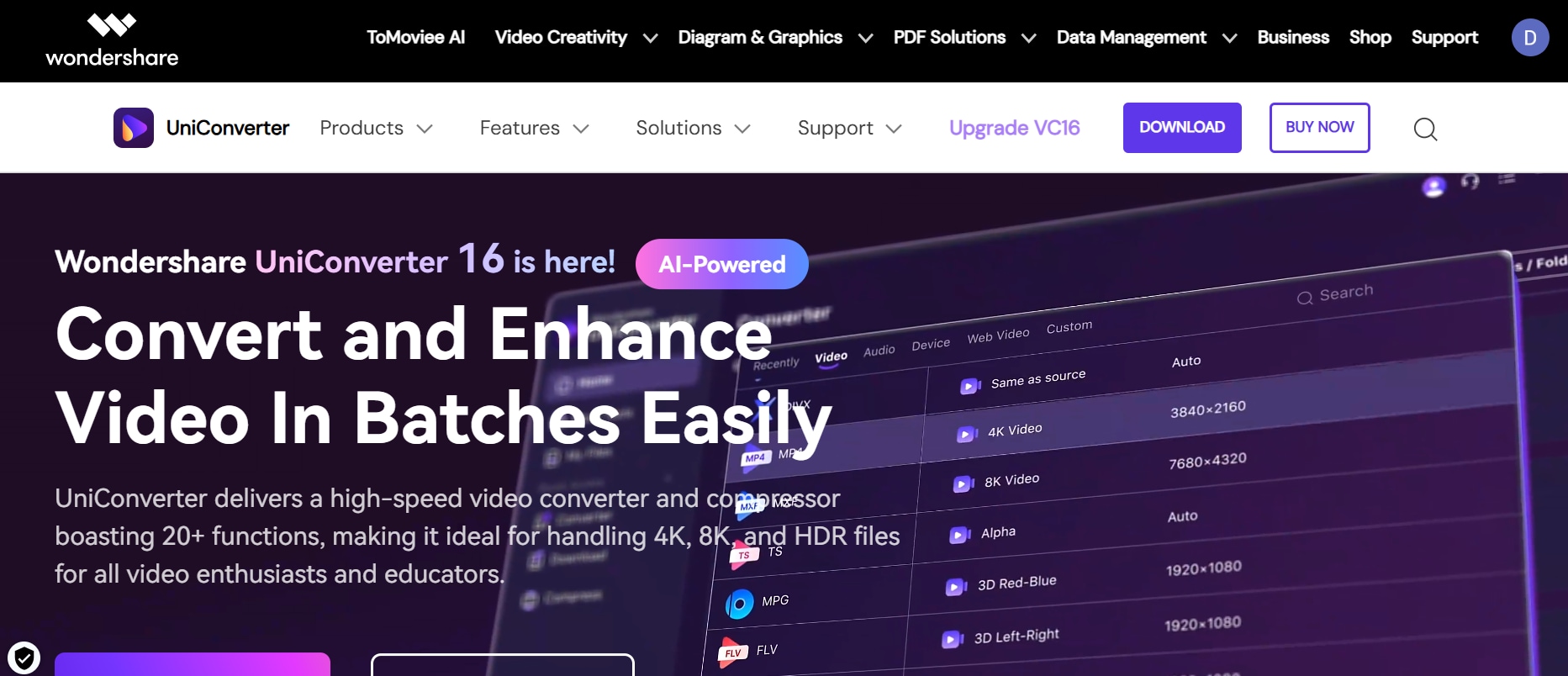
Step by step guide to download videos with Wondershare Uniconverter:
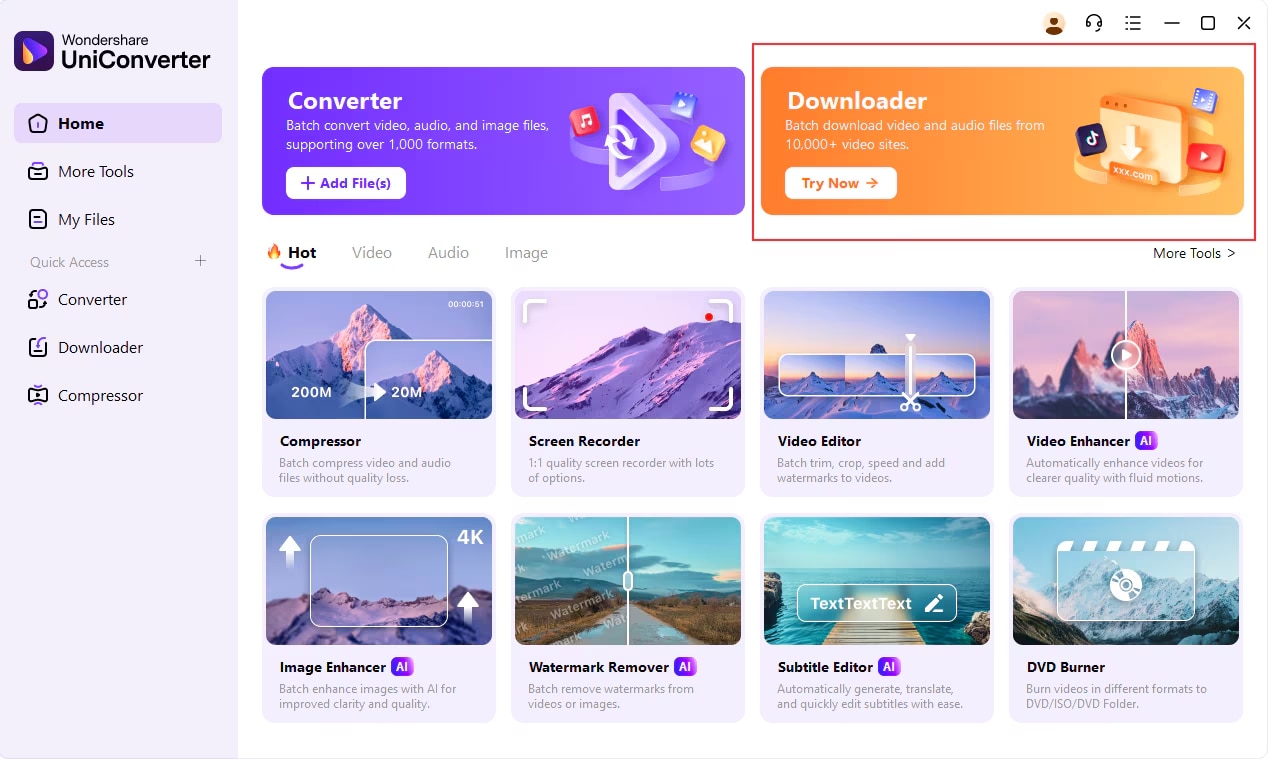
Step 1: Open UniConverter and go to the Downloader section
After installing Wondershare UniConverter, launch the program on your desktop. Once the interface loads, you'll see a set of powerful tools—click on the Downloader tab to access the video downloading feature.
Step 2: Copy the video URL from your browser
Head over to your browser and open the streaming video you want to download—this could be from platforms like Streamable, Vimeo, or others. Copy the full URL from the address bar.
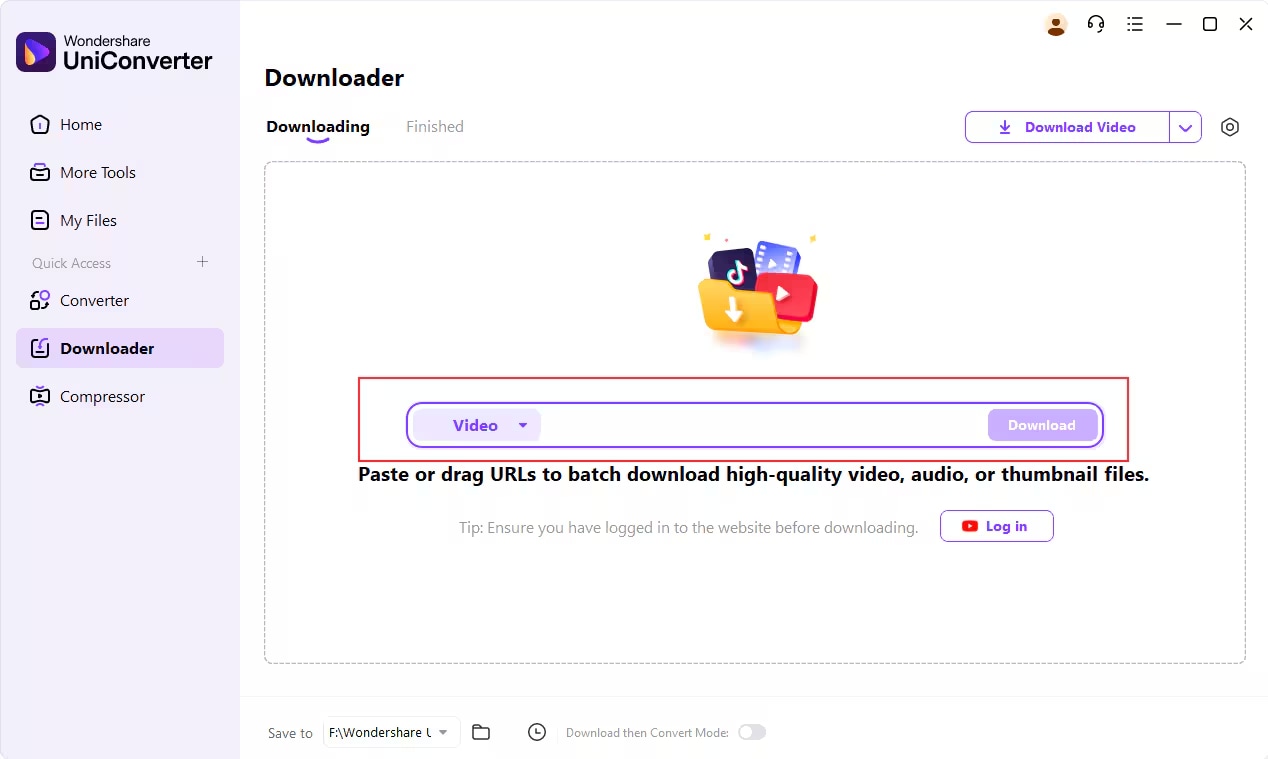
Step 3: Paste the link and set your download format
Go back to UniConverter. In the Downloader interface, click the Paste URL button. The software will automatically fetch the video link and prepare it for download. If you want to predefine the format—say, MP4, MOV, or even audio like MP3—click on Download then Convert Mode and select your desired output before initiating the download.
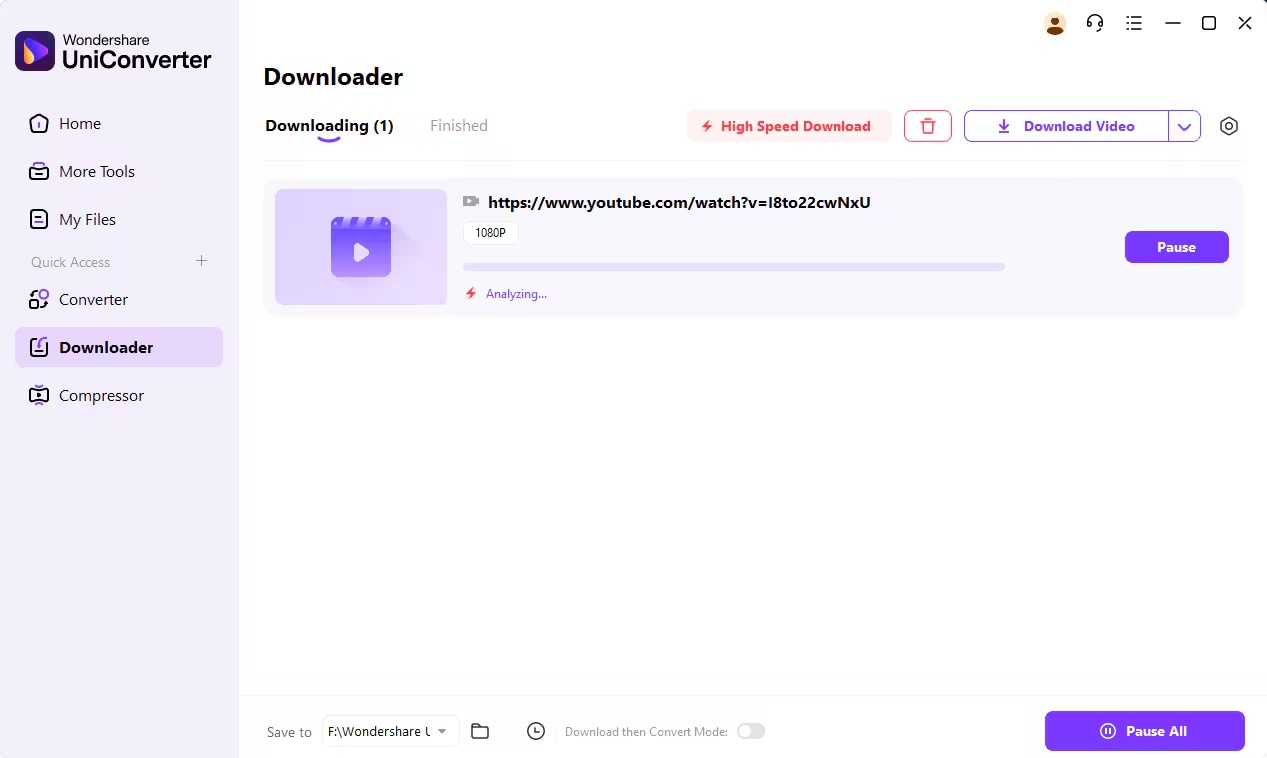
Step 4: Start downloading and monitor progress
Once you hit download, UniConverter will begin processing the video. You’ll see a progress bar showing the download status and estimated time left. You can pause, resume, or manage multiple downloads at once using the Pause All or Resume All buttons.
Step 5: Find your saved video
After the video has been downloaded, head over to the Finished tab within the software. You can view, open, or manage the file directly. To locate the file on your system, click File Location and it’ll take you right to where it’s stored.
Pros & Cons
2. SnapDownloader
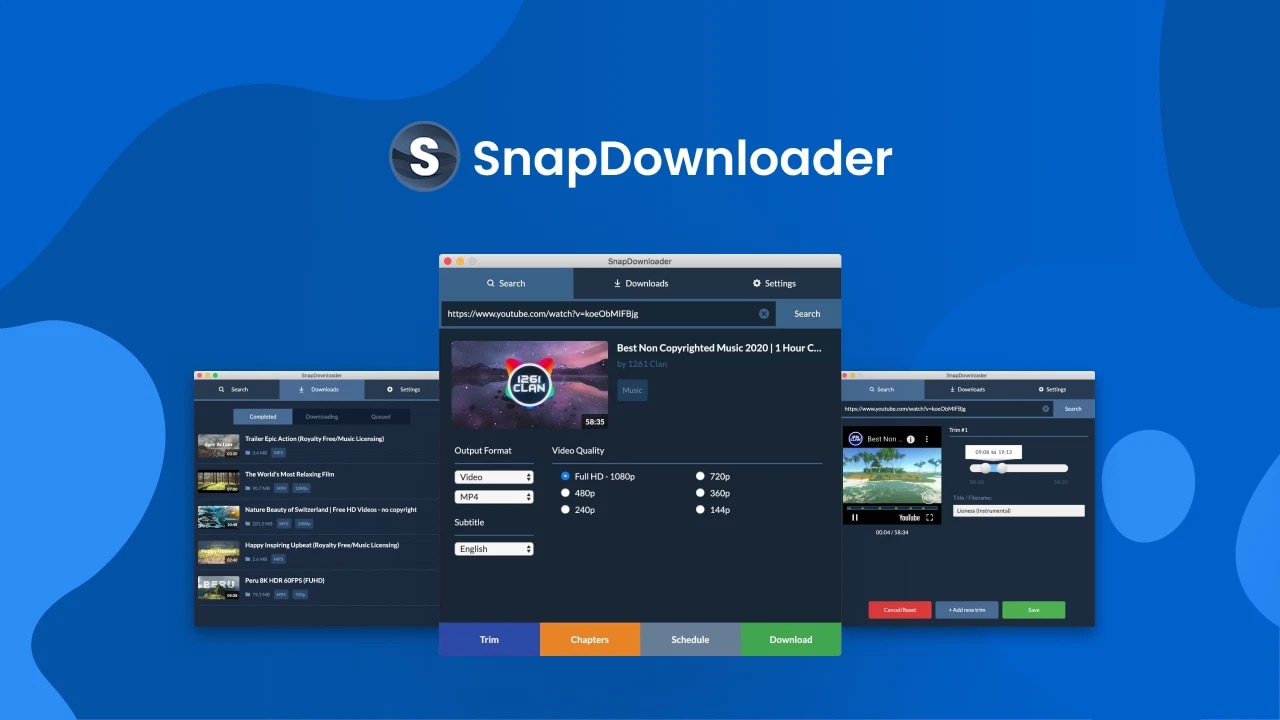
SnapDownloader is purpose-built for fast, efficient video downloading, especially from streamable video platforms. While it doesn’t have the broad multimedia features of UniConverter, it focuses on doing one job exceptionally well. Its strength lies in the ability to handle multiple links at once (up to 100), download in resolutions up to 8K, and save in formats like MP4, AVI, and more. It even features a built-in browser, which allows you to log into websites or view private embeds before initiating the download. SnapDownloader also supports scheduling downloads, so you can queue up content and let it download automatically in the background. It’s ideal for those who want clean, streamlined results without the fluff.
Pros & Cons
3. Vividl
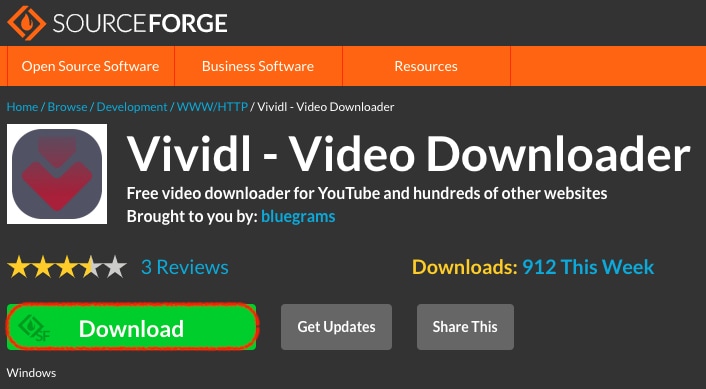
Vividl takes open-source power and wraps it in a neat, user-friendly interface for Windows users. It integrates yt-dlp and youtube-dl under the hood, the two most powerful command-line tools for video downloads which makes them accessible without requiring coding knowledge. Just copy your streamable link, paste it in, and let Vividl auto-detect formats, quality levels, and subtitles. What makes Vividl stand out is its support for niche websites and uncommon streaming protocols, which most commercial tools skip over. It also allows batch processing and gives you granular control over audio/video format preferences, including lossless options. If you prefer function over flashy visuals, Vividl is your go-to free option.
Pros & Cons
Part 3: Popular 3 Streamable Videos Downloaders Online
1. Streamabledl.com
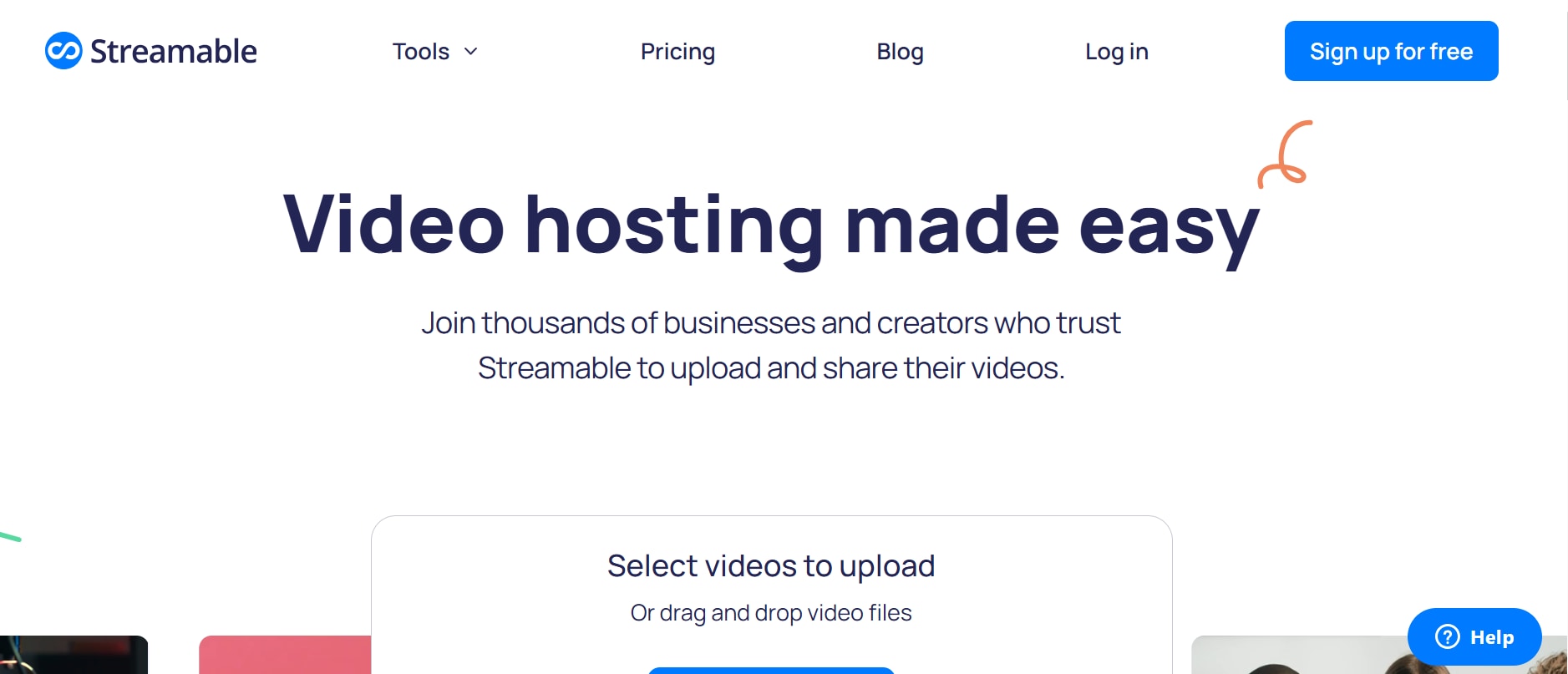
Streamabledl.com is a minimalist and focused web app built just to convert and save Streamable videos in MP4 format. You paste the link, hit Start, and within seconds you get selectable download options. No bells, no whistles, just direct access to your clip without ads or clutter. It even offers a neat trick: by typing “dl” after “streamable” in the URL, you’ll bypass the interface and jump straight to the download page. It is fast, works on both mobile and desktop, and does not require any kind of login or signup. If you want something lightweight and task-specific, this is the definition of “in and out.”
Pros & Cons
2. AceThinker
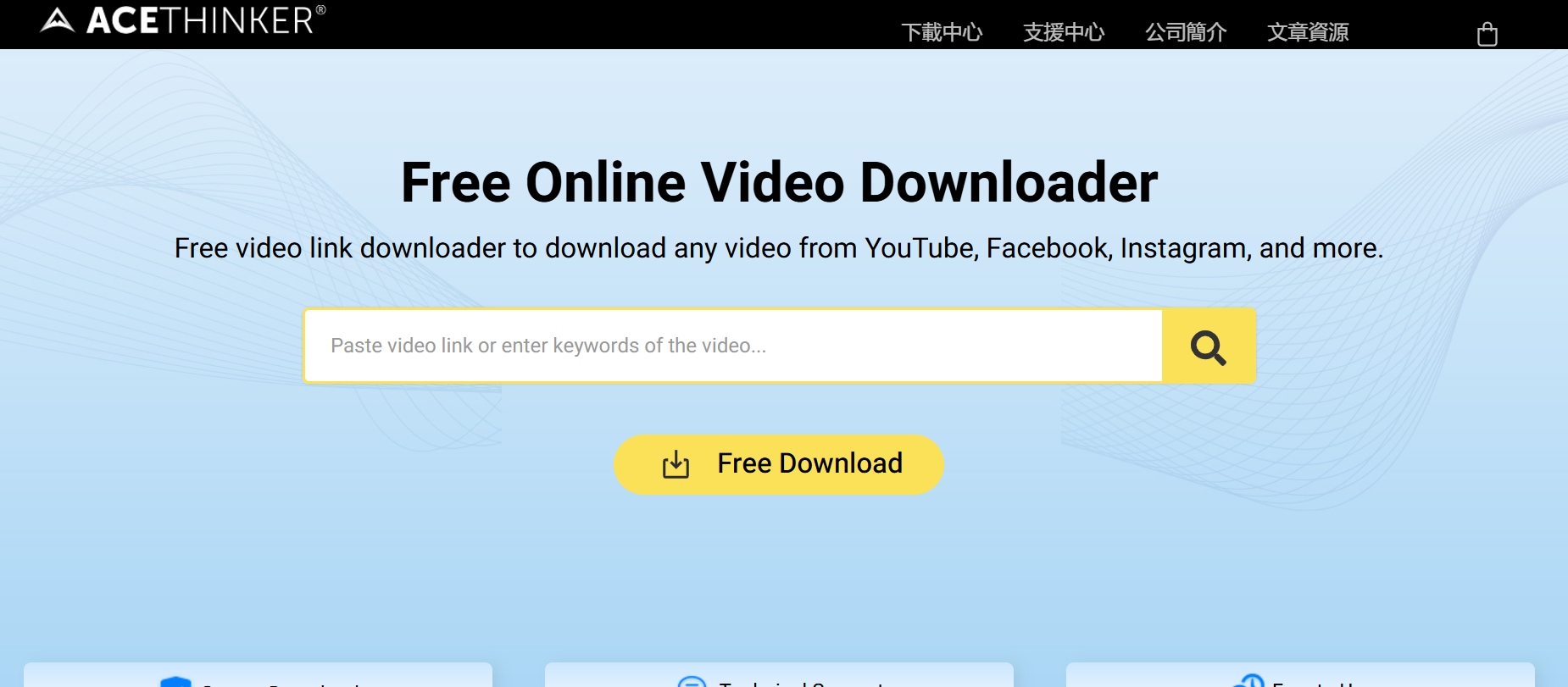
AceThinker offers a no‑install online app that downloads Streamable videos in high‑quality MP4 in a few clicks. The interface is clean and self‑explanatory: paste the URL, click download, and your video is saved. The free tier handles up to 10 downloads per day and maxes out at 720p unless you upgrade. You can batch only via their pro version. It works reliably on Chrome, Edge, Firefox, and Safari without hiccups. And if you’re downloading a single video and not bulk then this tool nails convenience and clarity.
Pros & Cons
3. GiveFastLink
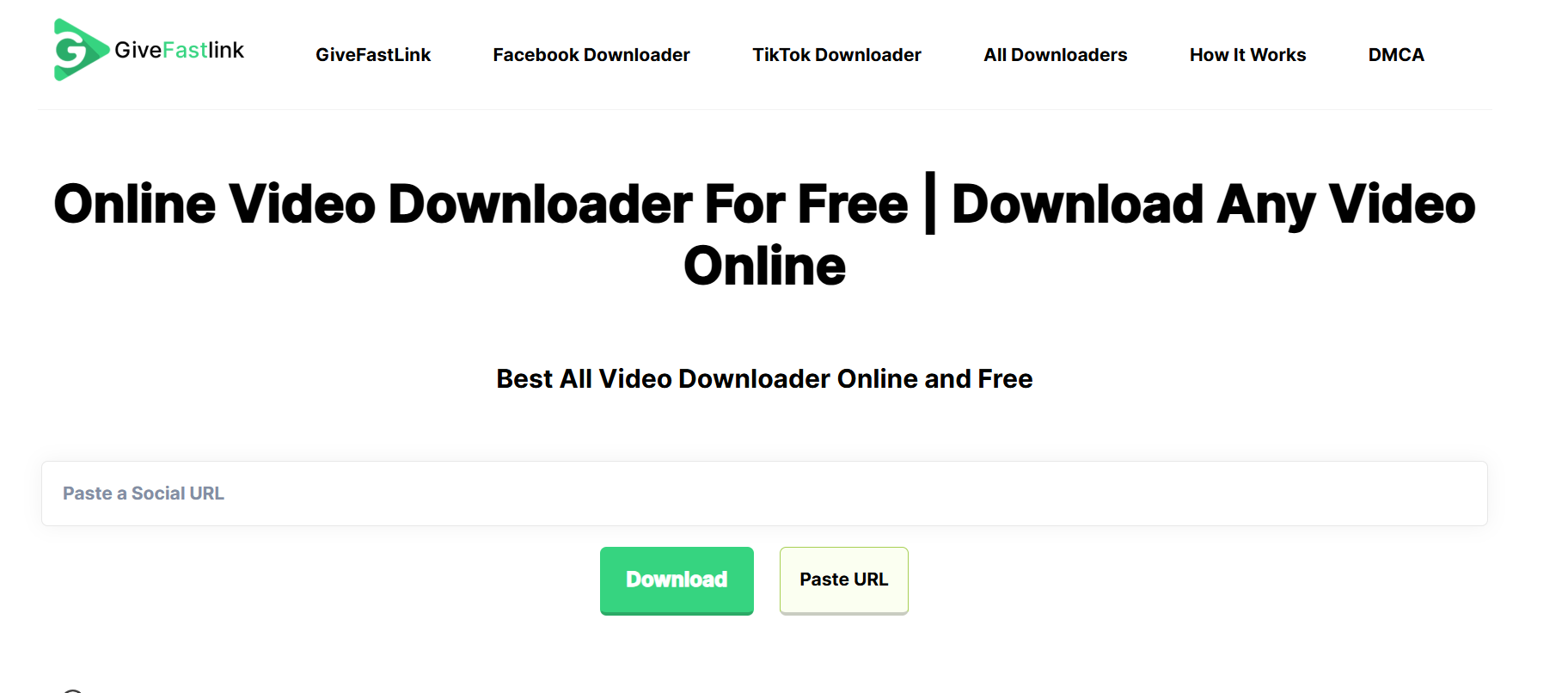
GiveFastLink is a general-purpose online downloader that supports Streamable among many other video platforms. It offers high‑speed downloads in multiple qualities (360p to 1080p) and various formats. No registration or account needed. It is hassle‑free and fast, letting you drag-and-drop or paste URLs and grab the video instantly. The site supports everything from browser to mobile, so you can download from anywhere. While it lacks polish, it works reliably when you need a quick download without fluff.
Pros & Cons
Easy to Use Batch Streamble Video Downloader
Part 4: 3 Apps to Download Streamable Videos Easily on Mobile
1. SnapTube (Android only)
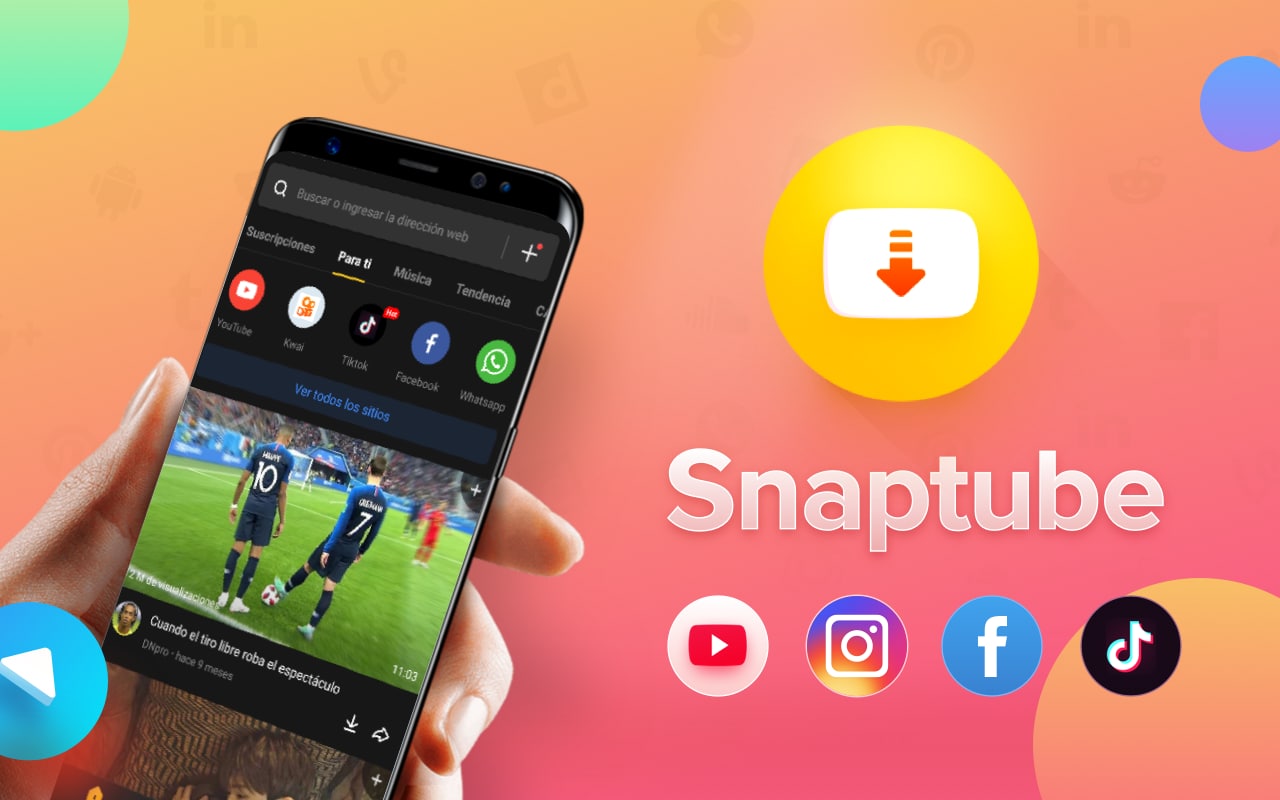
SnapTube is a well‑known Android video downloader that supports not just YouTube but also social platforms and other streaming sources. It auto-detects video links and lets you choose from resolutions ranging from 144p all the way up to 4K and 2K, plus extract audio in MP3 or M4A formats. The app includes a built-in file manager to organize downloads and even recommends trending videos based on your interests. As of June 2025, it is trusted by over 500 million users worldwide. Use it when you want fast, flexible downloads and light media organization all in one place. What makes it stand out is its integration with popular social apps. You can simply share or import links directly from within the apps. While it’s powerful, be cautious during installation as some third-party APKs may include unwanted extras.
Pros & Cons
2. Video Downloader – Auto Detect Browser (Android)
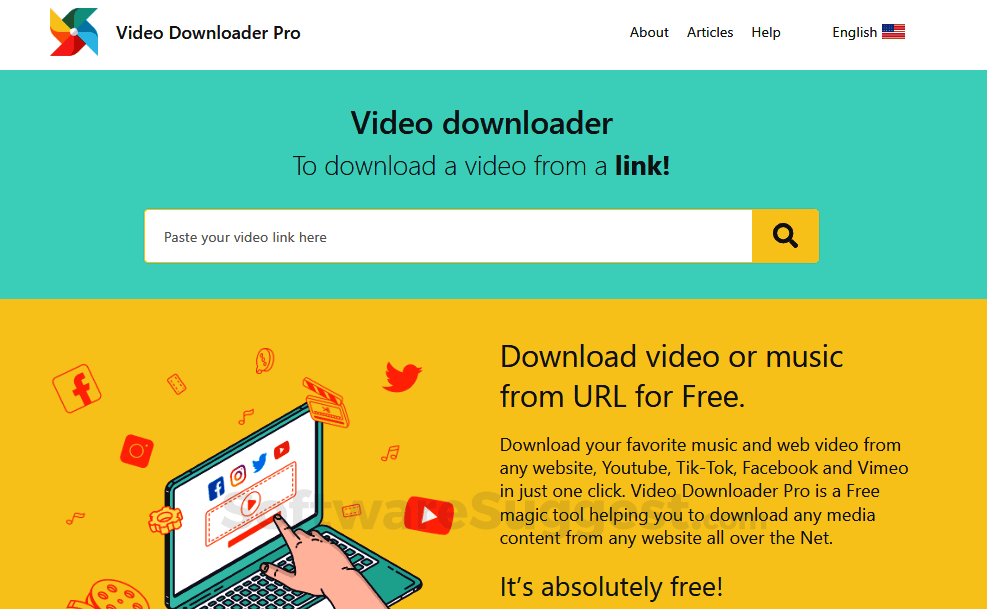
This Android app acts as a browser plus downloader in one. It auto-detects playable videos including embedded streamable content. It supports MP4/M4V/MOV/AVI/WMV and audio formats too, with background downloading, pause/resume, and ability to save to SD card or password‑protected folder. It is fast, functional, and does not overcomplicate the job which makes it ideal for users who want quick results without extra setup. The in-app preview function also lets you double-check video quality before hitting download. If you're someone who watches and saves videos directly from social feeds, this browser-style interface feels natural and integrated.
Pros & Cons
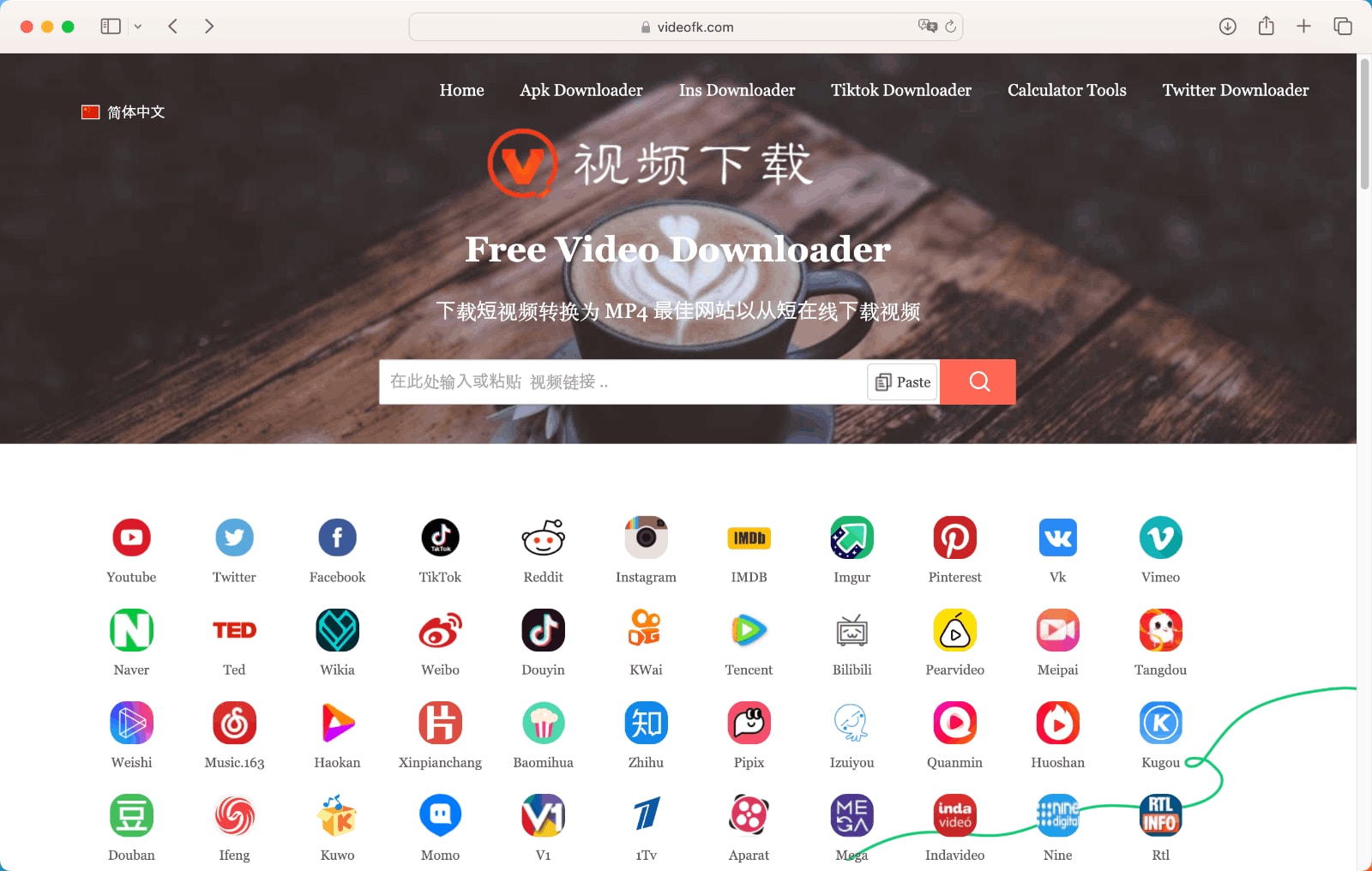
3. VideoFK (Browser-based, Mobile-friendly)
VideoFK is a web tool optimized for mobile browsers where no app installation is required. You paste the Streamable video URL into its simple interface, tap download, and get your MP4 file in seconds. It works across Android, iOS, Windows, and tablets, making it universally accessible regardless of device type. It’s incredibly lightweight, runs smoothly even on older phones, and doesn’t require permissions or background access. For casual users or one-time downloaders, it’s one of the easiest ways to get a clip saved without diving into an app store. While it's not the most feature-packed option, its no-nonsense performance and privacy-friendly design are a major win. And because it’s browser-based, you won’t clutter your phone with unused apps.
Pros & Cons
Conclusion
From full-featured desktop suites to browser-based tools and mobile apps, downloading streamable videos in 2025 has never been easier or more flexible. Whether you need batch downloads, lightweight one-click solutions, or mobile access on the go, there’s a tool that fits your workflow. Each platform brings something different to the table—so choose based on what matters most: speed, quality, or convenience.
Easy to Use Batch Streamble Video Downloader
FAQs
-
1. Can I download streamable videos in high resolution without installing software?
Yes, several online tools like StreamableDL and VideoFK allow you to download videos directly in HD or 1080p via your browser where no installation is required. However, resolution options depend on the original upload and the tool's capabilities. -
2. Is it legal to download streamable videos for personal use?
Generally, downloading videos for personal, offline viewing is acceptable, especially if the content is public. However, downloading copyrighted material for redistribution or commercial use may violate terms of service or copyright law. -
3. Which format should I choose while downloading a video—MP4, WebM, or AVI?
MP4 is the most universally supported and recommended format for compatibility across all devices and platforms. WebM is lightweight and browser-optimized, while AVI tends to have larger file sizes and may require specific players. -
4. How do I download multiple streamable videos at once?
Tools like and SnapDownloader offer batch downloading features. You can paste multiple URLs, queue them, and download all at once which makes it ideal for creators or researchers managing large collections. -
5. Do mobile apps offer the same features as desktop downloaders?
Not entirely. Mobile apps like SnapTube offer great convenience but may lack advanced features like format conversion, subtitle support, or batch processing that tools provide on desktop.

