


The AVS codec (Advanced Video Standard) is a powerful video compression format, but it comes with a big problem: compatibility. Many devices, apps, and platforms don’t support AVS natively, which means your video may not play, edit, or upload properly. Filmmakers, broadcasters, and even casual users often face playback errors, failed uploads, or bloated file sizes.
That’s why users search for reliable tools to Convert AVS to MP4, MOV, MKV, AVI, or HEVC. By converting, you ensure smooth playback, editing compatibility, and long-term storage options. This guide will show you everything about AVS, why conversion is necessary, and how to get the best results with UniConverter.
In this article
Part 1: What is AVS Codec and Its Use Cases
The AVS codec, short for Advanced Video Standard, is a video compression standard primarily developed in China as a national alternative to H.264 and HEVC. Over time, it has evolved into multiple versions—AVS+, AVS2, and AVS3—each designed to support higher resolutions, better efficiency, and modern media workflows.
Key Features of AVS
High Compression Efficiency – AVS reduces file sizes significantly without a big drop in quality, making it ideal for large video libraries.
Ultra-HD Ready – Supports 4K, 8K, HDR, and wide color gamut for cinema and broadcast.
Flexible Applications – Works across broadcasting, streaming, and storage systems.
Future-Oriented – AVS3 is capable of handling next-generation broadcasting standards with extremely efficient bandwidth usage.
Use Cases of AVS Codec
- Television Broadcasting – AVS is widely used in China’s digital broadcasting system. It allows broadcasters to transmit HD and UHD channels more efficiently.
- Streaming Platforms – Video services in regions supporting AVS use it to save bandwidth costs while delivering high-quality playback.
- Professional Filmmaking – Some cameras and drones output footage in AVS format, especially in China. Editors often need to convert these files into ProRes or H.264 for editing.
- Archival and Storage – Thanks to smaller file sizes, AVS is used in archiving workflows where space efficiency is critical.
- Corporate & E-learning Videos – Training modules and lecture recordings sometimes come in AVS format and need conversion before uploading to platforms like LMS, Zoom, or YouTube.
In short, AVS is powerful but limited in adoption. That’s why converting AVS files is so important for everyday workflows.
Part 2: Why Convert AVS Files & Common Problems
While AVS offers efficiency, it is not as universally supported as H.264 or HEVC. Here are the common reasons people look to convert AVS files:
Reasons to Convert
- Playback Compatibility Issues — Many TVs, smartphones, and media players can’t decode AVS. Converting AVS to MP4 (H.264) ensures playback on any device.
- Editing Limitations — Editing tools like Adobe Premiere Pro, Final Cut, or DaVinci Resolve may not support AVS natively. Editors often transcode AVS into ProRes, DNxHD, or H.264 for smoother workflows.
- Upload & Sharing Failures — Platforms like YouTube, Instagram, and Zoom reject AVS files. Converting to MP4 ensures seamless uploads without rejections.
- File Size & Storage Needs — While AVS is efficient, converting into HEVC (H.265) or MKV may yield better compression and accessibility.
- Archiving & Delivery — Clients or collaborators often require MP4 or MOV formats. AVS-to-MP4 conversion avoids confusion and guarantees accessibility.
Common Problems During AVS Conversion
- Slow Speed — AVS decoding is CPU-heavy, especially for 4K/8K.
- Quality Loss — Poor converters cause pixelation or frame drops.
- Silent Playback — Audio codecs may be incompatible.
- File Size Inflation — Converting to older codecs may make files bigger.
Fix: Using a GPU-accelerated converter like UniConverter solves these issues with 130x speed, batch conversion, and lossless quality modes.

Fast & Reliable AVS Converter
Part 3: Choosing the Best AVS Converter
When choosing an AVS converter, look for:
- AVS Codec Support – Many converters don’t recognize AVS.
- Batch Conversion – Essential for workflows with multiple files.
- GPU Acceleration – Significantly reduces processing time.
- Output Range – MP4, MOV, AVI, HEVC, MKV, ProRes, and more.
- Custom Settings – Bitrate, resolution, frame rate, audio codec.
- Ease of Use – Drag-and-drop interface with presets.
Comparison of AVS Converters
|
Tool |
Platform |
AVS Support |
Batch Convert |
GPU Acceleration |
Output Formats |
Pricing |
|
UniConverter |
Online/Desktop |
Yes |
Yes |
Yes |
MP4, MOV, AVI, HEVC, MKV, ProRes |
Freemium |
|
HandBrake |
Desktop |
Limited |
Yes |
Yes |
MP4, MKV |
Free |
|
CloudConvert |
Online |
Yes |
Yes |
No |
MP4, MOV, AVI, WebM |
Paid |
|
FFmpeg |
Desktop |
Yes |
Yes |
Yes |
Almost Any |
Free |
Verdict: While FFmpeg is powerful, it’s too complex for beginners. CloudConvert is convenient but slow. HandBrake doesn’t fully support AVS. UniConverter strikes the perfect balance: fast, powerful, and easy to use.
Part 4: Why Choose UniConverterfor AVS Conversion (Step-by-Step Guide)
When it comes to converting AVS files, not all tools can handle the codec effectively. Some struggle with AVS recognition, while others fail to maintain quality at high resolutions like 4K or 8K. This is where UniConverter stands out—it’s designed to handle both common and rare codecs, giving you flexibility and speed without compromising quality.

Why UniConverteris the Best Choice to Convert AVS
- Widest Format Support – Convert AVS to MP4, MOV, MKV, AVI, HEVC, ProRes, CineForm, and more.
- Lightning-Fast Performance – With GPU acceleration from Intel, NVIDIA, and AMD, UniConverter videos up to 130x faster than basic converters. Even long 4K/8K AVS files can be processed in minutes.
- Flexible Conversion Settings – Control resolution, frame rate, bitrate, and codec for precise output. You can choose high-bitrate MOV ProRes for editing, or compact MP4 HEVC for archiving.
- All-in-One Workflow – Beyond conversion, UniConverterlets you compress, edit, trim, add subtitles, and even burn your videos to DVD — all inside one application.
- Cross-Platform Convenience – Available on both Windows and macOS, with cloud sync that allows you to access your converted files across devices.
How to Convert AVS with UniConverter Desktop
Step 1: Install and Launch UniConverter
Download UniConverterDesktop from the official website and install it. Once installed, launch the program. Make sure your system meets the basic requirements (Windows 7 or later, >750 MHz CPU, at least 256MB RAM, and 100MB free disk space).

Step 2: Import AVS Files
Click the Add Files button or drag-and-drop your AVS videos into the main interface. UniConvertersupports batch importing, so you can load multiple AVS files at once—perfect for large projects.

Step 3: Select Output Format
Choose the desired output format from the preset list: MP4 (H.264) – Best for playback on phones, TVs, and social media. MOV (ProRes) – Recommended for professional editing workflows. HEVC (H.265) – Ideal for smaller file sizes with high quality. MKV – Great for archiving or advanced media players.

Step 4: Adjust Advanced Settings
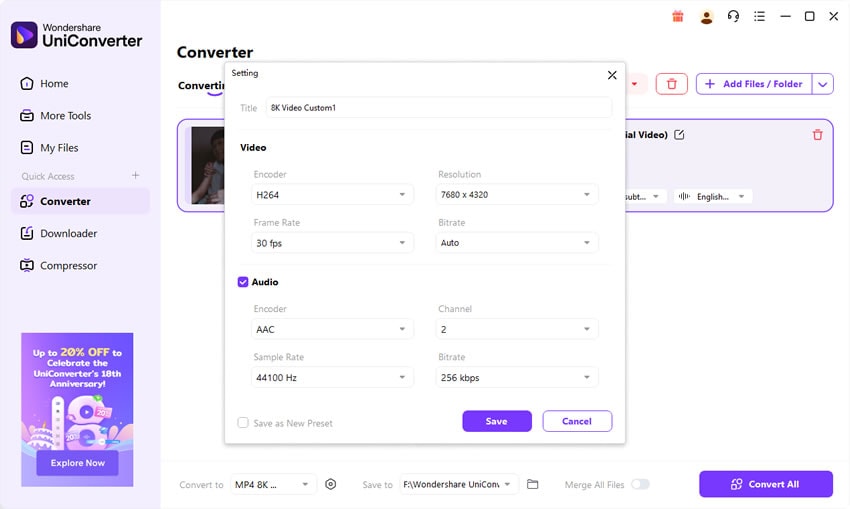
Click the Settings icon to fine-tune output preferences. You can: Adjust bitrate to balance file size and quality. Keep or change the resolution (e.g., 1080p, 4K, 8K). Enable GPU acceleration for much faster processing. Convert audio to AAC/MP3 for maximum compatibility.

Step 5: Start Conversion
Choose your output folder, then click Convert. UniConverterwill process your AVS files at lightning speed and save them in the format you selected. Once done, open the folder and enjoy smooth playback or editing-ready files.
Fast & Reliable AVS Converter
Part 5: Pro Tips for the Best AVS Conversion Results
- Pick the Right Format for Your Goal — Universal Playback: MP4 (H.264). Professional Editing: MOV (ProRes). Efficient Storage: HEVC (H.265). Flexible Media Players: MKV.
- Maintain the Correct Resolution and Bitrate — 1080p: 8–12 Mbps; 4K: 20–35 Mbps. Avoid lowering frame rate unless necessary.
- Pay Attention to Audio Conversion — Convert to AAC or MP3 for compatibility; use WAV/PCM for lossless editing.
- Use Batch Conversion for Efficiency — Drop entire folders and convert all at once.
- Enable GPU Acceleration — Especially for 4K/8K, save hours.
- Always Keep a High-Quality Master Copy — Keep ProRes, DNxHD, or high-bitrate H.264 master.
- Tailor Conversion to Platform Requirements — YouTube: MP4 H.264/VP9. Instagram/TikTok: MP4 H.264 + AAC. Broadcasting: MOV ProRes. E-learning: MP4 H.264.
Part 6: Future of AVS Codec – Outdated or Evolving?
The future of AVS is both promising and uncertain. While it has strong adoption in China, global recognition lags behind other codecs like HEVC and AV1.
Strengths That Keep AVS Relevant
- 8K and HDR-Ready – AVS3 supports ultra-high resolutions and advanced color management.
- Bandwidth Efficiency – Ideal for broadcasters looking to save transmission costs.
- Government Adoption – China uses AVS as part of its digital broadcasting infrastructure.
Challenges That Limit Global Growth
- Limited Hardware Support – TVs, GPUs, and smartphones outside China rarely support AVS natively.
- Competition from HEVC & AV1 – These codecs are already integrated into streaming services.
- Lack of Ecosystem – Editing software, OTT platforms, and devices have slow adoption of AVS compared to established standards.
Possible Evolution Paths
- Regional Standardization – AVS continues to dominate broadcasting in China.
- Global Expansion – If international broadcasters adopt AVS3, it may challenge HEVC.
- Remain Niche – AVS might stay confined to regional use while HEVC/AV1 dominate worldwide.
What This Means for Users
If you’re outside China, AVS files may remain inconvenient for daily use. The safe choice is to convert AVS to MP4, MOV, or HEVC for long-term accessibility. Professionals may keep AVS for capturing and archiving, but for sharing, editing, and streaming, conversion is essential.
Conclusion
The AVS codec is efficient and future-ready, but it lacks widespread adoption outside China. For most users, this creates compatibility issues with playback, editing, and sharing. The solution? Convert AVS files into formats like MP4, MOV, MKV, or HEVC.
With UniConverter, you get the fastest, most flexible, and most reliable way to process AVS files. Whether you’re a filmmaker, content creator, or casual user, UniConverter ensures that your videos remain compatible, high-quality, and easy to manage.
Fast & Reliable AVS Converter
FAQs
-
1. What’s the best format to convert AVS to?
The most versatile format is MP4 (H.264) for playback everywhere. For editing, use MOV (ProRes), and for storage efficiency, HEVC is the best choice. -
2. Why won’t my AVS file play on my phone or TV?
Most consumer devices don’t have AVS codec support. Converting AVS to MP4 guarantees smooth playback. -
3. Will converting AVS reduce quality?
Not necessarily. If you use VC’s high-quality or constant-quality mode, you’ll retain nearly lossless results. Avoid lowering resolution or bitrate unnecessarily. -
4. Can I convert multiple AVS files at once?
Yes. UniConverter supports batch conversion, so you can process entire folders in one click. -
5. Is AVS still relevant in 2025?
Yes, but mainly in China’s broadcasting system. Globally, formats like H.264, HEVC, and AV1 are more practical. That’s why conversion is crucial for compatibility.

