


Ever struggled to save a Mail.ru video you wanted to watch later? Many users face frustration when videos are only available online, making offline viewing or sharing difficult. Whether it’s for educational content, entertainment, or archiving purposes, having a reliable way to download videos is essential.
This article addresses these challenges by exploring multiple methods to download Mail.ru videos on any device in 2025, including desktop batch downloads, web tools, and Chrome extensions. You’ll also get essential safety tips to ensure your downloads are secure and high-quality. Keep on reading to explore more details.
In this article
Part 1: When do you need a dedicated Mail.ru video downloader
Downloading videos from Mail.ru can be tricky due to slow speeds, unstable connections, and download restrictions. A dedicated Mail.ru downloader can simplify the process and save you time and frustration. Let’s explore some common use cases where these tools become essential:
Slow Download Speeds
For users outside Russia, browser downloads from Mail.ru can be painfully slow. Dedicated downloaders optimize the process, allowing faster and more reliable downloads without interruptions. This ensures you can save even high-resolution videos without long waiting times.
Unstable Connections
Large video files can easily fail mid-download due to unstable internet connections. With a dedicated downloader, you can resume interrupted downloads without starting over, ensuring smooth saving of your content. This feature is particularly useful for lengthy tutorials, movies, or live streams.
Download Limits & Quotas
Mail.ru often restricts downloads for non-account users or imposes daily quotas. Dedicated tools bypass these limitations, enabling batch downloads and saving multiple videos efficiently. This allows you to download everything you need in one go without hitting restrictions.
Bypassing Browser Issues
Browsers, plugins, or ad-blockers sometimes interfere with downloads, causing errors. A dedicated downloader avoids these problems and ensures a hassle-free experience. It also provides a more stable interface that reduces crashes and other interruptions.
No Mail.ru Account Needed
You might not want to create an account just to download one video. With dedicated tools, you can save content quickly without logging in, making the process simple and convenient. This is ideal for users who want a fast, no-fuss solution.

Easy to Use Mail.ru Video Downloader
Best For: Which Mail.ru Download Method Fits You?
Part 2: How to batch download Mail.ru videos on desktop
Wondershare UniConverter is a powerful all-in-one multimedia software designed to simplify video management, from downloading and converting to editing and compressing. Whether you’re a casual viewer, content creator, or social media manager, UniConverter makes handling online videos effortless. With support for over 1,000 websites, including Mail.ru, it allows users to batch download multiple videos simultaneously, saving time and avoiding interruptions. The software also provides tools for trimming, cropping, and adding effects to your videos right after downloading. Its user-friendly interface ensures that even beginners can navigate advanced features, while professionals benefit from high-speed downloads, GPU acceleration, and extensive format compatibility. By combining speed, reliability, and versatility, UniConverter is a top choice for anyone looking to efficiently save and manage Mail.ru videos on desktop.

Safety Review: 4.5/5
UniConverter is developed by Wondershare, a reputable company known for its secure software solutions. The program is regularly updated to address security vulnerabilities, ensuring a safe user experience.
Starting Price: $69.95 (perpetual license)UniConverter offers various pricing plans, including a one-time purchase option and annual subscriptions, catering to different user needs.
Simple Steps by Step Guide to Batch Download Mail.ru Videos on Desktop
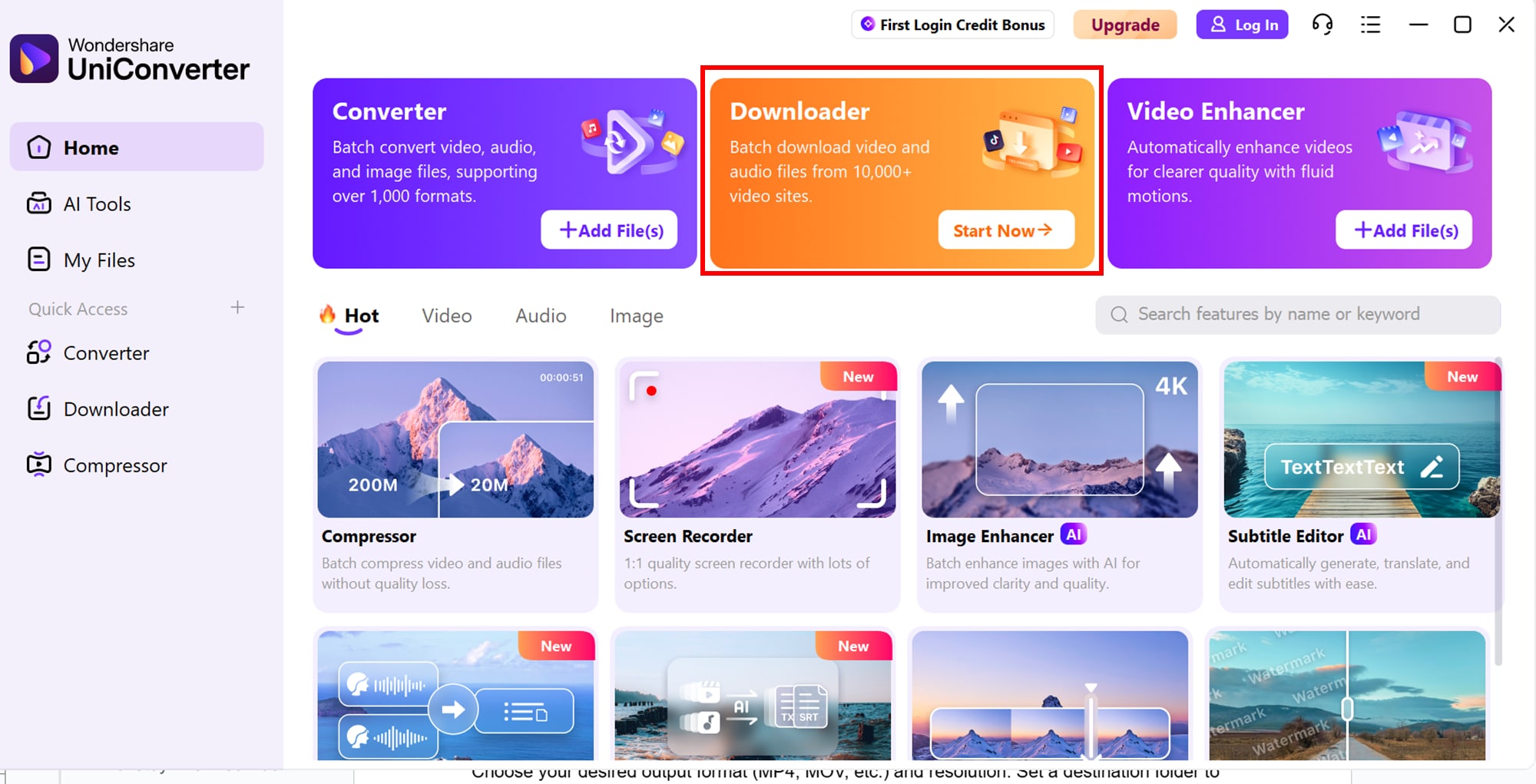
Step 1: Install and Open UniConverter
Download and install Wondershare UniConverter on your PC, then launch the software and navigate to the Downloader tab.
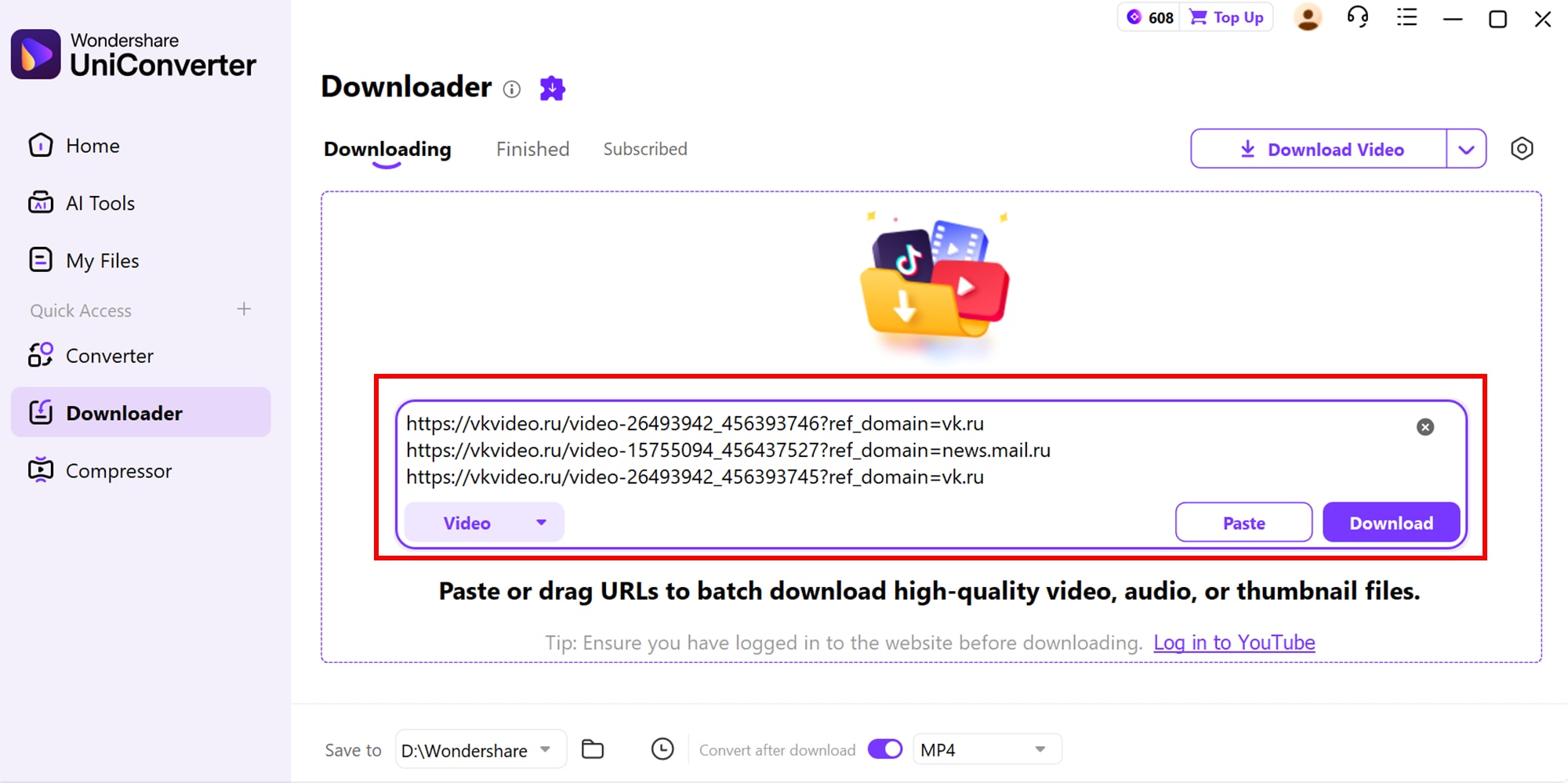
Step 2: Copy and Paste Twitch VOD URLs
Next, copy the URLs of the Mail.ru videos you want to download, and paste them into UniConverter’s downloader. Multiple URLs can be added for batch downloading.
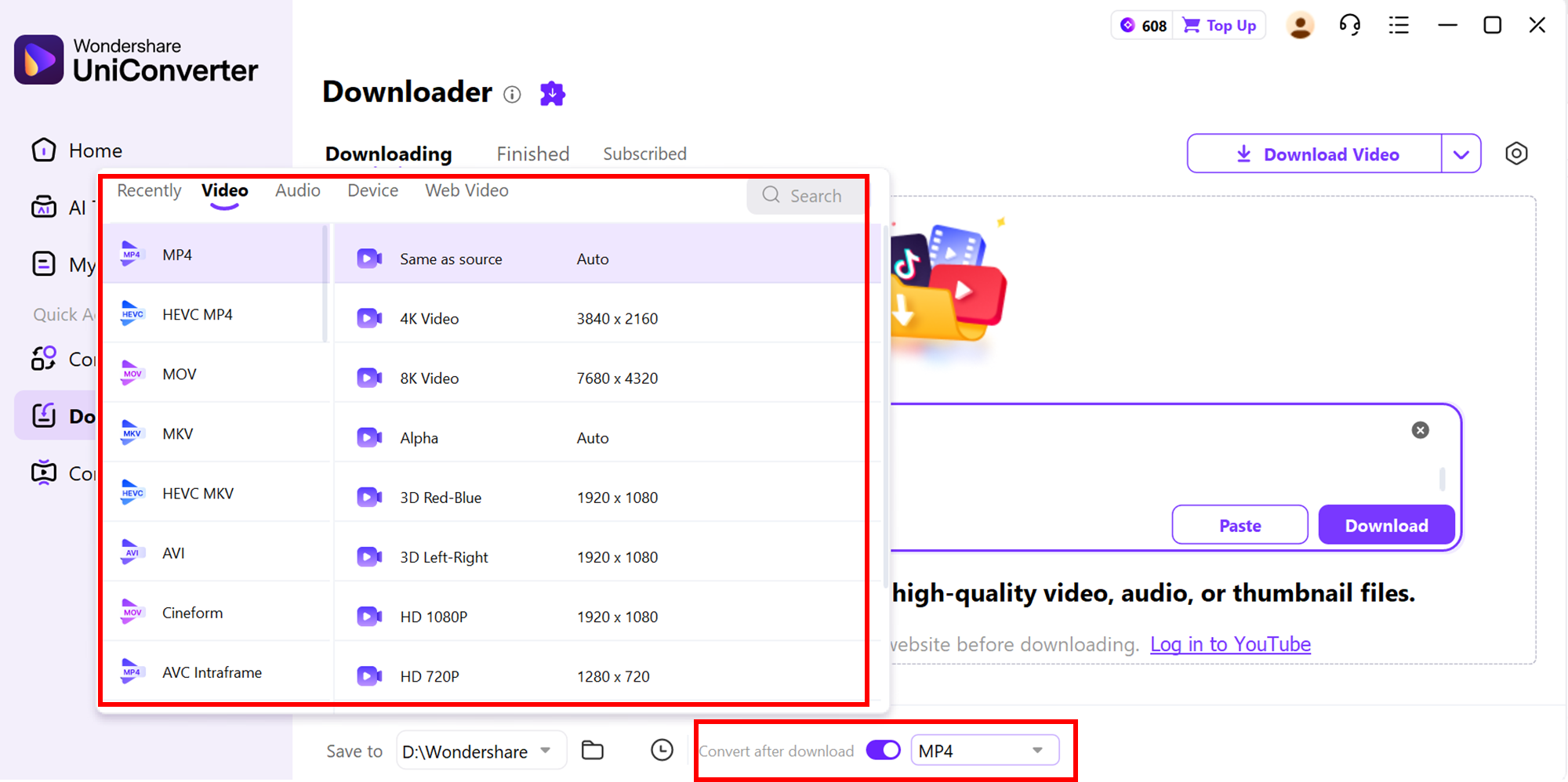
Step 3: Select Format and Quality
Choose your desired output format (MP4, MOV, etc.) and resolution. Set a destination folder to save all downloaded VODs.
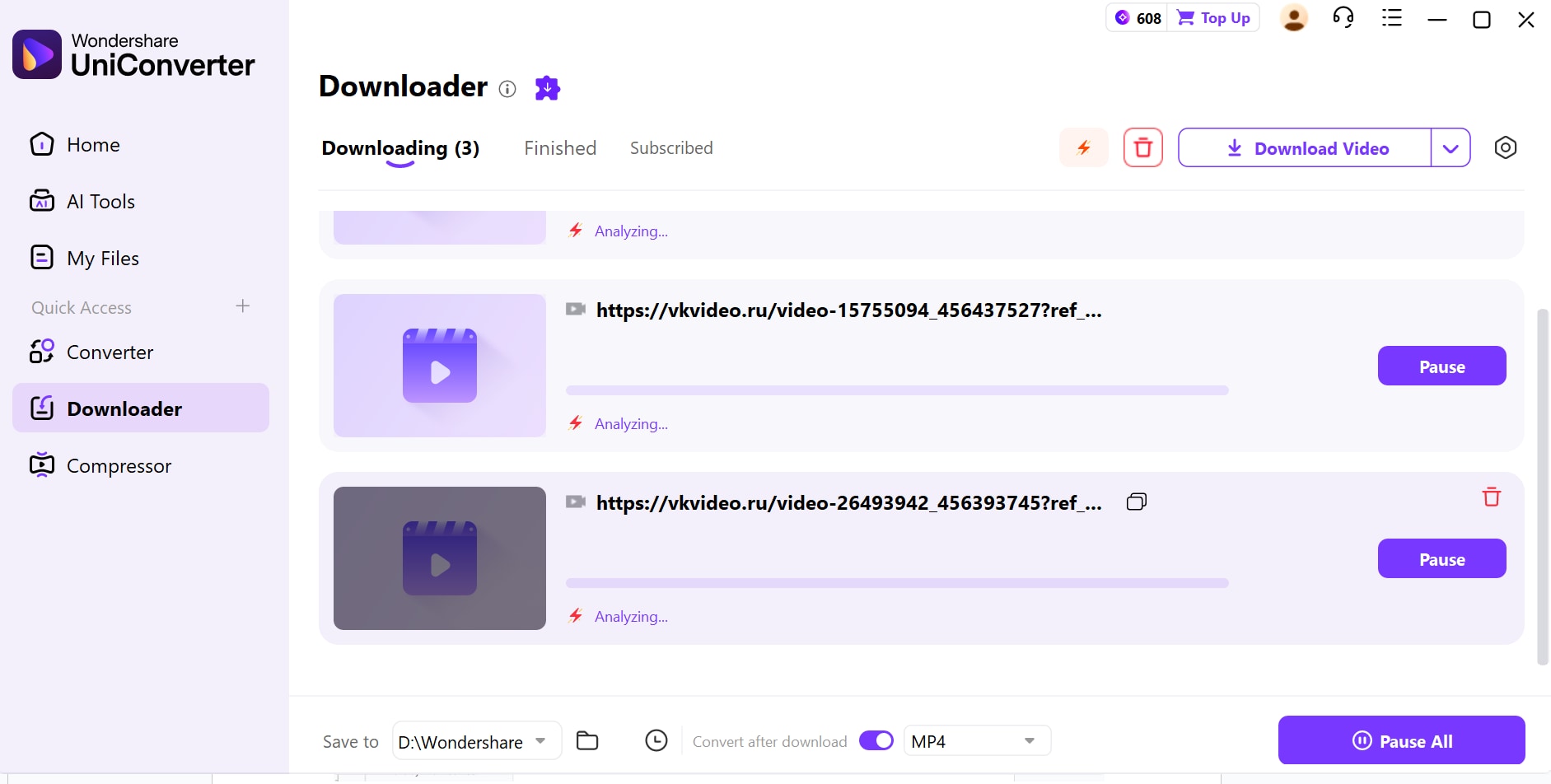
Step 4: Start Batch Download
Click Download All to start the batch process. Once finished, access all videos in the Finished tab to play, edit, or convert as needed.
Easy to Use Mail.ru Video Downloader
Part 3: How to download a Mail.ru video online without installing software
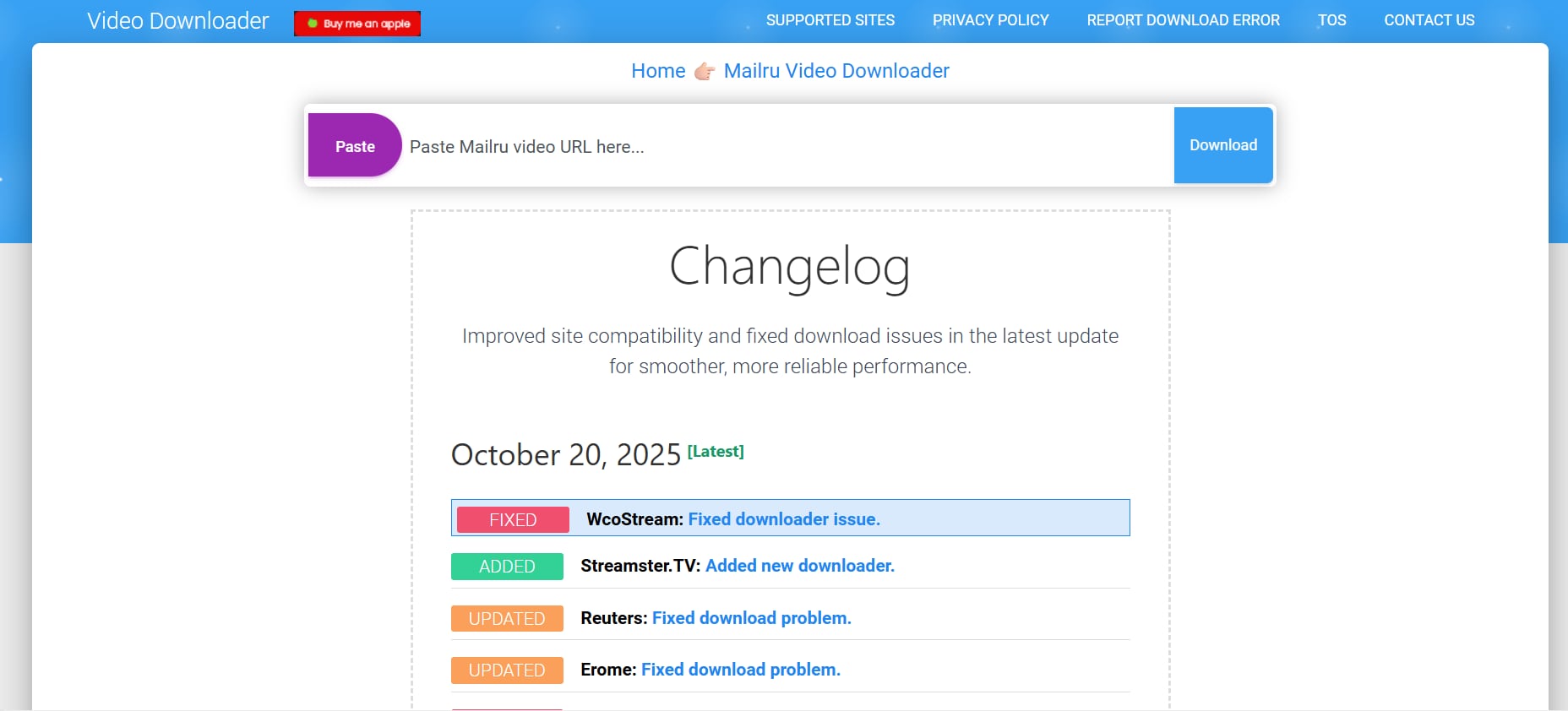
PasteDownload is a free, user-friendly online tool that enables you to download Mail.ru videos in their original quality. By simply pasting the video URL into the provided field, you can access and save content without the need for software installation or registration. The platform supports various formats and ensures a fast, secure, and reliable downloading experience. It's compatible with multiple devices and operating systems, making it a versatile choice for users seeking a hassle-free solution. The website’s clean interface makes it easy for beginners to navigate without confusion. It also allows users to download multiple videos quickly, saving time for batch downloads. Additionally, PasteDownload regularly updates its system to stay compatible with the latest Mail.ru video formats, ensuring consistent performance.
Safety Review: 4/5
PasteDownload operates as a secure web-based service, processing downloads directly to your device without storing personal information. However, as with any online tool, it's advisable to ensure that the video URL is correct and publicly accessible to avoid potential issues.
Starting Price: FreePasteDownload offers its services at no cost, providing a straightforward solution for downloading Mail.ru videos without any financial commitment.
Ads Density: LowThe platform maintains a clean interface with minimal advertisements, ensuring a smooth user experience without intrusive pop-ups or redirects.
Simple Steps Guide:
- Copy the Video URL: Navigate to the Mail.ru video you wish to download and copy its URL from the browser's address bar.
- Paste the URL: Go to the PasteDownload website and paste the copied URL into the provided field.
- Click "Download": Press the "Download" button to initiate the processing of the video.
- Choose Format and Quality: Once the video is processed, select your preferred format and quality settings.
- Download the Video: Click the download link to save the video to your device.
Part 4: How to Download Mail.ru Video with Chrome Extension
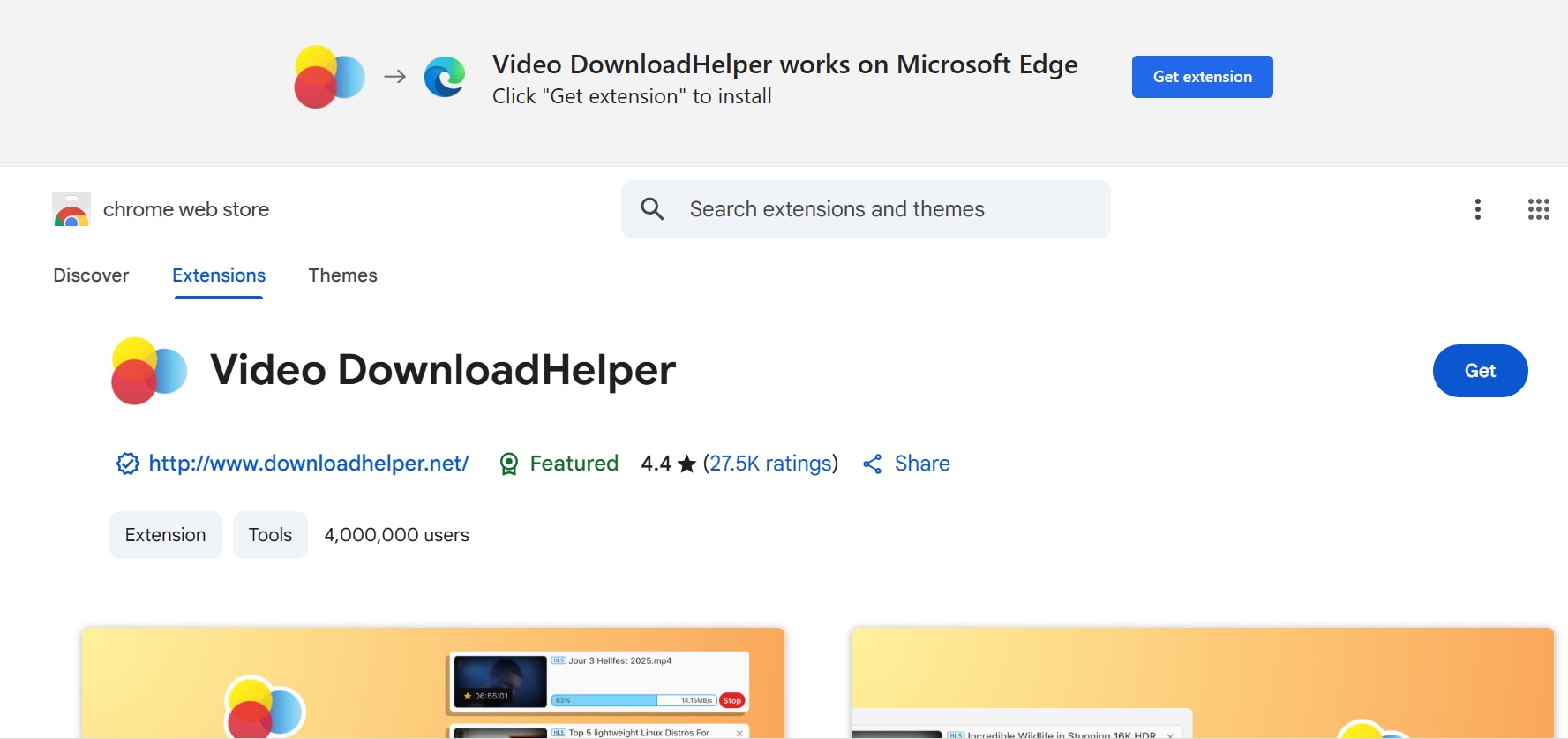
Video DownloadHelper is a well-known browser extension that enables users to download streaming video and audio files from many websites. With support for over 1,000 web platforms, the extension integrates into your Chrome toolbar and detects downloadable media as you browse. While it doesn’t officially guarantee full compatibility with every site (especially ones with streaming protections), it offers a user-friendly way to attempt saving content locally for offline viewing. It’s especially helpful if you watch a video on Mail.ru and want to keep it handy for offline access. The extension also provides options to convert downloaded files into different formats, making them easier to play on various devices. Additionally, it regularly updates to improve compatibility and fix any issues with new website streaming protocols.
Safety Review: 3/5
It’s a fairly reputable tool with a long history and many users. However, as with any download extension, it requires permissions to access web-page data and download content, which can carry some risk. Also, the legality and site terms for downloading may be questionable depending on the content and region. Always ensure you use it responsibly and ethically.
Starting Price: The base extension is free from the Chrome Web Store. Some advanced features (such as file conversion, higher quality downloads or batch operations) may require paid versions/upgrades.
Ads Density: The extension itself appears to have minimal direct ads, but depending on the free version, the developer may promote paid upgrades.As with many free tools, you might encounter promotional pop-ups or suggestion modules for pro versions — in short: low to moderate ad presence.
Steps by Step Guide:
1. Install the Extension: Go to the Chrome Web Store and install Video DownloadHelper on your browser.
2. Open the Mail.ru Video: Navigate to the Mail.ru video you want to download and start playing it in your Chrome browser.
3. Detect and Select Video: Click the Video DownloadHelper icon in the toolbar. The extension will detect available video streams—choose your preferred format and quality.
4. Download the Video: Press the Download button, select a save location if prompted, and the video will be saved to your device for offline viewing.
How to download Mail.ru videos safely
Staying safe while downloading videos is just as important as finding the right tool. Here are a few smart precautions to keep your experience smooth and secure — let’s explore!
1. Download from Official Sources
Always get your safe Mail.ru cloud downloader from trusted sites like the official Chrome Web Store to avoid malware or fake versions. This ensures the tool works properly and keeps your system protected from harmful code.
2. Use a VPN
If you face geo-blocks, a reliable VPN helps you access Mail.ru securely while protecting your privacy and data. It also adds an extra layer of security when downloading from public or unsecured networks.
3. Beware of Shady Websites
Avoid sites that ask for personal info or show too many pop-ups — they’re often unsafe and may hide malware. Always verify the site’s authenticity before pasting any video link.
4. Respect Copyright
Download only content you own or have permission to access. Doing so helps you stay ethical and compliant with digital rights regulations.
How We Tested Mail.ru Video Downloaders
To build this guide, we reviewed Mail.ru video download methods based on download stability, speed, file quality, device coverage, safety, and overall usefulness for offline viewing across different setups.
This section helps readers understand our testing logic before they review the Mail.ru downloader comparison below.
Conclusion
In conclusion, downloading videos from Mail.ru or similar platforms has never been easier thanks to reliable tools that simplify the process. Among them, Wondershare UniConverter stands out as a versatile solution, offering fast downloads, multiple format support, and a user-friendly interface. Whether you’re converting, compressing, or editing your videos, UniConverter ensures a seamless experience while maintaining high-quality output. Its combination of efficiency and simplicity makes it an ideal choice for both beginners and advanced users looking to manage their media effortlessly.
Easy to Use Mail.ru Video Downloader
FAQ
-
1. Can I download videos from Mail.ru directly?
Yes, you can download videos by copying the video URL into a reliable video downloader. Many tools allow high-speed downloads and save videos in multiple formats for offline viewing. This makes it easy to watch your favorite content anytime, even without an internet connection. -
2. Is batch downloading supported?
Absolutely! Some downloaders let you queue multiple video links at once, saving time and effort compared to downloading each video individually. It’s especially useful if you want to collect multiple videos quickly without interruptions. -
3. Can downloaded videos be converted to different formats?
Yes, after downloading, videos can be converted to formats like MP4, MOV, or AVI. You can also adjust resolution and quality to suit your device or editing requirements. This ensures compatibility with various devices, from smartphones to computers. -
4. Are video downloaders safe to use?
Most trusted video downloaders provide a secure environment with no malware or intrusive ads. Always choose software from reputable sources to ensure safety. Additionally, many tools offer privacy protection so your download activity remains secure. -
5. Can I edit videos after downloading?
Yes, some tools, including , offer basic editing features such as trimming, cropping, merging, or adding subtitles, so you can prepare your videos without separate software. This allows you to customize your videos for sharing or personal use effortlessly.

