


If you've shopped for a TV, monitor, or smartphone in the last five years, you've been bombarded with the acronym "HDR." It's plastered on boxes next to buzzwords like "4K" and "OLED," often accompanied by confusing numbers like 400, 600, or 1000. But what is HDR really? Is it just a marketing gimmick to make you buy a more expensive screen, or does it actually change how you see movies and games?
In this guide, we will strip away the jargon to explain what HDR means, dissect the differences between HDR10 and HDR10+, and help you navigate the tricky waters of HDR 400 monitors. Whether you are a gamer, a movie buff, or a content creator struggling with washed-out colors, this deep dive is for you.
- HDR formats such as HDR10, HDR10+, and HDR400 differ in brightness levels, metadata support, and device compatibility.
- While HDR video offers clear visual advantages, it also comes with limitations, including hardware requirements and playback compatibility issues.
- Common HDR problems—such as washed-out colors or incorrect brightness—are often caused by unsupported displays or improper conversion.
- Wondershare UniConverter provides a practical solution for HDR video processing and conversion, helping users handle HDR formats more reliably across devices.
In this article
- What Does HDR Stand For and Mean?
- What Does HDR Do? Brighter Color You Actually See
- HDR Formats Explained: What is HDR10, HDR10+ and HDR 400?
- Advantages and Limitations of HDR Video
- Common Problems & Fixes When Playing HDR Videos
- Top Tools for HDR Video Processing
- How to Convert HDR Videos Using UniConverter
- Conclusion
- FAQs
Part 1. What Does HDR Stand For and Mean?
What Does HDR Stand For?
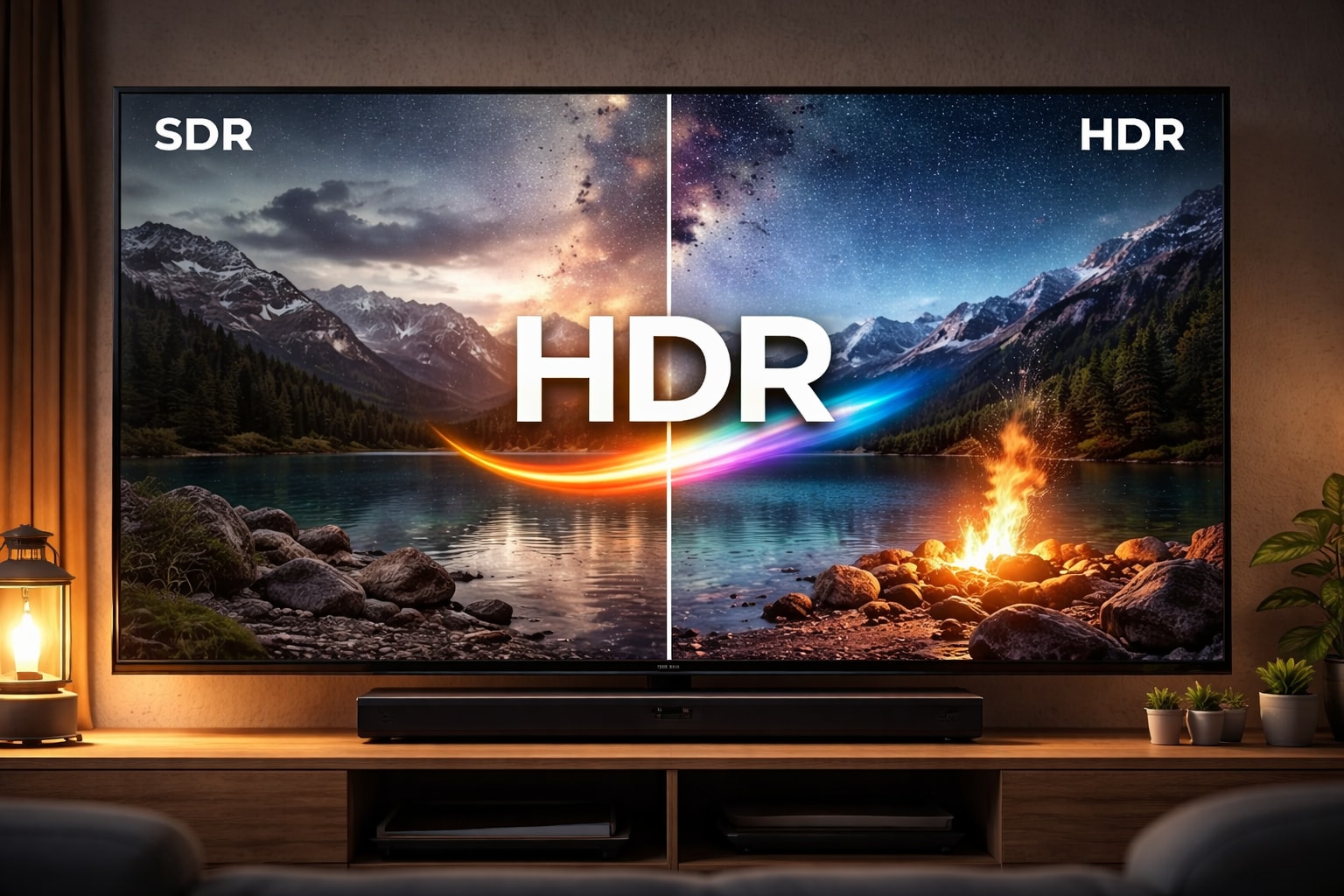
HDR stands for High Dynamic Range. To understand what does HDR stand for in a practical sense, you first need to understand its predecessor, SDR (Standard Dynamic Range). For decades, televisions and monitors were severely limited in how much light they could display. They were essentially wearing sunglasses indoors—unable to show the blinding brightness of a sunbeam or the subtle details in a dark cave simultaneously.
The Problem HDR Solves
The human eye is an incredible optical instrument. You can walk from a dark movie theater into a sunny parking lot and your eyes adjust to handle a massive range of lighting conditions. Cameras and old TVs could not do this. They had to choose: expose for the bright sky and make the ground pitch black, or expose for the ground and turn the sky into a blown-out white blob. This limitation "flattened" images, making them look like recordings rather than reality.
How standard (SDR) images can look washed out or lose detail in shadows/highlights.
In technical terms, SDR is limited to about 100 nits (a measure of brightness) and a restricted color palette (Rec.709). Because of this ceiling, filmmakers had to compress the lighting of their movies. A torch in a dungeon couldn't actually look bright; it just looked "white." What is HDR TV technology doing to fix this? It removes the ceiling.
The HDR Solution: It is not just about being brighter overall; it is about contrast and precision. HDR allows a screen to display very bright highlights (like sparks from a campfire) right next to very deep blacks (the night sky) without washing out the image. It also unlocks a Wider Color Gamut (WCG), allowing the screen to display colors—like the deep red of a London bus or the turquoise of the Caribbean sea—that SDR screens literally cannot produce. It transforms a "video" into a "window."
Part 2. What Does HDR Do? Brighter Color You Actually See
When you ask what does HDR do, you are really asking about the "wow" factor. It's the difference between looking at a printed photo and looking out a window. Here is how it manifests on your screen:
Brighter Highlights (Sunlight, Explosions, Headlights)
On a standard TV, a car's headlights in a night scene are just white pixels. On an HDR TV, those headlights can be 10, 20, or even 100 times brighter than the rest of the scene. This creates a physical sensation of light—you might actually squint when an explosion goes off in a movie. This adds a visceral layer of immersion that resolution (4K/8K) simply cannot achieve.
Deeper, Richer Shadows (See detail in dark scenes)
Have you ever watched a horror movie or a show like Game of Thrones and complained that it was "too dark"? That is often an SDR problem. In SDR, "near-black" (dark gray) often gets crushed into pure black, destroying detail. What is HDR in a TV doing here? It grants the display the ability to show tiny gradations of light in the shadows. You can see the texture of a black leather jacket in a dark room, rather than just a black silhouette.
More Vibrant and Realistic Colors
SDR covers only a fraction of the colors the human eye can see. HDR typically pairs with a color space called DCI-P3 or Rec.2020. This means what does HDR mean for color? It means "more." You get roughly a billion colors (with 10-bit depth) compared to the 16 million colors of SDR (8-bit). This eliminates "banding"—those ugly blocky lines you see in a blue sky—and produces reds, greens, and blues that look organic, not artificial.
Overall Greater Realism and "Pop"
The combination of bright highlights, deep shadows, and rich color creates "pop"—a three-dimensional look where objects seem to separate from the background. It mimics how our eyes perceive the real world, making the image feel tangible.
Part 3. HDR Formats Explained: What is HDR10, HDR10+ and HDR 400?
The world of HDR is fragmented. It's not enough to buy a TV that says "HDR"; you need to know which flavor it supports. This is often where consumers get stuck asking what is hdr and hdr10.
HDR10
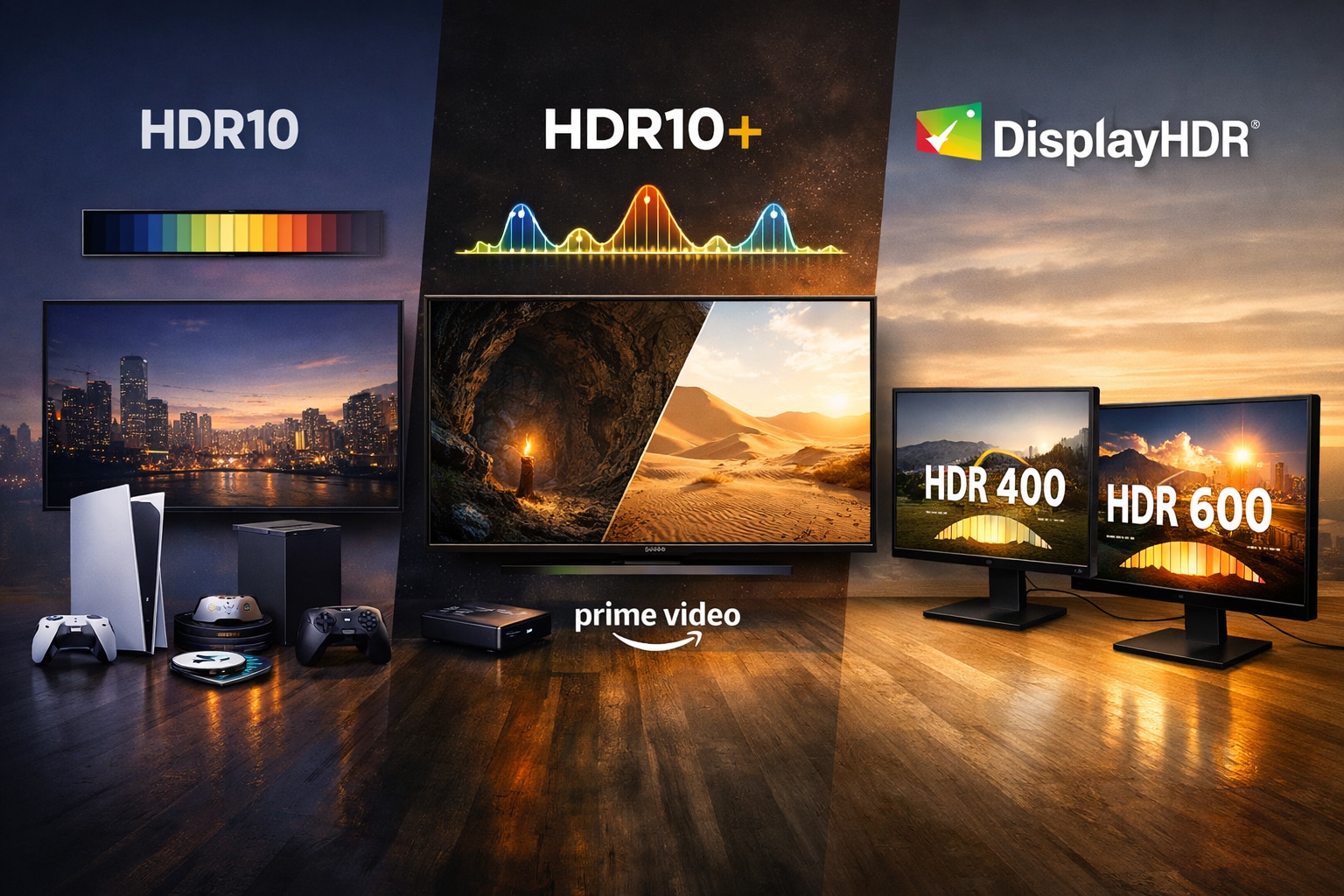
Definition: HDR10 is the open-standard, foundational format for High Dynamic Range. Think of it as the "MP3" of the HDR world—it is everywhere and free for manufacturers to use.
How It Works: HDR10 uses static metadata. This is a crucial distinction. When you start a movie, the file sends one single set of instructions (a "master profile") to your TV regarding how bright and colorful the movie should be. It says, "The brightest part of this entire movie is 1000 nits, and the average is 200 nits." The TV applies this curve to the entire runtime.
Where You Find It: Netflix, Disney+, 4K Blu-rays, PlayStation 5, Xbox Series X. What is HDR10's compatibility? Universal. If a device says it supports HDR, it supports HDR10.
HDR10+: The Dynamic, Royalty-Free Upgrade
Definition: Developed by Samsung and Amazon Video, HDR10+ is an evolution of HDR10 designed to rival Dolby Vision.
How It Works: What is HDR10+ doing differently? It uses dynamic metadata. Instead of one instruction for the whole movie, HDR10+ sends instructions scene-by-scene or even frame-by-frame. It tells the TV, "Hey, this scene is in a dark cave, so brighten the shadows," and then instantly switches to, "Now we are in a desert, dim the highlights so we don't blind the viewer."
Benefit: This optimization ensures that every moment looks its best, rather than compromising on a "one size fits all" setting.
Where You Find It: Primarily on Amazon Prime Video, some 4K Blu-rays, and supported by TV brands like Samsung, Panasonic, TCL, and Hisense.
HDR 400, HDR 600, HDR 1000: Understanding VESA DisplayHDR
Definition: It is crucial to distinguish that DisplayHDR is NOT a file format like HDR10. It is a performance certification standard created by VESA specifically for PC monitors and laptops.
When users ask what HDR 400 is, they are inquiring about the hardware's physical capabilities (brightness and contrast), not the type of video file it plays.
HDR 400 (The Entry-Level):
What it means: It guarantees the screen can hit a peak brightness of 400 nits.
The Reality: While better than standard SDR monitors, it often lacks "local dimming" (the ability to darken specific zones of the screen). This means black areas may still appear dark gray. It is the "bare minimum" to be considered HDR.
HDR 600 (The Sweet Spot):
What it means: Requires 600 nits of brightness and must include local dimming.
The Reality: This is where the real difference begins. The jump in contrast makes visuals pop significantly more than on HDR 400 screens.
HDR 1000 (Pro-Tier):
What it means: Delivers 1000 nits of brightness.
The Reality: This offers a premium experience comparable to high-end TVs, ideal for professional video editing and immersive gaming.
Part 4. Advantages and Limitations of HDR Videos
Building upon the groundwork of HDR's definition, let's delve into the distinct advantages that HDR boasts over its video format counterparts. As we explore these facets, it becomes evident why HDR has captured content creators' and viewers' attention and admiration.
Advantages of HDR Videos
1. Enhanced Visual Realism
The most pronounced advantage of HDR is its ability to deliver an unparalleled level of visual realism. Unlike conventional formats like SDR, with limited dynamic range, HDR's expansive luminance and color range recreate scenes as they appear in real life. This results in a more immersive experience where details in both shadow and light are vividly visible, elevating the viewing journey.
2. Vivid Colors and Fine Details
HDR's broader color gamut allows for a richer and more diverse palette of colors. This feature is particularly noticeable in scenarios like sunsets or underwater scenes, where the interplay of colors is strikingly lifelike. Additionally, fine details are preserved even in challenging lighting conditions, ensuring nothing is lost in translation.
3. Captivating Contrast
HDR's ability to portray a wide dynamic range ensures that scenes with extreme contrasts are faithfully rendered. HDR maintains the intended visual impact without compromise, whether it's the sun's brilliance against a dark landscape or the intricate details within a dimly lit room.
4. Immersive Depth and Dimension
HDR's dynamic capabilities also contribute to heightened depth. The juxtaposition of bright and dark areas accentuates spatial relationships, making scenes feel more three-dimensional. This aspect can greatly enhance storytelling, as visual cues are more pronounced and engaging.
Limitations of HDR Videos
While the advantages of HDR are compelling, it's important to also consider the limitations of this format in video technology. Acknowledging these constraints provides a comprehensive understanding of HDR's position in the visual landscape.
1. Display Compatibility Challenges
One of the challenges HDR faces is the variance in display capabilities across devices. Not all screens are equipped to fully harness the potential of HDR, leading to inconsistencies in how content is presented. This can affect the intended impact and undermine the immersive experience that HDR aims to provide.
2. Learning Curve for Creators
Creating HDR content requires a nuanced understanding of its intricacies. Filmmakers and content creators need to adapt their techniques to fully exploit HDR's capabilities. This transition can involve a learning curve and additional investment in equipment and software.
3. Bitrate and Storage Demands
With its extended dynamic range and rich color gamut, HDR content demands higher bitrates for optimal quality. This results in larger file sizes, which can strain storage and bandwidth capacities, especially in contexts with limited resources.
4. Post-Production Complexity
HDR workflows introduce complexities in post-production, requiring specialized equipment and software. Managing HDR metadata, color grading, and mastering necessitates a refined skill set.
While these limitations are significant, it's crucial to remember that HDR's evolution is ongoing. As technology advances and the ecosystem matures, many of these challenges are likely to be addressed, making HDR even more accessible and seamless for both creators and viewers.
Part 5. Common Problems & Fixes When Playing HDR Videos
While HDR is beautiful, it is also fragile. Playing an HDR video on the wrong screen or with the wrong settings can result in a picture that looks worse than standard video.
Media Playback & Compatibility (The #1 Reason)
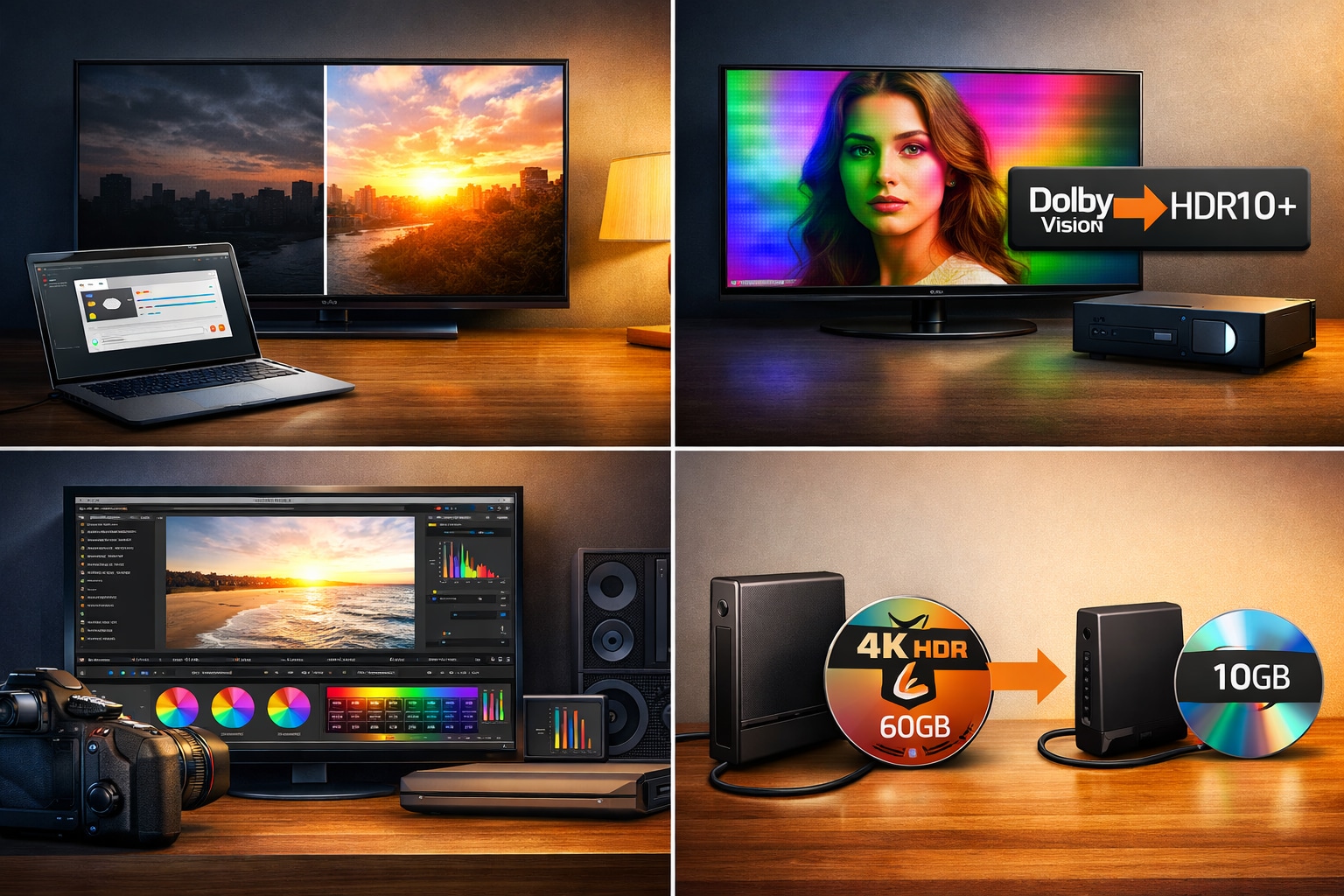
Problem: You downloaded an HDR10 movie file, but you are trying to watch it on an older non-HDR TV, or perhaps on a laptop with a basic screen. The video doesn't just look normal; it looks terrible. The colors are washed out (grey and pale), and the image is incredibly dark. This is because your screen doesn't understand the HDR language.
Solution: You need to "Tone Map" the HDR content into SDR. This converts the color and brightness information into a format your screen understands. This is where Wondershare UniConverter shines. It is an all-in-one video toolbox designed for users who want results without a degree in video engineering. UniConverter's conversion engine is smart enough to detect HDR metadata and can accurately tone-map it to SDR (Standard Dynamic Range). Instead of fiddling with complex scripts, you simply load your video, select your target format, and let the software handle the color science. It preserves the visual details while making the video playable on any device.
Format Conversion Between HDR Standards
Problem: You have a file encoded in Dolby Vision (specifically Profile 5, common in streaming web-dl), but your TV only supports HDR10+. Or perhaps you have a smart projector that glitches when fed dynamic metadata. The result is often a screen with a weird green or purple tint. What does dolby vision do in this case? It forces a color profile that non-Dolby screens can't interpret.
Solution: You need to convert the file or strip the metadata. Hardcore enthusiasts use command-line tools like the dovi_tool suite or complex ffmpeg scripts to inject or remove RPU data. However, for most users, simply finding a file encoded in standard HDR10 is the path of least resistance.
Editing and Repackaging Content
Problem: A creator films a vlog using HDR10+ on their new Samsung Galaxy phone. They import it into a basic video editor, and suddenly the footage looks blown out (super bright white) or the colors shift strangely. This happens because the editing timeline is set to SDR (Rec.709) while the footage is HDR (Rec.2020).
Solution: You need professional tools that support Color Management. Software like DaVinci Resolve, Adobe Premiere Pro, or Colorfront Transkoder allows you to tell the software, "Input is HDR, Output is SDR," or to edit fully in HDR.
Reducing File Size
Problem: A high-quality 4K HDR movie backup (remux) can easily exceed 60GB. That is massive storage usage.
Solution: The user wants to compress this file to maybe 10GB but is terrified of losing that beautiful HDR metadata. If you use the wrong settings, the encoder will strip the HDR tag, and you'll be left with a dark, ugly SDR video.
Where: You need tools like HandBrake (using the x265 10-bit encoder). Crucially, you must ensure the color primaries and transfer characteristics are set to "Passthrough" or manually set to BT.2020/PQ to preserve the HDR look.
Part 6. Top Tools for HDR Video Processing
Navigating the world of HDR software can be overwhelming because different tools serve vastly different purposes. The key takeaway for users is to identify your goal first: Are you just trying to watch a file, or are you trying to change it? If you are consuming content, you need a player with "Tone Mapping" capabilities. If you are creating or fixing content, you need tools that respect HDR metadata so you don't accidentally strip away the color information.
Tools Users Turn To:
For Playback (Smart Solving)
These tools are designed to take the headache out of watching HDR content on SDR screens (like standard monitors or older TVs). They handle tone mapping automatically, converting the high-brightness HDR signal into something your screen can display correctly without looking washed out.
VLC Media Player: The most ubiquitous player. While earlier versions struggled, modern updates have significantly improved automatic HDR-to-SDR tone mapping. It is the "just works" option for most users.
MPC-HC / MPC-BE with MadVR: This is the enthusiast's gold standard. By pairing the lightweight Media Player Classic (MPC) with the MadVR rendering engine, you get arguably the best dynamic tone mapping available on PC. It analyzes every frame to ensure perfect brightness, often outperforming the processing found inside expensive TVs.
Plex, Jellyfin, and Kodi: These are essential for home media servers. If you stream movies from your PC to your TV or phone, these platforms can transcode HDR content on the fly. If configured correctly, they ensure that a movie looks great whether you are watching it on an HDR OLED TV or an SDR iPad.
For Conversion/Encoding
When you need to change a file format, reduce file size, or fix compatibility issues, these are the standard-bearers.
HandBrake: The most popular open-source GUI (Graphical User Interface) for video conversion. It is widely loved because it includes specific presets for HDR10 and H.265. Crucially, it offers the "Passthrough" option for HDR metadata, ensuring that when you compress a video, you don't lose the brightness and color data that makes it HDR in the first place.
ffmpeg: The engine under the hood. This is a powerful command-line tool used for advanced workflows. It offers infinite control over encoding parameters, allowing users to inject metadata, change color profiles, and convert formats with mathematical precision.
Shutter Encoder: Think of this as the friendly face of ffmpeg. It is a fantastic GUI that gives you the power of ffmpeg without needing to type code. It has clear, accessible options for HDR preservation and conversion.
dovi_tool / mkvtoolnix: These are specialized utilities for "remuxing." If you need to extract the Dolby Vision layer from a file, or simply move a video from an MKV container to an MP4 without re-encoding the video stream (and losing quality), these are the tools to use.
Wondershare UniConverter: This is a user-friendly yet powerful HDR video converter built for creators who want professional results without command lines. It preserves wide color gamut and brightness details, and lets you convert HDR videos to SDR , convert SDR to HDR, or other HDR formats conversion with smart tone mapping.

HDR to SDR Video Converter for Better Compatibility
For Professional Work
For creators who are color grading footage or editing movies, consumer tools won't cut it. You need software that manages Color Space (Rec.2020) and Gamma Curves (PQ/HLG) professionally.
DaVinci Resolve: The industry leader in color grading. It offers granular control over HDR highlights and shadows and is the standard for mastering content for Netflix or cinema.
Adobe Premiere Pro: A staple for video editors, offering integrated HDR workflows for those already in the Adobe ecosystem.
Colorfront Transkoder: A high-end mastering tool used by studios to ensure that the HDR delivered to streaming services meets strict technical standards.
Part 7. How to Convert HDR Videos Using UniConverter
A Step-by-Step Tutorial for HDR to SDR Conversion Using UniConverter
Wondershare UniConverter provides an efficient solution for converting High Dynamic Range (HDR) videos to Standard Dynamic Range (SDR). Follow this straightforward process:
Step 1: Installation
Begin by downloading UniConverter from the official Wondershare website and completing the installation on your computer.
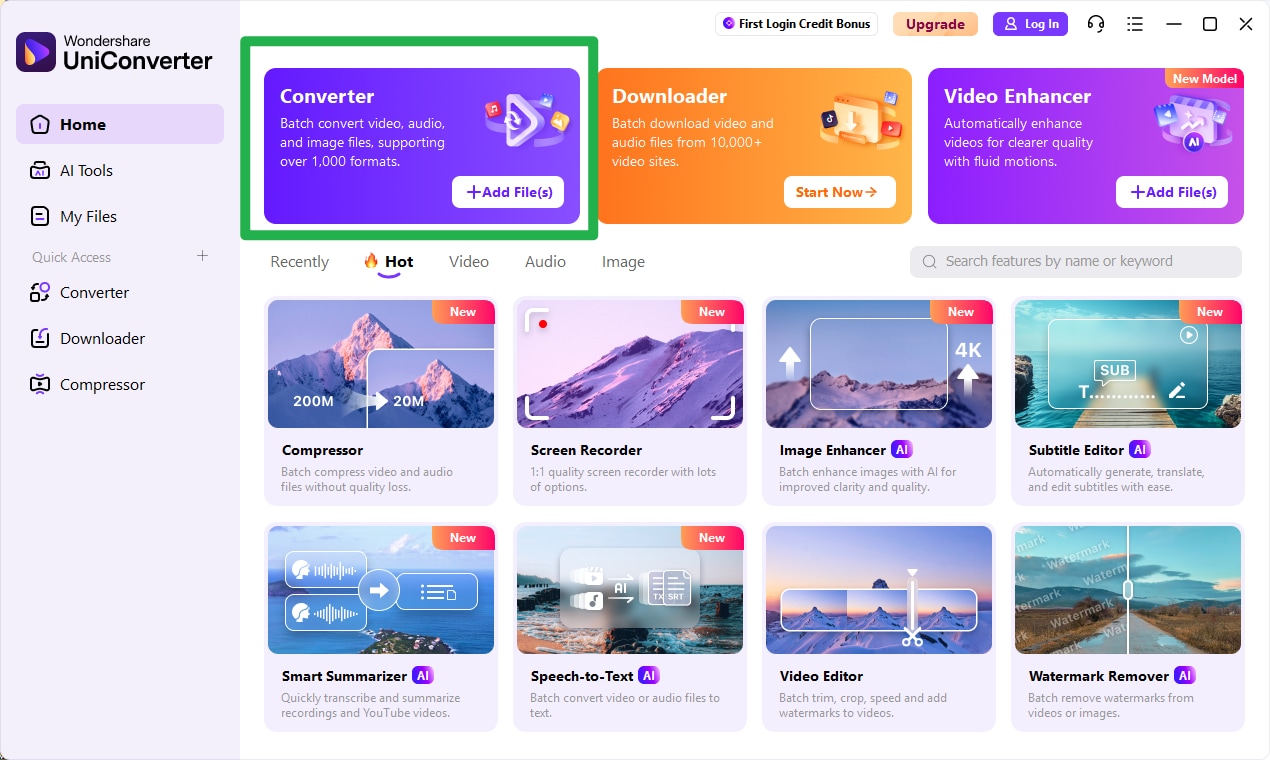
Step 2: File Import
Launch the application. From the "Quick Access" panel on the homepage, select the "Converter" module. This will open a window where you can add your source HDR file.
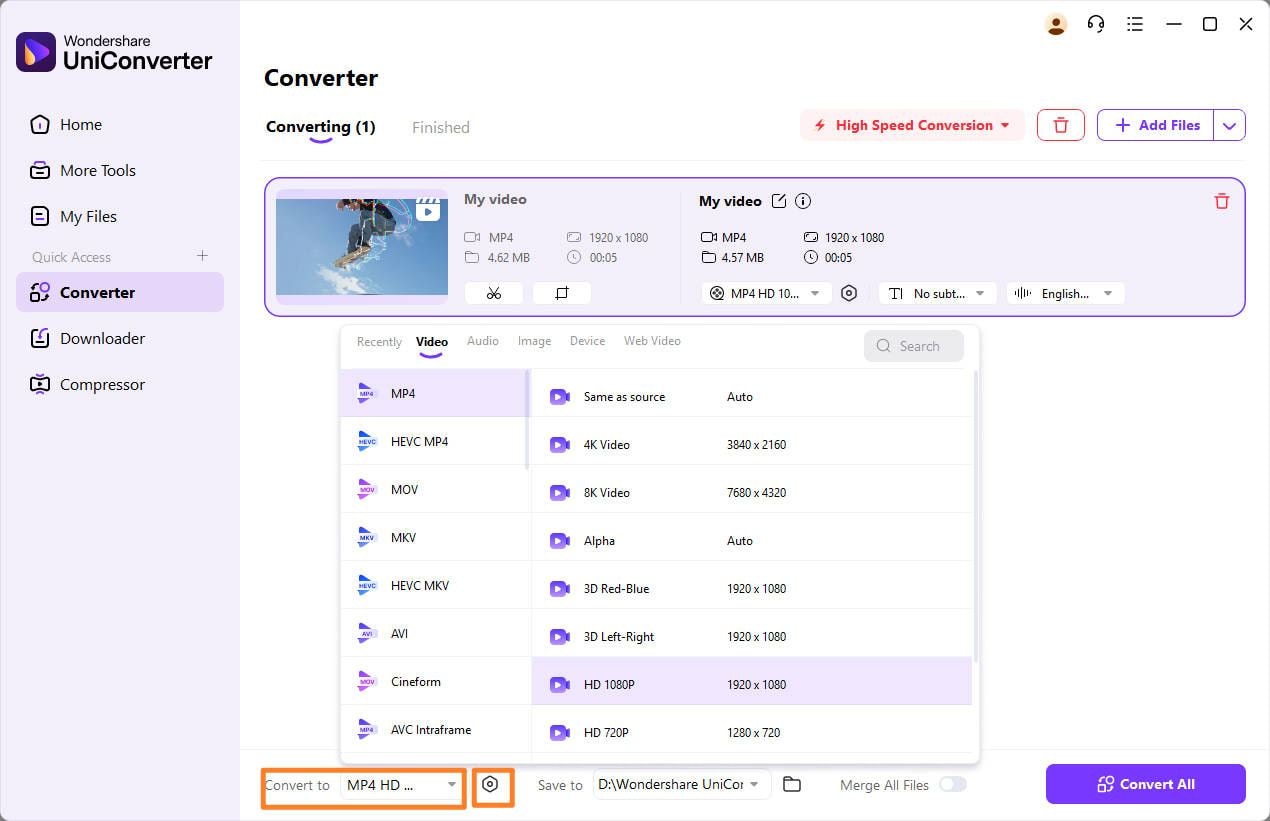
Step 3: Conversion Process
Within the conversion settings, choose the appropriate SDR output format and adjust any preferences. Initiate the conversion by clicking "Convert" or "Start," then specify a destination folder to save your new video.
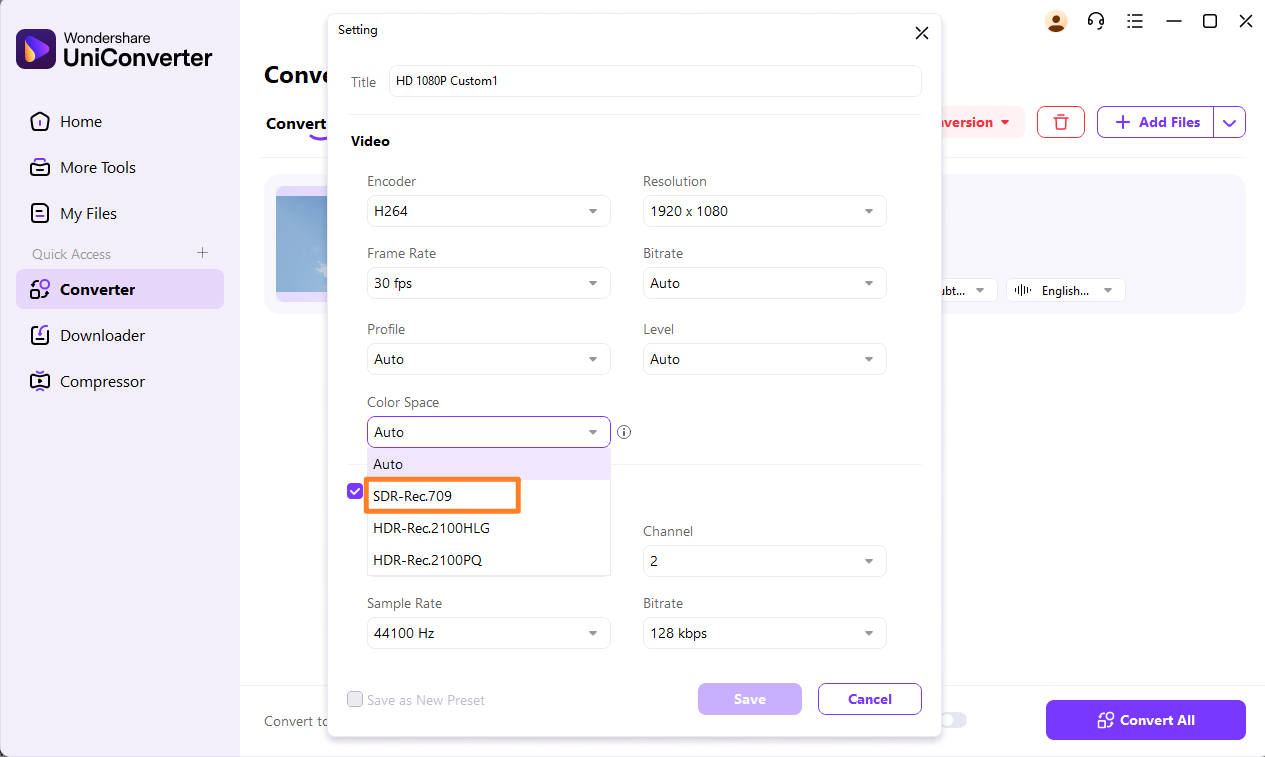
By completing these three simple steps, your HDR video will be successfully converted to an SDR-compatible format.
Conclusion
Understanding what is HDR opens the door to a visual experience that is closer to real life than ever before. While the technology offers stunning visuals, it also brings compatibility headaches—washed-out colors on older screens or massive file sizes that eat up storage.
This is where having the right tool makes all the difference. If you want a seamless, frustration-free way to manage your video library, Wondershare UniConverter stands out as the superior choice. Its ability to intelligently convert high-end HDR footage into universally compatible formats ensures you never have to worry about "green screens" or dark images again.Stop fighting with settings and start enjoying your content exactly how it was meant to be seen.
FAQs
-
1. What is the actual difference between HDR and HDR10?
Think of “HDR” as the general technology (like “streaming music”) and “HDR10” as a specific format (like “MP3”). HDR stands for High Dynamic Range, which describes the ability to show bright highlights and deep shadows. HDR10 is the industry-standard profile that defines how this range is delivered to displays. If a TV supports HDR, it almost always supports HDR10. -
2. What does it mean when a TV claims to support HDR?
When a TV claims HDR support, it means the screen can read HDR metadata and display a wider range of brightness and colors than standard SDR TVs. However, quality varies: budget HDR TVs may accept HDR signals but lack sufficient brightness, while premium TVs can deliver dramatic highlights, deeper contrast, and more realistic colors. -
3. What is HDR 400 and is it good enough for a monitor?
HDR 400 is an entry-level VESA certification that guarantees a monitor can reach 400 nits of peak brightness. While it improves upon SDR displays, it usually lacks local dimming for true deep blacks. It’s suitable for casual gaming and office use, but HDR 600 or higher is recommended for a more cinematic experience. -
4. How does HDR gaming differ from watching HDR movies?
HDR gaming requires real-time rendering and low latency. Unlike movies, where lighting is pre-encoded, games generate light dynamically. This enables immersive effects—such as bright explosions or dark environments—that directly affect gameplay. Gamers should look for displays supporting HGIG (HDR Gaming Interest Group) for accurate HDR tone mapping. -
5. How is HDR on a camera different from HDR on a TV?
HDR on a camera refers to a capture technique where multiple exposures (bright, normal, dark) are combined into one balanced image. HDR on a TV, by contrast, is a display capability that allows the screen to show bright and dark details simultaneously. In short, cameras create HDR content, while TVs display it.

