


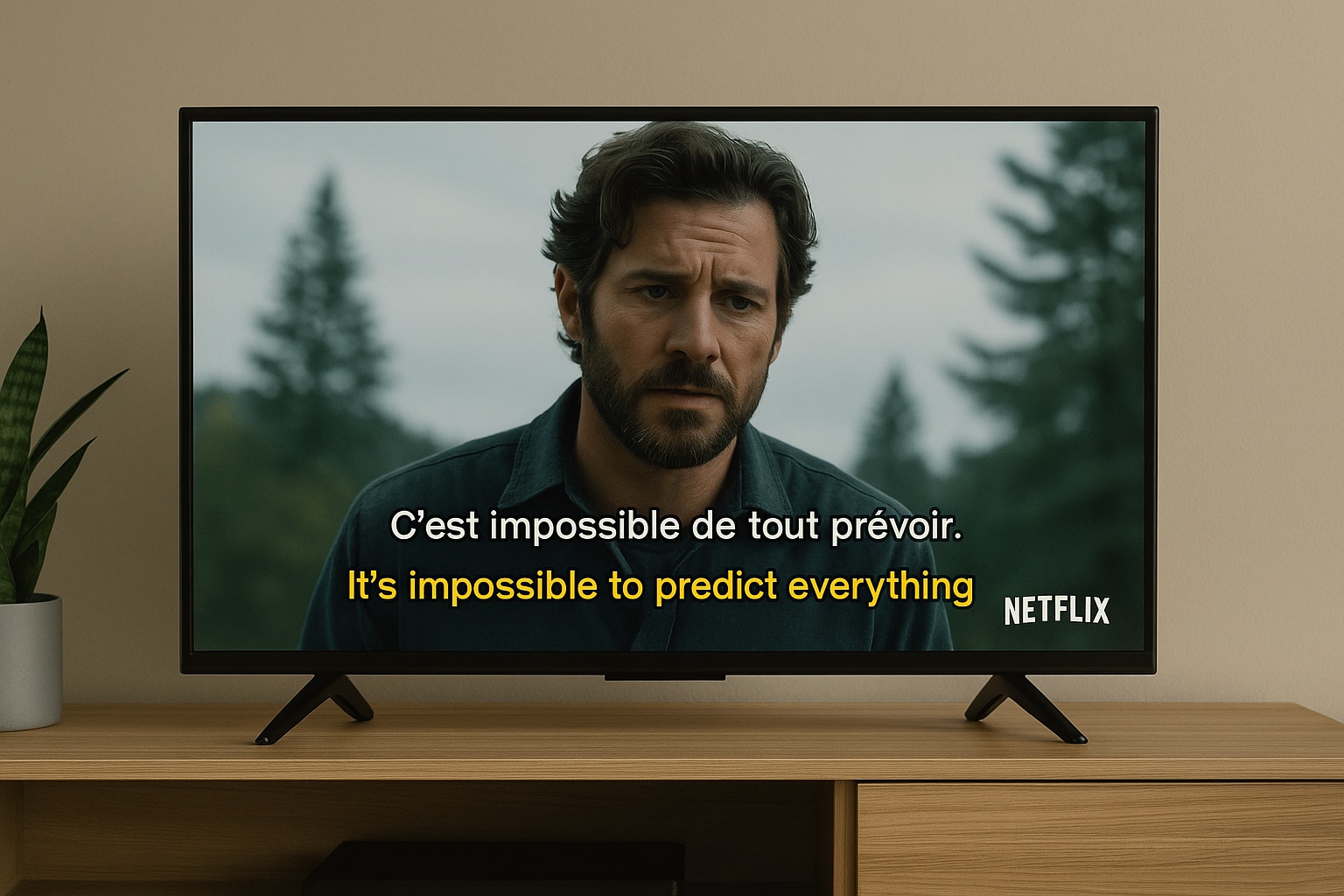
Frustrated by Netflix's "one subtitle only" rule? It forces you to choose between understanding the plot (in your language) and learning (in the target language). The Netflix dual-subtitle setup is the solution, letting you see both languages at once and transforming passive viewing into an active, immersive study session.
This guide will walk you through exactly why Netflix dual subtitles are so effective and the best methods to get them working today. We'll cover simple browser extensions for casual viewing, advanced software for creating permanent offline study files, and how to find the perfect solution for your learning style.
Quick Answer
Netflix does not offer built-in dual subtitles, but you can still watch Netflix with two subtitles at the same time by using browser extensions like Language Reactor or Dualsub on desktop browsers. If you want a permanent bilingual subtitle setup for offline viewing, you can also create dual subtitle files with a subtitle editor and use them in a compatible media player.
Table of Contents
Part 1. Why Use Dual Subtitles on Netflix?
Accelerate Language Learning
This technique is the foundation of the popular "learn a language with Netflix" strategy. When you have subtitles in both your target language (e.g., Spanish) and your native language (e.g., English), you create an instant, unbreakable link between the two. This simultaneous exposure helps you:
Improve Vocabulary Acquisition: When you hear a new word, you instantly see it written in the target language and see its translation, all within the context of the show.
Connect Spoken Sounds to Written Words: You train your ear to recognize the sounds of the target language and associate them with their written form, dramatically improving listening comprehension and reading speed.
Reinforce Grammar and Sentence Structure: By seeing the original sentence and its translation side-by-side, you naturally absorb correct grammar, word order, and idiomatic expressions without needing a textbook.
Deeper Comprehension of Foreign Content
Relying solely on your native-language subtitles means you're missing the original script. Conversely, using only target-language subtitles can be exhausting, as you constantly pause to look up words, breaking the flow. Getting dual subtitles on Netflix provides the perfect solution.
See the Original Dialogue: You can read the original script as the actors speak it, which is essential for advanced learning.
Have Instant Translation Support: Your native-language subtitle acts as a safety net, letting you glance down for meaning so you never lose the plot.
Understand Cultural Nuances: You'll begin to spot jokes, wordplay, and cultural references that are often "lost in translation" or altered in a direct translation.
Beneficial for the Hearing Impaired & Multitaskers
This feature's utility isn't limited to language learning. For individuals who are deaf or hard of hearing, it allows them to see Closed Captions (CC) for sound effects and dialogue in the original language, while also providing a translated track in their native language. Furthermore, it's perfect for multitaskers or anyone who needs to watch at a low volume (like in a public space or late at night) without missing any of the story's context.
Part 2. How to Get Realtime Dual Subtitles on Netflix: Comprehensive Solution
Netflix doesn't have a built-in feature for dual subtitles. The following method is the most popular, reliable, and feature-rich solution, but it requires a free browser extension. This means it will only work on desktop or laptop computers using the Chrome, Edge, or Firefox browsers. It will not work on Smart TV apps, game consoles, or the Netflix mobile app.
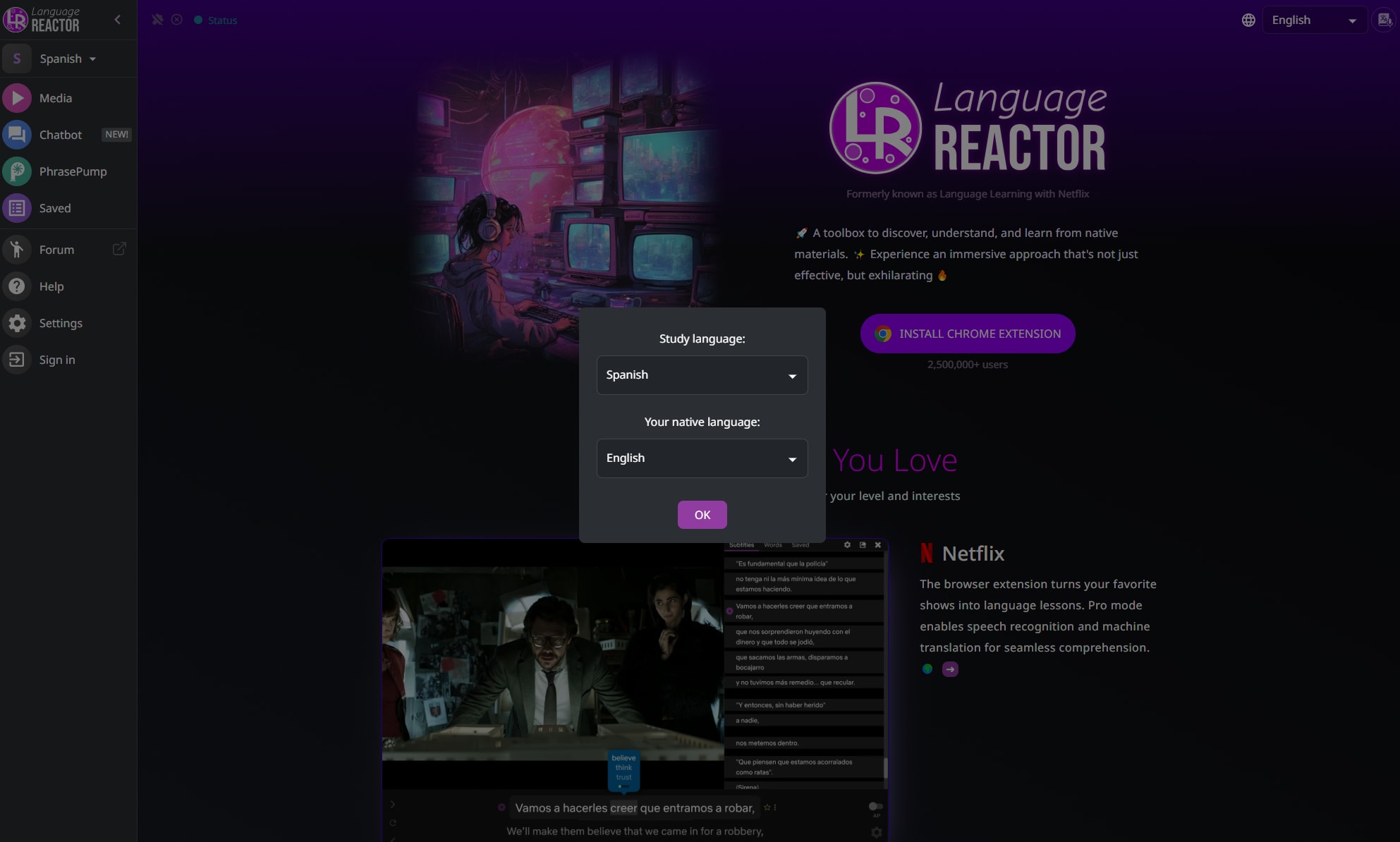
The undisputed champion for this task is Language Reactor. This extension was famously (and formerly) known as "Language Learning with Netflix," and it has been the gold standard for years. It goes far beyond just showing two subtitles, transforming the Netflix player into a comprehensive language-learning laboratory.
Key Features:
- Seamless Dual Subtitle Display: It seamlessly integrates with the Netflix UI to display both the original-language subtitle and a precise translation in your native language.
- Popup Dictionary: This is its most powerful feature. You can hover your mouse over any word in the target language subtitle, and a pop-up will instantly show you its definition, pronunciation, and usage examples.
- Save Words and Phrases: Hear a phrase you want to remember? You can click to save it to your personal vocabulary list, which you can later review and practice with built-in flashcard tools.
- Interactive Transcript: A new panel appears on the right side of the screen, showing the entire show's transcript in both languages side-by-side. You can click on any line to jump directly to that moment in the video.
- Robust Playback Controls: The extension adds new keyboard shortcuts to repeat the last line (S), go to the previous line (A), and auto-pause after every line of dialogue (Q) for intensive study.
Simple Steps Guide on How to Use It to Generate Dual Subtitles for Netflix Streaming
Step 1: Install the Language Reactor Extension
First, open the Chrome, Firefox, or Edge browser on your computer and navigate to your browser's official extension store. Search for "Language Reactor" and select the correct extension, which is used by millions of people. Click "Add to Browser" and confirm the necessary permissions to allow the tool to modify the Netflix website.
Step 2: Configure Your Netflix Subtitles
Next, go to Netflix.com, log in, and play the show or movie you want to watch. Move your mouse to the bottom of the player and click the standard "Audio & Subtitles" icon. In the "Subtitles" menu, you must select the language you are trying to learn (e.g., "Spanish [CC]"); this will serve as the primary track for the extension.
Step 3: Activate and Set Your Native Language
With your video playing, the Language Reactor interface will appear, adding new icons to the player. Look for the "LR" toggle switch near the settings and make sure it is on. Finally, in the Language Reactor settings menu, select the "Translation Language" option and choose your native language (e.g., "English") to activate dual subtitles for Netflix.
Part 3. The "Download & Use a Dedicated Media Player" Method (Advanced)
This method is for a different kind of learner: the one who wants to build a permanent, offline library of study materials. This approach is more technical and time-consuming, but it provides you ultimate control over your content and is not dependent on browser extensions or an internet connection.
Before proceeding, it is essential to understand the legal and ethical boundaries. Downloading, copying, or "ripping" content from streaming services like Netflix is a direct violation of their Terms of Service. This guide does not condone piracy, and distributing or sharing such downloaded content is illegal. This advanced method should only be considered for personal, fair-use purposes, such as creating an accessible offline copy of media you already own or creating custom learning files.
For this advanced method, a powerful video toolkit is indispensable. We recommend Wondershare UniConverter as the perfect assisted tool for this process. UniConverter is not a video downloader; it is a comprehensive suite for converting, editing, and managing your existing video files, and its Subtitle Editor is a perfect tool for creating a custom dual subtitle experience.
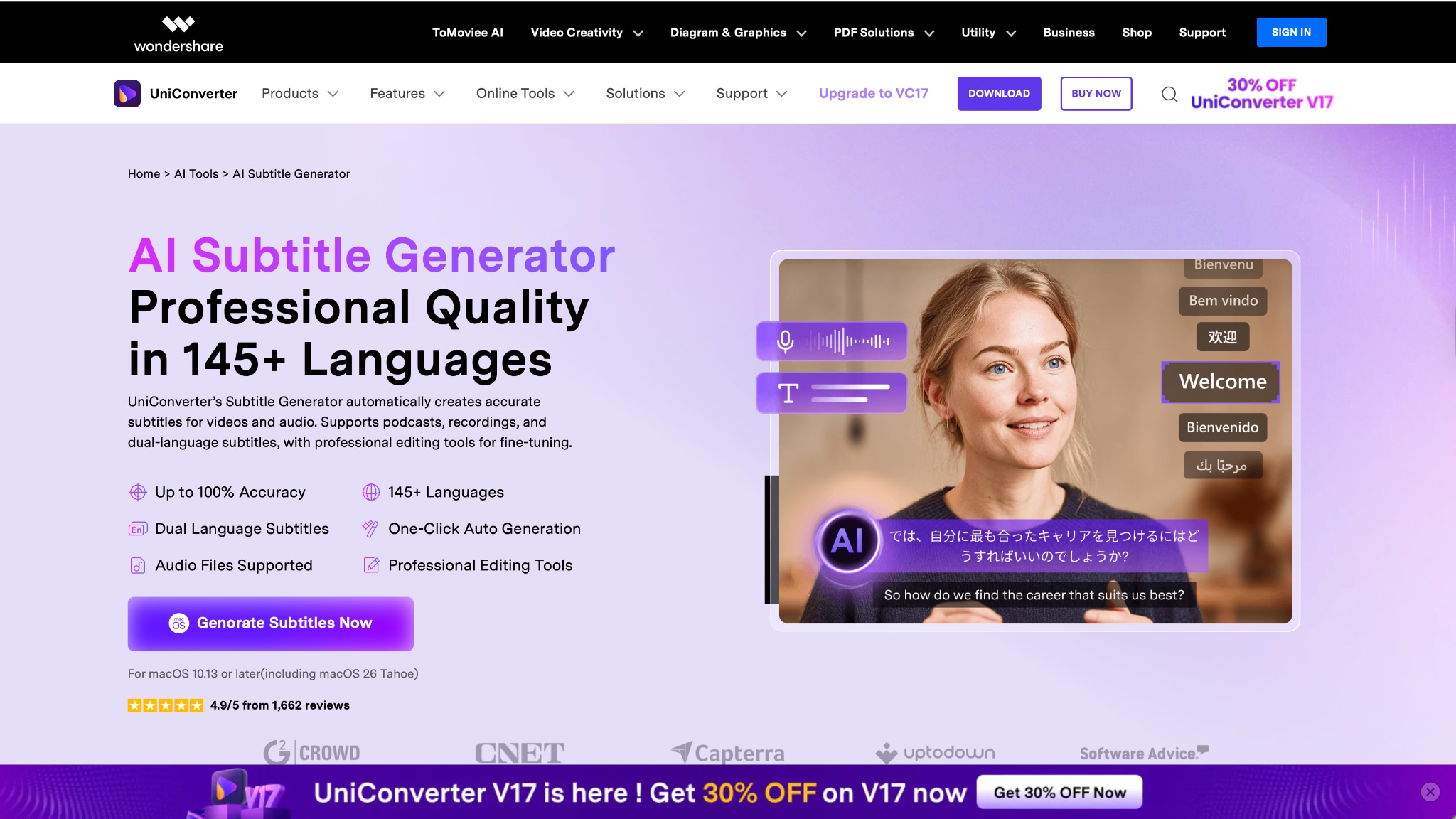
While browser extensions are temporary, UniConverter lets you permanently hardcode subtitles into your video files. For example, you can take a video file you own (e.g., my-movie.mp4) and use UniConverter's "Subtitle Editor" to burn the Spanish subtitles directly into the video. Then, you can load that new file into a media player and add the English .srt file as a second, selectable "soft" subtitle, giving you a perfect double subtitle file that works on any device, anytime.
This method also works perfectly for creating dual subtitles for YouTube from content you've legally downloaded. UniConverter's strength is giving you complete control to create a high-quality, permanent, and custom-tailored learning file.

Easy to Use Netflix Dual Subtitles Generator
Part 4. A Simpler Way to Get Dual Subtitles on Netflix
If Language Reactor seems too complicated with all its panels, dictionaries, and features, you may want a simpler, more lightweight option. For users who want to see two subtitles without all the extra study tools, the best alternative is Dualsub.
DualSub is another excellent browser extension that does one thing and does it perfectly: it displays two subtitle tracks. It's fast, unobtrusive, and supports a much wider range of websites than just Netflix, making it a fantastic all-in-one tool for language learners. If you want double subtitles on Netflix or YouTube, without any fuss, this is the tool for you.
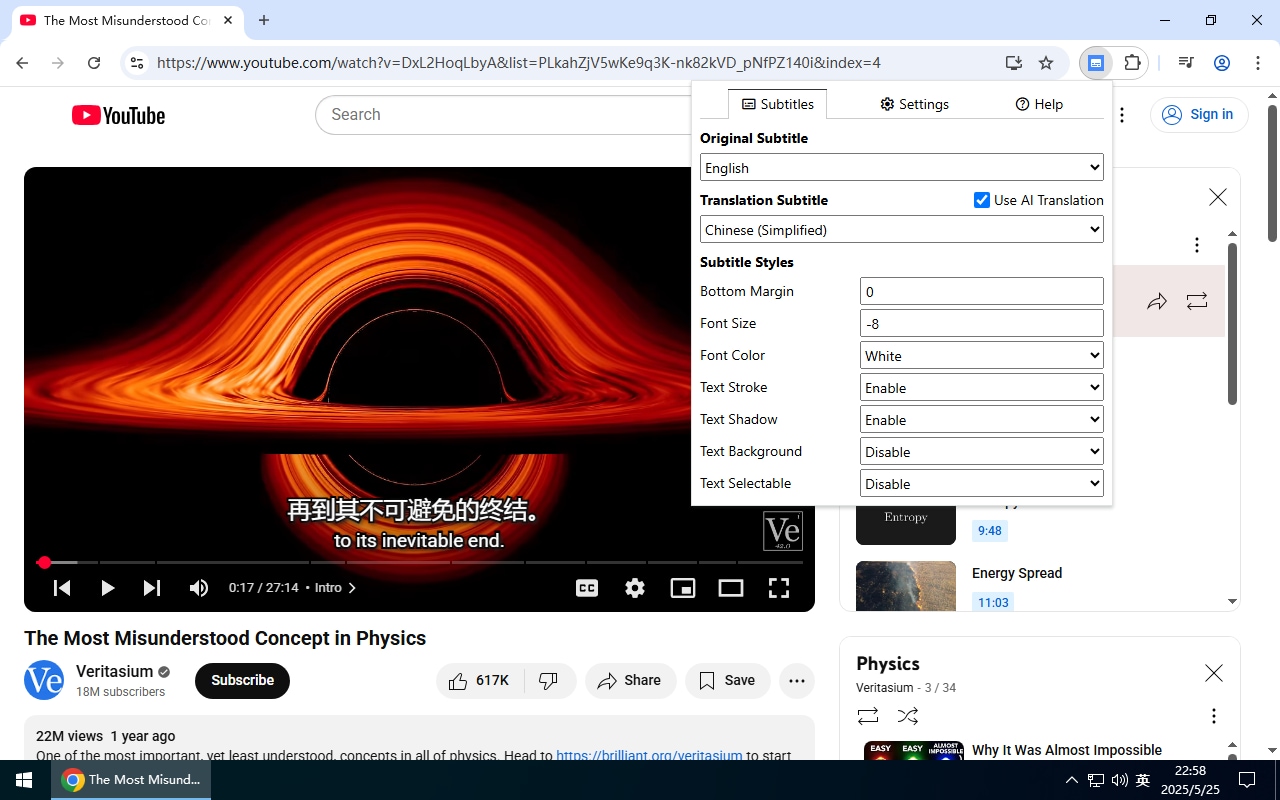
Here is what the simple Dualsub settings panel looks like.
Key Features:
- Lightweight and Fast: Dualsub is incredibly simple, adding almost no load to your browser, so your streaming experience remains fast and smooth.
- Wide Website Support: This is a significant advantage. DualSub works on Netflix, YouTube, Amazon Prime Video, Vimeo, Coursera, and even Udemy dual subtitles, making it a universal tool.
- Local File Support: You can drag a video file from your computer directly into your browser, and DualSub will let you load local .srt files.
- Simple Customization: The extension's menu provides easy-to-understand controls to adjust the subtitle order, font size, and spacing.
- Completely Free: Dualsub is an open-source project and is entirely free to use, with no "pro" tiers or hidden costs.
Simple Steps Guide of How to Use It to Generate Dual Subtitle for Netflix Streaming
Step 1: Install the Dualsub Extension
First, open your Chrome or Firefox browser and go to the official web store. Search for "Dualsub" and click "Add to Browser" to install the extension. You will then see the "DS" icon appear in your browser's toolbar; pin it for easy access.
Step 2: Select Your Target Language on Netflix
Next, navigate to Netflix.com, log in, and play the content you wish to watch. In the native Netflix subtitle menu, you must select the subtitle track for the language you are trying to learn (e.g., "Japanese"). This track will serve as the "Main Subtitle" that DualSub will use.
Step 3: Select Your Native Language in Dualsub
Finally, click the "DS" icon in your browser's toolbar to open the Dualsub pop-up menu. In the "Second Subtitle" dropdown, select your native language (e.g., "English"). The extension will then automatically fetch the official English subtitle track and display it alongside the Japanese track, giving you clear Netflix double subtitles.
Part 5. Pros and Cons Comparison of Each Netflix Dual Subtitle Solution
Your choice of tool depends entirely on your learning goals. Are you an active, dedicated student who wants to build vocabulary, or a casual learner who just wants a little extra context? Here's a breakdown of each solution.
| Solution | Pros | Cons |
|---|---|---|
| Language Reactor | Incredibly feature-rich: popup dictionary, pronunciation, etc. Built-in vocabulary saving & flashcard system. "Auto-pause" and repeat controls for active study. Subtitle catalog for finding content. |
Can be resource-heavy (may slow down browser). Interface can feel complex or "too busy" for some users. Best features (unlimited saves, better AI) are only available in the paid "Pro" tier. |
| Dualsub | Extremely simple, lightweight, and fast. "It just works" setup; supports many sites (including Amazon). Excellent support for local video files. Completely free to use. |
No built-in learning tools (no dictionary or flashcards). Purely for viewing, not active studying. Fewer updates compared to commercial tools like Language Reactor. |
| "Advanced Method" (Download + UniConverter / VLC) | Works entirely offline — ideal for flights or remote areas. You get a permanent video file. Full control over editing and playback. Not dependent on a browser or online extension. |
Violates Netflix Terms of Service (legally questionable). Time-consuming and technically difficult to set up. Requires downloading and syncing separate .srt subtitle files. UniConverter is paid software but provides a free trial. |
Easy to Use Netflix Dual Subtitles Generator
Conclusion
For years, language learners have sought a reliable Netflix dual subtitle solution, and while Netflix itself has yet to deliver, the community has provided excellent options. For the serious student, Language Reactor turns Netflix into an interactive textbook. For the casual learner, Dualsub offers a simple, set-it-and-forget-it solution that works across multiple streaming platforms.
However, for those serious about building a permanent, high-quality, offline learning library, these browser-based tools fall short. This is where UniConverter's competence as an "assisted tool" truly shines. It empowers you to move beyond temporary extensions and become a creator of your own custom study materials, giving you full control over your video and subtitle files to use anytime, anywhere, on any device.
If you're ready to take your language learning offline and build a permanent library of custom-subtitled content, download & start a free trial of Wondershare UniConverter today and take control of your media.
FAQs
Can you have two subtitles on Netflix at the same time?
Netflix does not currently offer a built-in option to show two subtitle tracks at the same time. If you want Netflix dual subtitles, the usual solution is to use a browser extension on desktop, such as Language Reactor or Dualsub, to display bilingual subtitles while streaming.
Can you put two subtitles on Netflix without installing anything?
No, not in most cases. Netflix only lets you choose one subtitle language by default, so if you want dual subtitles on Netflix, you normally need an extra tool. On desktop browsers, an extension is the easiest way to add a second subtitle line.
What is the easiest way to get Netflix bilingual subtitles for language learning?
For most users, the easiest way to get Netflix bilingual subtitles is to use a browser-based tool that adds a translated subtitle line while you watch. This works especially well for language learning because you can follow the original dialogue and your native language at the same time.
Do Netflix dual subtitles work on mobile phones, tablets, or smart TVs?
Usually no. Most Netflix dual subtitle tools are designed for desktop browsers like Chrome, Edge, or Firefox, which means they do not work directly in the Netflix mobile app, on tablets, or on smart TV apps. If device compatibility matters, desktop is still the most reliable option.
Why are my Netflix dual subtitles not showing up?
If your Netflix dual subtitles are not showing, first check whether you selected a primary subtitle language in Netflix itself. Then refresh the page and make sure your subtitle extension is turned on and set to the correct second language. In many cases, the issue is caused by browser permissions, outdated extensions, or unsupported content.

