


Have you ever encountered a subtitle file that wouldn't play? The problem is often the format. If you're trying to convert a specialized ASS to SRT file, you're not alone. ASS files support advanced styling but are notoriously incompatible with many media players and devices. This common frustration results in videos playing without subtitles or showing error messages. Fortunately, converting ASS to SRT—the universal subtitle format—solves this instantly.
This guide will walk you through the top tools and simple methods to make your subtitles work everywhere, ensuring you never miss a line of dialogue again.
Table of Contents
Part 1. What Are .ASS and .SRT? A Quick Primer
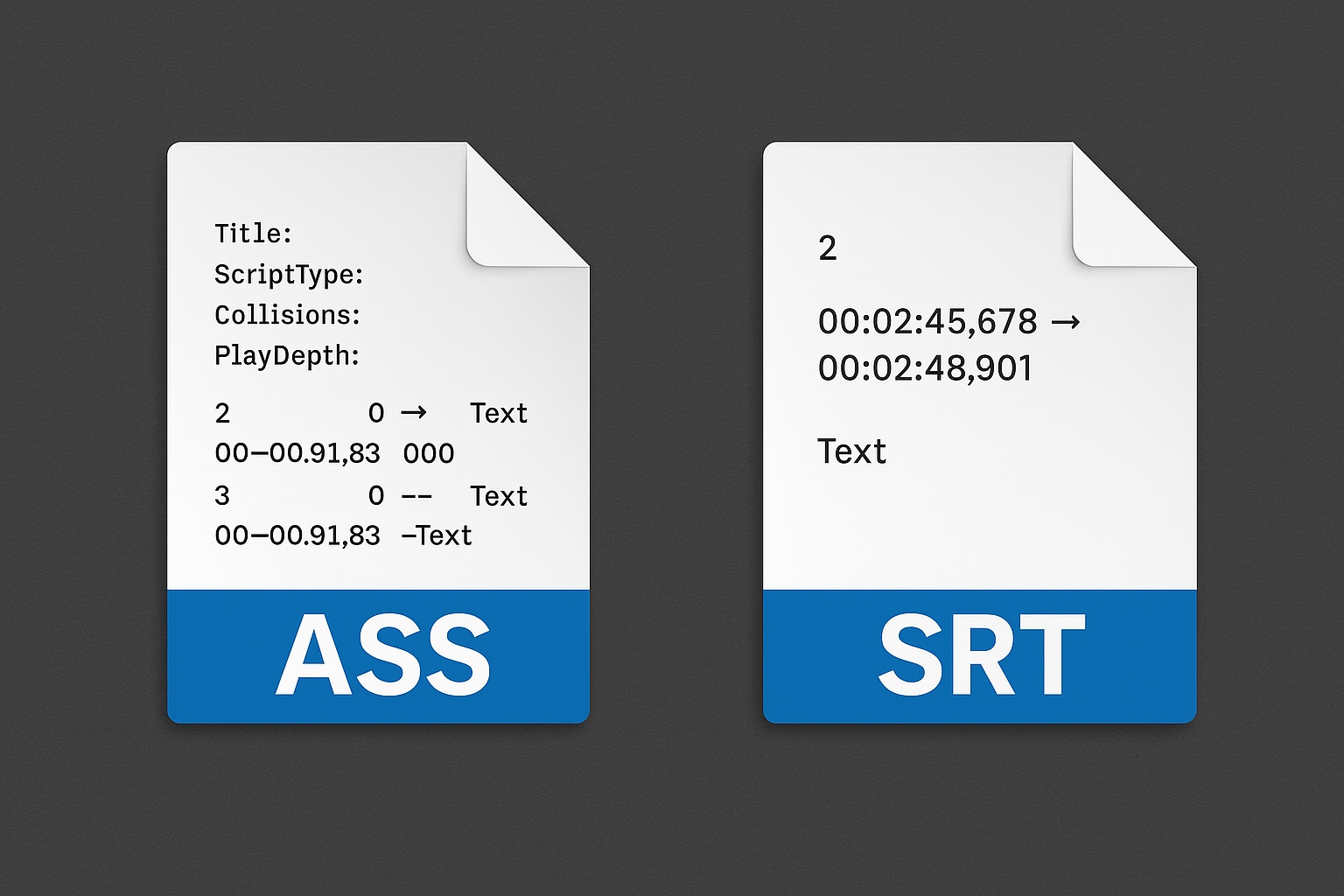
When working with digital video content, subtitles are essential for accessibility and comprehension. Two standard formats you'll encounter are ASS (Advanced SubStation Alpha) and SRT (SubRip Subtitle). Understanding their differences is crucial when converting ASS to SRT.
.ASS is an advanced subtitle format that supports extensive styling features, including fonts, colors, positions, animations, and special effects. It's particularly popular in anime and fan-subbed content where complex on-screen text presentation is required. The ASS file format is essentially an enhanced version of the SSA (SubStation Alpha) format.
SRT is the most universally compatible subtitle format. It contains plain text with simple timecodes, making it lightweight and widely supported across media players, streaming platforms, and editing software. The debate around ASS vs SRT often comes down to complexity versus compatibility.
Why Convert.ASS to .SRT?
Universal Compatibility: Most media players and devices natively support SRT
Editing Ease: Simple text format is easier to modify than complex ASS styling
Streaming Requirements: Many platforms reject ASS files but accept SRT
Device Support: Smart TVs, gaming consoles, and mobile devices work better with SRT
Simplified Workflow: Removing complex styling speeds up subtitle editing
Whether you need an ASS to SRT converter for professional work or personal viewing, understanding these formats ensures you choose the correct conversion approach.
Part 2. How We Tested and Chose the Converters
Selecting the best tools to convert ASS to SRT required rigorous testing across multiple criteria. Our evaluation process focused on both technical performance and user experience factors that matter most in real-world usage scenarios.
Conversion Accuracy: It is our primary concern. We tested whether each converter properly handled timing synchronization and basic text transfer while stripping ASS styling without corrupting the file structure. Tools that maintained perfect timing and text integrity scored highest, while those that introduced delays or formatting errors were downgraded.
Speed & Performance: Measurements focused on processing time for both single files and batch operations. We tested conversion speed across different file sizes (from 10KB to 5MB) and evaluated system resource usage during operation. Tools that offered swift processing without excessive CPU or memory consumption received better ratings.
Ease of Use: Assessment considered the learning curve for non-technical users. We looked for intuitive interfaces, straightforward navigation, and minimal required steps to complete the conversion from ASS to text. Tools with cluttered interfaces or confusing workflows were penalized in our rankings.
Feature Set: Evaluation included batch conversion capabilities, editing tools, preview options, and output customization. We also noted ad intrusiveness in free tools, as excessive advertising can ruin the user experience. The best converters offered comprehensive features without overwhelming users.
Platform & Device Support: Testing covered Windows, Mac, Linux, online platforms, and mobile applications. We verified compatibility across different operating system versions and browsers for online tools. Solutions with broad platform support received higher accessibility scores.
Price & Value: Analysis compared free versus paid features. We determined whether free versions provided sufficient functionality for casual users and whether premium features justified their cost for professional use. Tools with transparent pricing and good value propositions ranked higher.
Part 3. The Best 10 .ASS to .SRT Converters in 2025
1. Wondershare UniConverter
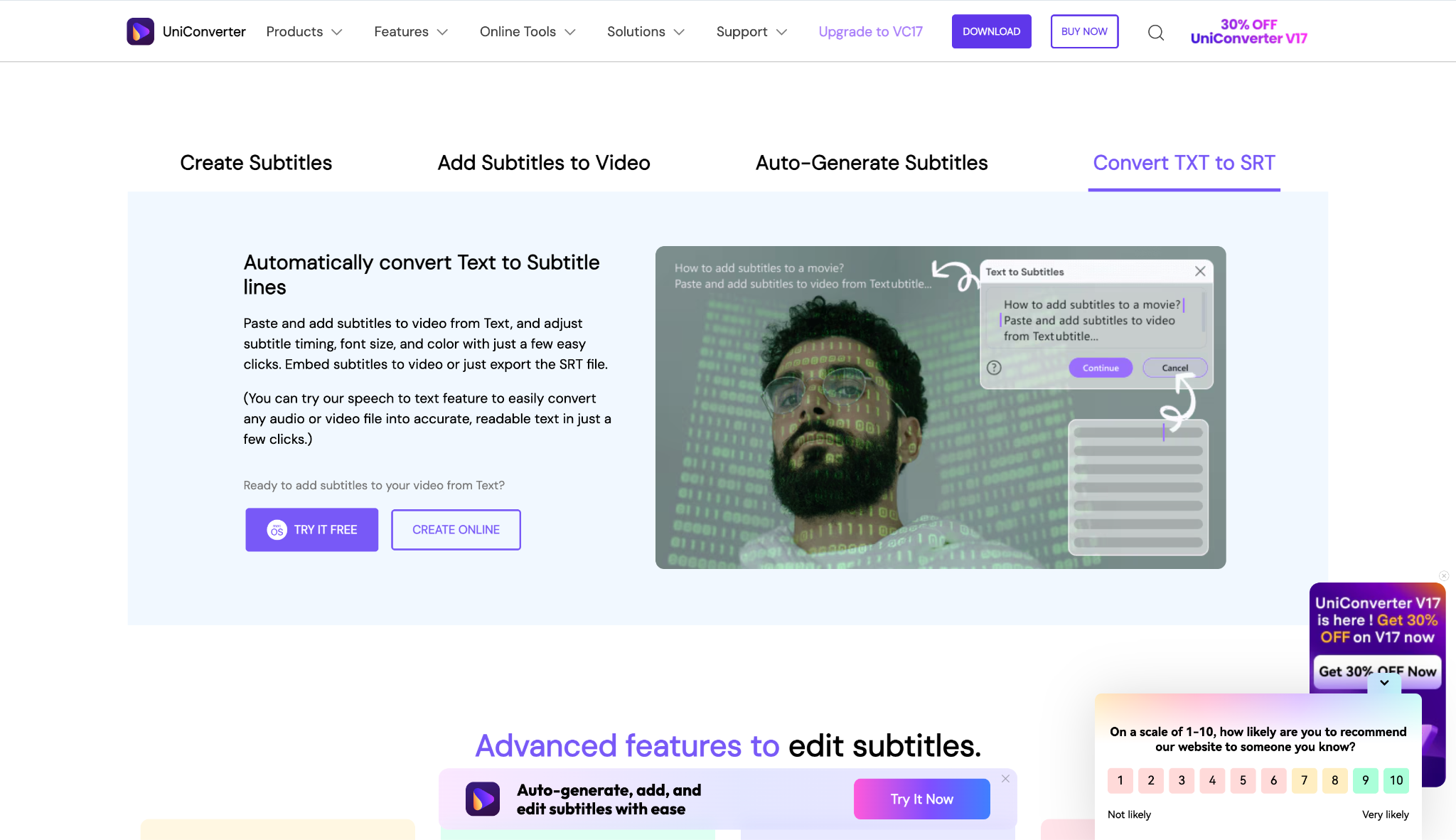
UniConverter is a versatile desktop and online tool that supports converting ASS subtitles to SRT format efficiently. It allows batch processing, editing, and exporting subtitles with customizable options for font, position, and color. The interface is user-friendly, making it suitable for both beginners and professionals. UniConverter also offers additional features like watermark removal and media compression, ensuring high-quality output for various platforms and devices.
Safety Review: 4/5 (Well-known software from a reputable company)
Starting Price: Free trial available; plans from about $9.99/month (≈$29.99/yr)
Ads Density: None in the paid version; ads and limitations in the free version.
Product Type: Desktop freemium software (Windows, macOS)

Easy to Use ASS to SRT Converter
2. Subtitle Edit
Subtitle Edit is a free, open-source subtitle editor that enables precise conversion from ASS to SRT format. It supports advanced editing features, including timing adjustments, spell checking, and batch processing. The tool is highly regarded for its accuracy and ability to strip advanced styling from ASS files, resulting in clean, standard SRT subtitles. Subtitle Edit is ideal for users seeking a reliable, no-cost solution for subtitle conversion and editing.
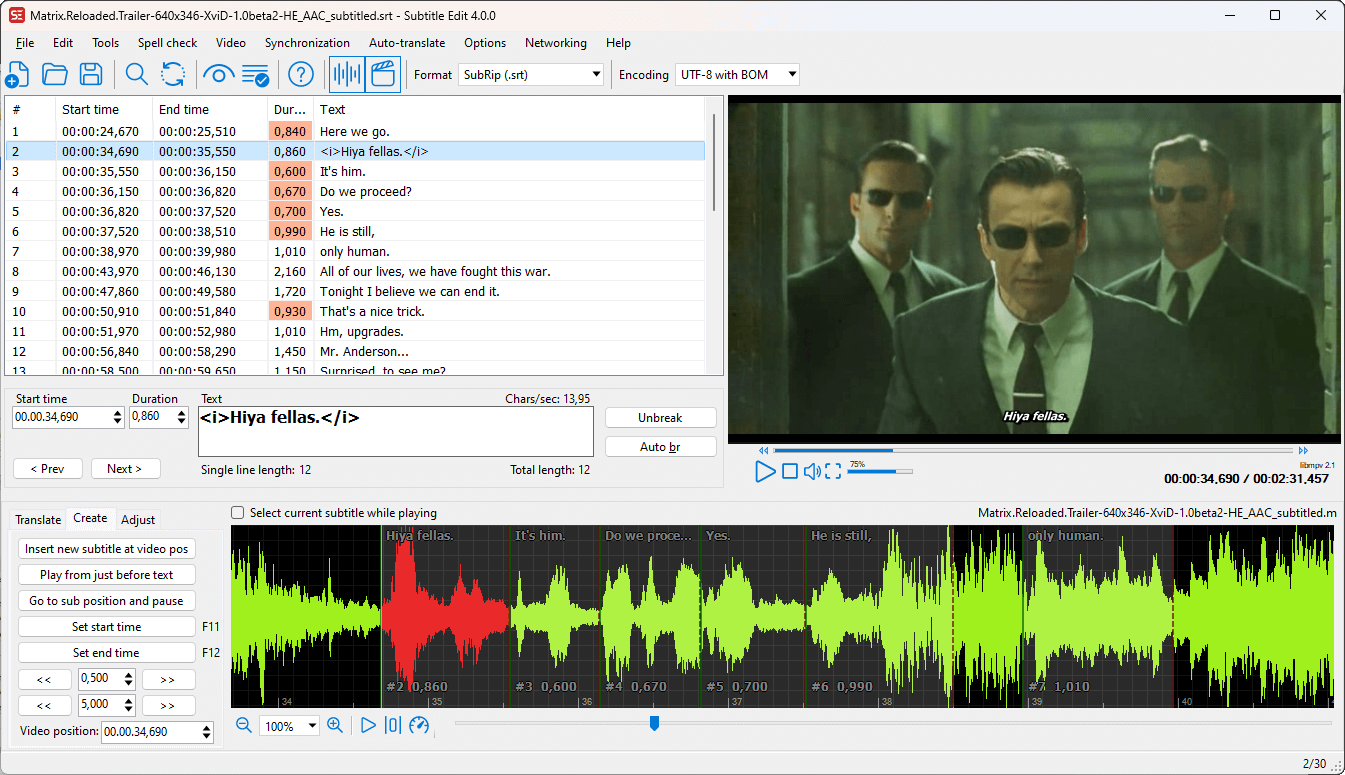
Safety Review: 5/5 (Open-source, highly trusted, and works offline)
Starting Price: Free
Ads Density: None
Product Type: Desktop Software (Windows)
3. GoTranscript Subtitle Converter
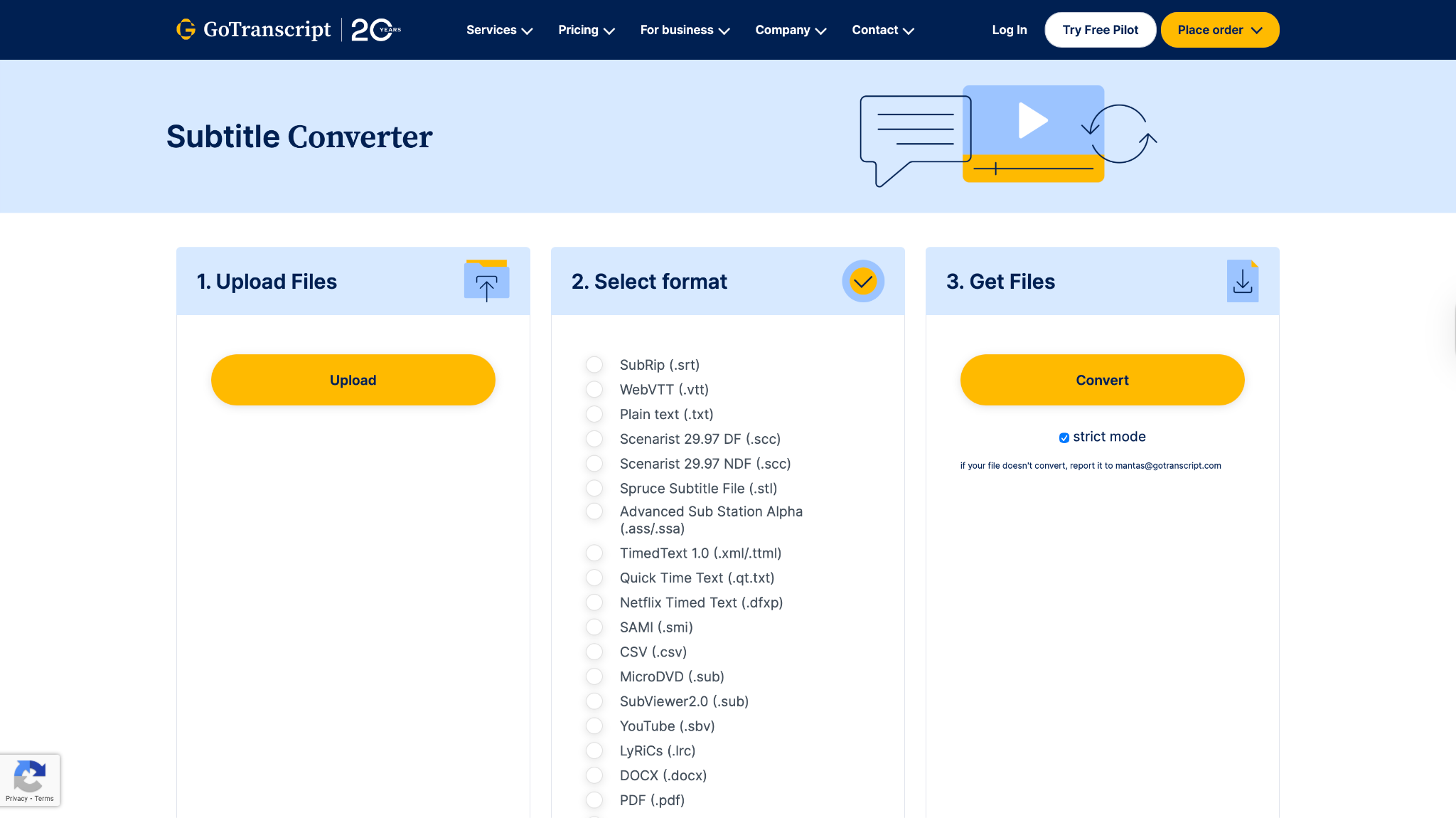
GoTranscript offers a free, online subtitle converter that supports ASS to SRT conversion without requiring registration or software installation. The tool is accessible from any device with internet connectivity and provides a simple drag-and-drop interface. GoTranscript automatically deletes uploaded files after 24 hours, ensuring privacy and security. It is a fast and user-friendly option for those needing quick, hassle-free subtitle format conversion.
Safety Review: 4/5 (Secure website from a known company, but files are uploaded)
Starting Price: Free
Ads Density: None on the tool page
Product Type: Online Tool
4. Aegisub
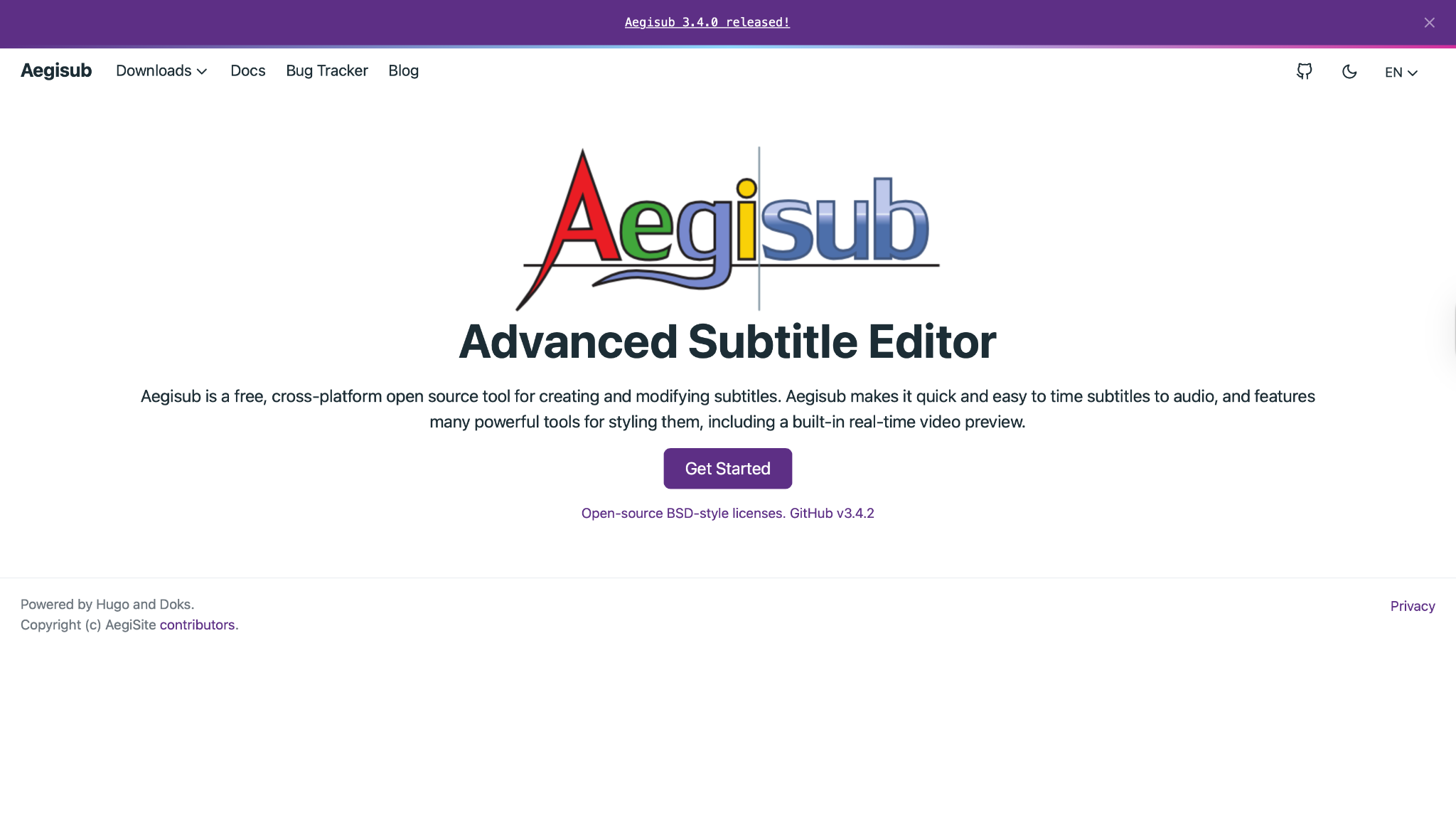
Aegisub is a dedicated subtitle creation and editing software known for handling Advanced SubStation Alpha (ASS/SSA) and SubRip (SRT) files. It allows users to open, edit, and export ASS subtitle files directly as SRT, stripping out advanced formatting during the conversion. While its primary focus is on typesetting and timing, Aegisub reliably converts subtitles for projects requiring flexible workflow and detailed control over visual styles and formats.
Safety Review: 5/5 (Open-source, industry standard, and works offline)
Starting Price: Free
Ads Density: None
Product Type: Desktop Software (Windows, macOS, Linux)
5. FFmpeg
FFmpeg is a command-line multimedia toolkit that can convert ASS (Advanced SubStation Alpha) subtitles to SRT (SubRip) format. By specifying the correct codecs and commands, users can extract or convert subtitle streams from videos or separate subtitle files. FFmpeg’s versatility and broad subtitle support make it a favorite for automation and batch processing, but it’s best suited to users comfortable with command-line interfaces and scripting.

Safety Review: 5/5 (Highly-trusted, open-source, and offline)
Starting Price: Free
Ads Density: None
Product Type: Command-Line Tool (Windows, macOS, Linux)
6. Sorz.github.io ASS to SRT Converter
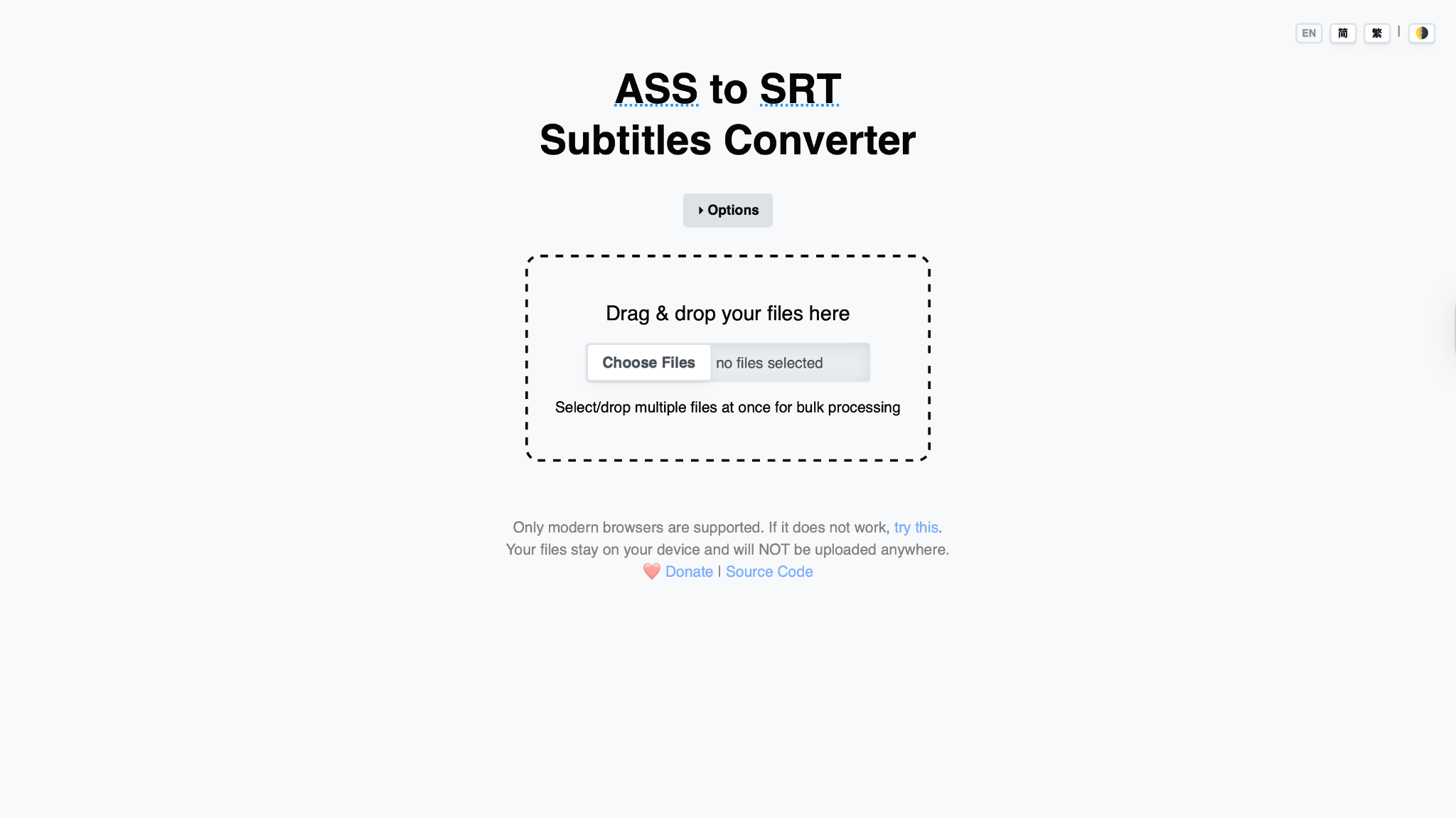
Sorz.github.io offers a web-based ASS to SRT subtitle converter tool where users can upload files and receive converted output immediately—no data is uploaded to external servers, ensuring privacy. It supports batch file processing, custom charset specifications, and works on modern browsers regardless of device or OS. Easy to use and completely free, Sorz.github.io is popular for its reliability, simplicity, and open-source transparency.
Safety Review: 5/5 (Processes files locally, no upload)
Starting Price: Free
Ads Density: None
Product Type: Online Tool (Client-Side)
7. Veed.io
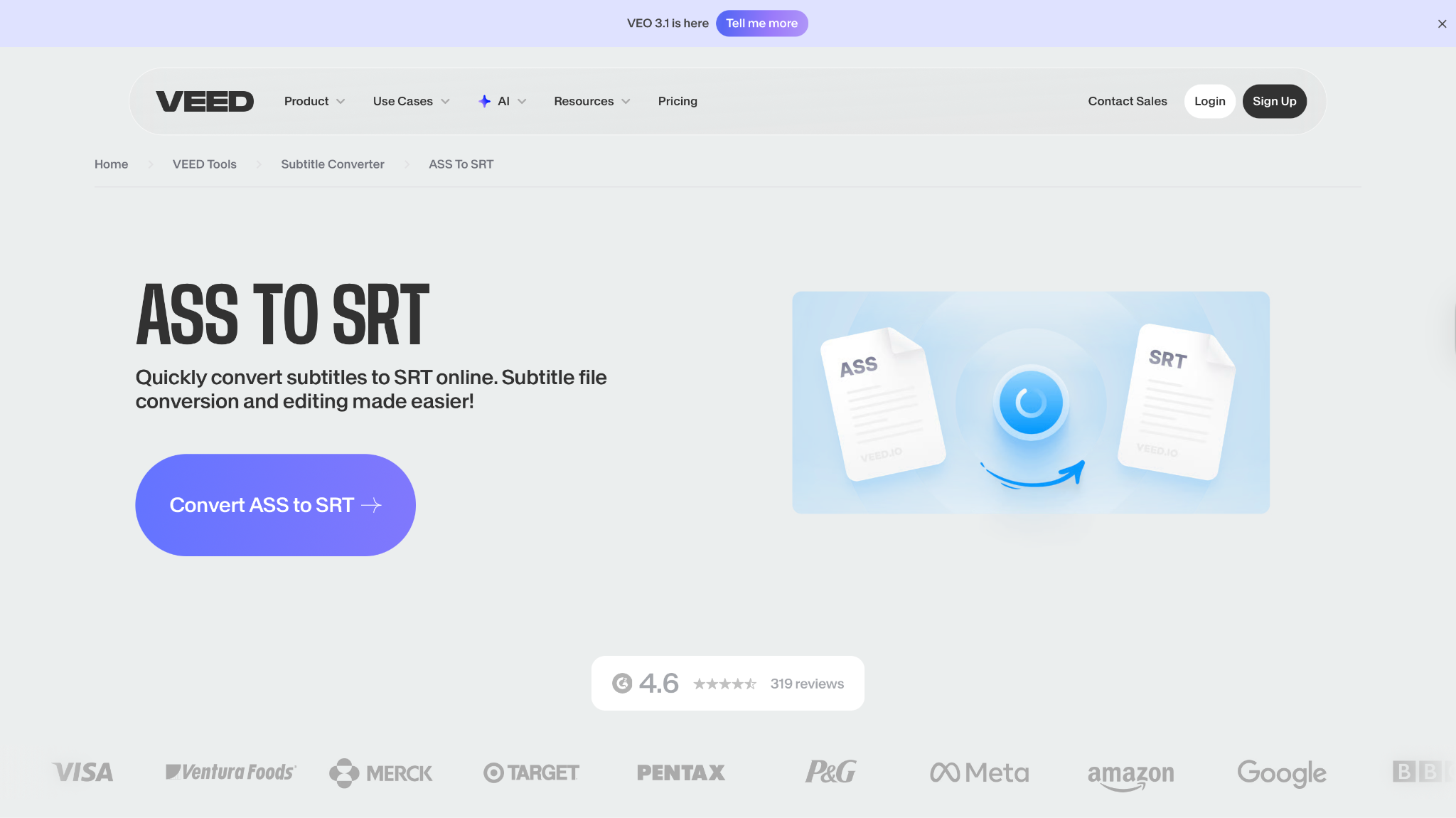
Veed.io is a cloud-based video and subtitle editing toolkit that features an online ASS to SRT converter. Users can upload, edit, and convert subtitle files completely within the browser—with options to auto-transcribe, resync timestamps, and adjust character encoding. The platform is accessible to anyone without registration and also offers premium editing, transcription, and video enhancement features for creators wanting comprehensive online solutions.
Safety Review: 4/5 (Known company, but all files are uploaded to their cloud)
Starting Price: Free plan with limitations; paid plans start around $24/month
Ads Density: None (but promotes paid plans)
Product Type: Online Tool (Cloud-based editor)
8. Flixier
Flixier provides a cloud-based platform for editing and converting subtitles directly online, including easy conversion from ASS to SRT. Designed for quick workflow and synchronous subtitle and video editing, Flixier lets users refine subtitle timing, make corrections, and download files in multiple formats. With its cloud infrastructure, users can convert files easily from any device, avoiding local installations, and edit video and subtitles together for smooth content creation.

Safety Review: 4/5 (Secure platform, but file uploads are required)
Starting Price: Free plan with limitations; paid plans available
Ads Density: None (but promotes paid plans)
Product Type: Online Tool (Cloud-based editor)
Easy to Use ASS to SRT Converter
9. Happy Scribe
Happy Scribe is a web platform for transcription and subtitling with advanced editing and conversion features. Its tools allow you to import ASS subtitle files and export them as SRT, alongside options for precise timestamp and caption control. Happy Scribe focuses on accessibility, offering solutions for various languages and transcription needs, as well as collaborative subtitle editing for professional and personal media projects.
Safety Review: 4/5 (Secure website, but files are uploaded for conversion)
Starting Price: Free (for the converter tool)
Ads Density: None (but promotes its paid transcription services)
Product Type: Online Tool
10. Ebby.co
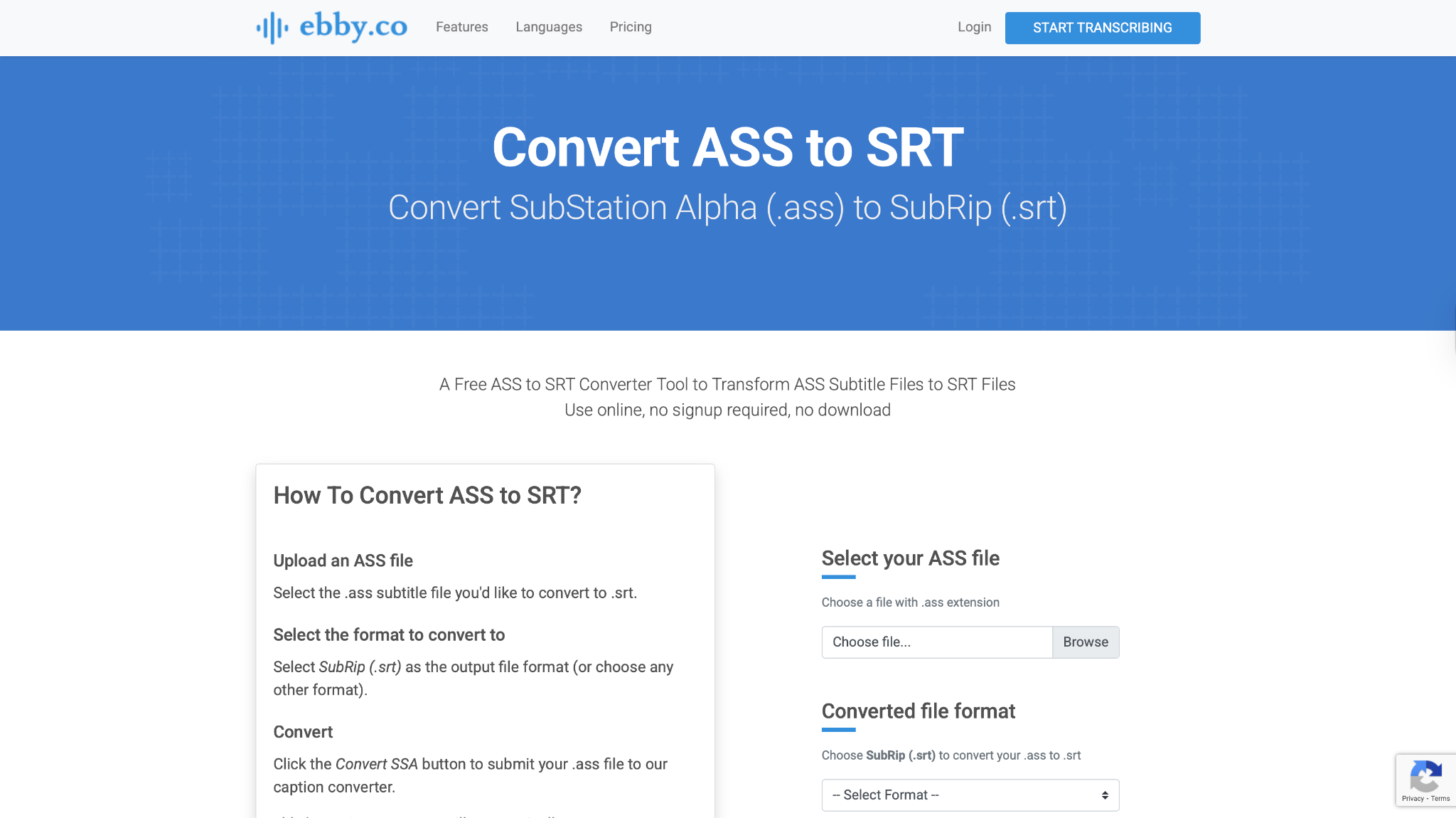
Ebby.co is a free online subtitle converter specializing in ASS and SSA to SRT format transformations. It requires no installation or signup—users simply upload their files and hit convert for instant SRT generation. The tool also provides subtitle conversion to VTT and other formats, with optional automatic captioning and transcription services. Ebby.co’s browser-based system works across all devices and offers quick access for hassle-free subtitle management.
Safety Review: 3/5 (Standard online tool; likely ad-supported, but uses HTTPS)
Starting Price: Free
Ads Density: Low to Medium
Product Type: Online Tool
Part 4. In-Depth Comparison: Top 10.ASS to .SRT Converters
Navigating the landscape of subtitle converters reveals a diverse array of tools, each with unique strengths and specializations; our detailed comparison table below cuts through the noise to help you identify the perfect solution for your specific needs:
| Tool | Best For | Price Model | Supported Platforms | Batch Process Support |
|---|---|---|---|---|
| UniConverter | All-in-one video & sub editing | Subscription / Perpetual | Windows, macOS | Yes |
| Subtitle Edit | Power users & detailed editing | Free (Open-Source) | Windows (Linux/Mac via Mono) | Yes |
| GoTranscript | Quick, free online batch conversion | Free | Web (All Platforms) | Yes |
| Aegisub | Editing .ASS files before converting | Free (Open-Source) | Windows, macOS, Linux | No |
| FFmpeg | Automated & scripted batch jobs | Free (Open-Source) | Windows, macOS, Linux | Yes (via script) |
| Sorz.github.io | Secure, private online conversion | Free | Web (All Platforms) | Yes |
| Veed.io | Social media creators (online editing) | Freemium | Web (All Platforms) | No |
| Flixier | Cloud-based collaborative editing | Freemium | Web (All Platforms) | No |
| Happy Scribe | Simple, trusted online conversion | Free (Tool) / Paid (Service) | Web (All Platforms) | No |
| Ebby.co | Simple, ad-supported free conversion | Free | Web (All Platforms) | No |
This comparison table helps users quickly identify the best tool for their specific needs when converting ASS to SRT. For batch processing, UniConverter and Subtitle Edit stand out, while for online convenience, Veed.io provides immediate access without installation. The ASS vs SRT compatibility question becomes irrelevant when using these specialized conversion tools.
Part 5. How to Easily Batch Convert.ASS to .SRT: A Step-by-Step Guide
Manually converting an entire library of .ASS files to .SRT is incredibly time-consuming. To make your subtitles compatible with any device, you need a fast, reliable batch process. This guide will show you how to use UniConverter to get the job done in just a few simple steps.
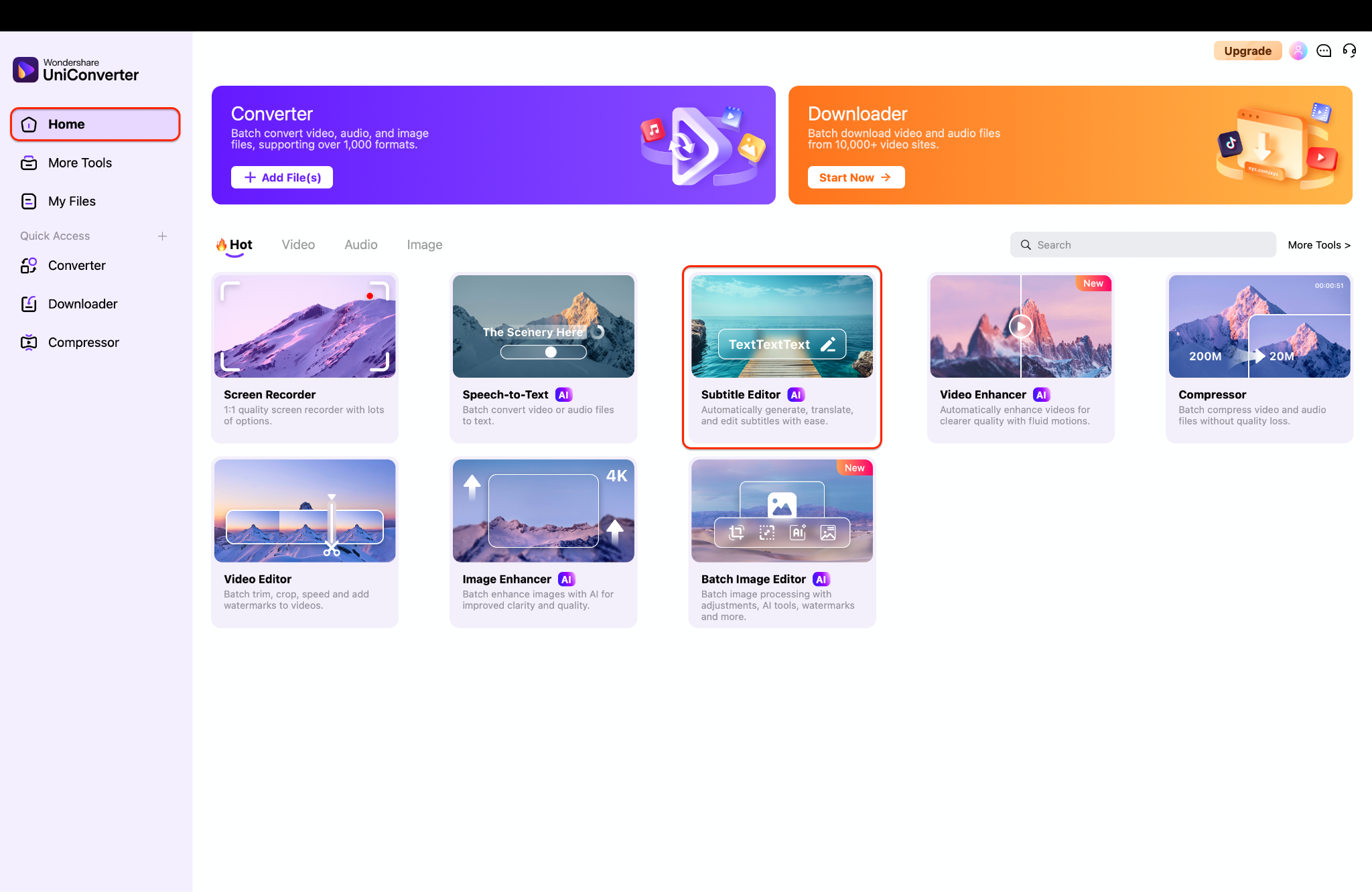
Step 1: Access the Subtitle Editor
To kick things off, open Wondershare UniConverter and ensure you are on the main "Home" tab, as seen on the left-hand menu. You will then see a central dashboard of available tools. From this grid, locate and click on the "Subtitle Editor" module to open the dedicated window for all your subtitle tasks.
Step 2: Import Your .ASS Subtitle File
Once the Subtitle Editor is open, begin by adding your video file to the main workspace. On the right-hand menu, you will see several options for adding subtitles. Click on "Import Subtitle File," which, as the interface shows, supports SRT, ASS, SSA, and VTT formats.

Step 3: Start the Batch Conversion Process
Once your .ass file is imported and synced, click the main "Export" button, located in the bottom-right corner. This will open an "Export" pop-up window where you can select your final format. Simply choose "SRT File" from the available options and click the "Export" button again to save the universally compatible file to your computer.

Part 6. Troubleshooting Common Conversion Issues
Even with the best tools, sometimes the process to convert ASS to SRT doesn't go smoothly. Here are solutions to the most common problems encountered during subtitle conversion.
Problem: "Timing is off after conversion."
This frequent issue occurs when the ASS to SRT converter misinterprets timing codes during the conversion process.
Solution: Use a tool with timing adjustment features, such as Subtitle Edit, which allows manual synchronization after conversion. Alternatively, reconvert the file using different timing-precision settings, if available. For persistent timing issues, consider converting through multiple tools to identify which one handles timing best for your specific file.
Problem: "Special characters are showing as gibberish."
This encoding problem typically happens when the ASS file uses a character encoding that isn't adequately recognized during the ASS to SRT conversion process.
Solution: Before conversion, check the original ASS file's encoding (typically UTF-8 or UTF-8 with BOM) and ensure your converter is set to the same. For already-converted files, open the SRT in a text editor like Notepad++ and change the encoding to UTF-8 with BOM, which offers the best compatibility across media players.
Problem: "The online converter won't upload my file."
This limitation typically relates to file size restrictions, format recognition issues, or browser compatibility problems when using web-based tools to convert ASS to SRT.
Solution: First, verify that the file size is within the online tool's limits (usually 1-10 MB for free services). If the file is too large, try a desktop application instead. Also, ensure your ASS file has the proper .ASS extension, as some online tools are particular about file recognition. Finally, try a different browser or clear your cache if uploads consistently fail.
Problem: "Styling elements appear as text in the SRT file."
When complex ASS formatting, such as positioning codes or special effects, doesn't convert properly, it may appear as visible text rather than being stripped out.
Solution: Use a converter specifically designed to handle ASS styling removal. Tools like Subtitle Edit or Aegisub understand ASS formatting and properly remove styling elements during the ASS to SRT conversion, whereas generic text converters may not handle these elements correctly.
Problem: "The converted file doesn't load in my media player."
This compatibility issue suggests that, while technically converted, the SRT file doesn't meet the specific requirements of your media player or platform.
Solution: Open the converted SRT file in a basic text editor and verify it follows the standard SRT format with sequential numbers, proper timecodes (00:00:00,000 --> 00:00:02,000), and empty lines between entries. Remove any residual formatting or unusual characters that might have carried over from the ASS file during conversion.
Easy to Use ASS to SRT Converter
Conclusion
Navigating subtitle compatibility doesn't have to be a complex puzzle. While ASS to SRT conversion is a necessary step for universal playback, the process itself should be effortless. Our analysis confirms that for those prioritizing efficiency and reliability—especially with multiple files—UniConverter stands out as the definitive solution. It transforms a potential headache into a seamless, one-click task. Stop wrestling with incompatible files and start enjoying your media without interruption.
Ready for a flawless conversion experience? Try UniConverter today and handle all your subtitle needs in one powerful toolkit.
FAQs
-
1. Why do I need to convert an ASS file to SRT?
The main reason to convert ASS to SRT is universal compatibility, as the advanced styling in an ASS file is not supported by most smart TVs, mobile devices, and streaming sticks. Converting the file to the simple .SRT format strips this complex styling, leaving only the plain text and timecodes. This ensures your subtitles will load and play correctly on any device you use. -
2. Will I lose my custom fonts and colors when I convert ASS to SRT?
Yes, removing the custom styling is the primary goal of the conversion process. The core difference in the ASS vs SRT debate is that .ASS stores styling like fonts and colors, while .SRT is a plain-text format. Therefore, the converter will strip all advanced formatting, and your media player will display the text using its own default font. -
3. I have an entire season of a show with .ASS files. What's the fastest way to convert them all?
The most efficient method for handling multiple files is to use a desktop program that supports batch processing. Free online tools often force you to convert files one by one, which is incredibly slow for a large collection. Powerful applications like UniConverter feature a Subtitle Editor that allows you to import an entire folder of .ASS files and export them all as .SRT files in a single operation. -
4. My converted .SRT file shows "???" or other gibberish symbols. How do I fix this?
This is a common encoding error that occurs when the converter fails to correctly read the special characters in the original ASS file. To fix this, you can open the new .SRT file in a text editor like Notepad++ and re-save it with the encoding set to "UTF-8 with BOM." To prevent this problem from happening in the first place, it is best to use a reliable converter, like UniConverter, which is designed to handle different character encodings accurately. -
5. Will these converters also work for .SSA files? What's the best SSA to SRT converter?
Yes, any tool that can convert ASS to SRT will also function as an SSA to SRT converter. The .SSA (SubStation Alpha) format is simply the older version of .ASS, so they are handled identically by modern software. You can confidently use a robust program like UniConverter or Subtitle Edit to import your .SSA files and export them to the universal .SRT format without any issues.

