


- What It Means: The “VLC unable to open MRL” error occurs when the player cannot locate or access a media source due to path, permission, or network issues.
- Common Causes: macOS security restrictions, outdated scripts, encrypted discs, or complex file paths often trigger this error.
- Fix Methods: Adjusting permissions, updating VLC scripts, and simplifying file paths can resolve most playback issues.
- Efficient Solution: Wondershare UniConverter bypasses playback errors by converting files into compatible formats for smooth viewing.
VLC Media Player is a global staple for video playback on Mac. However, even reliable software encounters roadblocks. One frustrating issue users face is when VLC is unable to open the MRL. Whether you stream a video, access an external drive, or play a disc, this error halts your viewing. When you see VLC your input can t be opened, it means the player cannot locate your file. This guide explains why this happens on macOS and how to fix it. We will also explore the best MRL player alternatives to bypass these errors entirely in 2026.
In this article
- Understanding the Error: What is a VLC MRL?
- Common Reasons Why VLC is Unable to Open the MRL File
- 5 Proven Ways to Fix "VLC Cannot Open MRL" on Mac
- Quick Comparison: Top 7 MRL File Player Alternatives
- Top 7 MRL File Player Alternatives When VLC Fails
- Bonus: Step-by-Step Guide to Bypass Errors Using UniConverter
- Conclusion
- FAQs
Part 1. Understanding the Error: What is a VLC MRL?
Defining the Media Resource Locator (MRL) An MRL stands for Media Resource Locator. It functions similarly to a website URL. However, it is specifically designed to direct media players to the exact location of a video or audio file. This file could live on your local Mac hard drive, a network server, or an external device.
How VLC Uses MRLs to Access Files, Streams, and Discs VLC relies on an MRL to map out its pathfinding. The player reads the VLC MRL to initiate playback for different source types. It uses this string of text to parse a YouTube URL or locate title tracks on a physical disc. If the disc is encrypted, this pathfinding process often fails.
Decoding the "VLC your input can t be opened" Message This error prompt is simply VLC's way of saying the bridge between the player and the media source is broken. The application cannot establish a connection. This happens because the file was moved, the network is blocking it, or the player lacks permissions.
Local vs. Network Errors: Pinpointing the Point of Failure You can categorize your specific issue to streamline troubleshooting. Local errors occur when trying to play a locally saved file with broken permissions. Network errors happen when failing to stream a live broadcast or online link. Knowing the difference helps you choose the right fix.
Part 2. Common Reasons Why VLC is Unable to Open the MRL File
Before diving into the fixes, it helps to know what triggers the error. Common culprits include:
Strict macOS Security Apple builds strict security protocols into modern macOS versions. The built-in Mac Firewall or Privacy settings often block VLC from accessing external networks. They can also prevent the application from reading removable volumes and external hard drives.
Outdated Lua Scripts VLC uses internal scripts to parse web pages for streaming. If you find VLC can t open MRL while streaming YouTube, these internal scripts are likely outdated. YouTube updates its code frequently, which breaks the connection with older VLC scripts.
Copyright Protection Are you seeing VLC is unable to open the MRL DVD? Standard VLC installations lack the decryption libraries needed to bypass commercial DVD protections. These protections include CSS or Sony ARccOS. Without extra plugins, VLC cannot read the encrypted disc.
Complex File Paths Deeply nested folders can confuse the media player. Excessively long file names or titles with special characters often lead to errors. When the path is too complex, VLC is unable to open the MRL file smoothly.
Part 3. 5 Proven Ways to Fix "VLC Cannot Open MRL" on Mac
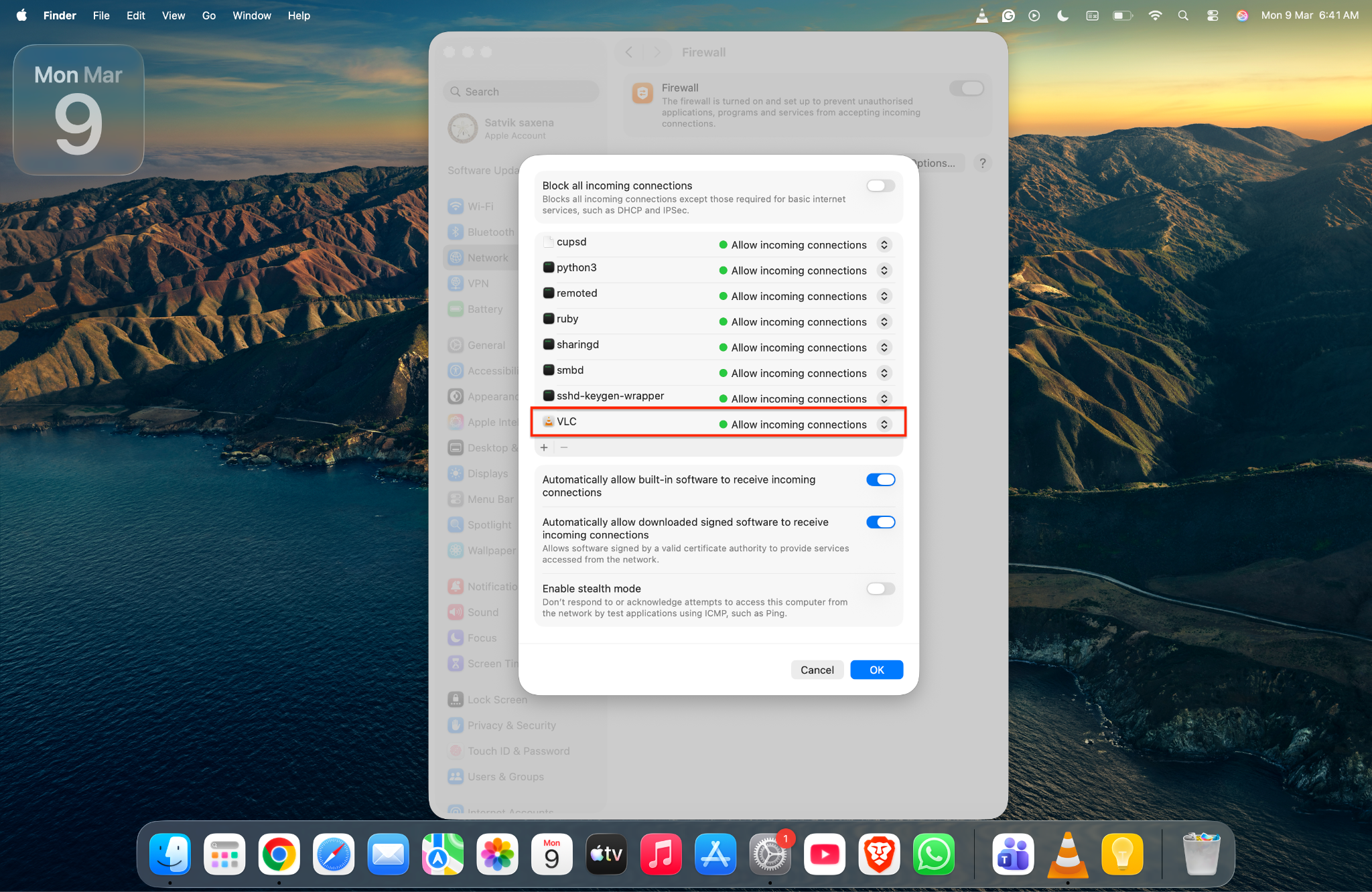
Adjust macOS Firewall Settings Go to System Settings > Network > Firewall > Options. Ensure VLC Media Player is set to "Allow incoming connections." This step resolves network-related streaming blocks caused by Apple's strict built-in security.
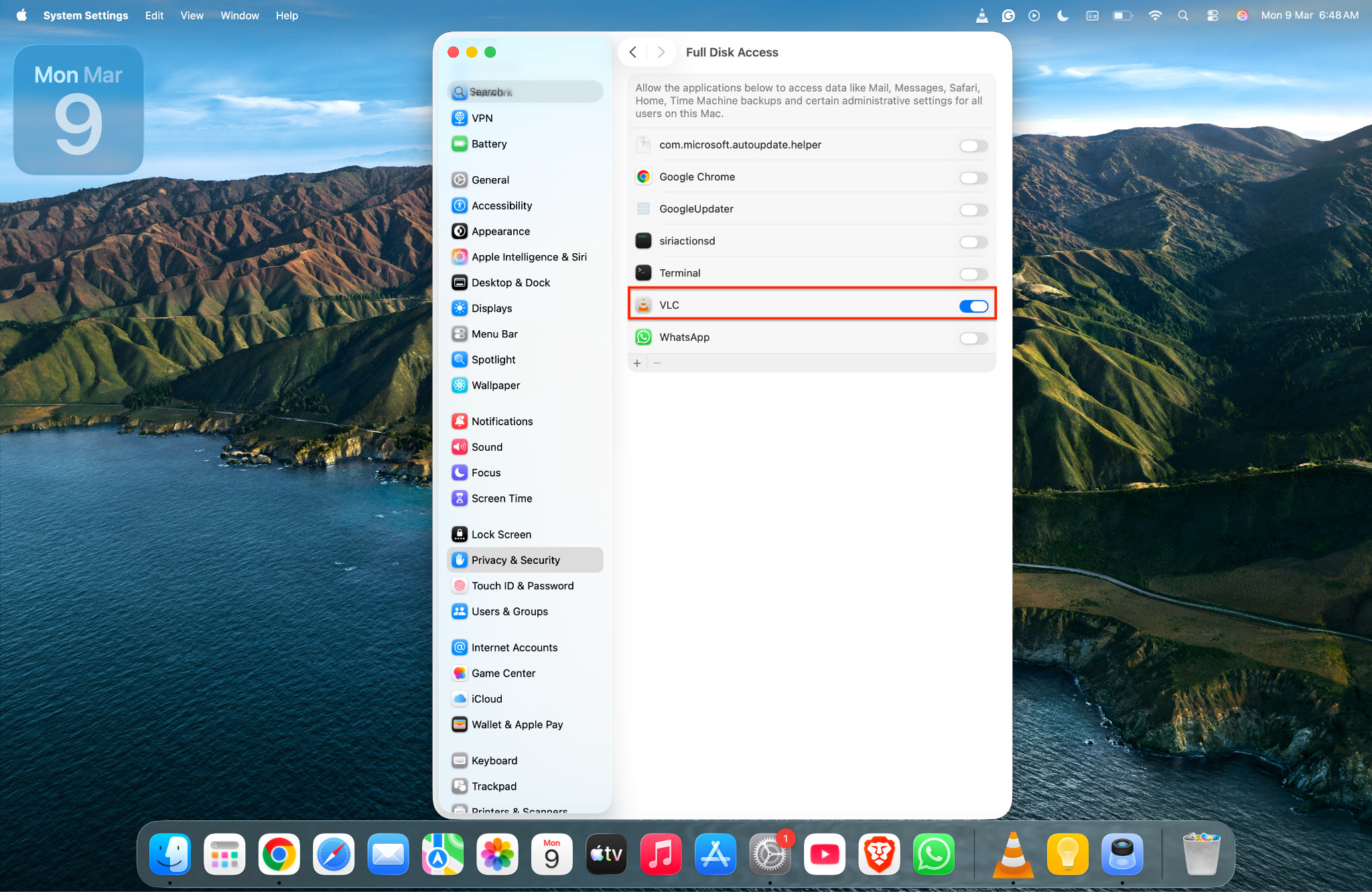
Grant Full Disk Access Navigate to System Settings > Privacy & Security > Full Disk Access. Toggle the switch on for VLC. This fixes issues where you are unable to open MRL file VLC from external hard drives or restricted folders like Downloads.
Update the youtube.luac File on Mac Download the latest Lua script from the official VideoLAN GitHub. Go to your Applications folder and right-click VLC. Select "Show Package Contents," and navigate to Contents/MacOS/share/lua/playlist. Replace the outdated file with the new one.
Fix File Permissions If a local file is causing the error, right-click it and select "Get Info." Unlock the padlock at the bottom right. Ensure your Mac user account has "Read & Write" privileges under the Sharing & Permissions tab.
Shorten the File Path Move the problematic video directly to your Mac's Desktop or Movies folder. Give the file a simple, short name. This straightforward action prevents macOS path-length or special character conflicts that trigger the error.
Part 4. Quick Comparison: Top 7 MRL File Player Alternatives
| Tool Name | Best For | Network / Streaming Support | Protected DVD Support | Starting Price |
| Wondershare UniConverter | All-in-one media bypass | Exceptional | Yes | Free Trial / Pricing starts from $29/year |
| 5KPlayer | Apple AirPlay and IPTV | Strong | Basic | Free (Ad-supported) |
| IINA | Native macOS playback | Exceptional | No | Completely Free |
| MakeMKV | Extracting physical discs | No | Exceptional | Free (In Beta) |
| KMPlayer | Damaged local files | Good | Basic | Free (Ad-supported) |
| SMPlayer | Saving playback settings | Good | Basic | Completely Free |
| Macgo Mac Media Player | Physical media fallback | Fair | Yes | Free / Pricing starts from $29.95 |
Part 5. Top 7 MRL File Player Alternatives When VLC Fails
When you need a reliable MRL file player, here are the best 2026 alternatives to consider.
1. Wondershare UniConverter (Top Recommendation)
Wondershare UniConverter is an efficient solution when you encounter frustrating media playback errors. Rather than battling strict Mac permissions, this tool lets you process media seamlessly. It eliminates the need for a separate MRL file player by natively supporting over 1,000 formats. You can use its powerful Batch Convert feature to handle multiple files at once. Whether dealing with network streams or physical discs, this tool simplifies your workflow and ensures high-quality offline playback. UniConverter also offers an online video converter for users to convert diverse video formats.
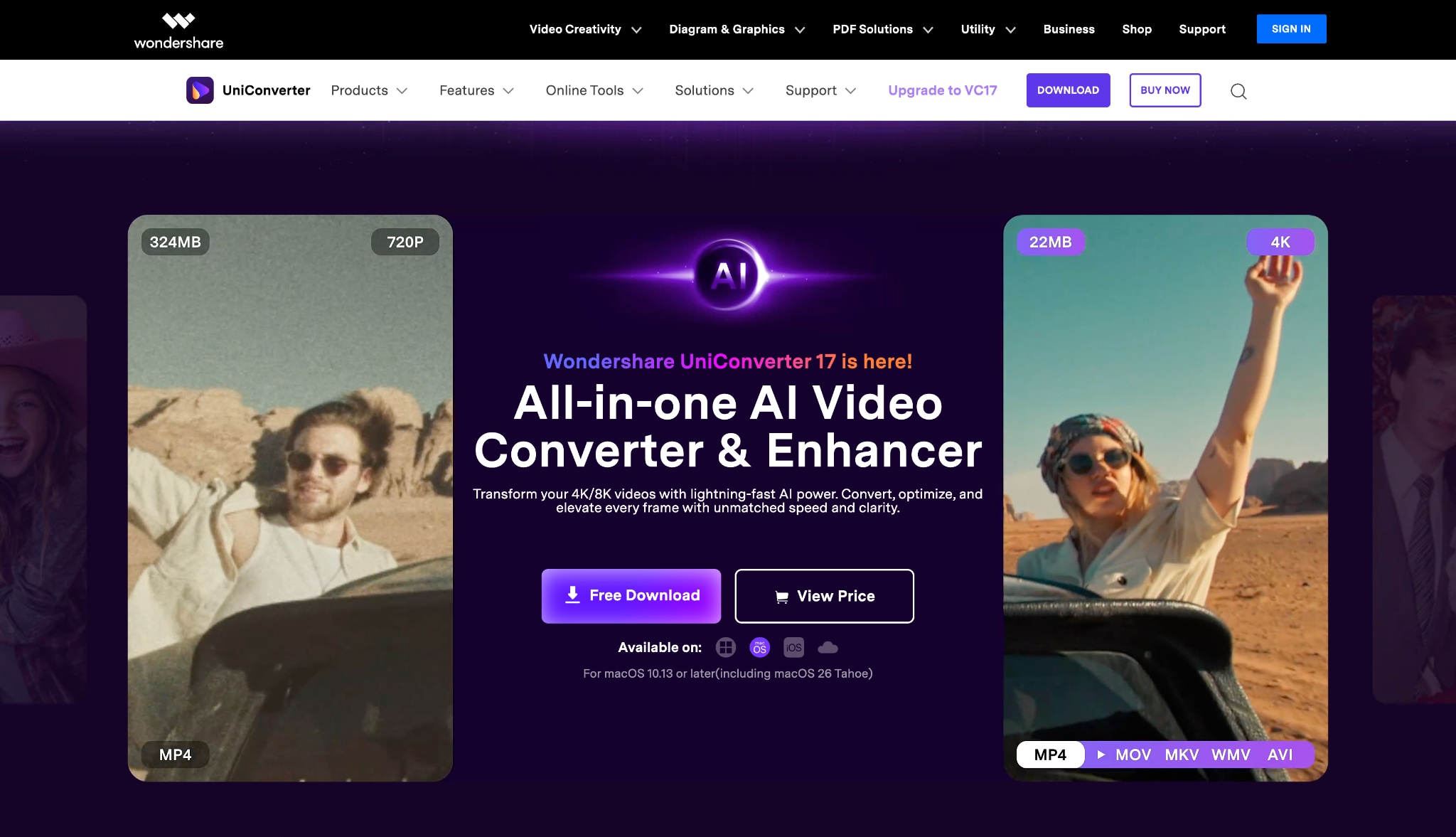
Supported Device: macOS 16/15/14 and Windows 12/11/10.

Better VLC Video Player Alternative for Smooth Playback
2. 5KPlayer (The Streaming Specialist)
5KPlayer is heavily optimized for network streams and Apple AirPlay. This makes it a solid choice if your playback issues stem from broken online links. It provides a straightforward interface for handling high-resolution video streams on modern Mac systems.
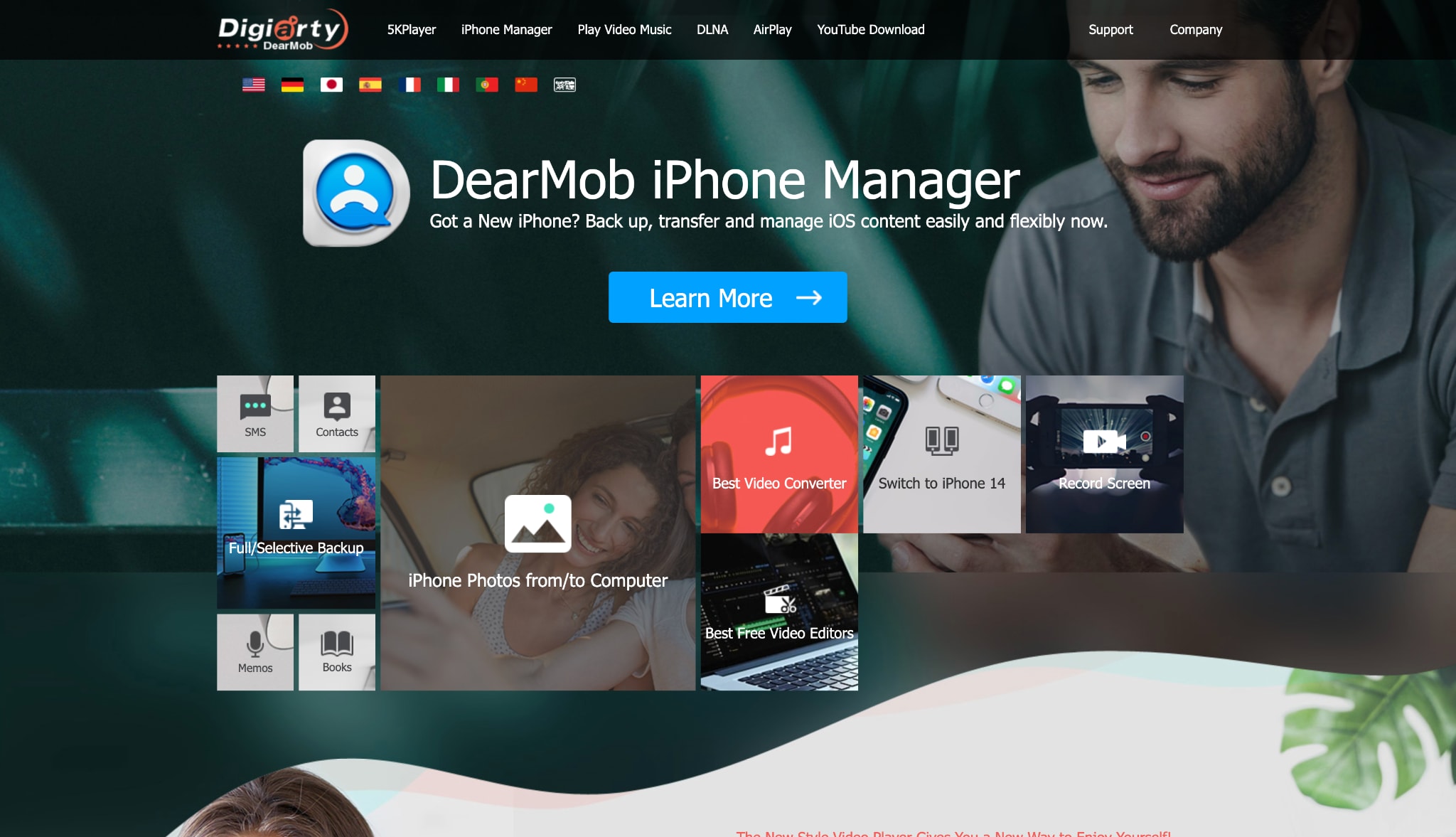
Supported Device: macOS and Windows.
3. IINA (The Modern Mac Player)
IINA is a highly customizable player built specifically for modern macOS. It handles complex URLs and network streams natively without extra configuration. The application matches the sleek Apple design language and offers an intuitive viewing experience.
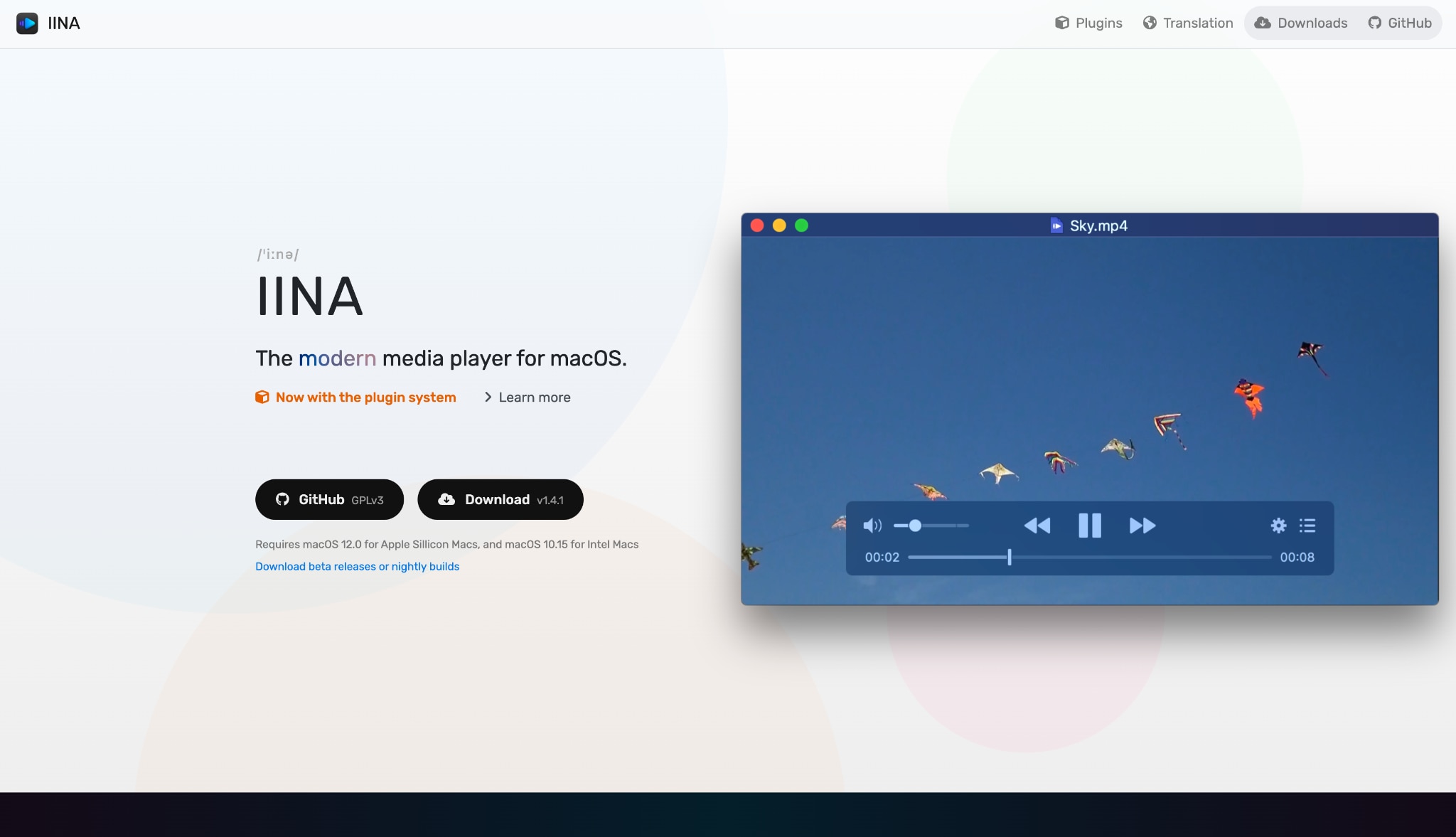
Supported Device: macOS.
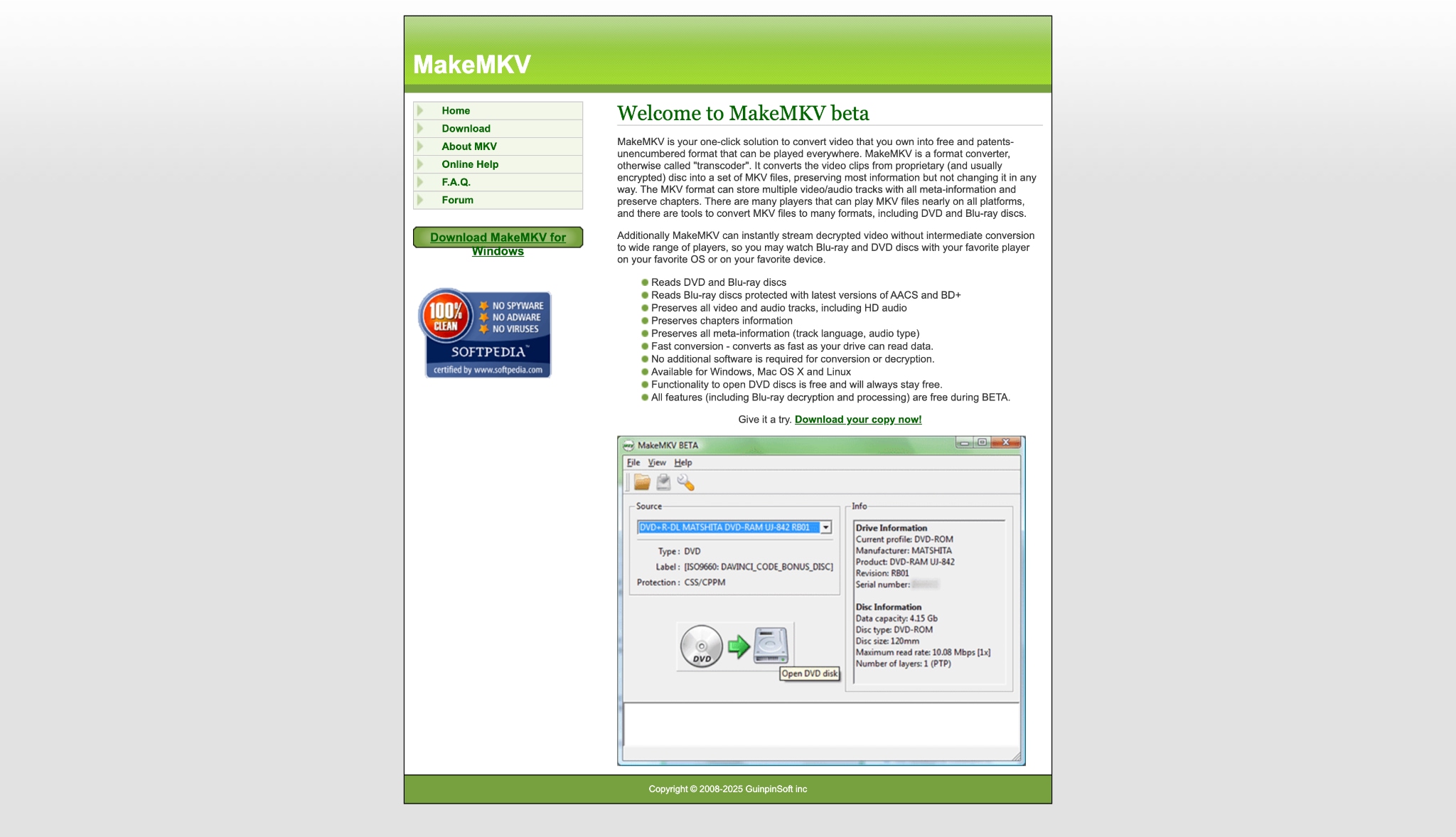
4. MakeMKV (The Decryption King)
If your specific issue is optical disc playback, MakeMKV reads the disc and extracts it into an MKV file. This software bypasses optical drive errors entirely. It is highly effective for archiving your physical media library to your Mac hard drive.
Supported Device: macOS, Windows, and Linux.
5. KMPlayer (The Versatile MRL Player)
KMPlayer is an excellent MRL file player free download that plays damaged or incomplete files. It handles media that native players would normally reject. It features a massive internal codec library, ensuring compatibility with almost any video format you encounter.
Supported Device: macOS, Windows, Android, and iOS.
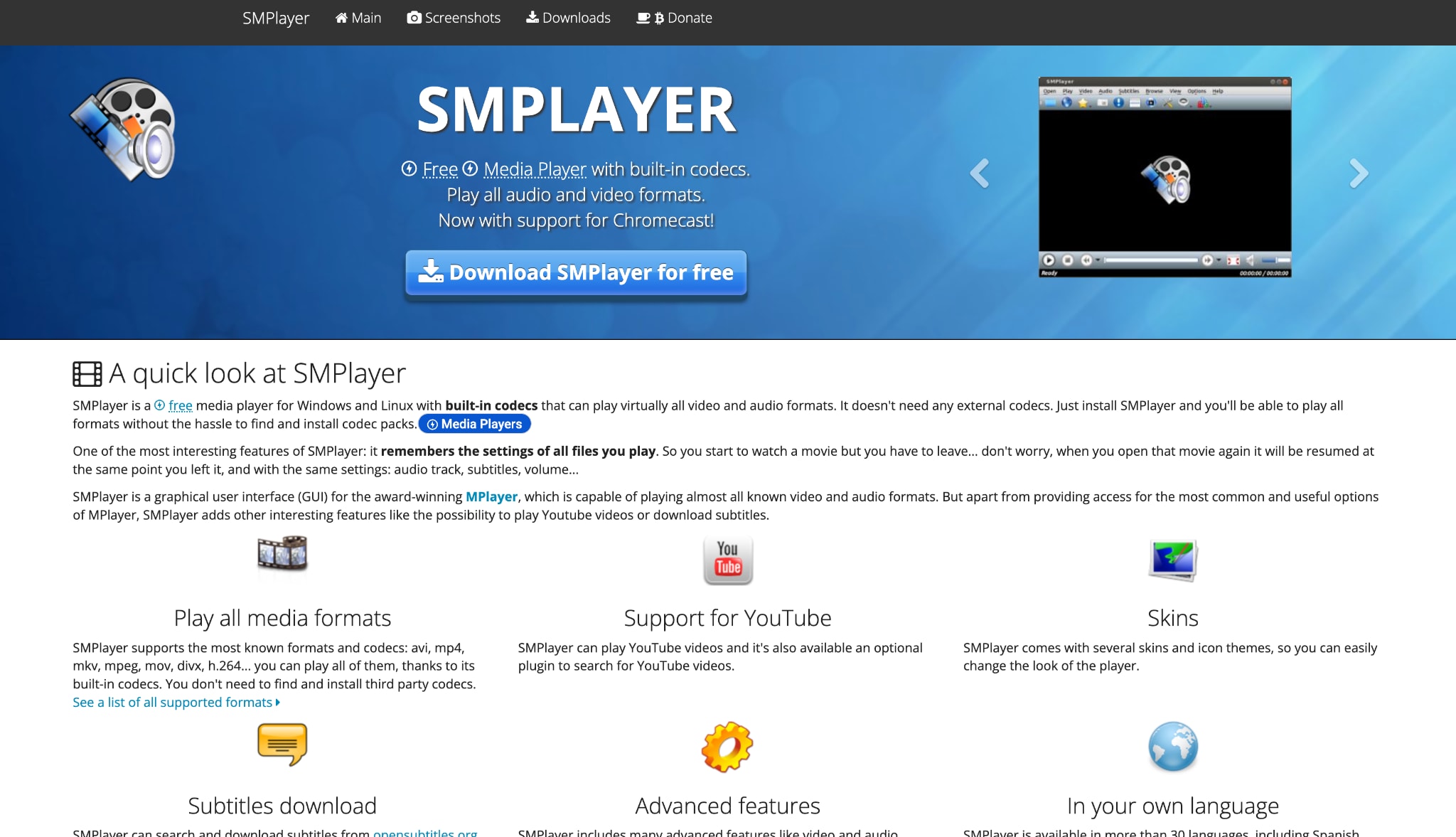
6. SMPlayer (The Open-Source Backup)
SMPlayer uses the award-winning MPlayer engine under the hood. This makes it a fantastic open-source alternative for handling stubborn network URLs. It is designed to be user-friendly while offering advanced playback settings for experienced users.
Supported Device: macOS, Windows, and Linux.
7. Macgo Mac Media Player (The DVD Fallback)
This is a solid fallback player specifically tailored for macOS users. It is built to handle physical media and complex local files efficiently. The software excels at outputting high-definition audio flawlessly for home theater setups.
Supported Device: macOS and Windows.
Part 6. Bonus: Step-by-Step Guide to Bypass Errors Using UniConverter
Sometimes, tweaking macOS system settings is more trouble than it is worth. Using a dedicated tool like Wondershare UniConverter allows you to process the media securely. You can easily bypass the playback error by converting the file into a universal format.
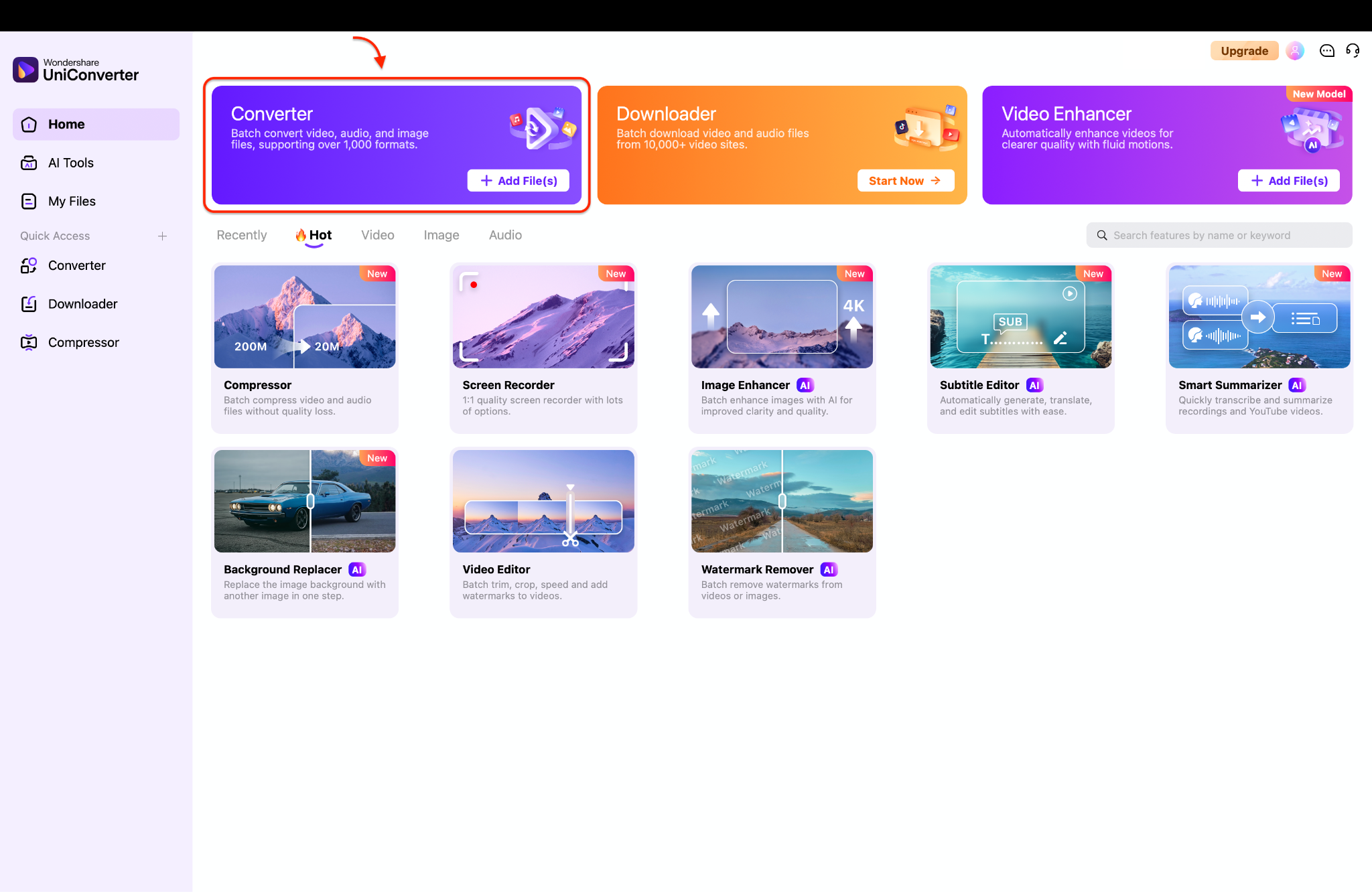
Step 1: Launch the Converter Tool
First, open the Wondershare UniConverter application on your Mac computer. Look at the main home screen and click the prominent "Converter" module at the top. This specific tool helps you transform problematic media into a universally playable file.
Step 2: Upload Your Problematic Media
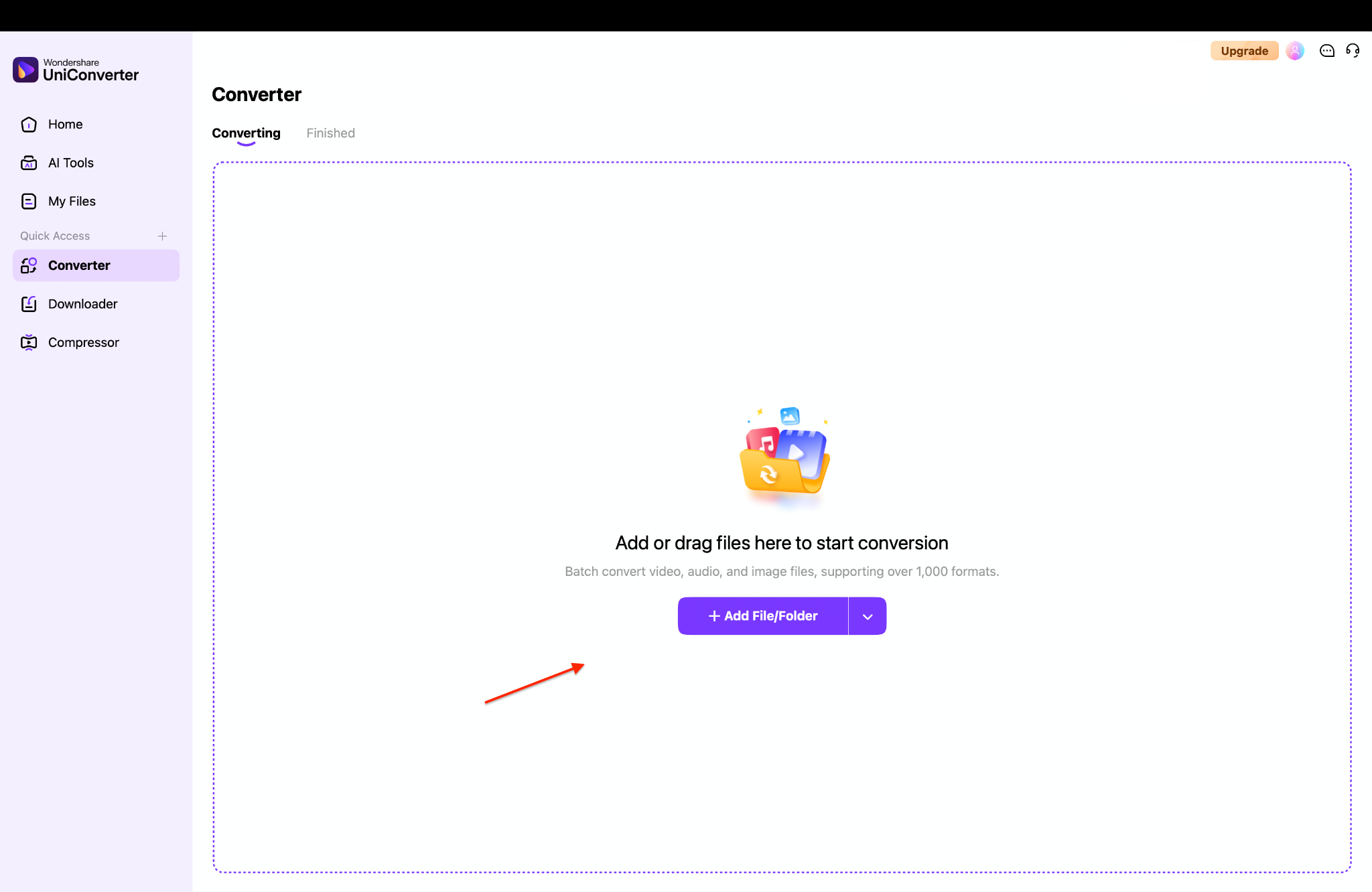
Next, click the purple "Add File/Folder" button in the center of the screen. You can also simply drag and drop your broken video file directly into this workspace. The software will immediately scan and load the source file, even if it triggers an MRL error in other players.
Step 3: Choose a Compatible Output Format
Click the output format menu located at the bottom left corner of the window. Navigate to the "Video" tab and select a highly compatible Apple format like "MOV" or "MP4".
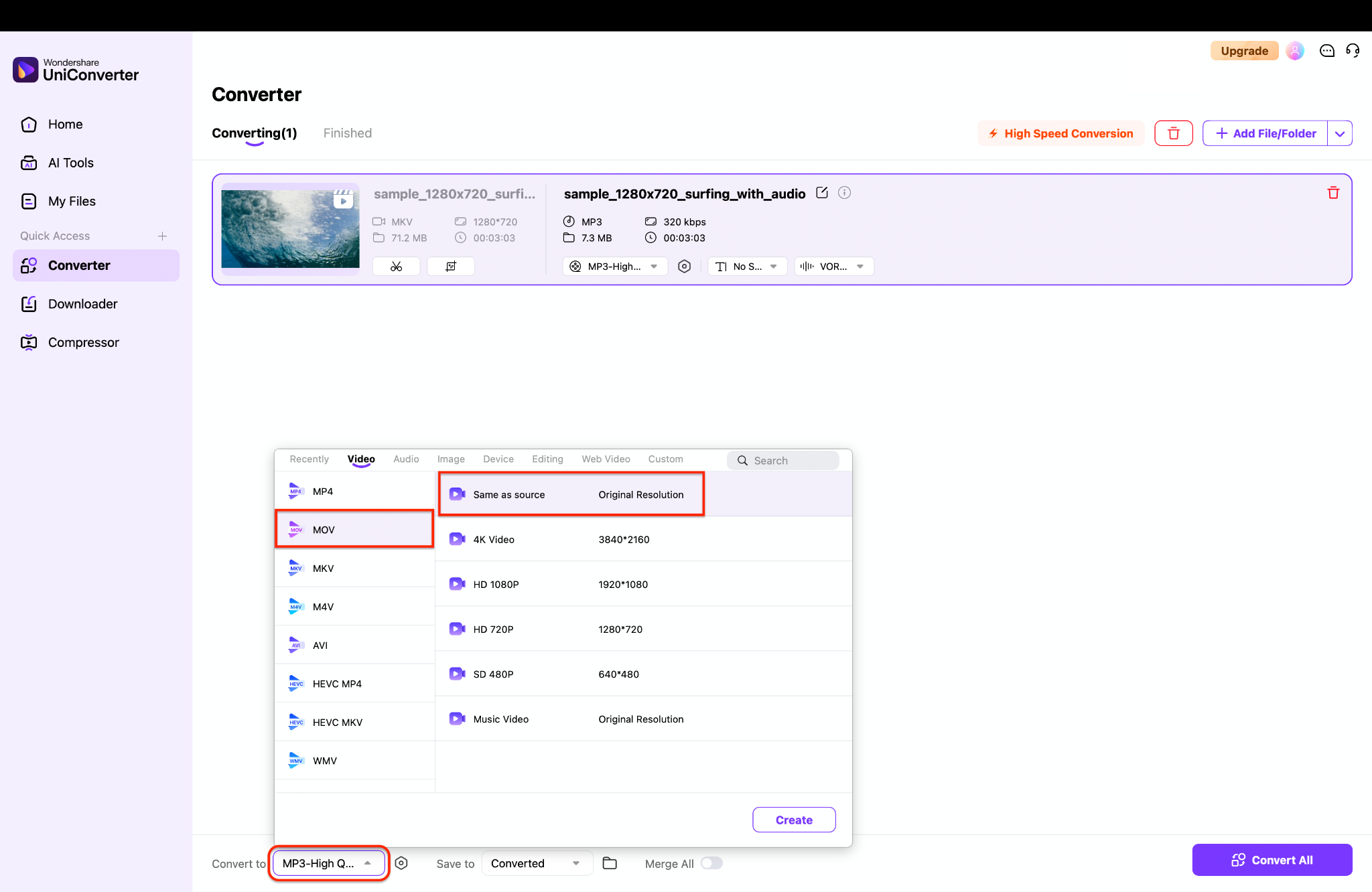
Pro Tip: Choose the "Same as source" resolution to maintain the original video quality while permanently fixing the playback issue.
Step 4: Process and Save Your File
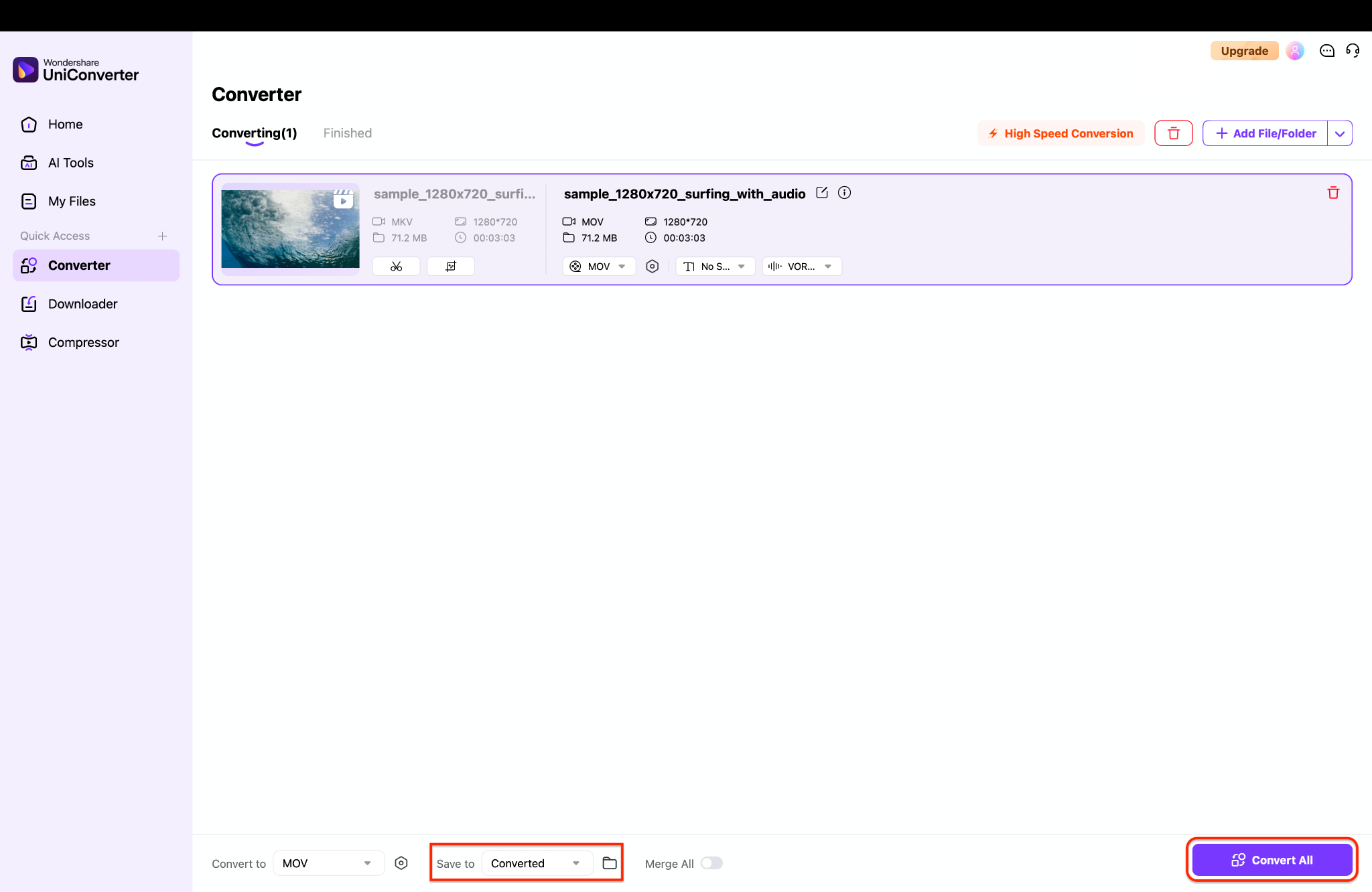
Finally, check the "Save to" dropdown menu at the bottom to choose your preferred destination folder. Click the purple "Convert All" button in the bottom right corner to begin the fast conversion process. Once finished, you can effortlessly play your newly converted file on your Mac without any annoying interruptions.
Part 7. Conclusion
The VLC is unable to open the MRL error does not have to ruin your media experience. You can fix most issues by adjusting macOS permissions, shortening file paths, or updating scripts. However, if you want a permanent solution, switching to a powerful alternative is smart. A dedicated MRL player or processor bypasses network and disc errors entirely. We recommend using Wondershare UniConverter for a seamless workflow. It helps you manage, convert, and play media without the hassle of continuous troubleshooting. Try UniConverter today to ensure your videos always play perfectly on your Mac.
Part 8. FAQs
-
1. Why does VLC say VLC is unable to open the MRL DVD on my Mac?
This error triggers when VLC encounters commercial copy protections on a disc and lacks the necessary decryption libraries to bypass them. You can resolve this quickly by using a dedicated extraction tool to digitize the physical media. -
2. Is there a reliable MRL file player free download for Mac?
Yes, IINA and KMPlayer are excellent free alternatives that handle network streams and complex file paths effectively on macOS. They serve as reliable backups when your primary media player fails to load a file. -
3. How do I fix VLC your input can t be opened for YouTube videos?
You need to download the latest youtube.luac file from the official VideoLAN GitHub and replace the old file in your Mac's VLC application folder. This updates the internal script and restores the connection to the streaming server. -
4. What is the best MRL DVD player download free for Mac?
MakeMKV is widely considered the best free tool for reading and extracting protected DVDs on a Mac when native playback fails. It allows you to create a digital copy that plays flawlessly on any modern device. -
5. Why am I unable to open MRL file VLC from my external hard drive on macOS?
This is usually a macOS privacy issue where the application lacks permission to read external volumes. You can fix this by navigating to your System Settings and granting "Full Disk Access" to your media player.

