


Professionals these days look for new techniques and ways to make their pitch outstanding while capturing the attention of their viewers. However, many people fail to deliver the desired performance only because their presentations do not have interactivity. With technological advancement, users can embed different interactive elements into the slides to make the presentation engaging.
In this article, we will discuss how to add a video to Google Slides conveniently using the right resources. Using Google Slides has made the presentation creation process easier due to its online availability and different powerful features.
In this article
Part 1. Why We Add Video to Google Slides?
You make a strong impression on your audience when you add a video to Google Slides, and here’s why you should add a video to it:
- Grab the Audience’s Attention: No one enjoys watching others' presentations, but if you add a video to your presentation, it grabs viewers' attention.
- Explain Difficult Concepts Easily: You can explain complex ideas through visuals, and they are also easy to remember for your audience.
- Develop an Emotional Connection: Videos can trigger human emotions and help you connect with your audience, so learning how to add video to Google Slides is significant.
- Build Credibility: Using videos from the subject experts shows you as a person with knowledge and helps you build credibility and get extra points.

Batch Keep Videos or Audios from URL for Win and Mac
Part 2. How to Add a YouTube Video to Google Slides with an Online URL
Adding a video from YouTube into Google Slides using a URL is a quick way to add dynamism to your presentations. You can simply add visual engagement without downloading any large media by linking a video directly from the video platform.
This method is especially useful when showcasing tutorials and promotional clips. Moreover, once the link is added, you can copy and preview it within the slides. To learn how do you insert a video on Google Slides via online URL, consider the following steps:
Step 1.
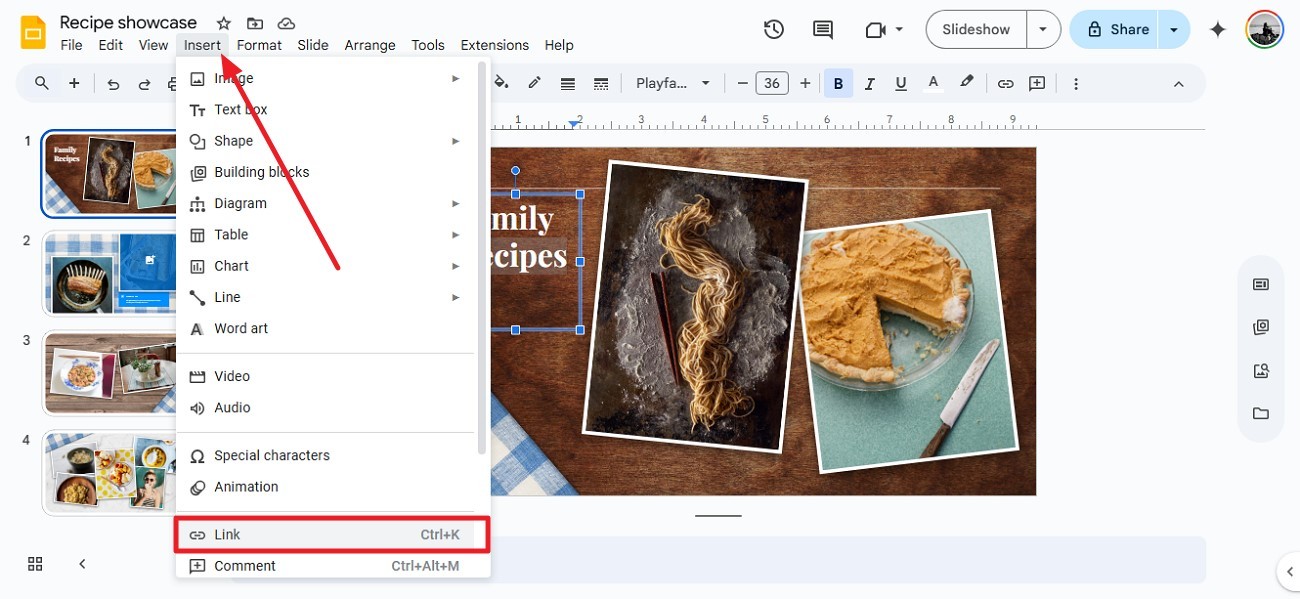
Start the process by creating a presentation on Google Slides, and to start from scratch, choose a template to get a head start. Next, head to the toolbar and press the “Insert” option to enable more options for you to press "Link" to add a URL.
Step 2.
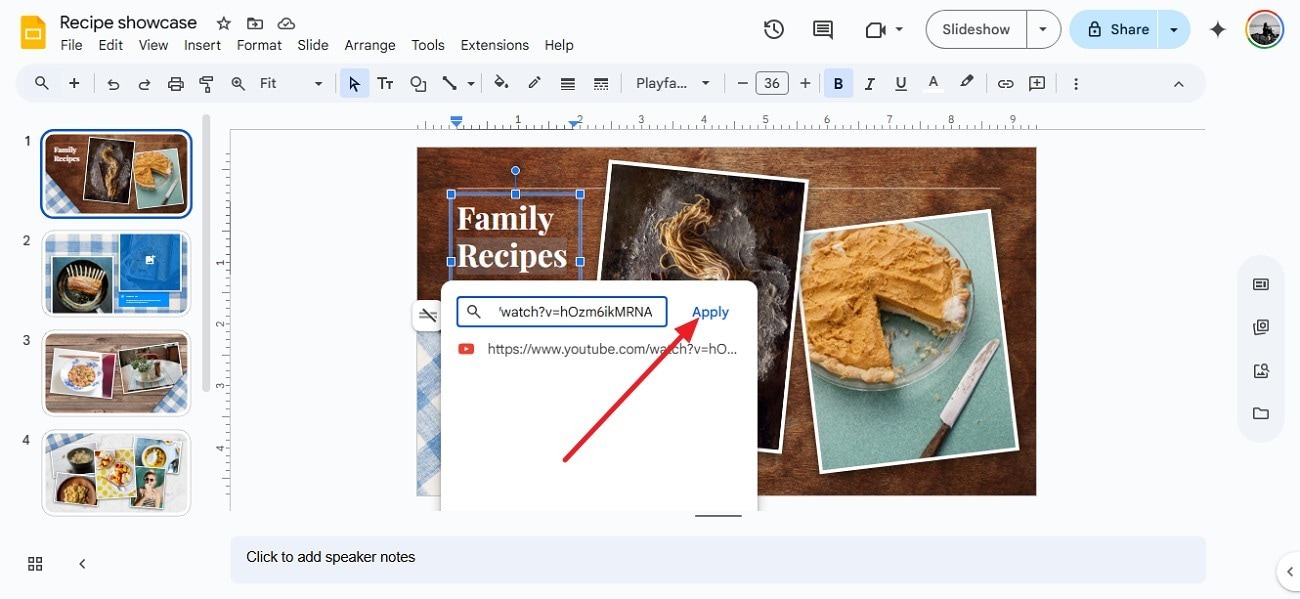
Click on the text within the slide on which you want to apply the link and open YouTube to copy the video link. Head back to the Google Slides, paste the link in the designated field, and click the “Apply” button to add it to your presentation.
Step 3.
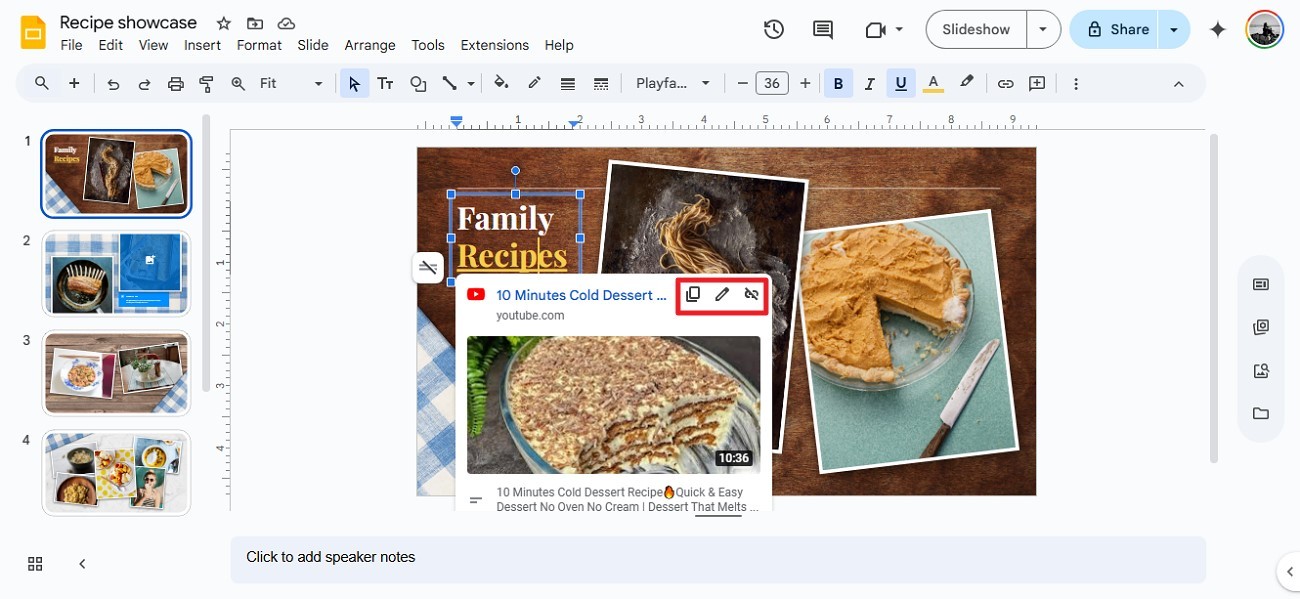
Once you add a link, preview its thumbnail by clicking on the text. From here, you can copy, edit, or remove the URL according to your preferences.
Part 3. How to Add Any Videos to Google Slides With Google Drive
Inserting videos in your presentation through Google Drive offers a convenient way for users to add videos to their slides with customization. Unlike embedding the URL, this technique allows you to insert personal videos that are not hosted publicly.
This method supports multiple formats, like MOV or MP4, giving users the ability to associate with platform-specific content. To learn how to put a video on a Google Slides from Google Drive, take help from the guide below:
Step 1.
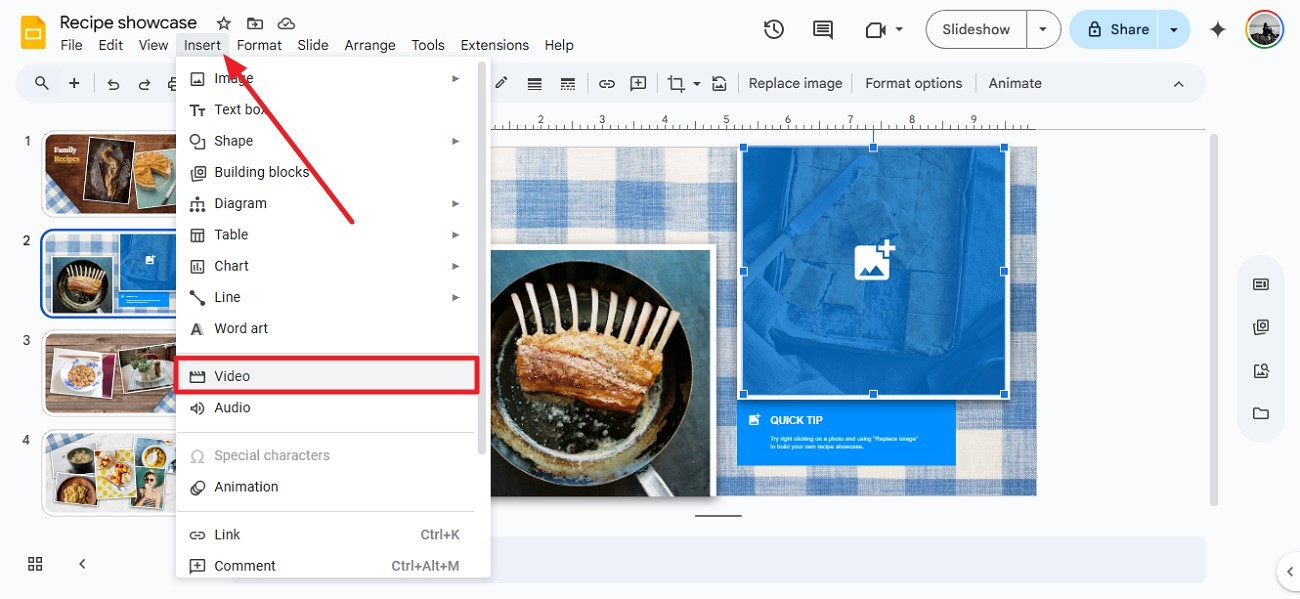
Once you have started creating the presentation on Google Slides, click on the area on the page where you want to add the video. Next, access the toolbar at the top and tap on the “Insert” button, and from there hit the “Video” option.
Step 2.
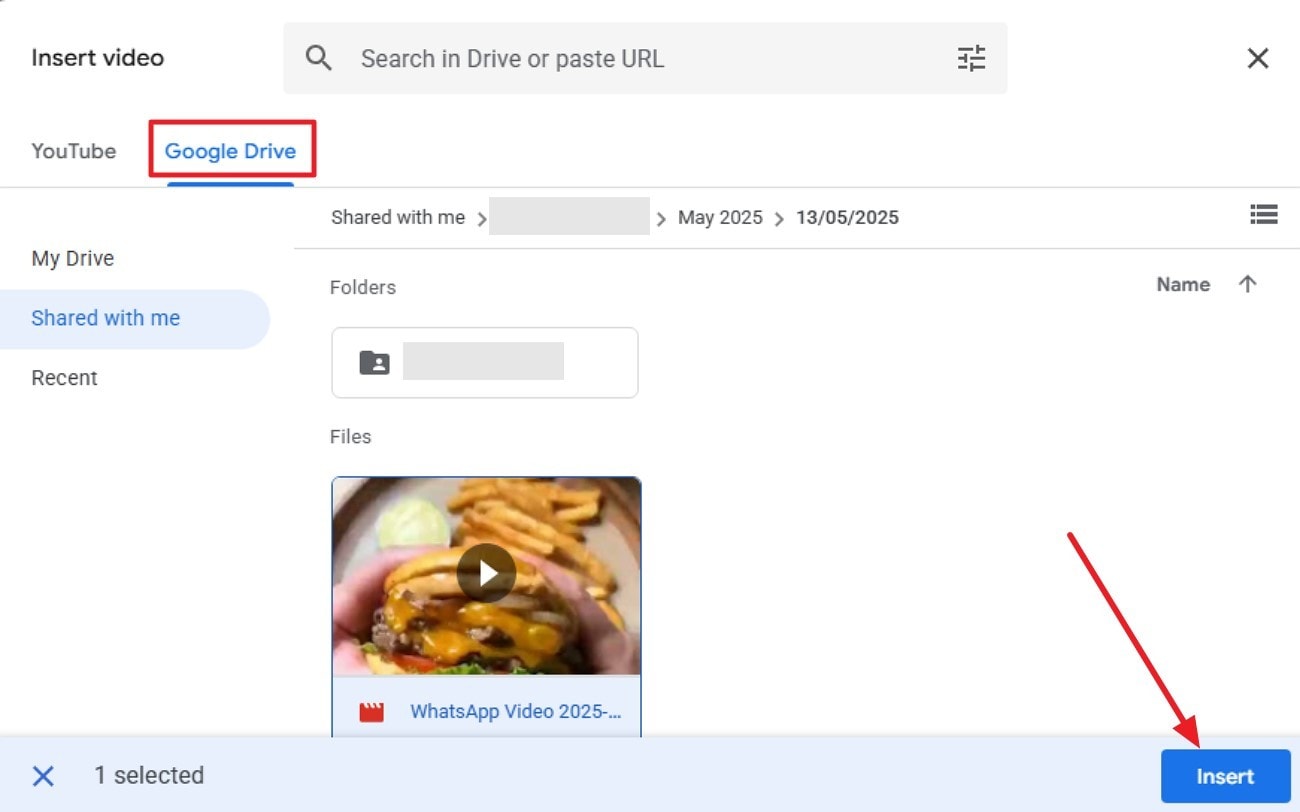
You will be navigated to the next interface where you can pick up your desired video under the “Google Drive” section. Next, you must press the “Insert” button on the bottom right to add the video to the presentation.
Step 3.
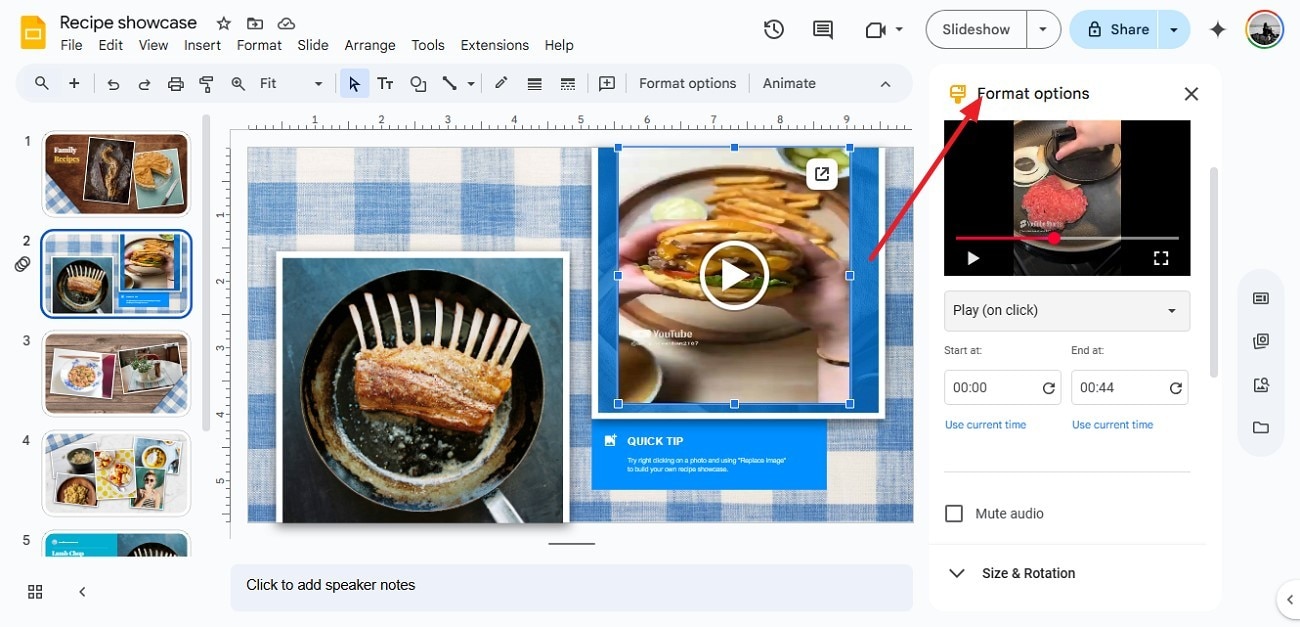
After you add the file to the slide, access the “Format Options” panel from the right side and make the required adjustments.
If you are looking for a solution to download videos from YouTube or other online platforms, you can use an effective option in the shape of Wondershare UniConverter. This multimedia tool allows users to save videos from different streaming sites in batches and in high quality, saving you time and effort.
Part 4. Pros and Cons of Using Online YouTube URL and Google Drive
Having discussed how do you put videos on Google Slides through YouTube URL and Google Drive above, let's discuss their pros and cons below:
|
YouTube URL |
Google Drive |
|
|
Pros |
|
|
|
Cons |
|
|
Batch Keep Videos or Audios from URL for Win and Mac
Part 5. How to Enhance Video Design in Google Slides
Google Slides offers extensive functionalities for users to adjust and customize different visual attributes of the added videos. You get a dedicated panel on the right dealing with different elements, so you can generate presentations with full customization.
It allows you to fix the playback and change the width and height of the added video according to your requirements. After learning how to put a YouTube video on Google Slides, let us explore steps to enhance the video design using this online platform:
Step 1.
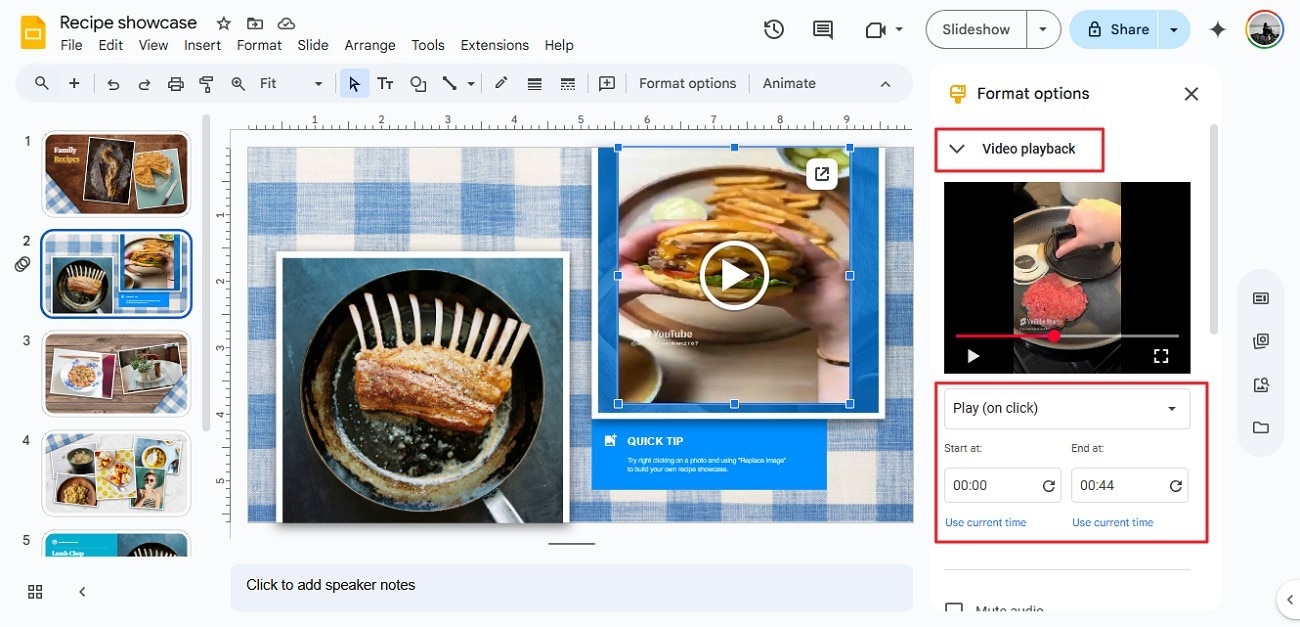
Once you have added the video to the presentation, head to the panel on the right and expand the “Video Playback” option. Here, choose the video playback option and specify the start and end of the video according to your preferences.
Step 2.
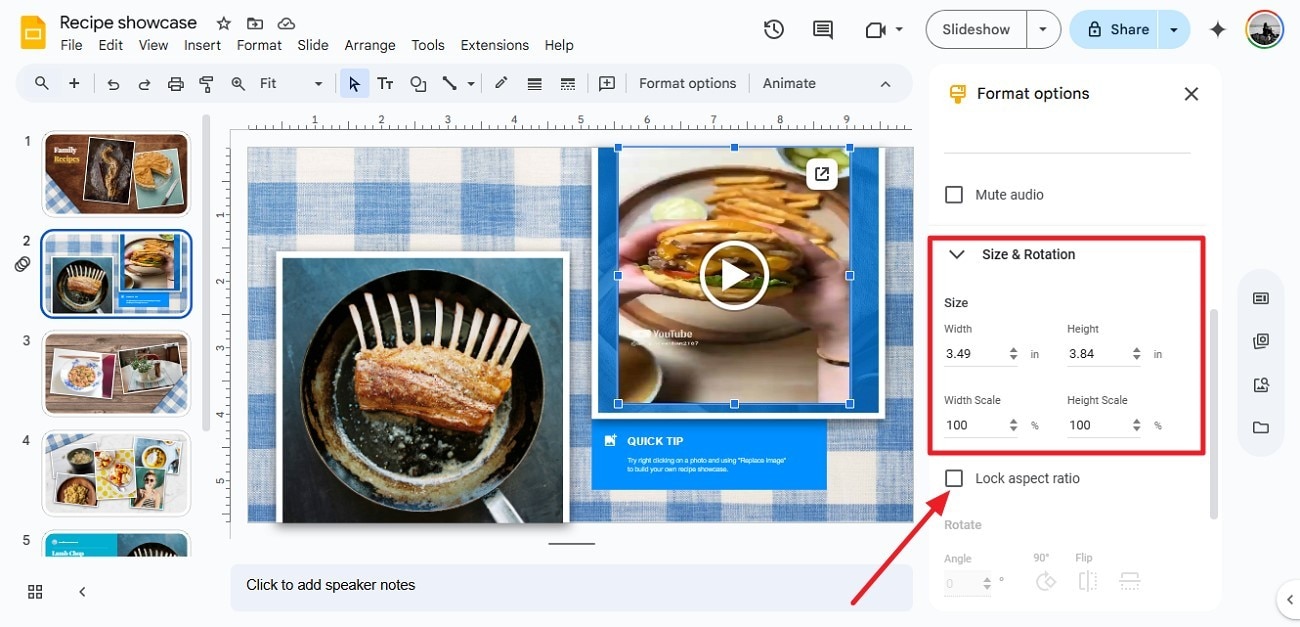
Next, scroll down and expand the “Size & Rotation” option and adjust the width and height by making changes to its values. You can also check the “Lock Aspect Ratio” option to lock the dimensions.
Step 3.
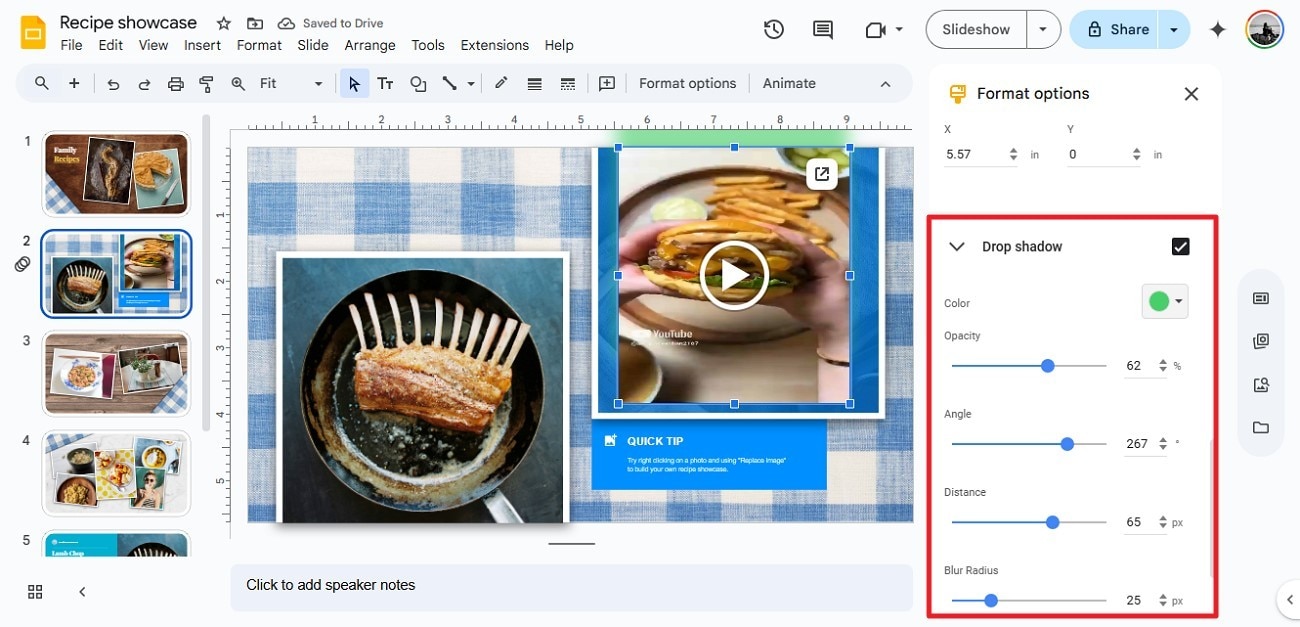
Moving forward, enable the “Drop Shadow” section and choose the color for the video shadow. Next, adjust the “Opacity” and other attributes by dragging the respective sliders.
Step 4.
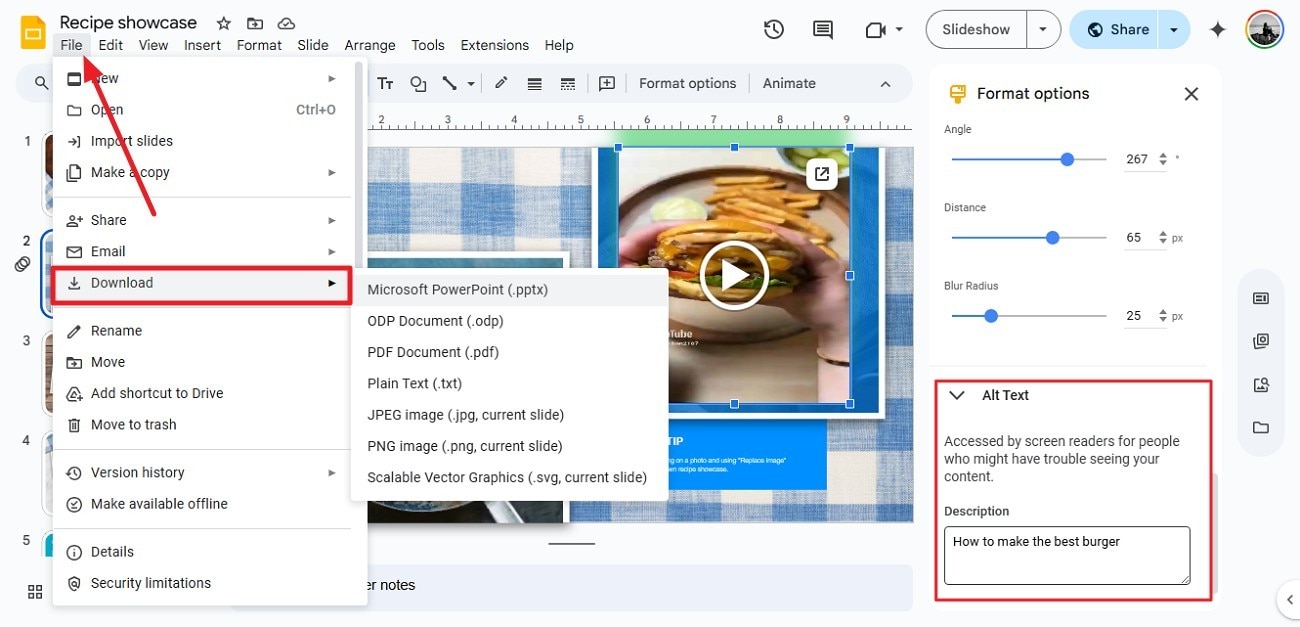
To add the "Alt Text," access the section and write the text in the text field located within the interface. Once done, head to the toolbar and expand the "File" menu to choose the "Download" option. Next, select your preferred format to successfully save the created presentation on your PC.
Conclusion
To conclude, this article discussed how to add a video to Google Slides from your Google Drive or through YouTube. It also discussed a tool, UniConverter, that you can use to download YouTube videos and later upload them to your Google Drive to avoid adding URLs to Google Slides. With UniConverter, you can download your videos in different high-quality formats and use them to make your presentations memorable.
Batch Keep Videos or Audios from URL for Win and Mac
FAQs
-
1. Do I need internet access to play a video in Google Slides?
You need internet access for YouTube videos, but you can download them in high quality with UniConverter. Afterward, you can upload it to Google Drive and make it available offline. -
2. Is there a way to customize when a video starts or stops in Google Slides?
After learning how to add a video to Google Slides, you can set custom start and end times through the format settings. -
3. Can one resize or move the video on the slide?
To resize or move your video on the slide, you can drag it to reposition or resize the video frame like other objects in Google Slides.

