


While creating content, to make your front-camera videos look right on platforms like YouTube, you need to flip them. It is vital, as un-flipped videos can look unnatural and make key elements like gestures or text appear reversed. To avoid such issues, learning how to flip video becomes essential, which not only makes the orientation correct but also makes the video look natural.
Flipping the video orientation is the best solution for those users who don't have any advanced editing skills. Hence, this guide will walk you through exactly how to flip camera videos on different devices, with batch-flipping options as well.
In this article
Part 1. How to Batch Flip Videos on Desktop [Win &Mac]
For users who want to flip a collection of videos, UniConverter is the best tool that can be accessed on different devices, whether it's Windows or Mac. This tool lets users flip videos that can be converted into more than 20 formats, including MKV and MPG. Its dedicated rotating videos feature allows you to rotate footage either 90 degrees clockwise or anticlockwise.
This software allows users to preview their flip camera videos side by side with the original one to see the difference. Additionally, after mirroring, manually set a custom destination folder to save your mirrored videos with ease. Apart from this, change the format of flipped videos to your desired one. It also offers users the high-speed conversion of videos by using the device's own GPU power.
Key Features
- Batch Processing: This advanced tool enables users to flip multiple videos simultaneously and download them together, saving time during large video editing tasks.
- Merge All Files: Users can use it to combine multiple video or audio files into one unified output during conversion.
- Change Rotation: It enables you to change the orientation of your videos to vertical or horizontal without any frame breaks.
- Video Effect: Within the flipped videos feature, you can change the visual quality by adjusting its brightness and contrast for better clarity and quality.
- Aspect Ratio: Change the aspect ratio of the flipped videos to make them platform-specific, like YouTube or Instagram.
An Extensive Guide to Batch Flip Videos on Desktop Using UniConverter
After understanding the features of this tool, let's go through the steps below to find out how to flip video on Windows and Mac:
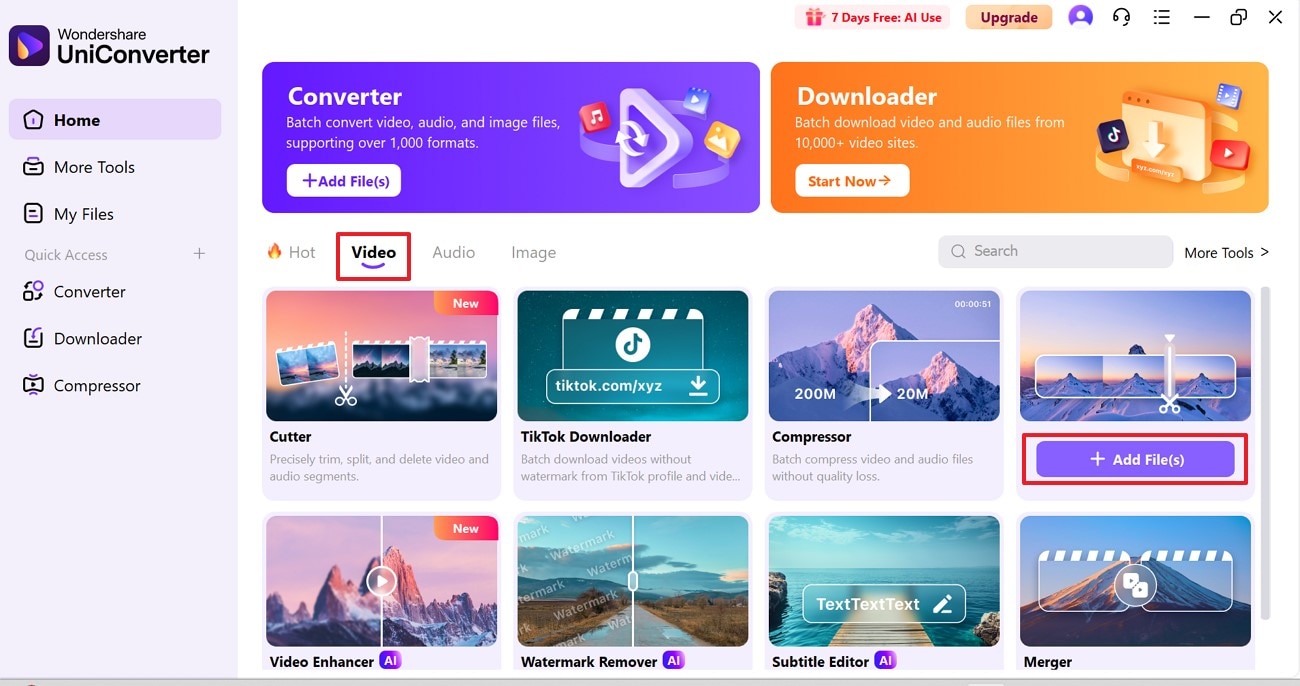
Step 1. Download the UniConverter Tool and Access Video Editor
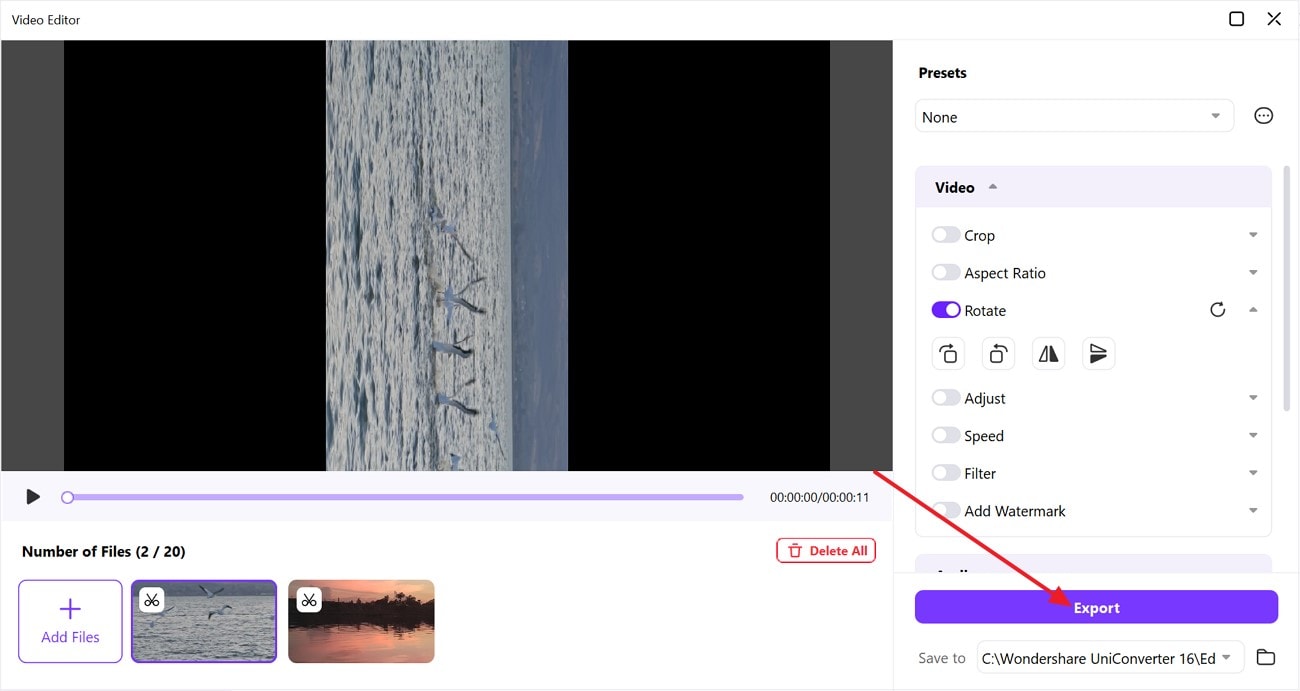
After installing UniConverter, access the “Video Editor" tool from the main interface and press the “+Add File(s)” button.
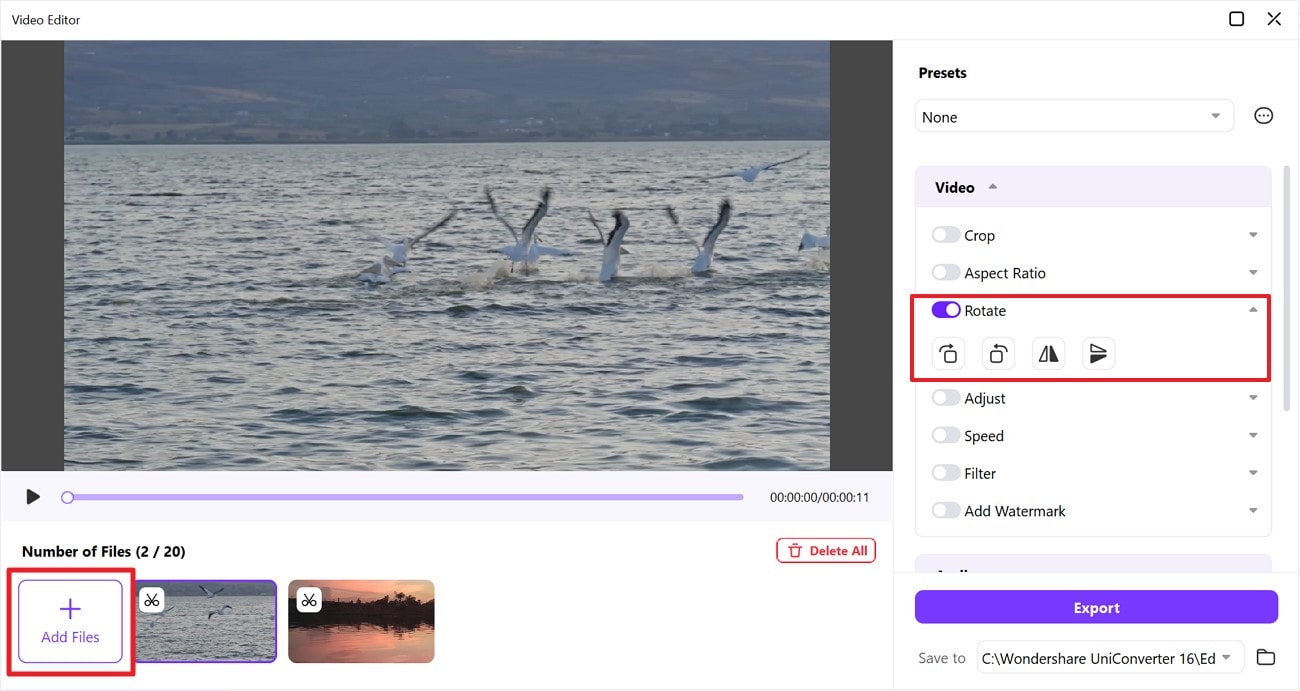
Step 2. Import Your Files and Start Mirroring Them
Once the file has been imported, drop down the “Rotate” section to flip it. You can "Add Files" to work on multiple videos simultaneously to start the process of flipping videos.
Step 3. Check Results and Export Flipped Video
Preview the results and hit the “Export” button to download the flipped video to your device.
Part 2. How to Flip or Mirror Videos with iMovie on Mac
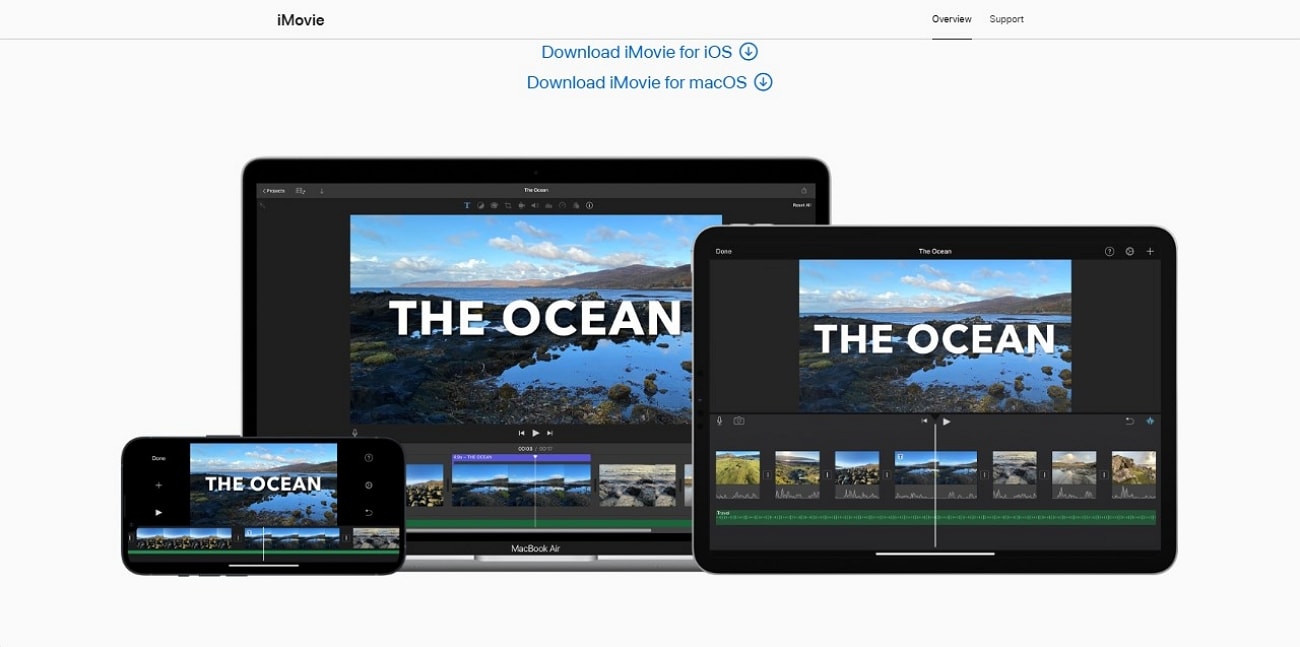
iMovie is another top-ranked solution that lets you mirror videos while offering outcomes in 4K quality. While using the tool, they can rotate videos clockwise or anticlockwise without affecting the video quality. Besides this direction, users can move videos horizontally and vertically with the flipping feature with ease. To answer how do I flip a video in iMovie with the available tools, follow the given guide:
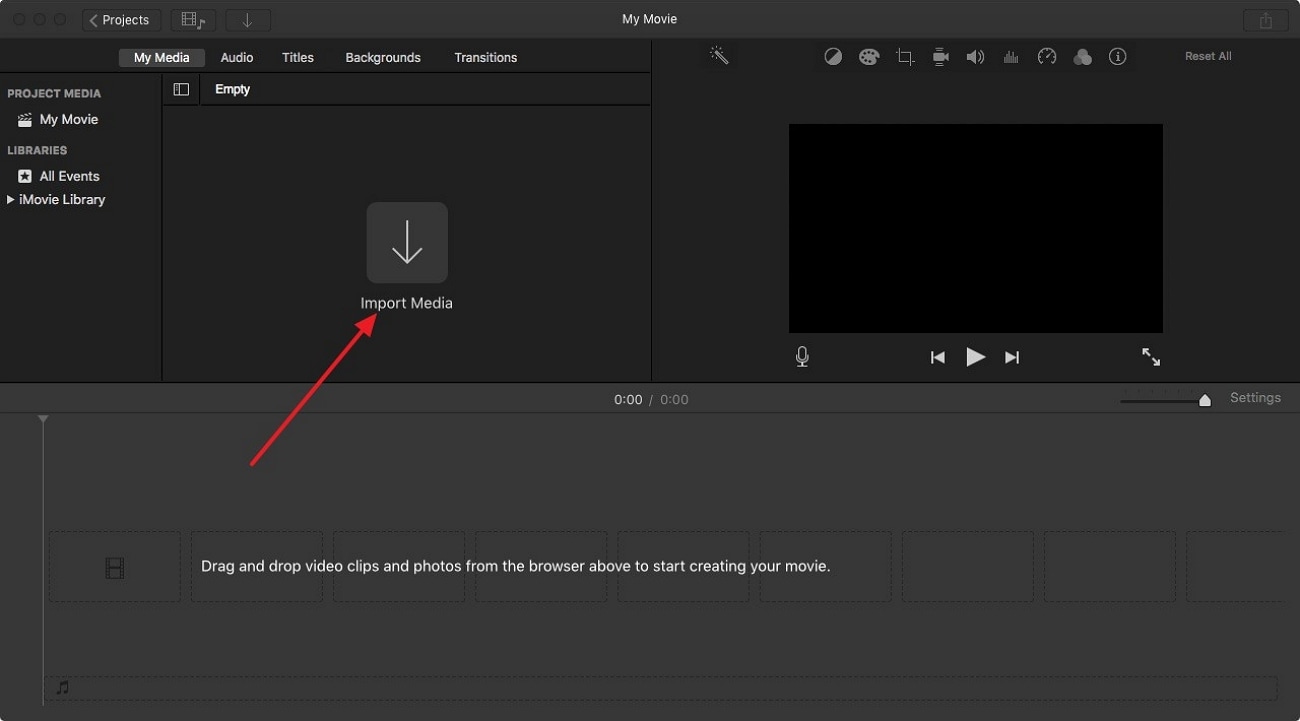
Step 1. Access the software and opt for the “Import Media” button to import the videos you want to flip.
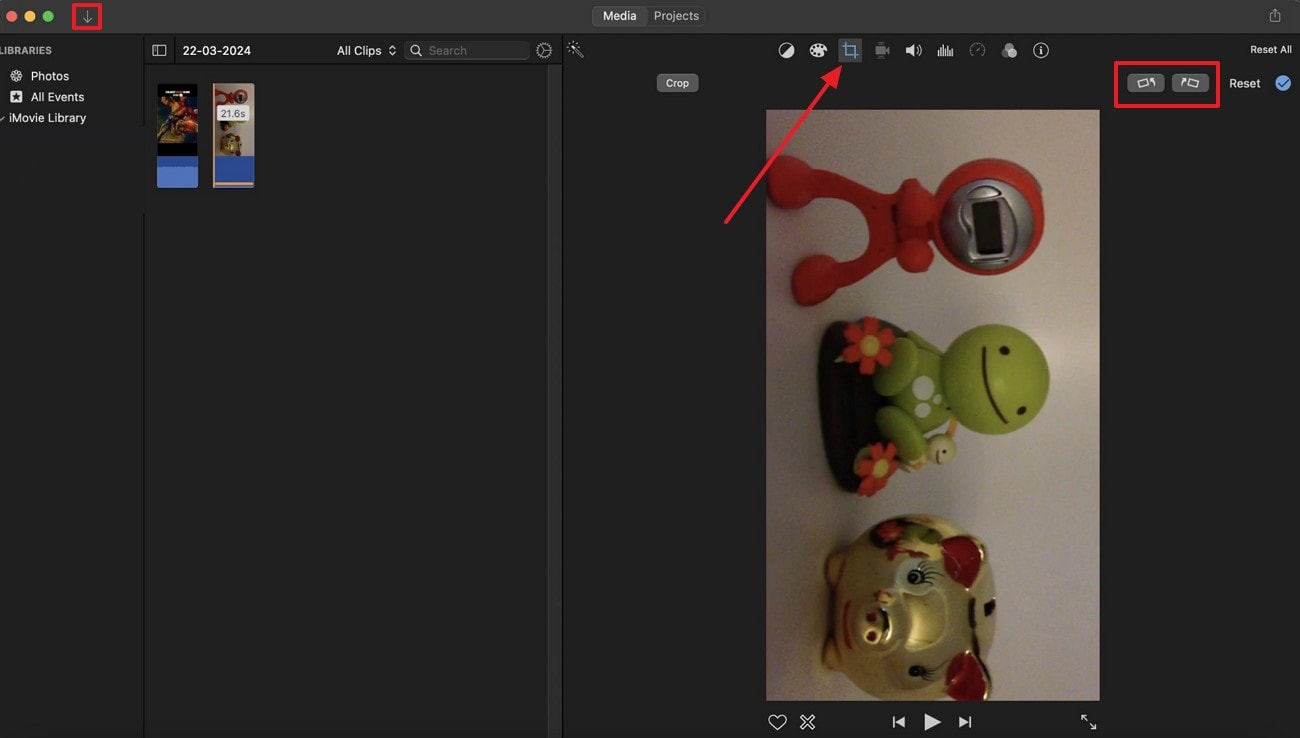
Step 2. Use the "Edit" button and choose the mirroring options by using the "Arrow Left" or "Arrow Right" buttons. Picking any option will flip your video so that you can save it to your device seamlessly.

Easy to Use Comprehensive Video Editor
Part 3. How to Flip or Mirror Videos with Media.io Online
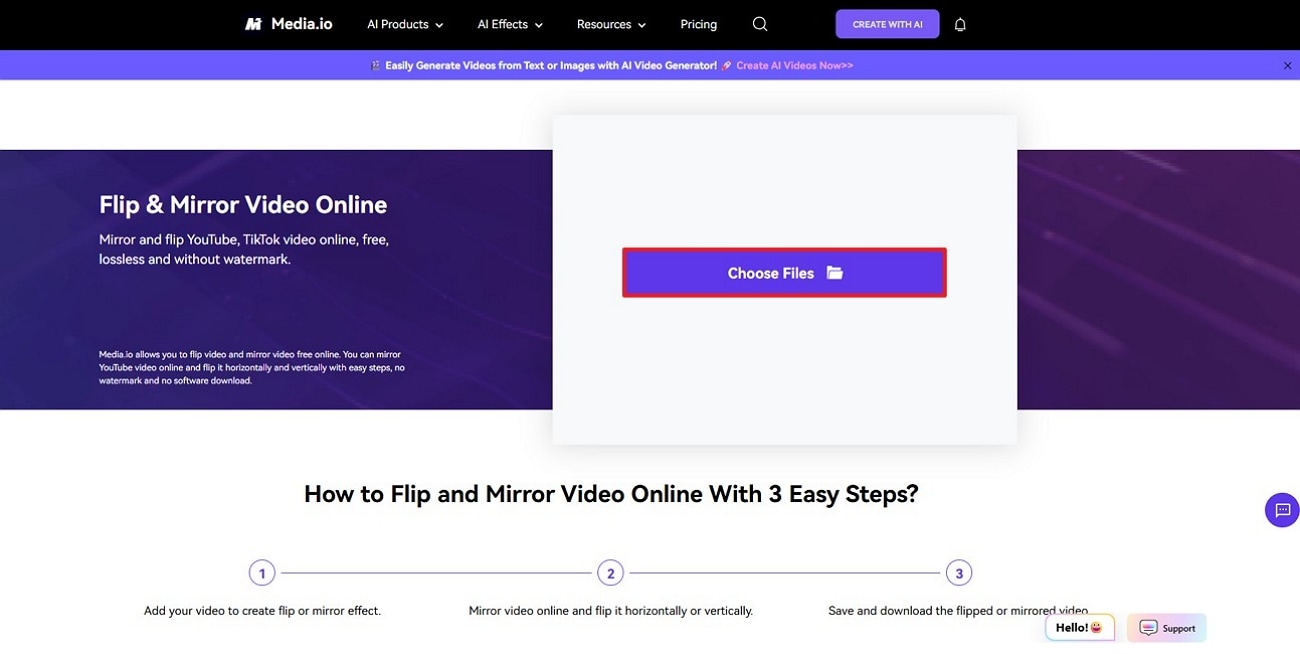
On our list to mirror video online is Media.io, which allows users to upload more than 15 formats, including MP4 and MOV. It comes with zero limitations, which means you can edit freely without worrying about file size. Apart from that, users can also flip more than one video as it offers a batch processing feature. Given below are the detailed steps to help users mirror videos without any difficulty:
Step 1. Commence the process to access the tool from any browser and press the “Choose Files” button to import videos.
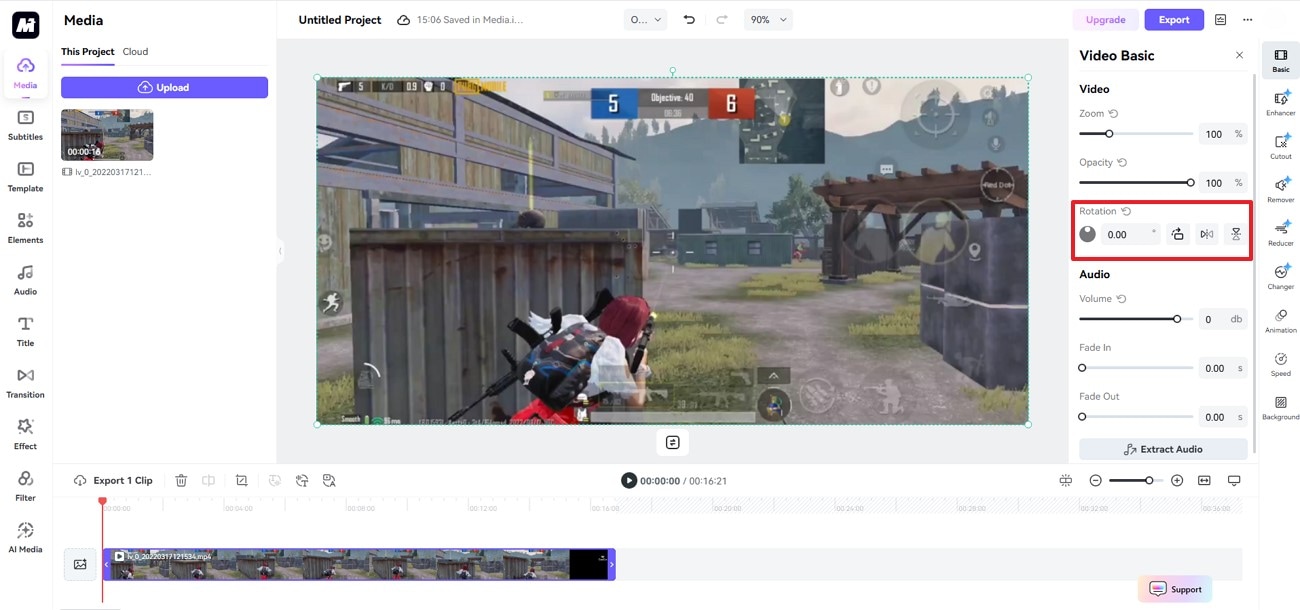
Step 2. Now, from the “Rotation” tab, choose your desired option to flip your videos.
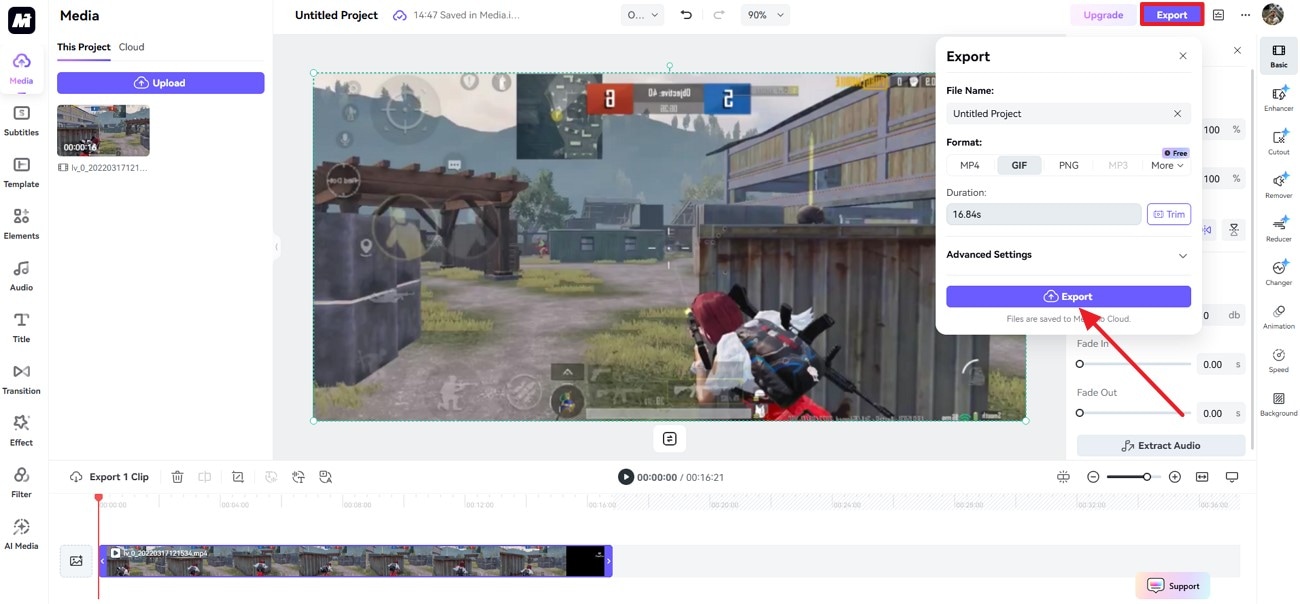
Step 3. After that, opt for the “Export” button to download your mirrored videos to your device.
Part 4. How to Flip or Mirror Videos with Mobile App
InShot comes with a dedicated flip video feature that lets users mirror videos horizontally or vertically. You can use this tool regardless of worrying about the file format, as it can flip videos into MP4 or GIF. Apart from that, it allows users to download their results onto their phone with their desired resolution ranging from 720p to 4K. Adhere to the steps below and find out how to flip video on Android:
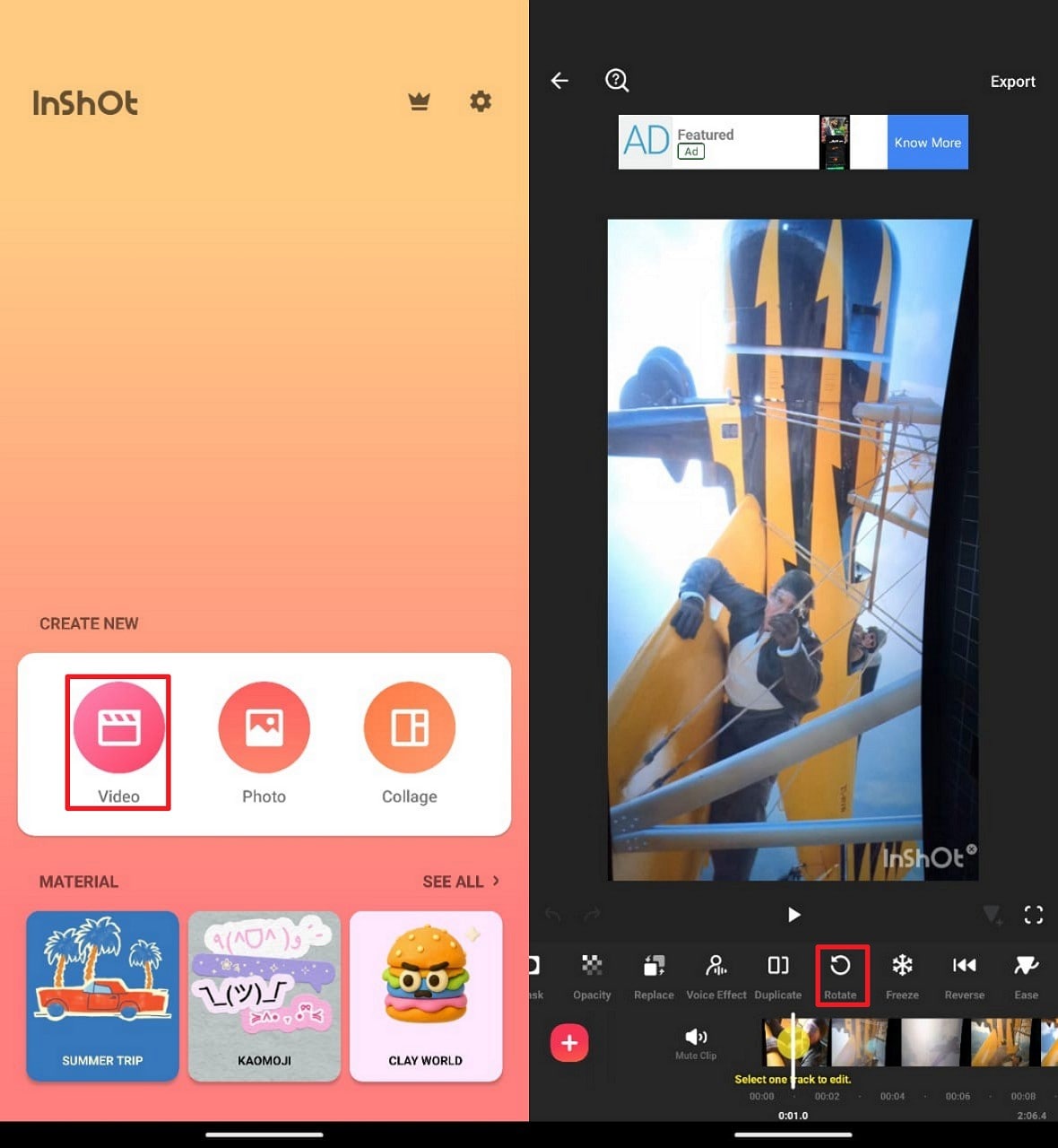
Step 1. Install the InShot app and choose the “Video” button on the main screen. Afterward, swipe left the toolbar and select the “Rotate” option.
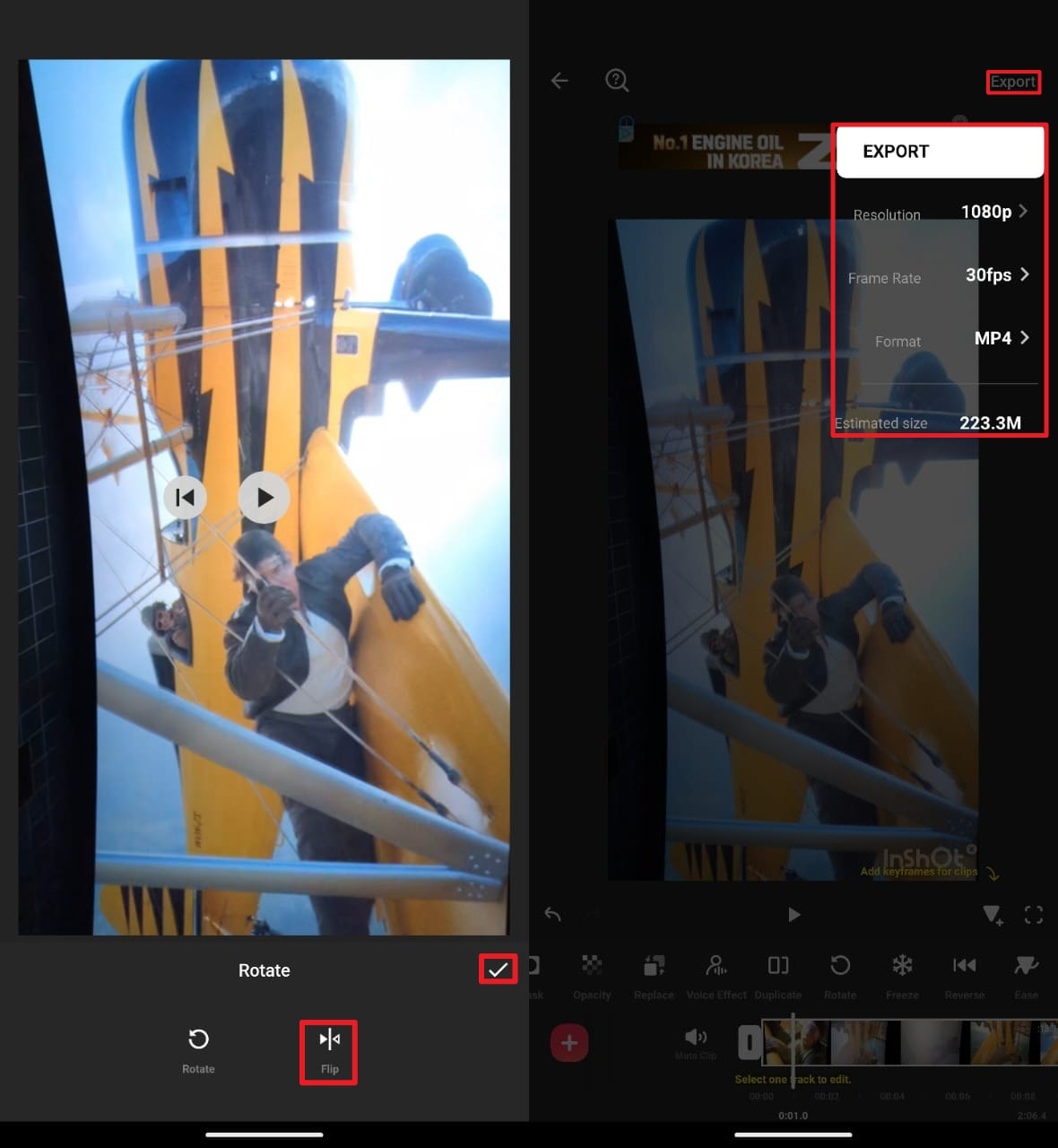
Step 2. A new pop-up will open to choose the "Flip" option and press the "Tick" button to save once the position is set. Opt for the "Export" button to download your mirrored videos to your device.
Conclusion
In short, learning how to flip video solves issues with reversed footage and improves presentation. Flipping videos makes gestures and visuals appear clear and natural, especially for front-facing camera recordings like YouTube. Whether on a desktop or a mobile phone, users can follow simple steps to flip their videos without quality loss. For a smooth and fast experience across formats and devices, use UniConverter to batch-flip videos effortlessly and save time.
FAQs
Easy to Use Comprehensive Video Editor
-
1. Why does my video appear flipped when using the front-facing camera?
The front-facing cameras mirror the video to help users frame themselves properly while recording. However, this mirrored view can confuse viewers, especially when text or gestures are involved. Thus, flipping the video corrects the orientation and helps present the footage in a natural and accurate way. -
2. Can I flip a video without losing video quality?
Changing the orientation of a video using the right tool does not reduce its quality or resolution. Tools like UniConverter preserve the original video’s clarity while correcting its orientation. So, to avoid any quality loss, always export the flipped video in the same format and resolution as the original version for accurate playback. -
3. Can I flip videos on my phone without using a computer?
Users will be able to mirror videos on their phones without requiring a computer by using mobile video editing tools. These apps allow horizontal or vertical flipping with easy touch controls and support both Android and iOS devices. You can edit and export the flipped video in high resolution directly from your smartphone for instant sharing. -
4. Can users flip videos on Windows Media Player?
No, it does not offer any external feature to flip or rotate video files directly. It is primarily a playback tool and lacks video editing capabilities like flipping or mirroring. To flip videos on Windows, you’ll need external editing software that supports orientation adjustments and exporting in your preferred format.

