


MKV files refusing to play, endless buffering, or sudden transcoding errors can quickly turn a smooth media setup into a frustrating experience. Issues with Plex and MKV usually stem from hidden codec incompatibilities, unsupported audio formats, or subtitle conflicts rather than the file itself.
The good news is that these problems are predictable and fixable. By understanding how Plex handles MKV files and applying the right compatibility checks, format choices, and conversion methods, consistent playback across all Plex devices becomes easy and reliable.
- Not all MKV files are Plex-friendly, even if the container itself is supported. Codec and encoding settings determine whether direct play is possible.
- Converting MKV to a Plex-friendly MP4 format is often the most reliable way to avoid buffering, transcoding delays, or playback errors.
- Wondershare UniConverter functions as a stable, batch-capable MKV video converter, allowing users to process multiple files efficiently while maintaining playback compatibility with Plex.
In this article
Part 1: Understanding Plex and MKV Compatibility
MKV (Matroska Video) is one of the most popular video formats today and for good reason. It's a flexible container that can hold high-quality video, multiple audio tracks, subtitles, chapters, and metadata, all in a single file. Because of this versatility, MKV is widely used for movies, TV shows, and Blu-ray rips where quality matters more than file simplicity. That's why many users try playing MKV on Plex as their primary setup.
However, this is where confusion often begins. Plex doesn't really care about the container (like MKV, MP4, or AVI). What matters more are the codecs inside the container, such as H.264, H.265 (HEVC), AAC, AC3, or DTS. So when people ask "can Plex play MKV?", the short answer is: yes, but only if the codecs inside are supported by the client device.
Plex uses three main playback methods: Direct Play, Direct Stream, and Transcoding. Plex can direct play MKV files when the video codec, audio codec, and subtitle format are all supported by your device. This is the ideal scenario because it uses minimal CPU and streams the file as-is. If only the container is unsupported, Plex may direct-stream the file by repackaging it without re-encoding.
Problems arise when a codec isn't supported. In that case, Plex must transcode the video, which can cause buffering or playback errors, especially on weaker servers. This is why an MKV file might work perfectly on one device but fail on another.
Interestingly, many people encounter similar issues elsewhere, leading to complaints like "VLC can't play MKV," usually caused by missing codecs or corrupted files, not the MKV format itself.
Part 2: How to Check If Your MKV File Is Plex-Compatible?
To ensure smooth playback of MKV on Plex, you need to look beyond the file extension and check what's inside the container. Plex compatibility depends on supported video and audio codecs, along with subtitle formats and bitrate limits. A quick inspection can save you from unnecessary transcoding and buffering issues.
Key Video Codecs Plex Supports
Plex works best with H.264 (AVC) and H.265 (HEVC). H.264 offers the widest device support and is ideal if you want consistent direct play across TVs, mobiles, and browsers. H.265 delivers better compression but may trigger transcoding on older or low-end devices. For reliable Plex and MKV compatibility, H.264 is the safest choice.
Audio Formats That May Trigger Transcoding
Audio is a common reason MKV files fail to play. AAC and AC3 (Dolby Digital) are widely supported and usually stream without issues. DTS, DTS-HD, and TrueHD often force Plex to transcode, especially on smart TVs and mobile apps. Even if the video plays fine, unsupported audio can cause MKV playback to break in Plex Direct Play.
Recommended MKV Specs for Smooth Playback
For smooth MKV playback on Plex, it’s best to use H.264 (8-bit) video, AAC or AC3 audio, and SRT subtitles instead of image-based formats. These recommended specs help maximize direct play, minimize transcoding, and reduce server load for consistent streaming across all devices.
Simple tools to inspect MKV file details
Tools like MediaInfo (desktop or web) instantly show video codec, audio format, bitrate, and subtitle types. Plex's "Playback Info" screen also shows whether a file is being played directly or transcoded, helping you quickly fine-tune Plex and MKV compatibility.
Checking these details first ensures predictable, buffer-free Plex playback.

Lossless MKV Conversion Optimized for Plex
Part 3: Best Solution: Convert MKV to Plex-Friendly MP4 Format
When MKV files struggle with playback, converting them to MP4 is often the most reliable fix for MKV on Plex issues. While Plex supports MKV containers, MP4 offers the highest level of native compatibility across Plex clients, including smart TVs, mobile apps, streaming sticks, and web players. This makes MP4 the safest choice when aiming for consistent, direct playback.
Why MP4 Offers the Highest Plex Compatibility
MP4 is universally supported and optimized for streaming. Most Plex clients can direct play MP4 files without repackaging or re-encoding, provided the codecs are compatible. For users dealing with recurring Plex and MKV playback errors, MP4 eliminates many container-related limitations and client-specific restrictions.
Benefits of Conversion vs. Real-Time Transcoding
Converting MKV to MP4 in advance is far more efficient than relying on real-time transcoding. Transcoding demands high CPU usage, increases the risk of buffering, and can degrade quality. Pre-converted MP4 files reduce server strain, load faster, and deliver predictable playback across devices, especially important for remote streaming and shared libraries.
Ideal Output Settings for Plex Playback
To maximize compatibility and ensure smooth Plex playback across all devices, the ideal output settings include using the H.264 (AVC) video codec paired with AAC or AC3 audio, as these formats are widely supported by Plex clients. Choosing the MP4 container further improves direct play reliability, while keeping the original resolution and bitrate preserves quality without triggering unnecessary transcoding.
These settings ensure Plex can play the file directly, avoiding unnecessary processing while maintaining quality.
In short, converting MKV files to MP4 is the most dependable way to ensure smooth MKV playback on Plex. It simplifies compatibility, improves performance, and creates a future-proof media library that works seamlessly across all Plex-supported devices.
Recommended Tool to Convert MKV for Plex: UniConverter

Wondershare UniConverter is a reliable, all-in-one video conversion tool designed for speed, quality, and broad device compatibility. It is especially useful for resolving Plex and MKV playback issues, as it converts MKV files into Plex-friendly MP4 formats while preserving video quality and audio sync.
Here are the steps to follow to convert MKV for smooth Plex playback:
Step 1: On the UniConverter's dashboard, click "Converter."
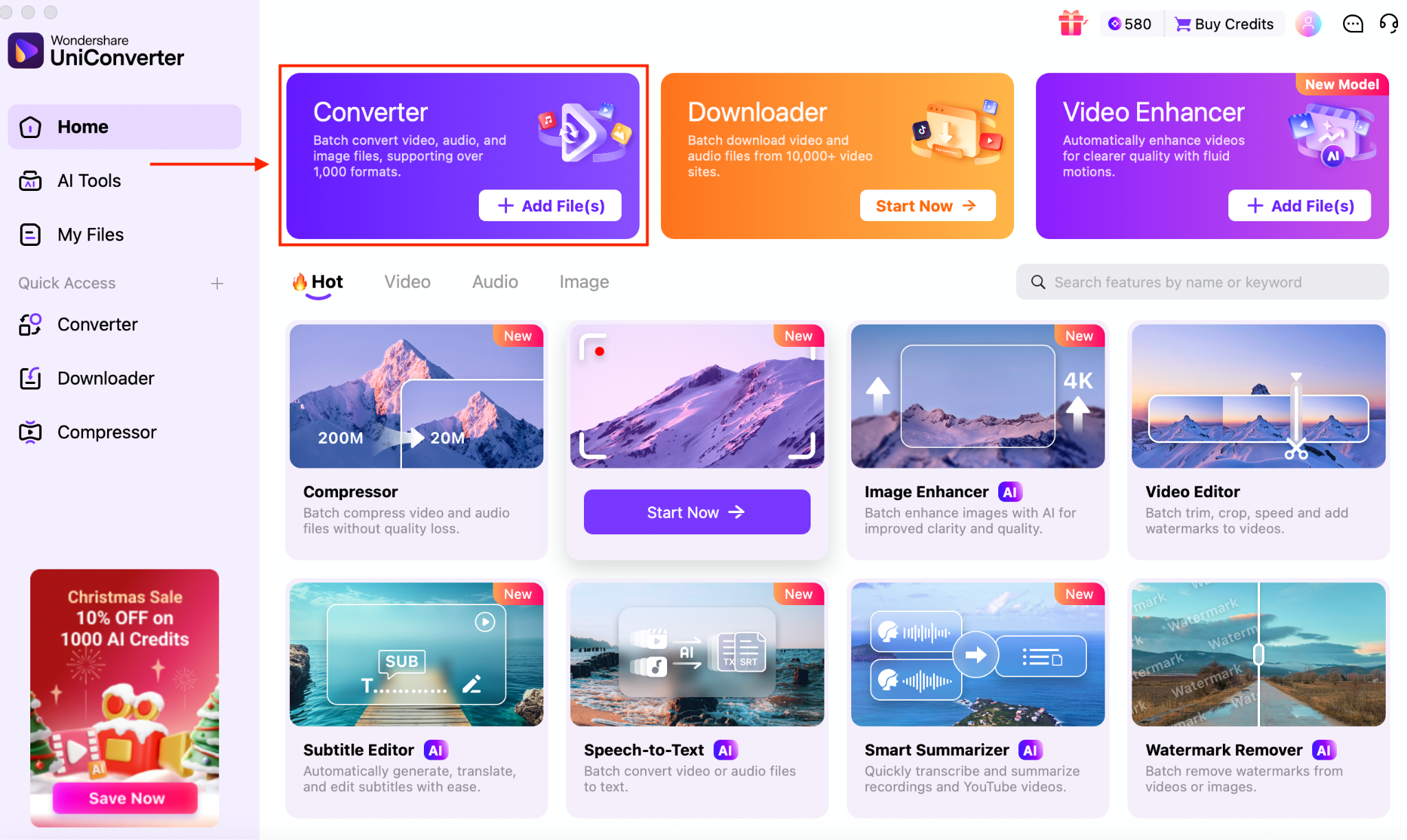
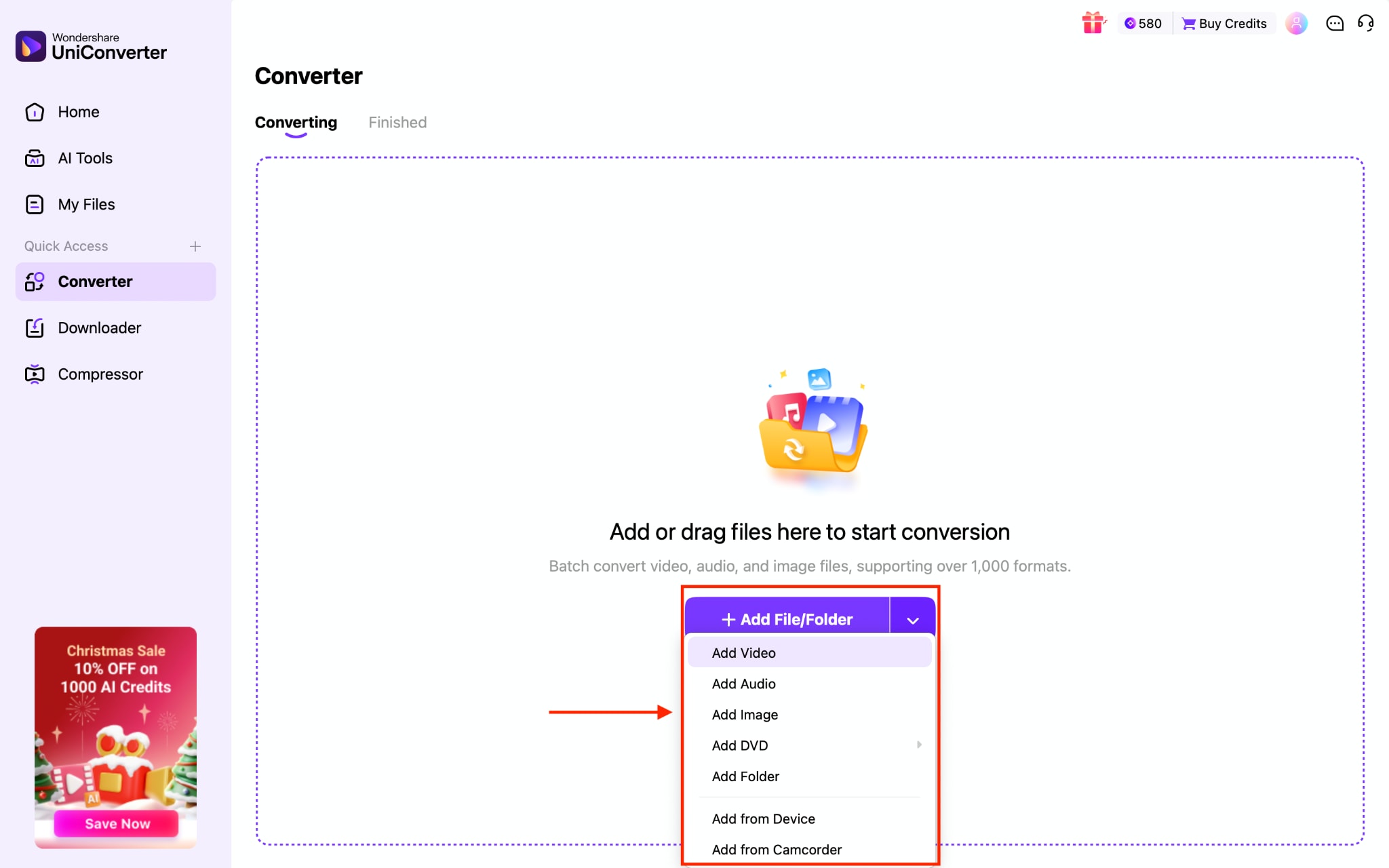
Step 2: Tap the "Add File/Folder" option to add a single video, audio file, or an entire folder for batch conversion.
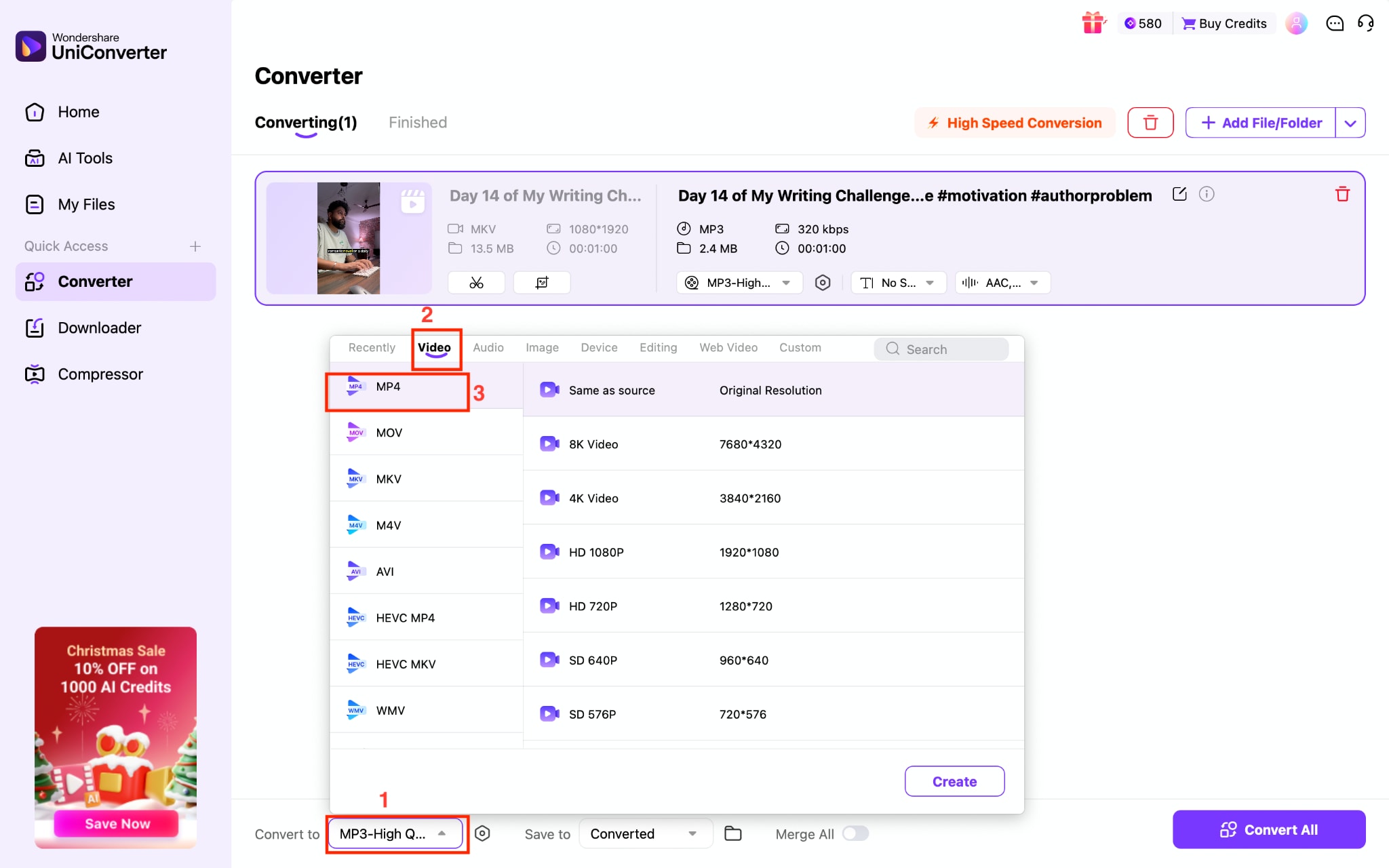
Step 3: After the video is uploaded, click the "Convert to" option, navigate to Video, and choose MP4. You can keep the resolution the same or can enhance it up to 4K.
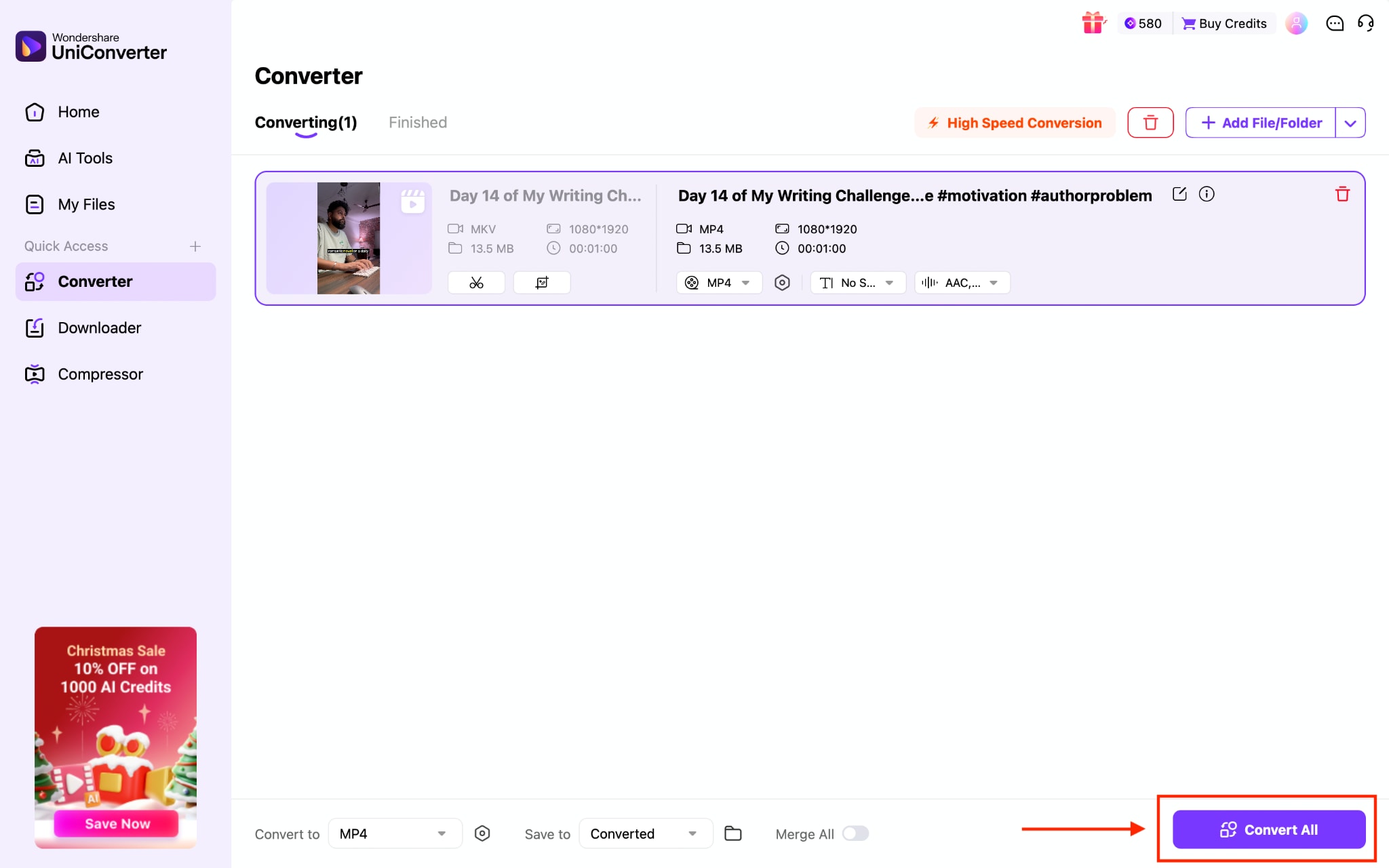
Step 4: Once done, click "Convert All."
Stable MKV to Plex Converter You Can Trust
Part 4: Extra Tips to Avoid MKV Playback Problems on Plex
Even when your files look compatible, small configuration issues can still cause playback failures on Plex. Many of the same reasons users complain that VLC won't play MKV, such as unsupported subtitles, naming errors, or decoding limits, can also affect Plex. A few simple adjustments can prevent buffering, wrong metadata, or forced transcoding.
Rename files properly for Plex recognition: Follow Plex naming conventions for movies and TV shows. Correct names help Plex match metadata accurately and reduce playback and library scan issues.
Disable unsupported subtitle formats: Image-based subtitles like PGS or VOBSUB often trigger transcoding. Use SRT subtitles or disable subtitles entirely for smoother playback.
Adjust Plex server transcoding settings: Set the transcoder to "Prefer higher speed encoding" and enable hardware acceleration if your system supports it.
Optimize network and streaming quality: Use a wired connection where possible and set streaming quality to "Original" to avoid unnecessary compression and playback interruptions.
Conclusion
Playback issues with MKV on Plex are rarely random. They are typically caused by unsupported codecs, audio formats that force transcoding, or subtitle types that Plex clients cannot handle efficiently. Checking MKV file specs, following recommended encoding settings, and optimizing Plex server preferences significantly reduce playback failures. When direct play is still unreliable, converting MKV to a Plex-friendly MP4 format remains the most effective long-term solution.
For fast, high-quality, and hassle-free conversion, Wondershare UniConverter stands out as a dependable option. It simplifies the process, preserves quality, and ensures smooth MKV on Plex playback across all devices. Try Wondershare UniConverter to future-proof your Plex library and eliminate recurring MKV playback issues.
FAQs
-
1. Why doesn't MKV play in Plex even though the file is supported?
MKV files may fail to play in Plex due to unsupported audio codecs (such as DTS or TrueHD), image-based subtitles (PGS/VOBSUB), very high bitrates, or limitations of the playback device. While Plex supports the MKV container, codec incompatibility often triggers transcoding or playback errors. -
2. Does Plex support MKV with H.265 (HEVC)?
Yes, Plex supports MKV files with H.265 video, but direct play depends on the client device. Older smart TVs, browsers, and low-end devices may not decode HEVC natively, forcing Plex to transcode and potentially causing buffering or quality loss. -
3. What is the best MKV format for Plex?
For the most reliable Plex playback, use H.264 video with AAC or AC3 audio inside the MKV container. Choosing text-based SRT subtitles instead of image-based subtitles helps ensure direct play and reduces unnecessary transcoding. -
4. Why does Plex transcode MKV files instead of direct play?
Plex transcodes MKV files when the client device does not support the embedded video codec, audio format, subtitle type, bitrate, or profile level. Real-time transcoding increases CPU usage and can lead to buffering or playback delays. -
5. Is MP4 better than MKV for Plex?
Yes. MP4 generally offers better compatibility with Plex across devices. Most Plex clients natively support MP4, enabling direct play more consistently. Converting MKV to MP4 with tools like Wondershare UniConverter can reduce transcoding and provide smoother playback.

