


How can you download Tenor GIFs?
The easiest way is to open the GIF on Tenor, right-click it, and use Save Image As. If that does not work, you can use online tools like Fetchpik or PasteDownload by pasting the Tenor GIF URL.
Tenor has become one of the most widely used platforms for discovering and sharing expressive GIFs, especially across messaging apps and social media platforms. However, many content creators and social media marketers struggle to figure out how to download Tenor GIFs directly to their devices. There are several GIF downloaders out there, but many tools come with browser-related limitations, some have spammy download buttons, or some provide unsupported formats.
This guide will help you understand how to download Tenor GIFs directly. It will also show an easy way to modify the downloaded GIFs by adjusting their playback speed or applying edits with the help of Wondershare UniConverter.
In this article
Part 1. How to Download GIFs From Tenor Directly
The simplest way to download Tenor GIFs is by using your web browser. This method does not require any third-party software or browser extensions and works best when you just need the original GIF file in its default resolution and frame rate.
Here’s how you can download Tenor GIFs:
Step 1: Visit Tenor.com using any modern web browser and use the search bar to find the GIF you want to download.

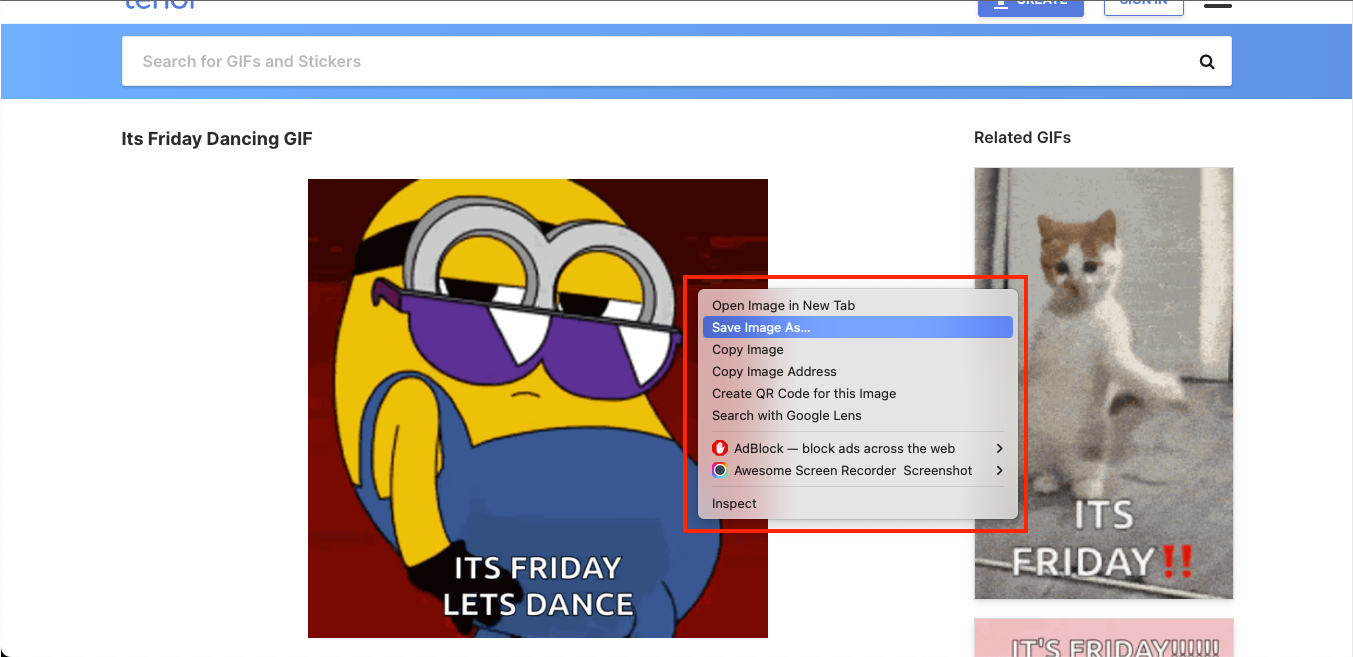
Step 2: Once the selected GIF is fully loaded in the browser, right-click on it and choose either the “Save Image As…” or “Save As…” option. Select your preferred download folder and save the file with a .gif extension.
Part 2. Alternative: How to Download GIFs From Tenor with a Web Downloader
When browser-based saving does not work, or if you need a faster workaround, you can always use an online Tenor GIF downloader. These web tools allow you to extract GIFs from Tenor URLs without needing any extensions or apps. There are several ways to save GIFs offline using tools, but these are the two tools that offer multiple formats and quick turnaround.
Quick Guide: Best Way to Download Tenor GIFs
1. Save Tenor GIF from its share link with Fetchpik
Fetchpik Tenor Downloader is a lightweight, web-based tool that lets you paste any Tenor GIF URL and instantly generate a direct download button. It’s useful when right-click saving is disabled or when you need a quicker alternative without installing anything.
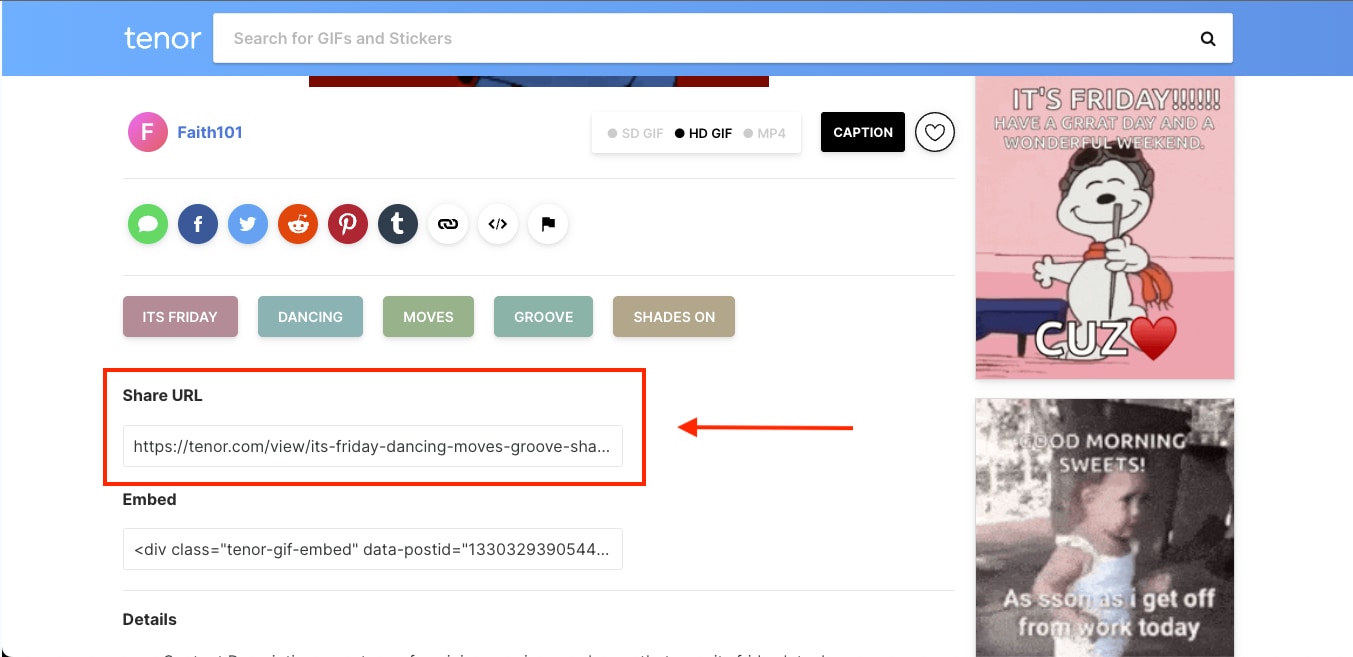
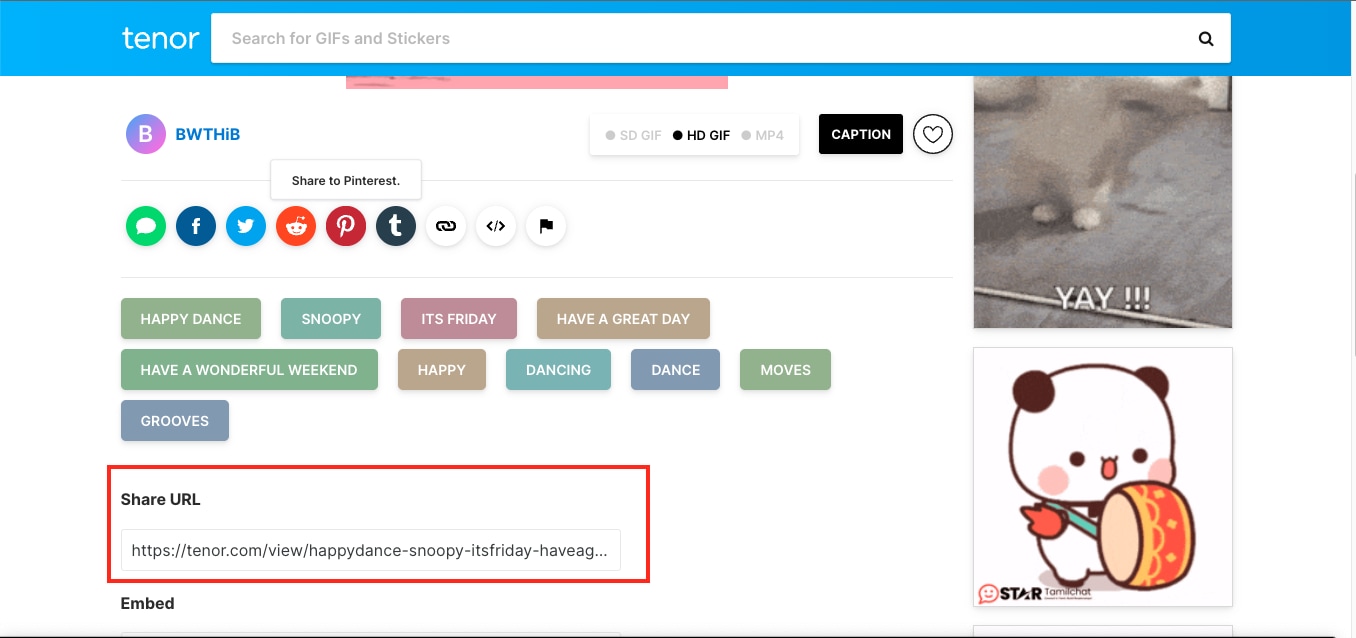
Step 1: Open Tenor.com and search for the GIF you want. Scroll down to the Share URL section and copy the full link displayed there.
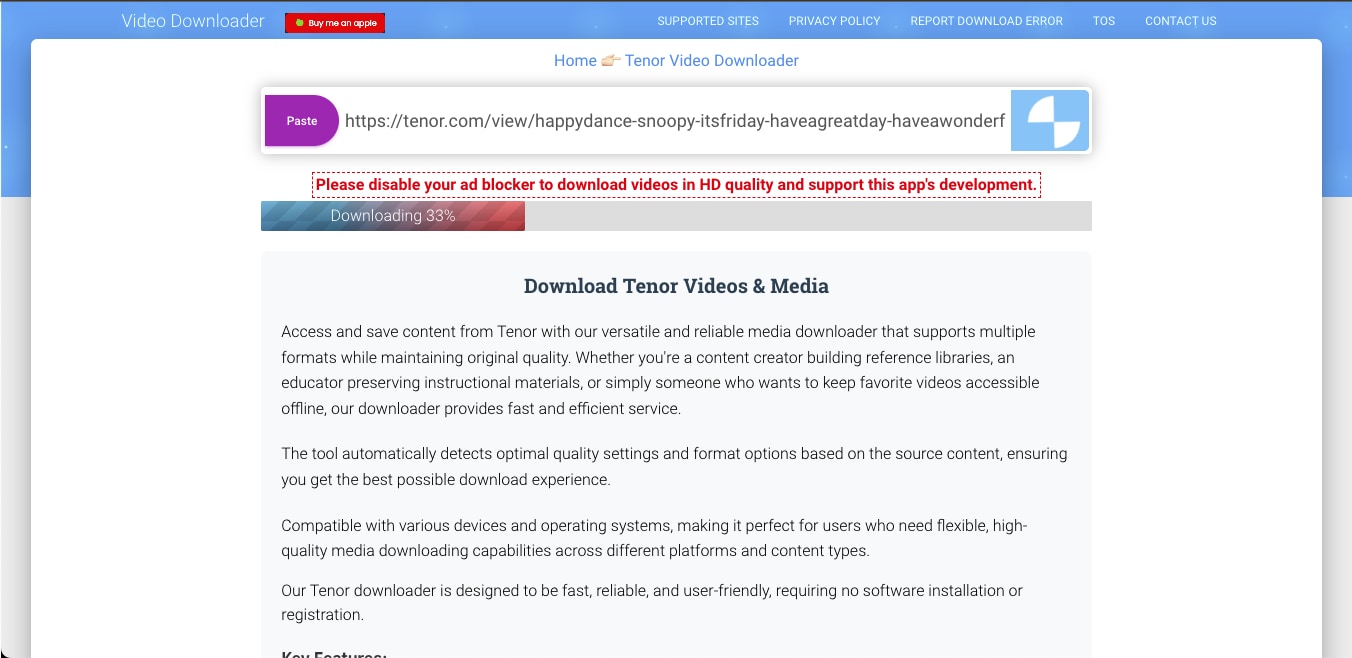
Step 2: Navigate to Fetchpik’s Tenor Downloader. Paste the copied Tenor URL into the provided input field.
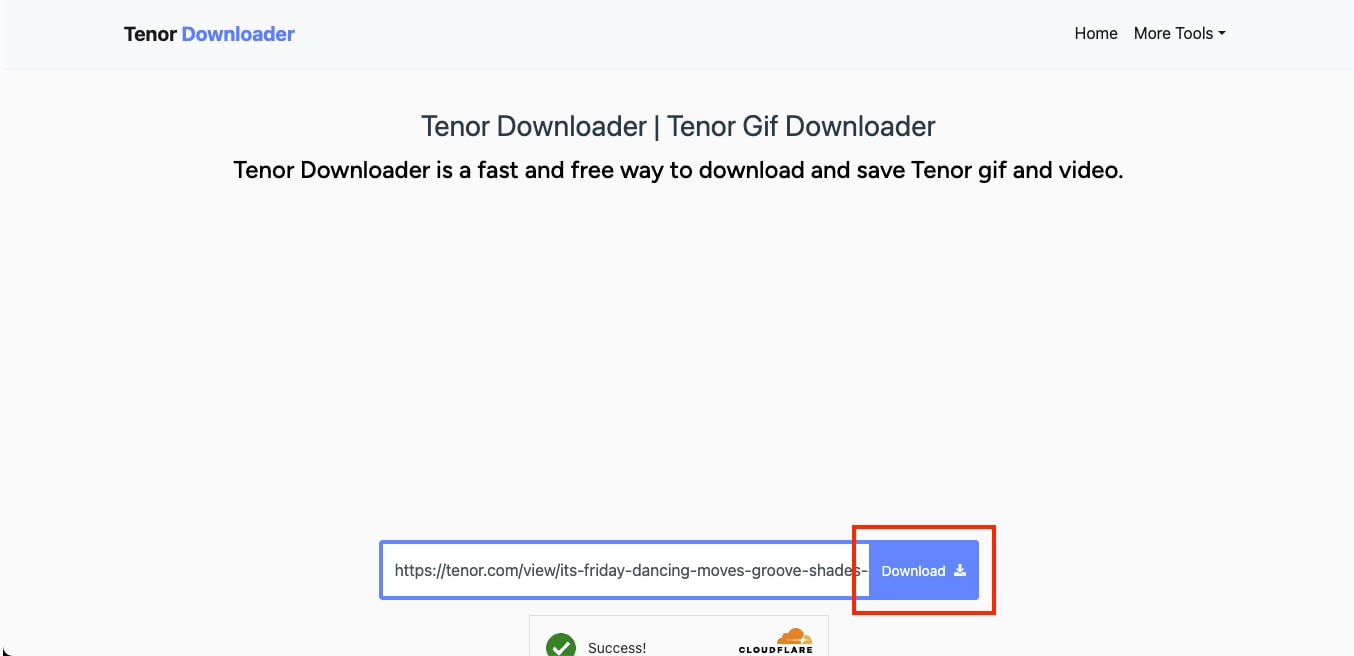
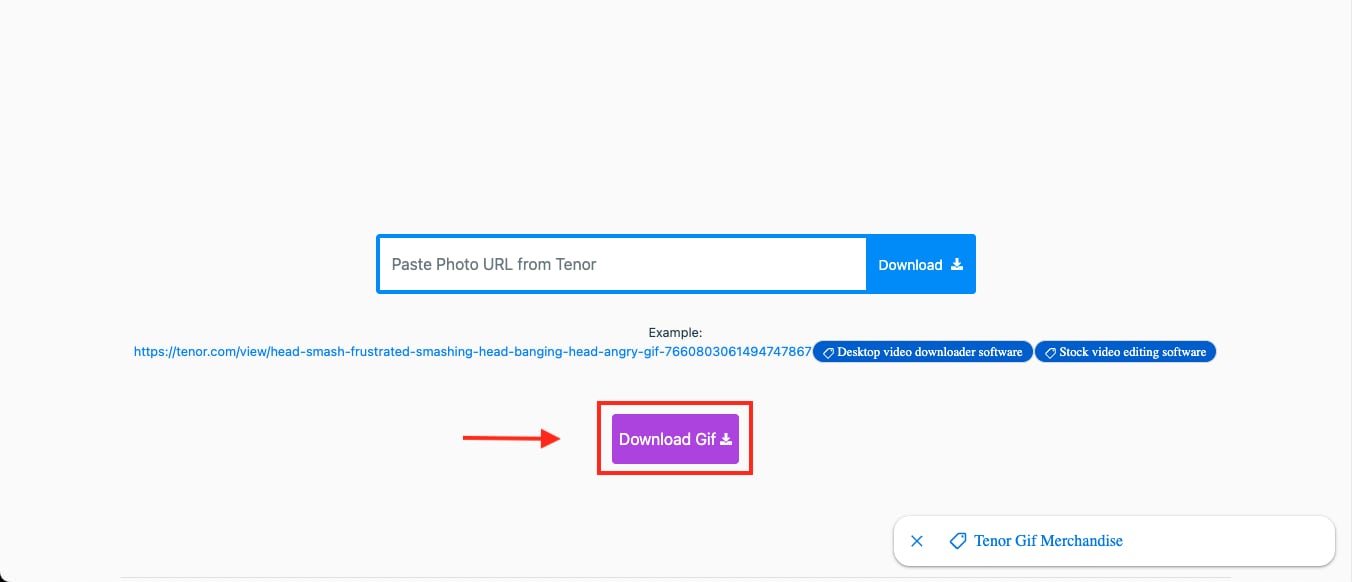
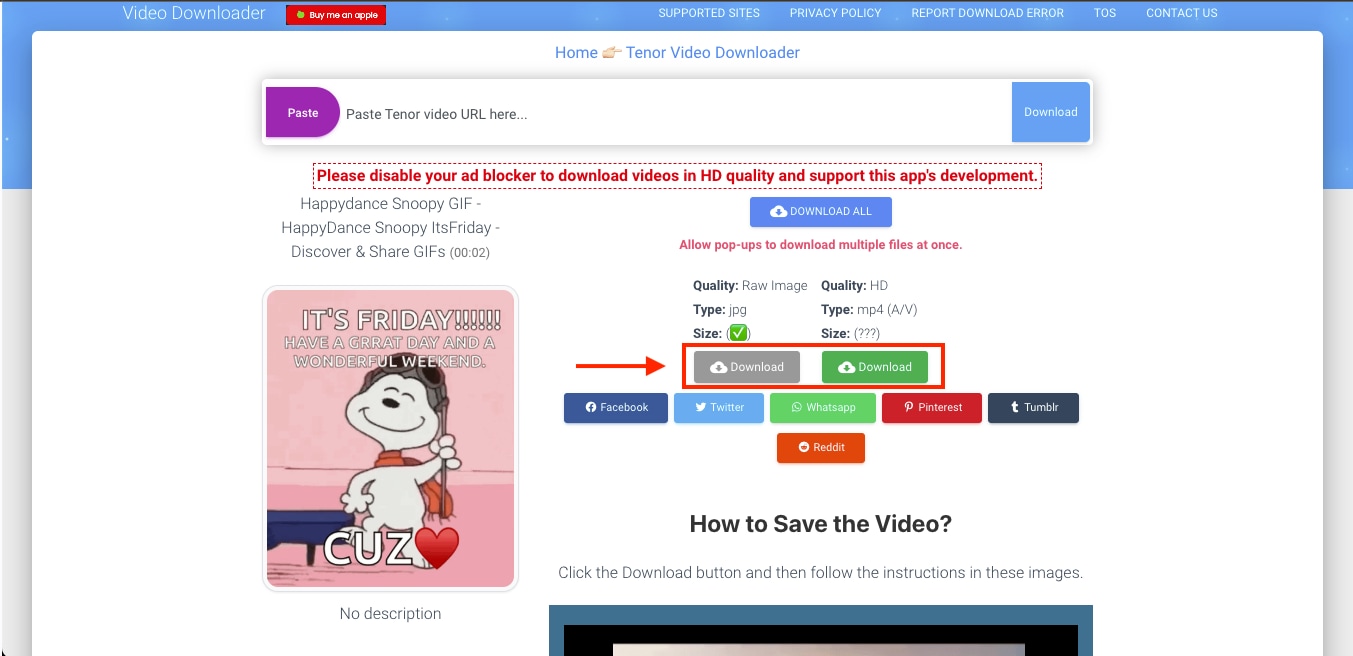
Step 3: Click the “Download” button. The tool will process the URL and generate a new Download GIF button. Click this button to save the Tenor GIF directly to your device.
2. Download Tenor GIF in different formats with PasteDownload
PasteDownload is yet another popular website that offers a more flexible way to download Tenor GIFs, especially for content creators who want additional format options, such as MP4 or raw image files. The tool automatically detects file types and provides a simple download interface across devices.
Step 1: Copy the Tenor GIF URL from the “Share URL” section on Tenor.com.
Step 2: Visit PasteDownload's Tenor Downloader and paste the link in the input box.
Step 3: Click the Download button, then select your preferred format (e.g., MP4 or JPG) to save the file locally.
Part 3. How to Change the Speed of GIFs Using UniConverter
Once you have downloaded Tenor GIFs, you might want to fine-tune it for pacing, mood, or integration into another project. Wondershare UniConverter’s GIF Maker allows you to modify GIF playback speed with precision, where it offers a dedicated editing panel where adjustments like frame timing, crop ratio, and output resolution can be customized.
Steps to Change GIF Speed Using UniConverter:
Step 1: Open Wondershare UniConverter and click on the “Converter” section from either the “Quick Access” menu on the left or the main dashboard.
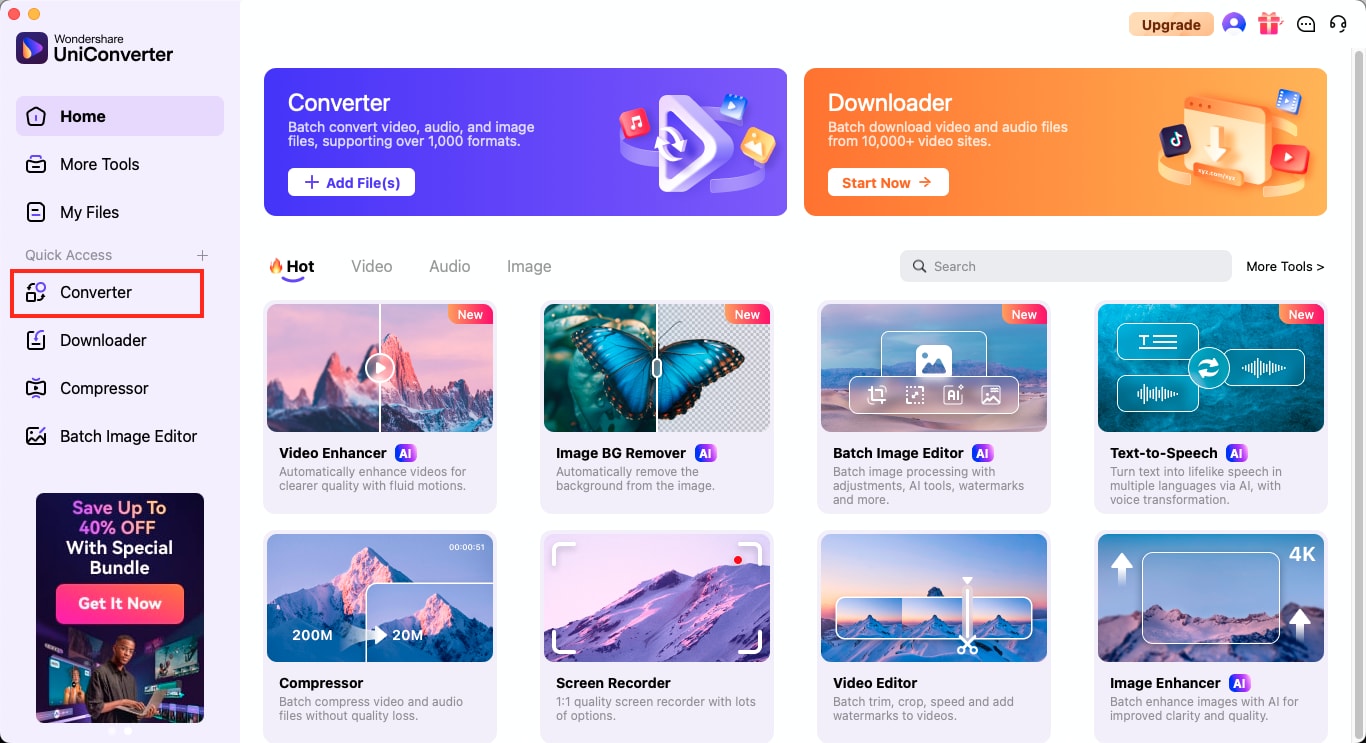
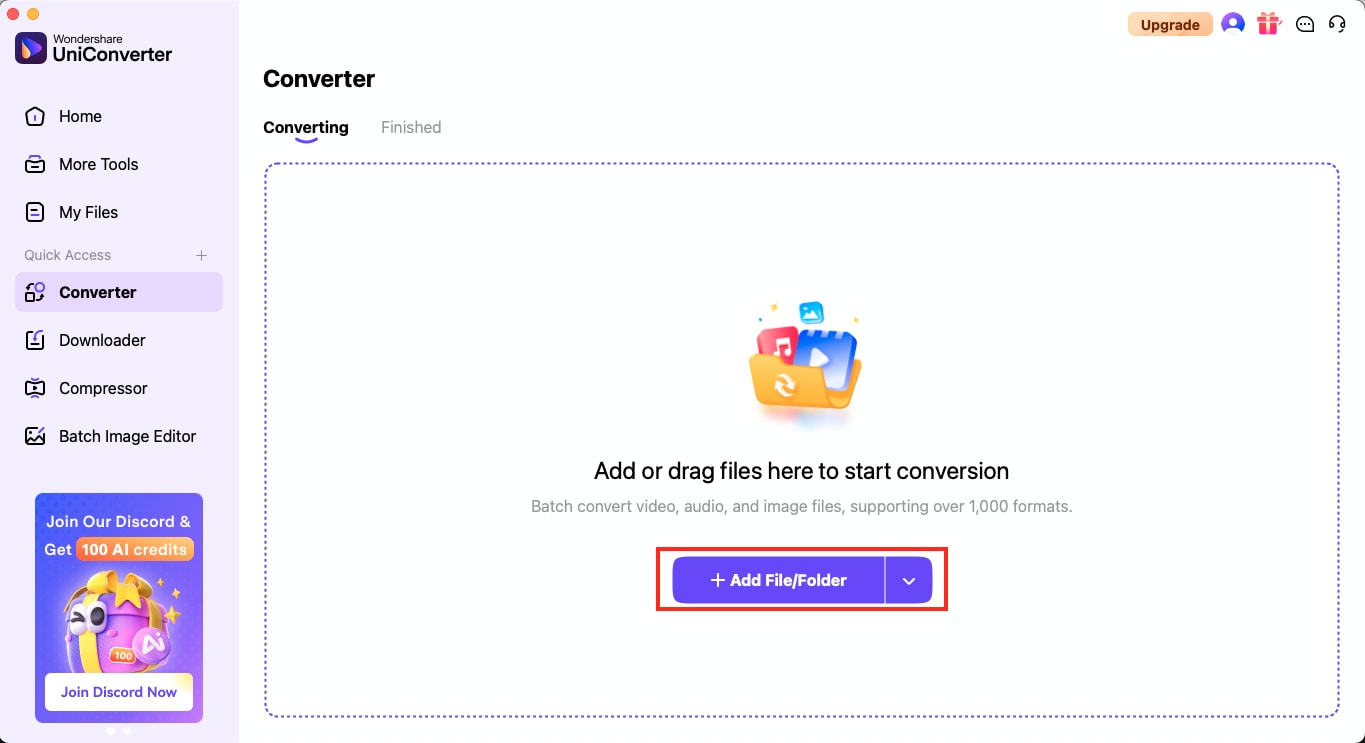
Step 2: A new interface will appear, from which you can drag and drop your GIF into the window or use the “+ Add File/Folder” button to import it.
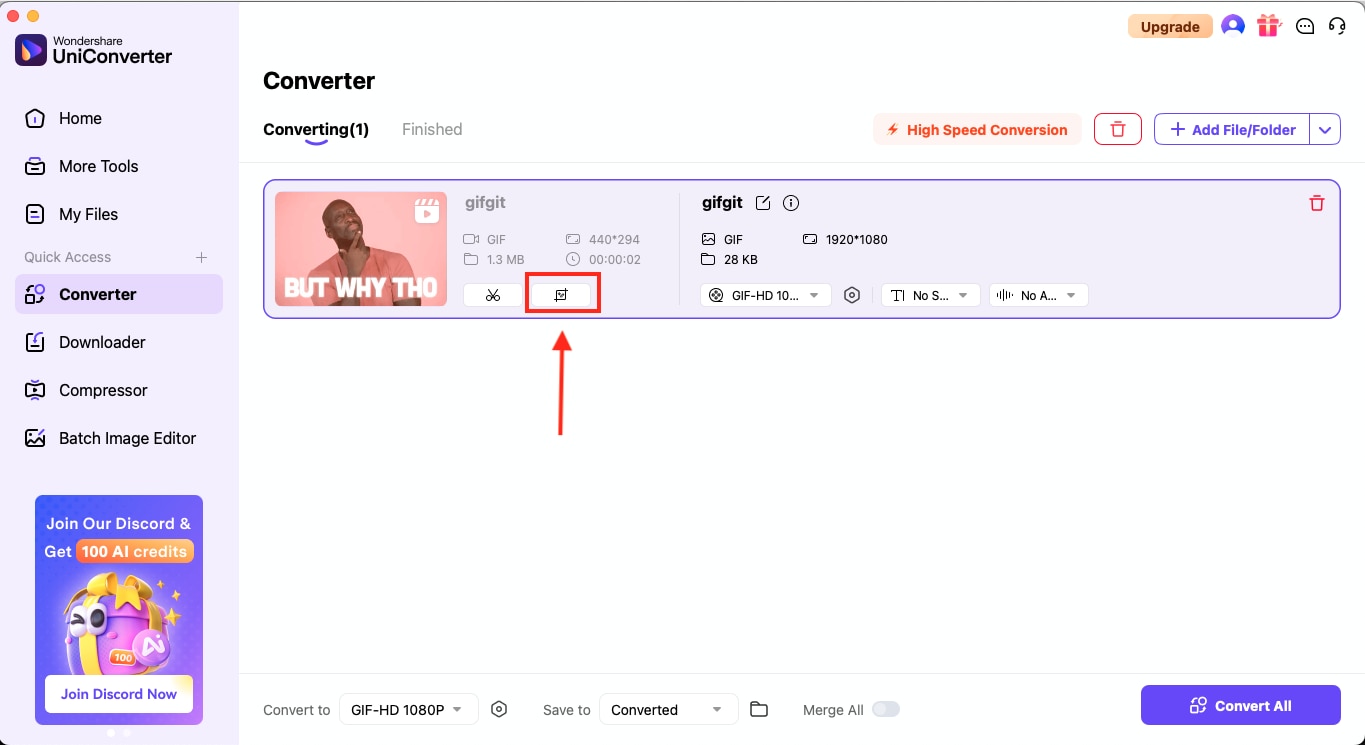
Step 3: Once the file is loaded, click on the “Crop” icon below the GIF thumbnail. This will open the editing suite, where you can crop, apply effects, add audio/subtitles, and adjust speed.
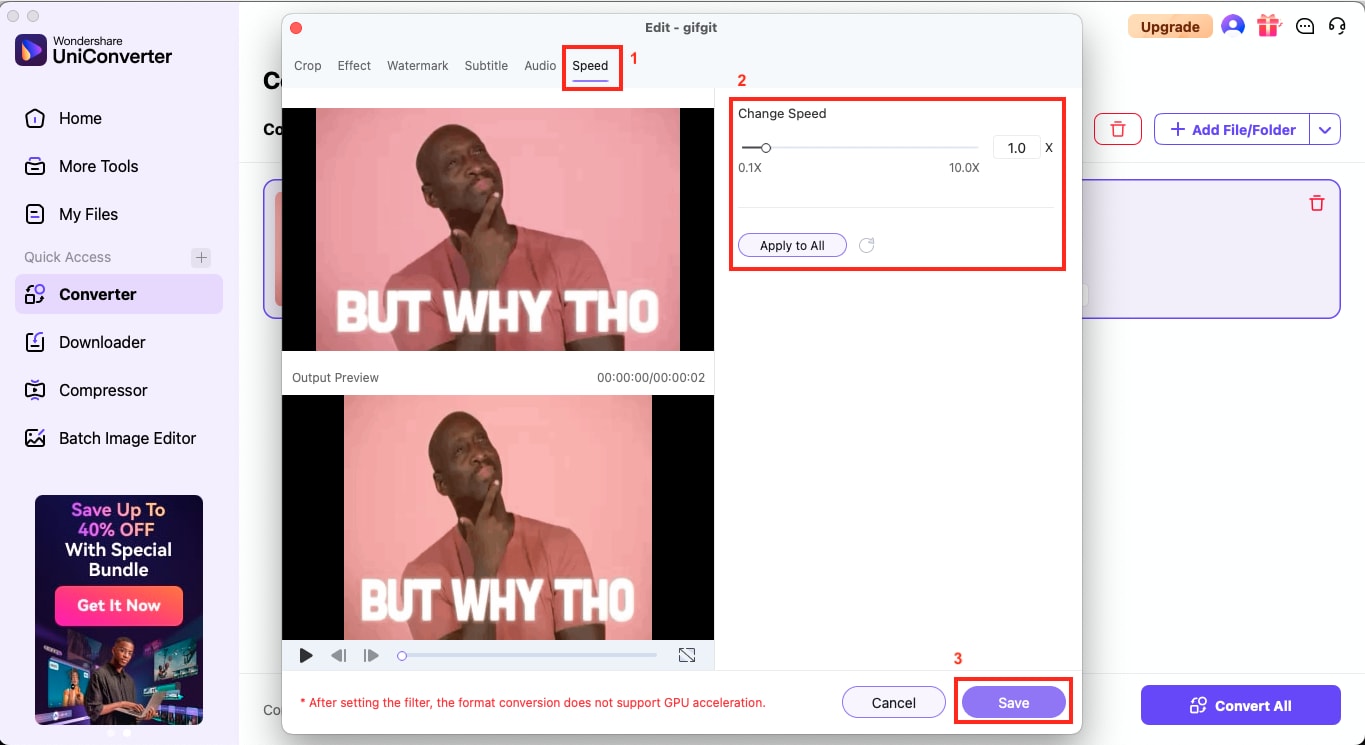
Step 4: Navigate to the “Speed” tab. Move the slider to increase or decrease the playback speed as required. Click Save once your adjustments are done.
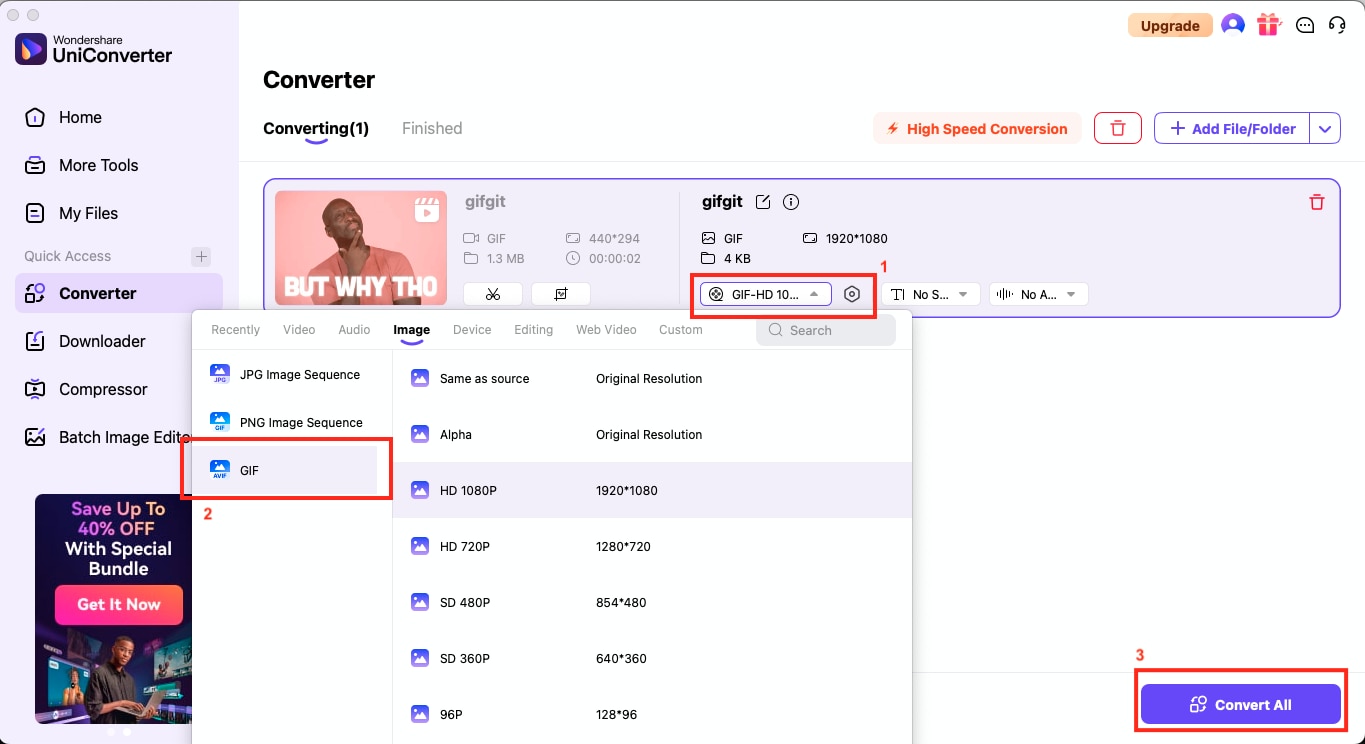
Step 5: To export the updated GIF, go to the “Export Format” dropdown, choose “GIF,” and then click “Convert All” to finalize and save your new file.
Conclusion
Whether you're saving a funny GIF for personal use, preparing visual assets for a project, or editing a GIF to better match your content's tone, knowing how to download Tenor GIFs efficiently can save you time and effort. While the browser method offers a quick solution, web-based tools like Fetchpik and PasteDownload simplify direct downloads when right-click saving is restricted.
For those who want more control, such as adjusting speed, trimming frames, or exporting in various formats, Wondershare UniConverter offers a professional yet accessible platform to handle everything in one place. From casual use to polished output, these methods ensure you have the flexibility to save, edit, and repurpose Tenor GIFs with ease.
FAQs
-
How do I download a GIF from Tenor?
You can download a GIF from Tenor by right-clicking on the GIF and selecting “Save Image As…” if you are using a desktop browser. Alternatively, copy the GIF’s “Share URL” and paste it into a web tool like Fetchpik or PasteDownload to generate a direct download link. -
How to download GIFs from Chrome?
To download a GIF in Chrome, open the GIF page, right-click on the image, and choose “Save Image As…” to save it as a GIF file. If this option is unavailable or the file saves incorrectly, consider using an online downloader by pasting the GIF's URL. -
How to copy a Tenor GIF to Instagram?
Instagram does not support direct GIF uploads. To post a Tenor GIF to Instagram, first download the GIF and then use a tool like UniConverter to convert it to a video format such as MP4. Once converted, you can upload it to your Instagram feed or story like any standard video. -
Can I edit an existing GIF?
Yes, you can edit an existing GIF by using software that supports GIF customization. Basic edits, such as cropping, resizing, or adjusting speed, can be performed using tools like Wondershare UniConverter, which also enables format conversion and batch processing. -
What software to use to edit GIFs?
You can use Wondershare UniConverter to edit GIFs. It allows users to crop frames, change speed, adjust resolution, add subtitles, and convert GIFs into other formats. Other options include Photoshop for advanced editing or online tools for lighter adjustments.

