It might be frustrating to see a “Failed to Post” message when you put time and effort into creating a post to fit the social media algorithm. Many users face this issue without knowing what would be the reason behind it. Some might consider it a small glitch, while others consider refreshing their account.
If you are unaware of what to do in such a situation, read this article till the end. In this article, we will discuss why Instagram won't let me post and the detailed solutions to overcome this issue.
In this article
Part 1. Failed to Post on Instagram Due to Account Problems
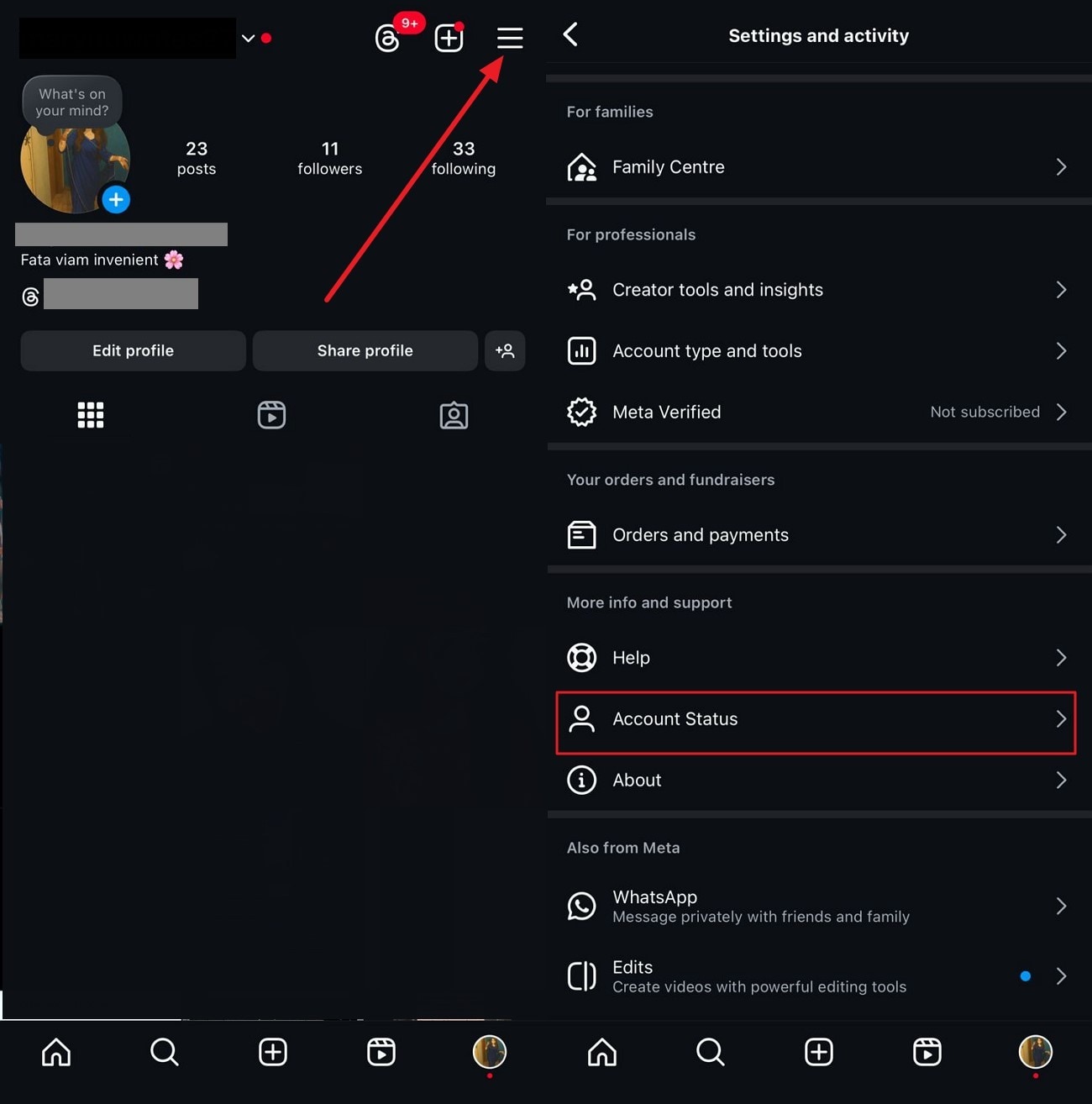
One of the reasons that might prevent you from posting on your favorite social media account could be account restrictions or blocking issues. If your account is limited or blocked, the platform may stop you from performing certain actions, which include posting. This usually happens when you violate any community guidelines or have been reported multiple times by different accounts. Read the steps mentioned below to check whether your account is blocked or not:
Step 1
After launching the application, head to the profile settings by tapping on the “Three Bars” and scroll through the options in the following interface. Locate the “Account Status” settings within it and tap on it.
Step 2
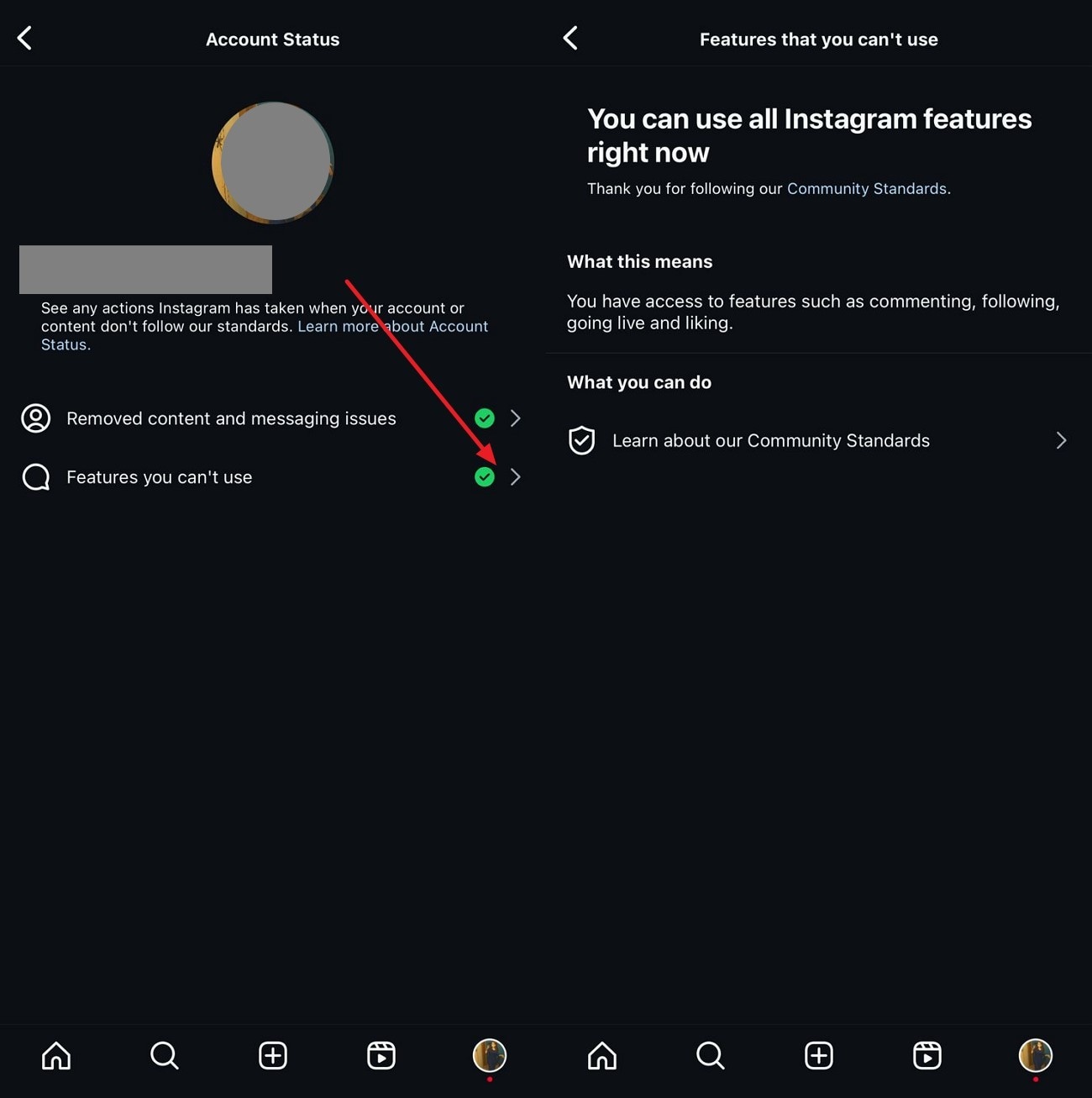
Tap on the "Features You Can't Use" option to enter the following interface. Here, you can check if your account is restricted or not. If the success message of "You Can Use All Instagram Features Right Now" appears on your screen, it means your account is not blocked, and you can post on the platform.

Super Easy to Use Media Compressor for Win and Mac
Part 2. Failed to Post on Instagram Due to the Post Content
If you are wondering why I can’t share a post to a story on Instagram, there could be a few reasons for it. Mentioned below are some of the causes why you are unable to post on this social site:
- Community Guidelines Violation: One of the reasons could be that your content violates the guidelines of the platform. The social site restricts content to be shared that does not align with its policies and guidelines.
- Issues With Captions and Hashtags: Using hashtags that are spammy or banned by the platform can restrict you from adding the post or story to your profile. Too much text or inappropriate language in the captions can also lead to a failed post error.
- File Size Limit: If you are trying to post a video that has a file size of more than 4GB, you might get the Instagram can't post error. For images, the maximum size is 30 MB, which should be maintained for successful posting.
- File Format Not Supported: Another reason for this prevention could be an unsupported file format. You will not be able to post the media if the format is anything other than MOV, GIF, and MP4 for videos and JPEG and PNG for pictures.
- Length of Video: The platform has certain limits on the video length, and if you exceed them, you might not be able to post on the platform. For a reel, the maximum length should be 15 minutes and 3 minutes for an in-feed video. You get the ability to post a story for up to 15 seconds each on your profile.
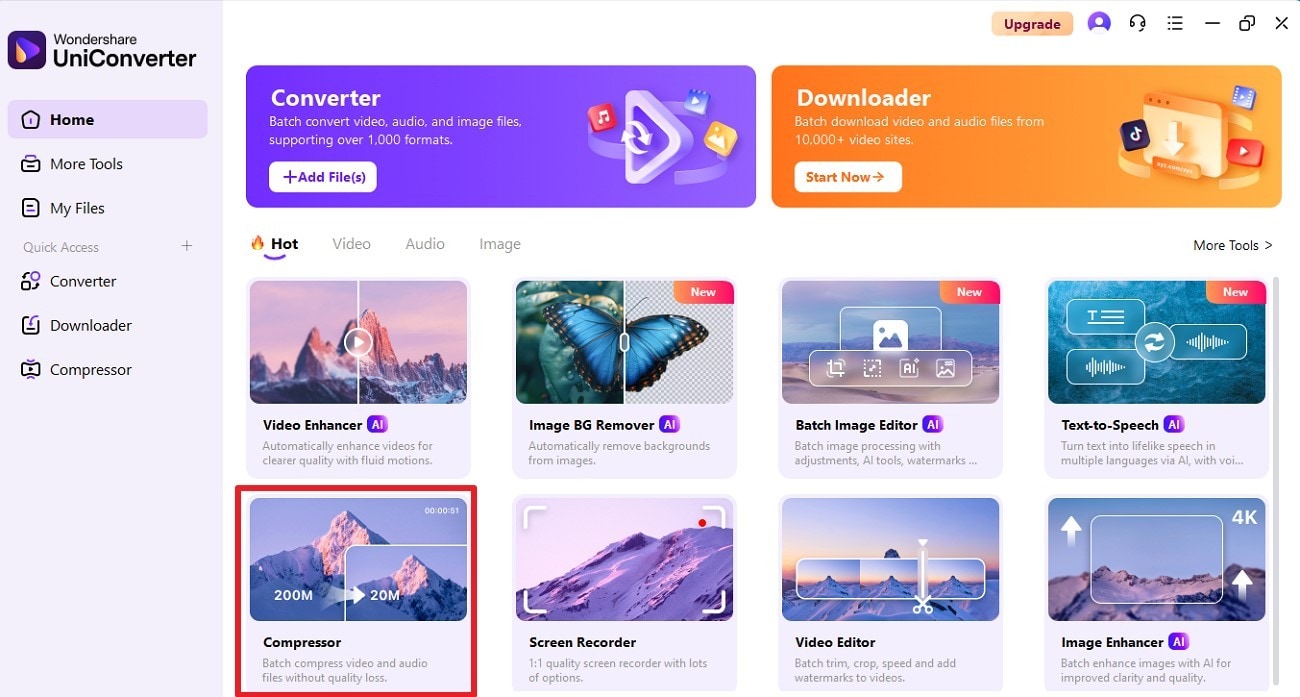
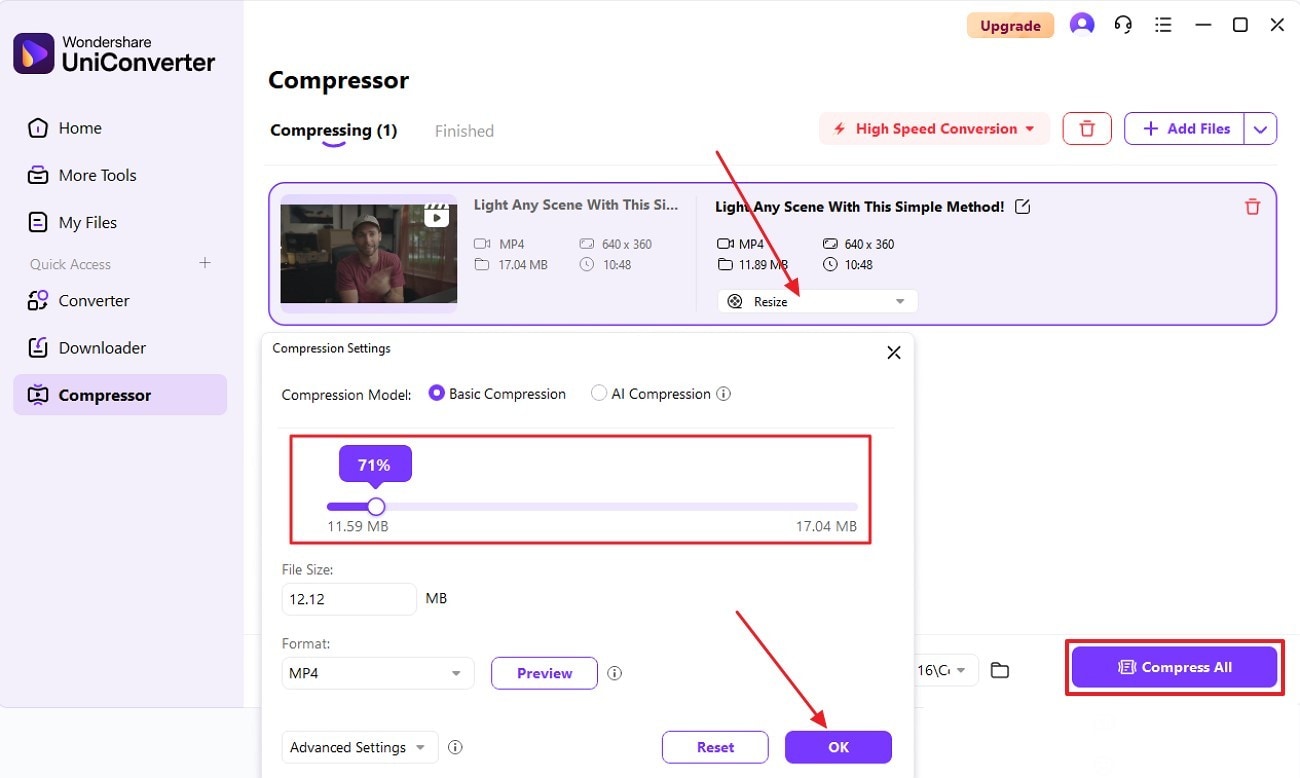
You can use tools like Wondershare UniConverter if you are looking for ways to post videos on social platforms, but the file size is restricted. This efficient tool compresses your videos and makes them postable without compromising on the quality. To learn how to compress your large video using this tool, consider the steps mentioned below:
Step 1. Choose the Compressor Feature of UniConverter
Once you have launched the tool on your device, locate the “Compressor” feature from the homepage and press it. Now, add the long video from your device for compression to the tool’s interface.
Step 2. Select the Compression Level and Compress
After the video is successfully added, expand the "Resize" drop-down menu and choose the compression level by dragging its slider. Save the changes by pressing the "OK" button and hitting the "Compress All" button to successfully begin the process. The compressed file will be saved in the designated folder once the size reduction is completed.
Part 3. Failed to Post on Instagram Because of the App Version or Settings
If you are posting anything after a very long time and face the “unable to post on Instagram” option, an outdated app version could be the reason. The app versions that are older than May 2022 may not support the latest posting feature. Moreover, if the app settings are not properly configured, you might get a posting error on this social platform. To learn how to fix these issues, read the respective instructions carefully:
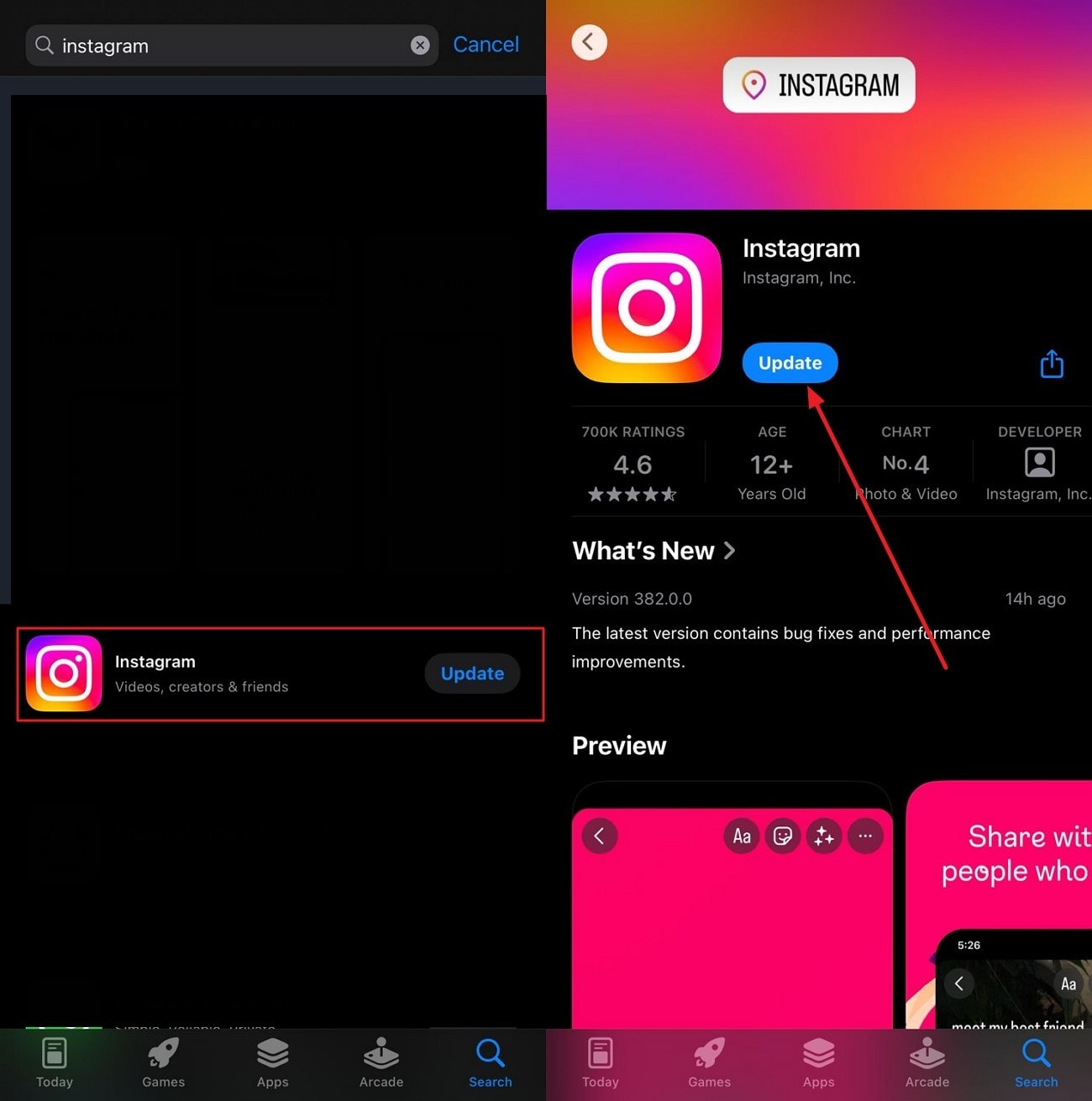
Checking for Updates
Instructions. Search for the Instagram app and tap on it within your App Store or Play Store. Here, tap on the "Update" button to start the update process, which might remove the posting error.
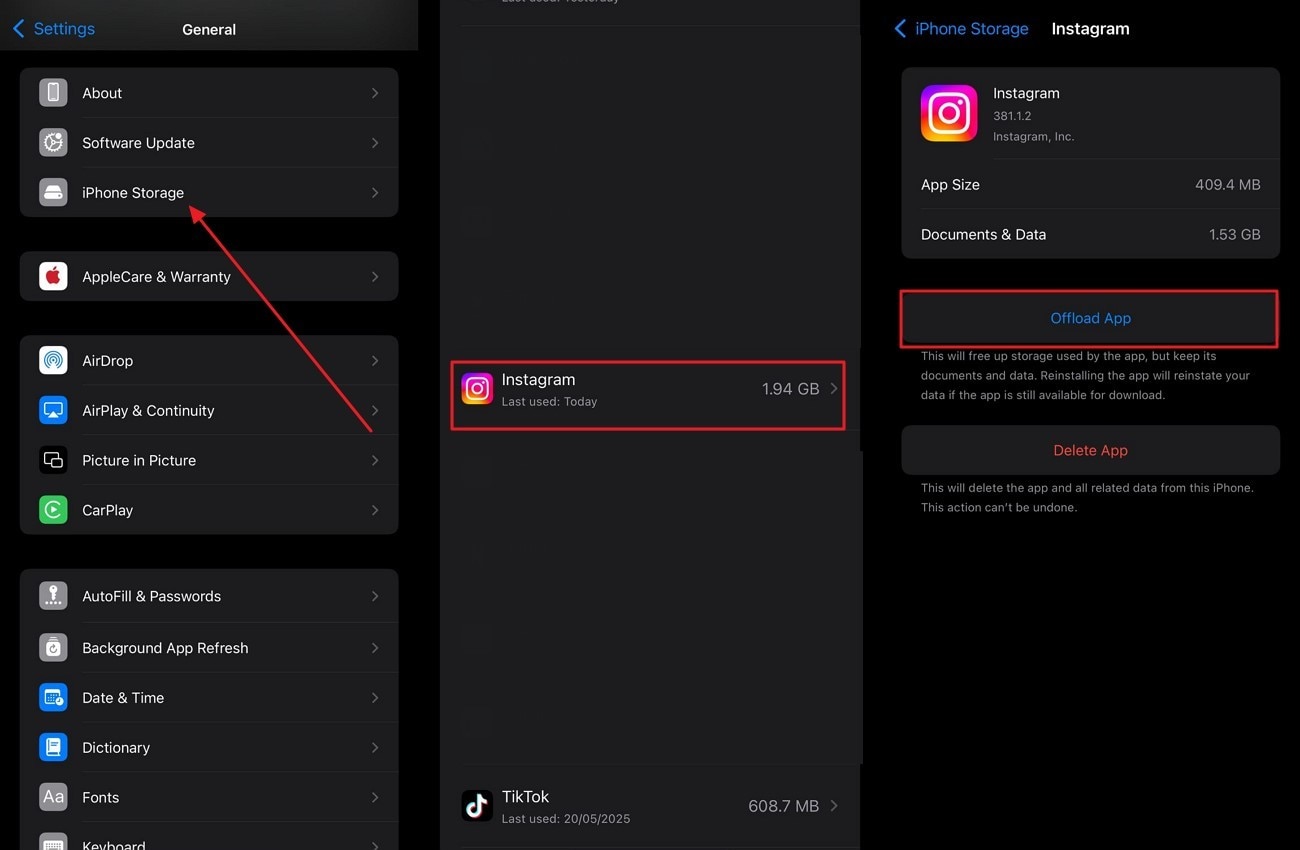
Clearing App Data on iPhone
Instructions. Head to the “Settings” of your smartphone and access the “General” section from the provided options. Tap on the “iPhone Storage” option and locate the “Instagram” app within the list. Press the “Offload App” option to clear the cache and smoothly resume posting on the social platform.
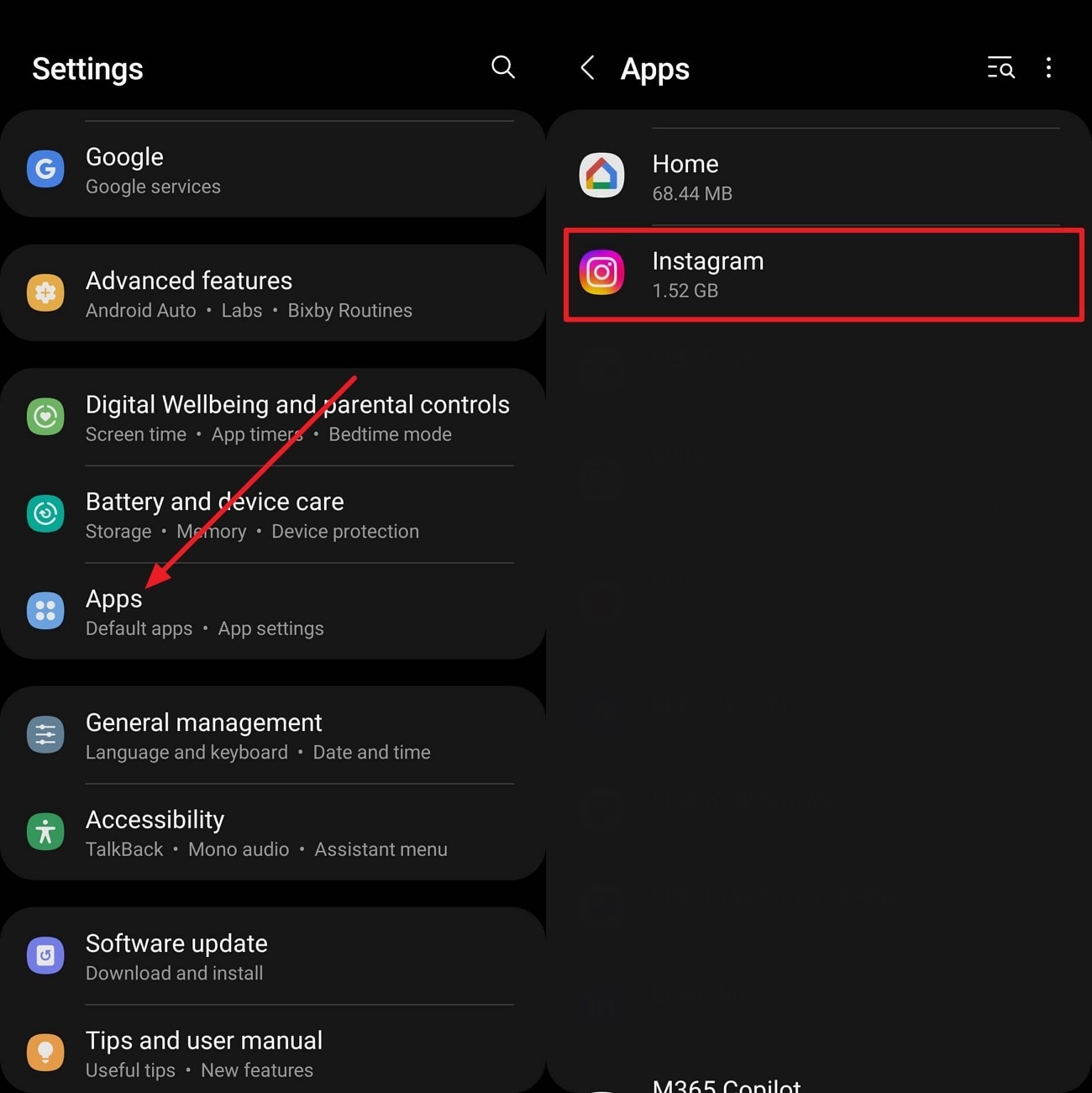
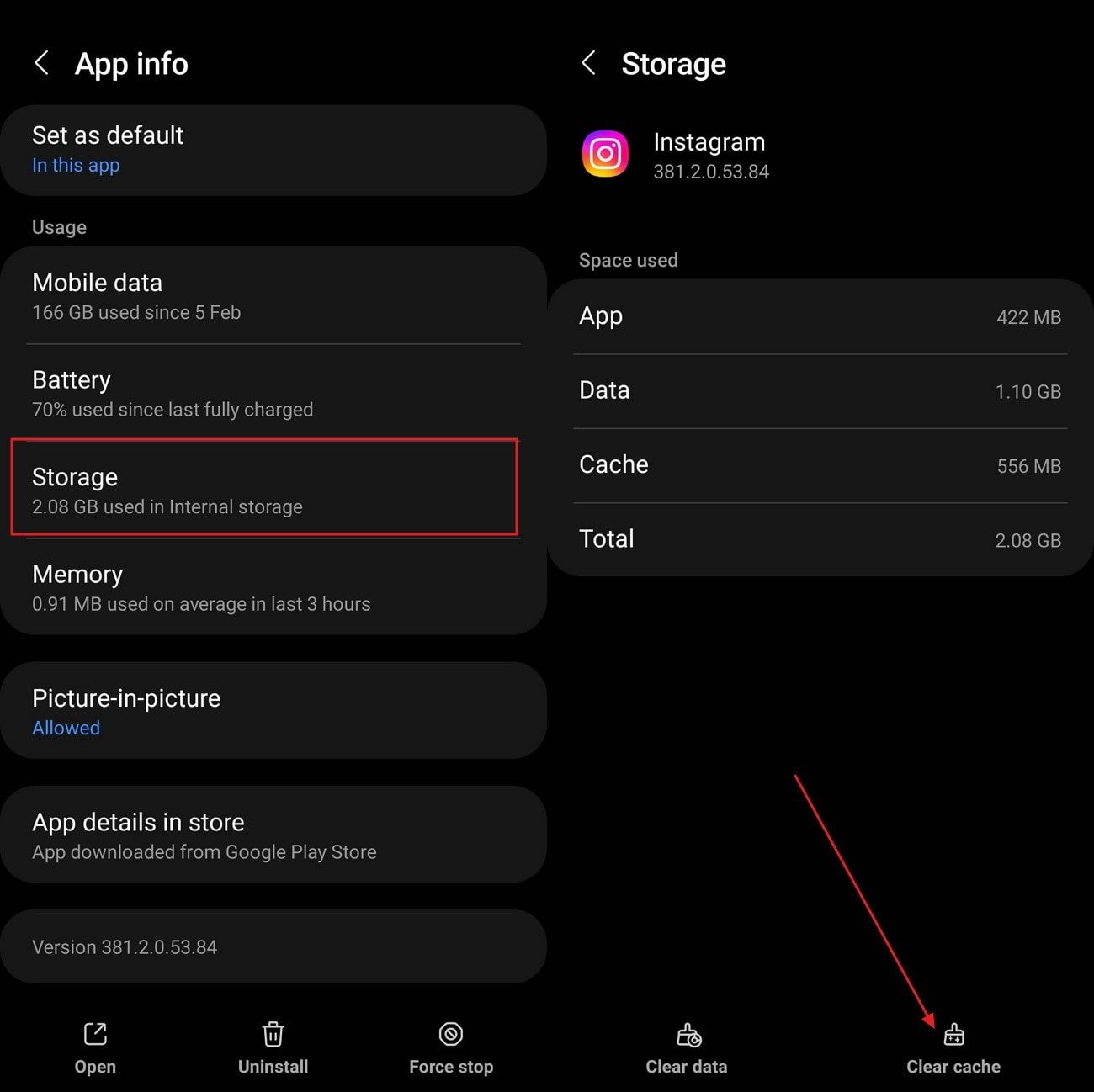
Clearing Cache on Android
Step 1
Access the settings on your phone and tap on the “Apps” option located within the menu. Next, choose the “Instagram” option in the following interface.
Step 2
Locate the “Storage” option and tap to clear the cache by pressing the “Clear Cache” option in the following interface.
Super Easy to Use Media Compressor for Win and Mac
Part 4. Failed to Post on Instagram for Mobile-Related Problems
When all the above-mentioned fixes have been tried, and you still can’t post stories on Instagram, your phone might be the issue. Sometimes, there are certain hardware glitches that start acting up and prevent users from performing specific actions. Mentioned below are some of the phone-related problems, along with their solutions, to help you resolve these issues:
- Check Internet Stability: A weak or unstable internet connection can be one of the common reasons for failure in posting on social platforms. Whether you are using Wi-Fi or mobile data, make sure that the connectivity is strong enough to upload photos and images successfully.
- Low RAM: Without sufficient RAM, your device might start to lag. To fix this, you can close the unnecessary apps in the background or restart your device to free up resources.
- Insufficient Storage Space: The platform needs free storage to perform well and prevent the “photos can’t be posted on Instagram” issues. Try deleting old and useless files to clear the space in your device storage.
- Background App Restrictions: If you have put your phone in battery-saving mode or data restriction, this might also limit the ability of the platform to function perfectly. You can fix the issue by simply disabling the battery-saving mode and giving unrestricted access to the application for smooth processing.
- Outdated OS Versions: Running an outdated version of the operating system of your phone can also be one of the reasons for the app not posting successfully. Update your phone to the latest version of the operating system to resolve this issue and improve performance.
Conclusion
To wrap it up, this article discussed reasons for the “why Instagram won't let me post” issue and the fixes to resolve this issue. It also suggested how you can reduce the file size of your lengthy video to make it postable on the platform. With Wondershare UniConverter, you get the ability to compress your videos according to the platform’s requirements and successfully post them without any inconvenience.
FAQs
-
1. Why can’t one post on Instagram?
There can be many reasons that restrict you from posting on social platforms, such as insufficient storage space or background restrictions. Violating the app guidelines can also be one of the reasons the platform does not let you post. -
2. Can an unstable internet connection restrict you from posting on the social platform?
If you can’t post on Instagram, an unstable internet connection could be the culprit behind it. Check for strong connectivity and try to re-upload the media to the platform. -
3. Why can’t I upload large videos on the app?
The platform has a limit of 4 GB for video to be uploaded. However, you can compress it to a smaller size with Wondershare UniConverter without ruining its quality. -
4. How to check for an update for the operating system to post on Insta successfully?
To check for an update on your operating system, head to your phone settings and tap on the “Software Update Available” to keep the OS up to date.