How to Convert M4A to FLAC Online or on Desktop

Import Your M4A File
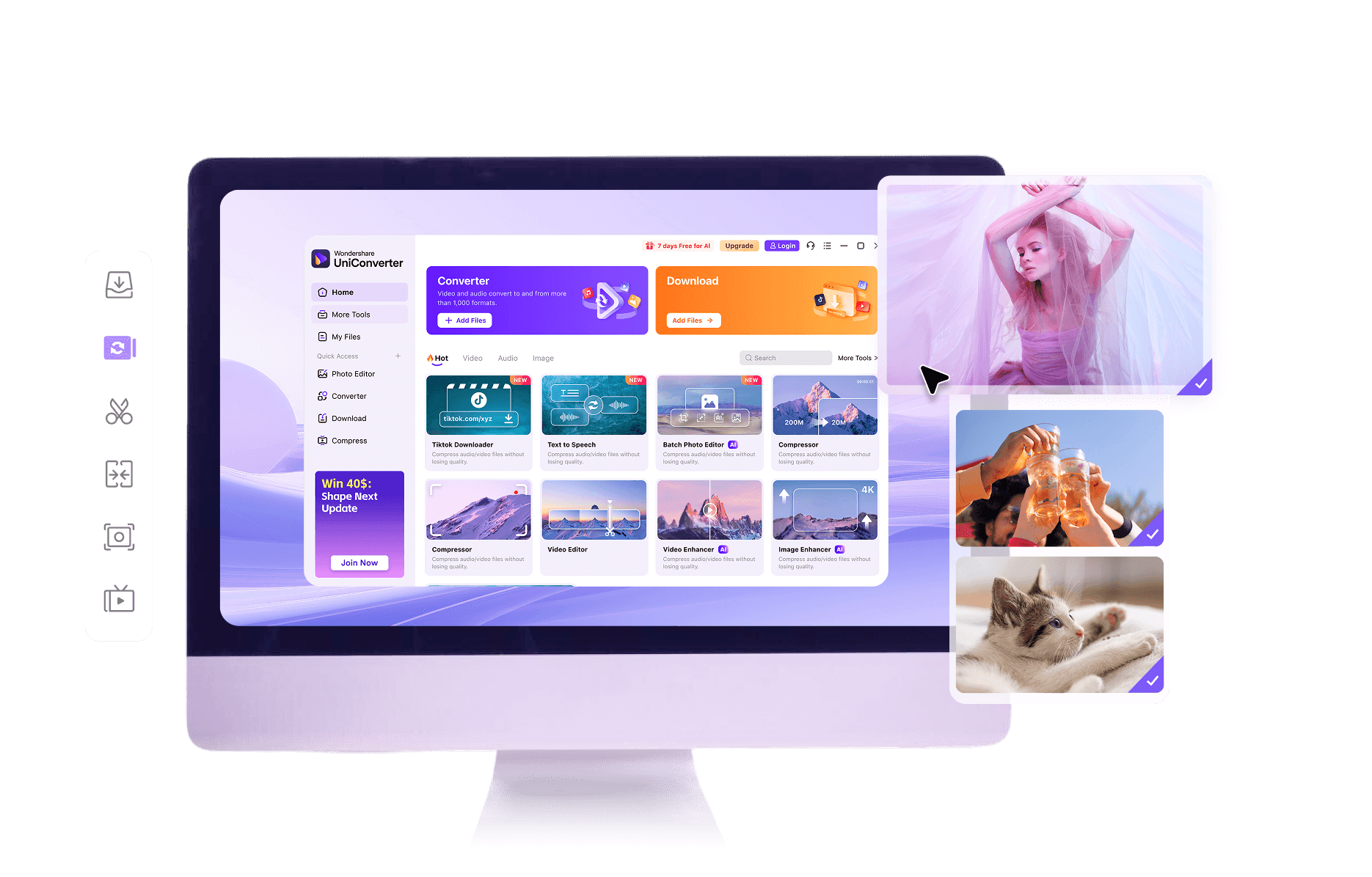
Open the M4A to FLAC converter in your browser or launch the desktop software, then upload or import the M4A file you want to convert. The online tool is convenient for quick audio conversion, while the desktop version is better for larger files, folder imports, or handling multiple tracks locally.

Select FLAC Output and Adjust Audio Settings
Choose FLAC as the target format whether you convert M4A to FLAC online or on desktop. You can keep the default settings for a fast process, or use the desktop converter to fine-tune sample rate, channels, and other audio options for better control over quality and lossless output.

Convert, Save, and Review the FLAC File
Start the M4A to FLAC conversion and save the new file after processing is complete. Download it from the online converter or access it directly from the desktop output folder, then play the FLAC audio to check sound quality, file integrity, and compatibility with your playback or editing workflow.
M4A vs FLAC: What Converting M4A to FLAC Really Does
|
M4A
|
FLAC
|
|
|---|---|---|
| File Extension | .m4a | .flac |
| Full Name | MPEG-4 Audio | Free Lossless Audio Codec |
| Description | M4A is an audio container commonly used for AAC or ALAC streams. Most music downloads and podcast files in this format use lossy AAC compression, balancing good sound quality with relatively small file sizes. | FLAC is a lossless audio format that compresses sound without discarding information, allowing perfect reconstruction of the original PCM audio while still reducing file size compared with uncompressed WAV. |
| Associated Programs | Apple Music, iTunes, QuickTime Player, VLC media player, Windows Media Player (with codecs), many mobile music apps | VLC media player, Foobar2000, MusicBee, Winamp, AIMP, many hi‑res players and hardware audio systems |
| Initial Release | 2001 | 2001 |
| Developer | Apple Inc. | Xiph.Org Foundation |
| Common Use Cases | Music purchases, podcast episodes, audiobooks, ringtones, general-purpose streaming and playback on phones, tablets, and desktop players. | Archiving music libraries, high‑resolution playback, DJ collections, audio editing workflows, and compatibility with devices or software that prefer or require lossless audio. |
| MIME Type | audio/mp4 | audio/flac |
Key Features of Our M4A to FLAC Converter
Online Free M4A to FLAC Conversion with No Install
Use the browser-based audio file converter to change a single M4A file into FLAC for free. No registration or software installation is required, making it ideal for quick, one-off audio conversion tasks on any supported device.
Secure Online Audio Conversion and File Handling
Upload M4A tracks over encrypted connections, convert them on secure servers, and download the FLAC result with peace of mind. Files are stored only for the time needed to process and deliver your audio, helping protect privacy and personal recordings.
Honest Quality Handling When Moving from Lossy to Lossless
Switching from a lossy M4A source to a lossless container does not magically restore detail that was removed before. The conversion keeps the existing quality without adding extra compression, while providing a FLAC file that suits editing and archiving.
Cross-Platform Support on Windows and Mac
Run the online converter from major browsers across Windows, macOS, and other systems, or install the desktop application on supported computers. This ensures a consistent way to handle audio files whether you are at your desk or using a laptop on the go.
Desktop App for Batch M4A to FLAC Conversion
For large music libraries, use the desktop software to queue hundreds of M4A tracks and convert them into FLAC in one batch. Processing happens locally on your machine, avoiding repeated uploads and helping manage big collections more efficiently.
Desktop Control of FLAC Output Parameters
Advanced users can fine-tune desktop exports by choosing sample rate, channels, and other technical options for FLAC. Adjust settings to balance file size and compatibility with different players, something not available in the simpler online interface.
M4A to FLAC Conversion FAQ
Can M4A files be converted to FLAC without losing quality?
Is it worth converting M4A to FLAC for better sound?
Will converting M4A to FLAC improve audio quality or make it worse?
How do I convert M4A to FLAC on Windows 11 or Mac?
Is online M4A to FLAC conversion safe to use for personal recordings?
What Users Say About This M4A to FLAC Converter

Explore More Format Conversion



Convert Your M4A to FLAC Now