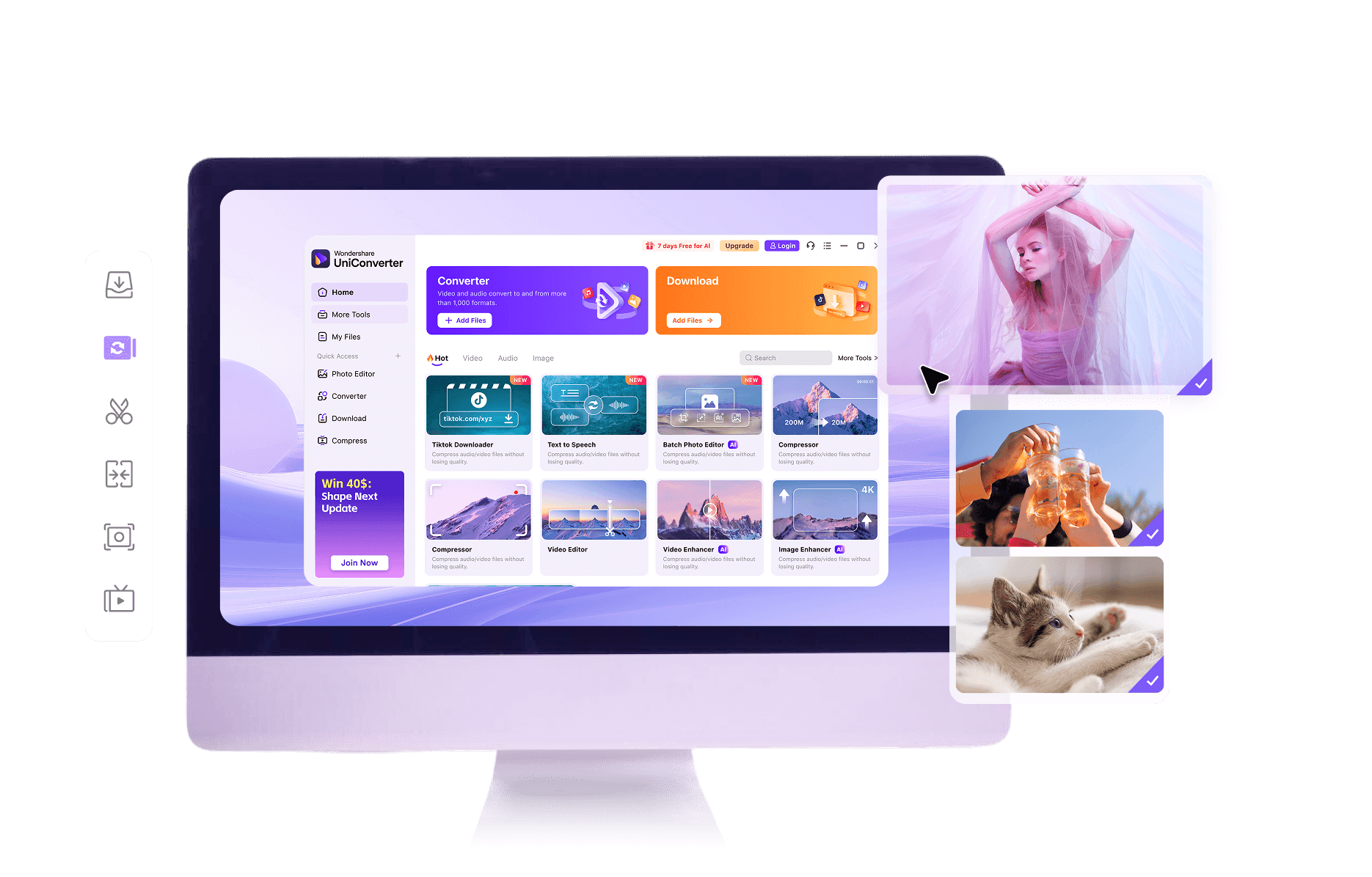
How to Convert MKV to MP4 Online

Add the MKV file
Upload your local MKV using Add File or drag and drop. For a long recording or repeated conversions, use the desktop queue. A file that fails to open in the original player may need source troubleshooting before any converter can produce a usable result.

Choose MP4 output
Select MP4. If you need explicit control over video codec, audio tracks or output settings, use Desktop Converter. Choose settings for the destination player rather than relying on a filename extension alone.

Save and review the MP4
Run conversion and save the MP4. Play a section with dialogue and review any required subtitles. Check both the beginning and the end for audio synchronization, and keep the original MKV until the copy has passed those checks.
How to Convert Local Files to MP4 on Desktop
For broad compatibility, choose an H.264/AAC output profile. Inspect Audio Track before conversion; Keep all audio track(s) and original-audio preservation depend on output compatibility. Check subtitle behavior separately.
Follow the official desktop workflow; the illustrations below show desktop controls rather than the online upload tool.
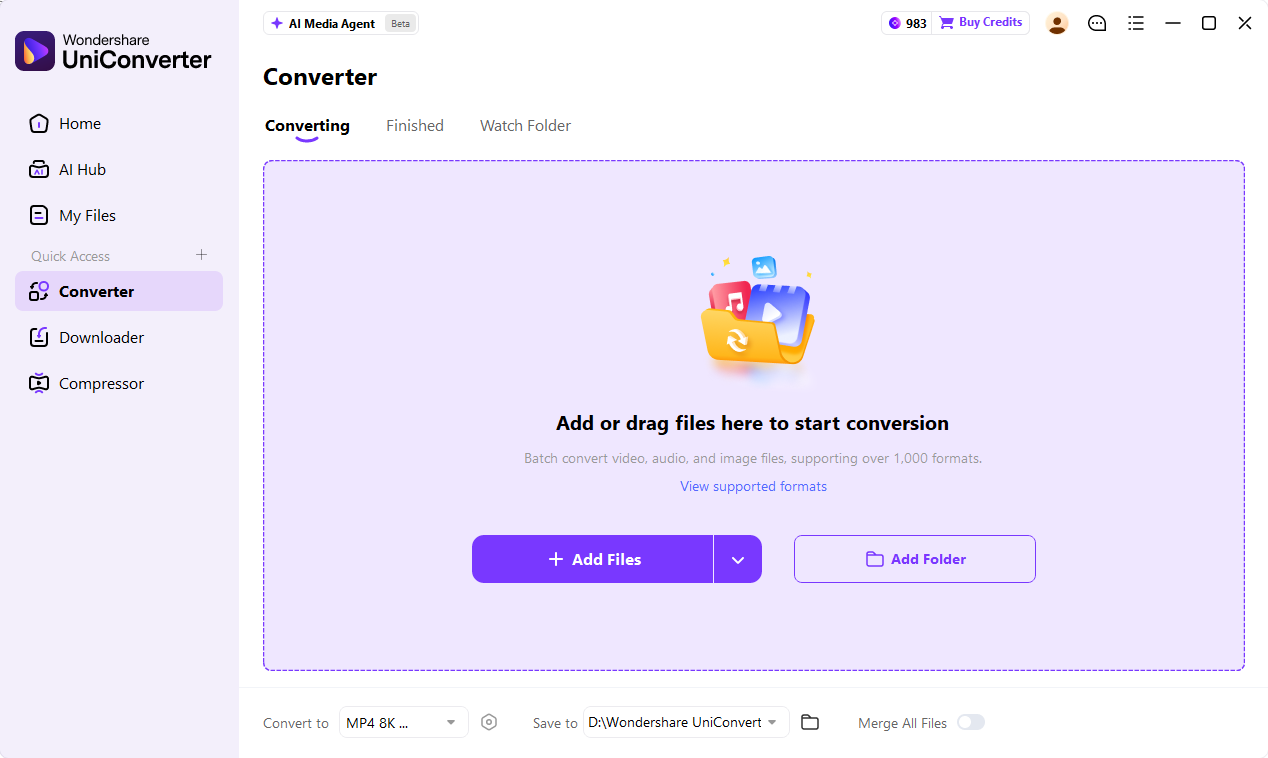
1. Import local videos
Open UniConverter 18 and select Converter on the Home screen. Use Add Files or Add Folder to build the local video queue. Review the source entries before choosing a shared output profile.
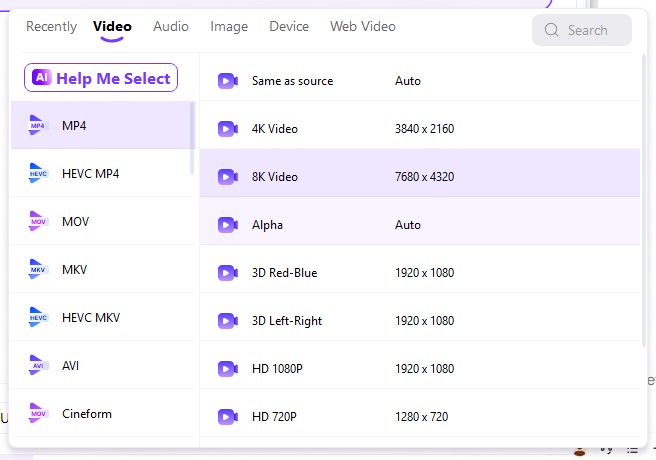
2. Choose MP4 and inspect settings
Open Convert to and choose MP4 under the video formats. For broad compatibility, choose an H.264/AAC output profile. Inspect Audio Track before conversion; Keep all audio track(s) and original-audio preservation depend on output compatibility. Check subtitle behavior separately.
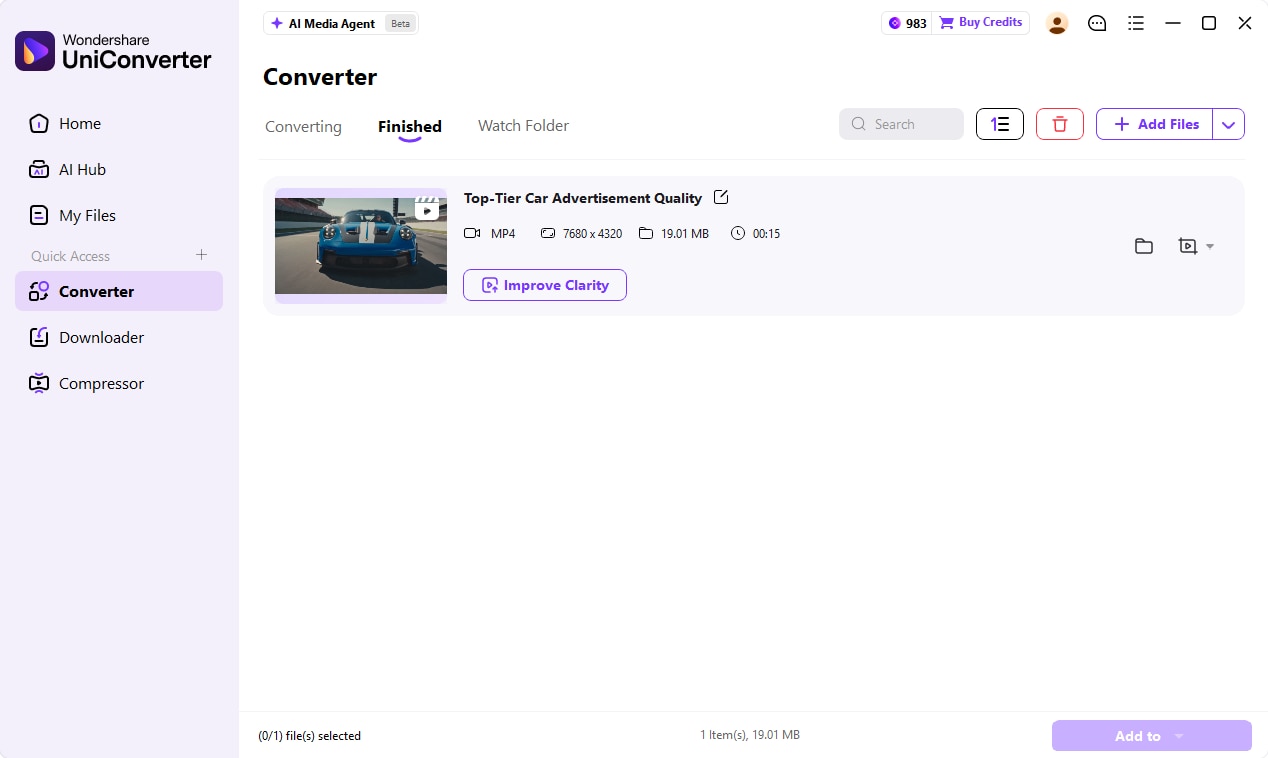
3. Set the folder, convert and review
Choose Save to, then select Convert All. When conversion finishes, open the Finished tab and locate the output. Play a representative file in the destination application before processing more files with the same settings.
Before you finish: compare the result with the source, check the actual dimensions and file size, and open it in the application where it will be used. Keep the original until these checks pass.
MKV vs MP4: Containers, Tracks and Compatibility
| What to compare | Source / need | Output / recommendation |
|---|---|---|
| File extension | .mkv | .mp4 |
| Container | Matroska multimedia container | MPEG-4 Part 14 multimedia container |
| Video and audio | Can contain many codec combinations | Playback depends on the codecs placed inside the MP4 |
| Audio tracks | Often contains multiple languages or mixes | Track support depends on conversion settings and player |
| Subtitles | May include text or image-based subtitle streams | Not every MKV subtitle type transfers directly |
| Lossless route | A suitable source may be remuxed | Stream copy preserves selected encoded streams when compatible |
| Compatibility route | A device may not accept the MKV container or its codecs | H.264/AAC MP4 is a practical delivery choice for many devices |
| Result checks | Keep the source as the reference | Check language, subtitle behavior, sync and intended playback |
References: Workflow and format reference · Additional format guidance
Practical Tips for MKV to MP4
UniConverter free MKV to MP4 converter offers fast, instant and batch processing with impeccable results.
Use Online Conversion for a Quick File
The converter above provides a direct MKV-to-MP4 workflow without installing a desktop application. Upload, choose MP4 and save the result. Use the allowance shown by the tool as the limit for that session. A large recording, multiple files or a need to choose tracks makes the desktop route more practical.
Distinguish Remuxing from Re-encoding
MKV and MP4 are containers rather than fixed picture-quality levels. Remuxing copies compatible encoded streams into a different container; re-encoding generates new compressed streams. A format change is not automatically lossless, and stream copy is not a remedy for a codec that the target device cannot decode.
Choose Audio Deliberately on Desktop
A film, lesson or interview may have several audio tracks. In UniConverter Desktop, inspect the Audio Track menu before converting. The documented Keep all audio track(s) option is useful when appropriate, but whether original audio can pass through depends on format and codec compatibility. Confirm which language plays by default in the actual destination.
Treat Subtitles as a Separate Delivery Choice
Embedded subtitle support differs between containers and players. A text subtitle, an image-based subtitle and a subtitle burned into the picture are different cases. Review the required subtitle method before a large conversion. If the MP4 looks correct but captions are missing, changing only the filename will not restore them.
Organize Multiple MKV Files Locally
Add Files or Add Folder to build a Desktop Converter queue, choose the output and Save to location, then use Convert All. Test one file from the collection first. Sources with different audio languages, subtitle types or dimensions deserve separate checks even when they all end in .mkv.
Verify Compatibility Where It Matters
Open the final MP4 in the phone, TV player, editor or upload service that prompted the conversion. Check dialogue sync near the end of a long file, not only the opening seconds. If a device rejects the result, revisit video and audio codec choices rather than repeatedly converting an unsuitable MP4 profile.
MKV to MP4 FAQs
How do I change MKV into MP4?
Can I convert MKV to MP4 without losing quality?
What is a free way to remux MKV to MP4?
ffmpeg -i input.mkv -map 0:v:0 -map 0:a:0? -c copy output.mp4. It intentionally excludes subtitles and extra tracks. Use re-encoding instead when the selected streams or target player are incompatible.Will MKV to MP4 preserve every audio track and subtitle?
Why is my converted MP4 silent?
Is an MKV to MP4 converter download better than online conversion?
Why does the MP4 still fail to play after conversion?
Is MP4 always smaller or better than MKV?
What Customers Say About UniConverter
Related Conversion Tools and Guides

Convert MKV to MP4 Online or on Desktop