Extract Frames from Video – Free Online & Desktop
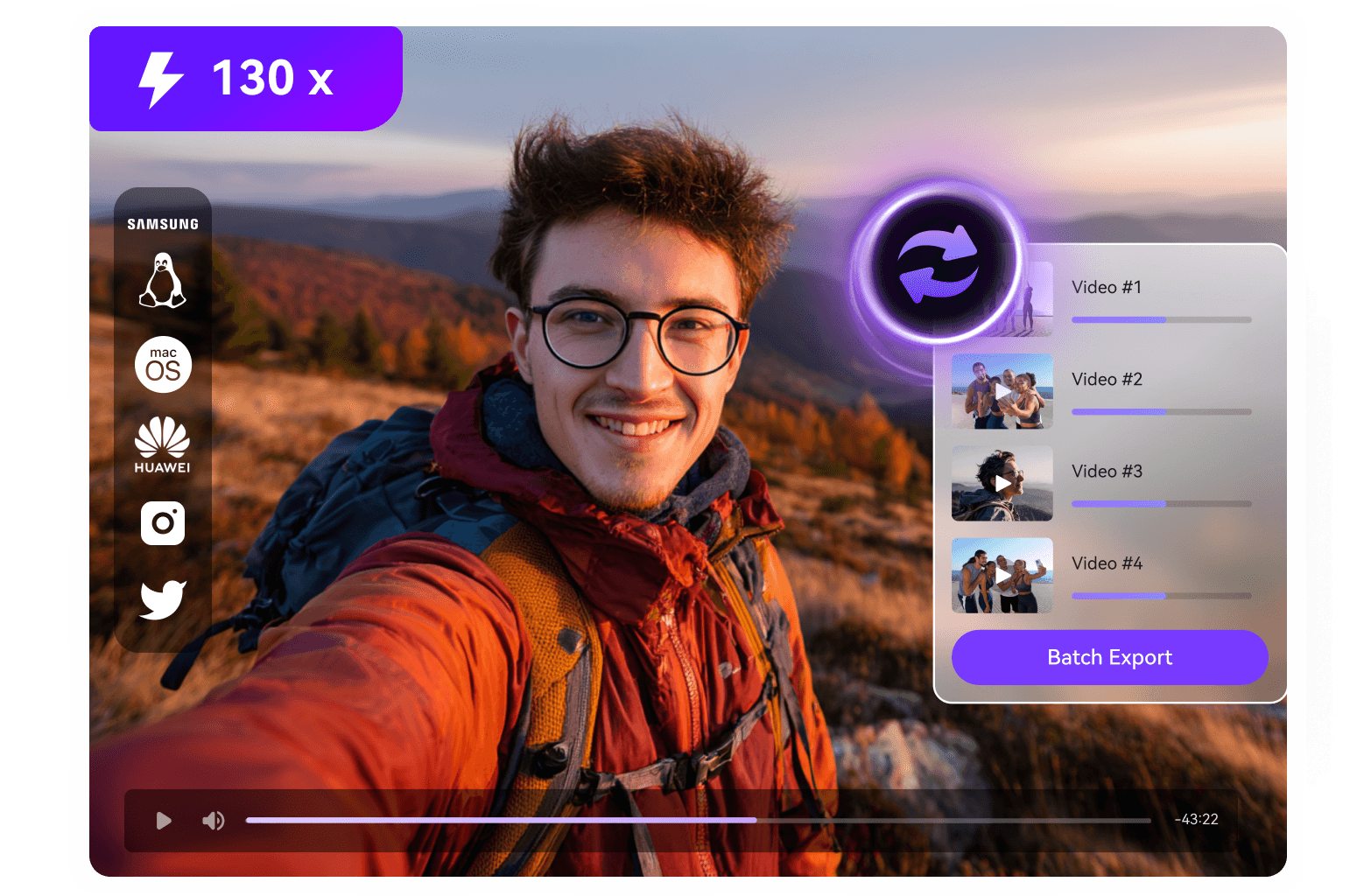
Extract frames from video quickly and accurately with UniConverter’s video frame extractor. You can export hundreds of frames for detailed analysis in just a few clicks. Get started with our free online tool, or download UniConverter for advanced batch processing and up to 130× faster performance on desktop.
 👥 4.8/5 from 50,000 reviews

How to Extract Frames from Video in 3 Simple Steps

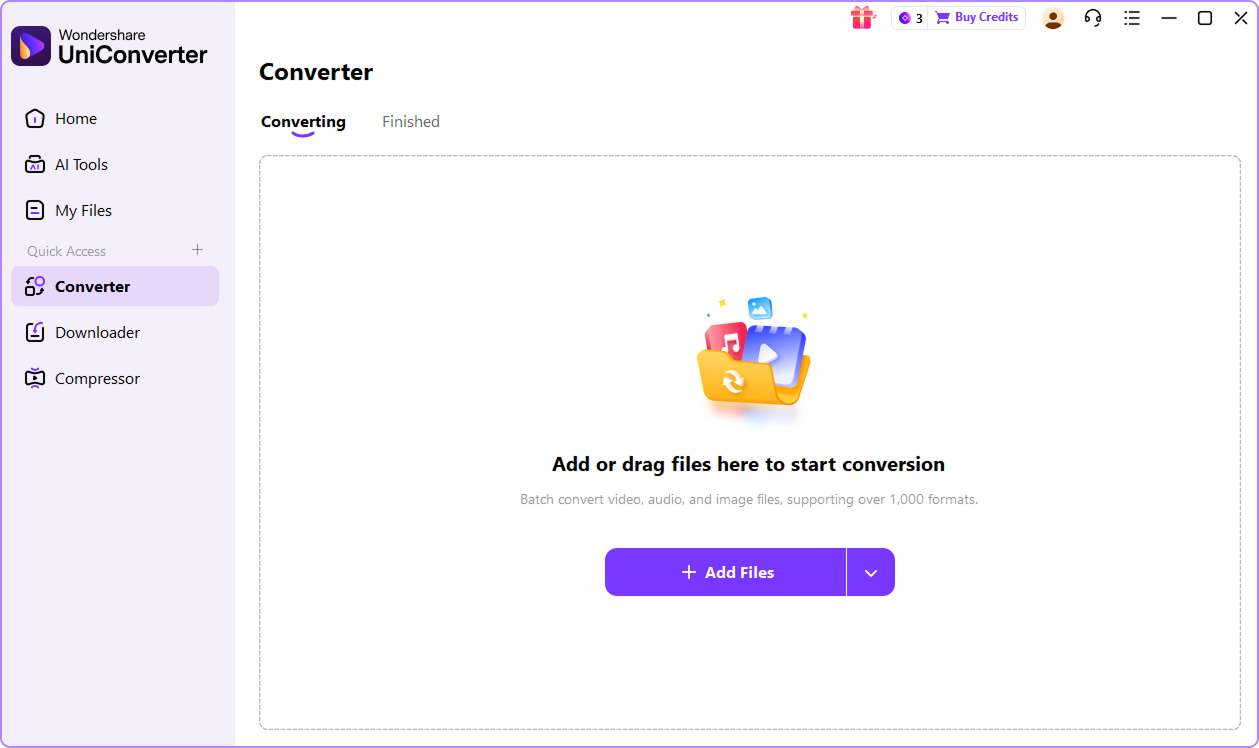
Step 1: Upload Your Video
Upload your video by dragging it into the tool or browsing your device. UniConverter supports MP4, MOV, AVI, MKV, WebM, WMV, and over 1,000 other formats. You can extract frames from short clips or long videos without converting the file first.

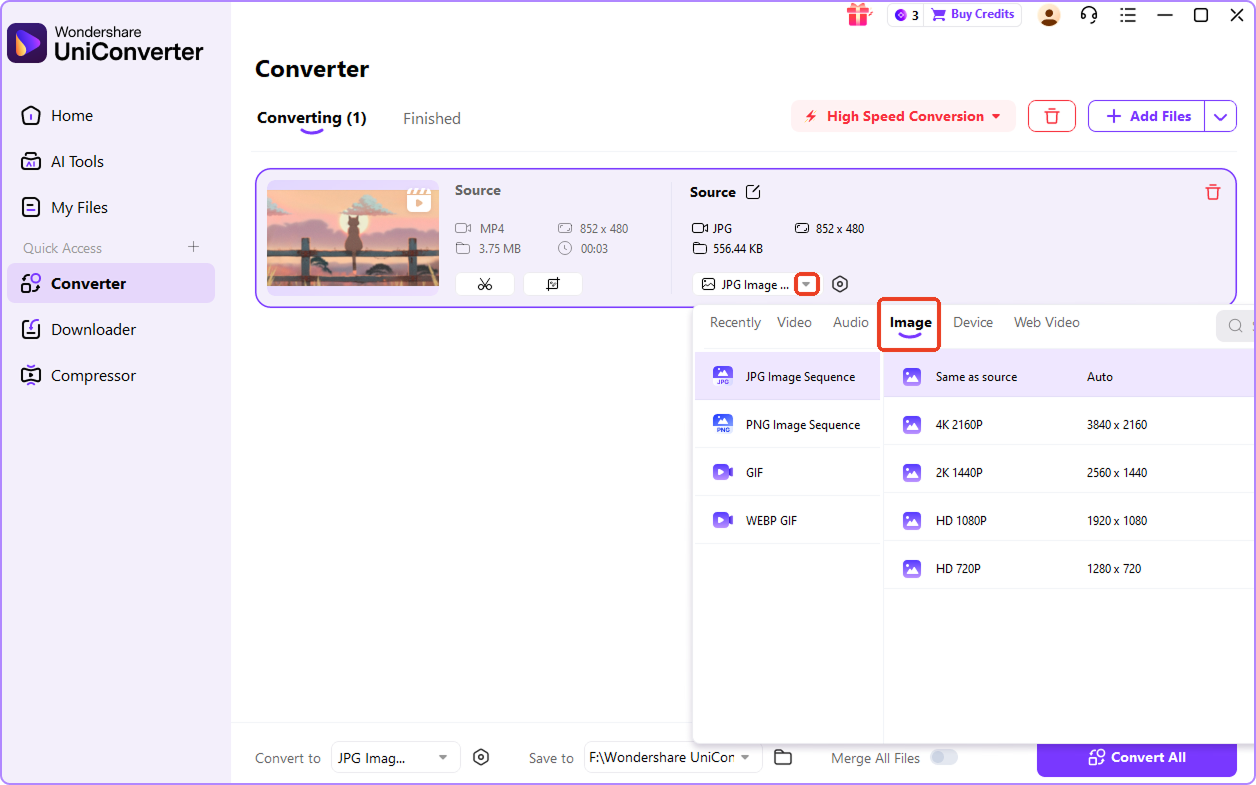
Step 2: Choose Output Format
Choose an output format for your extracted frames. You can export frames as a JPG sequence for smaller file sizes, or select a PNG sequence when you need lossless image quality. If you use the desktop version of UniConverter, you can also adjust output quality and customize settings for more control.

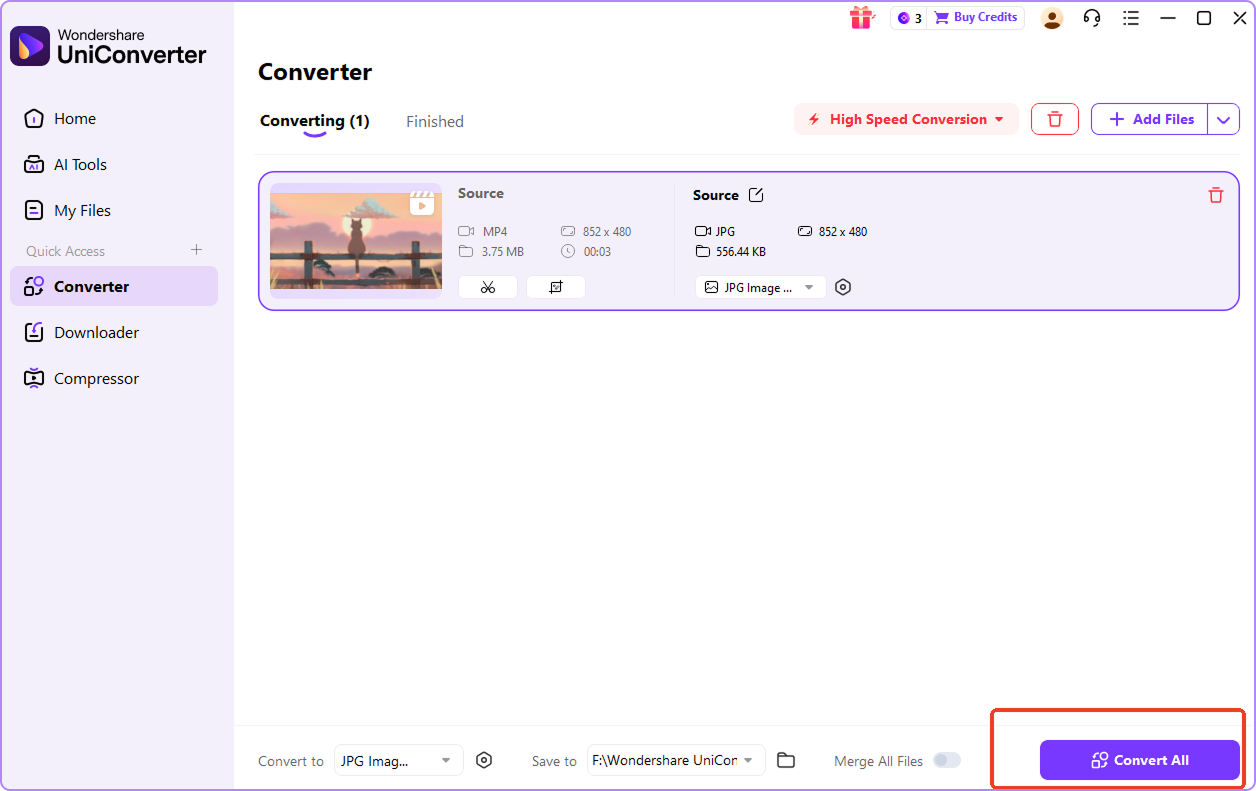
Step 3: Convert and Download Your Frames
Click Convert to process your video. You can download frames as high-quality JPG or PNG images. Each frame keeps the original video resolution, so there is no quality loss.
Why Choose UniConverter Frame Extractor?
UniConverter combines a free online frame extractor with a powerful desktop solution, so you can export frames from video with speed, quality, and flexible settings. Use it for quick tasks in your browser or batch workflows on desktop.
High-Quality Frame Output Without Loss
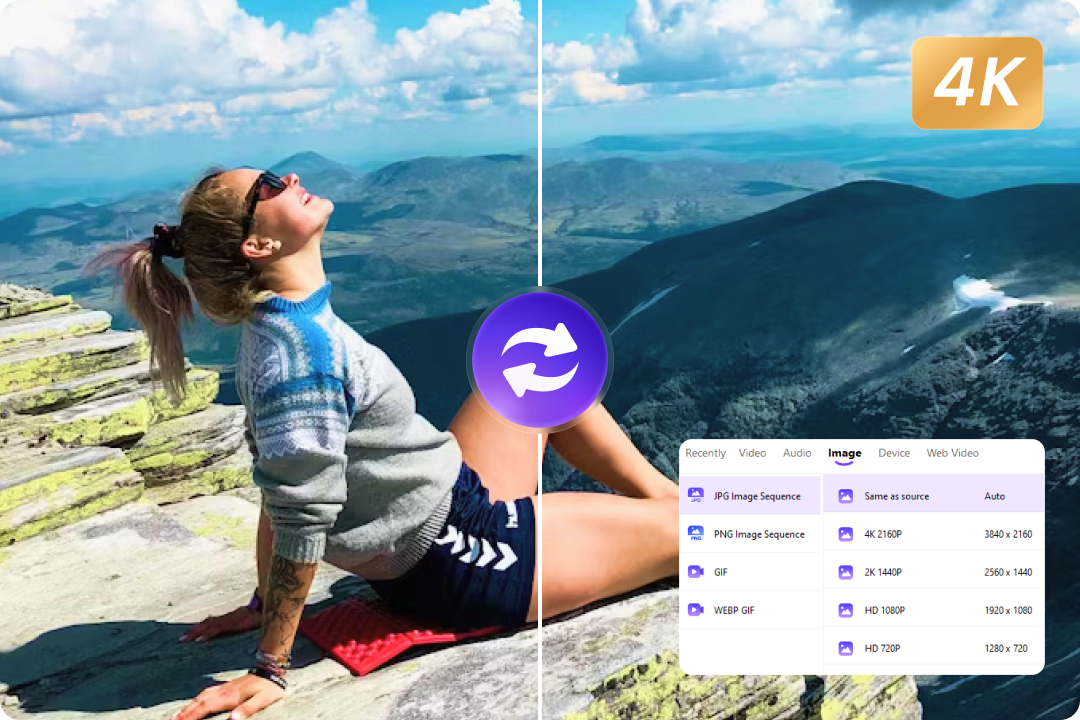
You can export frames from video while keeping the original resolution and clarity. UniConverter supports frame extraction from HD, 4K, and even 8K videos without compression. Choose JPG for smaller file sizes or PNG for lossless image quality, ensuring every extracted frame matches the source video exactly.
1000+ Video Formats Supported by This Video Frame Extractor
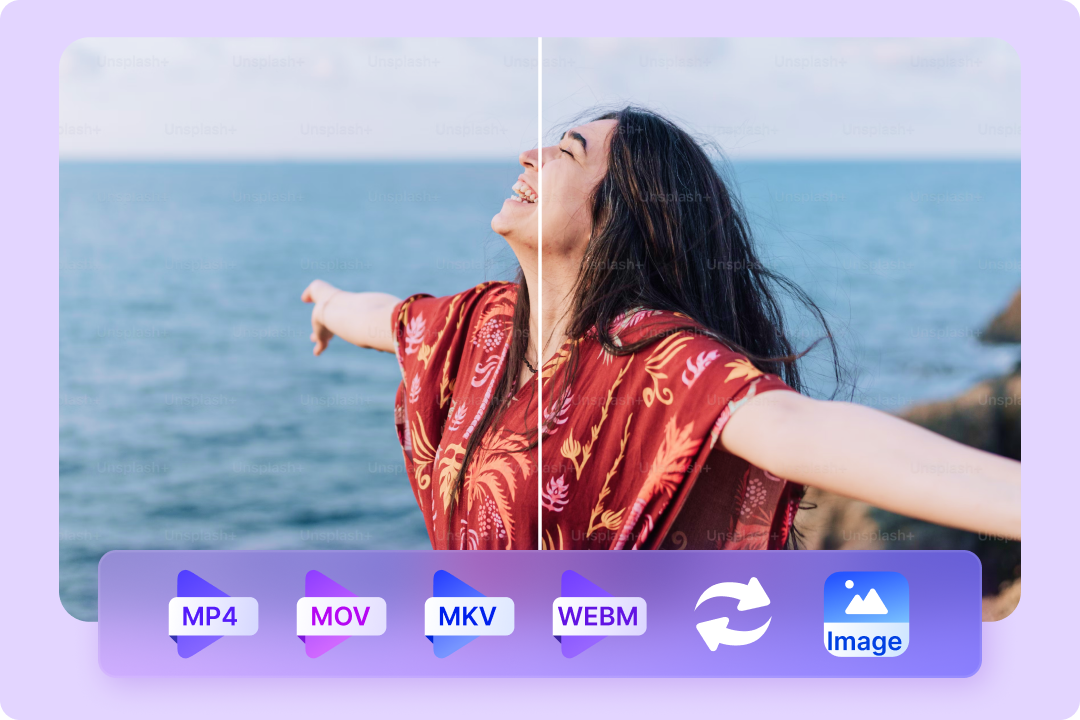
UniConverter works as a flexible video frame extractor that supports over 1,000 video formats. You can extract image from video files such as MP4, MOV, AVI, MKV, WMV, WebM, FLV, and more. There is no need to convert formats before extraction, which simplifies your video to frames workflow.
Fast Frame Extraction Online and on Desktop
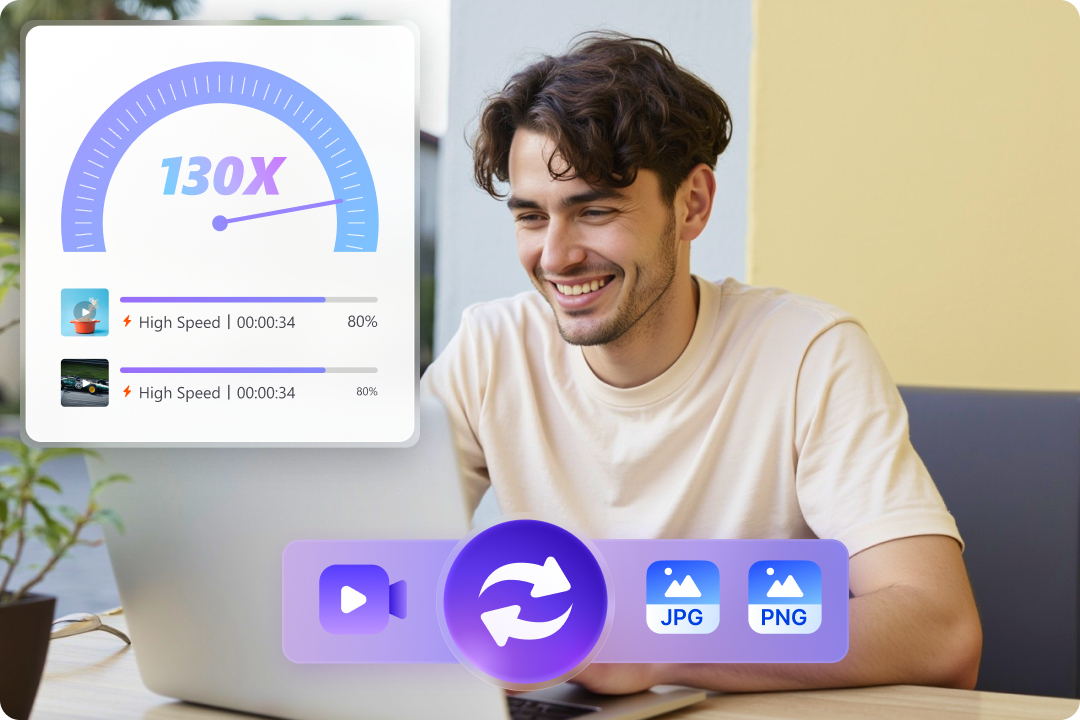
You can extract frames from video online directly in your browser for quick tasks. For demanding projects, the desktop version uses GPU acceleration to deliver up to 130× faster performance. This allows you to handle large video files and export frames efficiently, even from long or high-resolution footage.

Powerful Batch Video Frame Extraction
UniConverter is built for efficient batch workflows when you need to extract frames from video at scale. You can process multiple videos at the same time and export frames in parallel, which helps reduce manual work. This batch video frame extractor is ideal for long footage, large video libraries, or projects that require consistent frame output across files.
Advanced Frame Control for Professionals
The desktop version offers professional tools for precise frame extraction. You can customize frame rate settings to control how many frames to extract per second. Additional options like output quality adjustment, automatic scene detection, and metadata preservation help you convert video to frames accurately for advanced editing and analysis tasks.

Secure and Private Frame Processing
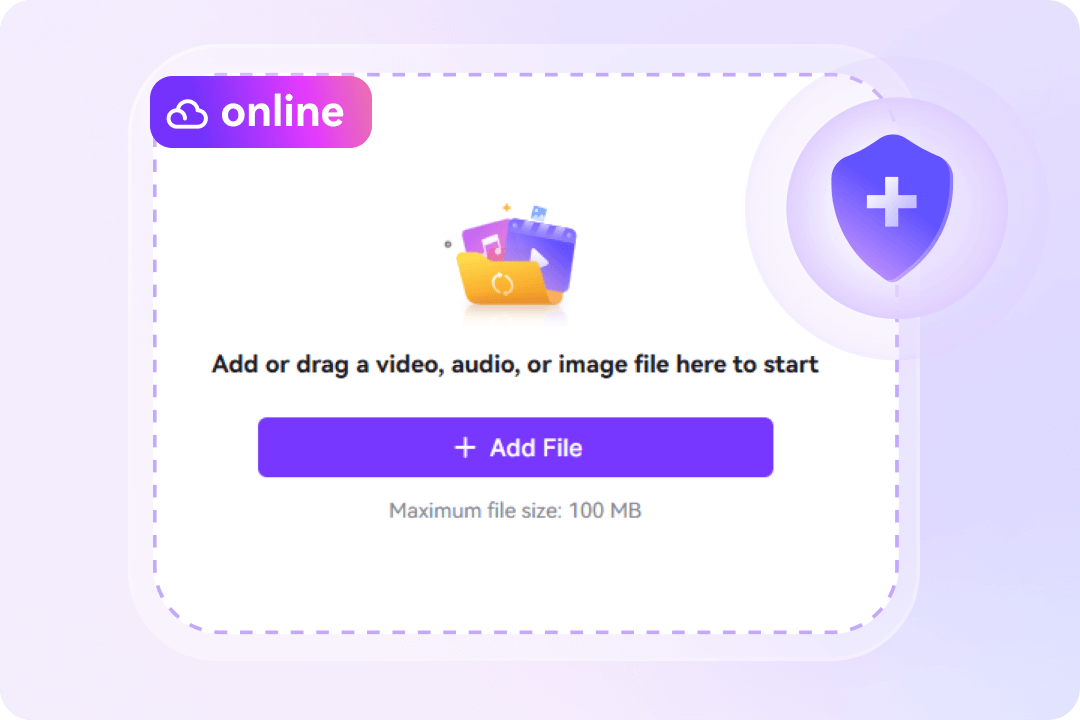
Your privacy is protected during the frame extraction process. Online videos are processed securely and deleted automatically after completion. Exported frames never include watermarks. If you prefer full control, the desktop video frame extractor lets you extract frames offline without uploading your files to any server.
Perfect for Every Video Frame Extraction Need
From content creation to research and animation, different users need to extract frames from video for different goals. Here’s how UniConverter helps you export frames from video across real-world scenarios.
Content Creation
Video Editing
Personal Moments
Education
Animation & Motion Graphics




Hear what our
customers are saying
FAQs About Extracting Frames from Video
-
01 How do I extract frames from video without losing quality?
To extract frames from video without losing quality, use a video frame extractor that exports images at the original resolution. UniConverter preserves the source video quality and avoids compression during frame extraction, so each extracted frame matches the clarity of the original video. For best results, export PNG for lossless detail or choose high-quality JPG when smaller file size matters.
-
02 Can I extract frames from a specific timestamp or time range?
Yes. You can extract frames from video at an exact timestamp or within a selected time range using FFmpeg, Adobe Premiere Pro, DaVinci Resolve, or VLC Media Player. These tools let you jump to a precise moment and grab a frame, or export frames from video only within part of a clip instead of converting the entire video to frames.
-
03 What’s the best way to extract all frames from a video?
The most efficient way to extract all frames from a video is to use a desktop frame extractor or a command-line tool built for speed. UniConverter can export every frame from video files while keeping performance stable, and FFmpeg is another common option for converting video to frames in bulk. This is ideal for analysis, VFX reference, or workflows where you need every frame.
-
04 Why are my extracted frames blurry or pixelated?
Blurry results usually come from a low-resolution source video, heavy compression, or mismatched export settings. When you extract image from video, make sure the frame extractor keeps the original resolution and doesn’t downscale output. If fine details matter, export PNG frames (lossless) instead of JPG, and avoid extra “optimize” or “compress” options.
-
05 Can I extract frames from a video on my phone (iPhone or Android)?
Yes. You can extract frames from video online using your mobile browser on iPhone or Android. If you only need a few images, a browser-based video frame extractor can help you get frames from video without installing extra software. For large files or batch video to frames tasks, desktop tools usually offer faster processing and more control.
More Than a Video Frame Extractor



Ready to Extract Frames from Your Videos?
Join millions of users who trust UniConverter for their video processing needs. Whether you need a quick frame extraction or professional-grade batch processing, we've got you covered.