Plan Playback Compatibility Without Ignoring Container Details
Batch MKV To MP4 Converter
Convert an MKV collection for devices and applications that prefer MP4, but review what each source contains first. Track layout, subtitles, codecs, metadata, and the receiving player all shape the output decision.
MKV files can carry varied codecs, audio tracks, subtitles, and metadata. For a library, the key question is whether representative files can be inspected before the collection is converted.
Compare the workflow
Recommended for larger jobsUniConverter Desktop
Convenient browser accessOnline Batch Tools
Container Complexity
✓Review a local MKV collection and inspect representative files before assigning MP4 outputs.
Use a browser service for a simple MKV file whose track requirements are already understood.
Large Local Media
✓Work directly with authorized movies, courses, recordings, and library folders.
Upload selected MKV files before conversion and download MP4 results afterward.
Playback Testing
✓Test MP4 results against the target TV, player, device, or library application before scaling.
Complete the format transfer first, then evaluate playback after download.
Better Choice
✓Choose Desktop for a library, large files, mixed MKV properties, or repeat compatibility work.
Choose Online for one straightforward MKV file with modest transfer needs.
Simple decision:
Online can handle a simple MKV file; Desktop gives a collection more room for playback, track, and library-aware review.
Convert MKV Collections with Playback and Track Context
Wondershare UniConverter Video Converter helps media owners prepare MP4 copies without reducing MKV-to-MP4 work to a filename change. Organize the library, identify the receiving player, inspect representative track behavior, and keep source files when they remain valuable.
Organize the MKV Library Before Changing Containers
Group authorized movies, courses, recordings, or archived media by playback destination so the queue reflects how the MP4 copies will be used.
Identify the target player, required audio and subtitle behavior, compatible metadata, MP4 profile, and destination before converting the MKV collection.
MKV vs. MP4: What Changes During Batch Conversion?
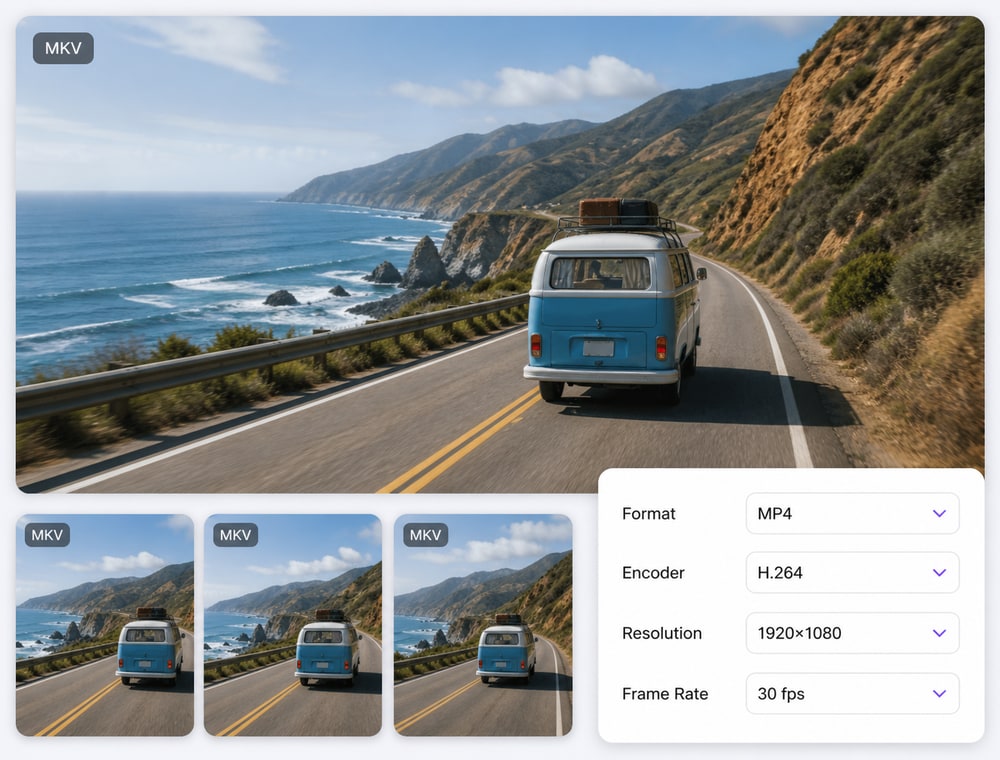
MKV and MP4 are video containers, not fixed codec or quality settings. Review the selected output profile, encoder, resolution, frame rate, bitrate, audio settings, source tracks, compatible metadata, operating system, and installed UniConverter version before conversion.
Key differences between the source and output image formats
Conversion fact
MKV
MP4
Common role
Flexible local-media container that can hold different video, audio, subtitle, chapter, and metadata configurations
Commonly selected for broader playback, mobile, web, sharing, and editing compatibility
Compatibility
Playback support for MKV varies by device, player, browser, and editing application
Compatibility depends on the chosen MP4 profile plus its video and audio configuration
Encoding & quality
The source container can hold different codecs, resolutions, frame rates, bitrates, and quality levels
Conversion may re-encode the media; it does not automatically improve quality, reduce size, or preserve the source configuration
Tracks & metadata
The source may contain multiple audio tracks, subtitles, chapters, artwork, or metadata
Compatible information may be retained, but conversion does not guarantee that every track, subtitle, chapter, artwork item, or metadata field transfers
Common VideoWeb & SharingCamera & DiscPro & Broadcast
Format, profile, encoder, and input/output availability can differ by operating system and UniConverter version. See theUniConverter Tech Specsfor current video support and system requirements.
How to Prepare an MKV Library for MP4 Playback
Begin with the receiving device, test a representative MKV, and expand conversion only after the required playback and track behavior is understood.
Use MKV-to-MP4 conversion when a local collection needs a more suitable output for the next playback, editing, sharing, or organization task.
Play Videos on More Devices
Convert a collection of supported MKV files to reviewed MP4 profiles for phones, tablets, TVs, browsers, or media players that do not handle the original container and track configuration consistently.
Prepare Files for Editing
Create supported MP4 copies for editing applications or production systems that accept the selected MP4 profile more reliably. Keep the source collection together while preparing a consistent editing handoff.
Organize an Offline Media Library
Standardize an authorized local film, series, course, or personal-video collection around a reviewed MP4 output profile, making the files easier to classify, play, back up, and manage across the library.
Prepare Videos for Sharing
Generate reviewed MP4 outputs for cloud sharing, website delivery, presentations, client review, or other supported publishing workflows without rebuilding the same MKV-to-MP4 conversion setup for every file.
What UniConverter Users Are Saying
These reviews describe users' experience with Wondershare UniConverter as a broader conversion and editing product, rather than feedback specifically limited to the Batch Video Converter. Review sources and publication dates are shown where available.
★★★★★
“Very configurable for the exact result you need.”
Its flexible conversion controls make it easier to prepare files for different output and delivery requirements.
Johnson
★★★★★
“The files can be used across IT platforms so easily!”
This kind of compatibility is useful when converted media needs to move between common systems and delivery workflows.
Williams
★★★★★
“Wondershare UniConverter is incredibly versatile.”
The broader conversion and editing toolkit supports users who need to complete more than one isolated media task.
Olivia
Explore UniConverter reviews and independent coverage across trusted software platforms.
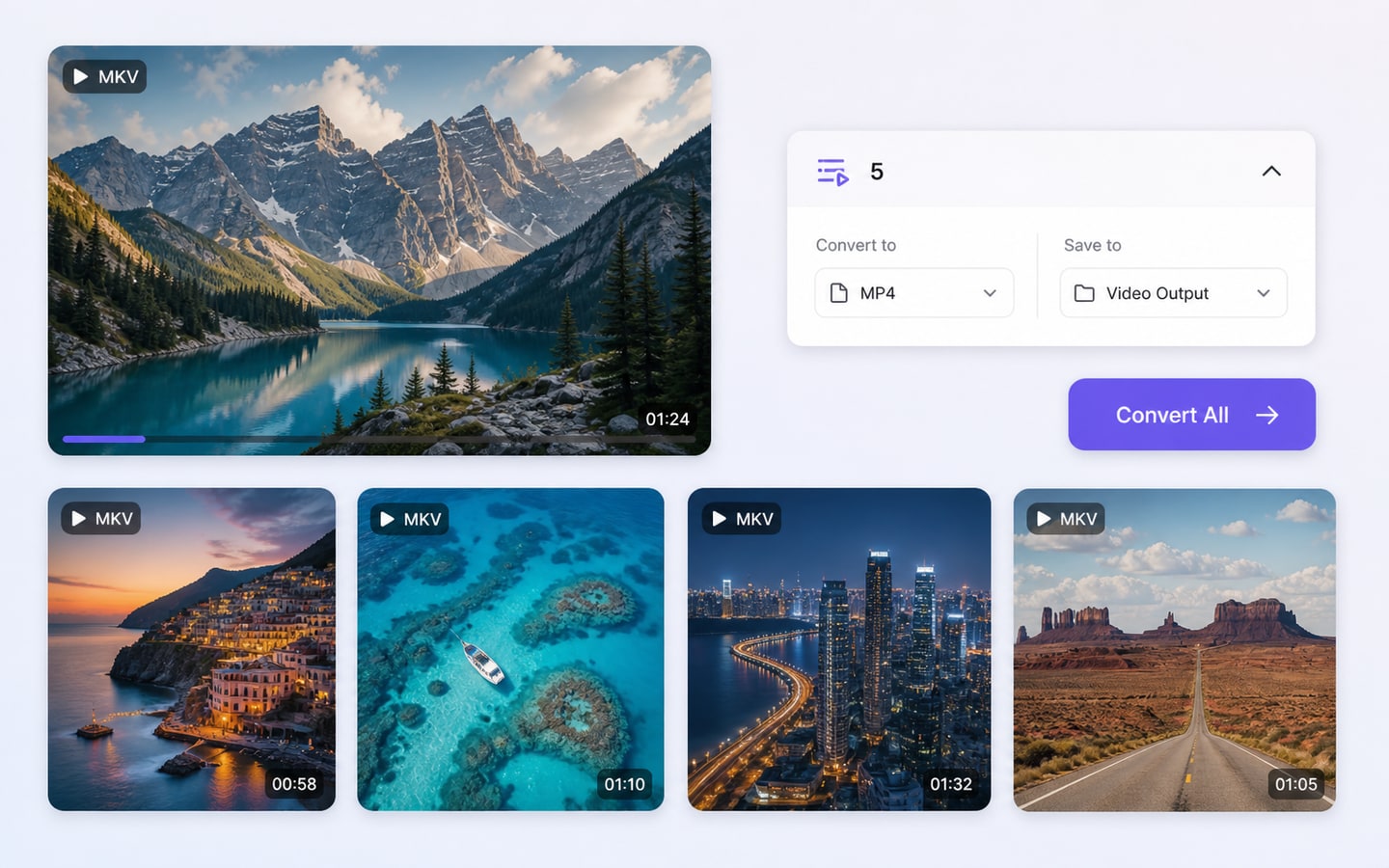
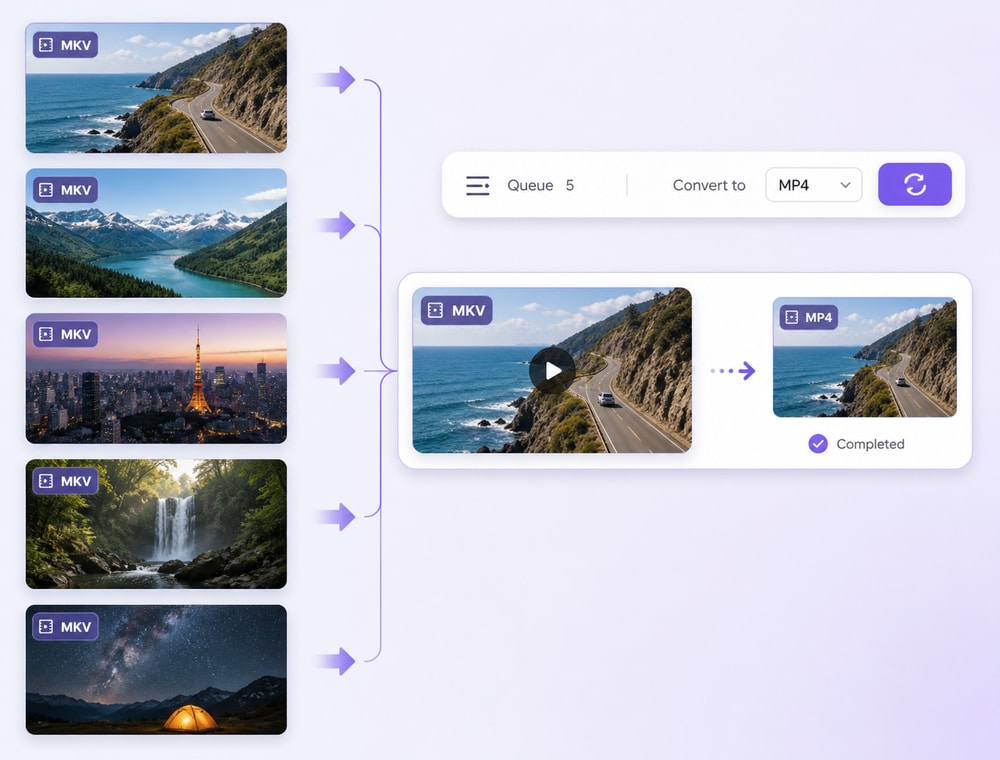
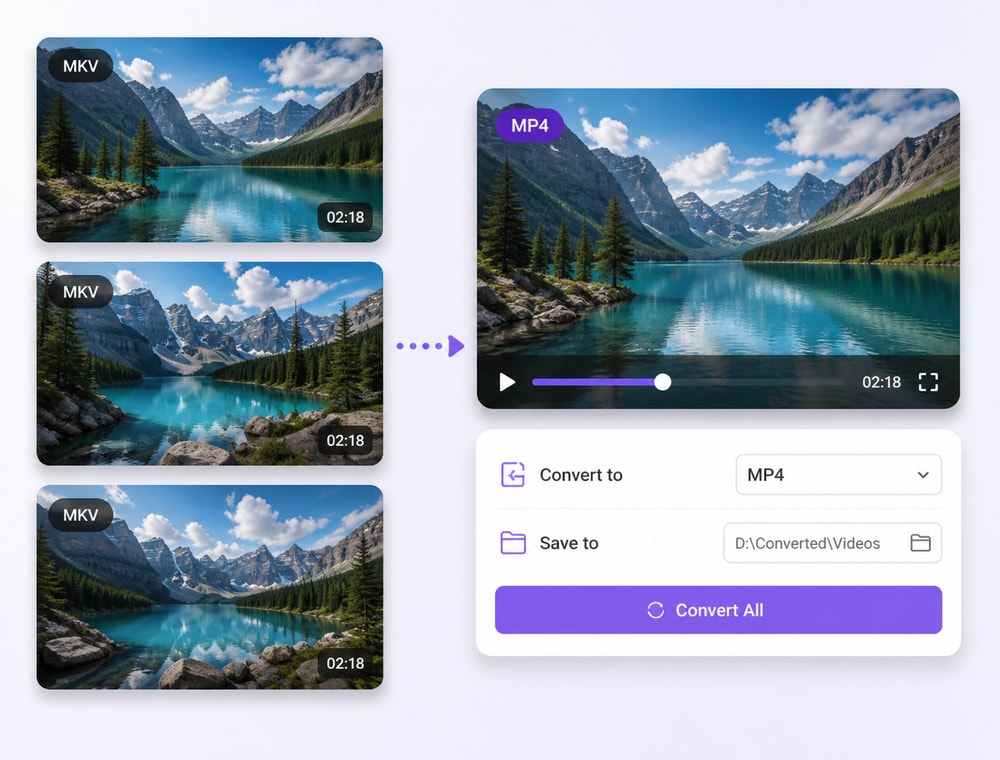
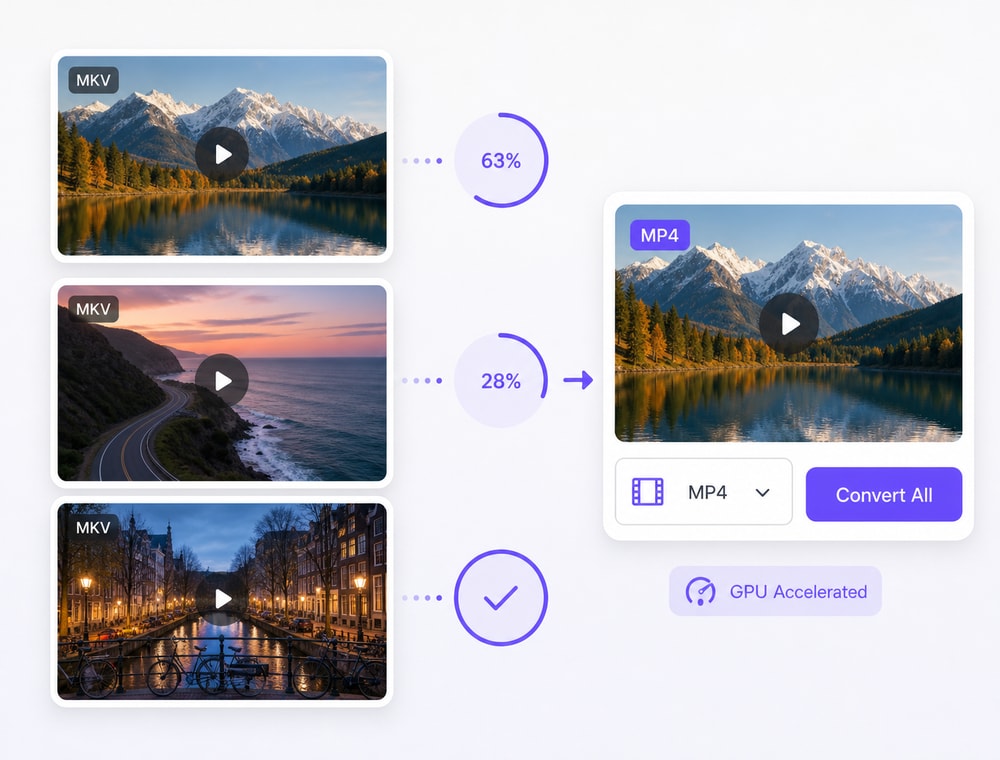
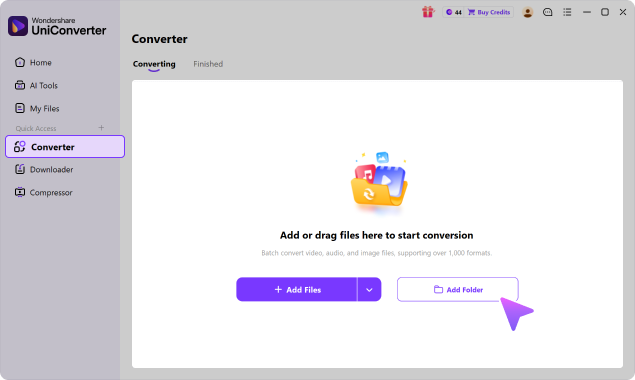
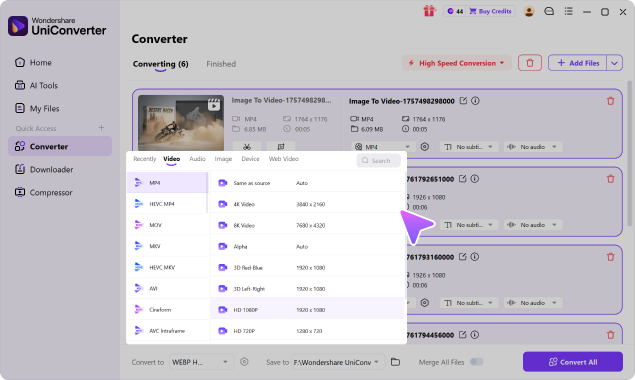
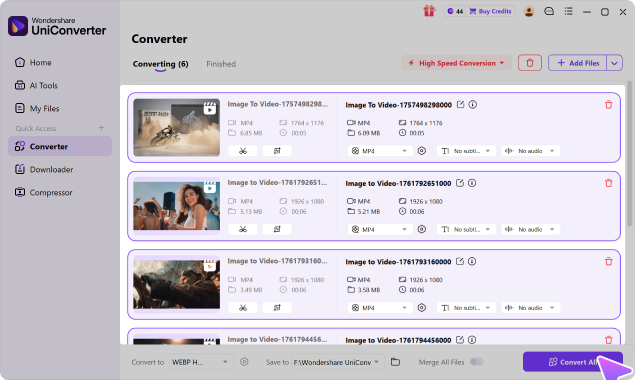
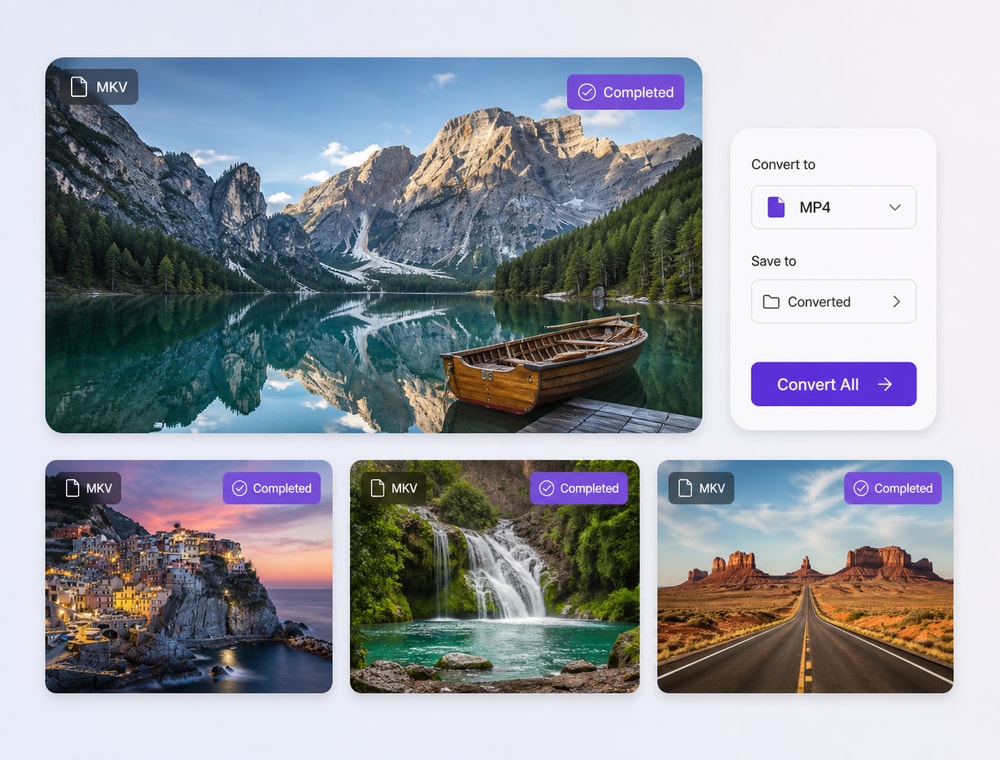
Open Wondershare UniConverter Video Converter, add multiple MKV files, choose MP4, review available output and destination settings, and select Convert All.
02
Can I batch convert videos online?
Online converters can suit quick individual browser tasks. UniConverter Desktop is designed for organized multi-video queues, broader output control, larger local workflows, and available hardware acceleration.
03
Will video conversion preserve quality?
Conversion does not guarantee identical or improved quality. The result depends on the source media, selected format profile, encoder, resolution, bitrate, frame rate, audio settings, and any applied edits.
04
Will every MKV audio track and subtitle move into MP4?
Do not assume complete container parity. Tracks, subtitles, codecs, and metadata depend on the source MKV, selected MP4 profile, settings, and receiving application.
05
Should I keep the MKV source files?
Keep them when they contain track, subtitle, codec, metadata, or archival value not fully represented by the MP4 access copies.
06
How fast is Batch MKV-to-MP4 conversion?
Supported MKV-to-MP4 paths can use full-process GPU acceleration, with performance of up to 130X faster. Codecs, tracks, settings, and hardware affect actual speed.
Prepare the MKV Library for Its Real Playback Destination
Review the player, tracks, subtitles, and output profile, then create verified MP4 access copies with UniConverter Desktop.