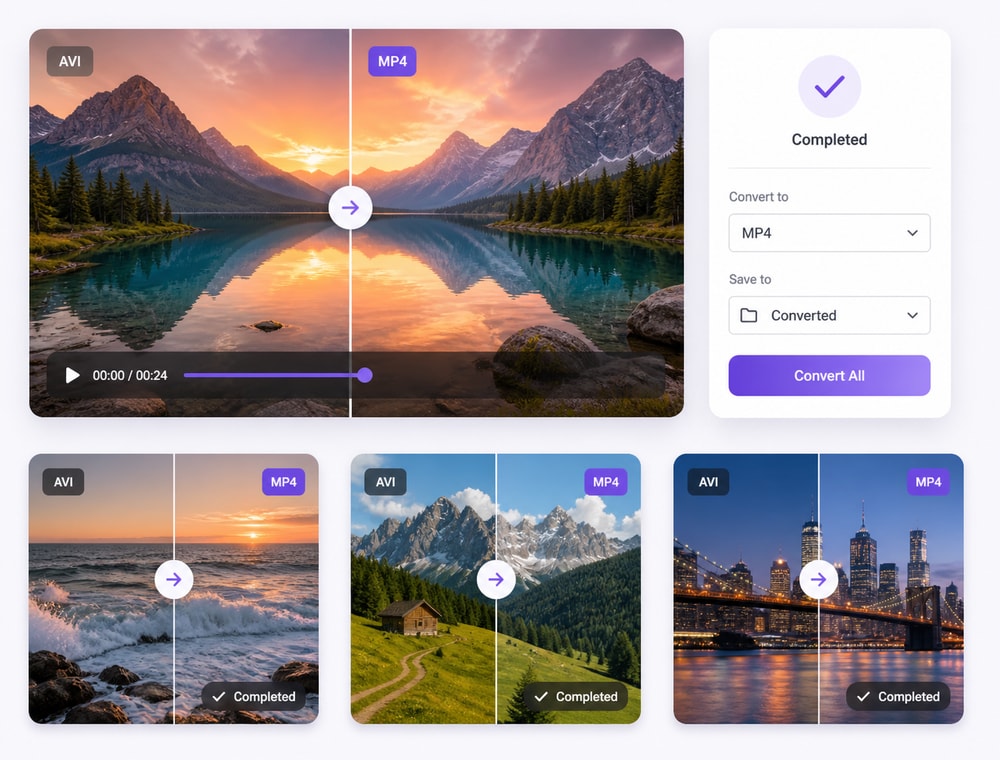
Bring Legacy Video Collections into Current Playback
Batch AVI To MP4 Converter
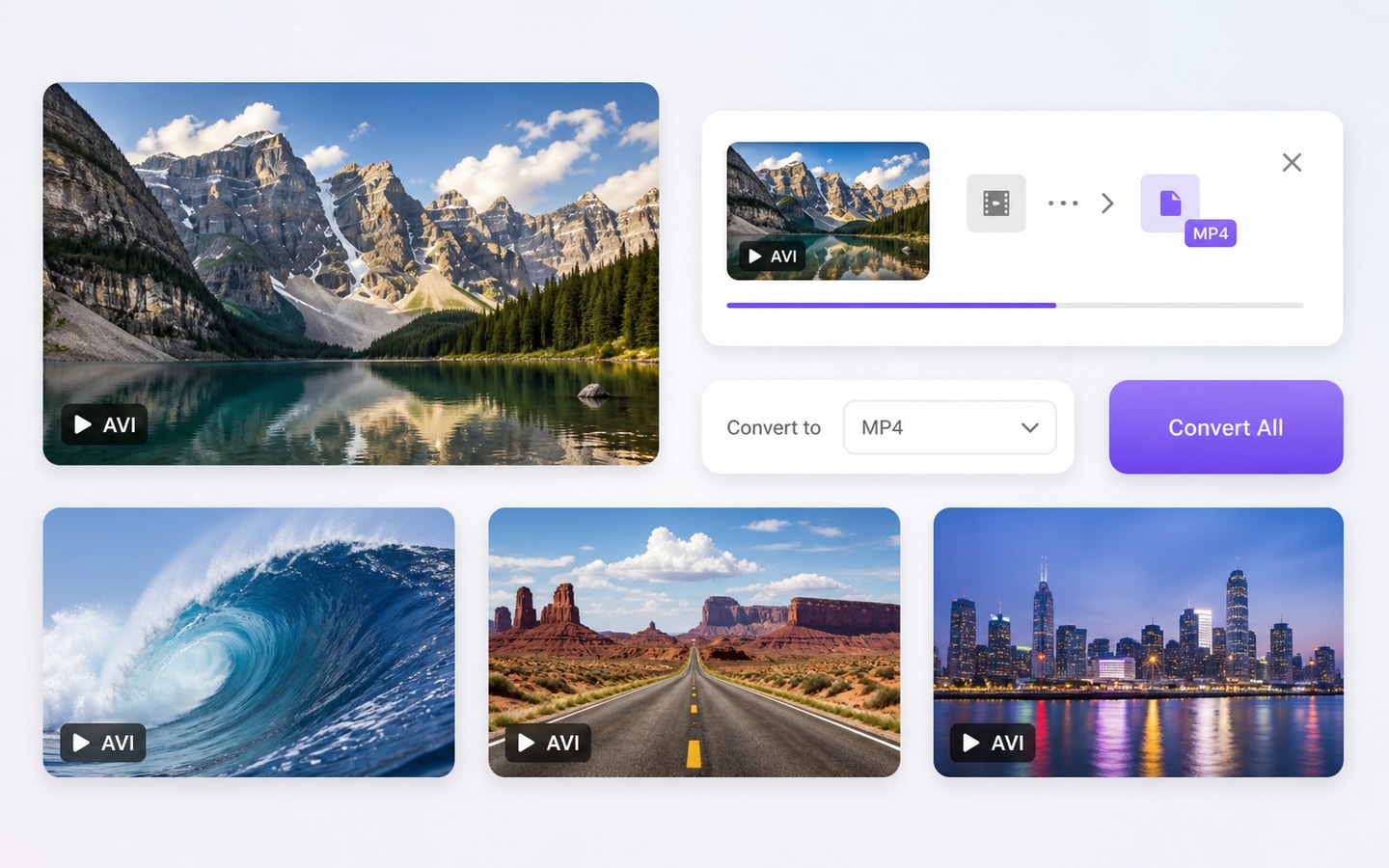
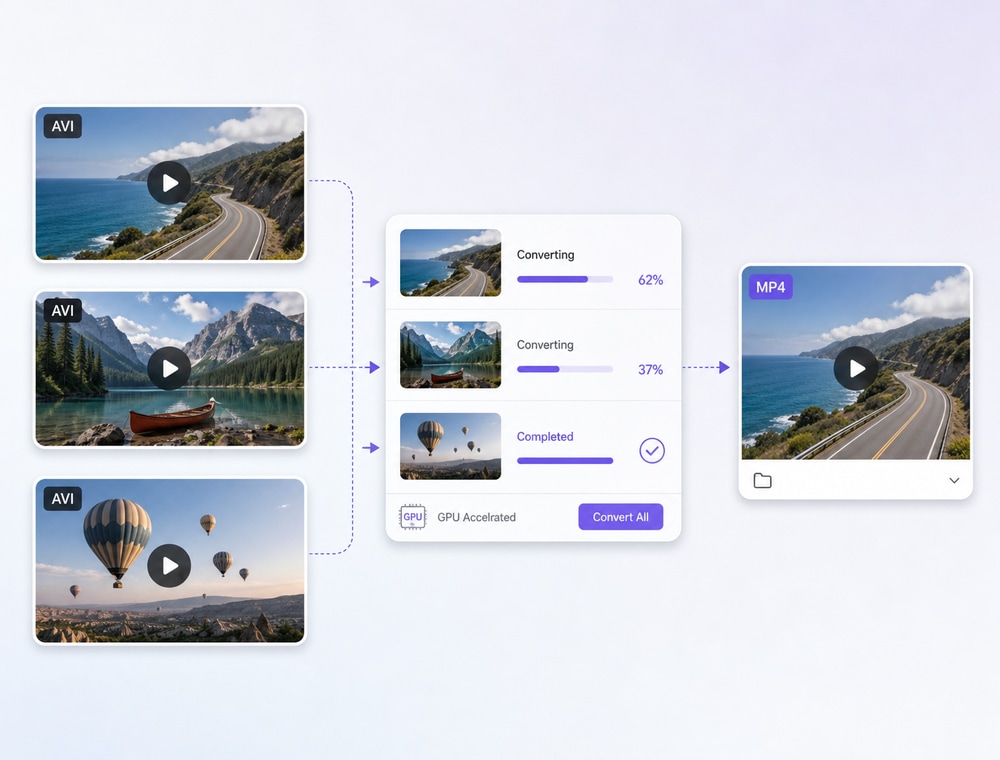
Open older AVI recordings, capture exports, training media, and Windows-era archives in one organized job. Create MP4 access copies for today's players and teams while preserving the source collection for reference.
Older AVI collections often contain long recordings and inconsistent codecs. The choice is less about convenience and more about how repeatably the collection can be assessed.
Compare the workflow
Recommended for larger jobsUniConverter Desktop
Convenient browser accessOnline Batch Tools
Archive Handling
✓Review a legacy AVI folder as a collection and create MP4 access copies without losing source context.
Convert a non-sensitive AVI file when uploading it outside the archive workflow is acceptable.
Codec Uncertainty
✓Test representative files locally, then keep successful settings with the conversion job.
Discover compatibility after upload, with codec behavior varying by service.
Long Recordings
✓Manage lengthy captures, lectures, or training videos from local storage.
Browser services may impose changing file-size, duration, queue, or plan limits.
Better Choice
✓Choose Desktop when AVI files are numerous, old, long, sensitive, or operationally important.
Choose Online when one ordinary AVI file only needs a quick compatibility copy.
Simple decision:
Online can solve an isolated file; Desktop is more practical for a legacy AVI collection with codec and archive context.
Make Older AVI Collections Easier to Access and Use
Wondershare UniConverter Video Converter gives archive owners and training teams a controlled way to assess AVI sources and prepare MP4 access copies. Test representative codecs, define a modern playback target, and keep the original files available when historical context matters.
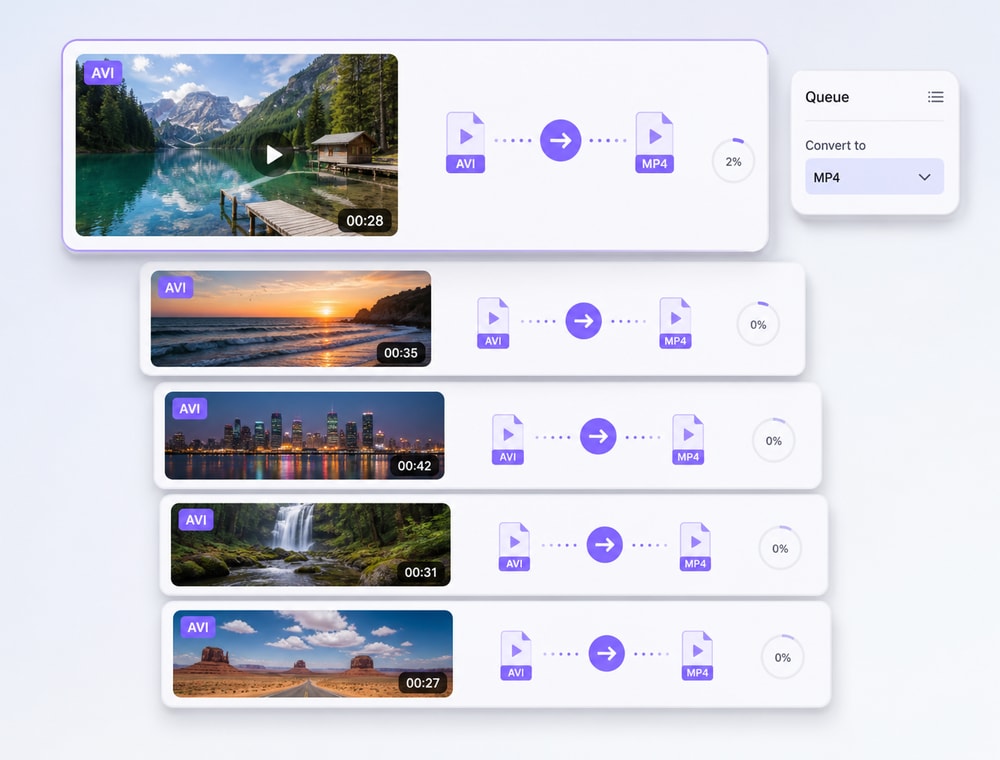
Bring Legacy AVI Collections into One Queue
Organize AVI files from older cameras, capture devices, training archives, exported projects, or Windows media folders without rebuilding the conversion task for every recording.
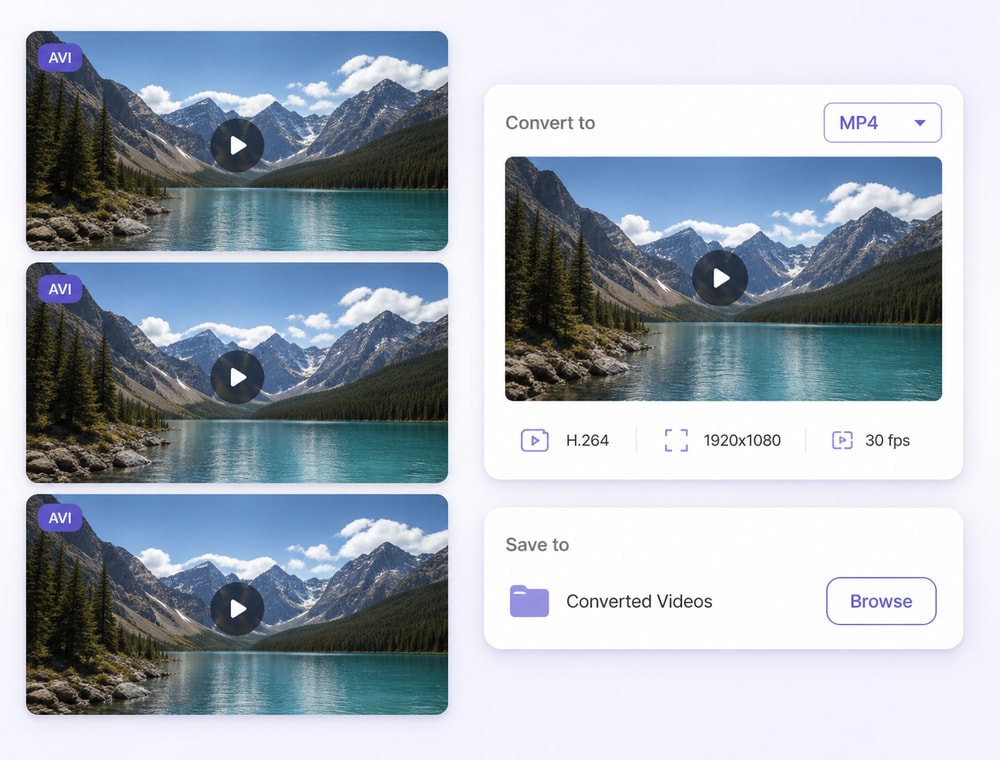
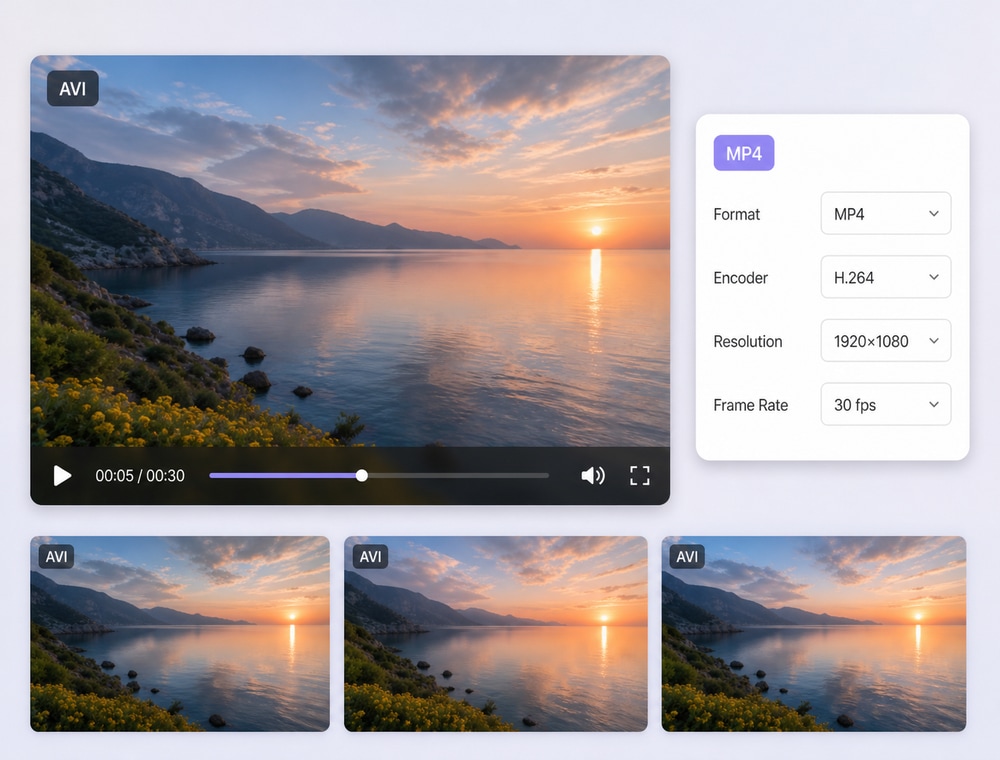
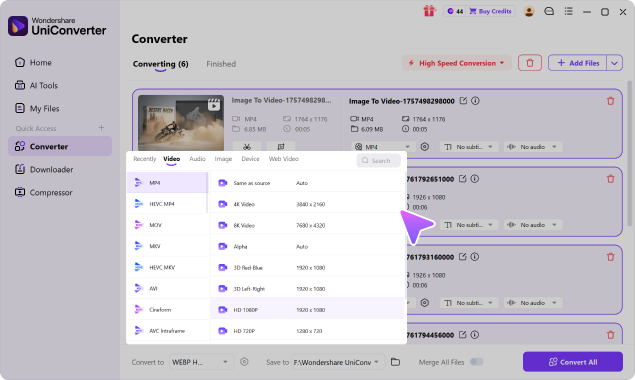
Choose a supported MP4 profile for modern devices, presentation systems, websites, or review tools that may not handle the source AVI codec configuration consistently.
Check the source AVI codec, dimensions, frame rate, audio, and visual condition before selecting MP4 settings, especially when an archive contains files created by different capture systems.
Inspect representative legacy recordings
Choose settings for playback rather than automatic enhancement
Keep important originals alongside converted delivery copies
Input support is broader than output support and can differ between
Windows, Mac, Online, and product versions.
Choose how originals will be retained, which MP4 profile fits current playback, how representative AVI codecs will be tested, and where the access copies will live.
AVI vs. MP4: What Changes During Batch Conversion?
AVI and MP4 are video containers, not fixed codec or quality settings. Review the selected output profile, encoder, resolution, frame rate, bitrate, audio settings, source tracks, compatible metadata, operating system, and installed UniConverter version before conversion.
Key differences between the source and output image formats
Conversion fact
AVI
MP4
Common role
Source AVI container with codec and track details that should be checked before conversion
Selected MP4 output profile for the next playback, editing, sharing, or storage workflow
Compatibility
Playback support for AVI varies by device, player, browser, and editing application
Compatibility depends on the chosen MP4 profile plus its video and audio configuration
Encoding & quality
The source container can hold different codecs, resolutions, frame rates, bitrates, and quality levels
Conversion may re-encode the media; it does not automatically improve quality, reduce size, or preserve the source configuration
Tracks & metadata
The source may contain multiple audio tracks, subtitles, chapters, artwork, or metadata
Compatible information may be retained, but conversion does not guarantee that every track, subtitle, chapter, artwork item, or metadata field transfers
Common VideoWeb & SharingCamera & DiscPro & Broadcast
Format, profile, encoder, and input/output availability can differ by operating system and UniConverter version. See theUniConverter Tech Specsfor current video support and system requirements.
How to Modernize an AVI Collection in 3 Stages
Sample the archive before scaling the job: identify representative files, confirm a workable MP4 profile, and only then process the full collection.
Use AVI-to-MP4 conversion when an older or mixed AVI collection needs more practical playback, presentation, sharing, or archive-access copies.
Legacy Camera and Capture Archives
Prepare AVI footage from older cameras, USB capture devices, screen recorders, or digitization projects as reviewed MP4 copies while keeping the original archive available.
Training and Presentation Libraries
Convert collections of AVI tutorials, demonstrations, classroom recordings, or internal training videos for presentation systems and employee devices that work better with the selected MP4 profile.
Website and Portal Delivery
Create MP4 delivery copies for authorized AVI media that needs to move into a website, customer portal, knowledge base, or browser-oriented review workflow.
Archive Access and Team Sharing
Standardize convenient access copies for editors, researchers, clients, or operations teams without replacing the original AVI masters or assuming conversion restores missing source detail.
What UniConverter Users Are Saying
These reviews describe users' experience with Wondershare UniConverter as a broader conversion and editing product, rather than feedback specifically limited to the Batch Video Converter. Review sources and publication dates are shown where available.
★★★★★
“Very configurable for the exact result you need.”
Its flexible conversion controls make it easier to prepare files for different output and delivery requirements.
Johnson
★★★★★
“The files can be used across IT platforms so easily!”
This kind of compatibility is useful when converted media needs to move between common systems and delivery workflows.
Williams
★★★★★
“Wondershare UniConverter is incredibly versatile.”
The broader conversion and editing toolkit supports users who need to complete more than one isolated media task.
Olivia
Explore UniConverter reviews and independent coverage across trusted software platforms.
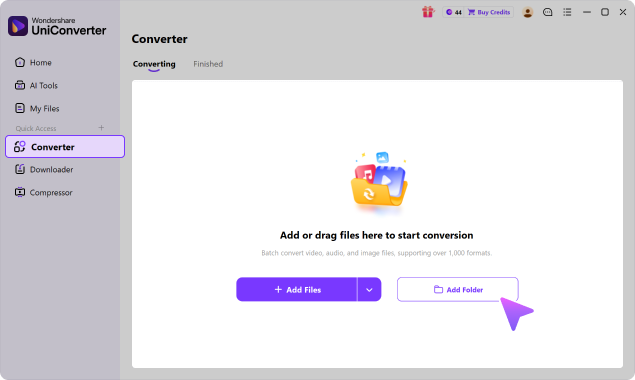
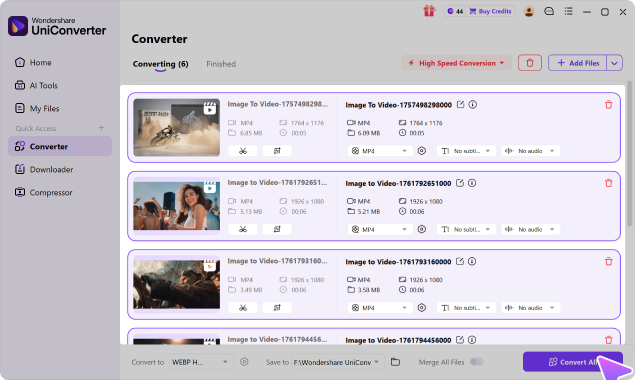
Open Wondershare UniConverter Video Converter, add the AVI archive or recording set, choose a supported MP4 profile, review the destination and representative files, and select Convert All.
02
Why can AVI files be difficult to play on newer devices?
AVI is a container that can hold different legacy or current codec configurations. Playback therefore follows the actual video and audio codecs as well as the receiving device or application.
03
Does converting AVI to MP4 automatically make every file smaller?
No. Output size follows the source media and selected encoder, resolution, frame rate, bitrate, audio, and quality settings. Choose the MP4 profile for the delivery goal rather than assuming a fixed reduction.
04
Why can two AVI files behave differently?
AVI is a container and older files may use different video or audio codecs. Test samples from different devices, dates, or export tools before converting the archive.
05
Should I delete AVI originals after creating MP4 copies?
Not automatically. MP4 copies can improve access, but AVI files may remain the historical or highest-value sources. Retention should follow the archive policy.
06
How fast is AVI-to-MP4 batch conversion?
Supported AVI-to-MP4 paths can use full-process GPU acceleration, with performance of up to 130X faster. Legacy codecs, settings, and hardware affect actual speed.
Give the AVI Archive a Practical Access Layer
Test the legacy sources, create MP4 access copies for current playback, and keep the original collection organized with UniConverter Desktop.