UniConverter
UniConverter Online Free
Converter video, audio & image free
Free Try
From Camera Originals to Practical Delivery Copies

Batch MOV To MP4 Converter

Package iPhone recordings, camera footage, QuickTime media, and MOV project exports for the people and platforms that need MP4. Keep originals intact while building a reviewed delivery set for publishing, presentations, or team handoff.

  • MOV collections from phones, cameras, and projects
  • MP4 profiles chosen for the receiving workflow
  • Original media retained beside delivery copies
Available on:

For Windows 11/10/8/7

For macOS 10.13 or later, including macOS 26 Tahoe

4.7Rated on Trustpilot
Batch MOV To MP4 Converter
120+Countries
7M+Satisfied Users
1.4M+Subscribers
21M+Downloads

Desktop or Online for a MOV Shoot or Project?

A single MOV clip may pass easily through a browser. A shoot or review set is different: transfer overhead, file organization, and repeat delivery matter as much as the output format.

Compare the workflow
Recommended for larger jobsUniConverter Desktop
Convenient browser accessOnline Batch Tools
Project Context
Keep a complete shoot, iPhone recording set, or MOV project export together while preparing MP4 copies.
Convert a small isolated MOV clip when no wider project organization is needed.
Original Media
Work from local MOV originals and save MP4 copies to a separate delivery folder.
Upload selected MOV media and download each completed MP4 result.
Repeat Delivery
Reuse the workflow for review rounds, social cuts, or recurring camera ingest.
Start a new browser session as each revision or delivery group arrives.
Better Choice
Choose Desktop when the MOV files belong to a production set and the originals must remain organized.
Choose Online for one lightweight MOV file that only needs a quick MP4 copy.
Simple decision:
Online suits an isolated clip; Desktop suits MOV media in an ongoing capture, review, or publishing project.
Download UniConverter for Desktop

Build MP4 Delivery Sets Without Disrupting the MOV Originals

Wondershare UniConverter Video Converter helps creators turn MOV source collections into purpose-built MP4 copies. Organize the shoot, select a profile for the receiving platform, inspect representative motion and audio, and keep the original media available.

Organize MOV Camera and Production Clips

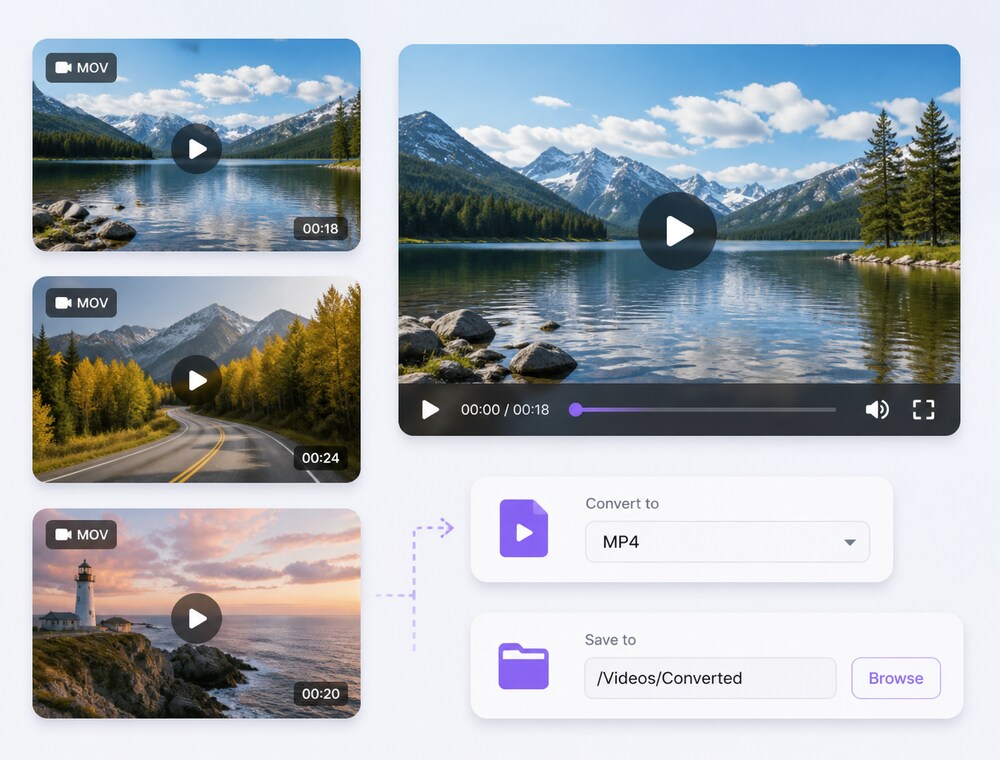
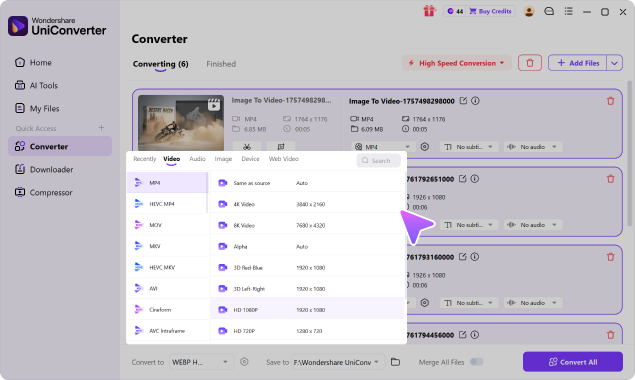
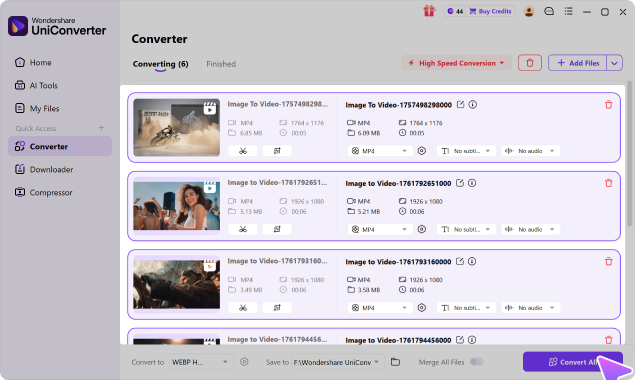
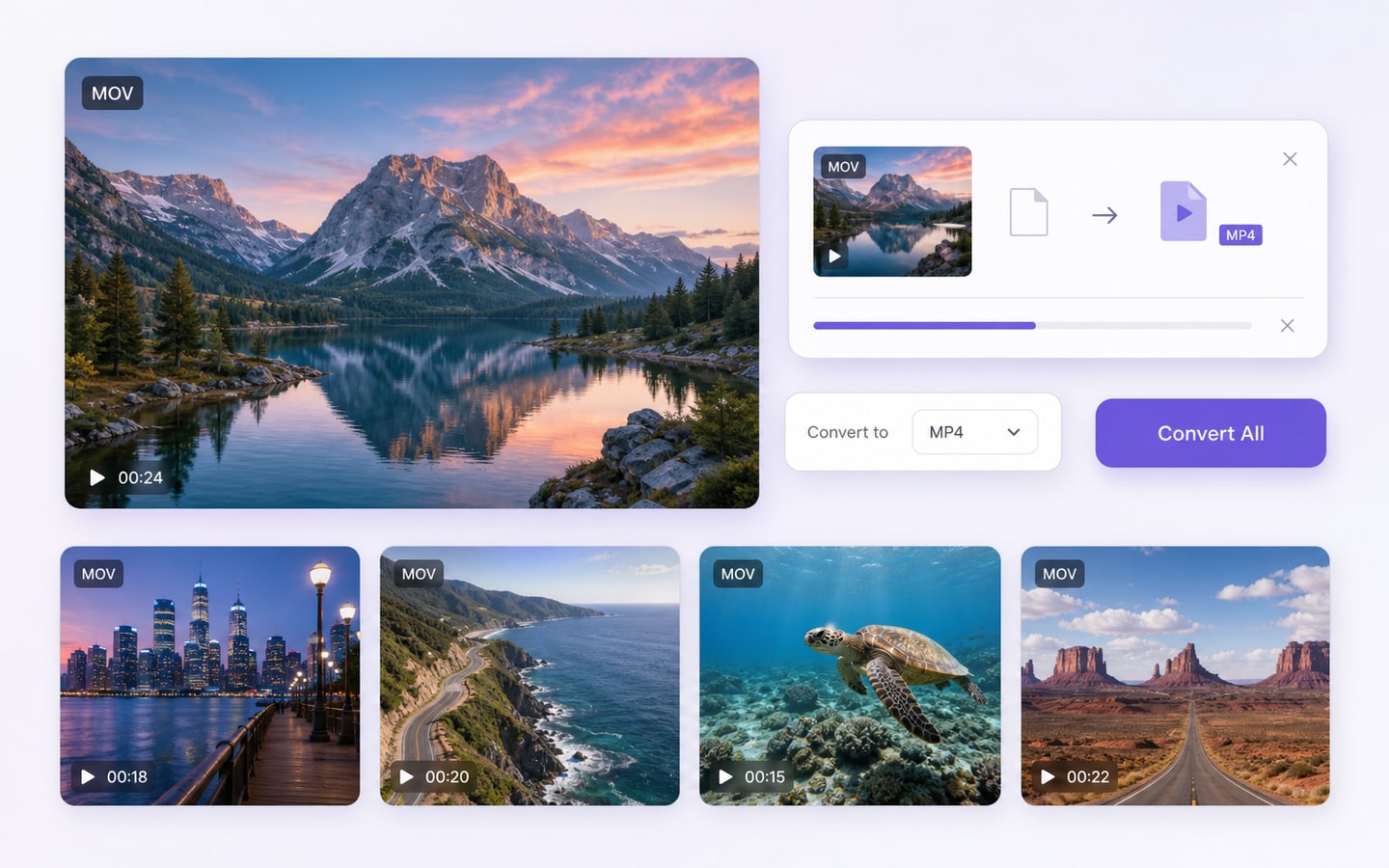
Collect MOV footage from phones, cameras, screen recordings, and production exports in one queue so the complete shoot or project remains visible during conversion.

  • Import MOV clips from several local folders
  • Keep related recordings in one conversion collection
  • Start the reviewed queue with Convert All
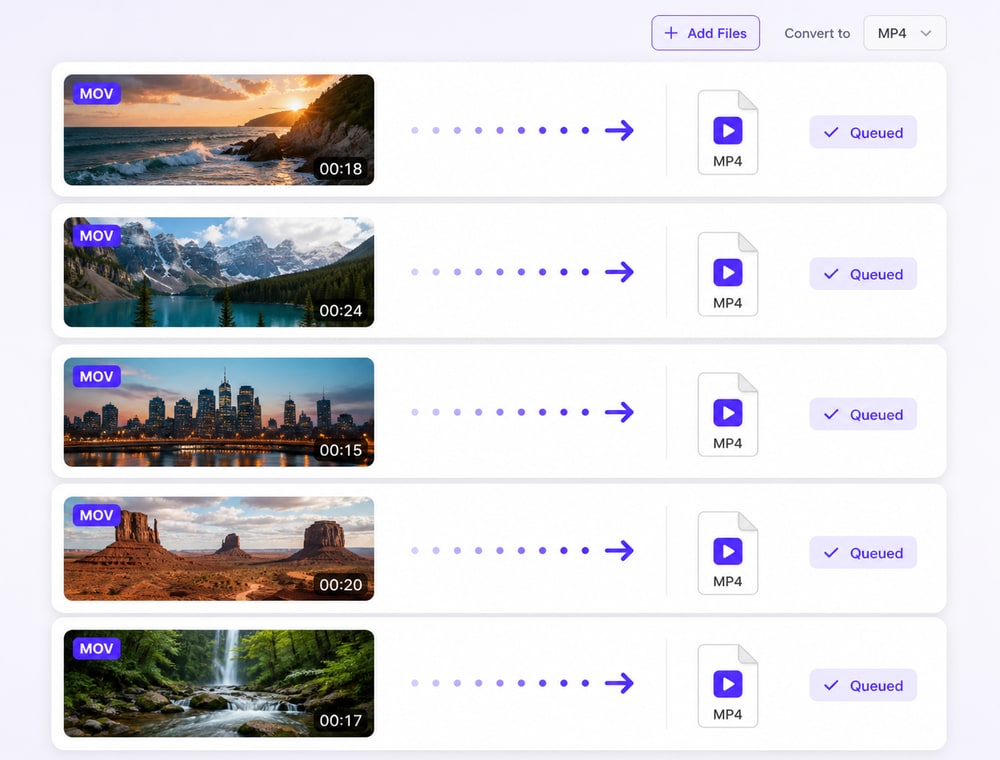
Organize MOV Camera and Production Clips

Create MP4 Copies for Wider Delivery

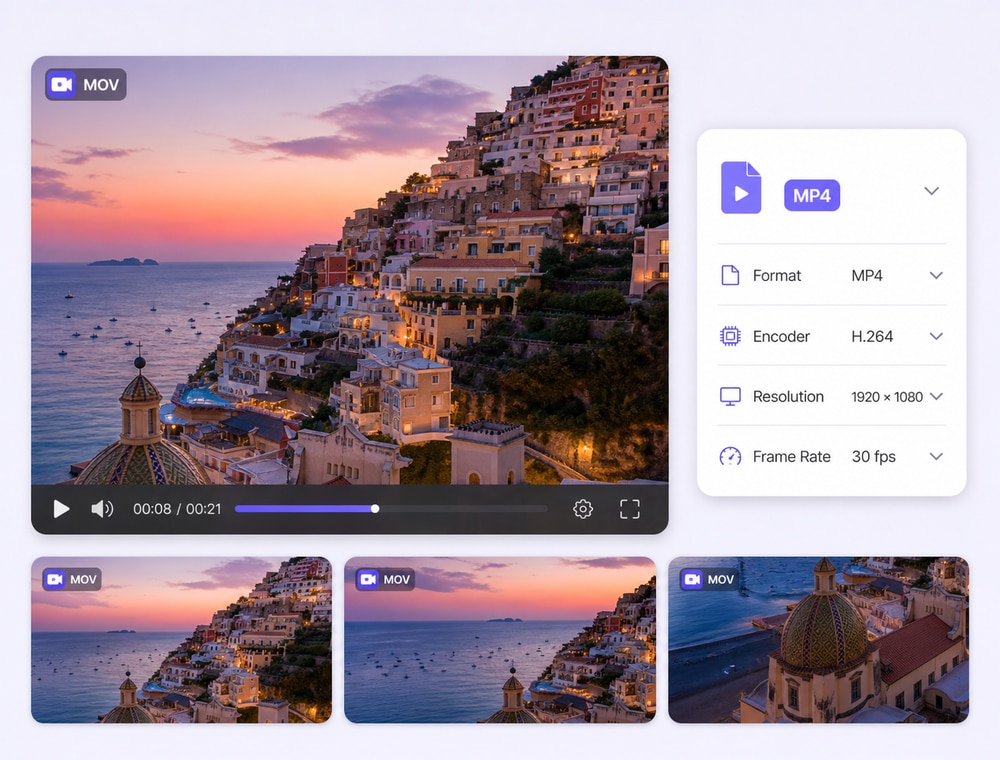
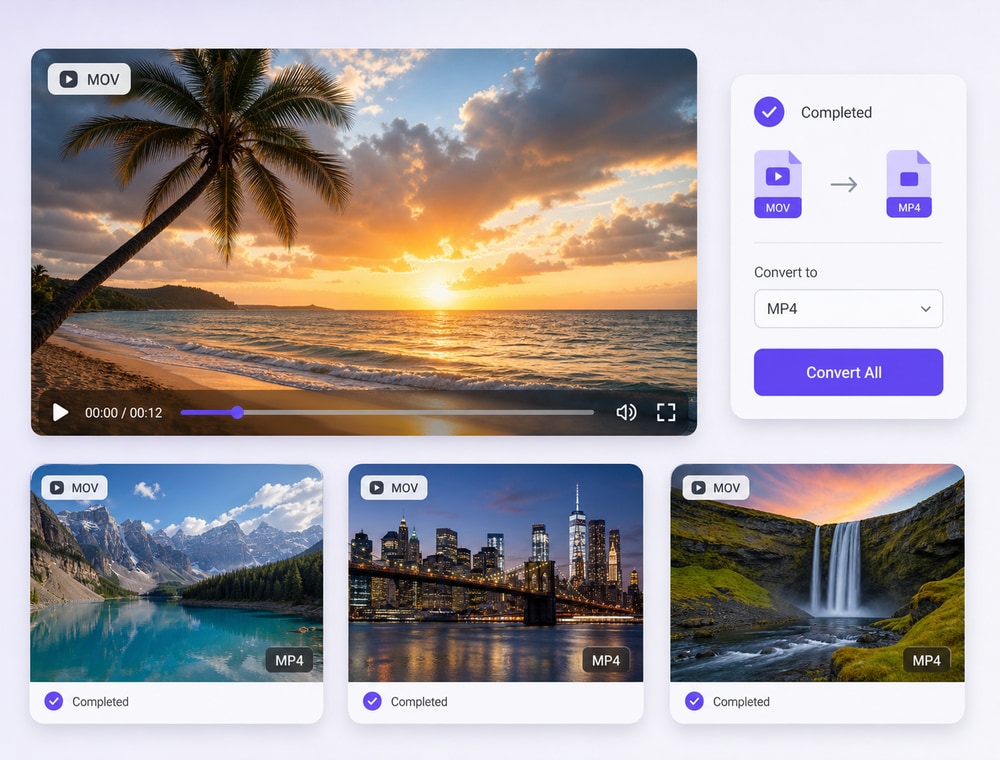
Apply a reviewed MP4 profile when recipients, devices, websites, or collaboration tools handle the selected MP4 configuration more consistently than the source MOV files.

  • Choose MP4 for the intended destination
  • Review individual clips with different delivery needs
  • Save the completed collection to one project folder
Create MP4 Copies for Wider Delivery

Match MOV Footage to the Next Workflow

Review resolution, frame rate, encoder, bitrate, quality, and audio choices for camera playback, editing proxies, client review, presentations, or publishing delivery.

  • Keep camera and project requirements in view
  • Check representative motion and audio before the full Batch
  • Avoid treating conversion as automatic quality improvement

Input support is broader than output support and can differ between Windows, Mac, Online, and product versions.

Match MOV Footage to the Next Workflow

Accelerate Time-Sensitive Delivery Exports

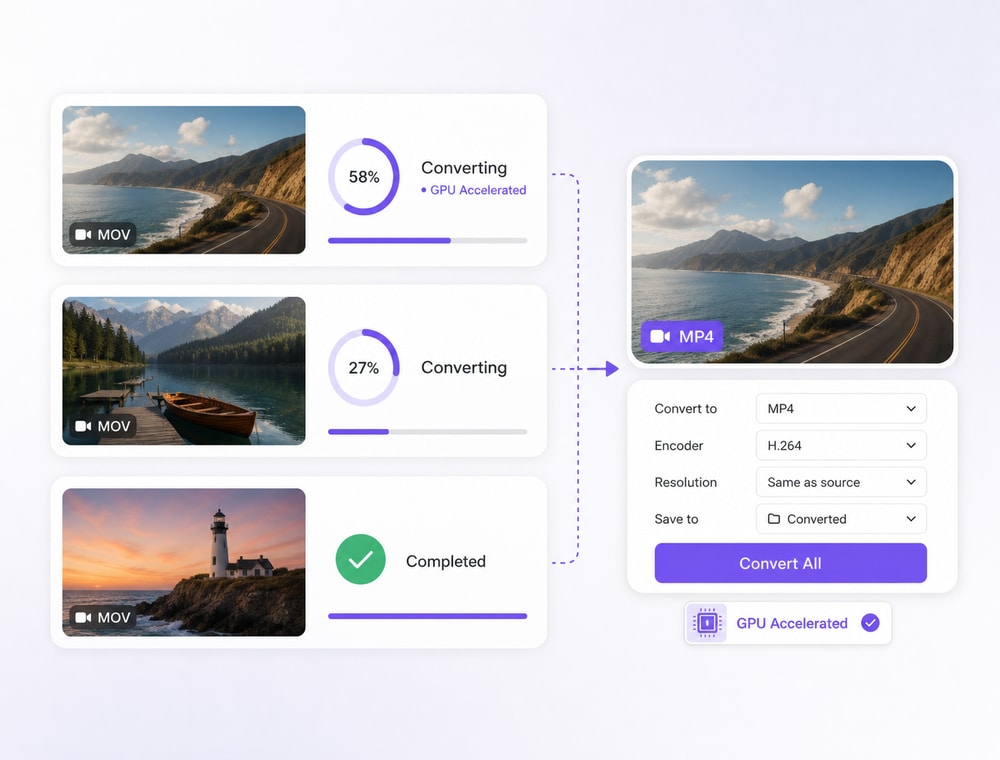
Supported GPU acceleration can help move a reviewed MOV delivery batch forward at up to 130X faster when many clips must be prepared for a deadline.

  • Speed supported MOV decode and MP4 encode paths
  • Use compatible hardware and codec combinations
  • Review one export before the full set
  • Expect performance to vary by footage and settings

Image Converter handles format conversion. These additional operations belong to Batch Image Editor.

Accelerate Time-Sensitive Delivery Exports

Plan the MP4 Copy Around Its Destination

Start with the recipient or publishing platform, then decide the MP4 profile, preparation needs, save location, and whether the MOV originals remain in the project archive.

MOV vs. MP4: What Changes During Batch Conversion?

MOV and MP4 are video containers, not fixed codec or quality settings. Review the selected output profile, encoder, resolution, frame rate, bitrate, audio settings, source tracks, compatible metadata, operating system, and installed UniConverter version before conversion.

Key differences between the source and output image formats
Conversion factMOVMP4
Common roleSource MOV container with codec and track details that should be checked before conversionSelected MP4 output profile for the next playback, editing, sharing, or storage workflow
CompatibilityPlayback support for MOV varies by device, player, browser, and editing applicationCompatibility depends on the chosen MP4 profile plus its video and audio configuration
Encoding & qualityThe source container can hold different codecs, resolutions, frame rates, bitrates, and quality levelsConversion may re-encode the media; it does not automatically improve quality, reduce size, or preserve the source configuration
Tracks & metadataThe source may contain multiple audio tracks, subtitles, chapters, artwork, or metadataCompatible information may be retained, but conversion does not guarantee that every track, subtitle, chapter, artwork item, or metadata field transfers

Technical references: UniConverter Video Converter and UniConverter Tech Specs.

Common VideoWeb & SharingCamera & DiscPro & Broadcast

Format, profile, encoder, and input/output availability can differ by operating system and UniConverter version. See theUniConverter Tech Specsfor current video support and system requirements.

When to Batch
Convert MOV to MP4

Use MOV-to-MP4 conversion when camera, phone, or production media needs a reviewed delivery copy for broader playback, collaboration, or publishing.

iPhone and Camera Recording Collections

Prepare MOV recordings from phones, mirrorless cameras, or other supported capture devices as reviewed MP4 copies for playback, backup, sharing, or the next production step.

Client Review and Presentation Copies

Convert approved MOV drafts, screen recordings, or presentation clips to an MP4 profile suited to the recipient's review device, meeting platform, or presentation environment.

Social and Website Publishing

Prepare a collection of MOV product demos, interviews, tutorials, or campaign clips for an MP4-based publishing workflow while keeping the complete release set together.

Editing Proxies and Team Handoffs

Create reviewed MP4 copies when collaborators or downstream tools work more reliably with the selected MP4 profile, while retaining the original MOV media for the primary production archive.

What UniConverter Users Are Saying

These reviews describe users' experience with Wondershare UniConverter as a broader conversion and editing product, rather than feedback specifically limited to the Batch Video Converter. Review sources and publication dates are shown where available.

★★★★★

“Very configurable for the exact result you need.”

Its flexible conversion controls make it easier to prepare files for different output and delivery requirements.
JohnsonJohnson
★★★★★

“The files can be used across IT platforms so easily!”

This kind of compatibility is useful when converted media needs to move between common systems and delivery workflows.
WilliamsWilliams
★★★★★

“Wondershare UniConverter is incredibly versatile.”

The broader conversion and editing toolkit supports users who need to complete more than one isolated media task.
OliviaOlivia

Explore UniConverter reviews and independent coverage across trusted software platforms.

FAQ About Batch MOV to MP4 Conversion

01

How do I batch convert MOV to MP4?

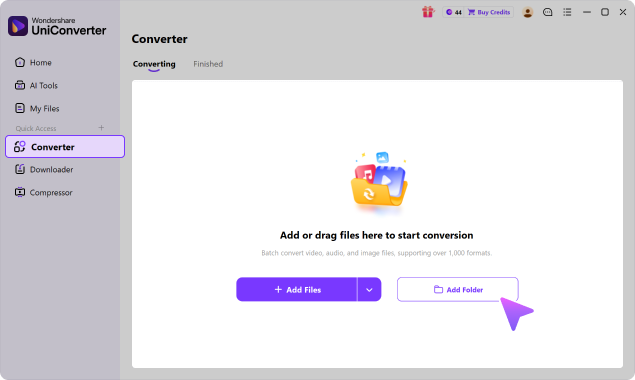
Open Wondershare UniConverter Video Converter, add the MOV recordings or project exports, choose a supported MP4 profile, review output and destination settings, and select Convert All.
A reviewed MP4 profile can be more convenient for cross-device playback, browser delivery, presentations, client review, or publishing. The best profile still follows the receiving device, application, and production requirement.
Conversion may re-encode the footage, so review encoder, resolution, frame rate, bitrate, audio, and quality settings against representative camera clips before processing the complete collection.
MOV files may remain the preferred camera or production originals. MP4 copies can serve playback, review, publishing, or handoff without replacing the source archive.
Compatible metadata can be retained in supported workflows, but exact fields depend on the MOV source, MP4 profile, settings, and receiving application.
Supported MOV-to-MP4 workflows may reach performance of up to 130X faster with full-process GPU acceleration. Results vary with footage, codecs, settings, and hardware.
vc 16

Prepare the Next MOV Project for Wider Delivery

Keep the source collection organized, create MP4 copies for the receiving workflow, and export the reviewed set with UniConverter Desktop.

Prepare the Next MOV Project for Wider Delivery