How to Convert M4A to AAC Online or on Desktop

Import your M4A files
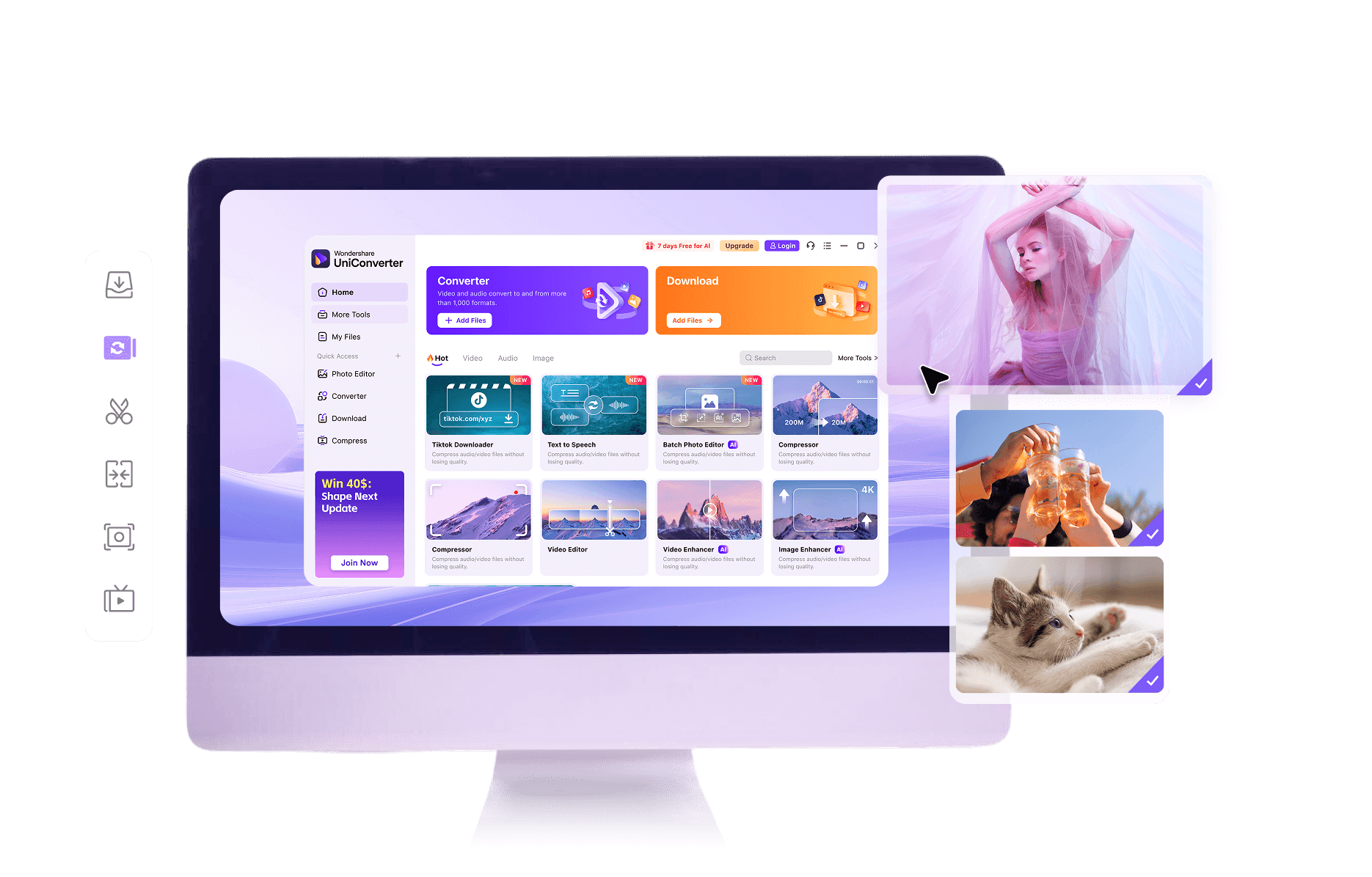
Open UniConverter in your browser to upload one or a few M4A tracks for an instant online conversion. When you need to process large folders, many songs, or full playlists, launch the desktop app instead and drag in entire batches for faster local handling.

Choose AAC as the output format
In the online tool, simply pick AAC as the target format for a quick, hassle‑free conversion that works well for most devices. On the desktop version, still choose AAC but also fine‑tune bitrate, sample rate, and other export parameters for stricter quality or size control.

Convert and save your AAC audio
Click convert in the online interface and download your ready‑to‑use AAC file as soon as processing finishes, ideal for one‑off tasks. On desktop, start the conversion to apply settings across multiple files, then save AAC outputs directly to local folders, players, or DJ software libraries.
M4A vs AAC: What’s the Difference When Converting
|
M4A
|
AAC
|
|
|---|---|---|
| File Extension | .m4a | .aac |
| Full Name | MPEG-4 Audio | Advanced Audio Coding |
| Description | M4A is an MPEG‑4 container mainly used for audio‑only files, often holding AAC or ALAC streams. It is common in iTunes and Apple Music libraries and is designed for efficient storage and streaming of music and podcasts. | AAC is an audio codec that compresses sound more efficiently than MP3 at similar bitrates. It can be stored in raw AAC files or inside containers like M4A and is widely supported by phones, portable players, and professional audio tools. |
| Associated Programs | Apple Music, iTunes, QuickTime Player, VLC media player, Windows Media Player (with codecs) | VLC media player, iTunes, Foobar2000, Winamp, many hardware music players and smartphones |
| Initial Release | 2001 | 1997 |
| Developer | Apple Inc. (based on MPEG-4 Part 14 standard) | Fraunhofer IIS, Dolby, AT&T, Sony and others |
| Common Use Cases | Purchased music from iTunes, Apple Music downloads, podcasts, general music libraries on macOS and iOS devices | Streaming audio, mobile phone playback, broadcast, DJ and mixing software, compatibility with legacy devices needing raw AAC files |
| MIME Type | audio/mp4 | audio/aac |
Key Features of UniConverter M4A to AAC Tool
Fast Online M4A to AAC Conversion in Your Browser
Convert M4A to AAC online without installing software. Upload your audio, choose AAC, and get a downloadable file within moments. This browser‑based tool is ideal for quick, one‑off tasks when you just need a few tracks converted safely and efficiently.
Desktop Batch Conversion and Advanced Controls
Use the desktop version when you need to batch convert many M4A files to AAC at once. Only the desktop app supports bulk processing and detailed export parameter control, helping you migrate full music libraries while keeping workflows fast and stable.
High Quality Audio with Smart AAC Encoding
Both online and desktop tools use reliable AAC encoding to keep your music sounding clear. Choose higher bitrates on desktop to preserve more detail, or default to balanced settings online to get compact files that still work well on most phones and players.
1000+ Formats Supported for Audio and Video
UniConverter supports 1000+ formats beyond simple M4A to AAC conversion. You can handle MP3, WAV, FLAC, MP4, MOV, and many more, so the same toolkit helps with almost any audio or video conversion task across online and desktop environments.
Secure Online Conversion with File Protection
The online converter processes your uploaded audio over secure connections and keeps files only for the time needed to complete your task. This reduces privacy risks compared with random tools and avoids exposing your M4A tracks longer than necessary.
Better Device Compatibility for Phones and DJ Software
Turn M4A music into plain AAC files to improve compatibility with older phones, car stereos, DJ software, and players that do not handle M4A containers well. Online works for quick fixes, while desktop gives more control when preparing entire performance libraries.
M4A to AAC Conversion FAQs
Does converting M4A to AAC lose quality?
Is M4A the same as AAC?
Can I convert M4A to AAC online for free?
How do I convert many M4A files to AAC on Windows or Mac?
Why would I convert M4A to AAC for certain devices?
What Users Say About Our M4A to AAC Converter

Explore More Format Conversion



Start Your M4A to AAC Conversion Now