


Struggling with QuickTime MOV files that won't play on your devices? You're not alone. Apple's MOV format offers excellent quality but suffers from compatibility issues outside the Apple ecosystem.
This comprehensive guide shows you how to convert QuickTime to MP4 free using both online tools and desktop software. Discover the best methods to transform your MOV files into universally compatible MP4 format for easier sharing, smaller file sizes, and seamless playback on any device. Learn about safe conversion practices and recommended tools to preserve your video quality while gaining format flexibility.
Table of Contents:
Part 1. What is QuickTime Format
At its core, a QuickTime file, instantly recognizable by its .mov extension, is a multimedia container format developed by Apple. Think of it as a sophisticated digital treasure chest. This container can hold a variety of treasures—not just video and audio tracks, but also text, animations, and interactive features. For years, it was the gold standard for professional video editing and playback on Mac systems, prized for its ability to maintain high fidelity and support complex multimedia structures.
When you convert QuickTime to MP4 free, you instantly unlock universal compatibility. MP4 files are lightweight, widely supported, and perfect for sharing through email, cloud storage, or messaging apps without running into errors. Even better, most editing tools outside the Apple ecosystem prefer MP4, so converting is the first step toward smoother video projects.
The best part? You don't need to pay or download bulky software. With QuickTime to MP4 converter free tools like Zamzar, CloudConvert, or FreeConvert, you can handle everything right from your browser in just a few clicks. These free convert QuickTime to MP4 tools are designed to be fast, safe, and beginner-friendly—ensuring that your videos are always ready to play, share, and edit anytime, anywhere.
Part 2. Why Convert Quicktime to MP4?
At its core, a QuickTime file, instantly recognizable by its .mov extension, is a multimedia container format developed by Apple. Think of it as a sophisticated digital treasure chest. This container can hold a variety of treasures—not just video and audio tracks, but also text, animations, and interactive features. For years, it was the gold standard for professional video editing and playback on Mac systems, prized for its ability to maintain high fidelity and support complex multimedia structures.

However, this sophistication comes with significant drawbacks for the everyday user in our multi-platform world. The most common limitations are its limited device support and often large file sizes.
Limited Device Support
While MOV files play natively on macOS and iOS devices, the experience is entirely different on other platforms. Windows PCs, Android phones, smart TVs, video game consoles, and many web browsers often lack the necessary codecs to decode these files correctly. You might encounter error messages, no audio, or simply a blank screen. This walled-garden approach is the primary driver pushing users to search for a way to convert QuickTime file to MP4.
Large File Sizes
QuickTime files, especially those using older codecs, are often less compressed than their MP4 counterparts. This means they can consume substantial storage space on your hard drive and are cumbersome to share via email or messaging apps, which frequently have strict file size limits.
This is where the advantages of MP4 become overwhelmingly clear. The MP4 format (MPEG-4 Part 14) is the true universal citizen of the digital video world.
Universal Compatibility
MP4 is an international standard. It is supported by virtually every device, operating system, media player, and social media platform on the planet. Converting a file to MP4 virtually guarantees it will play anywhere, eliminating frustrating compatibility headaches. This is why the need to convert QuickTime video to MP4 is so prevalent.
Superior Compression
MP4 utilizes advanced, efficient compression algorithms (like H.264 and H.265/HEVC). This means it can significantly reduce file size without a perceptible loss in quality to the human eye. This makes MP4 ideal for streaming, sharing online, and saving storage space, all while maintaining excellent visual fidelity.
In essence, converting from MOV to MP4 is not about lowering quality; it's about increasing freedom. It's about transforming a file from a restricted, platform-specific format into a versatile, universally accepted one that works seamlessly across your entire digital life.
Part 3. Easiest Way to Batch Convert QuickTime to MP4 Free on Desktop
For users who need to convert multiple files reliably and with complete control over quality, a dedicated desktop converter is unbeatable. While many options exist, Wondershare UniConverter stands out as a top-tier solution for its blend of power, speed, and user-friendliness. It goes beyond a simple free QuickTime to MP4 converter by offering a full suite of tools, including batch processing, video editing, downloading, and recording, all within a clean, ad-free interface.
Its key features make it ideal for this task: the ability to batch convert hundreds of MOV files to MP4 simultaneously, hardware acceleration for breakneck conversion speeds, and a guarantee of zero quality loss with customizable output settings. It also includes a free trial, allowing you to experience its full capabilities before committing.
Here's how to use UniConverter to turn QuickTime into MP4 effortlessly:
Step 1: Add Your QuickTime MOV Files
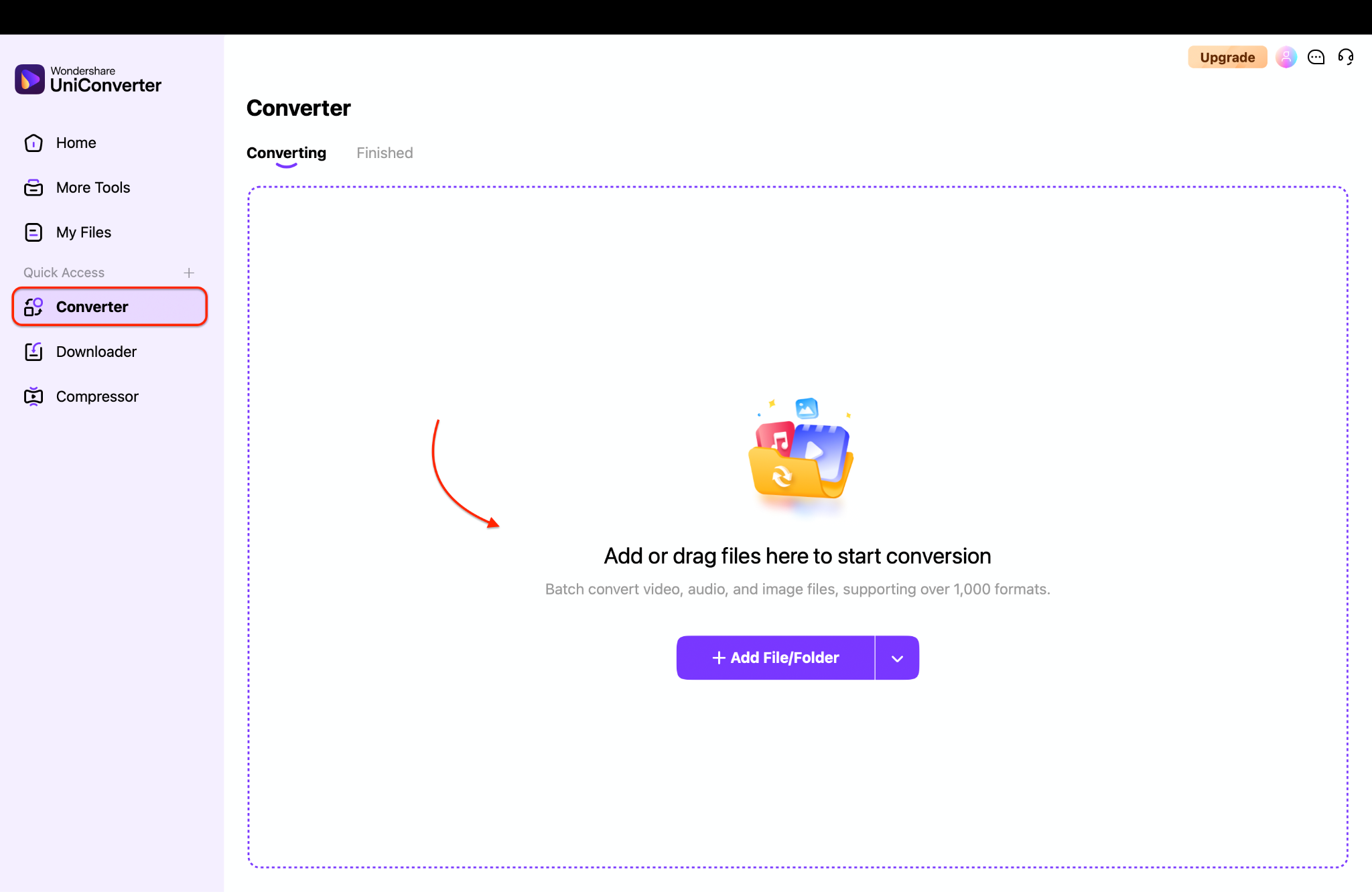
Launch UniConverter on your desktop and navigate to the Converter module. Click the Add Files button or drag and drop all the QuickTime videos you wish to convert directly into the program's window. The interface will quickly display all your imported files, ready for batch processing.
Step 2: Select MP4 as Your Output Format
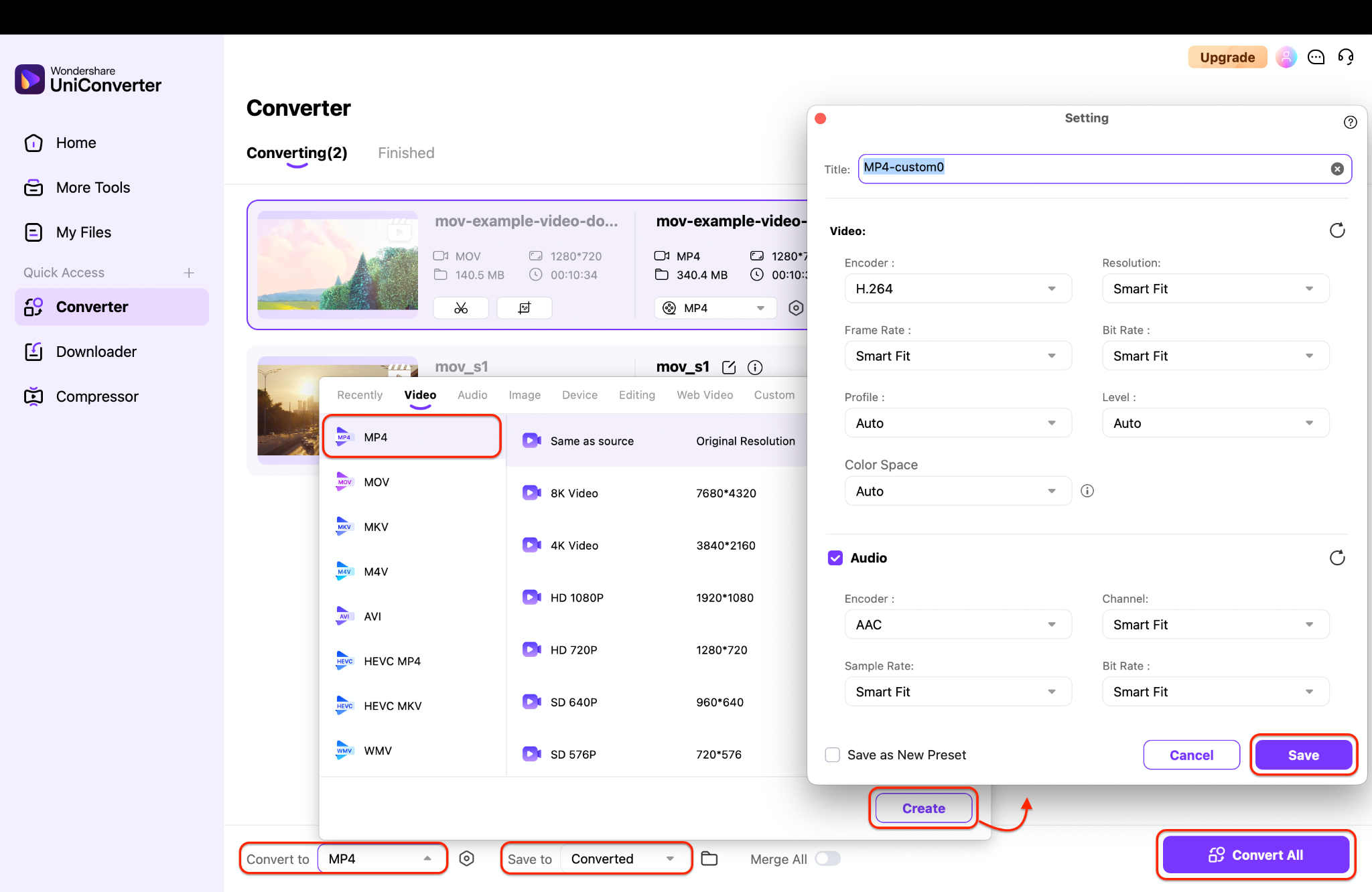
With your files loaded, click the output format menu next to each video (or use the setting that applies to all). From the list of formats, select MP4 as your target. For the best balance of quality and compatibility, choose the H.264 codec profile. You can further customize resolution, bitrate, and other parameters here if desired.
Step 3: Convert and Save All Files
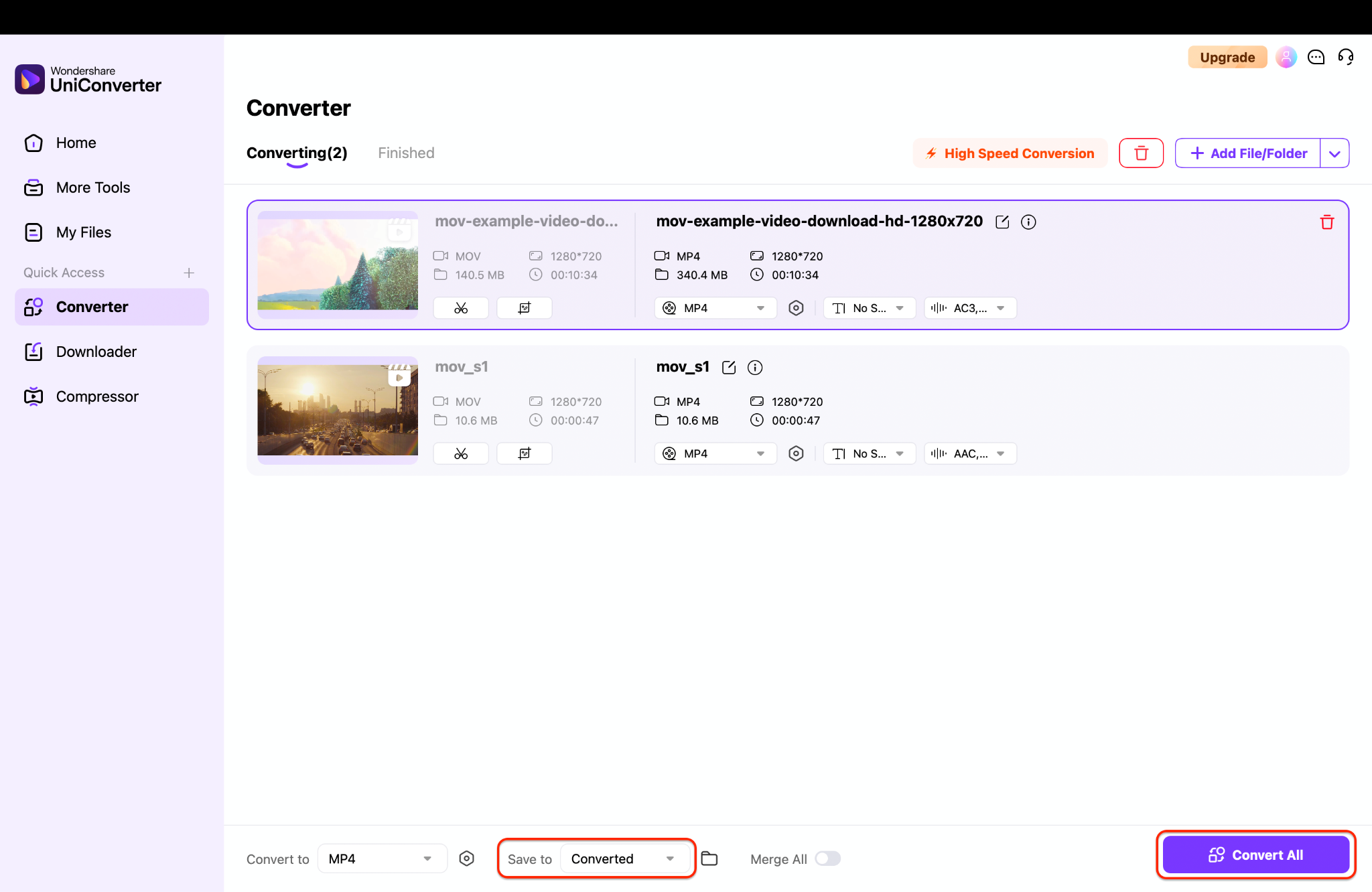
Choose a destination folder for your new MP4 files by clicking the Output button. Finally, hit the Convert All button. UniConverter will now process your entire queue, efficiently transforming each QuickTime file to MP4 without losing quality. Within moments, your collection will be universally compatible and ready to share anywhere.

Easy to Use QuickTime to MP4 Converter
Part 4. Other Alternative QuickTime to MP4 Converters - Comparison Table
While UniConverter is a robust choice, it's helpful to understand the landscape of tools available for your QuickTime to MP4 converter free needs. The following table compares several popular options based on key metrics:
| Tool | Supported Devices | Batch Conversion Support | Pricing & Limitations |
|---|---|---|---|
| Wondershare UniConverter | Windows, Mac | Yes | Free Trial; Paid license. Full-featured, fast, and secure. |
| HandBrake | Windows, Mac, Linux | Yes | 100% Free & Open-Source. Steeper learning curve. |
| VLC Media Player | Windows, Mac, Linux | No | 100% Free. Conversion is a hidden feature, not user-friendly. |
| CloudConvert (Online) | Any Web Browser | Limited (free tier) | Freemium. Free tier has queue times, daily limits, and file size caps. |
| Zamzar (Online) | Any Web Browser | Limited (free tier) | Freemium. Free tier is very slow and limits 2 files per conversion. |
Analysis:
UniConverter is the best all-around option for users who value a straightforward, feature-rich, and fast experience.
HandBrake is a powerful and completely free alternative, though its interface can be intimidating for beginners.
VLC can technically convert QuickTime movie to MP4, but the process is cumbersome and not designed for batch jobs.
Online tools like CloudConvert and Zamzar offer a convenient online converter QuickTime to MP4 for one-off files without software installs. Still, they suffer from slow speeds, privacy concerns, and limitations on the free tier.
Part 5. Tips for Smooth QuickTime to MP4 Conversion
To ensure a seamless experience when you change QuickTime movie to MP4, keep these professional tips in mind:
Ensure High-Quality Output
When using any converter, don't just accept the default settings. Click the settings or customization icon to verify that the output resolution and bitrate match the quality of your source video. This prevents unnecessary compression and ensures your final MP4 looks just as crisp as the original MOV.
Use Batch Conversion for Multiple Files
If you have multiple files to process, always use a tool that supports batch processing. This allows you to add dozens of MOV files, set your preferred MP4 output settings once, and let the software handle the rest automatically, saving you an enormous amount of time and effort.
Prioritize Safe and Secure Conversion
The internet is filled with websites offering a free online service to convert QuickTime to MP4. Be very cautious, as intrusive ads, malware, or other malicious software may mishandle your private videos. Always opt for well-known, reputable software or online services with positive reviews to protect your data and your device.
Final thought
Navigating the compatibility challenges between Apple's QuickTime format and the universal MP4 standard is a common hurdle for many users. As we've explored, converting your MOV files is essential for seamless sharing, editing, and playback across all your devices. While various online tools offer a quick fix, they often come with compromises in speed, security, and functionality.
Wondershare UniConverter distinguishes itself as the most competent and user-friendly solution for this task. It effortlessly handles everything from single file conversions to massive batch processes, all while guaranteeing no loss of quality and providing a safe, efficient, and ad-free experience. It is the ultimate tool to convert QuickTime video to MP4 without any hassle.
Ready to free your videos from format limitations? Download UniConverter today for free and experience the most straightforward, fastest, and most reliable way to convert your QuickTime libraries to MP4!
Easy to Use QuickTime to MP4 Converter
FAQs
-
1. Why won't my QuickTime .MOV file play on Windows Media Player?
Windows Media Player and many other non-Apple applications lack the specific codecs required to decode the video and audio tracks within a QuickTime container. This is the core reason you need to convert QuickTime to MP4 for free. The MP4 format uses standardized codecs (like H.264) that are built into virtually all media players and operating systems. -
2. Are free online QuickTime to MP4 converters safe to use?
You should exercise caution. While many popular online converter QuickTime to MP4 services are legitimate, they can pose privacy risks as you are uploading your videos to a third-party server. Additionally, many free sites are ad-supported and may expose you to malicious ads. For sensitive files or batch conversion, a trusted desktop software like UniConverter is a much safer and more efficient choice. -
3. Can I convert MP4 files back to QuickTime MOV format?
Yes, absolutely. The process is similar but in reverse. Using a tool like UniConverter, you would add your MP4 files and choose MOV (or QuickTime) as the output format. This can be useful if you need to convert MP4 to QuickTime Mac for use in a professional video editing workflow that requires the QuickTime container. -
4. Will converting from MOV to MP4 reduce the quality of my video?
Not if you use the correct settings. A high-quality converter allows you to set the output parameters to match or exceed the original file's quality. If you select a high bitrate and resolution, the conversion from QuickTime into MP4 will be visually lossless. The key is to avoid using "low-quality" presets designed for small file sizes. -
5. What is the fastest way to convert a large number of MOV files?
The fastest method is to use a desktop application that supports batch conversion and hardware acceleration. Online converters are slow due to upload/download times and server queues. Desktop software like UniConverter processes files locally on your computer's hardware, allowing it to convert dozens of files simultaneously at remarkable speeds, which is ideal for extensive video collections.

