

Have you ever watched those cool videos where toys come to life or food dances around the table? That's stop-motion magic, and you can create it too. Creating a stop-motion video might seem tricky and time-consuming, but with your phone's camera and some patience, you'll be creating amazing stop-motion clips in no time.
This guide will help you understand the basics of editing your final masterpiece. You will learn simple techniques to create stop-motion clips. You will find popular ideas that actually work, along with practical tips to make your videos look professional.
In this article
Part 1. What is a Stop-Motion Video
Stop-motion video is a filmmaking technique where numerous individual photos are taken and played back quickly to create the illusion of movement. Stop-motion uses static objects that are moved step-by-step, frame by frame, to bring characters to life. Think of it like making a flipbook, each photo is one page, and when you flip through them fast enough, your objects appear to move on their own.

Part 2. How to Make a Stop-Motion Video with Time-lapse Photos
If you're wondering how to create stop-motion videos using just your phone and patience, time-lapse photos are a great way to start. Here's a simple step-by-step method to bring your scenes to life.
Step 1: Place your phone on a tripod and adjust the interval settings.
Step 2: Take photos every 8 seconds.
Step 3: Make changes to the object or subject.
Step 4: Choose a third-party tool, such as Filmora, and import the entire collection into a video timeline. Then, change the speed of each frame to 0.1 seconds.
Your stop-motion video is ready!
Part 3. How to Make a Stop-Motion Video with Recorded Videos
If you already have a video that you want to convert into a stop-motion animation, it might seem like a daunting task. With Wondershare UniConverter, you can convert your most loved videos into images and then turn them into stop-motion animations. You only need to upload the video, and it will give you images according to the chosen frame rate. After converting them, you can use a third-party tool to turn these images into stop-motion videos.

How to Turn Recorded Videos into Images
Here is the step-by-step guide to turn videos into images with simple steps:
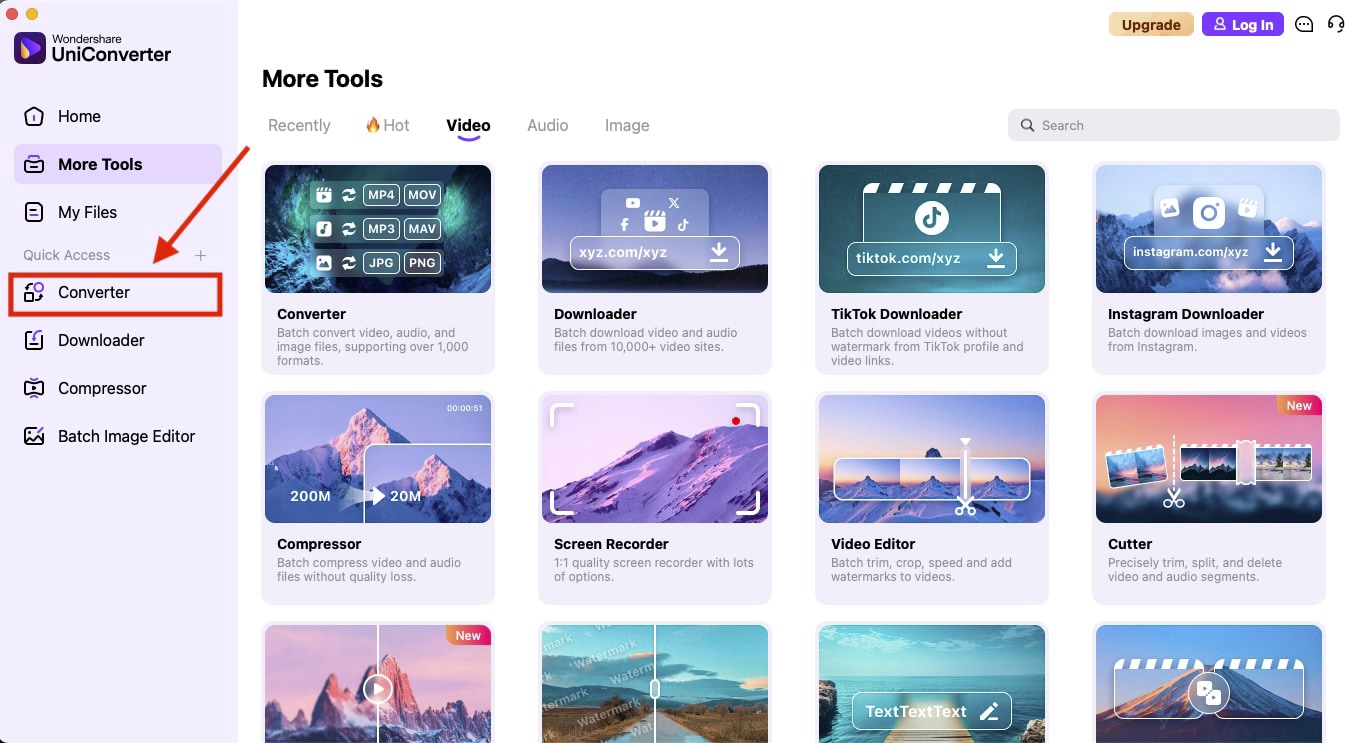
Step 1
On the homepage, navigate to "Converter" on the left side.
Step 2
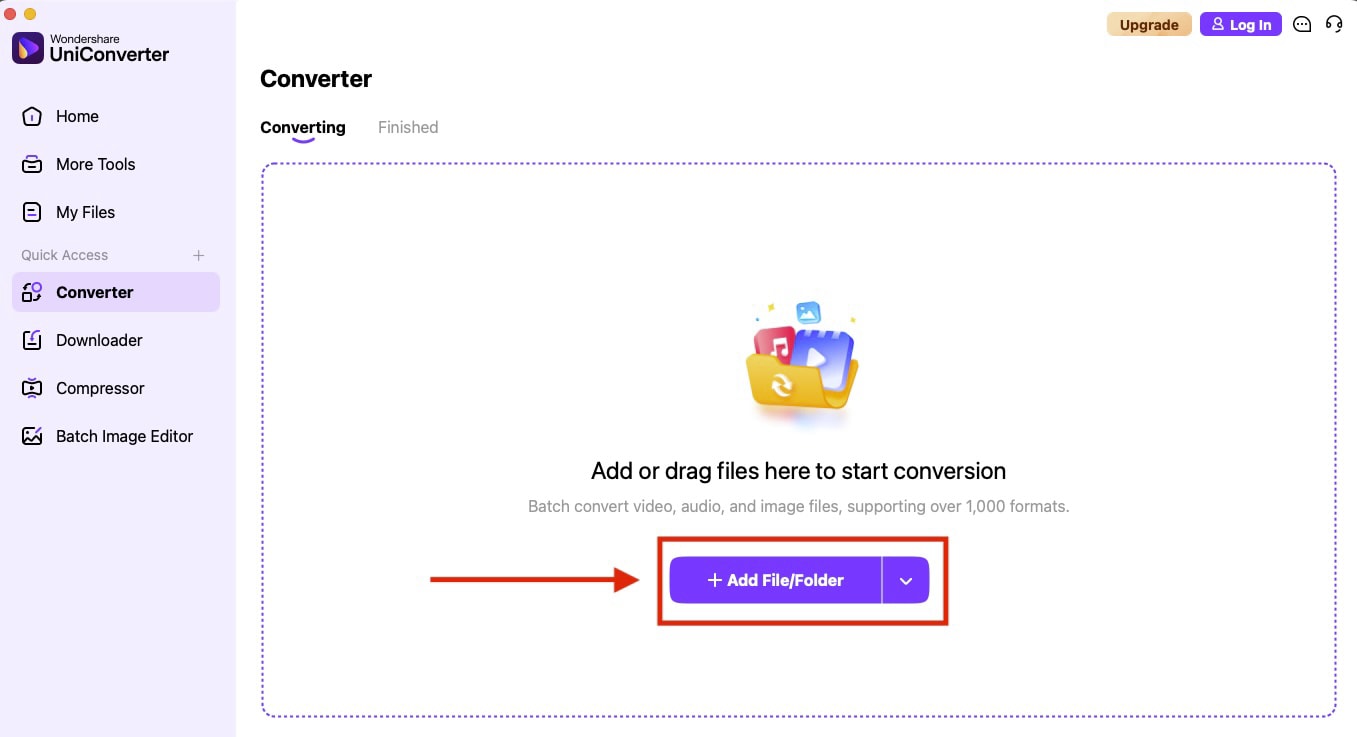
Click on the "Add File/Folder" and upload the video.
Step 3
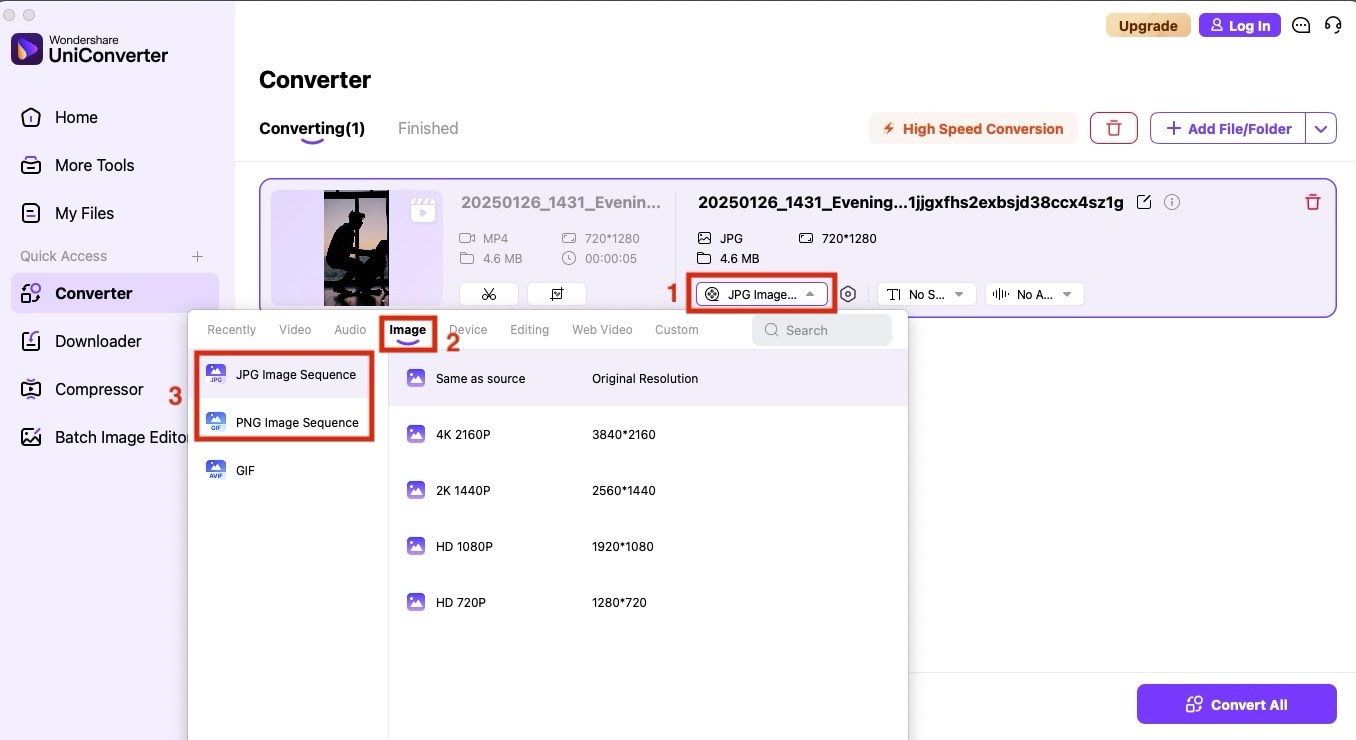
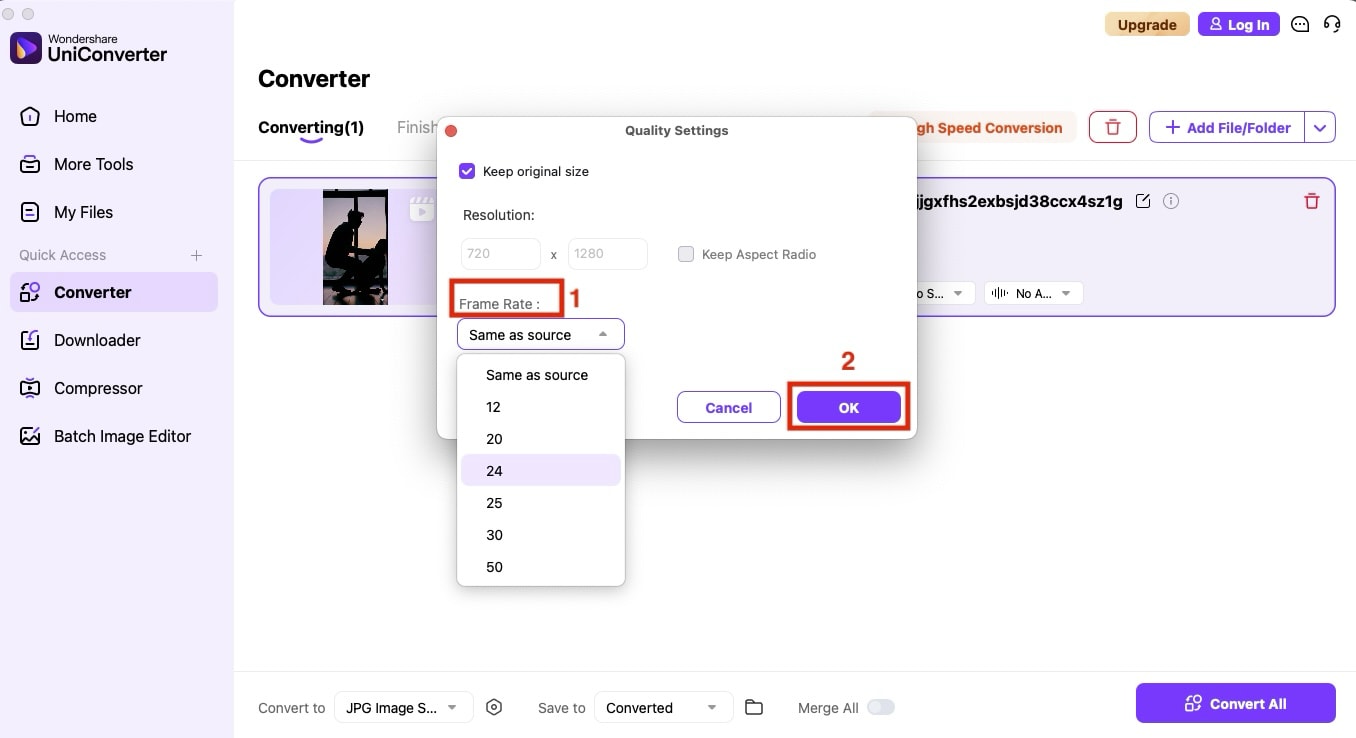
Click on the image format option and select an image format (e.g., JPG or PNG). Then, choose the desired image quality.
Step 4
Click the settings option and choose "Frame Rate," and click "Ok."
Step 5
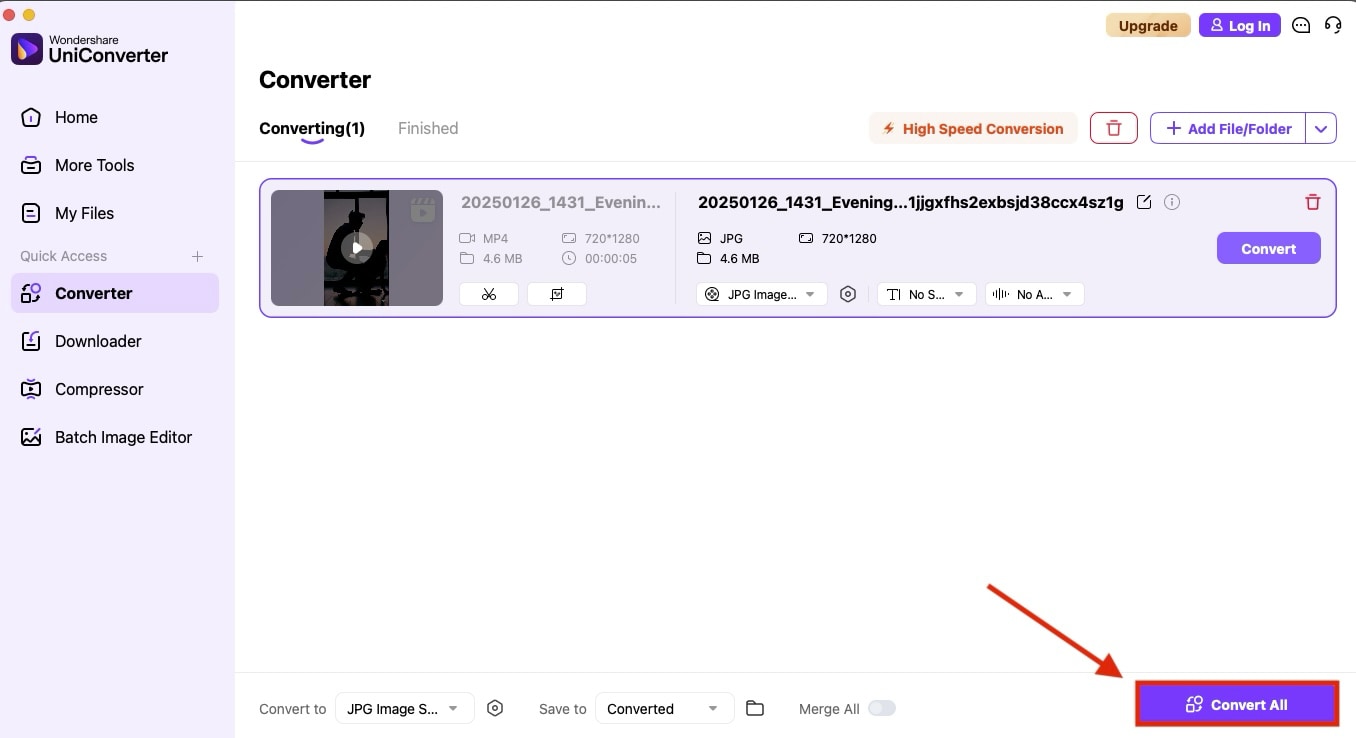
Click "Convert All" and save the images.
Part 4. How to Combine Stop-Motion Video in Stop Motion Studio
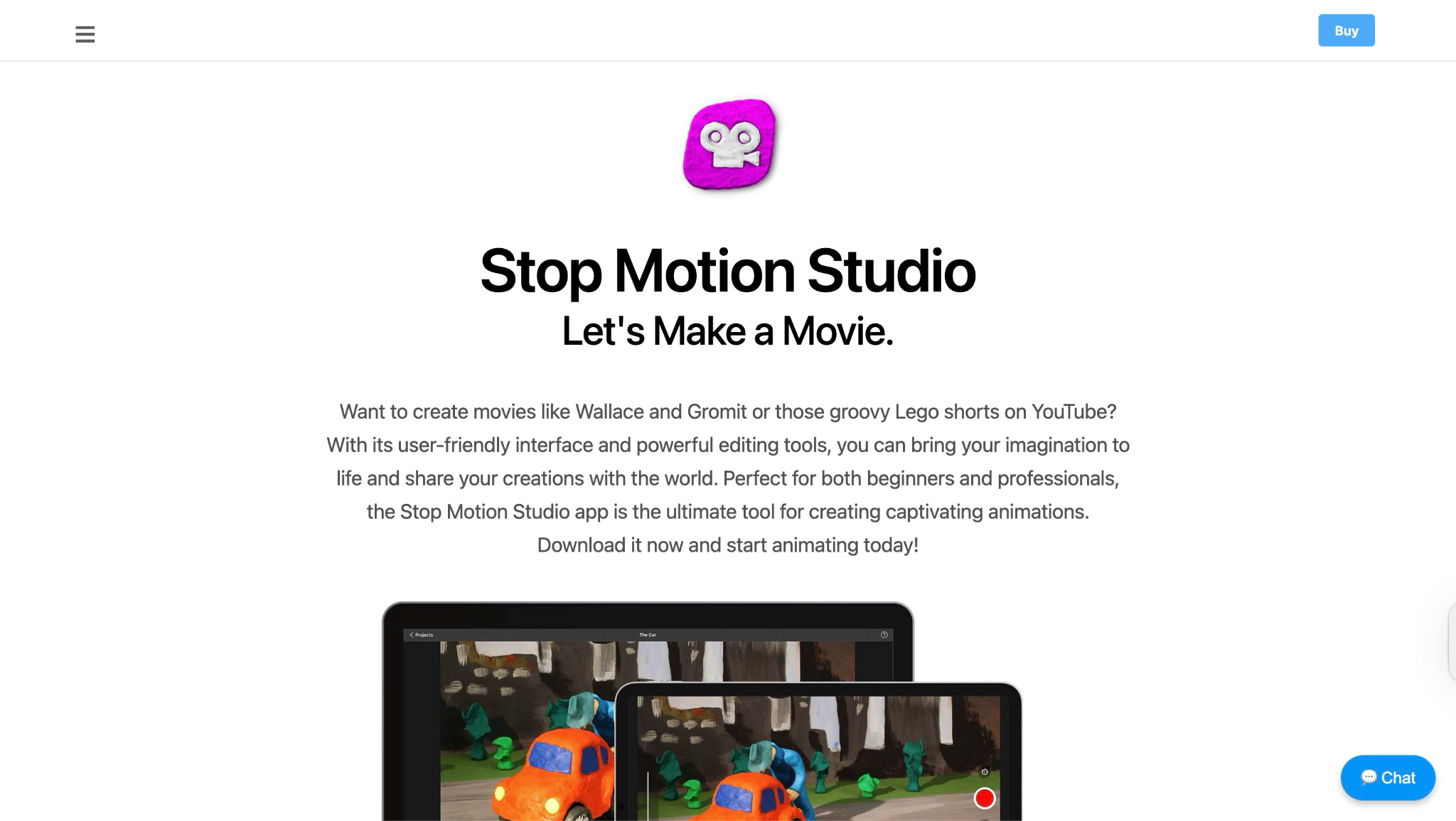
Here's how to create a stop-motion video using the Stop Motion Studio app, which provides frame-by-frame control.
Step 1
Prepare Your Individual Projects: Before combining videos, ensure that each stop-motion scene is completed and saved as a separate project in Stop Motion Studio. Open your first project that will serve as the main timeline for your combined video.
Step 2
Access the Media Import Function. From the Movie Editor interface, locate and tap the "Add Media" symbol (“+” icon). This opens the media library where you can import additional content, including other Stop Motion Studio projects, video clips, images, and audio files.
Choose "File" from the options menu to initiate the import process. Navigate to locate the additional Stop Motion Studio project files that you want to combine with your current project.
Step 3
Select and Import Projects: Browse through your device's storage, iCloud, Dropbox, or other connected services to find the Stop Motion Studio project files you wish to merge. If you don't see the desired storage location, press "Locations" to explore additional options.
Select the project file you want to import. Stop Motion Studio will automatically insert the selected project at the current playhead position, so ensure your timeline cursor is positioned where you want the new content to appear.
Step 4
Arrange and Edit Combined Content: Once imported, your combined content will appear in the timeline editor. Drag and drop frames or sections to reorder your animation. Tap on any thumbnail to access editing options, including copy, paste, delete, or merge functions.
The frame-by-frame editor displays all images chronologically, making it easy to review and fine-tune your combined animation.
Part 5. Popular Stop-Motion Video Ideas
If you're looking to turn your regular video into stop-motion clips, here are some of the most popular stop-motion video ideas that work great for beginners.
Lego Stop-Motion Adventures
Build a simple Lego scene and create mini-movies with your figures. Start with basic movements, such as walking or building something brick by brick. Lego pieces are ideal for beginners because they stay in place well and move predictably.
Dancing Food Videos
Make fruits and vegetables "dance" around your kitchen counter. Apples can roll, bananas can slide, and crackers can march in formation. This idea is popular on social media and requires no special materials.

Paper Animation Magic
Cut out simple paper shapes and animate them moving across backgrounds. Draw faces on paper circles and make them talk, or create paper airplanes that "fly" around your room. This technique works great for storytelling.
Clay Character Creation
Mold simple clay figures and bring them to life. Start with basic blob characters that can be squashed and stretched. Clay is forgiving and allows for smooth character movements and shape changes.
Time-lapse Plant Growth
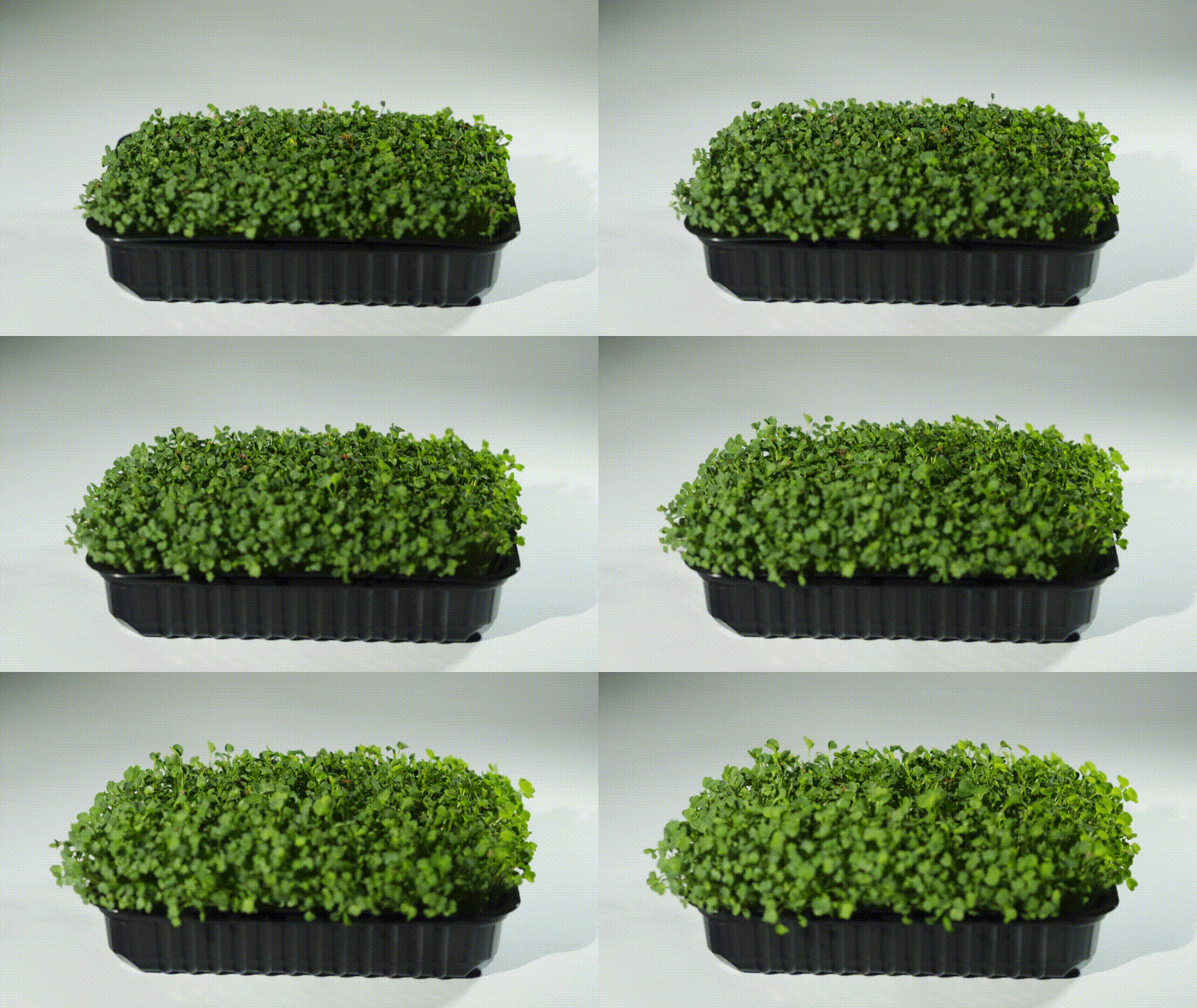
Show plants growing, flowers blooming, or seeds sprouting over days or weeks. Set up your camera to take photos automatically and compress weeks into seconds.
Hand-drawn Animation
Draw simple stick figures or shapes on paper, photograph each drawing, then erase and redraw slightly differently. This creates classic hand-drawn animation effects.
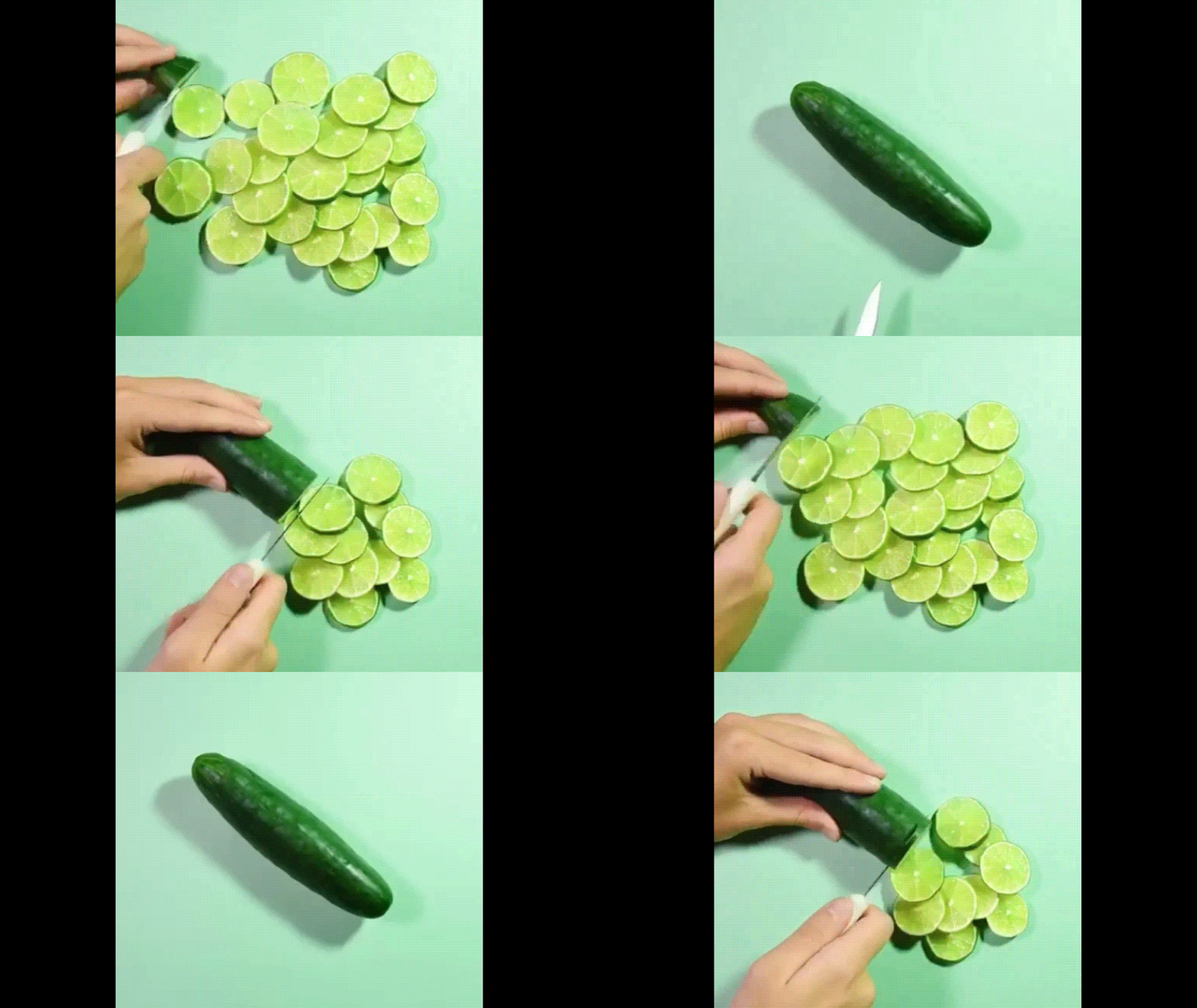
Kitchen Cooking Scenes
Show ingredients appearing to cook themselves, such as chopping vegetables, mixing batter, or assembling sandwiches, automatically. This combines practical subjects with playful animation.
Part 6. Tips to Create Consistent Stop-Motion Videos
When talking about tips, the first thing that comes to mind is consistency. Consistency is the key to making your stop-motion video look professional, rather than shaky. Here are some tips to help you become a pro at creating stop-motion photography videos.
Stable Camera Setup
Your camera must remain perfectly still throughout the shooting process. Even the slightest movements can make your final video appear jumpy. Use a tripod or create a stable base by placing books on a flat surface and securing them with tape. Mark your camera's position with tape so you can return to the exact spot if you need to move it.
Consistent Lighting
Lighting changes can cause your video to flicker between bright and dark frames. Shoot in a room where you can control the lighting completely. Close curtains to block changing natural light, and use desk lamps or overhead lights that won't shift during your session. Avoid shooting near windows at different times of day.
Shoot in Short Segments
Don't try to create a 5-minute masterpiece in one sitting. Break your story into 10-30 second segments and film them separately. This prevents fatigue-induced mistakes and makes it easier to reshoot sections if needed. You can always combine segments in editing apps later.
Conclusion
Creating a stop-motion video is an accessible and rewarding process that anyone can master with patience and practice. From simple Lego adventures to dancing food clips, the possibilities are endless when you understand the fundamentals of frame-by-frame photography.
Remember that consistency in camera positioning and lighting makes the difference between amateur and professional-looking results. Start with basic 12 fps projects, keep your movements small, and shoot in controlled environments. Grab your smartphone, set up phone stand, and start creating your first stop-motion video masterpiece today!
FAQs
-
1. How many photos do I need for a 10-second stop-motion video?
You need to take about 120-240 photos, depending on your frame rate. At 12 frames per second, you will need 120 photos for 10 seconds of video. -
2. What is the best frame rate for stop-motion for beginners?
Start with 12 frames per second. It is smooth enough to look good, but does not require as many photos as higher frame rates. You can always increase to 24 fps as you get more comfortable. -
3. Why does my stop-motion video look jerky?
Jerky motion happens when objects move too far between frames. You should make smaller movements, about ¼ inch for small objects. Also, check that your camera stayed perfectly still. -
4. How to fix lighting problems in video?
Shoot in a room where you control all light sources. Turn off automatic camera settings that adjust exposure between shots. If your video still flickers, you can use editing apps to stabilize the brightness in post-production.

