


Learning how to use FFmpeg extract audio commands is a game-changer for content creators, musicians, and editors who need high-quality soundtracks from video files. Whether you're working with MP4, MKV, or MOV files, FFmpeg provides a powerful, free, and efficient way to separate audio without compromising quality.
This comprehensive 2025 guide offers step-by-step instructions for Mac, Windows, and Linux users, covering installation, essential commands, and practical examples. You'll also learn the difference between extracting and converting audio. For those who prefer simplicity, we offer a user-friendly alternative to UniConverter for effortless processing.
Table of Contents
Part 1. Steps Guide to Extract Audio from Video in FFmpeg
Choose stream copy or re-encode
FFmpeg audio-extraction searches expect exact commands, stream selection, codec/container choices, and fixes for silent or wrong-track output. Use stream copy only when the source audio codec and destination container are compatible. Re-encode when the required output is MP3, WAV, or another format with different codec or quality requirements; specify the intended audio stream when the file contains more than one.
When it fails: If the output is silent or uses the wrong language, list the input streams and select the correct audio track. If the file will not open, check the output container and codec rather than changing only the extension.
Choose stream copy or re-encode: Use stream copy only when the source audio codec and destination container are compatible. Re-encode when the required output is MP3, WAV, or another format with different codec or quality requirements; specify the intended audio stream when the file contains more than one.
The following instructions guide you through a comprehensive, hands-on method to extract audio from video FFmpeg on macOS. The same commands work on both Windows and Linux, allowing you to follow along regardless of your operating system. Before starting, confirm that you have the latest FFmpeg build installed. On Mac, the simplest way is:
Step 1: Install FFmpeg and Open Terminal
First, ensure you have FFmpeg installed on your computer for FFmpeg separate audio and video. After installation, open your Terminal app, there you'll have to write the cd command to change directories and navigate directly to your video file's location. Then, you'll have to write the ls command to list and confirm that your file is there, ensuring you're ready for the next step. From there, you're all set to begin the extraction and conversion process with FFmpeg.

Step 2: Use the FFmpeg Command to Re-encode Audio
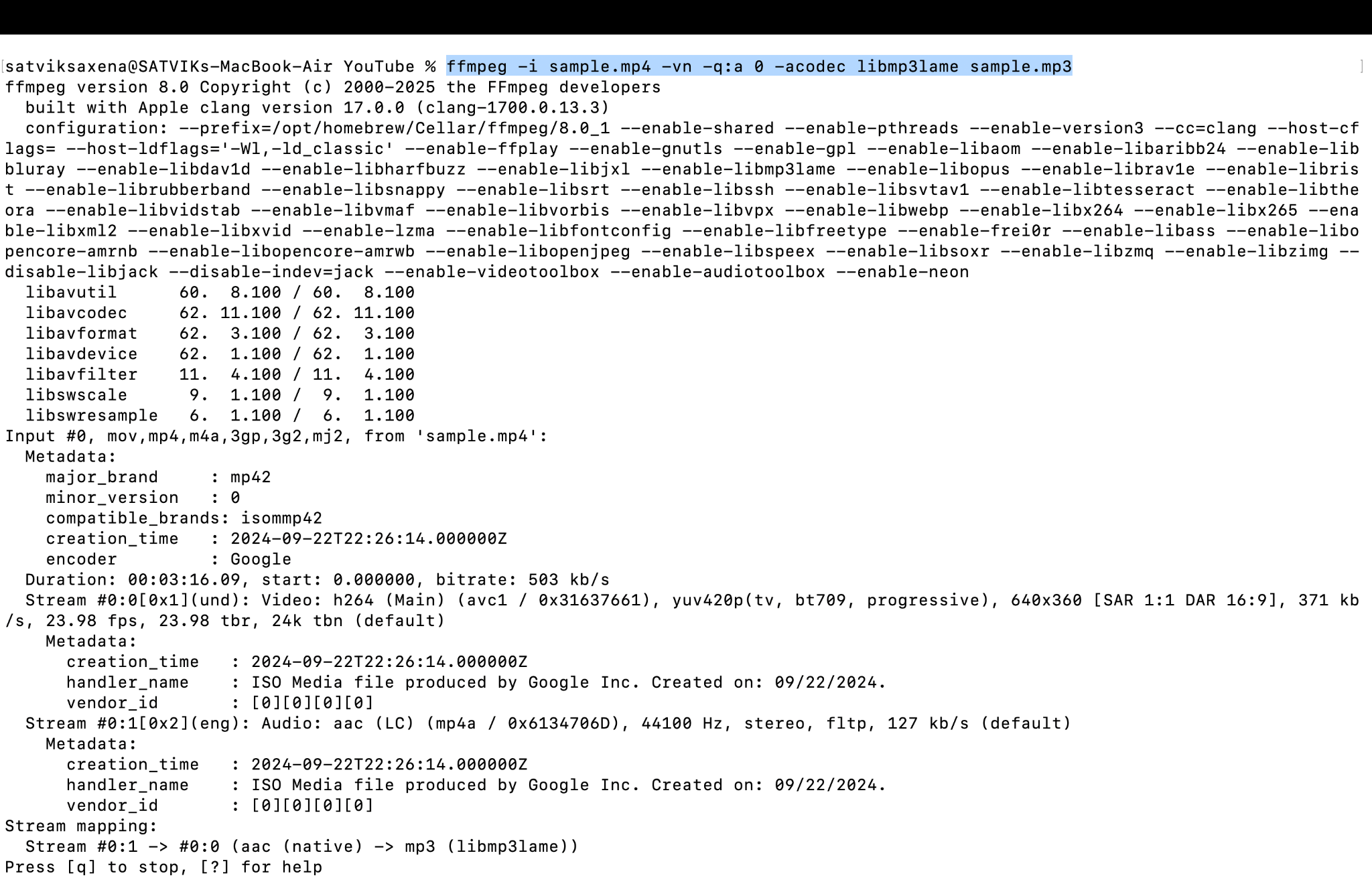
Next, type the command ffmpeg -i input.mp4 -vn -q:a 0 -acodec libmp3lame output.mp3 into your terminal. This command tells FFmpeg to use your specified input video file (-i input.mp4) while disabling the video stream (-vn). It then re-encodes the audio using the high-quality MP3 encoder (-q:a 0 -acodec libmp3lame) and saves it to a new output file (output.mp3).
Step 3: Check the Output File
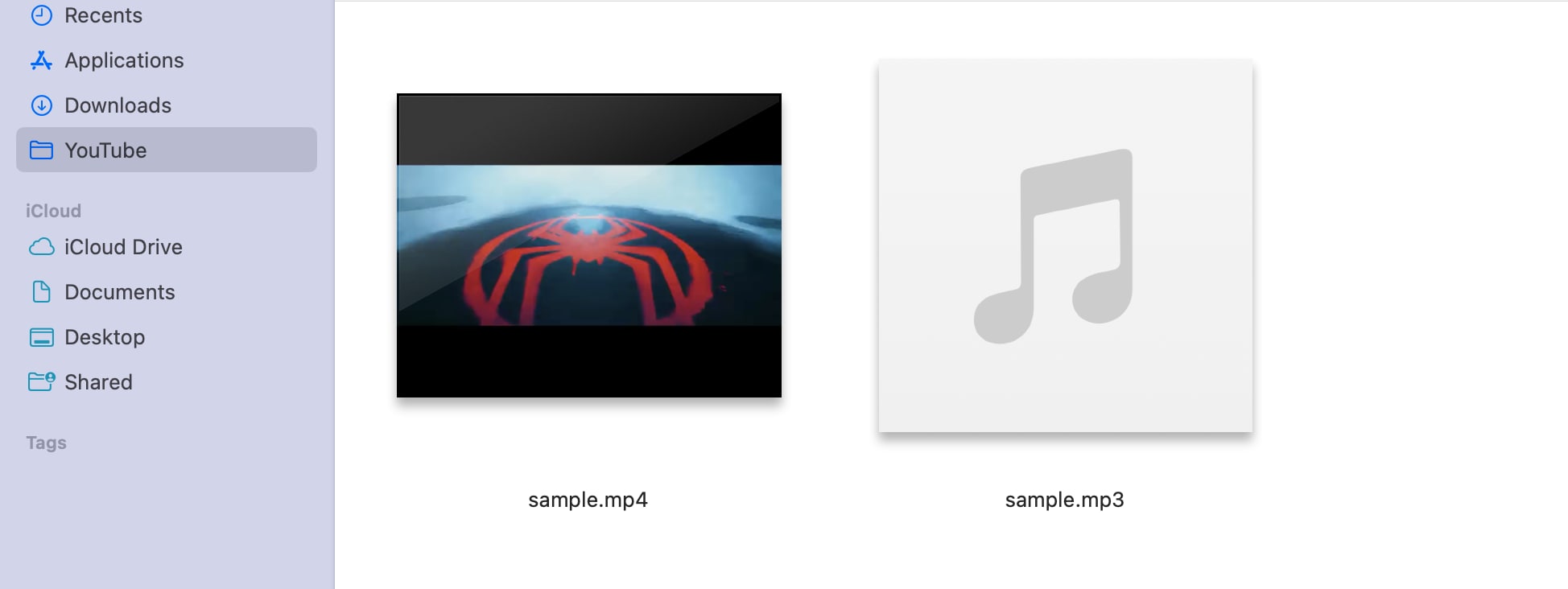
Finally, press Enter to execute the command and wait for FFmpeg to complete the process. The program will display its progress in the terminal window, and once finished, your new audio file (output.mp3) will be located in the same directory as the original video. You can now play the extracted audio file.
You can apply the same principle to other containers. For example, to ffmpeg extract audio from MKV or MOV without changing the codec:
ffmpeg -i movie.mkv -vn -acodec copy soundtrack.flac
Pro-Tip: For the fastest extraction and highest quality, use -acodec copy and match the output file extension to the original audio format (e.g., .m4a or .aac). Only re-encode with -acodec libmp3lame when you need a specific format like MP3, and remember to enclose file names with spaces in quotes.
Windows and Linux Users
The steps for extracting audio using FFmpeg are the same across all platforms. On Windows, open Command Prompt, and on Linux, use your preferred shell or terminal. If FFmpeg is not added to your system's PATH on Windows, you must specify the full path to ffmpeg.exe before running any commands.
For example, you can type C:\ffmpeg\bin\ffmpeg -i input.mp4 -vn -acodec copy output.m4a to extract audio without re-encoding. This approach is compatible with MP4, MKV, MOV, and other supported formats. Following these steps, you can reliably extract audio from MP4, separate audio and video streams, or archive original soundtracks—all while preserving the original quality. Even large files are handled efficiently, making it ideal for professional workflows.

Easy to Use FFmpeg Alternative
Part 2. Differences Between Extract Audio from Video and Convert Video to Audio in FFmpeg
When working with FFmpeg extract audio from video, it's essential to understand the difference between simply removing the existing audio and converting the video to a new audio format. Extracting audio copies the original track without re-encoding, ensuring zero quality loss and high-speed processing.
In contrast, converting video to audio involves re-encoding, which allows for flexibility in choosing formats such as MP3, WAV, or FLAC, but may slightly reduce audio fidelity.
Extraction is ideal when you want the original soundtrack to remain untouched, while conversion is better suited when you need a specific format, reduced file size, or an adjusted bitrate. Choosing the correct method ensures efficiency and quality for your project.
Differences Between Extract Audio from Video and Convert Video to Audio
1. Audio Quality
- Extract Audio FFmpeg from Video: This method copies the original audio stream without any re-encoding. Because FFmpeg simply demuxes the audio, there is no quality loss—you receive a replica of the track already inside the container (e.g., AAC in MP4, AC3 in MKV).
- Convert Video to Audio: Conversion involves re-encoding into a new codec or format, such as MP3, WAV, or FLAC. While FFmpeg is highly efficient, re-encoding can introduce minor fidelity loss depending on bitrate or codec settings.
2. Format Flexibility
- Extract Audio FFmpeg: Limited to the formats embedded in the source video. For example, if the video contains an AAC stream, the output will remain AAC or M4A unless you explicitly convert it to a different format.
- Convert Video to Audio: Allows you to choose virtually any audio format—such as MP3, WAV, OGG, FLAC, etc.—for optimal compatibility with various devices or platforms.
3. Processing Speed
- Extract Audio FFmpeg from Video: Extremely fast because FFmpeg copies the existing audio data. Even large 4K files are processed in seconds.
- Convert Video to Audio: This process is slightly slower, as the tool must decode and re-encode the audio stream. Speed varies with codec complexity and chosen quality settings.
When to Extract Audio or Convert Audio
When to Extract Audio
- You only need the original track precisely as it exists.
- No requirement to change format or reduce size.
- Preserving lossless quality is the top priority.
When to Convert Audio
- You need a specific output format (for example, MP3 for podcast platforms).
- Desire to reduce file size or modify settings such as bitrate, mono/stereo channels, or sample rate.
- Want broader device compatibility, including older players that don't support AAC or FLAC.
In short, use FFmpeg's extract audio commands for a perfect, bit-for-bit copy, and choose FFmpeg's convert video to audio option when flexibility, compression, or format change outweighs absolute fidelity.
Part 3. A More User-Friendly FFmpeg Alternative to Extract Audio from Video
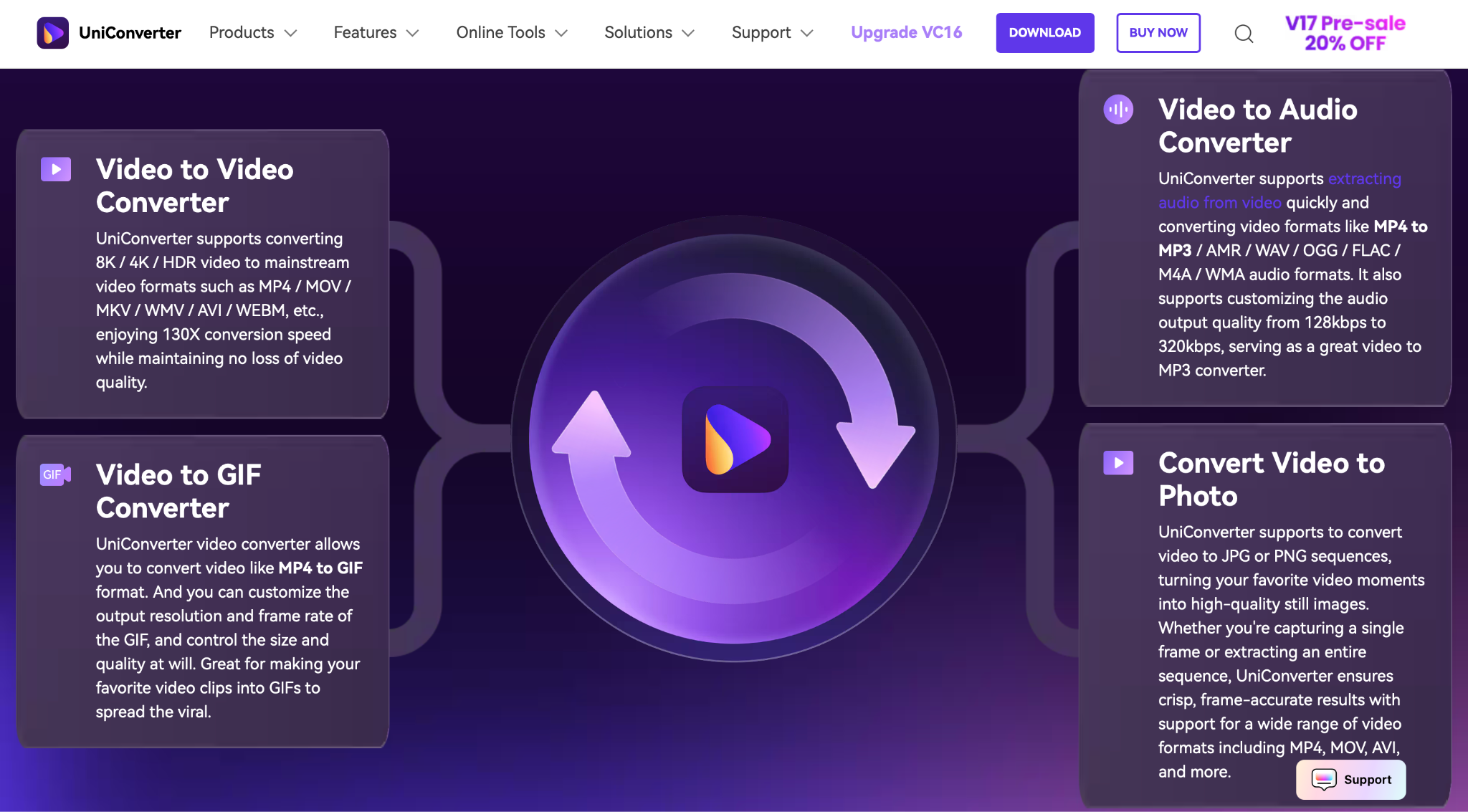
UniConverter also supports batch processing, allowing you to handle multiple videos simultaneously, and includes built-in editing tools to trim, merge, or adjust audio before exporting. With support for over 1,000 formats, including MP3, WAV, FLAC, and AAC, it's perfect for creating podcasts, capturing soundtracks, or producing high-quality audio content.
For users seeking the power as best alternative for FFmpeg extract audio from MP4 to MP3 with a clean, efficient, and accessible interface, UniConverter is the ideal solution.
Key Features
- Audio Extraction & Conversion: One-click audio extraction from MP4, MKV, MOV, AVI, and other standard formats.
- Batch Conversion Support: Process multiple files at once for efficient workflows.
- Built-in Audio Editor: Trim, merge, or adjust volume and metadata before export.
- Cross-Platform Access: Available for macOS, Windows, and as an online UniConverter web app.
- High-Speed Processing with Hardware Acceleration: Leverage GPU acceleration to speed up audio extraction and conversion without compromising quality.
Simple Steps Guide to Extract Audio with UniConverter
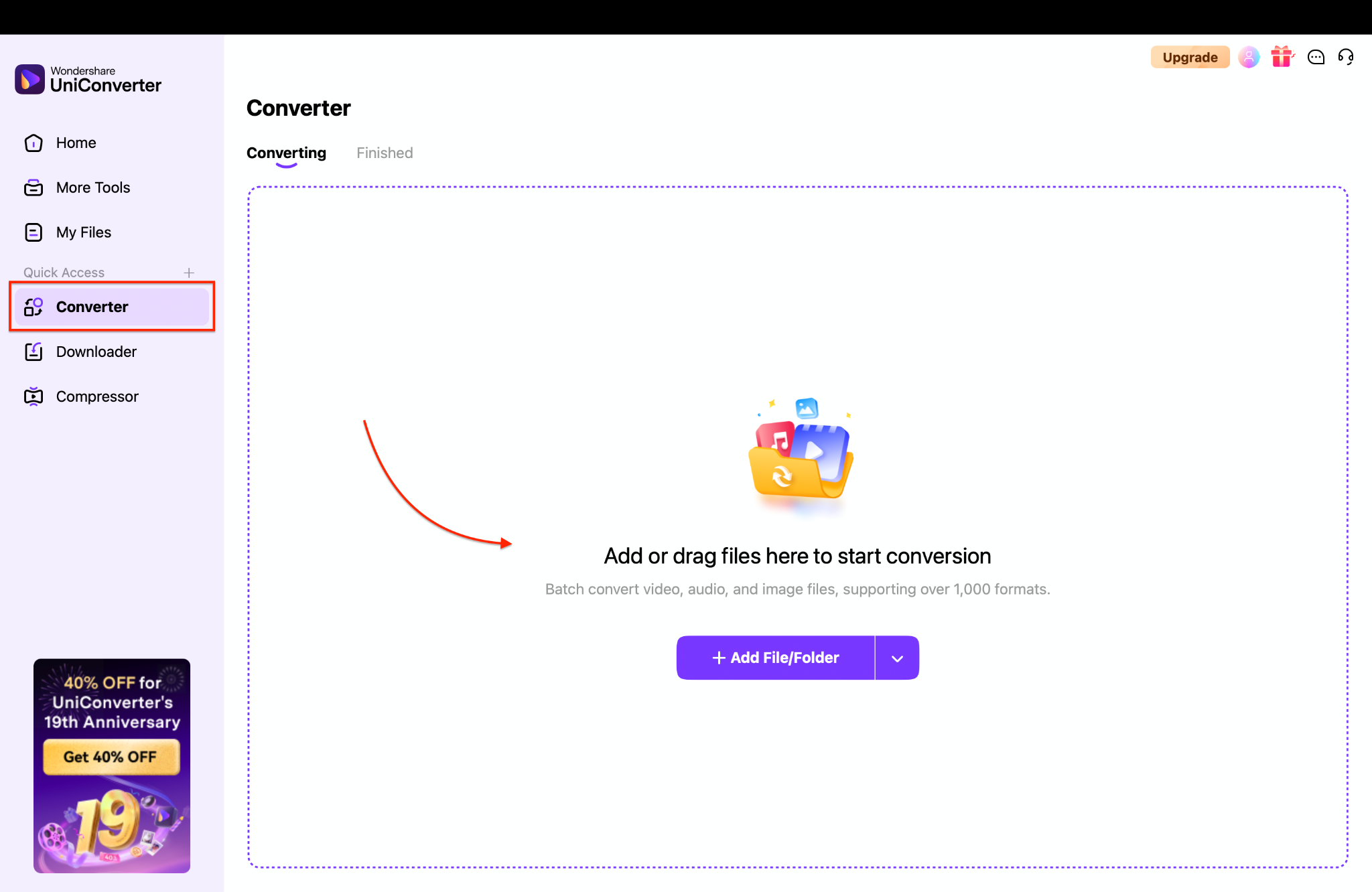
Step 1: Add Your Video File
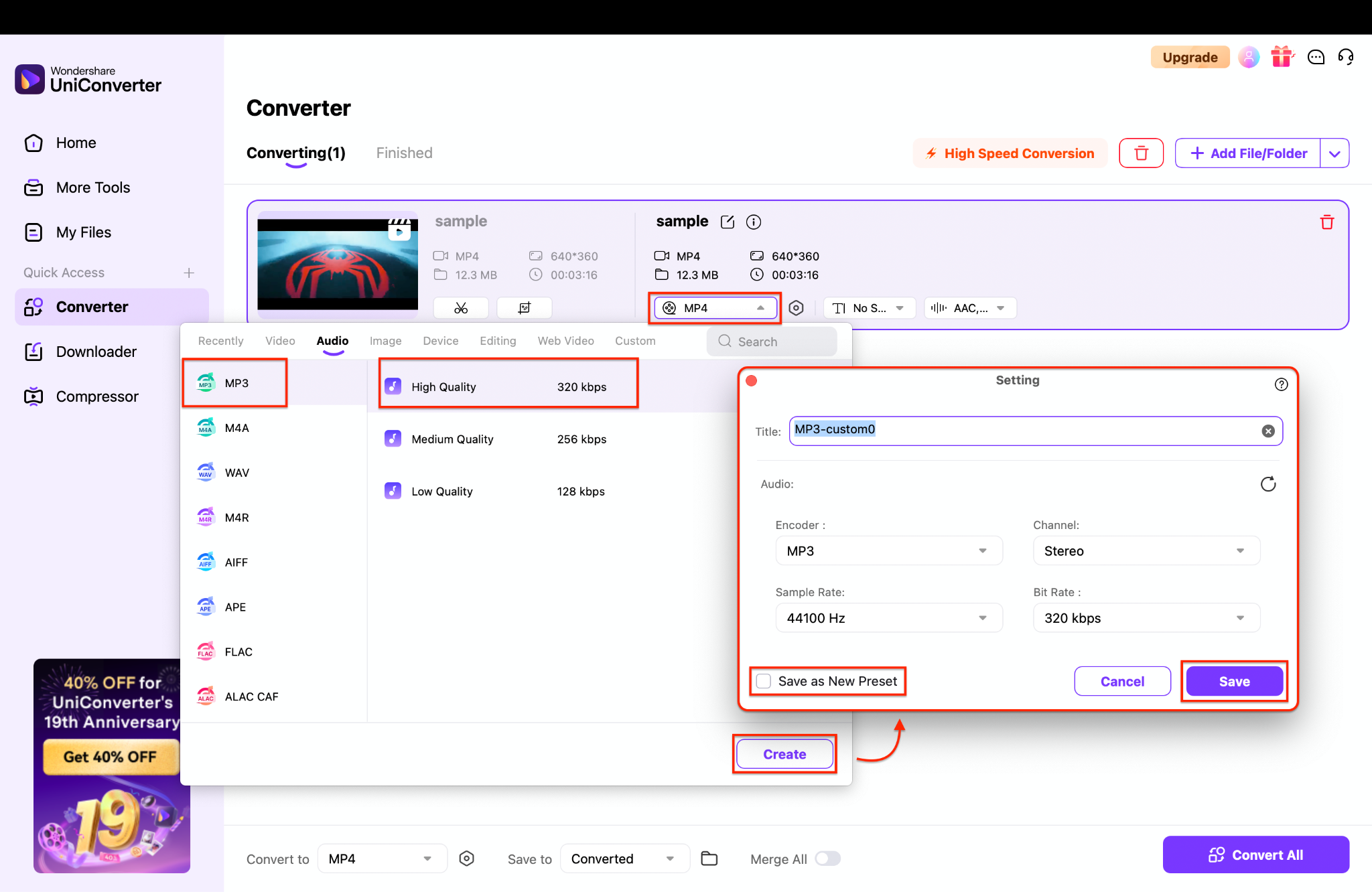
Step 2: Choose the Output Audio Format
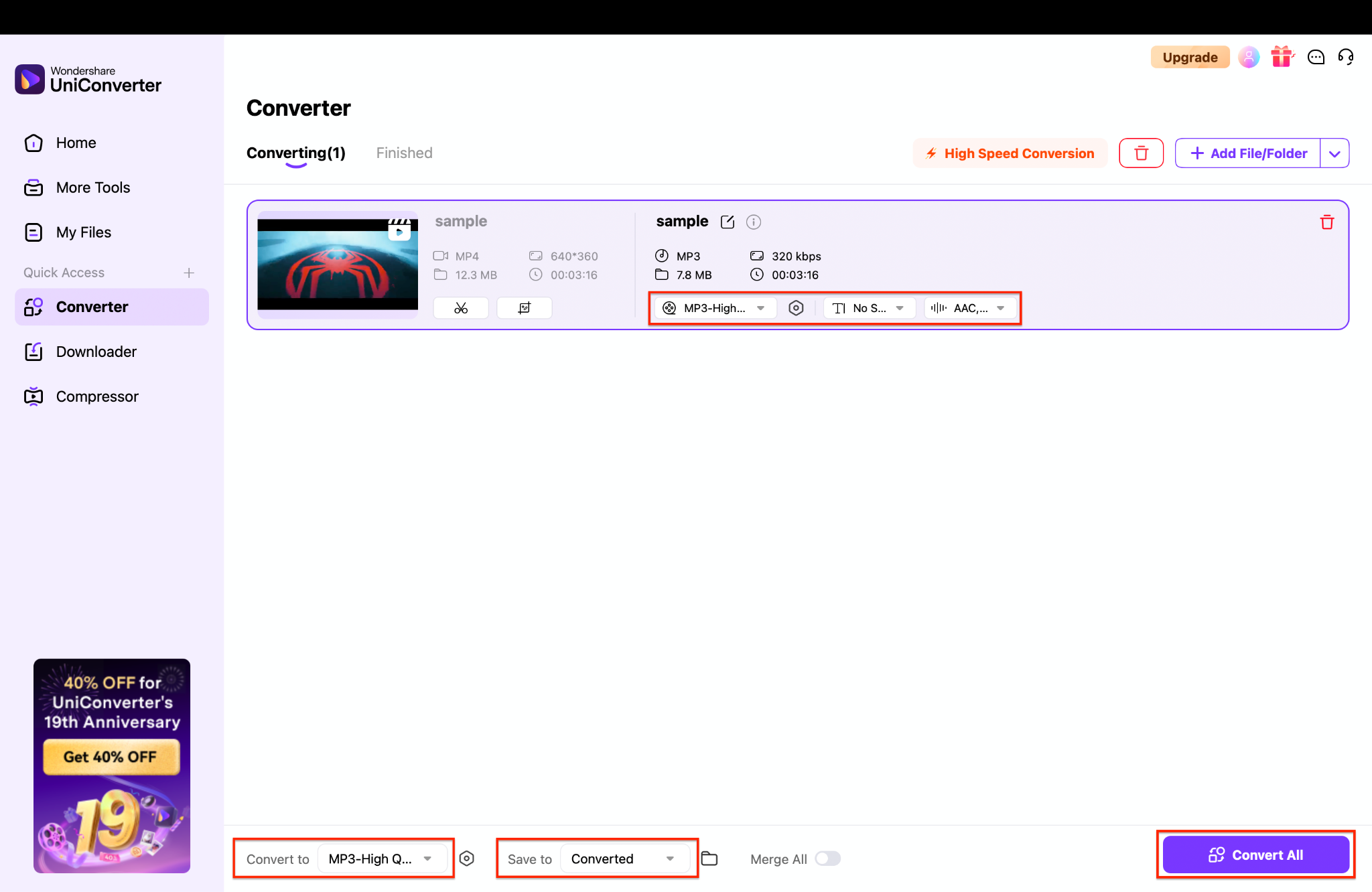
Step 3: Start the Extraction Process
Quick Comparison: FFmpeg vs. UniConverter
To help you decide which tool best fits your workflow, here's a side-by-side comparison of FFmpeg and Wondershare UniConverter, highlighting key differences in functionality, ease of use, and versatility:
| Metric | FFmpeg | UniConverter |
|---|---|---|
| Batch Conversion | Requires command-line scripting | Built-in batch mode |
| Ease of Use | Steep learning curve | Simple, graphical interface |
| Supported Formats | Virtually all via manual commands | 1,000+ formats with pre-configured profiles |
| Product Type | Free, open-source CLI | Paid desktop & free online tool |
| Best For | Advanced users needing automation | Beginners or creators prioritizing speed & editing |
Easy to Use FFmpeg Alternative
Wondershare UniConverter stands out as the best FFmpeg alternative for anyone wanting effortless, high-quality audio extraction from video—perfect for podcasters, video editors, and everyday users alike.
Conclusion
Whether you need to FFmpeg extract audio from MP4, pull the original soundtrack from an MKV, or FFmpeg extract MP3 from MP4, this command-line approach remains the fastest and completely lossless solution in 2025. Yet many users prefer a streamlined, visual process over typing commands. For them, Wondershare UniConverter delivers a powerful, beginner-friendly platform with batch conversion, wide format compatibility, and integrated editing tools that make audio extraction effortless.
Choose FFmpeg for instant, no-quality-loss results, or explore UniConverter for a smooth, feature-packed experience.
FAQs
-
1. How do I use FFmpeg to extract audio without losing quality?
Run the commandffmpeg -i input.mp4 -vn -acodec copy output.m4ato extract audio from MP4 FFmpeg. The-acodec copyoption copies the existing audio stream, ensuring zero quality loss and ultra-fast processing. -
2. Can FFmpeg convert a video's audio track to MP3 format?
Yes. Useffmpeg -i input.mp4 -q:a 0 -map a output.mp3. This re-encodes the audio to MP3, allowing you to control the bitrate and file size while maintaining excellent sound quality. -
3. Can I extract audio from multiple videos simultaneously?
Yes, you can process multiple files at once. A tool like Wondershare UniConverter offers a Batch Convert feature that allows you to drop in various videos and extract their audio simultaneously, saving time and maintaining consistent output settings. -
4. Which audio formats are available when exporting extracted tracks?
You can export in popular formats, including MP3, WAV, FLAC, AAC, and many more. If you want a lossless copy of the original codec, UniConverter makes it easy to keep the exact audio stream without re-encoding. -
5. What's the best option for large projects with many videos?
For single files, FFmpeg's command-line interface might be slightly faster. However, when handling numerous large videos, UniConverter leverages GPU acceleration and built-in batch processing, making it a more efficient and convenient choice.
Frequently Asked Questions
Can FFmpeg extract audio without re-encoding?
Sometimes. Stream copy works only when the existing audio stream is compatible with the chosen output container.
Why is the extracted file silent?
The selected stream may be wrong, muted, unsupported, or absent. Inspect the input streams before exporting again.
Use UniConverter for a visual audio-extraction workflow
UniConverter is relevant when the result must be an audio-only file without a command-line workflow. Import the authorized local video, choose the required audio format, and verify the selected track, sample rate, channels, duration, and playback.
Conditions: Audio output is separate from Video Converter GPU claims; feature availability depends on the current build and platform; verify the exported audio independently.

