


Imagine scrolling through Instagram at midnight—sound off, brightness down. What stops you from scrolling past a Reel? Captions. In 2025, text isn't just an accessory; it's the anchor of engagement. Whether you are a creator looking to repurpose viral scripts, a student archiving educational content, or a marketer analyzing competitor keywords, knowing how to perform an Instagram Reel caption download is a critical skill.
This guide dives deep into the safest, most efficient methods to download Instagram Reels captions on any device. We will move from quick online fixes to professional desktop powerhouses like UniConverter, ensuring you have the right tool for every scenario.
Table of Contents
Quick Guide: Best Instagram Reels Caption Download Method by Text Extraction Need
Part 1. What should you look for in an Instagram Reels caption downloader?
The market is saturated with tools claiming to be the best "Instagram Downloader," but many are fraught with risks. When searching for a tool to handle Instagram Reels captions download, safety and efficiency must be your top priorities. Here is a detailed checklist of what to look for—and what to run from.
Safety First
The internet is flooded with "free downloaders" that are essentially malware traps or data-harvesting operations.
The Password Trap: Avoid any tool that asks for your Instagram login credentials. Legitimate downloaders only need the public URL of the Reel. Giving away your password risks your account being hacked or banned.
Private Reel Promises: Avoid tools promising to download private Reels without account access. This is technically impossible without hacking; such claims are major red flags for scams.
Accuracy & Completeness
A good tool should distinguish between the user-written caption and the audio transcript. If you need captions for Reels video scripts for content analysis, you need a transcriber (Speech-to-Text), not just a description copier. Look for tools that offer "AI Transcription" rather than just "Metadata Extraction."
Ease of Use
The best tools streamline the workflow. You shouldn't need a degree in coding or possess complex FFmpeg knowledge to get the text. The gold standard is a simple "Copy Link -> Paste -> Download" interface.
Platform & Accessibility
Consider where you work most often.
Mobile-Ready: Does it work on your iPhone Safari or Android Chrome?
Desktop Power: Does it offer a desktop version for bulk processing? Cloud-based tools are generally flexible, but desktop software often provides better speed and privacy.
Tips: Avoid Tools That:
- Flood you with intrusive pop-up ads that mimic system warnings.
- Require you to complete "surveys" to unlock the download link.
- Have no clear privacy policy regarding how long they store your uploaded data.
Part 2. How to extract Instagram Reels captions online without installing software
For users who need a quick Instagram Reel subtitle extraction without installing software, online AI-based transcription tools are the best bet. These platforms utilize cloud computing to process video audio and convert it into text. One of the most reliable in this category is VMEG (or similar competitors like Veed.io), which specializes in video-to-text features.
1. VMEG
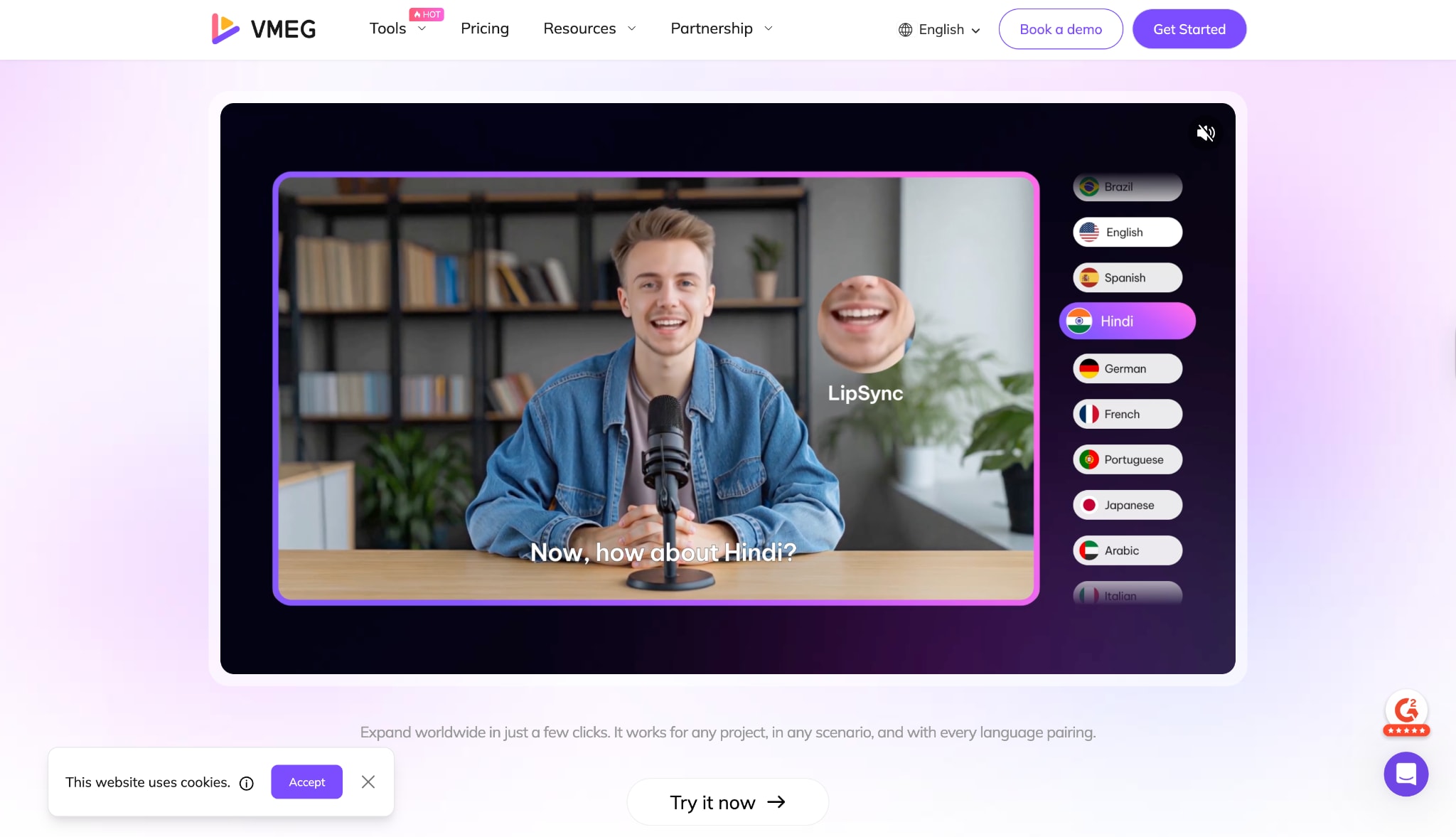
How to Download Captions with VMEG
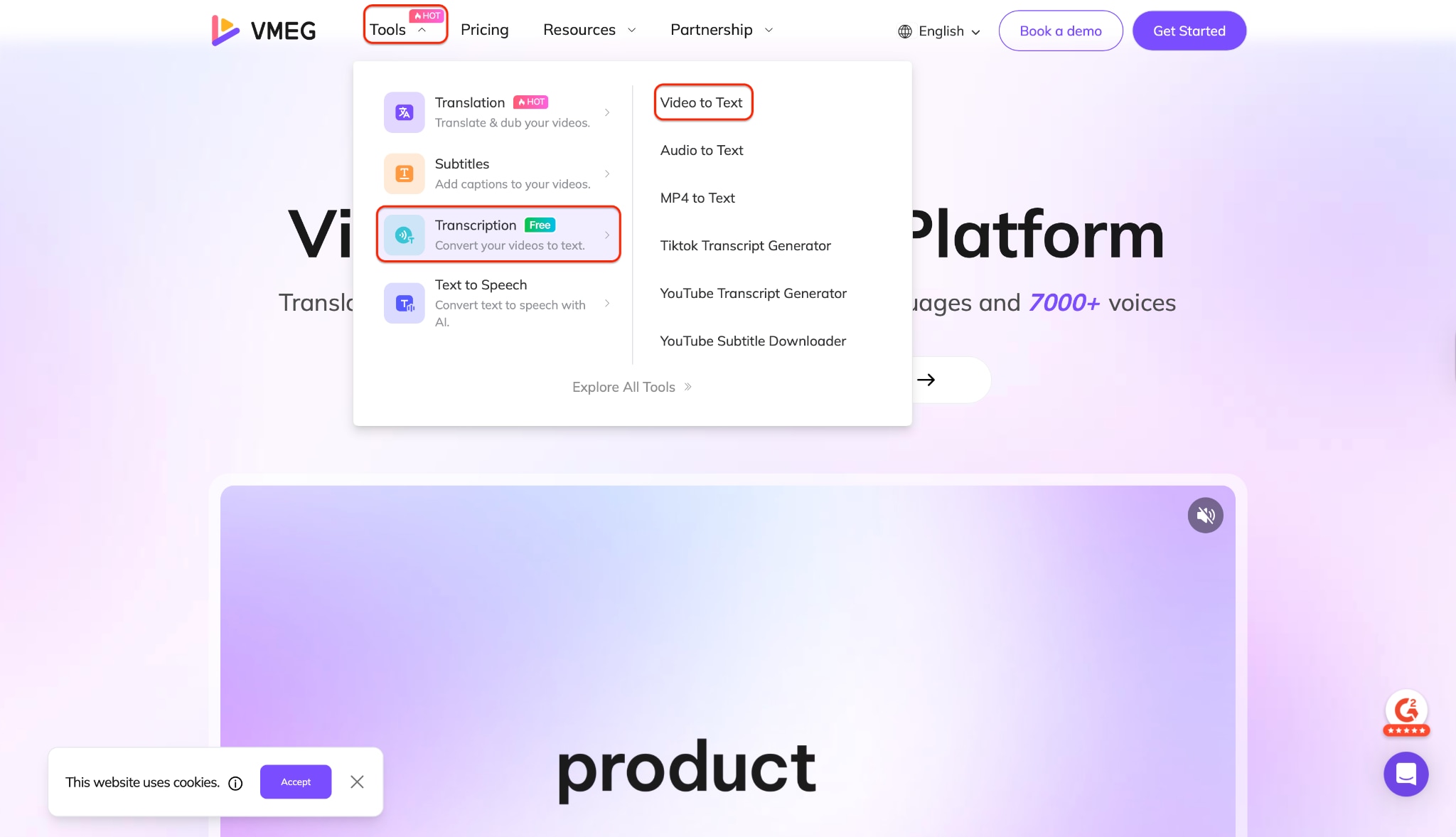
Step 1: Access the Transcription Tool
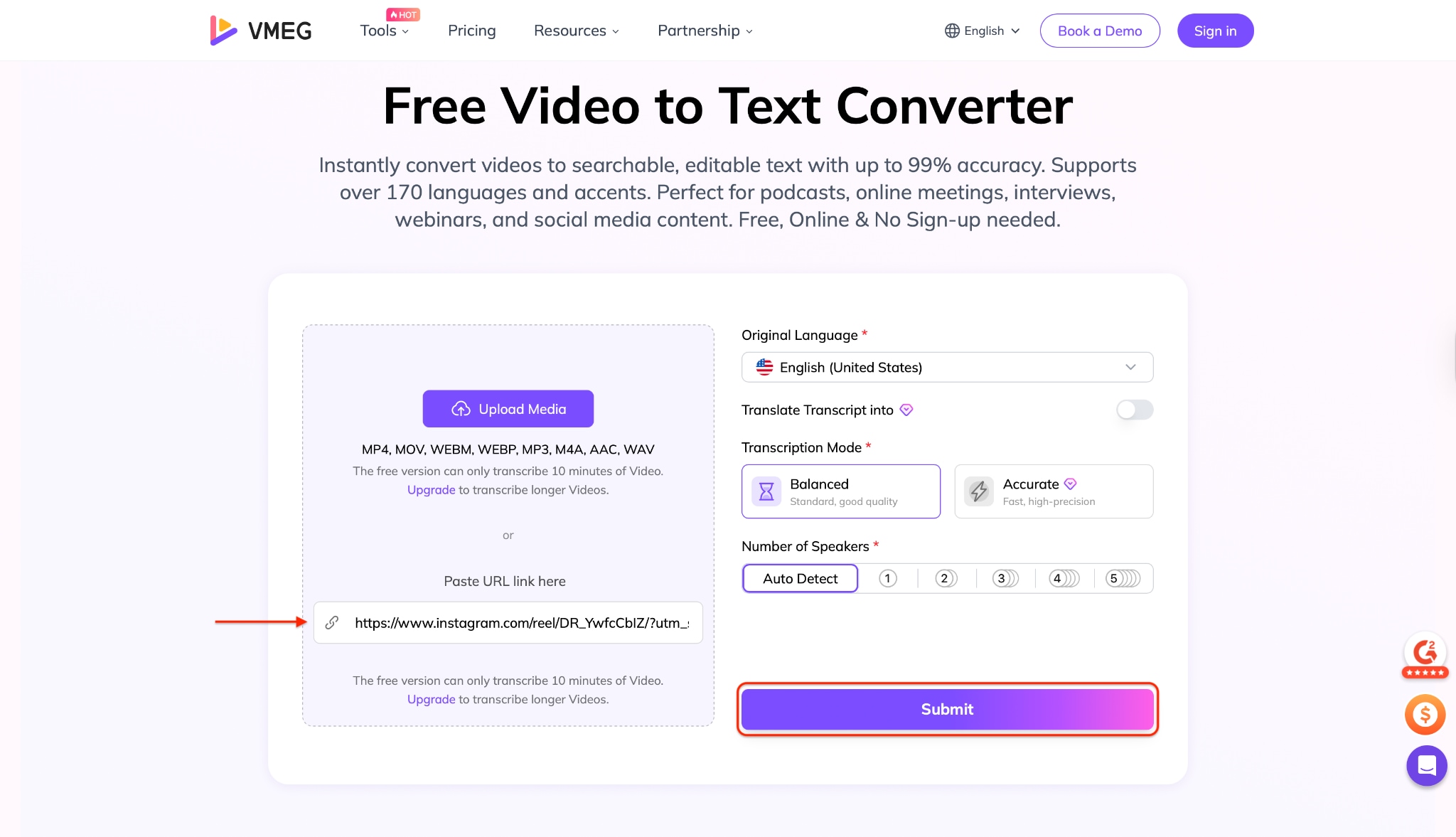
Step 2: Submit Your Video Link
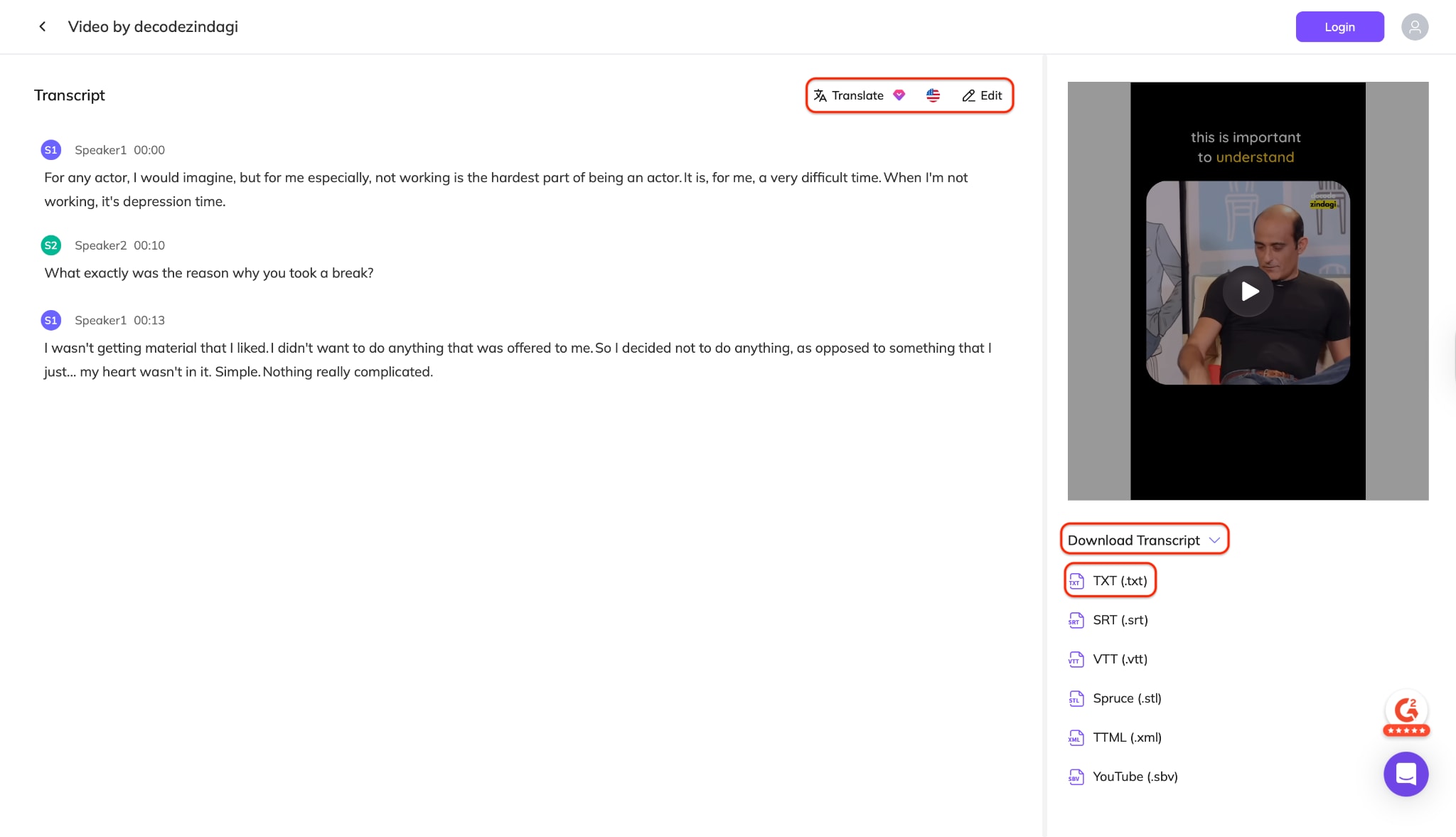
Step 3: Download the Transcript

Easy to Use Instagram Video Downloader
Part 3. How to Convert Video Link to Text on Win or Mac
For professionals, content managers, and creators who need high accuracy, bulk processing, and absolute privacy, online tools often fall short due to file size limits and internet reliance. This is where Wondershare UniConverter shines. It is not just a converter; it is a comprehensive video toolbox that includes a powerful YouTube Video Summarizer and transcriber.
UniConverter offers a robust "Speech to Text" and "Smart Summarizer" feature that runs locally on your machine. This ensures your data never leaves your computer, offering a level of security that cloud tools cannot match.
1. Wondershare UniConverter
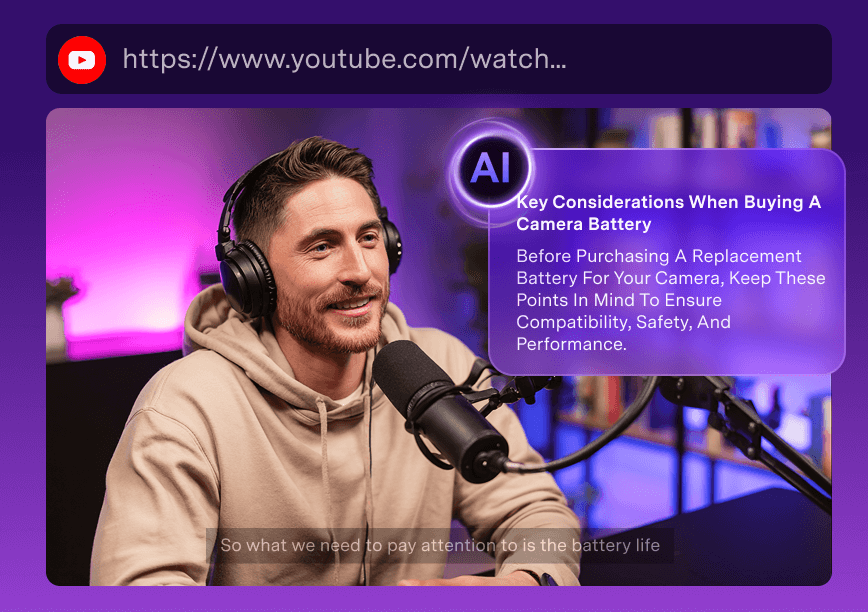
How to Use UniConverter to Convert Video to Text
The Workflow: Since Instagram links are protected, the most reliable method is to use UniConverter's "Downloader" to fetch the video, and then its "Smart Summarizer" to get the text.
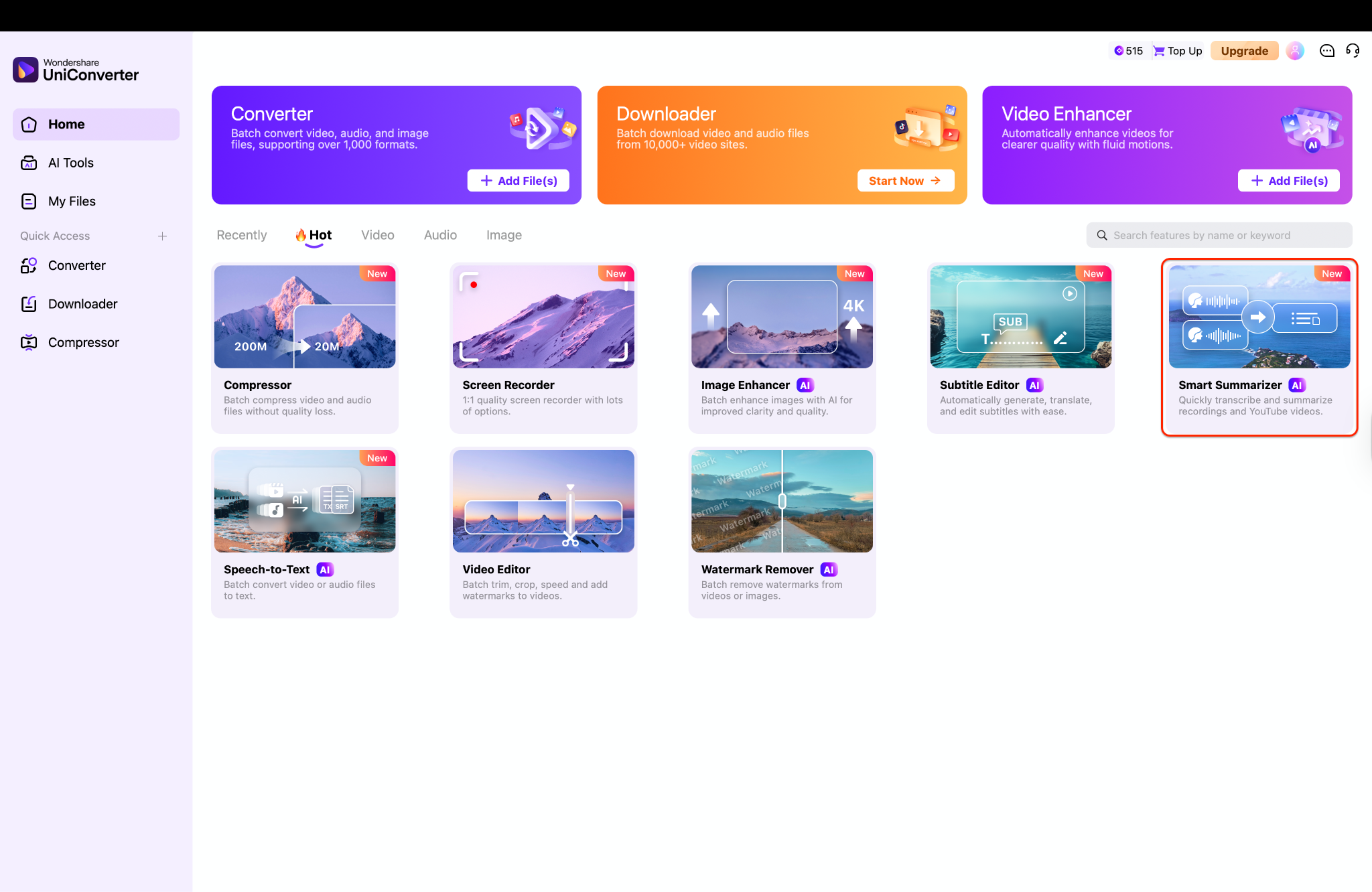
Step 1: Access the Smart Summarizer Module
Step 2: Upload Your Instagram Reel Video
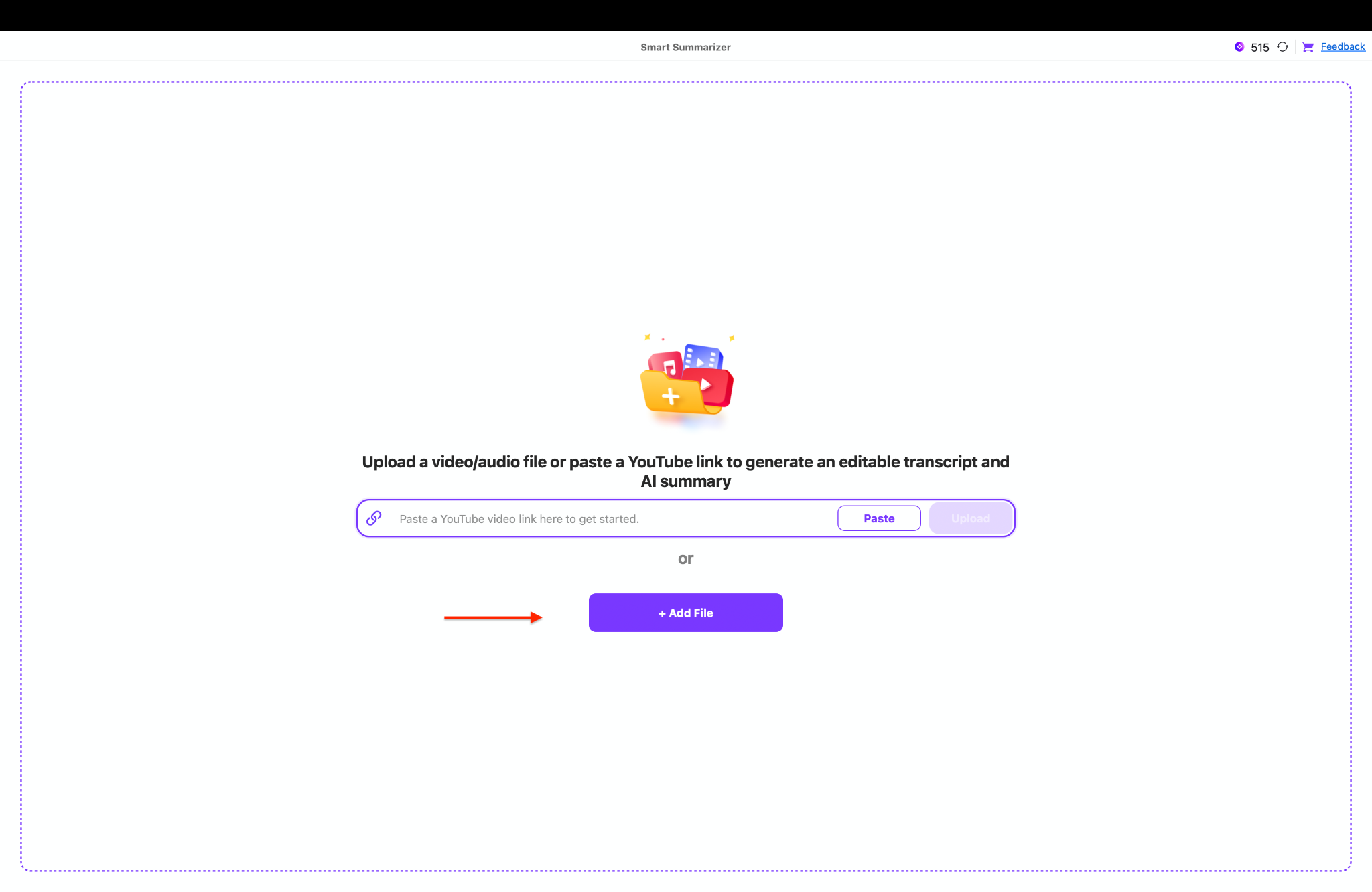
Note: As of now, UniConverter only converts YouTube video URLs to text directly. But no worries if you don't have the Instagram Reel on your device, you can download it easily: Open UniConverter and select the "Downloader" tab from the left menu. Paste your Instagram Reel link. UniConverter will analyze and download the high-quality video file to your computer. Then, return here to upload the file.
Step 3: Configure Language and Summary Settings
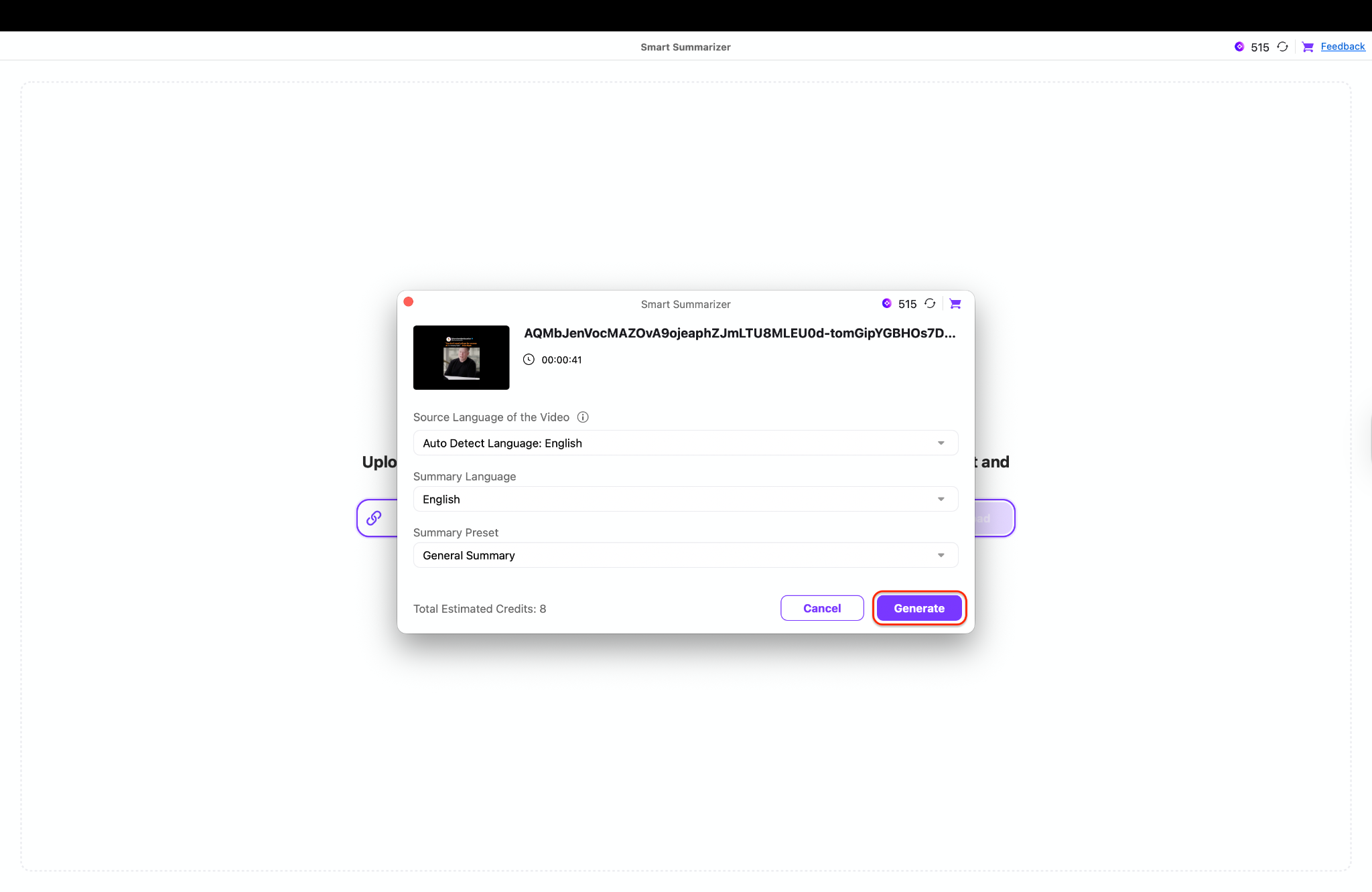
Step 4: Refine Transcription and Edit Summary
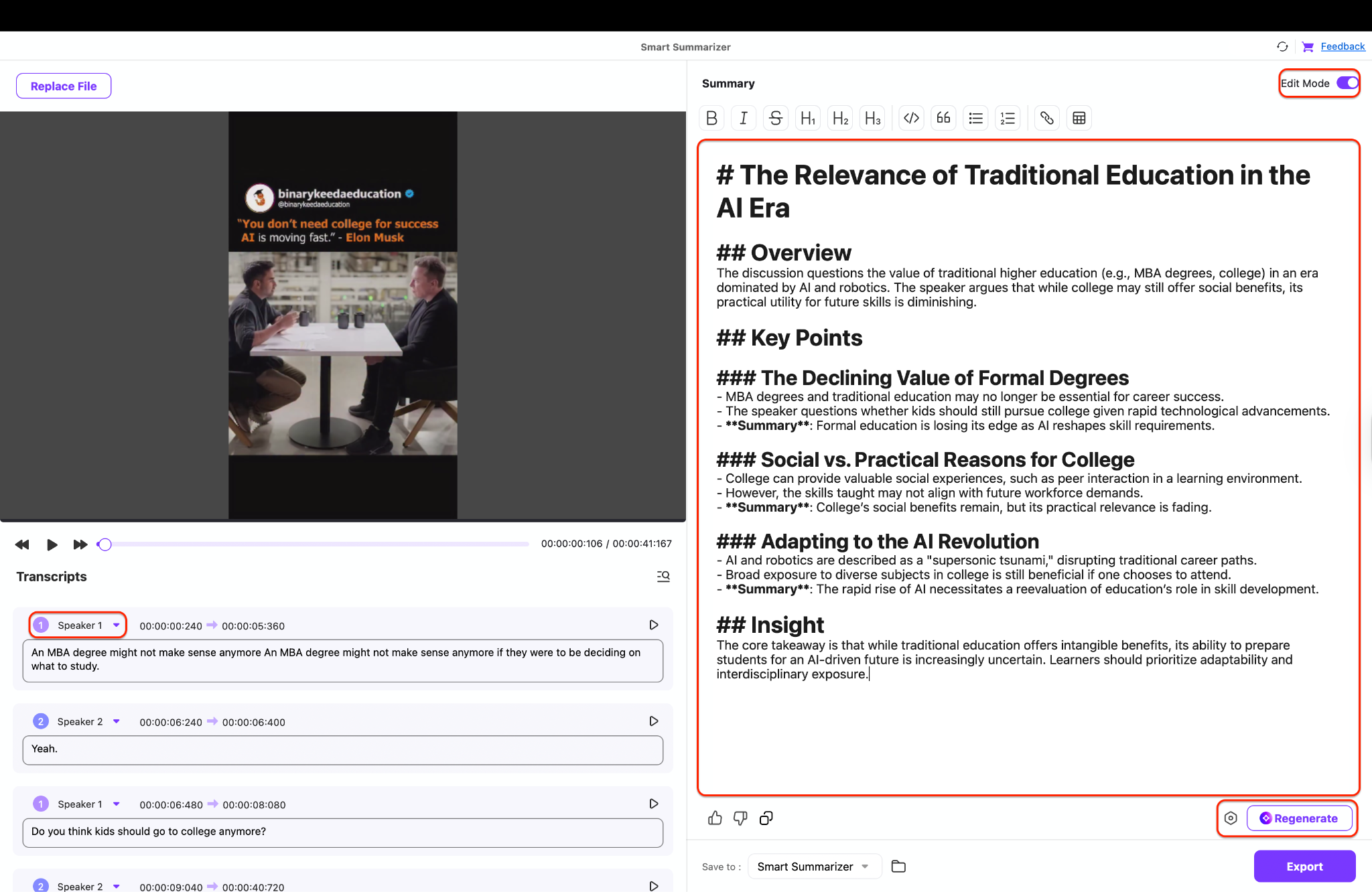
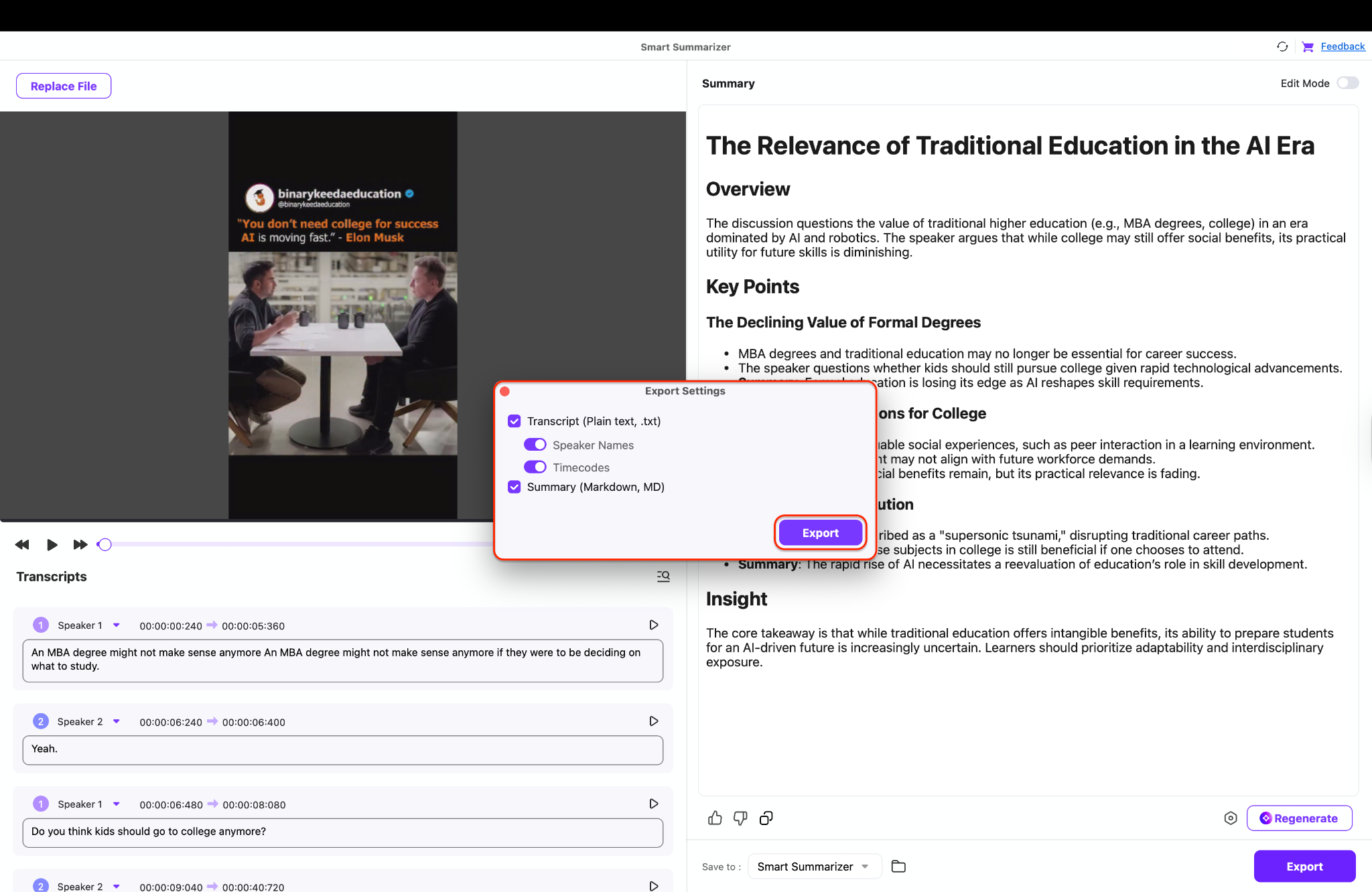
Step 5: Export Your Text and Summary
Easy to Use Instagram Video Downloader
Part 4. How to Convert Video Link to Text on iPhone or Android
Mobile users often want to grab the text quickly to repost or read while on the go. While there are hundreds of apps on the App Store claiming to be "Caption Downloaders," many are spam-heavy. The most reliable and safe method on mobile is to use the built-in Optical Character Recognition (OCR) features found in modern iOS and Android operating systems.
1. Google Photos (Android)/(iOS)
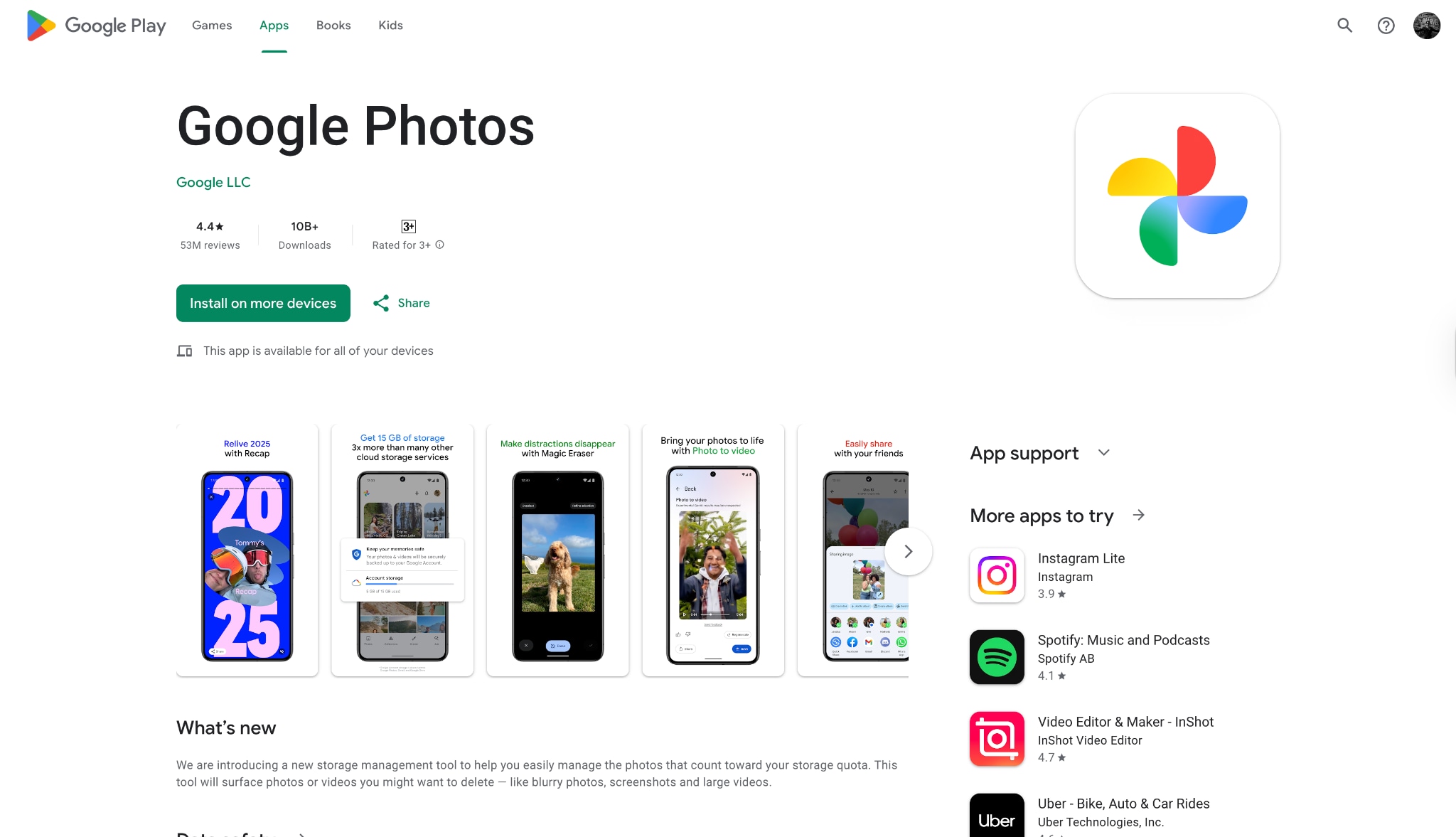
Guide for Mobile Users
Step 1: Screen Record the Reel
Open the Instagram Reel you want to capture. Pull down your control center and start a Screen Recording. Play the Reel from start to finish. Ensure the captions on Reels are visible. Stop the recording when done.
Step 2: Open in Gallery
Navigate to your phone's Gallery (Android) or Photos app (iOS). Open the video you just recorded.
Step 3: Extract Text (OCR)
For iOS (Live Text): Pause the video at the frame where the text is clear. Long-press the text directly on the video screen. The system will highlight the text. Tap "Copy".
For Android (Google Lens): Open the video in Google Photos. Tap the "Edit" button or look for the "Lens" icon. Tap it, and the AI will scan the image. Select the text block you want and tap "Copy Text".
Step 4: Paste and Use
Switch to your Notes app, Instagram Caption editor, or WhatsApp and paste the text. You now have the Instagram Reel subtitle text ready to edit.
Part 5. What should you do if Instagram Reel captions are missing, inaccurate, or out of sync?
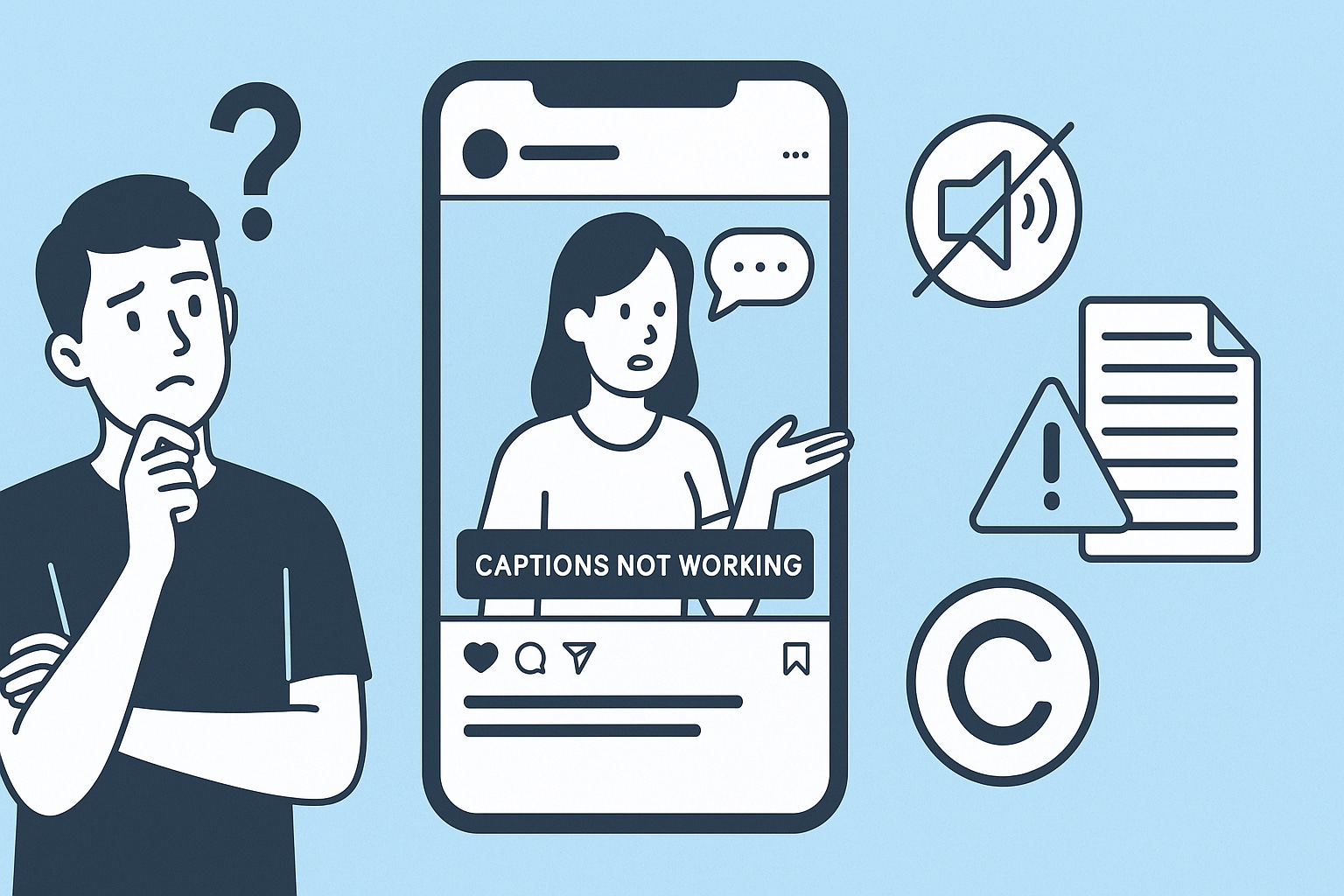
"Subtitles not working" fixes
This frequently happens when the audio quality is poor. If the speaker is mumbling, or if there is loud background music, AI transcribers struggle.
Fix: Use a professional desktop tool like UniConverter. Use its "Vocal Remover" feature first to isolate the voice track, then run the "Speech to Text" on just the vocal track. This dramatically improves accuracy.
Syncing problems and solutions
A common issue is that the downloaded IG Reels subtitles do not match the video lip movement—the text appears too early or too late.
Fix: Do not rely on plain text. Always download the .SRT file. Open this file in a video player like VLC or an editor like UniConverter. You can adjust the "Subtitle Delay" (e.g., +0.5s or -1.0s) to perfectly align the text with the audio.
Copyright considerations with downloaded captions
It is crucial to remember that performing an Instagram Reel caption download does not grant you ownership of the content.
Legal Note: The script and creative content belong to the original creator. You can use transcripts for personal analysis, learning, or accessibility. However, reposting someone else's script word-for-word as your own content is a violation of intellectual property rights and can lead to your account being penalized. Always credit the source.
Part 6. Understanding Instagram Reels Captions & Subtitles
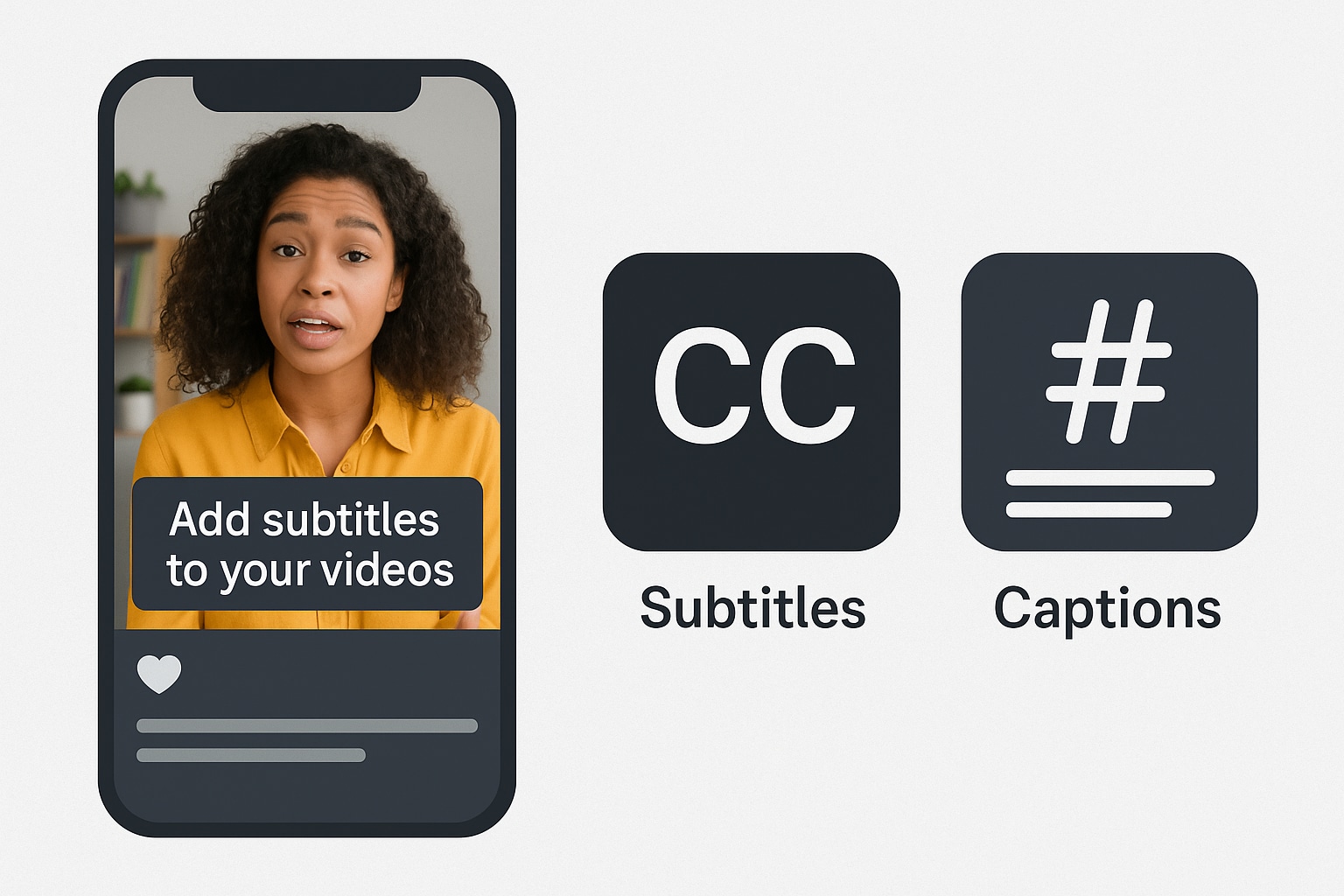
Captions (Text Descriptions): This is the static text written by the creator that appears at the bottom of the video player. It typically contains the video's context, hashtags (e.g., #viral, #tutorial), and calls to action like "Link in bio." This text is metadata associated with the post, not the video file itself.
Subtitles (Spoken Word Text): These are the on-screen text overlays—often animated—that transcribe what is being said in the video audio. These can be "burned-in" (part of the video pixels) or "closed captions" (an overlay layer).
Why Instagram Removed Easy Downloading: In late 2024 and heading into 2025, Instagram tightened its API significantly. The "Basic Display API" was deprecated, and strict anti-scraping measures were implemented to protect user data. This was done to prevent automated bots from scraping captions on Reels for spam purposes and to protect creator intellectual property. Consequently, the old "copy link, paste, get text" websites often break or require frequent updates to bypass these new security tokens.
Benefits of Using Subtitles: Despite the hurdles, the effort to add captions to Instagram Reels or download them is worth it for several strategic reasons:
Watch Time: Studies consistently show that videos with subtitles see up to 55% higher retention rates. In a mobile-first world where 80% of content is consumed on mute, subtitles are the difference between a view and a scroll-away.
Accessibility Compliance: Instagram Reels subtitles ensure your content is inclusive for deaf people, expanding your potential audience by millions.
SEO & Discoverability: Search engines cannot "watch" video pixels, but they can crawl text. Transcripts make your video content searchable, helping your Reels rank for specific queries rather than just hashtags.
Content Repurposing: A downloaded transcript can be easily turned into a blog post, a Twitter thread, or a LinkedIn article, maximizing the ROI of every video you create.
Conclusion
In this article, we've discovered various methods to remove the barrier between you and the text you need. From quick online scrapers like VMEG that work in a pinch, to the clever use of mobile OCR for on-screen text, there is a solution for every user. Online tools are convenient for one-off tasks but often lack the precision, privacy, and power required for professional workflows.
If you want an effective, private, and user-friendly solution that grows with your needs, Wondershare UniConverter stands out as an excellent choice. Its advanced "Smart Summarizer" and transcription features allow you to edit your videos and extract accurate insights without the hassle of watermarks or data risks.
Easy to Use Instagram Video Downloader
FAQs
-
Can I download Instagram Reels captions without logging in?
Yes, most online downloader tools allow you to paste the public link of a Reel without ever needing to log into your Instagram account. This is the safest method as it protects your personal credentials from potential phishing attacks. -
Is it legal to download subtitles from someone else's Reel?
Generally, downloading subtitles for Instagram Reels for personal use, research, or accessibility is considered fair use. However, republishing that text as your own work or using it for commercial gain without the creator's permission is a copyright violation. -
Why do some downloaders fail to extract text?
Instagram frequently updates its API to block scraping bots. If a downloader isn't updated to match these changes, it will fail. Furthermore, if a video has no spoken audio and relies solely on burned-in text, standard "audio-to-text" downloaders will fail—you must use an OCR tool (like Google Lens) instead. -
Does UniConverter work for Instagram Reels specifically?
Yes, UniConverter is highly effective for this. While it doesn't "scrape" the text directly from the URL in the cloud, its workflow of "Download Video -> AI Speech-to-Text" is the most accurate way to generate captions on Reels, guaranteeing you get a transcript even if the original creator didn't provide one. -
How do I add downloaded subtitles back onto my own Reel?
Once you have the .SRT file from your downloader tool, you can upload it along with your video in Instagram's "Advanced Settings" > "Accessibility" > "Upload Captions" section during the posting process. Alternatively, you can "burn" them into the video permanently using UniConverter's video editor before uploading.

