


Imagine trying to find that one specific quote in a two-hour lecture or attempting to summarize a frantic webinar without missing a beat. We have all been there—scrubbing through timelines, pausing, rewinding, and typing furiously. It is exhausting. But what if you could paste a URL and get a perfect transcript in seconds? Whether you are a student drowning in research materials, a content creator looking to repurpose a viral video into a blog post, or a professional archiving meeting notes, a reliable video link to text converter is no longer a luxury; it is a productivity essential.
In this guide, we cut through the noise to bring you the most effective ways to convert video link to text. We will explore everything from powerful desktop software like UniConverter to quick video link to text converter online free tools and handy browser extensions. By the end of this article, you will know exactly which tool fits your workflow, saving you hours of manual typing.
Table of Contents
Part 1. Advanced Tips & Use Cases: What Can You Do With Video Transcripts?
For Students & Researchers: rapid-fire study notes. Instead of watching a 60-minute documentary, generate a transcript to search for keywords like "climate change statistics" or "19th-century economic shifts." You can pull direct quotes for your thesis without ever hitting play.
For Content Creators: This is your repurposing goldmine. A single YouTube video can be transformed into a week's worth of content: a long-form blog post, five LinkedIn snippets, and a Twitter thread. Transcripts are the bridge between video and SEO-rich text.
For Accessibility: Not everyone watches video with sound. Creating accurate captions or a transcript summary makes your content inclusive for the deaf and hard-of-hearing community, while also catering to people who prefer reading over watching.
For Professionals: Meetings, webinars, and training sessions often contain crucial action items that get lost. A video link to text converter allows you to archive these discussions, making them searchable for future reference.
Part 2. What to Look For in a Free Online Converter (A Quick Checklist)
Searching for a video link to text converter online can be risky. The internet is flooded with tools that promise the world but deliver malware or gibberish. Here is your cheat sheet for choosing a safe and effective tool:
Accuracy (The King): This is non-negotiable. If the AI mistakes "revenue" for "avenue," the transcript is useless. Look for tools that boast at least 90% accuracy.
Speed & Limits: Many "free" tools have hidden caps. Check the fine print: Does it limit you to 5 minutes of video? Is there a waiting queue? A good video link to text converter online free tool should be transparent about its limits.
Output Formats: A raw block of text is hard to read. Ensure the tool lets you download in structured formats like .txt, .srt (for subtitles), or .docx.
Ease of Use: You shouldn't need a manual. The best interface is a simple box where you paste the link and hit "Go." Avoid sites that force you through five pages of ads.
Privacy: This is crucial for professionals. If you are transcribing a private company meeting, ensure the tool guarantees data privacy and doesn't store your video content permanently.
Part 3. How to Convert YouTube Video Link to Text with Speaker Tags
When you need professional-grade accuracy, speaker differentiation, and the ability to handle long videos without crashing, desktop software is superior to web tools. Wondershare UniConverter has evolved beyond simple conversion; its new "Smart Summarizer" and transcription features are designed specifically for the modern creator.
1. Wondershare UniConverter
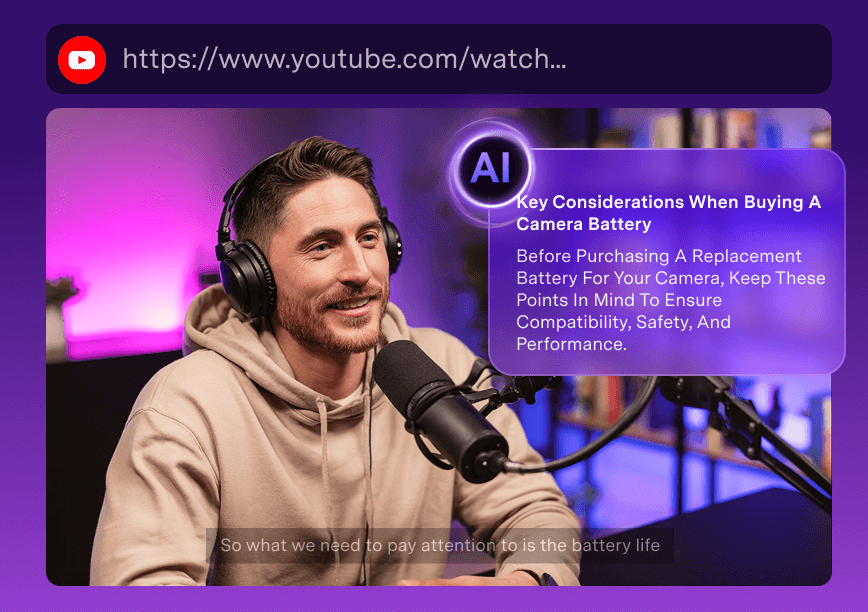
Why Choose UniConverter?
- Smart AI Analysis: It understands context, not just words.
- Speaker Tags: perfect for interviews or podcasts where distinguishing who said what is vital.
- Multi-Language Support: It supports over 100 languages, making it a global tool.
Steps to Convert YouTube Link to Text with UniConverter
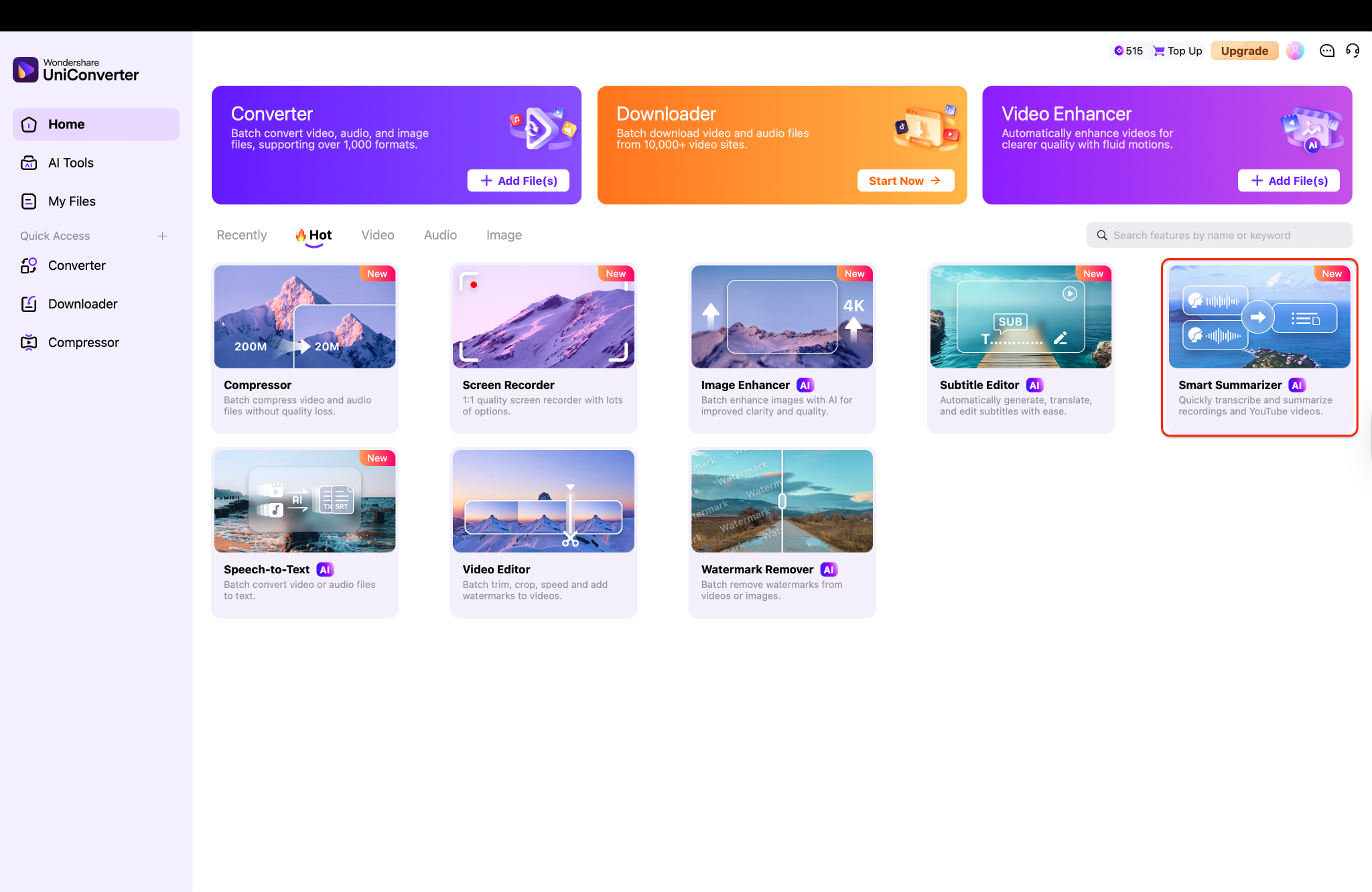
Step 1: Access the Smart Summarizer Module
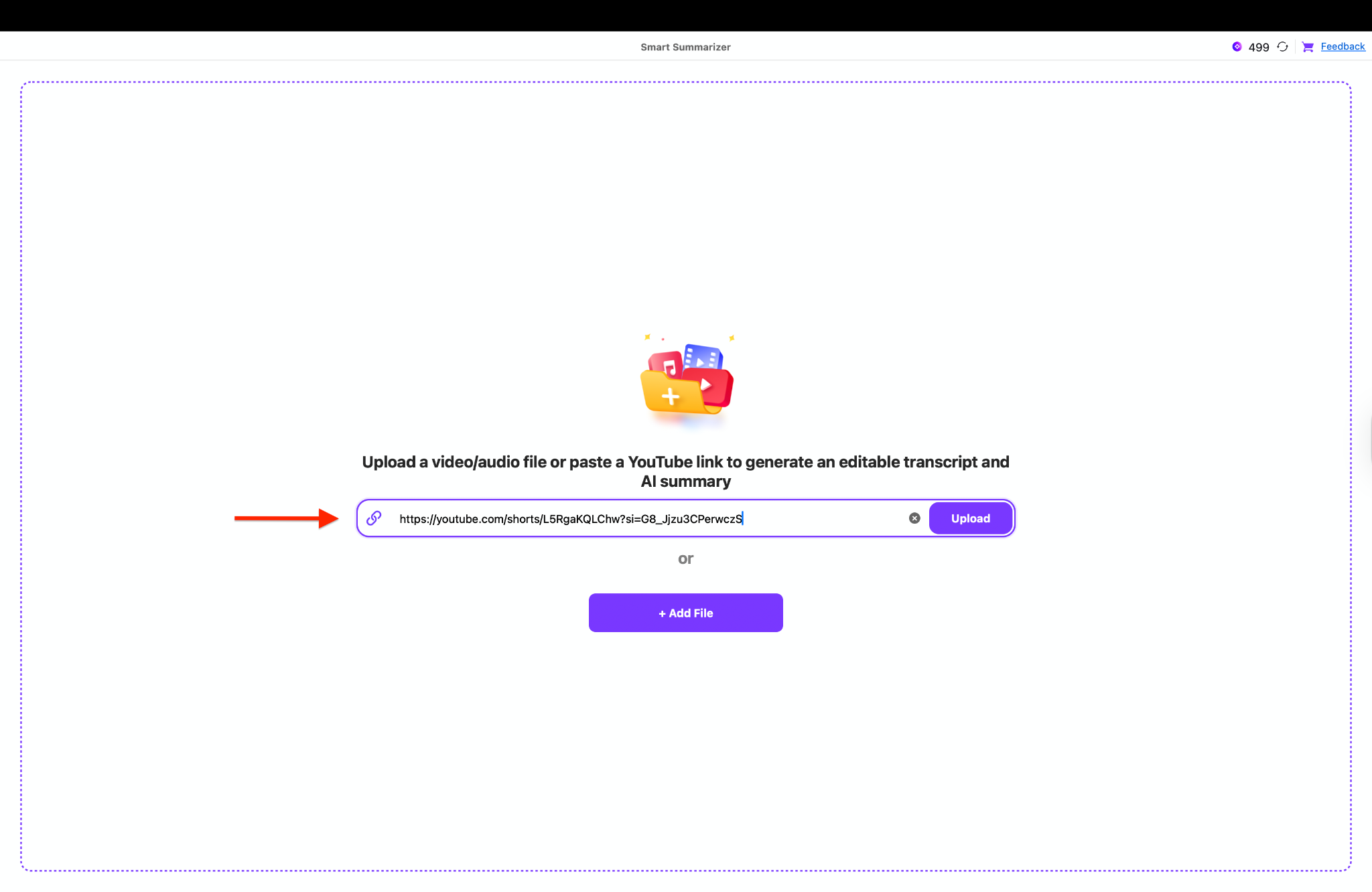
Step 2: Import YouTube Video Link
Step 3: Configure Language and Summary Settings
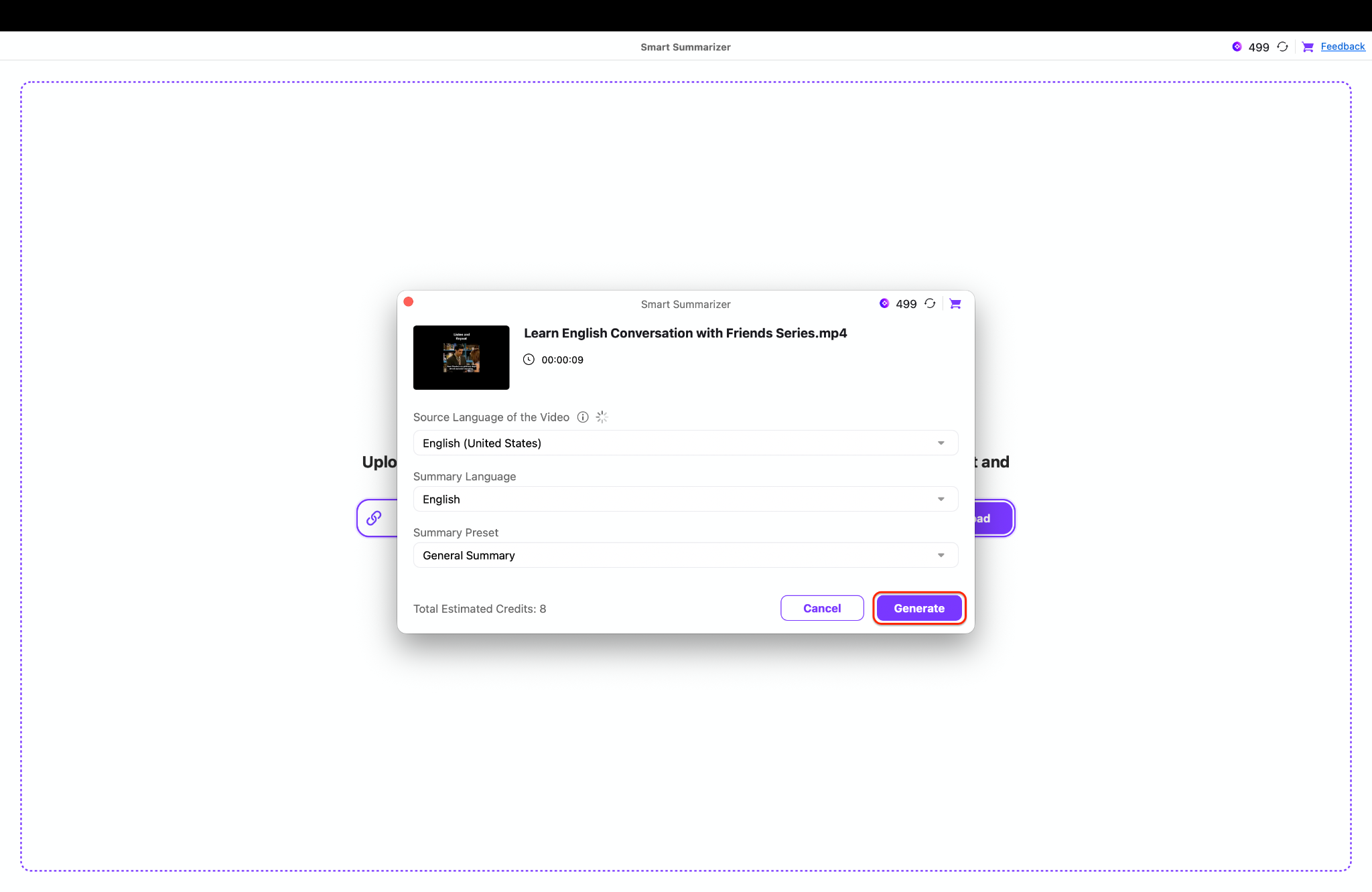
Step 4: Refine Transcription and Edit Summary
The generated text appears in real-time. To make specific changes to the AI-generated insights, toggle the "Edit Mode"switch to unlock the AI Summary Editor. If the initial AI output does not meet your expectations, you can click the Regenerate button to instantly create a new version using updated parameters. Additionally, you can fix any transcription errors or click the Speaker drop-down icon to correct labels globally using the "Apply to all" checkbox.
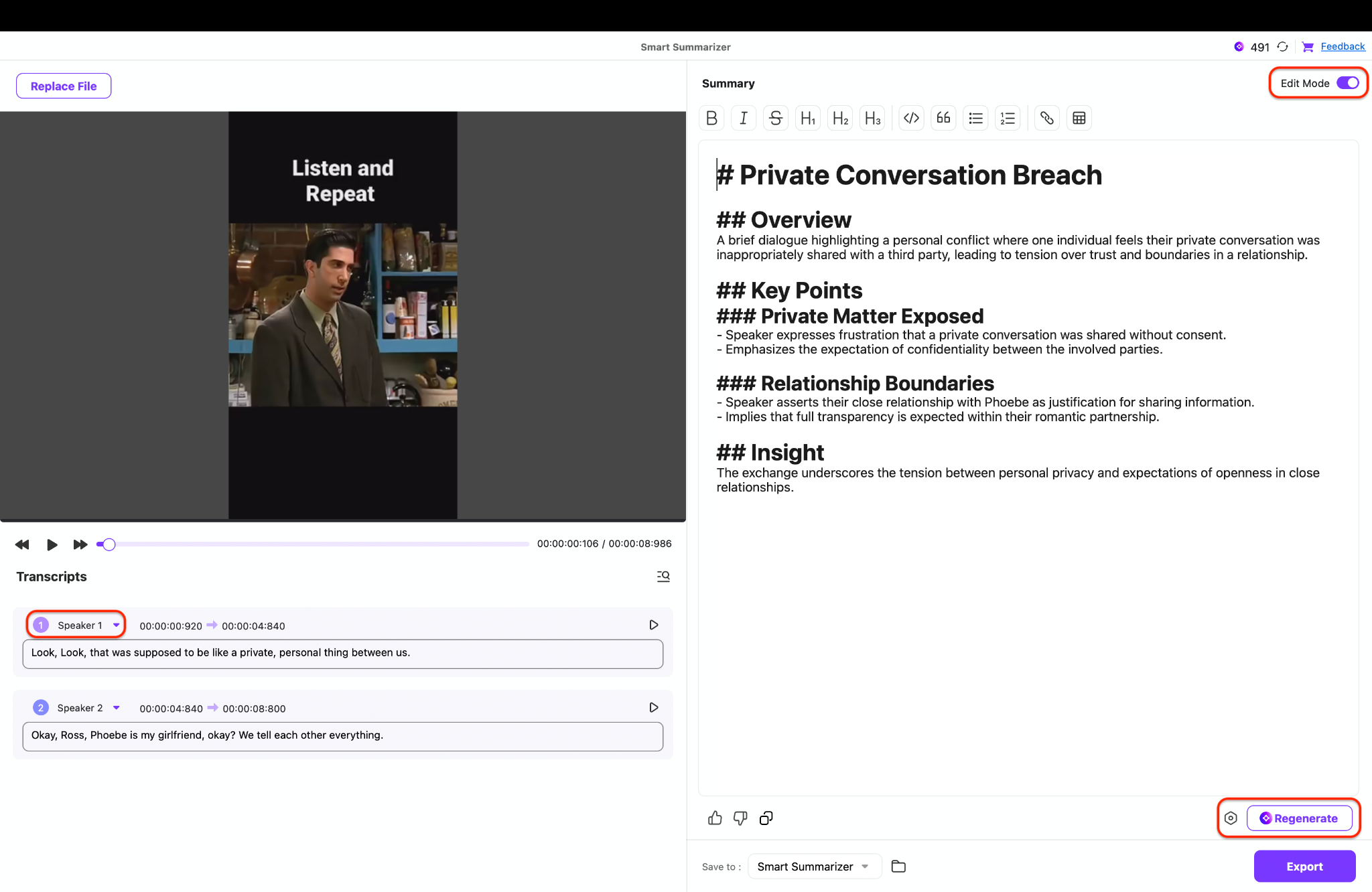
Note: The Regenerate feature to refresh the summary for the whole video will consume 1 AI credit, so check your settings carefully before clicking.
Step 5: Export Your Text and Summary
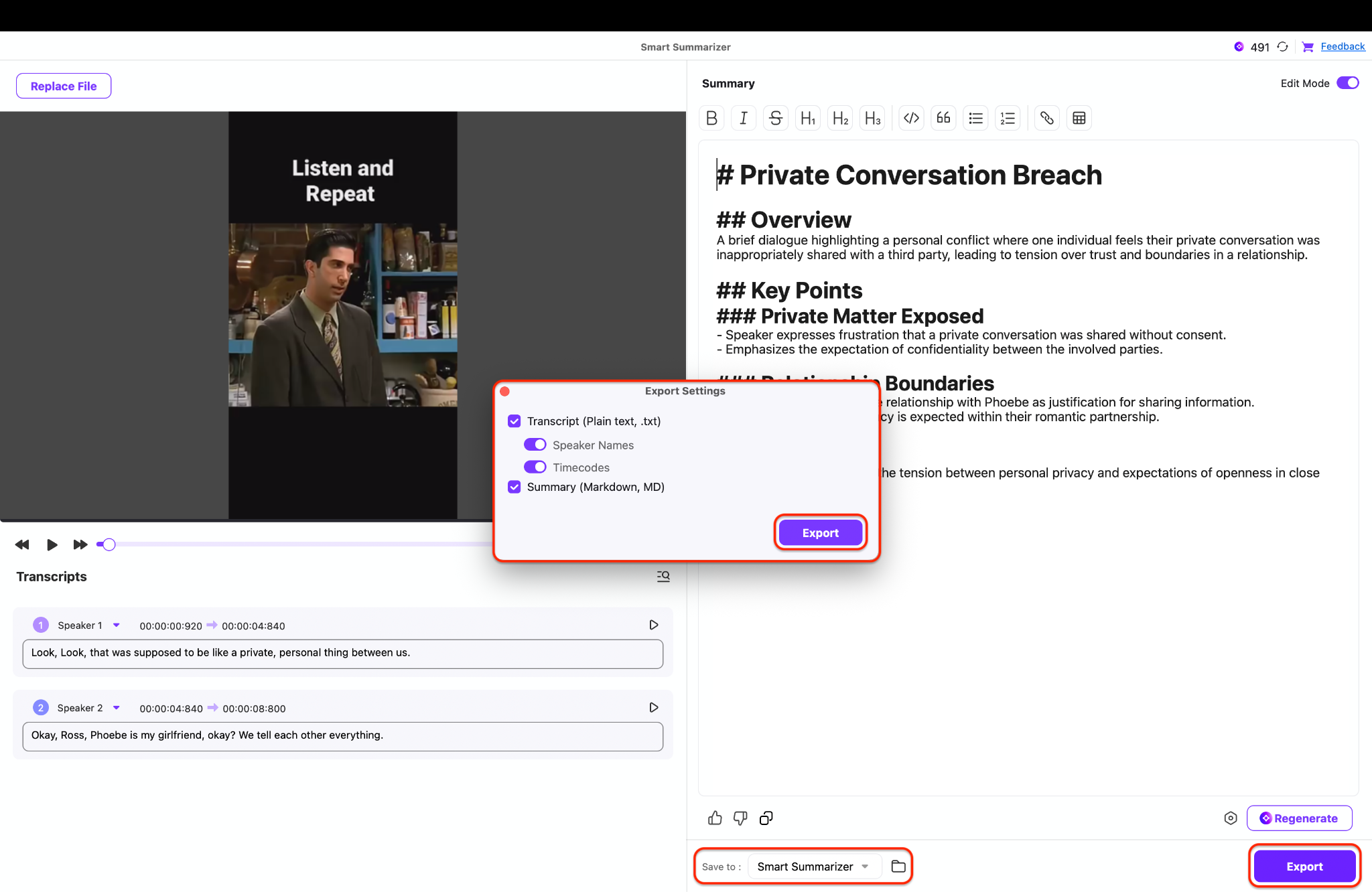

Easy to Use Video Link to Text Converter
Part 4. How to Convert Video Link to Text with Online Tool
If you are on a shared computer or need a quick one-off transcription without installing software, a video link to text converter online is your best bet. NoteGPT is a popular cloud-based editor that includes a strong transcription suite.
2. NoteGPT
For those who prefer a web-based solution without software installation, NoteGPT offers a seamless way to convert video link to text directly in your browser. This AI-powered tool allows you to simply paste a YouTube URL and instantly generate a time-stamped transcript, ensuring you capture every word accurately. Beyond basic transcription, NoteGPT features an intelligent summarizer that condenses lengthy content into key takeaways and bullet points for quick review. With support for multiple languages and no requirement for account registration, it provides a fast and accessible method for extracting scripts from any video.
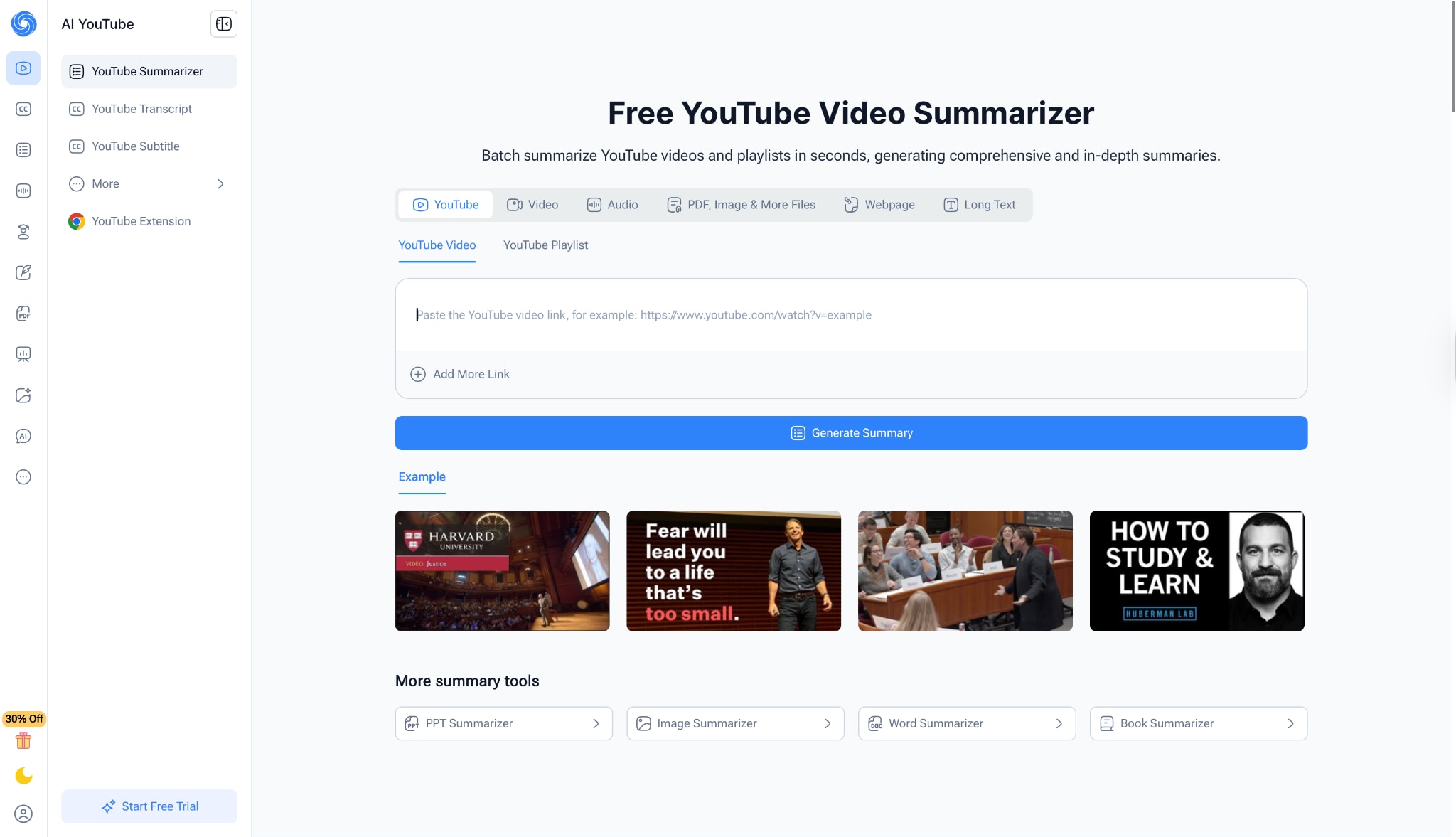
Steps to Use NoteGPT for Transcription
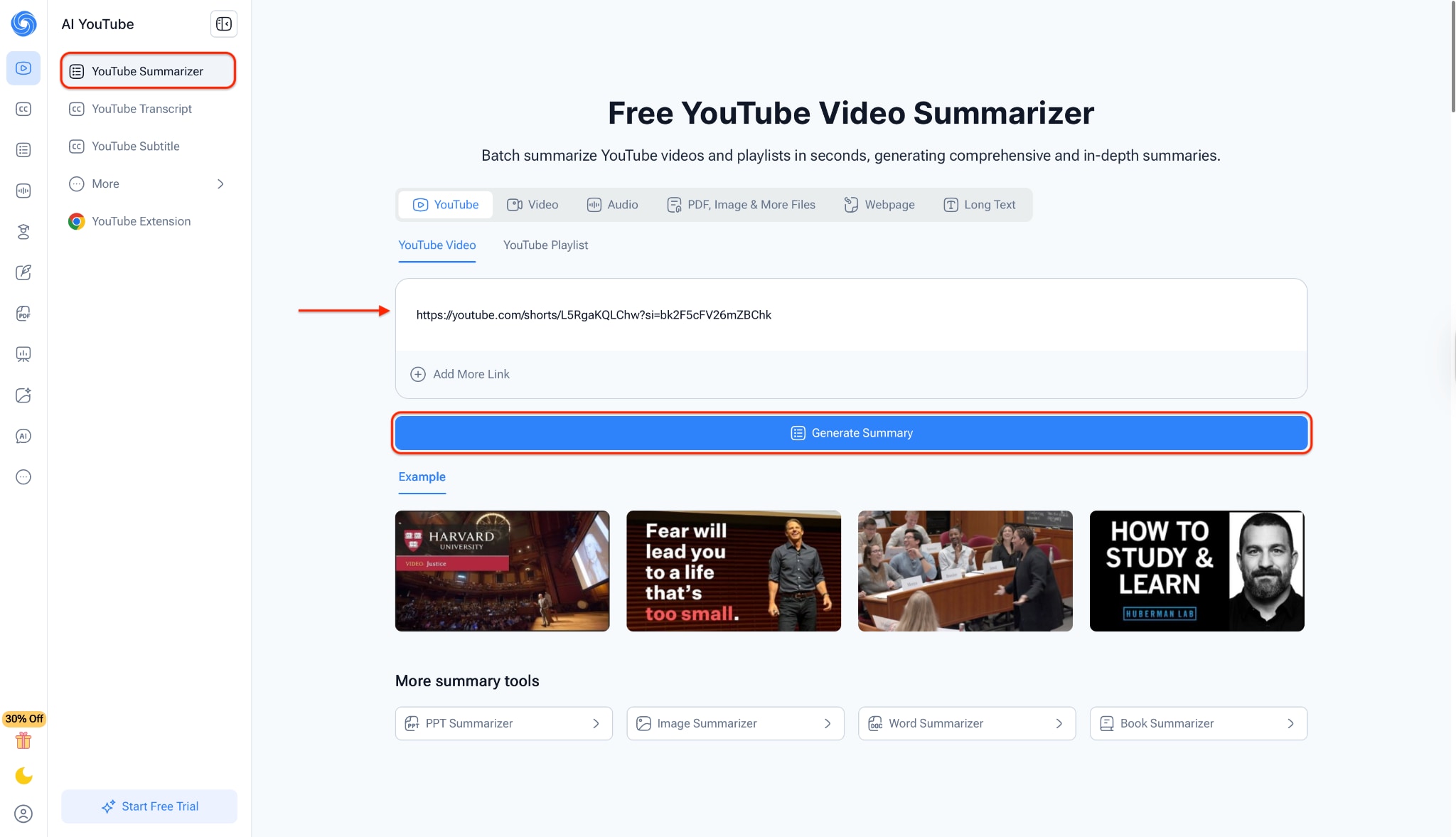
Step 1: Search Video and Input URL
First, find the YouTube video you want to analyze and copy its link. Navigate to the NoteGPT "Free YouTube Video Summarizer" page and paste the URL directly into the input box under the "YouTube Video" tab.
Step 2: Generate Summary
Step 3: Access Transcript and Insights
The tool will open a workspace where you can view the full "Transcript", "Subtitles", and "Chapters" on the left panel. Simultaneously, the right panel displays a comprehensive "Summary", "Key Insights", "Core Concepts", and even a "Mind Map," providing a deep dive into the video's content.
Part 5. How to Convert Video Link to Text with Web Extension
For users who live in their browser, a Chrome extension is the fastest workflow. You can convert video link to text while watching the video, without ever leaving the tab. A top recommendation here is "Glasp: YouTube Summary with ChatGPT & Claude".'
3. Glasp
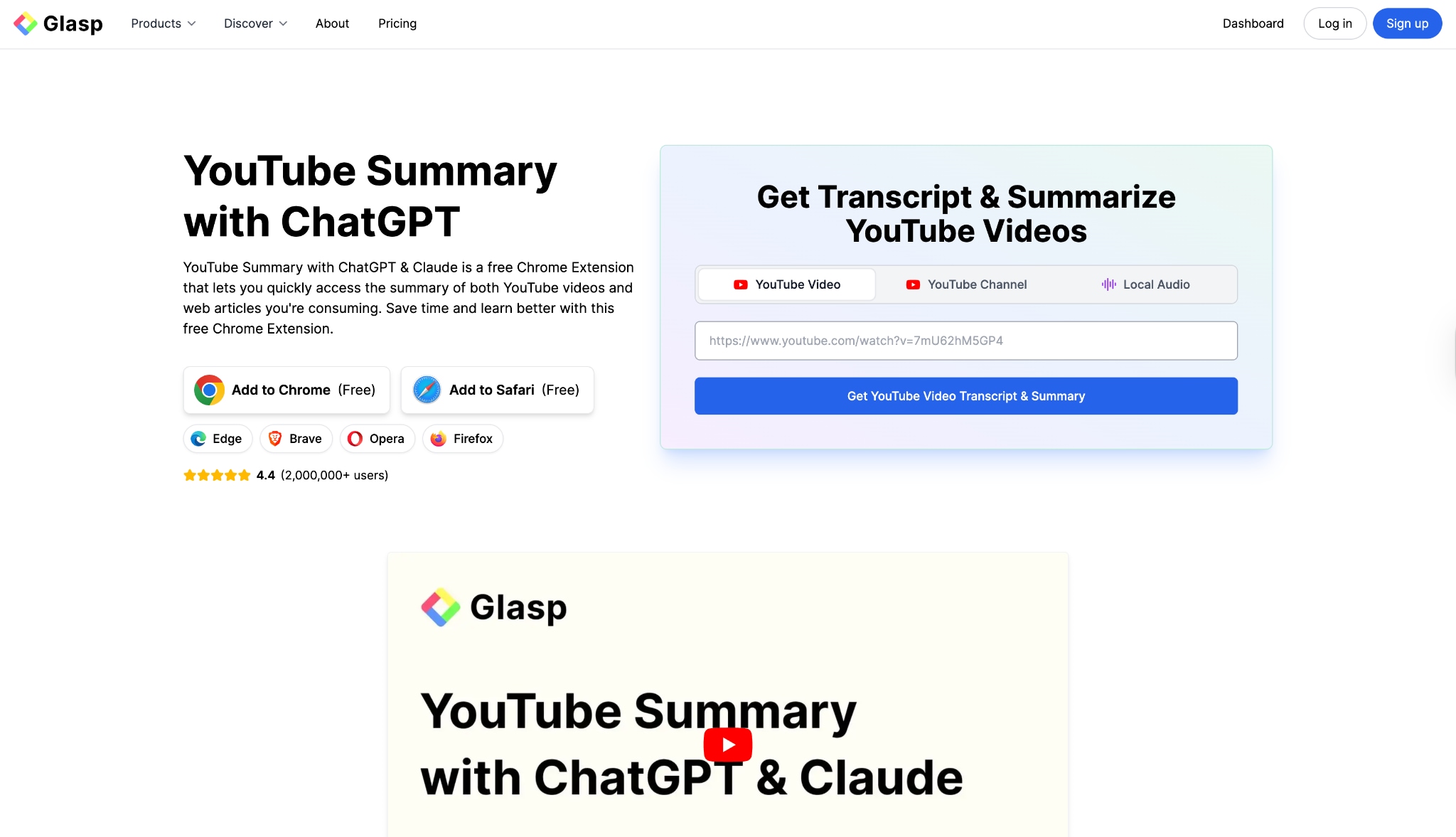
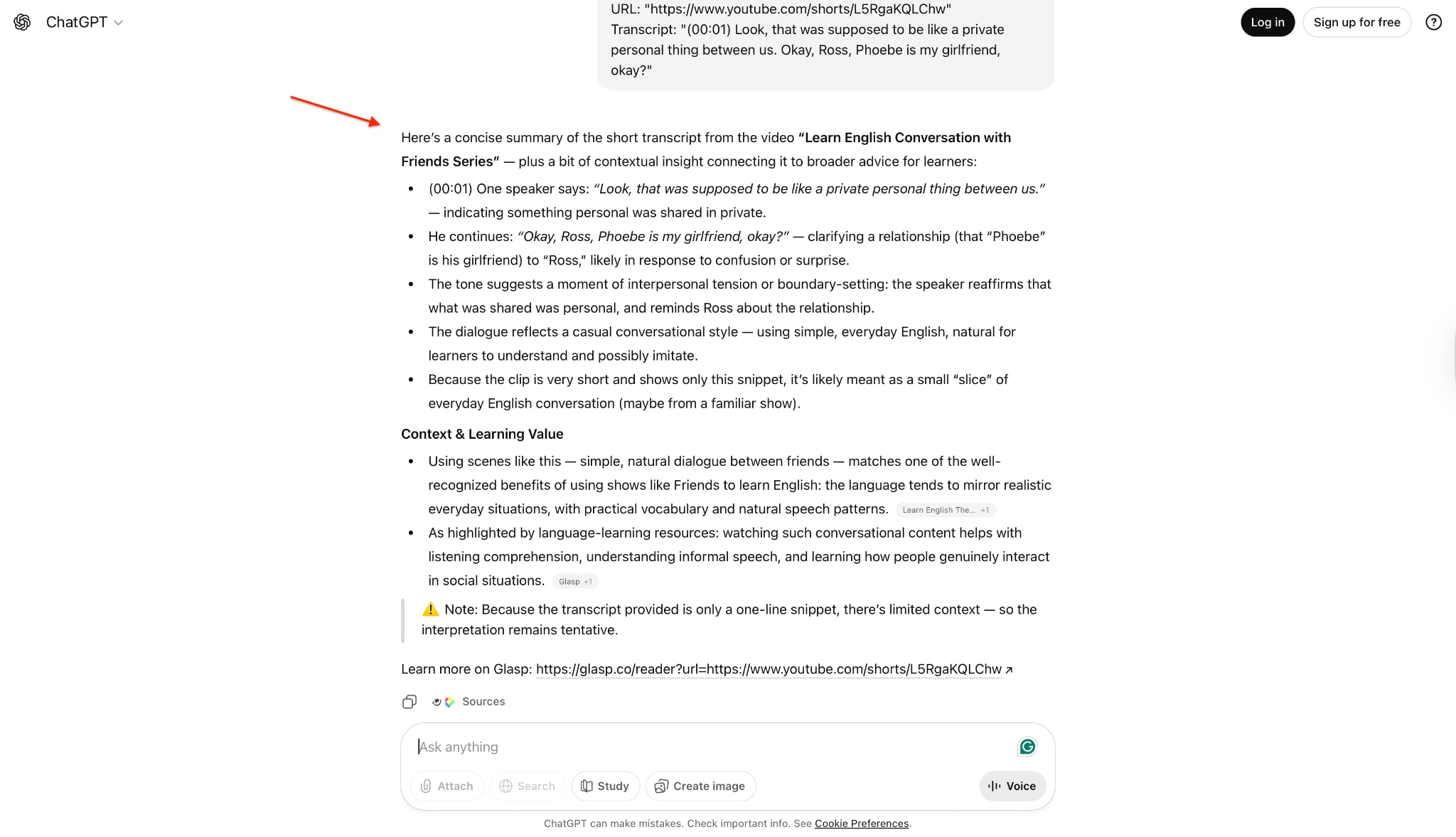
For users who live in their browser, the Glasp extension is the ultimate productivity hack to convert video link to text instantly. This free browser add-on integrates seamlessly with YouTube, allowing you to view and copy the full transcript of a video without ever leaving the page. Beyond simple transcription, it connects with AI tools to generate concise summaries, turning hour-long content into digestible insights in seconds. It is the perfect solution for students and professionals who need to capture information quickly while keeping their workflow uninterrupted.
Steps to Use the Extension
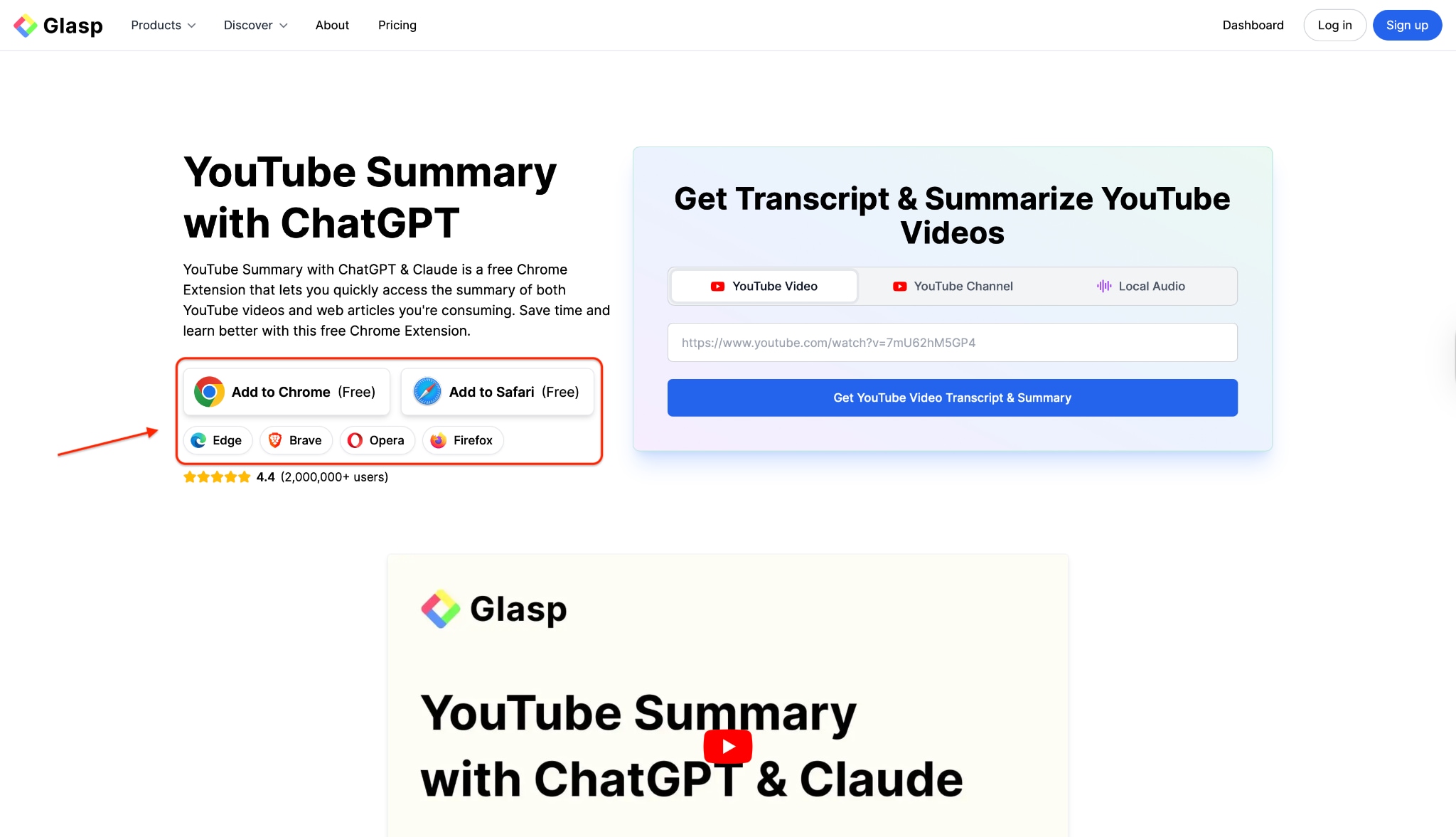
Step 1: Install the Web Extension
Step 2: Open YouTube and View Transcript
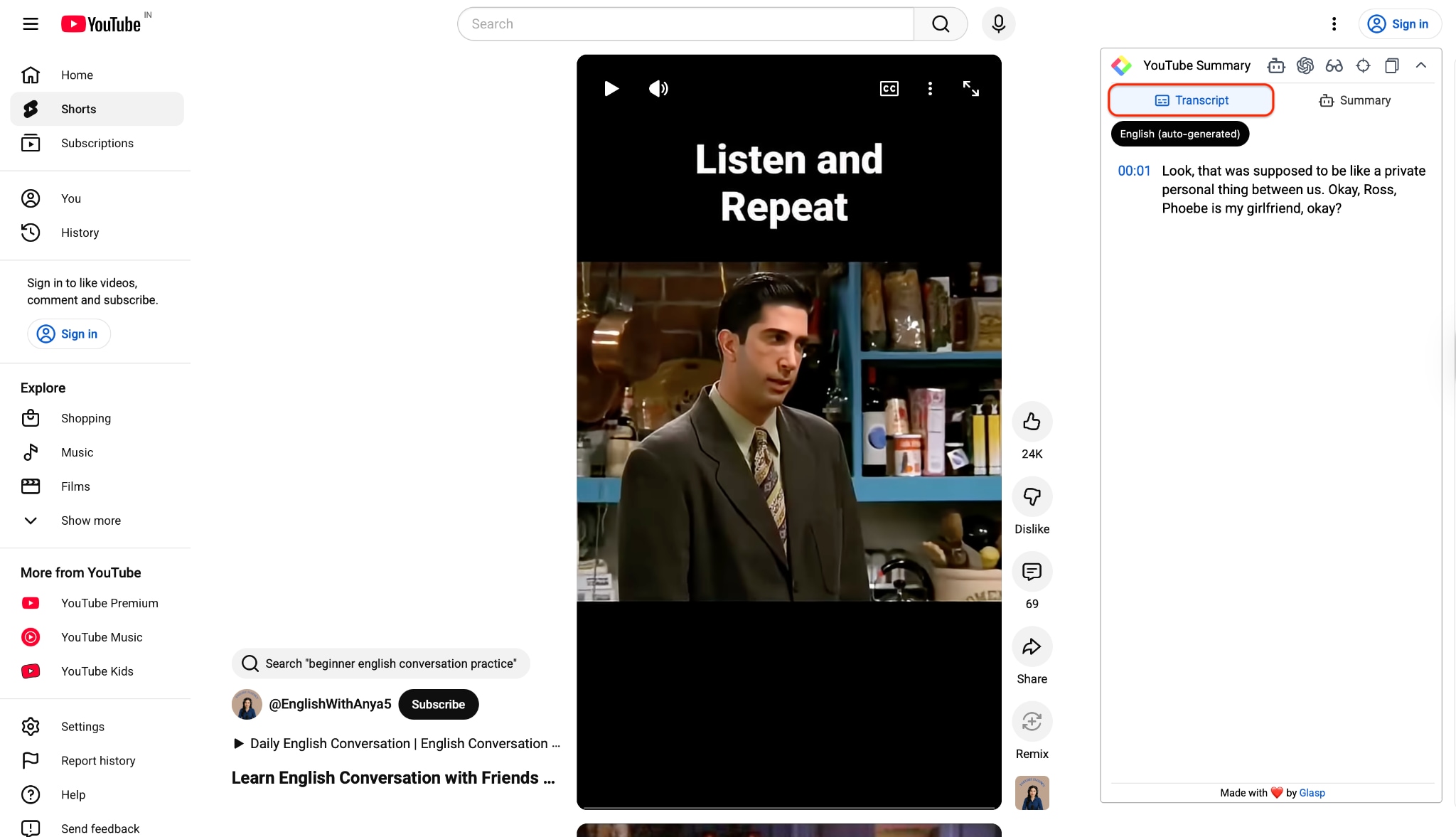
Step 3: Access Summary Options
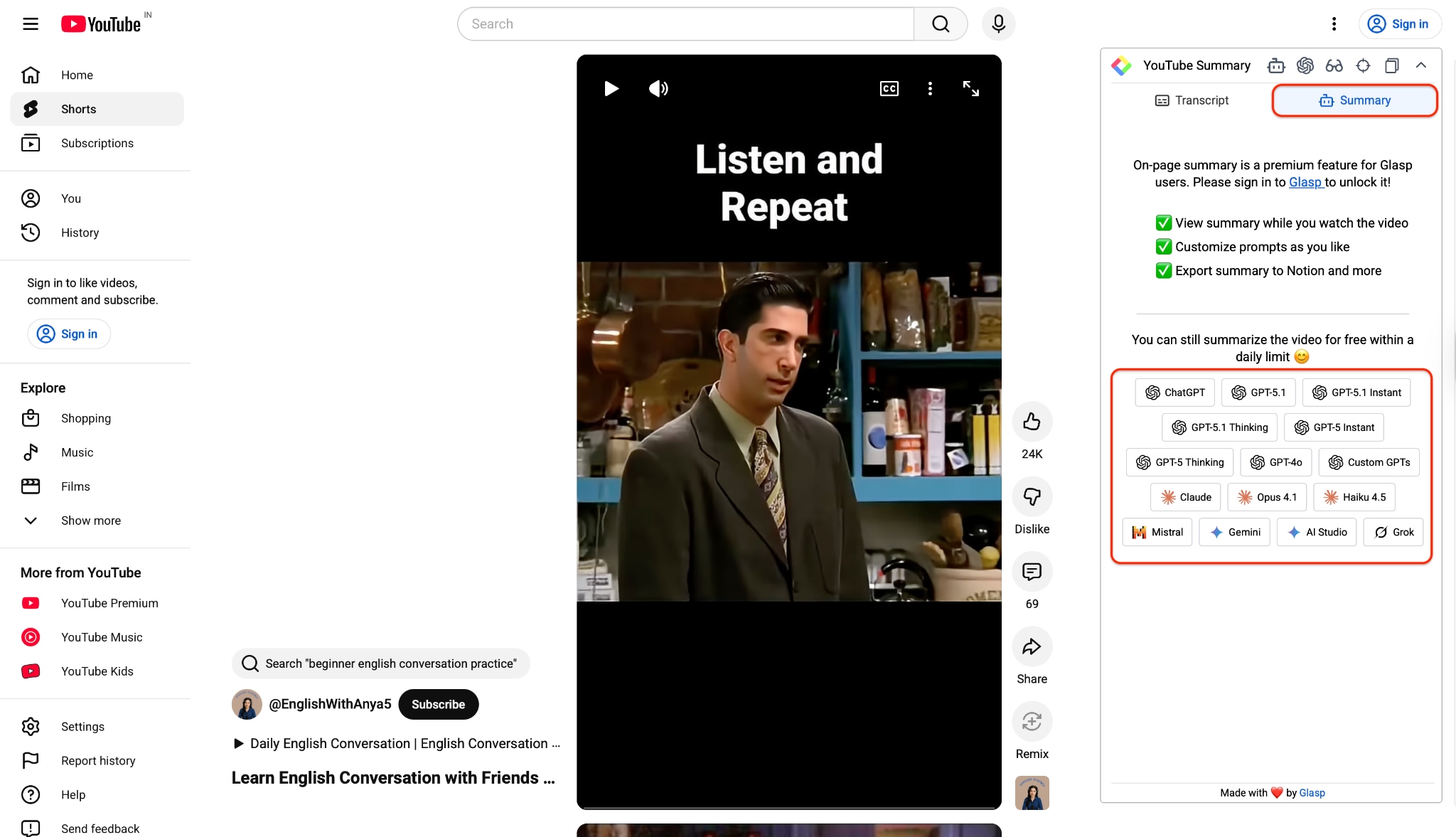
Step 4: Generate AI Summary
Part 6. How to Convert Video Link to Text on iPhone or Android
Mobile conversion is tricky because few apps allow you to paste a link directly for transcription. However, the most effective workaround is using an online tool via your mobile browser or a dedicated dictation app if you play the audio. The best tool here is "Tactiq.io".
1. Tactiq
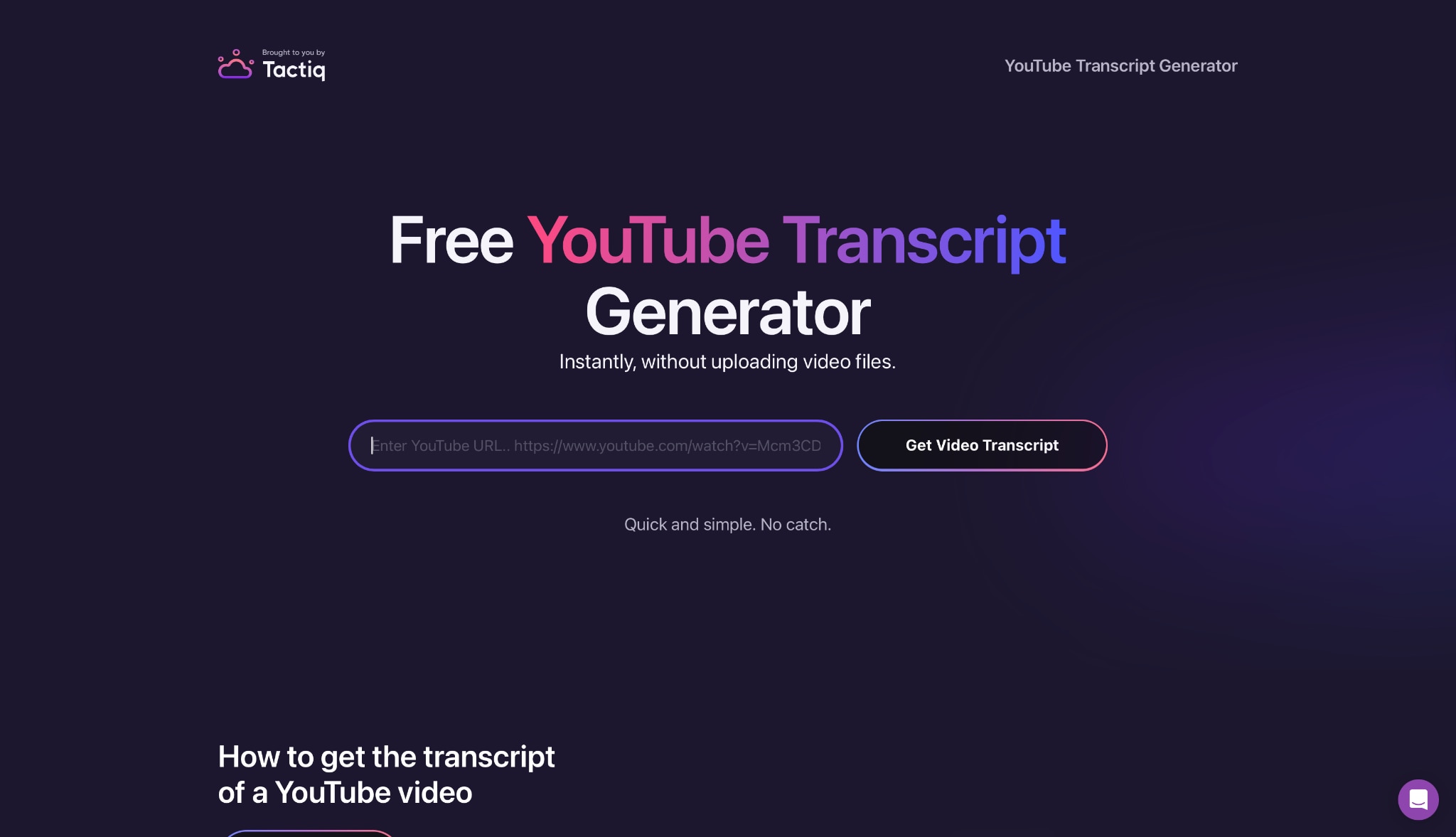
While primarily known for mastering meeting transcriptions, Tactiq.io offers a hidden gem for video enthusiasts in the form of its free YouTube transcript generator. You simply paste your video link into their streamlined tool, and it instantly extracts the spoken content into a clean, readable format. This makes it an incredibly convenient option for mobile users who need to grab quotes or summaries on the go without installing heavy apps. It bridges the gap between watching and reading, giving you accurate text that is ready to be copied into your notes or study guides.
The "Online Tool" Method (Best for Links)
Step 1: Open Mobile Browser
Open Chrome or Safari on your phone.
Step 2: Access the Tool
Go to a web-based tool like Tactiq.io (free YouTube transcript generator page).
Step 3: Paste Link
Paste the video link.
Step 4: Copy Text
Copy the generated text to your Notes app.
Part 1. Advanced Tips & Use Cases: What Can You Do With Video Transcripts?
For Students & Researchers: rapid-fire study notes. Instead of watching a 60-minute documentary, generate a transcript to search for keywords like "climate change statistics" or "19th-century economic shifts." You can pull direct quotes for your thesis without ever hitting play.
For Content Creators: This is your repurposing goldmine. A single YouTube video can be transformed into a week's worth of content: a long-form blog post, five LinkedIn snippets, and a Twitter thread. Transcripts are the bridge between video and SEO-rich text.
For Accessibility: Not everyone watches video with sound. Creating accurate captions or a transcript summary makes your content inclusive for the deaf and hard-of-hearing community, while also catering to people who prefer reading over watching.
For Professionals: Meetings, webinars, and training sessions often contain crucial action items that get lost. A video link to text converter allows you to archive these discussions, making them searchable for future reference.
Conclusion
Mastering how to convert video link to text is a game-changer for productivity. We have explored the landscape, from quick browser extensions for casual use to online tools for on-the-fly needs. Each method serves a specific purpose: extensions are great for speed, while online tools offer accessibility across devices.
However, if you prioritize precision, security, and advanced features like speaker recognition and smart summarization, a dedicated tool is unmatched. Wondershare UniConverter stands out not just as a converter but as a comprehensive video toolbox. It ensures your data stays private, handles heavy files effortlessly, and delivers formatted, readable text every time. Whether you are archiving a year's worth of webinars or studying for finals, UniConverter offers the reliability that free online tools cannot match. Ready to turn your video content into actionable text? Try UniConverter today and experience the difference in quality and speed.
Easy to Use Video Link to Text Converter
FAQs
-
Q1: Can I convert a YouTube video link to text for free?
Yes, you can use video link to text converter online free tools like Kapwing (free trial) or browser extensions like Glasp. However, free tools often have limitations on video length or accuracy compared to professional software. -
Q2: Is it legal to transcribe YouTube videos?
Generally, transcribing videos for personal use, study, or research is legal. However, if you plan to republish the transcript commercially, you must own the content or have permission from the copyright holder. -
Q3: Does converting video link to text work for videos without subtitles?
Most free extensions rely on existing YouTube captions (CC). If a video lacks these, extensions might fail. Advanced AI tools like UniConverter or Otter can listen to the audio track and generate a fresh transcript even if no subtitles exist. -
Q4: Can I convert video links from platforms other than YouTube?
Yes. Tools like UniConverter and some premium online converters support links from various platforms (like Vimeo or standard MP4 links). However, simple Chrome extensions are usually specific to YouTube. -
Q5: How accurate are video link to text converters?
Accuracy depends on the audio clarity and the tool's AI. Standard free tools usually offer 80-90% accuracy. Premium AI tools like UniConverter can achieve up to 95-99% accuracy and handle accents and background noise much better.

