


Ever wonderedhow to use phone as webcam for Zoom meetings, live streams, or recording sessions? Whether you’re looking to upgrade video quality or don’t have a webcam handy, your mobile device might be the perfect solution. This guide will walk you through how to use mobile as webcam via USB cable, Wi-Fi, Continuity Camera (for iPhone), third-party apps, and even record your screen with tools like UniConverter. If you've searched for:
- how to use your phone as a webcam
- how to connect phone camera to laptop
- how to use iphone as webcam on pc
You're in the right place. Let’s dive in.
In this article
Part 1. How to Use Mobile as Webcam with Cable
This is one of the most stable ways to turn your phone into a webcam using USB. How can I use my phone as a webcam? Here’s how to use mobile phone as a webcam with a cable connection:
Steps (Android Example with DroidCam):
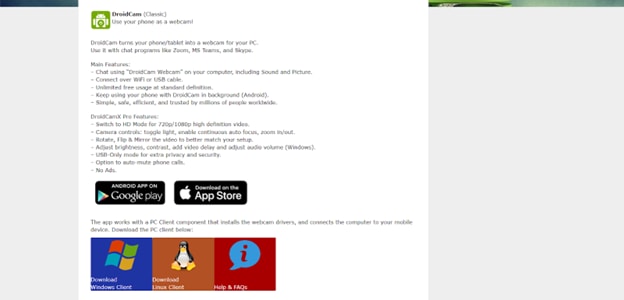
Step 1: Install DroidCam on Android and PC
Download the DroidCam app from the Google Play Store and the official DroidCam Client for Windows or macOS from the Dev47Apps website.
Step 2: Connect Your Phone to PC via USB
Use a USB cable to connect your Android device to your computer. Make sure the connection is stable.
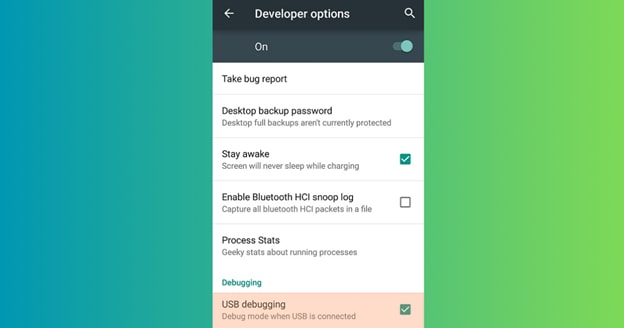
Step 3: Enable USB Debugging
On your phone, go to Settings > Developer Options and enable USB Debugging. If Developer Options aren’t visible, tap “Build Number” 7 times in About Phone.
Step 4: Launch DroidCam on Both Devices
Open the DroidCam app on your phone and launch the DroidCam Client on your PC. Ensure both are running.
Step 5: Select USB and Click Start
In the PC client, choose the “USB” option, then hit Start. Your Android phone will now function as a high-quality webcam. Now, your Android phone functions as a webcam! Works with most apps like Zoom, Skype, or OBS.
Pros & Cons
Use this method when you want to connect a mobile camera to the laptop using a stable, Latency-free setup.

Easy to Use Screen Recorder and Demonstrator for Win and Mac
Part 2. How to Use iPhone as Webcam with Built-in Tool
If you’re in the Apple ecosystem, how to use iPhone as webcam on PC or Mac becomes incredibly smooth using Continuity Camera, a built-in feature that turns your iPhone into a high-quality webcam — no cables or apps required.
Whether you're asking how to use your phone as webcam, wondering how to use phone camera as a webcam, or just trying to boost your Zoom calls, Apple’s native tool makes it easy.
Steps to Use iPhone as Webcam with Continuity Camera:
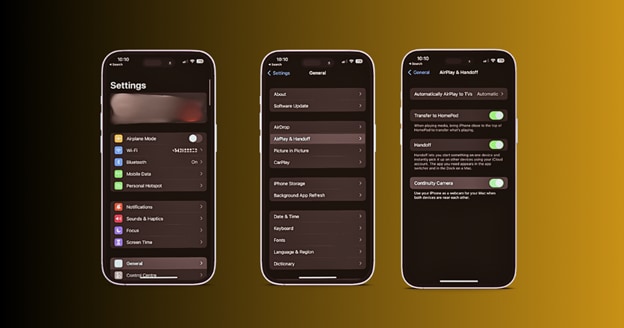
Step 1: Sign In with the Same Apple ID
Ensure both your iPhone and Mac are signed into the same Apple ID account and that Wi-Fi and Bluetooth are enabled on both devices.
Step 2: Position Your iPhone Properly
Mount your iPhone on a tripod or stand with the rear camera facing you for the best video quality during calls or recordings.
Step 3: Launch a Video App on Mac
Open any video calling or recording app on your Mac such as FaceTime, Zoom, or QuickTime.
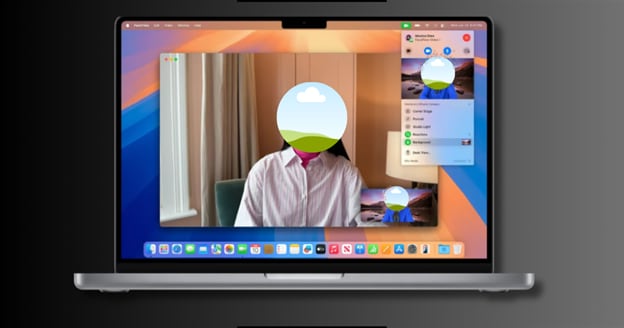
Step:4 Select iPhone as Camera Input
In the video settings of your app, choose “iPhone Camera” as the camera input. This activates the Continuity Camera automatically.
Step 5: Enjoy Studio-Quality Webcam
That’s it! You’re now using your iPhone as a professional webcam—complete with Apple’s signature video clarity.
Pros & Cons
Looking for how to use iPhone as webcam Windows 10 or PC?
You’ll need third-party apps. Jump to the next section to learn how to use an Android phone as a webcam, how to use a mobile phone as a webcam, and even how to use your phone as a webcam for PC, whether it’s Android or iPhone.
Easy to Use Screen Recorder and Demonstrator for Win and Mac
Part 3. How to Use Mobile as Webcam with Third-Party App
Not on a Mac? No problem. Here’s how to use an Android phone as a webcam or how to use iPhone as webcam on PC with third-party tools like EpocCam or iVCam.
Steps to Use Mobile as Webcam with Third-Party App:
Step 1: Install iVCam on Phone and PC
Download iVCam on your mobile device from the App Store or Google Play, and install the corresponding client on your PC or Mac.
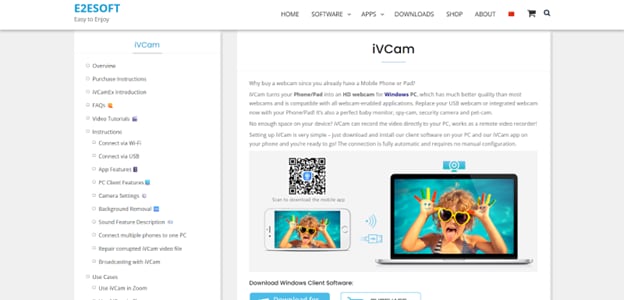
Step 2: Connect Both Devices to the Same Wi-Fi
Ensure your phone and computer are connected to the same Wi-Fi network. This allows seamless wireless communication between devices.
Step 3: Launch the App on Both Devices
Open the app on both your phone and desktop. Your phone’s camera will automatically connect and start streaming as a webcam.
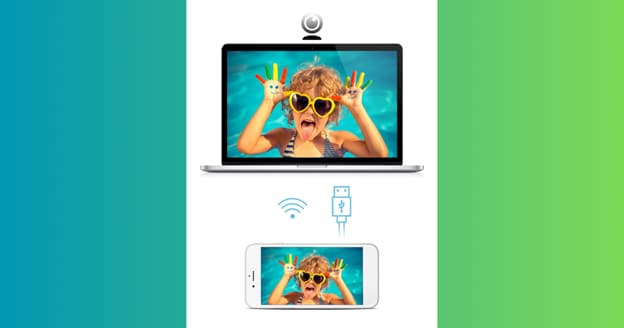
You now know how to use phone camera as webcam with ease.
Pros & Cons
This is perfect for those wondering how to use mobile camera as webcam without cables.
Part 4. How to Use Mobile as Webcam and Start Screen Record
Want to capture your webcam + screen? Here’s how to use mobile as webcam and record screen activity using UniConverter.
UniConverter Setup Guide:
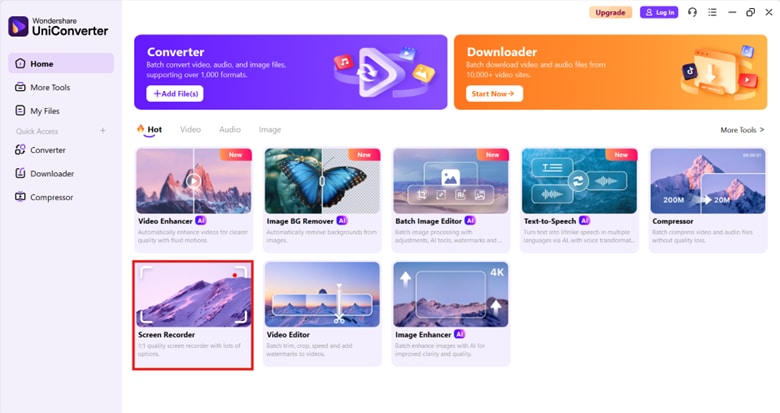
Step 1: Launch UniConverter and Access Camera Recorder
Open UniConverter on your computer. Navigate to the “Screen Recorder” section and click on “Camera Recording.”
Step 2: Connect Your Phone Webcam
Make sure your phone is set up as a webcam using DroidCam, Continuity Camera, or a third-party app like iVCam. Next, click on Webcam Recorder.
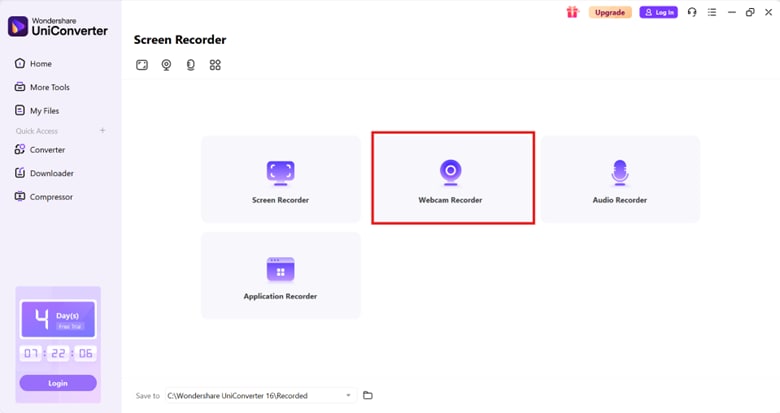
Step 3: Select Your Phone Camera as the Webcam
From the camera input options, choose your mobile device as the video source for recording.
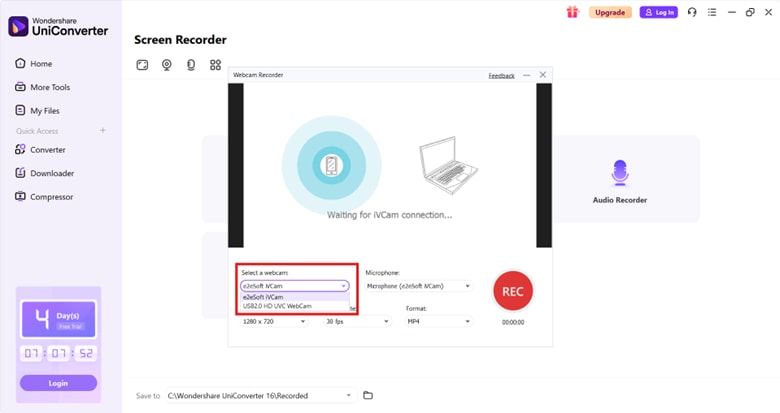
Step 4: Click Record to Start Capturing
Once everything is set, hit the “Record” button. UniConverter will now capture video directly from your phone webcam in real- time.
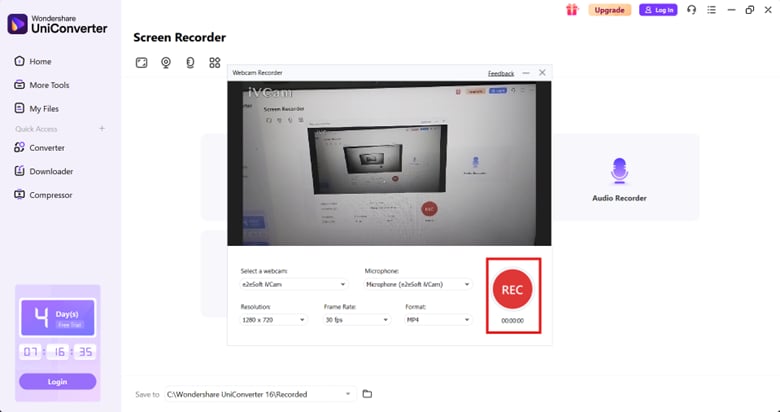
Great for tutorials, presentations, and gameplay.
Feature Highlights:
- High-res screen + cam recording
- Customizable recording area
- Scheduled recording
Pair this with earlier steps, and you’ve mastered how to connect phone camera with laptop + record like a pro.
Looking for how to use mobile cam as web cam or how to connect laptop to mobile camera?
Just install apps like DroidCam oriVCam on your phone and laptop. Connect them via USB or Wi-Fi, and you can start using your phone camera as a webcam in minutes.
Conclusion
From the most direct USB connections with DroidCam and iVCam, through Apple’s Continuity Camera and third-party apps like EpocCam and Iriun, to recording your content with UniConverter, now you know exactly how to use mobile as webcam in multiple flexible ways.
Whether you're wondering how you can use your phone as a webcam or how to use android phone as a webcam via USB, Continuity Camera, or apps, we've got you covered. You also know how to connect phone camera to laptop or how to connect phone camera to pc, how to use phone as webcam for pc, and even how to record your screen using UniConverter.
No more pixelated laptop cams—just clean, high-quality video using what’s already in your pocket.
Easy to Use Screen Recorder and Demonstrator for Win and Mac
FAQs
-
1. How do I use my phone as a webcam?
You can try using third party apps like DroidCam, iVCam, or Apple’s Continuity Camera -
2. Is it possible to use an iPhone as a webcam on Windows 10?
Yes! Use iVCam to bridge iPhone to Windows. -
3. How do I connect my phone to a laptop camera?
Use a USB cable and a compatible app or Continuity Camera (Mac only). -
4. How to connect a mobile camera to a laptop?
Use a USB cable or Wi-Fi connection with the apps mentioned above. -
5. Can I use mobile as a webcam on Zoom or OBS?
Yes. Just select your mobile camera as an input source inside the app.

