How to Convert RM to MP3 Online or on Desktop

Import your RM audio file
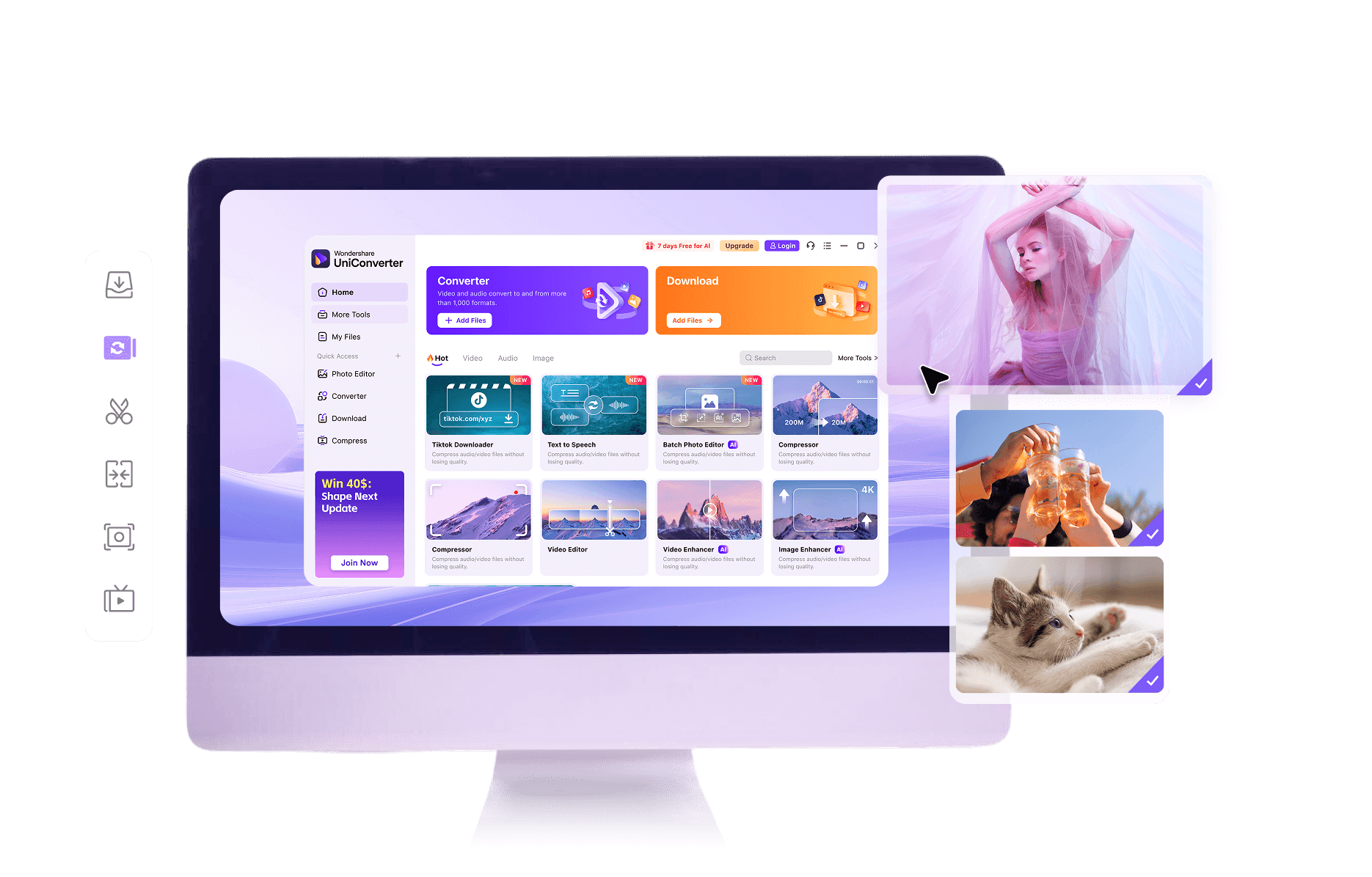
Open the online RM to MP3 converter in your browser and drag an RM file into the upload area for instant, one‑time conversion. If you have a lot of RealMedia recordings, launch the desktop UniConverter, add multiple RM files to the list, and prepare them for batch processing with greater stability.

Choose MP3 as the output format
In the online tool, simply set MP3 as the target format so you can convert RM to MP3 quickly without touching extra options. On the desktop app, also pick MP3 but optionally fine‑tune bitrate, sample rate, and other export settings, which is ideal when handling many files or caring more about size control.

Start converting and save your MP3
Click convert in the browser, wait a moment, then download the new MP3 file, ready to play on your phone, PC, or car system. On desktop, start the queue to convert all selected RM audio at once, then save MP3s to your preferred folder so you can organize entire libraries in one go.
What Is an RM File and Why Convert It to MP3
|
RM
|
MP3
|
|
|---|---|---|
| File Extension | .rm | .mp3 |
| Full Name | RealMedia | MPEG-1 Audio Layer III |
| Description | RM is a legacy container format created for streaming audio and video with RealPlayer. It was popular for online radio, lectures, and music in the early internet era but is now poorly supported on modern devices and apps. | MP3 is the most widely supported compressed audio format, balancing sound quality with small file size. It plays smoothly on virtually all phones, computers, car stereos, smart TVs, and music apps. |
| Associated Programs | RealPlayer, RealOne Player, VLC (with plugins), MPlayer, older streaming clients | Windows Media Player, iTunes, VLC, QuickTime Player, Android and iOS music apps |
| Initial Release | Mid-1990s | 1993 |
| Developer | RealNetworks | Fraunhofer IIS and collaborators |
| Common Use Cases | Archived internet radio, old voice recordings, lectures, and music streams saved from RealPlayer or early online platforms. | Music libraries, podcasts, audiobooks, ringtones, voice notes, and any audio shared across modern devices and platforms. |
| MIME Type | application/vnd.rn-realmedia | audio/mpeg |
RM to MP3 Conversion Features in UniConverter
Dedicated RM to MP3 for Old RealMedia Audio
Import legacy RealMedia RM recordings and convert them into modern MP3 files so you can listen on Windows, Mac, Android, iOS, and many car players. Both the online tool and desktop UniConverter handle RM audio cleanly, preserving as much quality as the original allows.
Online Convenience, Desktop Power
Use the browser-based RM to MP3 converter when you just have a few small files and need a quick result without installing anything. For bigger libraries, long recordings, or more robust processing, switch to the desktop app for faster, more reliable conversion on your own machine.
1000+ Formats Supported for Flexible Conversion
Beyond RM to MP3, UniConverter supports 1000+ formats, covering audio, video, and legacy containers. Convert RealMedia to other targets, or change many different old file types into modern standards, using the same familiar interface on both online and desktop versions.
High-Quality Audio Output
Get clean MP3 audio from your RM files with smart defaults that work well in the online converter, avoiding complicated settings. On desktop, you can further balance quality and size with adjustable output options, helping older recordings sound as good as their source material allows.
Batch and Advanced Settings on Desktop Only
When you need to convert an entire folder of RM files, the desktop UniConverter lets you queue and batch-convert them, plus tweak bitrate, sample rate, and channels. The online RM to MP3 tool focuses on single-file, one-off tasks and does not support batch or export-parameter adjustments.
Safe, Reliable RM to MP3 Workflow
Avoid untrusted RM to MP3 sites with pop-ups or bundled installers. UniConverter provides a more controlled environment: the online service processes files securely in the cloud, while the desktop app keeps conversion fully on your computer, reducing privacy and malware concerns.
RM to MP3 Conversion FAQs
How do I convert an RM file to MP3 on Windows or Mac?
Will converting RM to MP3 reduce the audio quality a lot?
Can I convert RM audio to MP3 online for free and safely?
Can I batch convert multiple RM files to MP3 at once?
Can I adjust bitrate or other settings when converting RM to MP3?
What Users Say About Converting RM to MP3 with UniConverter
More Format Conversion
Convert Other Files to MP3
Explore More Features

Start Converting RM to MP3 with UniConverter