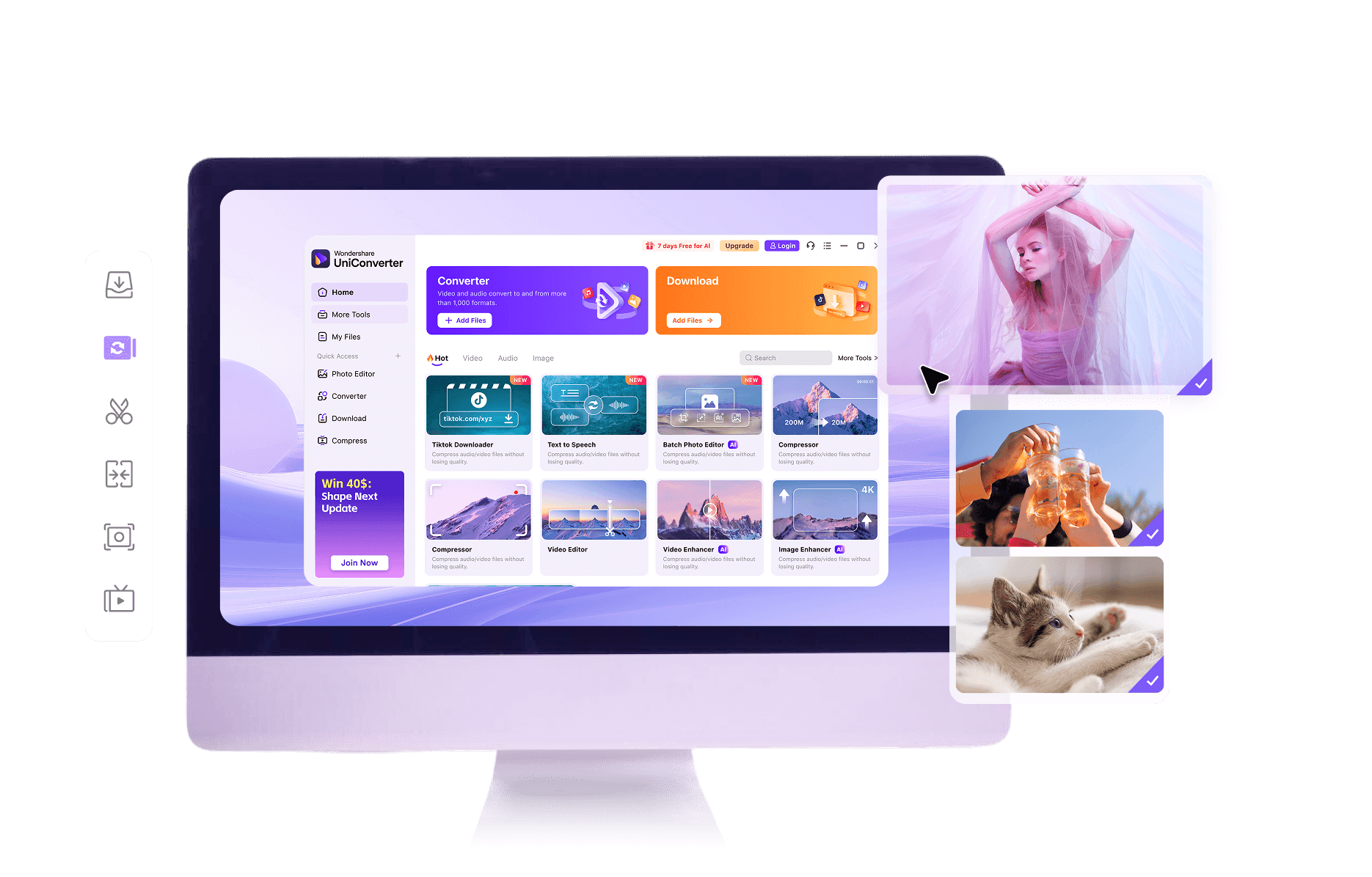
How to Convert MPG File to MP3 Step by Step

Import MPG video from any device
Open UniConverter Online in your browser to drag and drop a single MPG video for a quick one-off conversion, ideal when you just need a fast audio extract. For larger or multiple MPG files, launch the desktop app and add several clips to the converter panel at once for efficient processing.

Choose MP3 as the output audio format
In the online converter, simply pick MP3 as the target format and keep the default settings for a straightforward MPG to MP3 conversion without configuration. On the desktop version, also select MP3, then optionally fine-tune bitrate, sample rate, and other audio parameters when you want tighter control over output quality.

Start conversion and save your MP3 files
Click Convert in the online tool, wait a moment, then download the resulting MP3 directly to your browser’s default download folder for quick listening or sharing. On desktop, hit Convert to process even long or multiple MPG videos, then save organized MP3 files to any local or external drive and send them to your chosen music player.
MPG Video and MP3 Audio Format Basics
|
MPG
|
MP3
|
|
|---|---|---|
| File Extension | .mpg | .mp3 |
| Full Name | MPEG Video File | MPEG-1 or MPEG-2 Audio Layer III |
| Description | MPG is a video container format based on MPEG standards, typically combining compressed video and audio streams in a single file, widely used for older digital cameras, DVDs, and downloaded clips. | MP3 is a compressed audio format that significantly reduces file size while keeping acceptable sound quality, making it ideal for music, podcasts, and audio tracks on virtually any device or player. |
| Associated Programs | VLC media player, Windows Media Player, QuickTime Player, Wondershare UniConverter, KMPlayer | iTunes, VLC media player, Windows Media Player, Winamp, Apple Music, Spotify local files, Wondershare UniConverter |
| Initial Release | Late 1980s (MPEG-1), early 1990s (MPEG-2) | 1993 |
| Developer | Moving Picture Experts Group (MPEG) | Moving Picture Experts Group (MPEG) and Fraunhofer Society |
| Common Use Cases | Storing standard-definition video, DVD video, archived TV recordings, legacy web downloads, and camera footage that bundles video and audio together. | Music libraries, audiobooks, podcasts, ringtones, and extracted audio from video files for playback on computers, phones, car stereos, and portable players. |
| MIME Type | video/mpeg | audio/mpeg |
Why Use UniConverter for MPG to MP3 Conversion
One-click MPG to MP3 on Windows and Mac
Turn any MPG or MPEG clip into an MP3 file with a clear, guided workflow. Use the online tool when you just need a quick video-to-audio conversion, or switch to the desktop app for a more robust experience on both Windows and Mac computers.
Fast conversion for long MPEG videos
Handle lengthy recordings without waiting forever. The desktop UniConverter uses optimized acceleration to convert long MPG videos to MP3 much faster than many basic tools, while the online version stays focused on smaller, quick jobs directly in your browser.
1000+ Formats Supported for video and audio
Easily move beyond a single MPG to MP3 task. UniConverter supports 1000+ formats, so you can convert additional video types like MP4, AVI, or MOV to MP3, or switch between many audio formats as your library and devices require more flexibility.
Online convenience without software install
Use the browser-based converter when you want to extract audio from an MPG file quickly without downloading software. It is ideal for occasional conversions, single clips, and users who prefer a lightweight, no-install workflow on shared or locked-down machines.
Desktop power with batch and advanced settings
When you manage many MPG files or care about precise audio results, the desktop app lets you batch convert multiple videos at once and adjust export parameters such as bitrate, sample rate, and channels to match specific listening or editing requirements.
Clean audio extraction for everyday listening
Pull just the soundtrack from MPG videos and save as MP3 so you can listen on phones, tablets, or car players. Both online and desktop options give you a straightforward way to separate sound from picture and organize audio-only versions of your favorite clips.
MPG to MP3 Conversion FAQs
How to convert MPG file to MP3 in a simple way?
Can you change MPEG to MP3 on both Windows and Mac?
Will converting MPG to MP3 lose audio quality?
Do I need to install software to extract audio from MPG?
What is the best tool to convert multiple MPG files to MP3?
What Users Say About UniConverter MPG to MP3 Tools
More Format Conversion
Convert Other Files to MP3
Convert MPG to Other Formats
Explore More Features

Start Your MPG to MP3 Conversion Now