


If you're wondering how long YouTube Shorts can be in 2025, you're not alone. The platform has updated its rules again, and keeping up can feel like a full-time job. The current limit is up to 3 minutes, giving creators and brands far more flexibility to tell a story, repurpose clips, or deliver high-impact ideas without rushing.
Whether you're turning long webinars into bite-sized content or trying to land your next viral moment, understanding the right length and format is half the battle. Below is the breakdown of the new 3-minute limit, the technical specs you need to follow, and an easy workflow to help you publish Shorts that consistently perform. Let's turn confusion into clarity and set your content up to win on the Shorts shelf.
In this article
Part 1: YouTube Shorts Basics (Specifications & Setup)
For years, the hard limit was 60 seconds. If your video was 61 seconds, it was exiled to the standard video tab, essentially killing its chances of hitting the viral Shorts feed. But the game has changed significantly for 2025.
How Long Can a YouTube Short Be?
As of late 2024, YouTube officially expanded the maximum duration for Shorts, and many creators still ask how long YouTube Shorts are allowed to be, since the limit has changed from the original 60 seconds.
Maximum Length: You can now upload Shorts up to 3 minutes long.
Minimum Length: The sweet spot starts at 15 seconds, though there is no hard technical minimum (but anything under 5 seconds rarely performs well).
Important Note on "The Shelf"
Even with the 3-minute update, your video must be vertical (9:16 aspect ratio) to be recognized as a Short. If you upload a 2-minute horizontal (16:9) video, YouTube will treat it as a standard long-form video, and it will not appear on the Shorts shelf.
Other Core Technical Specifications
To ensure your content looks crisp and hits the algorithm correctly, stick to these settings:
| Specification | Requirement |
| Aspect Ratio | 9:16 recommended or 1:1 |
| Resolution | 1080x1920 (Full HD) or 2160x3840 (4K) |
| File Format | MP4 or MOV (H.264 codec preferred) |
| Audio | AAC-LC, Stereo or 5.1 surround |
Part 2. Functional & Features of YouTube Shorts Settings
Understanding YouTube Shorts' hidden settings can make the difference between a video that lands on the Shorts shelf and one that gets overlooked. Here's what actually matters when you're posting a Short.
1. Custom Thumbnails (Limited Availability)
YouTube allows custom thumbnails for Shorts, but access varies by account, and the mobile app is your only option. While Shorts autoplay in the feed without requiring a click, thumbnails still matter significantly when your content appears in search results, on your channel page, or in suggested video sections. An eye-catching thumbnail can meaningfully improve your click-through rate in these contexts.
How to Add a Thumbnail : The process differs based on where you upload. On mobile, during the upload process, tap the pencil icon at the top-left corner and use the frame selector to choose a specific scene from your Short as the thumbnail. Once published, you can edit the thumbnail again through the mobile app by going to your upload, tapping the pencil icon, and selecting a different frame. Desktop uploads don't offer this option—you'll need to switch to mobile to make the change.
Alternative Approach : Many creators design a custom thumbnail using Canva or Photoshop (1920x1080 pixels, vertical format) and insert it as a 0.1 to 1-second frame at the start of their Short using CapCut or Adobe Premiere. When you upload via mobile, you can then select that inserted frame as your thumbnail, giving you full design control.
Best Practice Tip
If you have access to custom thumbnail uploads on desktop (some accounts do), always use them. A bold, clean thumbnail can increase click-through rate by 20-30%, especially when Shorts appear outside the main feed.
2. Descriptions (Limited Length, SEO Impact & Hashtags)
Descriptions on Shorts are short but strategically important. YouTube now indexes Shorts based on metadata, engagement rates, and viewer retention, which means a well-crafted description directly impacts discoverability.
What to Include : The first 2 lines of your description are critical for SEO. Write a brief summary that naturally includes keywords relevant to your content. For example, if your Short is about cooking, start with something like "Quick 30-second pasta hack that saves time on weeknights." Follow with secondary keywords and relevant hashtags.
Hashtag Strategy : Always include #Shorts first; this signals to YouTube that your content is meant for the Shorts shelf, improving promotion chances. Beyond that, use 3–5 highly relevant hashtags based on your content. For a tech review, Short, use hashtags like #techshorts, #gadgetreview, or #smartphonerelease2025. YouTube's algorithm uses these to categorize content and connect it with trending or niche topics.
Why This Matters
Unlike long-form videos, where viewers often skip descriptions, Shorts descriptions help YouTube classify your content for search and recommendations. Hashtags act as internal navigation signals, telling the algorithm where your content fits within YouTube's ecosystem.
Best Practice Tip
Don't overuse hashtags; YouTube may flag spammy behavior. Focus on quality over quantity. Place hashtags at the end of your title or within the description, not scattered throughout. This keeps the presentation clean while still signaling context to YouTube's bot.
3. Links in Descriptions
Links are allowed in Short descriptions, but their effectiveness depends on where your content appears. This is an important distinction that many creators miss.
The Reality : In the main Shorts feed (where most views happen), links are either hidden or deeply buried in a menu. Viewers swiping through Shorts rarely see or click links. However, when your Shorts appear in search results or on your channel page, the description is more visible, and links become clickable and functional.
When Links Work Best : Use links strategically to drive traffic when Shorts appear on the desktop or your channel page. Many creators add a link to their full long-form video in the Shorts' description, then track clicks using YouTube Analytics to see if viewers are transitioning from Shorts to longer content.
Best Practice Tip
Instead of relying solely on description links, use YouTube's "Related Videos" feature in YouTube Studio. This allows you to link a Short directly to one of your long-form videos, creating a more visible call to action within the YouTube ecosystem. This is more effective than hoping someone finds the description link.
4. Watermarks
When you download your Shorts from YouTube Studio to share elsewhere, YouTube automatically adds a watermark. This is by design; the platform wants credit and attribution.
Why This Happens : YouTube introduced watermarking to discourage cross-platform sharing without credit. When creators download Shorts to post on TikTok or Instagram Reels, the YouTube watermark stays visible, subtly redirecting viewers back to YouTube. Instagram's algorithm actively suppresses videos with watermarks from other platforms, which can hurt your reach on Reels if you're cross-posting Shorts directly.
What This Means for Your Strategy : If you're planning to repurpose Shorts on other platforms, download the original footage from your editing software before uploading to YouTube, not after. This ensures you have a clean version without the YouTube watermark. Edit and export directly from CapCut, Adobe Premiere, or your chosen editor, then upload that version to YouTube, TikTok, and Instagram Reels separately.
Best Practice Tip
Build a content vault in Google Drive or Frame.io where you store the original, unwatermarked files. This allows you to repurpose the same content across platforms without watermark penalties and gives you flexibility if YouTube changes its policies in the future.
5. Music & Audio (Restricted by YouTube's Library)
YouTube limits music for Shorts to its approved library, which includes licensed tracks with specific usage restrictions. This is stricter than for long-form videos because Shorts are distributed and monetized differently.
The Two-Tier System : For Shorts under 60 seconds, you can use copyrighted music from YouTube's curated music library without strikes or copyright claims. The library has licensing agreements that allow this duration. However, for Shorts over 60 seconds (up to the new 3-minute maximum), you cannot safely use popular copyrighted tracks from this library. Using a track over 60 seconds can trigger a copyright claim.
How to Access Licensed Music : Open the YouTube mobile app, start creating a Short, upload or record your video, and tap the "Add Sound" button. Browse the extensive library of licensed music and select a track. Adjust the timing and audio levels between your original sound and the music. This in-app method ensures you're operating within YouTube's licensing agreements for that specific track and duration.
What Happens If You Use Unlicensed Music : A copyright claim may be issued, which mutes audio in your Short or allows the copyright holder to collect ad revenue from your video. In severe cases, repeated violations can result in a strike or channel suspension.
Best Practice Tip
Stick to the YouTube music library, even if the selection feels limited. Alternatively, use royalty-free platforms like Epidemic Sound or Artlist to purchase music licenses upfront. This ensures zero copyright headaches and gives you full creative control over your audio.
6. Monetization (Shorts YPP Revenue Pool)
YouTube Shorts monetization works differently from that of long-form videos. Instead of earning per ad, creators earn from a shared revenue pool based on performance.
How Earnings Work : YouTube collects all ad revenue generated by Shorts into a monthly pool, then distributes it based on the percentage of views each creator generates. If your Shorts account for 0.5% of all Shorts views in a given month, you receive 0.5% of that month's pool. You keep 45% of the revenue assigned to your content; YouTube keeps 55%.
Qualification Requirements : To earn from Shorts, you must meet YouTube Partner Program standards: 1,000 subscribers and 10 million valid public Shorts views within the last 90 days. Views must be genuine and from real viewers, not bots or spam. Once eligible, you begin earning immediately from the Shorts pool.
Additional Revenue Streams : Beyond the Shorts pool, you can earn through Super Thanks (viewers pay $1–$50 to highlight their comment), product tagging (if you sell products), and YouTube Premium revenue (a cut when Premium members watch your content, regardless of ads).
Why This Matters
Earnings depend on the overall pool size, which fluctuates monthly. In months with higher advertiser spending, the pool grows, and your slice is worth more. Your personal earnings also depend on viewer regions; viewers in high-income countries (US, UK, Canada) are worth more to advertisers, so Shorts with international reach generate higher payouts.
Best Practice Tip
Don't chase monetization alone. Focus on consistency and quality first. Once you hit 1,000 subscribers and 10 million Shorts views, monetization becomes automatic. Emphasizing viewer retention and engagement will increase both your view count and your earning potential.

Easy to Use YouTube Shorts Enhancer
Part 3. How to Create & Post a YouTube Short on PC: A Step-by-Step Guide
Creating Shorts on a desktop gives you better control over editing and file management. If you're wondering how to make a YouTube Short on PC, this workflow is ideal for repurposing clips or professional footage. Here's the simple process.
How to Create YouTube Shorts from Existing Videos?
Before uploading, you need to prepare your footage in the right format. YouTube won't automatically recognize a horizontal video as a Short, no matter how short it is.
Step 1: Open your editing software (CapCut, Adobe Premiere, DaVinci Resolve, or even iMovie). Import your source video. Resize the canvas to a 9:16 vertical format and ensure your subject stays centered. Export the file as an MP4 with H.264 codec.
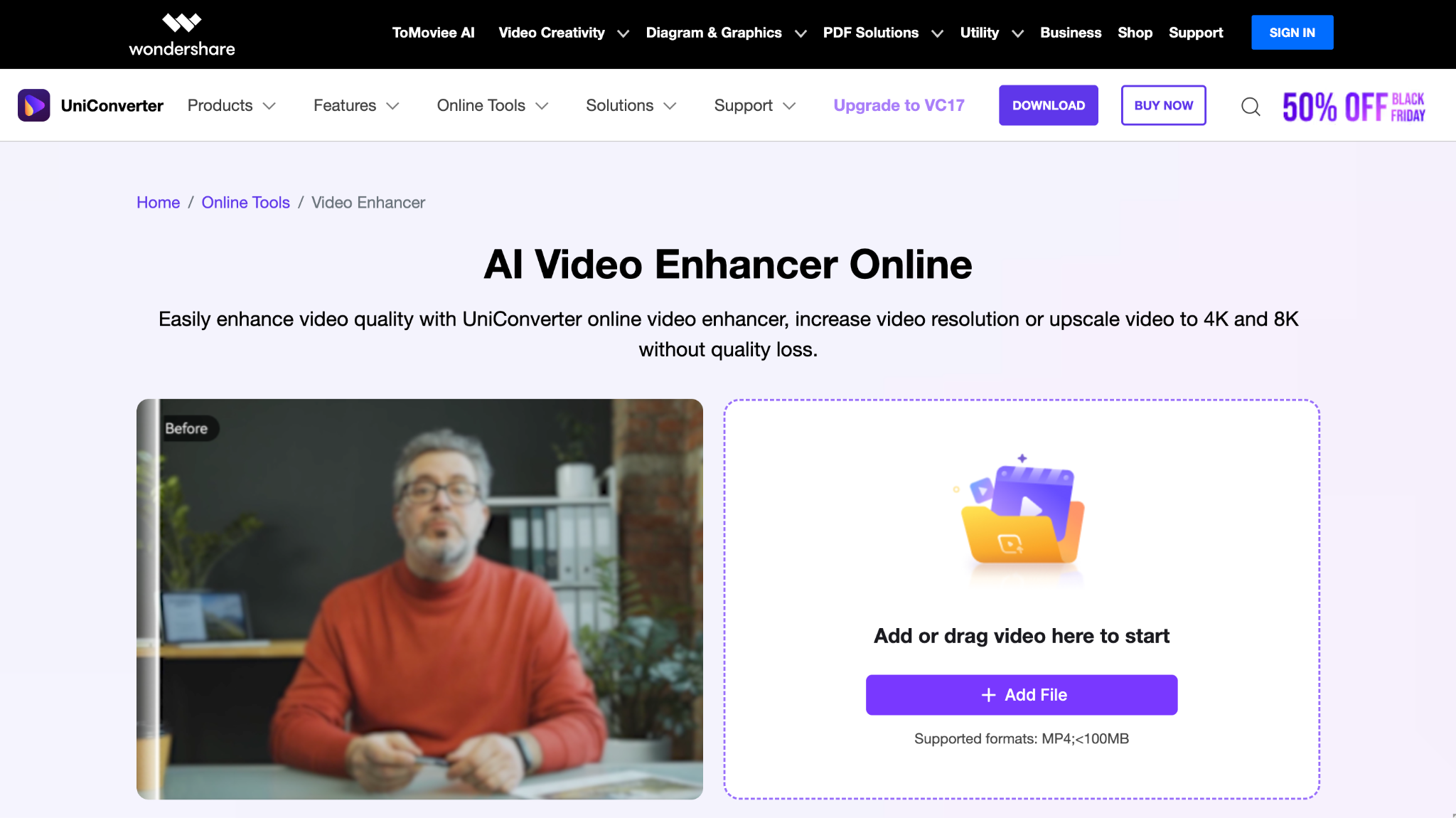
YouTube recommends a resolution of 1920x1080 pixels for crisp quality on mobile screens. If your video is low-quality, you can use Wondershare UniConverter's Video Enhancer. Upload multiple shorts at once and get high-quality results within minutes.
Step 2: Your Short must be:
- Up to 3 minutes long (180 seconds maximum)
- Vertical aspect ratio (9:16 preferred, or 1:1 square)
- MP4 or MOV format
- Under 200 MB in file size (though smaller is better for faster uploads)
If your file exceeds these specs, YouTube will either reject it or convert it to a standard video, removing it from the Shorts shelf entirely.
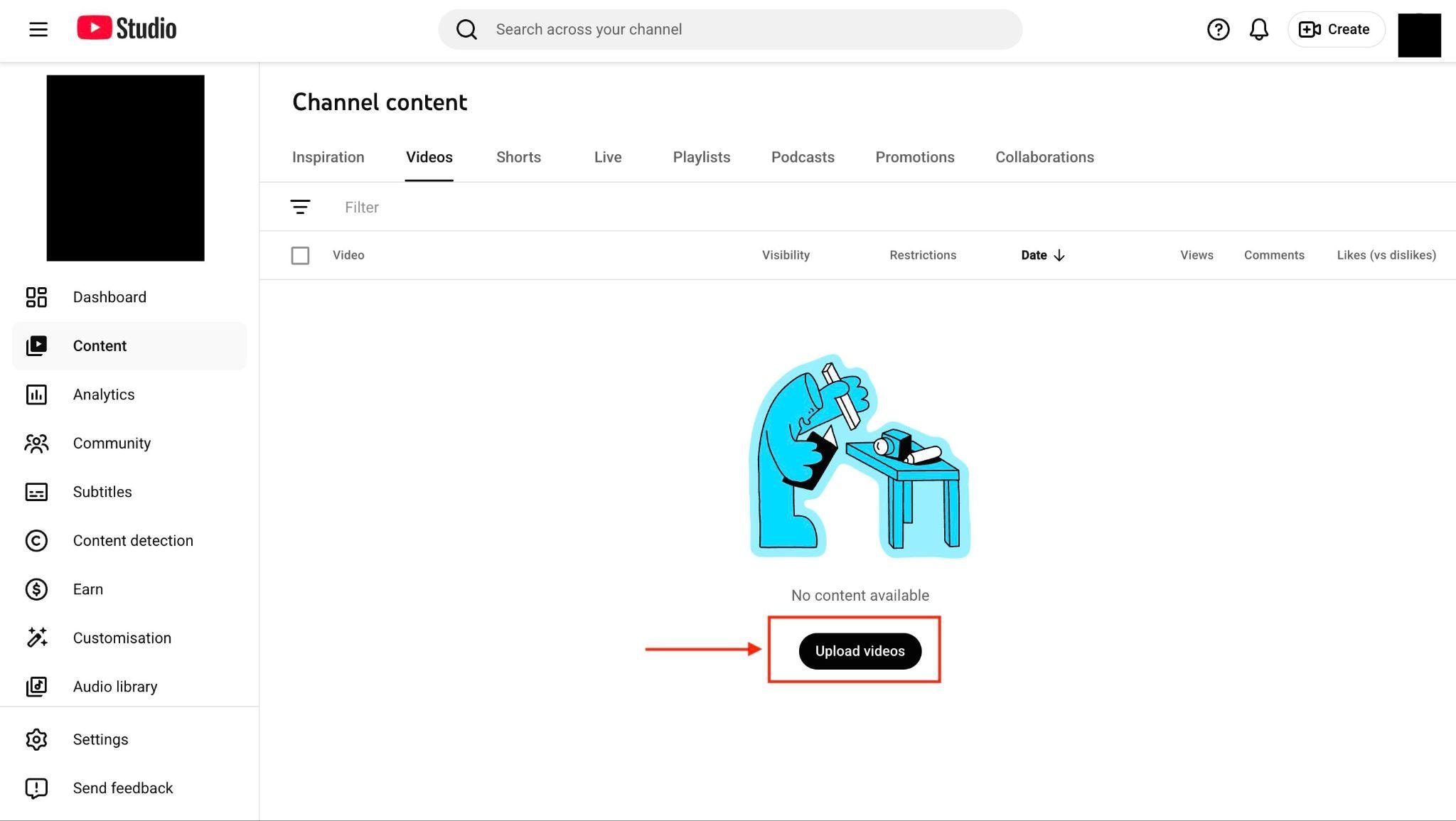
Step 3: On YouTube, click "Create> Upload Videos." Click Select Files, then choose the video you created for shorts.
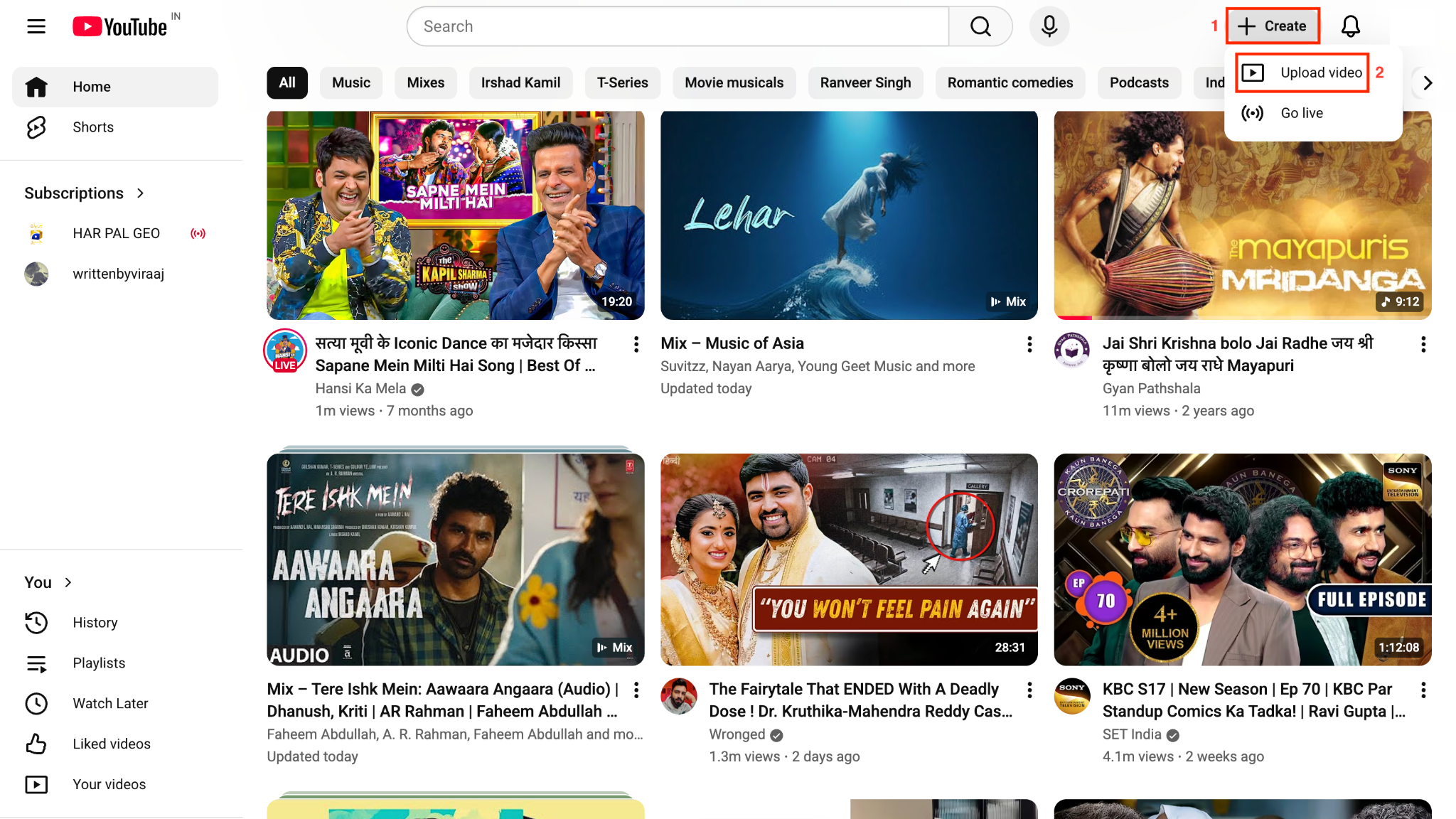
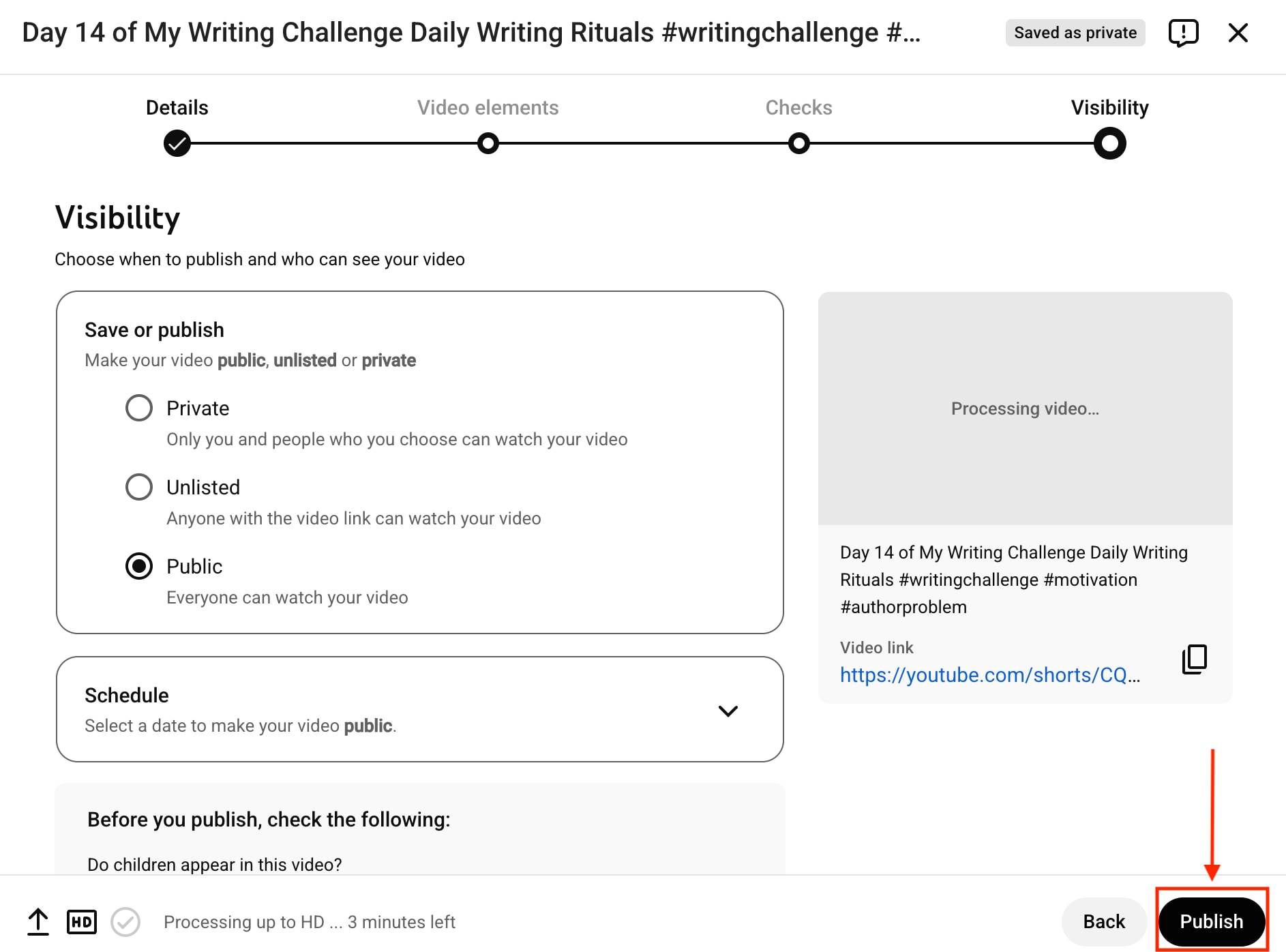
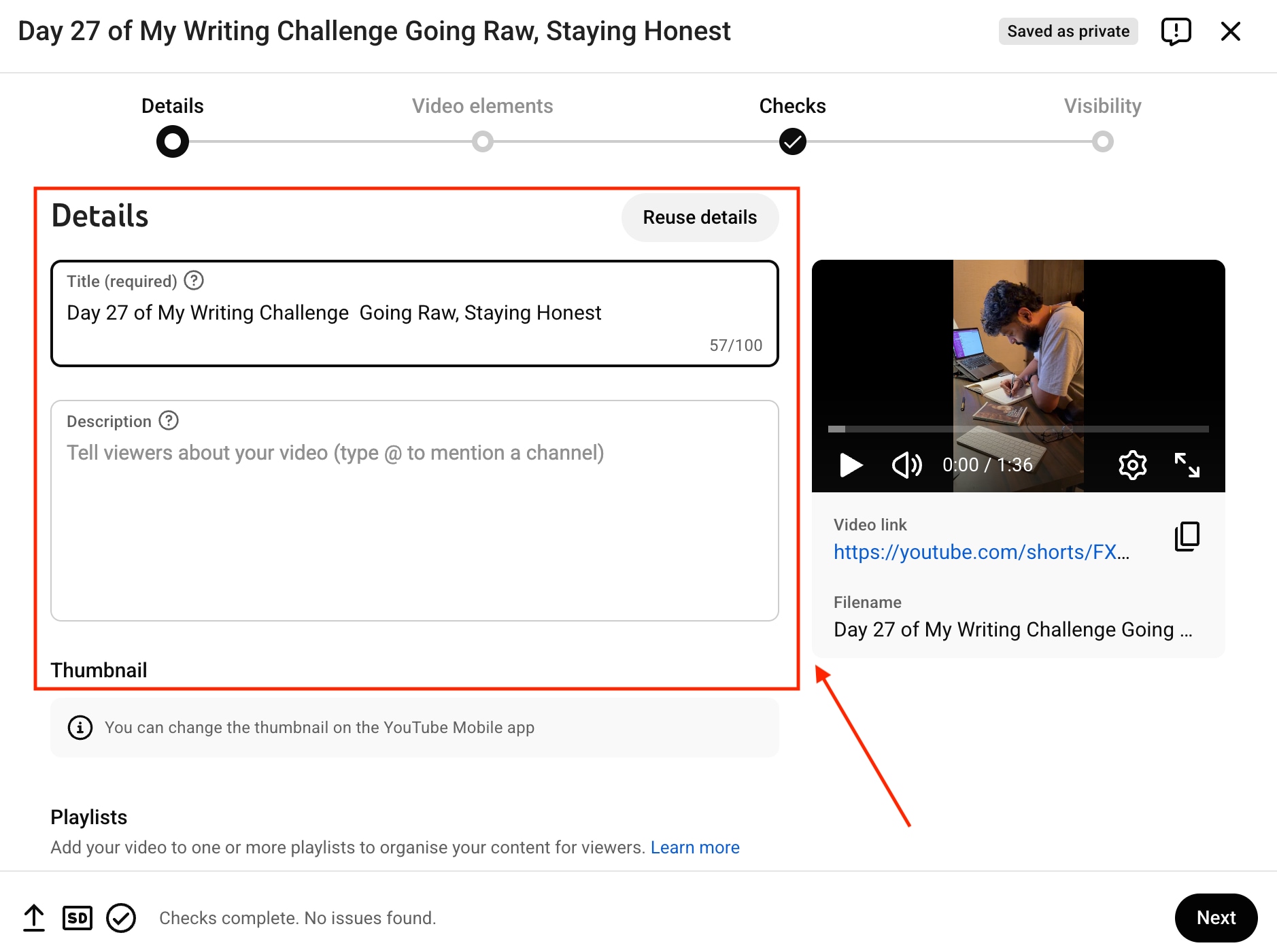
Step 4: Complete the uploading process, whether your video is for kids or not, add description, thumbnail, and in the end choose to save or publish it publicly and click the "publish" button, and your Shorts is live.
How to Craft YouTube Short Thumbnails & Descriptions
Thumbnails and descriptions matter for Shorts that appear in search results and on your channel page, even if they're less visible in the main Shorts feed. Many creators also search for how to add a thumbnail to YouTube Shorts, because a strong thumbnail can boost clicks wherever the Short appears.
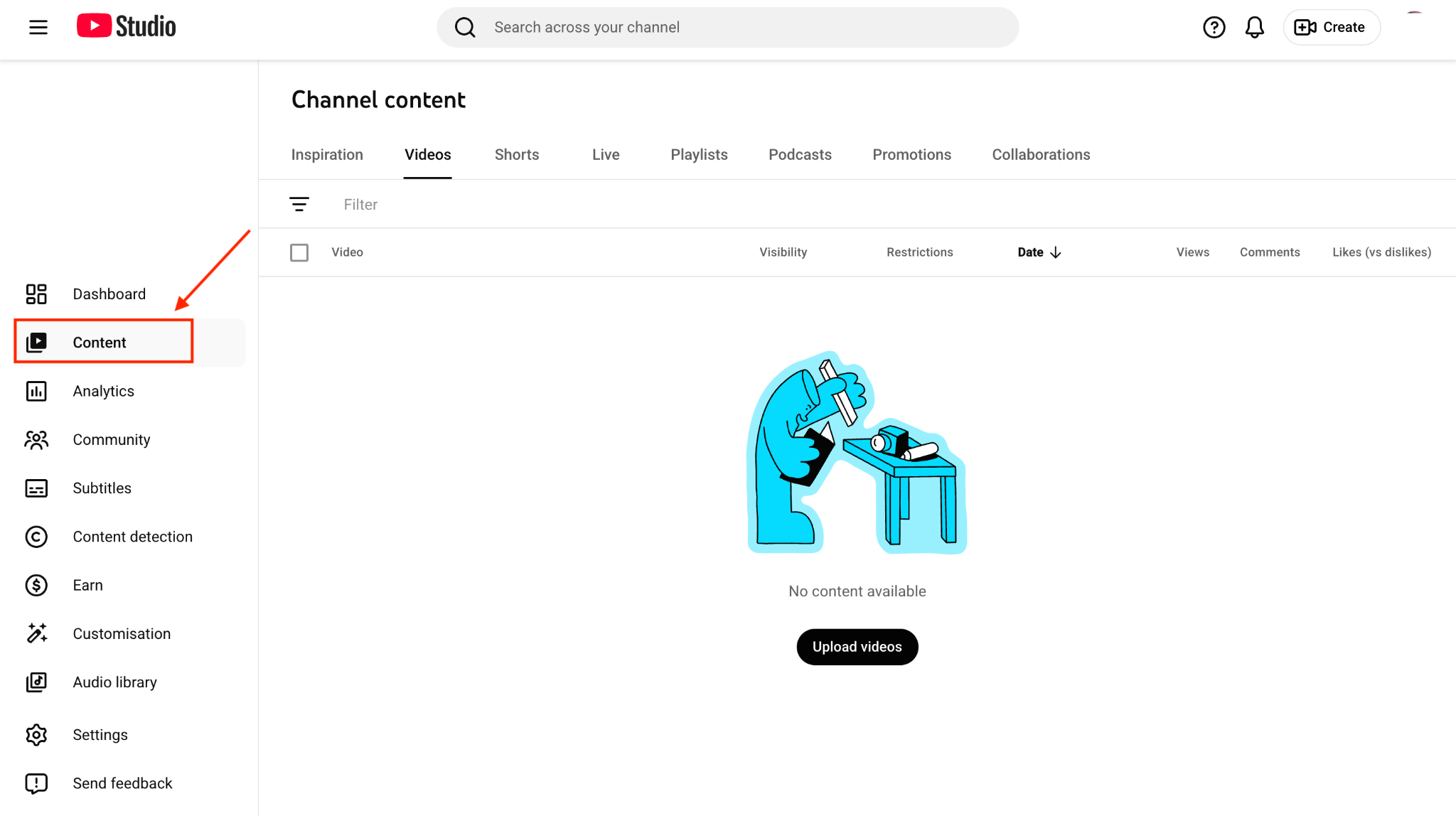
Step 1: Open YouTube Studio and go to the Content tab. Select the Short you want to edit to access its details.
Step 2: Inside the Details page, update the title to something short, clear, and engaging. Aim for around 40 characters so it displays well on mobile. Choose a hook or action phrase that encourages people to click.
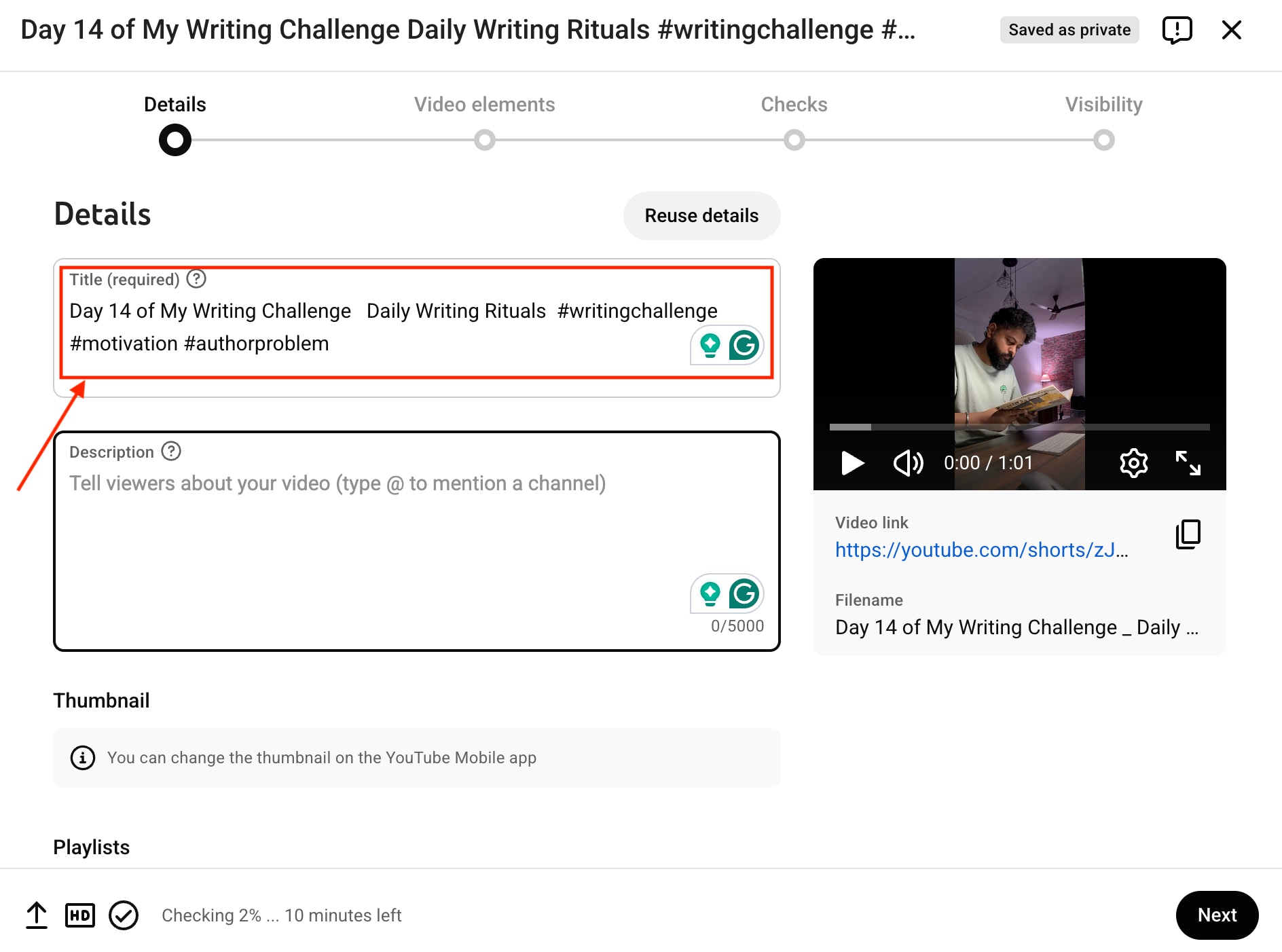
Step 3: Scroll to the description box and write a brief one– or two-sentence summary that tells viewers what the Short is about. Include relevant keywords and a few hashtags to help YouTube understand the context. You can add #shorts if you want, but it isn't required.
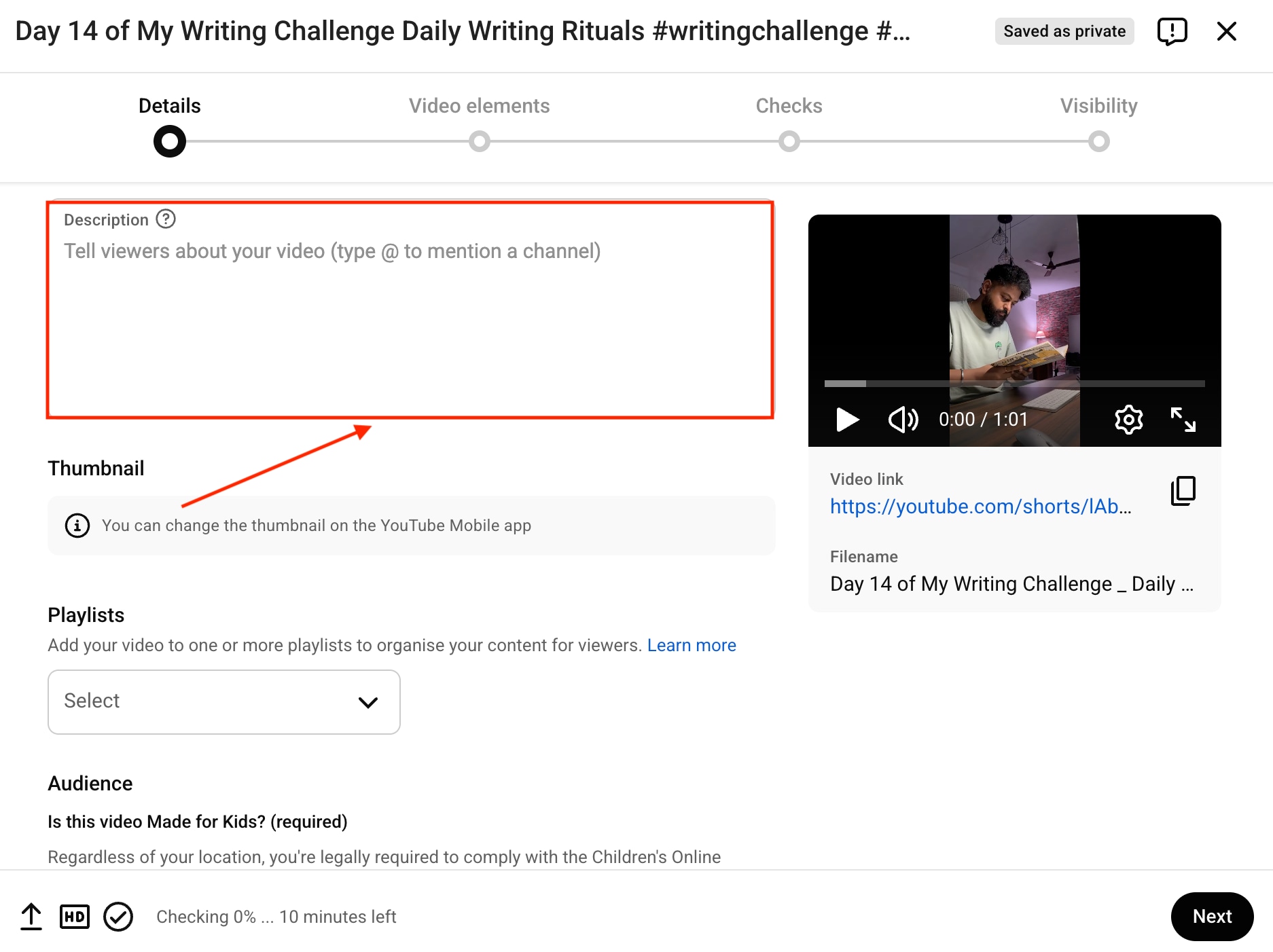
Step 4: In the thumbnail section, select Upload Thumbnail and choose a vertical 9:16 image, ideally 1080×1920. Make sure the thumbnail has bold text, clear visuals, and strong contrast so it looks good on small screens.
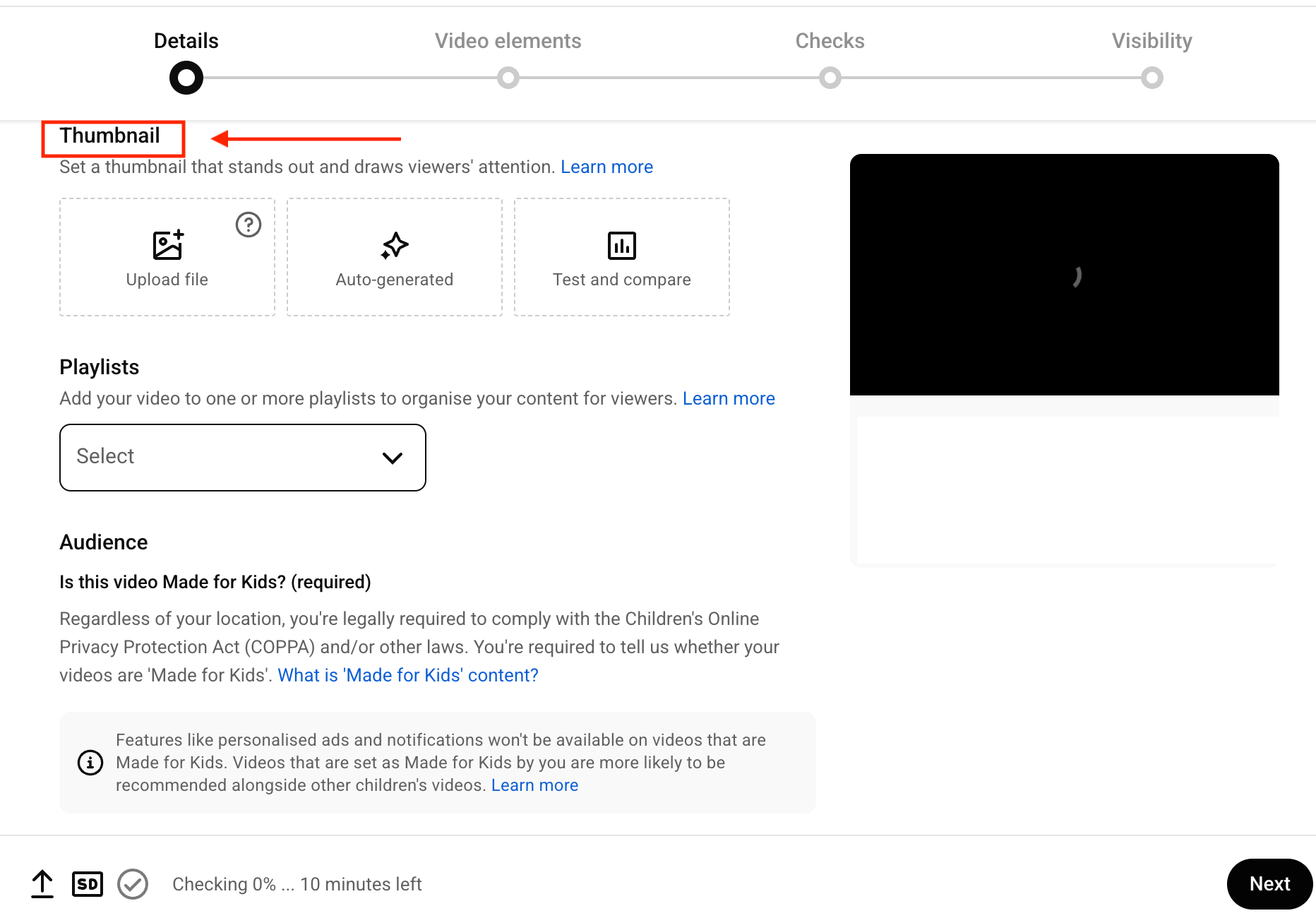
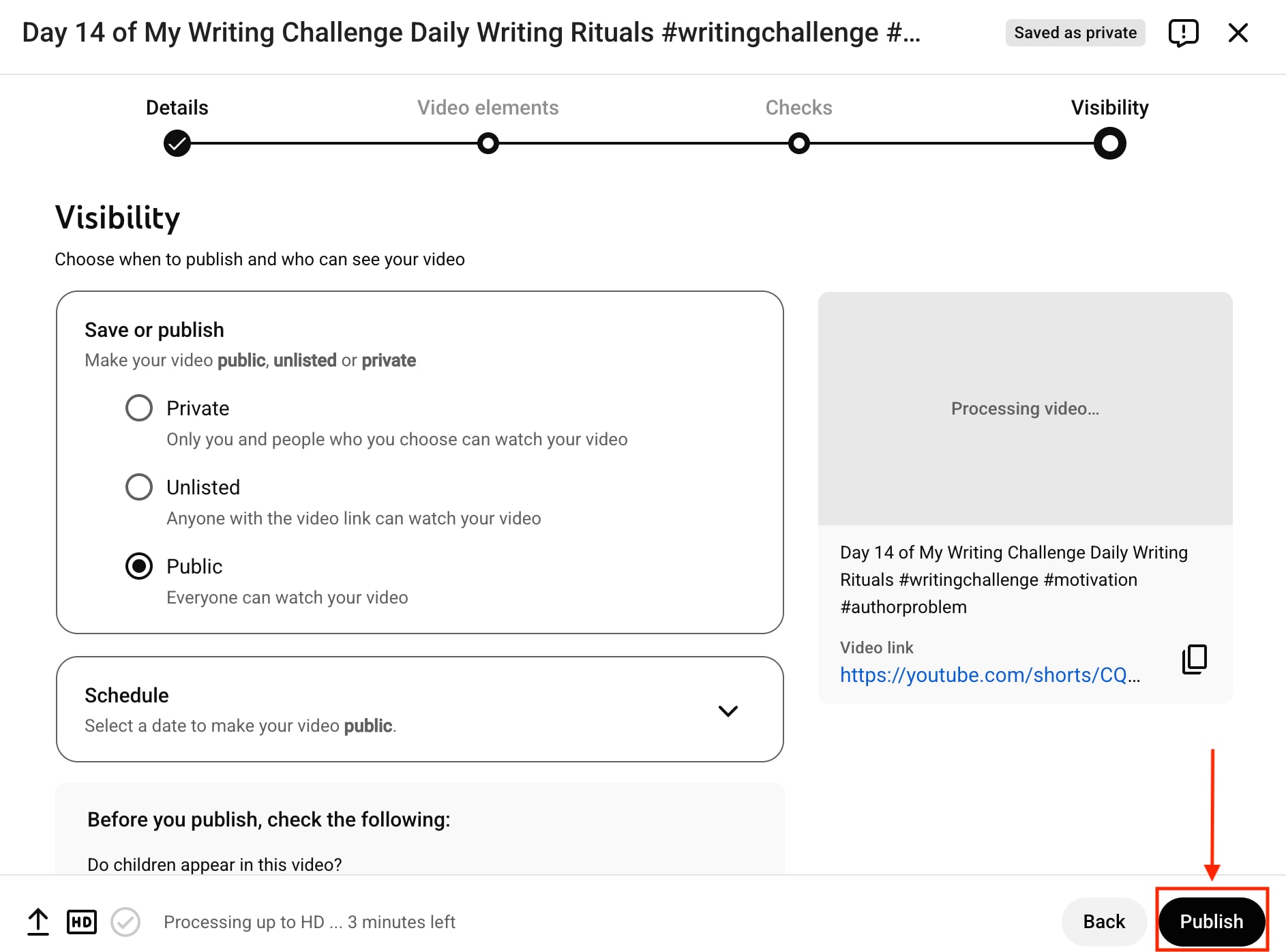
Step 5: Click "Next," complete the process to save the added thumbnail, then click "Publish" to finish the upload.
How to Post Your Short Video on YouTube
To post your Shorts video on YouTube, follow these simple steps:
Step 1: Open YouTube on your PC, click the "Create" button, and choose "Upload Video." Click on "Upload Videos" and select files.
Step 2: After uploading the file here, add details such as Title, Description, and Thumbnail.
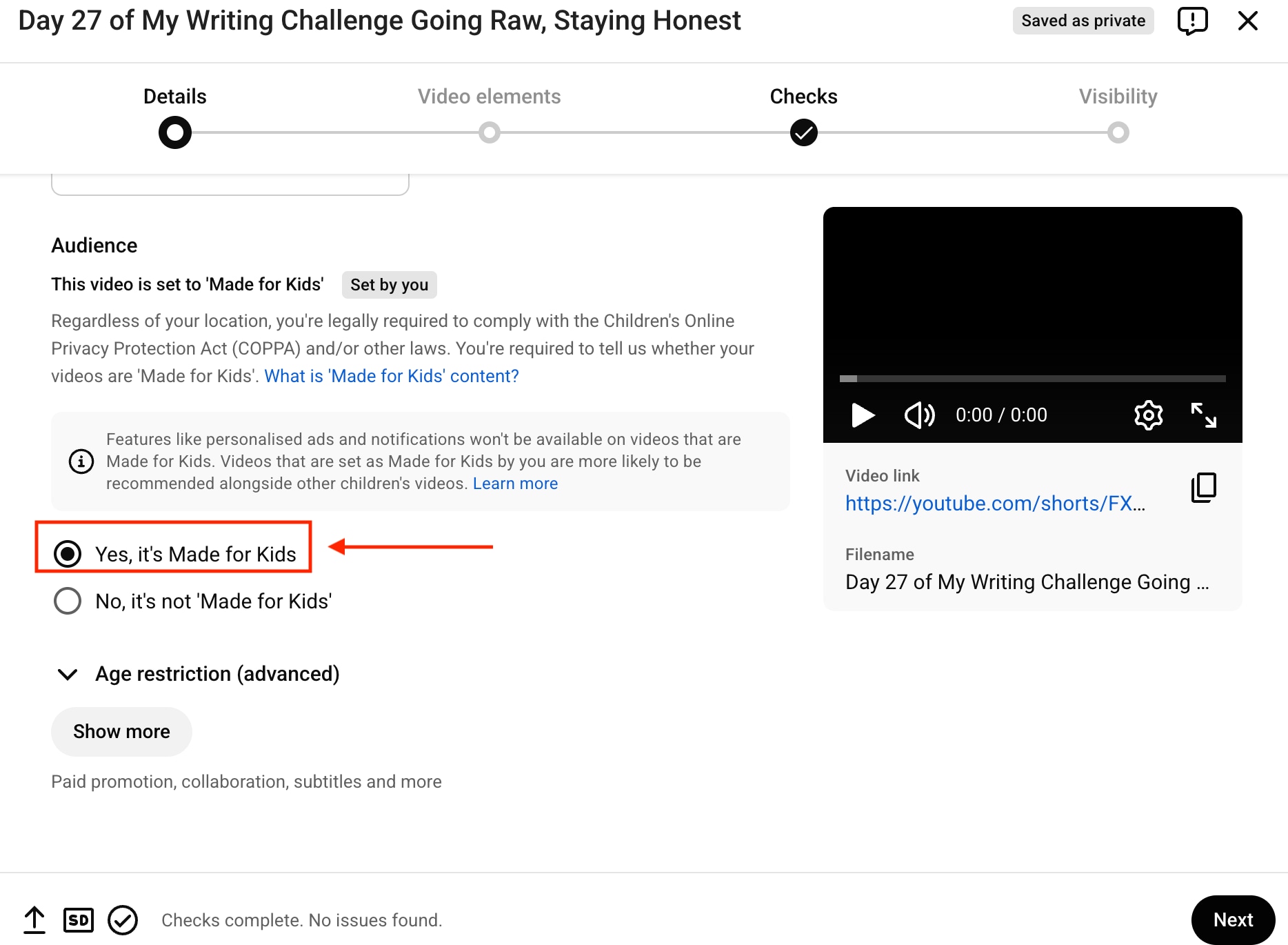
Step 3: Scroll down a little and choose the age restriction, if any, and choose between "Yes, it's Made for Kids" or "No, it's not Made for Kids. Click "Next."
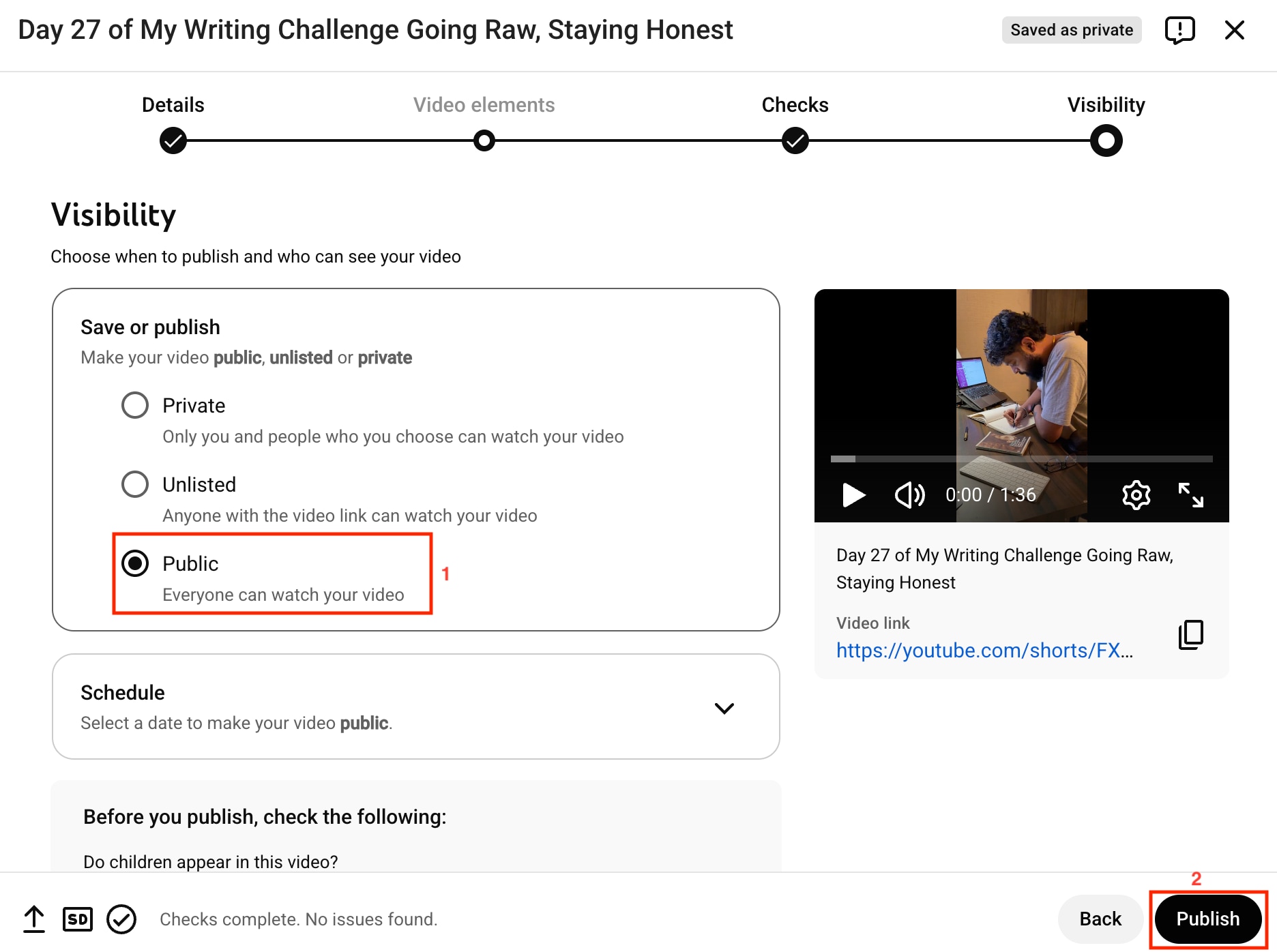
Step 4: In the last step under the Visibility option, choose "Public" to schedule your shorts. If you want to publish it, click "Publish."
Part 4. How to Batch Enhance Shorts' Original Footage for Better Visuals?
Creating high-quality Shorts doesn't always require expensive equipment. Most creators work with what they have: phone recordings, screen captures, or repurposed webinar clips. The problem is these raw files often look grainy, pixelated, or choppy when viewed on high-resolution smartphone screens, which kills viewer retention before the hook even lands. If your footage looks amateur, viewers assume your content is too, and they swipe away.
This is where Wondershare UniConverter Video Enhancer becomes a game-changer for Shorts creators. It uses AI to intelligently upscale, denoise, and smooth your footage, turning low-resolution or low-light recordings into studio-quality visuals. Instead of re-shooting content or starting from scratch, you can batch-process Shorts files at once and have them ready for upload within hours.
Key Features
UniConverter converts 720p or 1080p footage to crisp 1080p or 4K resolution.
- It removes grain and fuzz from videos with the Video Denoise feature. If you're recording interviews, tutorials in offices, or vlogs indoors, this feature eliminates the distracting noise that makes footage feel unprofessional.
- UniConverter lets you convert YouTube Shorts to text with its Speech-to-Text features.
- With MP3 Cutter, trim and edit audio tracks separately from video. It is useful when your Shorts have multiple audio layers, and you need to adjust timing or remove sections without re-exporting the entire video.
- The Subtitle Editor adds, edits, and styles captions directly within the tool. Since many viewers watch Shorts without sound, built-in subtitles significantly boost engagement and watch time.
How to Batch Enhance YouTube Shorts' Quality with UniConverter?
Here is how you can enhance the quality of Shorts up to 2K with UniConverter:
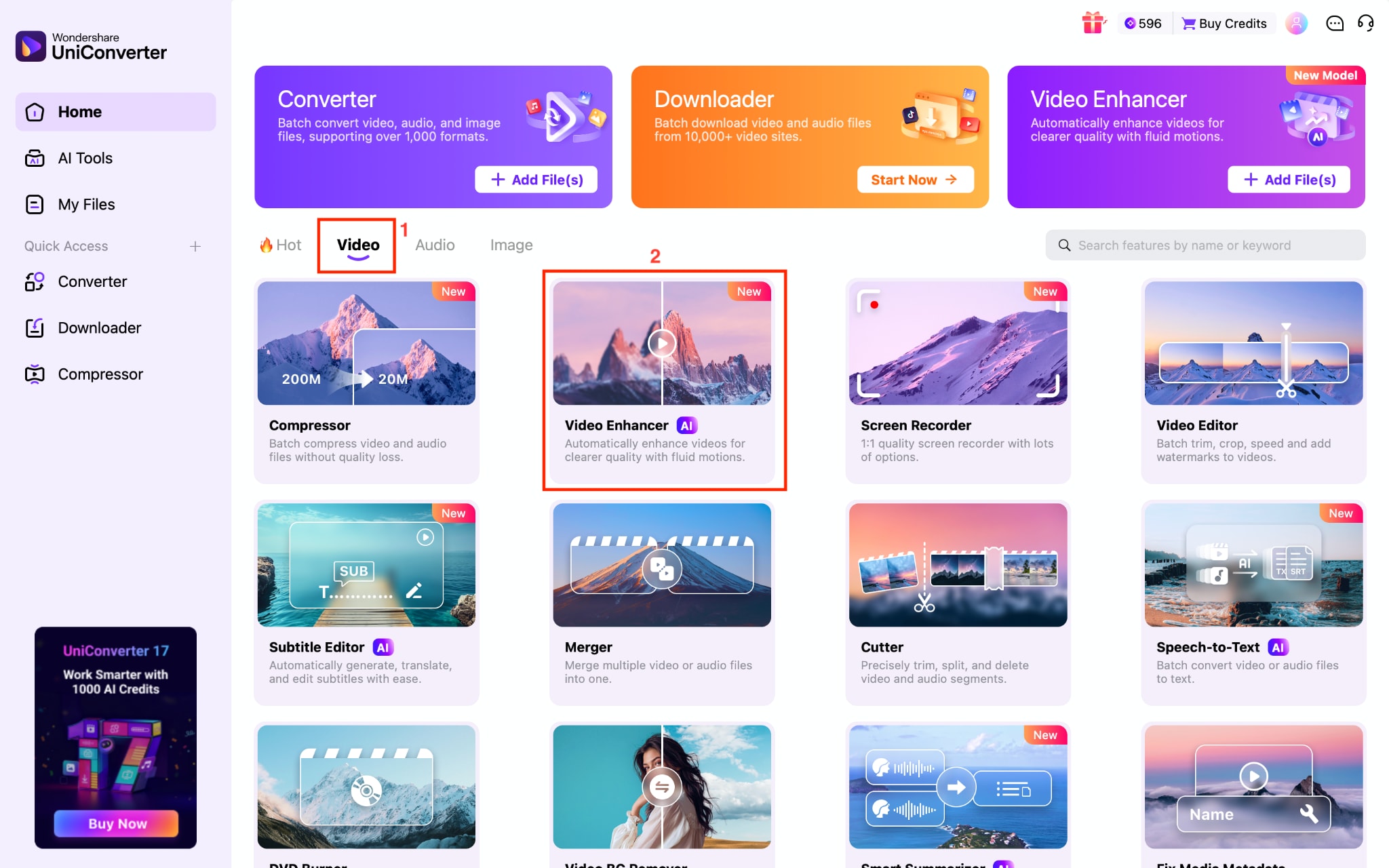
Step 1: On the homepage, navigate to the "Video>Video Enhancer" option.
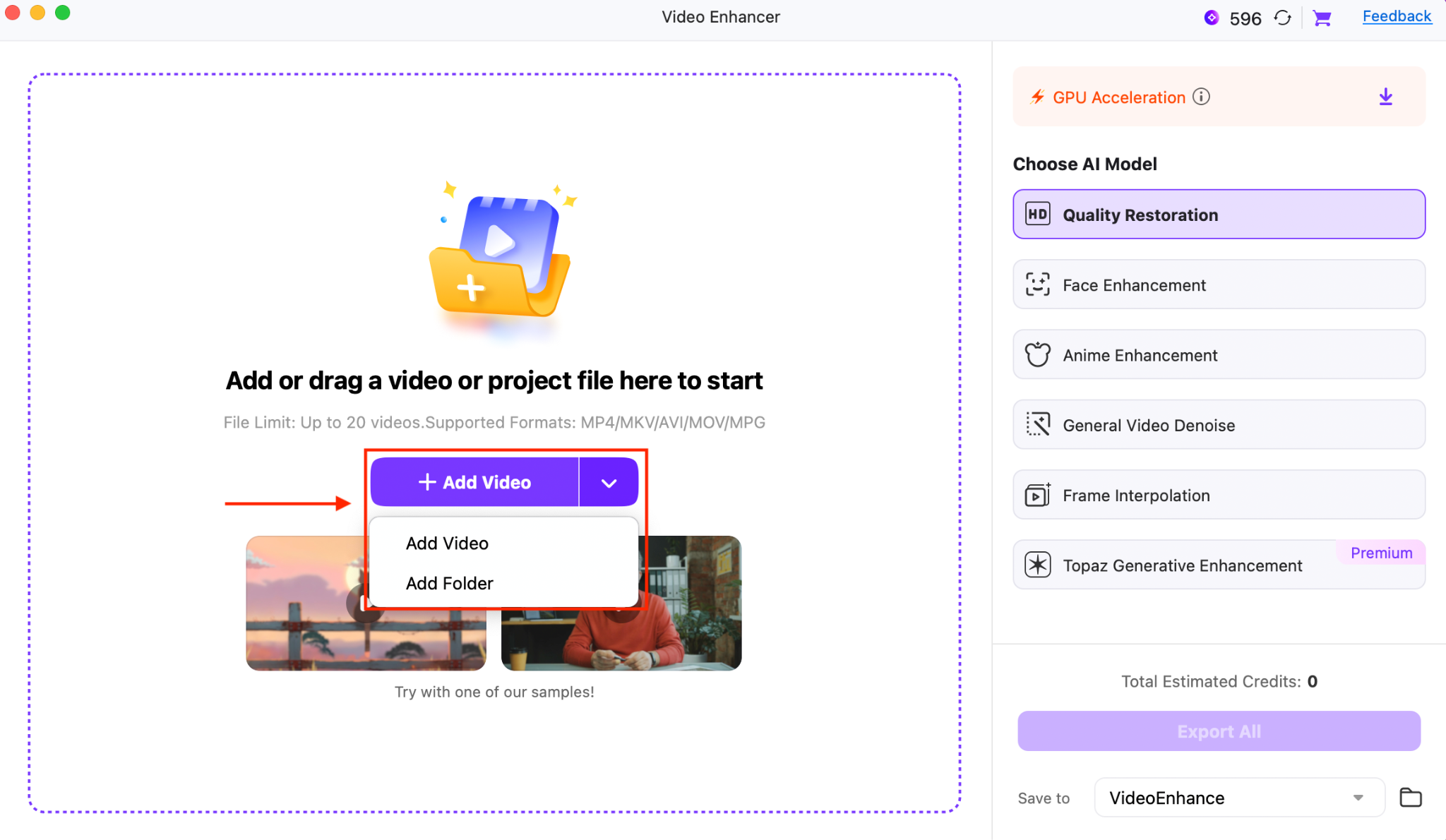
Step 2: Click "Add Video" to add files, or choose "Add Folder" to upload the entire Shorts folder.
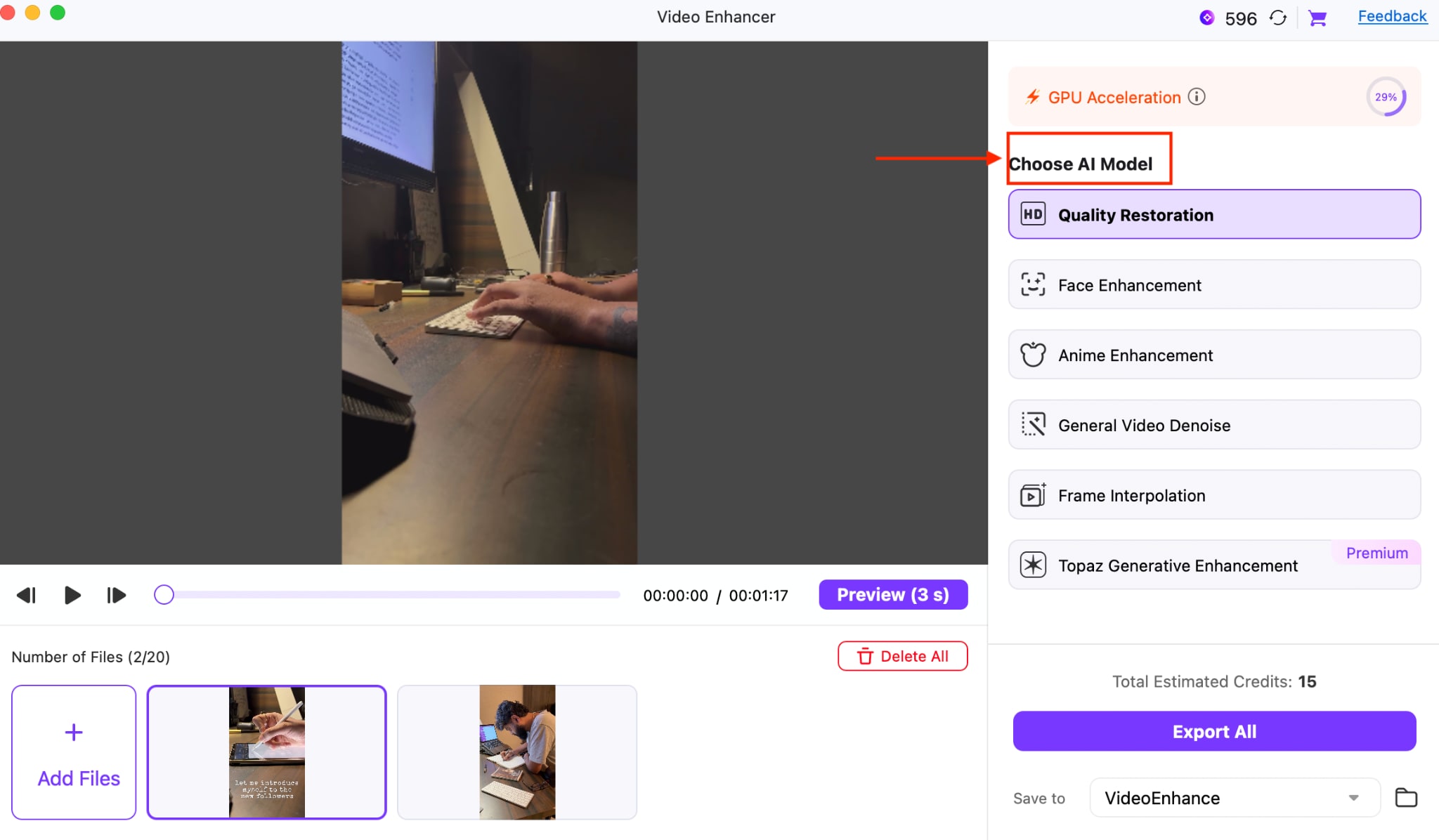
Step 3: Choose an AI Model to enhance the quality. You can do multiple things, such as quality restoration, face enhancement, anime enhancement, general video denoise, frame interpolation, and more.
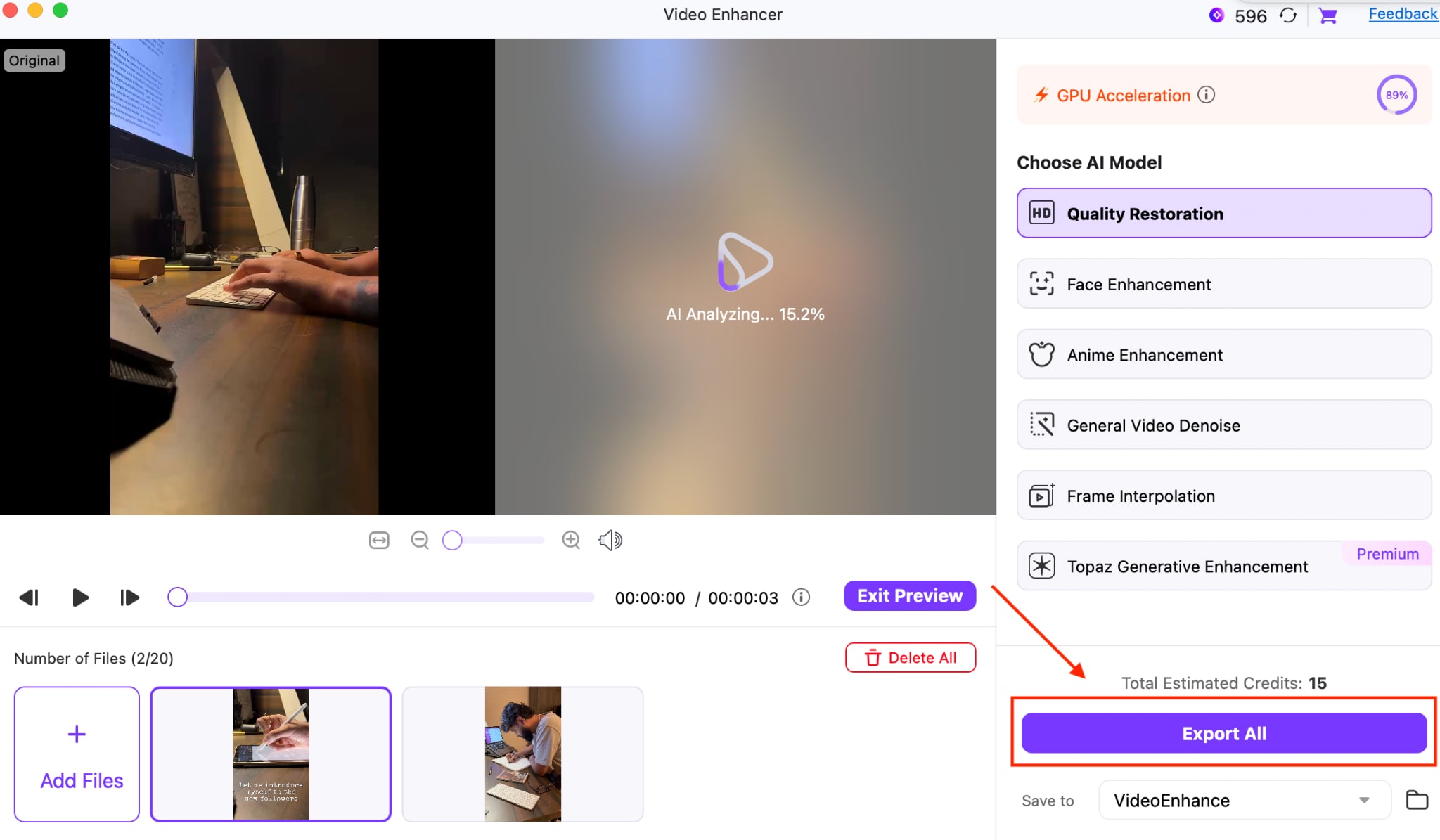
Step 4: Click on "Preview" to see the enhancement before downloading the final result, and click the "Export All" button.
Easy to Use YouTube Shorts Enhancer
Part 5. The Growth Playbook: How to Get More Views & Go Viral?
If you're wondering how to get more views on YouTube Shorts, the answer is that going viral isn't accidental. It comes from using the right creative formula, understanding viewer behavior, and repeating what works. This playbook gives you simple, high-impact tactics to enhance views, increase retention, and grow consistently.
The Hook is Everything: Grab attention in the first two seconds with a bold visual, quick tip, or surprising fact. Viewers decide instantly whether to keep watching, so deliver value immediately and make the opening impossible to scroll past.
Analyze Your Performance: Study YouTube Analytics to spot patterns in retention, replays, and traffic sources. Growth is a mix of strategy and luck, but data shows what your audience responds to, so you can double down on proven formats.
Evoke Strong Emotions: Shorts perform better when they spark emotion, surprise, humor, or awe. Tell a tiny story with a clear start, middle, and payoff. Emotional content makes viewers watch longer and share more, driving faster viral momentum.
Consistency is Key: Upload regularly so the algorithm sees your channel as active. Build series, sequels, or recurring themes to keep viewers returning. Consistency trains your audience and boosts your chance of landing on the Shorts shelf.
Leverage Trends & Sounds: Use trending sounds and formats to ride existing momentum, but always add your own twist. Unique angles help you stand out while still benefiting from what the algorithm is already pushing to large audiences.
Encourage Engagement: Ask viewers to comment, vote, or answer simple questions. Engagement signals boost distribution and help the algorithm reach more people with your Short. Polls and Q&As also build community and increase the number of returning viewers.
Conclusion
Understanding how long YouTube Shorts can be is essential if you want to create content that performs well on the Shorts shelf. With the new 3-minute limit, creators now have more room to tell stories, repurpose footage, and build audience engagement. But strong visuals still matter. This is where Wondershare UniConverter becomes a powerful advantage, helping you enhance clarity, upscale footage, and batch-process multiple Shorts quickly.
When your content looks polished and meets YouTube's specs, you give every Short a better chance to rank, retain viewers, and go viral.
FAQ
-
Can I make a 3-minute YouTube Short?
Yes. As of late 2024, YouTube expanded the maximum duration for Shorts to 3 minutes (180 seconds). Previously, the limit was 60 seconds. Any video under 3 minutes in vertical format (9:16) will appear on the Shorts shelf. -
Can YouTube Shorts be 2 minutes?
Yes. YouTube Shorts can range from 15 seconds to 3 minutes. A 2-minute Short is fully acceptable and will appear on the Shorts shelf as long as it uses a vertical 9:16 aspect ratio. -
How much money is 1000 views on YouTube Shorts?
Earnings depend on factors such as viewer region, content category, and monthly ad revenue distribution. Typically, creators earn between $0.10 and $0.30 per 1,000 Shorts views, though real rates may vary from as low as $0.01 to as high as $1. -
How do I earn money from my Shorts?
To monetize Shorts, you must join the YouTube Partner Program by reaching 1,000 subscribers and 10 million valid public Shorts views within the last 90 days. Once eligible, you receive earnings from the Shorts revenue pool according to your share of total monthly views. -
What content isn't allowed on YouTube Shorts?
YouTube restricts Shorts containing hate speech, harassment, violence, sexual content, dangerous challenges, self-harm, misinformation, or copyrighted material used without permission. Additionally, all content must comply with advertiser-friendly policies to remain eligible for monetization.

