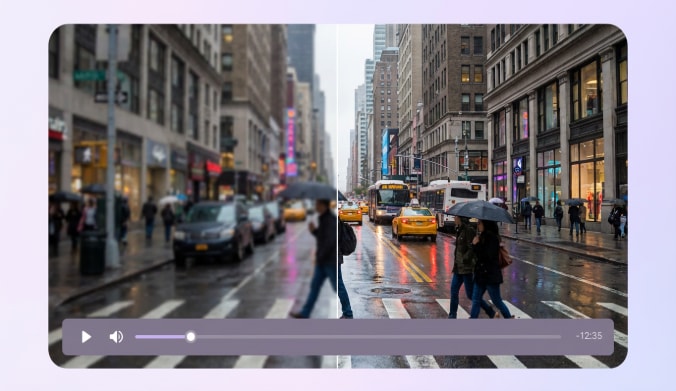
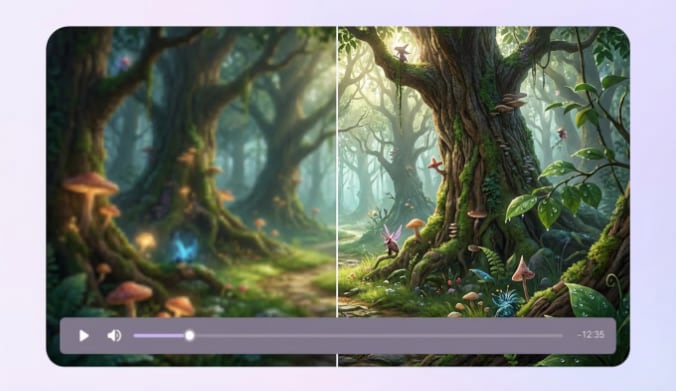
Brighten Dark Video with AI, Not Just a Brightness Slider
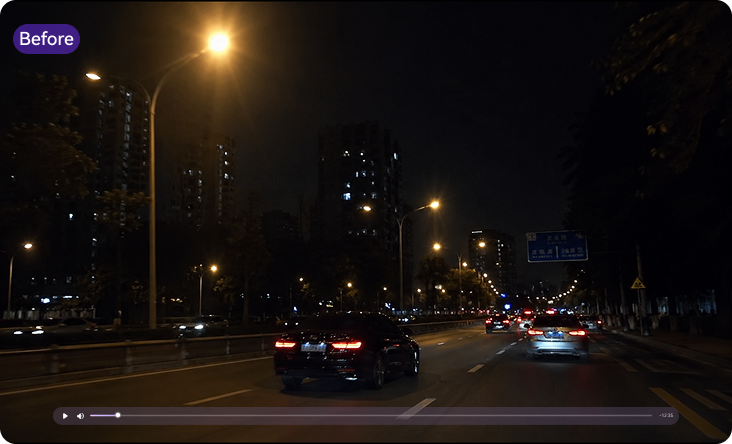

Make Low-Light Video Brighter Without Washed-Out Colors
Night shots, indoor clips, backlit scenes, and compressed footage can look dim for different reasons. A brightness slider only raises the light level. It may wash out colors, make grain more visible, and leave skin tones looking unnatural.
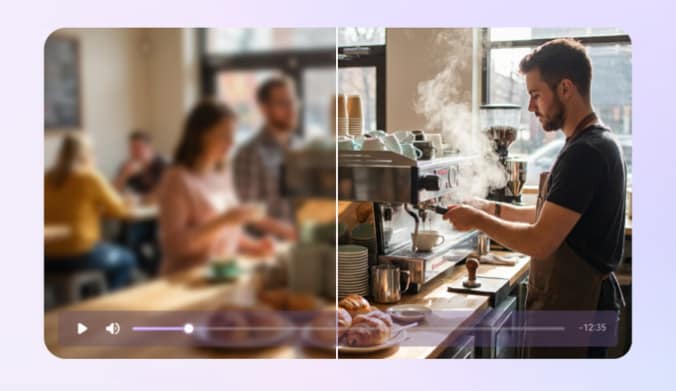
UniConverter uses AI enhancement to brighten dark video in a more balanced way. It helps make low-light video brighter without harsh overexposure, denoise video in dark scenes, and keep shadows, highlights, and skin tones more natural. You can improve clarity and preserve detail instead of simply making the whole video brighter.
AI Brighten Video: Make Dark Videos Brighter and Clearer
Brighten Dark Video Naturally with AI
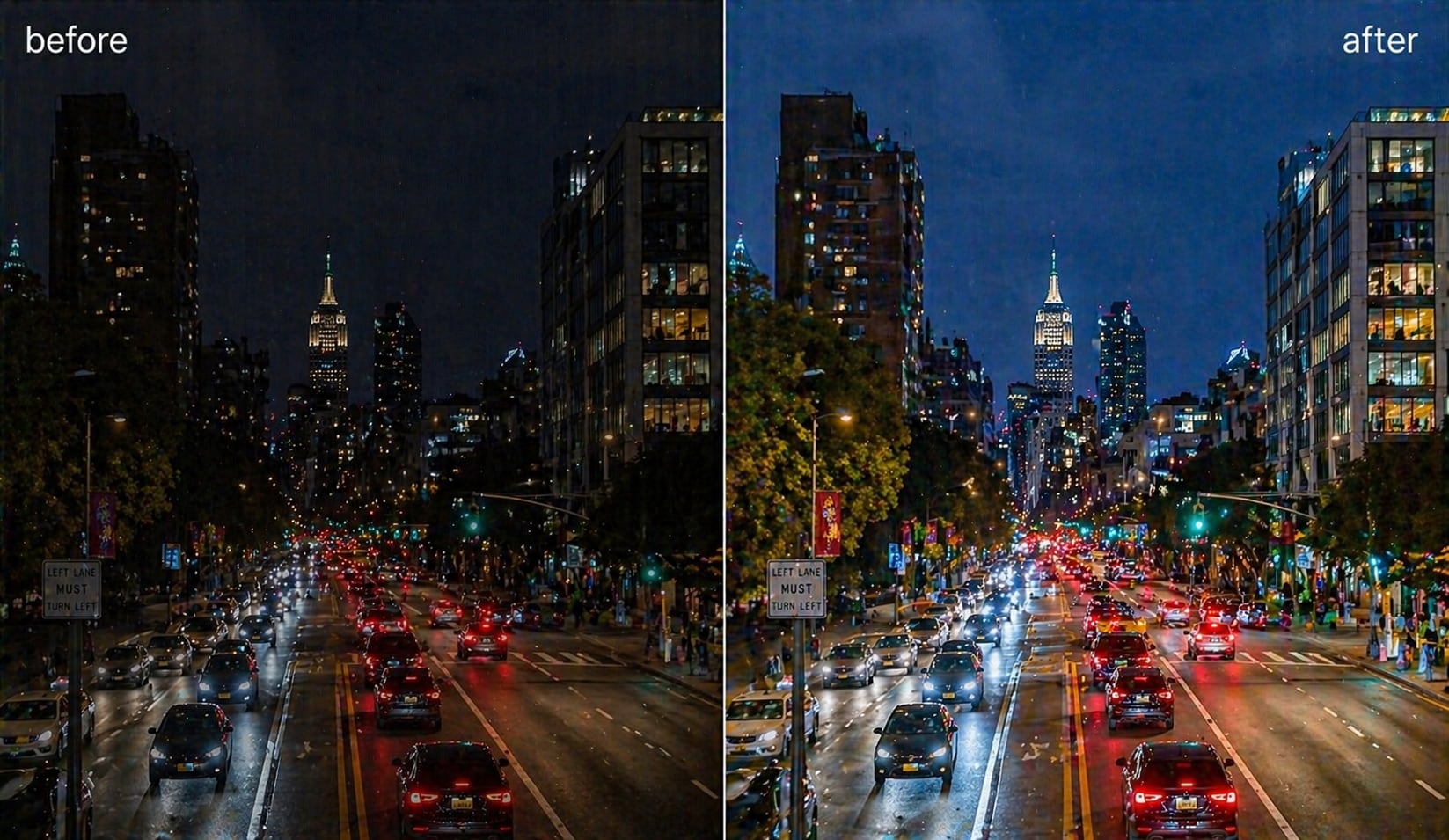
When you brighten dark video with a basic slider, faces and highlights can turn harsh. UniConverter uses AI video enhancement to lift low-light footage more evenly. It helps recover visible detail in night shots, indoor clips, and backlit scenes while keeping shadows controlled. You get a brighter video that still feels natural.
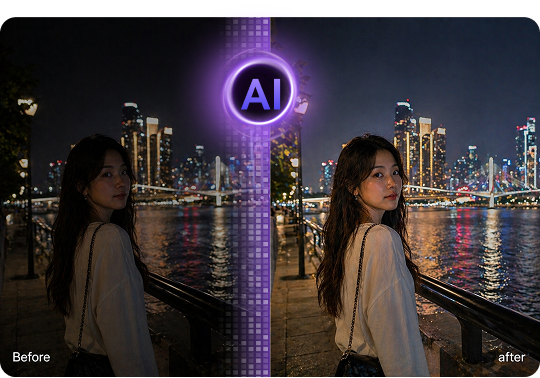
Reduce Noise in Low-Light Video Footage
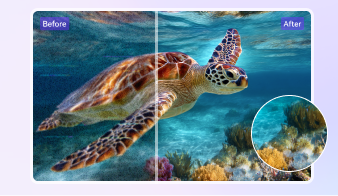
Dark clips often show grain after you increase brightness in video. UniConverter helps reduce noise in low-light video while improving clarity, so the footage looks cleaner after brightening. This is useful for night street videos, handheld indoor clips, and compressed files. You can make dim video clear without relying on heavy manual adjustments.
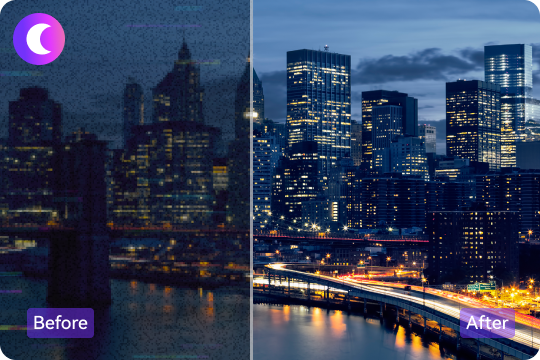
Restore Shadow Details and Natural Colors
Simple brightness edits can wash out colors and flatten contrast. UniConverter balances brightness, contrast, saturation, and exposure to help restore shadow details in dark video. It also protects skin tones and color depth where possible. Use it when you need to lighten dark video while keeping the result clear, balanced, and ready to share.
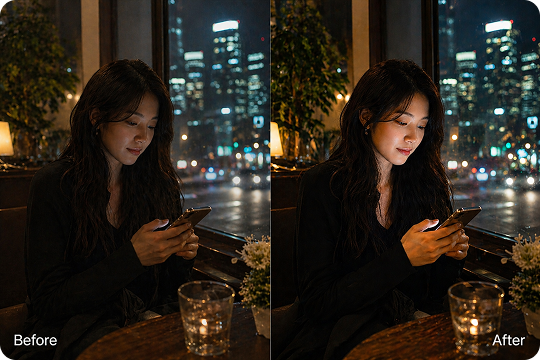
Sharpen Blurry Night Videos for Better Clarity
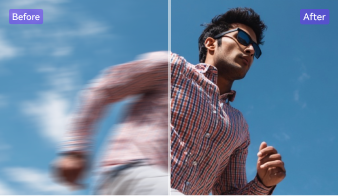
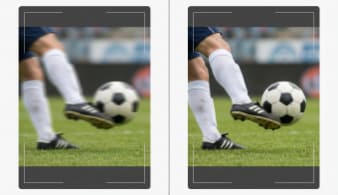
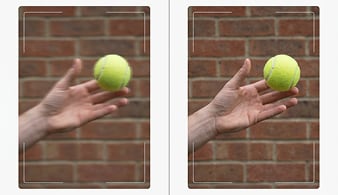
Low light and camera motion can make night footage look soft. UniConverter can sharpen videos that are blurry as part of the AI enhancement flow. It helps edges, textures, and objects look more defined after brightening. This makes it easier to improve video clarity for travel clips, events, family memories, or social posts.
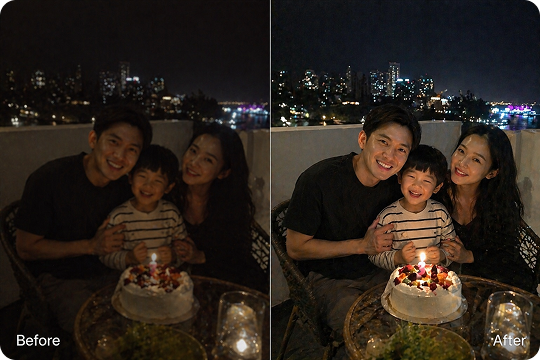
How to Brighten a Video in 3 Steps

Add your dim, underexposed, or low-light video to UniConverter. You can start from the desktop app or use the online option when you need a quick browser-based video editor.

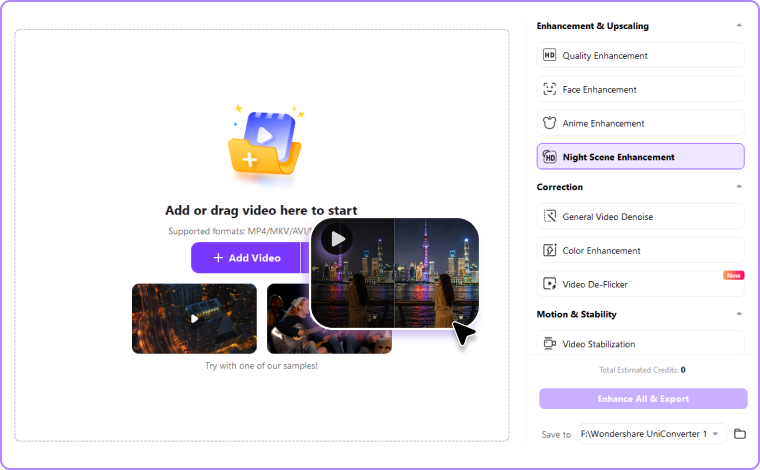
Head to AI Video Enhancer feature, and select AI night scene enhancement or a video enhancement model. UniConverter will analyze the footage and improve brightness, exposure, noise, and detail together.

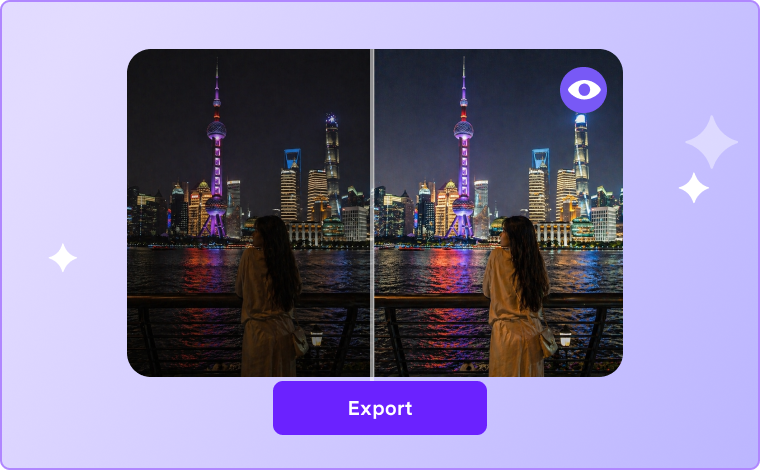
Check the result before you save it. Once the video looks clear and balanced, export the brighter version for sharing, editing, or uploading.

Brighten Video for Low-Light, iPhone, and Night Scenes
From night street clips to dark indoor recordings, UniConverter helps you brighten video in common low-light situations. Choose the scene that matches your footage, then use AI enhancement to improve brightness, reduce noise, and make details easier to see.
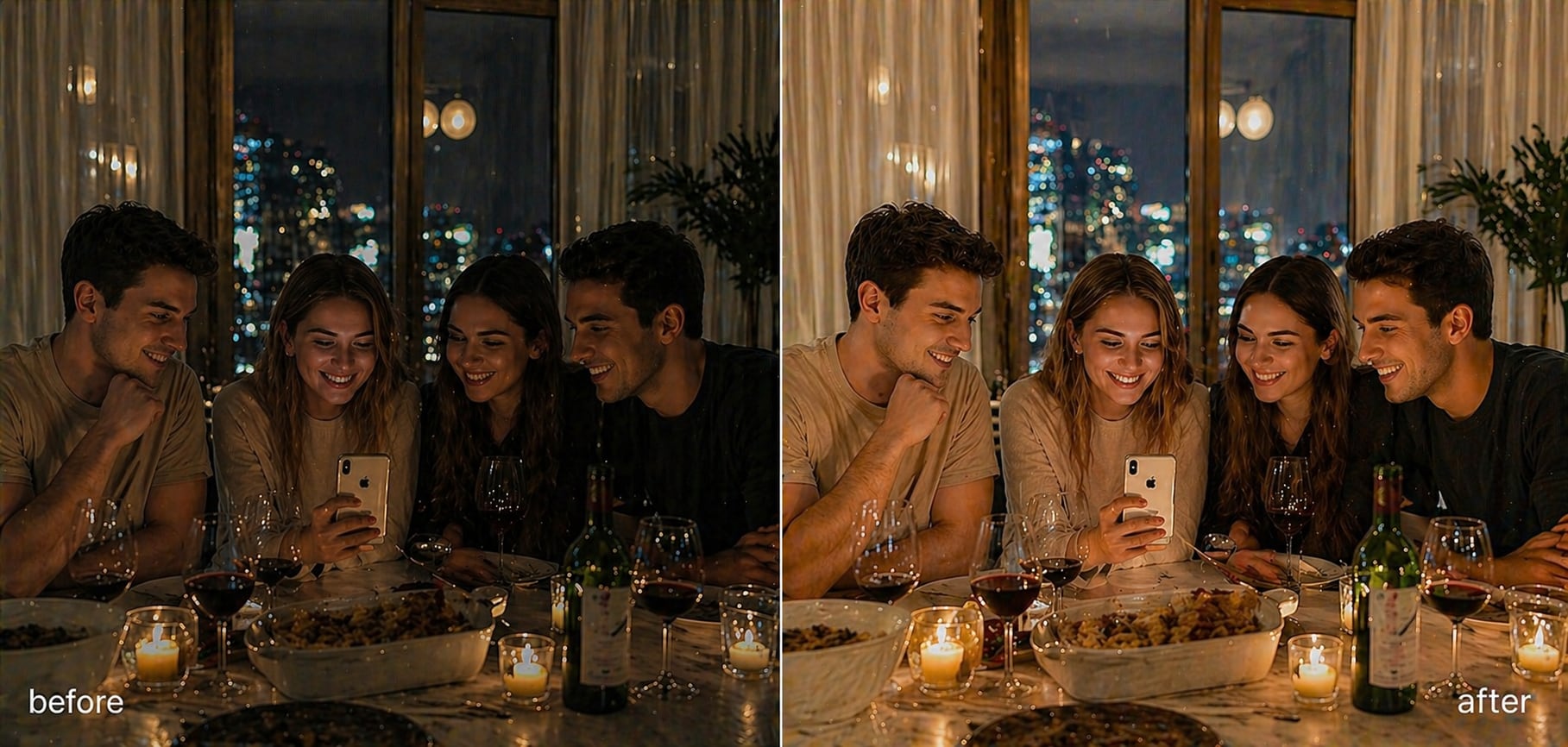
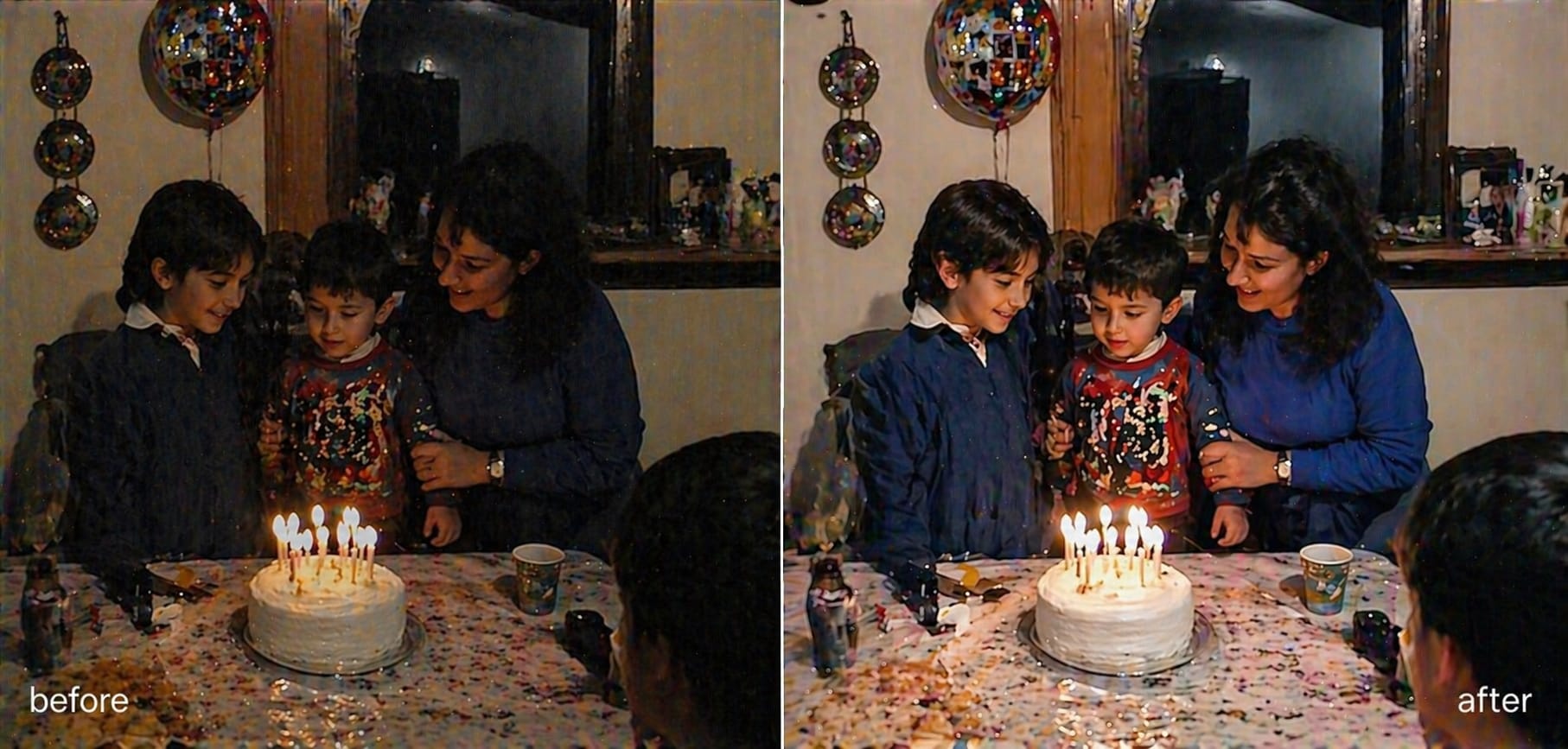
Brighten Night Street Videos with AI
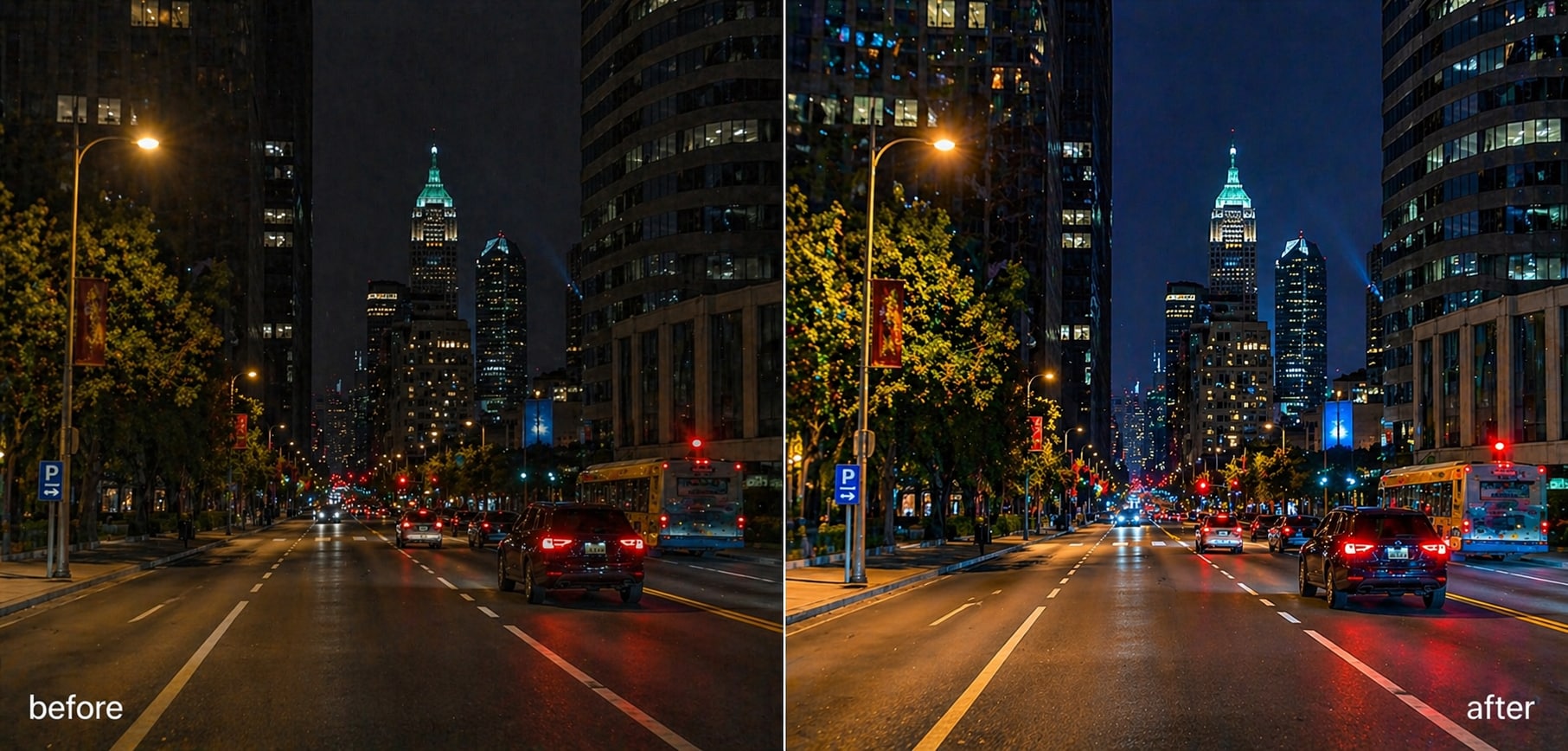
Street lights, moving cars, and dark backgrounds can make night videos hard to watch. UniConverter helps brighten night street videos while reducing noise and keeping highlights under control. Use it for travel walks, city scenes, concerts, or outdoor events recorded after sunset. AI enhancement lifts dark areas and sharpens visible details, so your footage looks clearer without becoming flat or overexposed. You can preview the brighter video before export and adjust your workflow with more confidence.
Fix Dark Indoor Videos and Improve Low-Light Brightness
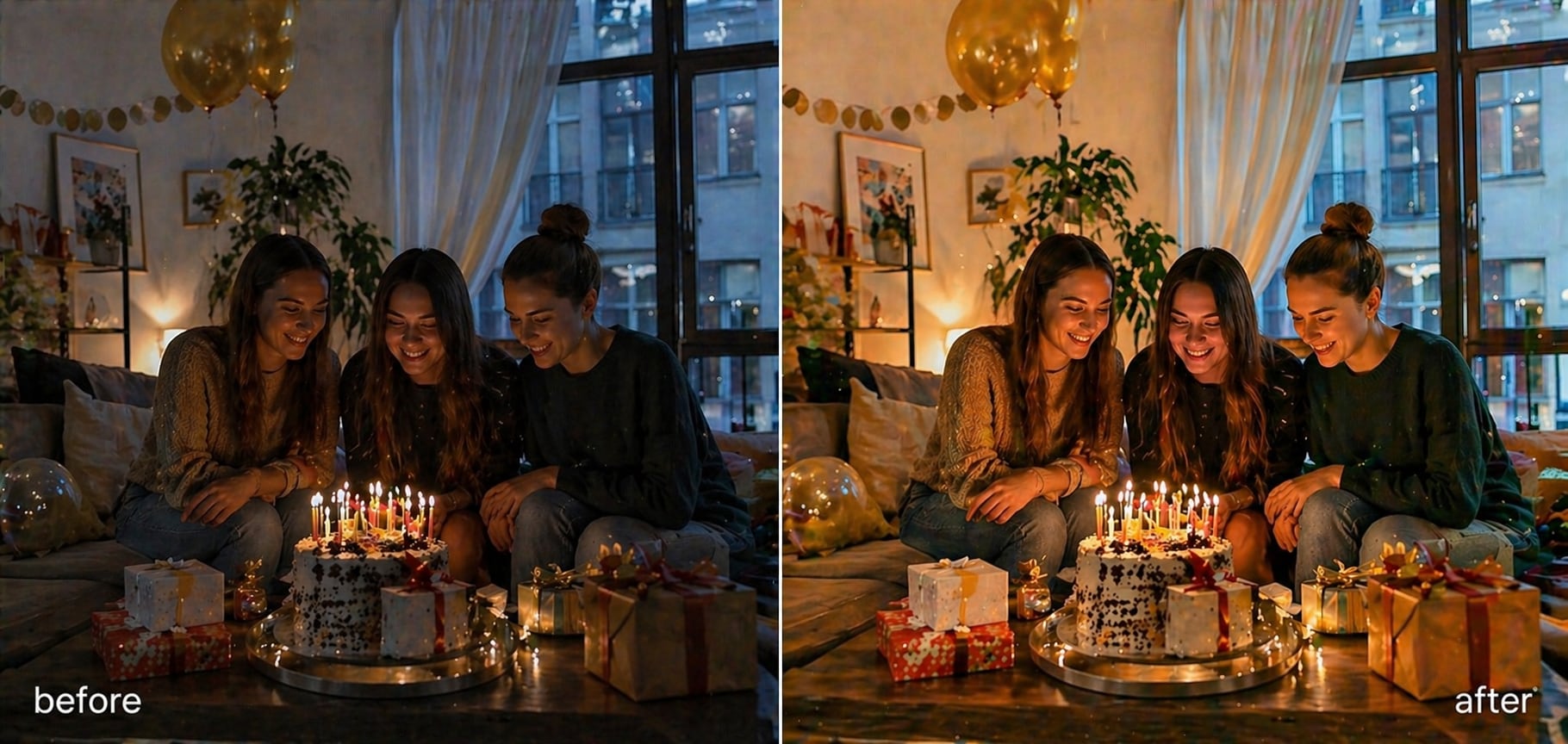
Indoor videos often look dim because of weak room lighting, mixed light sources, or strong window backlight. UniConverter helps fix dark indoor videos by improving brightness, exposure, and color balance together. Use it for class recordings, meetings, product clips, or family moments shot in low light. Instead of pushing one brightness slider too far, you can enhance the whole scene more naturally. Faces, objects, and backgrounds become easier to see while the video keeps a balanced look.
Make iPhone Videos Brighter After Recording
Some iPhone videos look dark when you record indoors, at night, or against bright windows. UniConverter gives you a simple way to make iPhone videos brighter after recording. Import the clip, choose AI video enhancement, and preview the brighter result before saving. It can help recover shadow details, reduce grain, and improve skin tones in low-light footage. This is useful when basic edits in Photos or iMovie do not give you enough control over the final look.
Enhance Old or Grainy Low-Light Videos
Old videos and compressed clips often lose detail in dark areas. When you brighten them manually, grain can become more visible. UniConverter helps enhance old or grainy low-light videos with AI brightening, denoise, and sharpening tools. Use it for archived family videos, downloaded footage, or older phone recordings. You can make a dark video brighter while improving clarity and reducing visual noise. Preview the result before export, so you can check brightness, detail, and color balance.
Manual Brightness Editor vs AI Brighten Video
A manual video brightness editor can help with small lighting fixes. AI brighten video tools work better when the clip is dark, noisy, or low in detail.
| Need | Manual Brightness Adjustment | AI Brighten Video with UniConverter |
|---|---|---|
| Brightness control | Raises overall luminance | Brightens scenes and improves detail together |
| Overexposure risk | Can make highlights look harsh | Helps balance highlights, shadows, and skin tones |
| Noise handling | May make grain more visible | Reduces low-light noise while brightening |
| Color correction | Often needs manual contrast and saturation edits | Helps balance brightness, contrast, saturation, and exposure |
| Detail recovery | Limited for dark or compressed clips | Helps restore shadow details and sharpen soft footage |
| Suitable use | Minor brightness correction | Dark video, night footage, indoor clips, and low-light videos |
| Workflow | Adjust sliders by hand | Choose an AI model, preview, and export |