
Standard
Best for everyday quality cleanup when the original dimensions are already usable.
Output optionsCheck available settings in your software version.
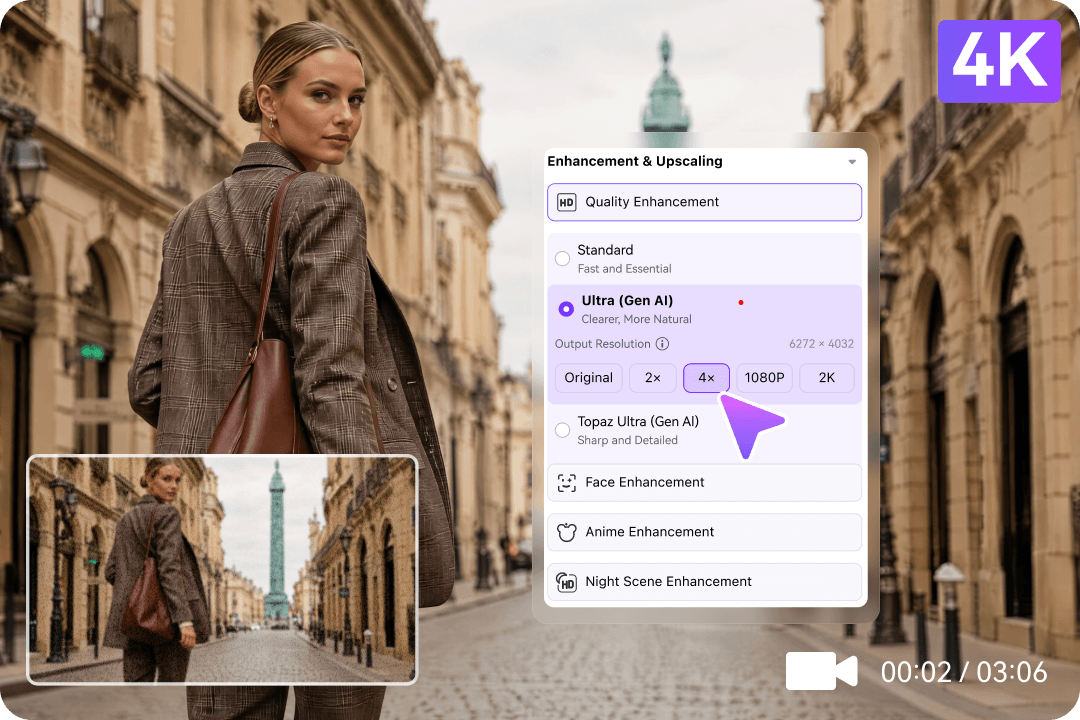
Compare the original and enhanced sample frames. Use the same source clip when testing models and inspect fine detail, text, and moving edges before exporting.


Illustrative before/after sample. AI-generated details may differ from the original scene; 4K availability depends on the model.
Upscaling increases output resolution; AI enhancement can also reduce visible noise and generate plausible texture. The finished picture depends on the original video and selected model.
DESKTOP SOFTWARE FEATURES
UniConverter combines 4K video upscaling, AI quality enhancement, and a flexible desktop workflow—so you can turn low-quality footage into clearer, ready-to-share videos.
4K VIDEO UPSCALING SOFTWARE
Turn smaller video files into higher-resolution footage with AI. Choose 2× or 4× enlargement or an available HD or 4K output option to give old clips and everyday recordings more room to shine.
AI-POWERED DETAIL ENHANCEMENT
An effective video upscaling program does more than increase frame size. UniConverter enhances visible detail, reduces compression softness, and improves overall clarity for more polished playback.

ALL-IN-ONE AI UPSCALING TOOLS
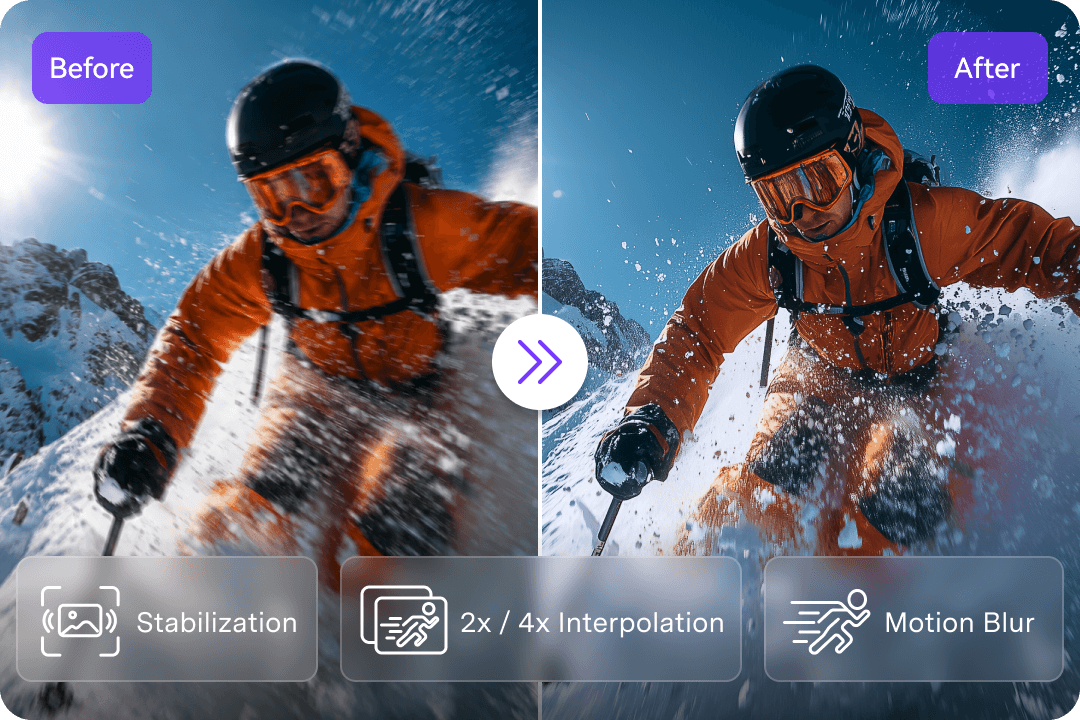
Use specialized AI tools to improve portraits, animation, dim footage, noise, and color—all from the same desktop software. Give each type of video the attention it needs.
BATCH VIDEO UPSCALING WORKFLOW
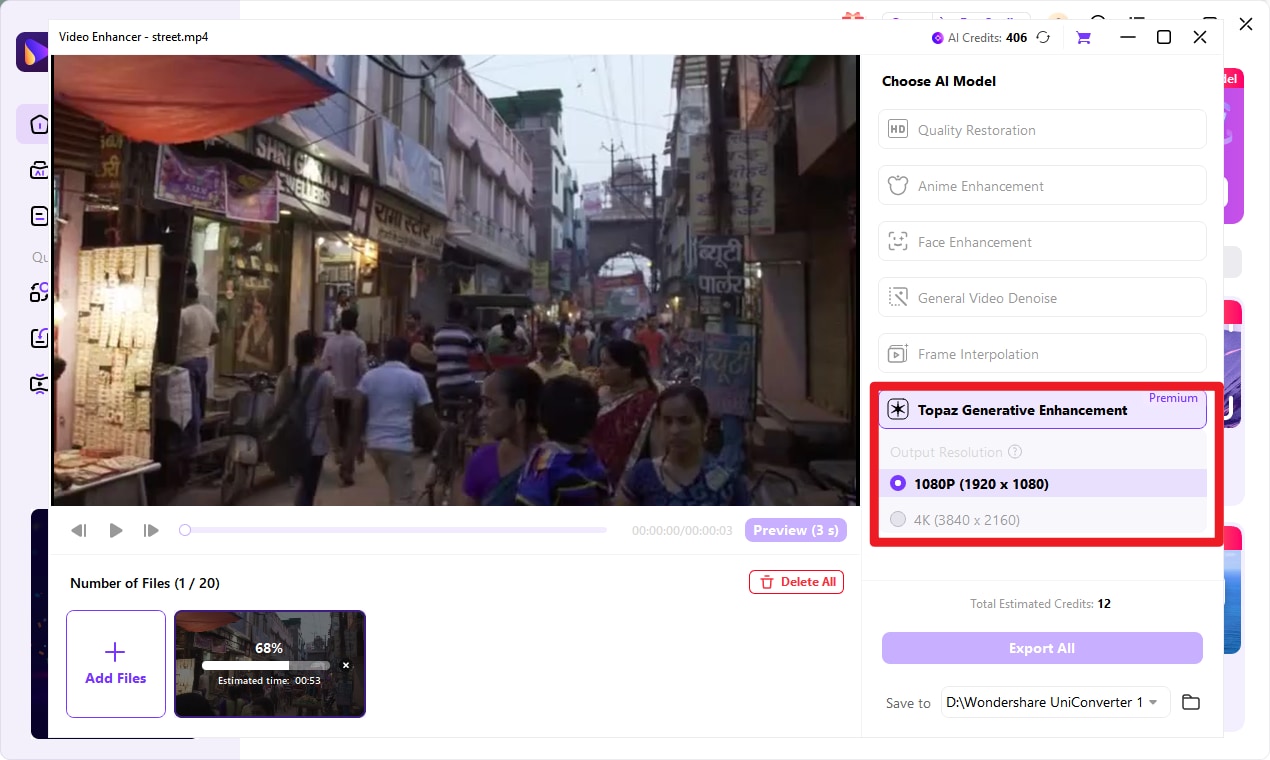
Work on more than one clip without repeating every step. Import videos or folders, preview the enhanced look, then export your selected jobs from one organized video upscaling software workspace.
CHOOSE YOUR AI MODEL
Choose the enhancement mode that fits your video. These three options balance speed, natural-looking detail, and high-resolution output.
Best for everyday quality cleanup when the original dimensions are already usable.
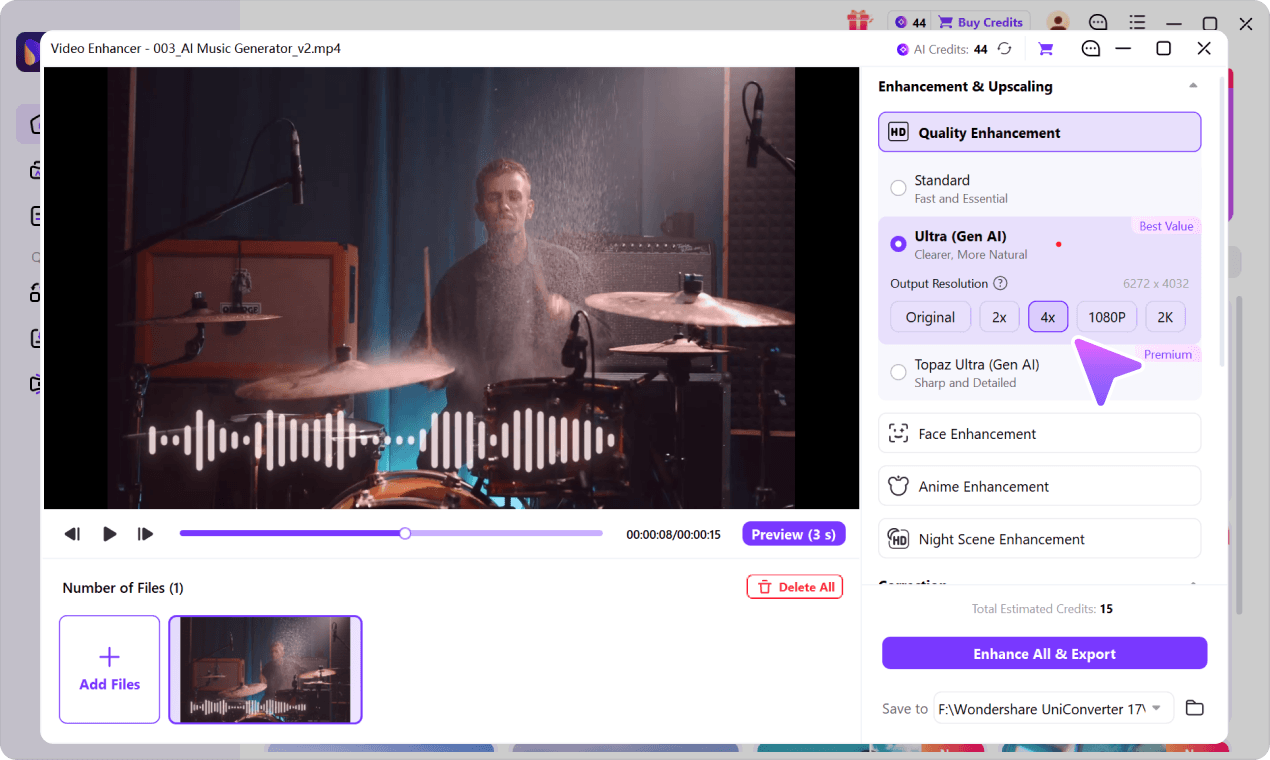
Improve compressed or low-detail clips with generative enhancement and flexible enlargement choices.
Prioritize sharper-looking textures and choose a target output for 4K-ready projects where the model supports it.
Get started with the UniConverter desktop video upscaler in three simple steps.

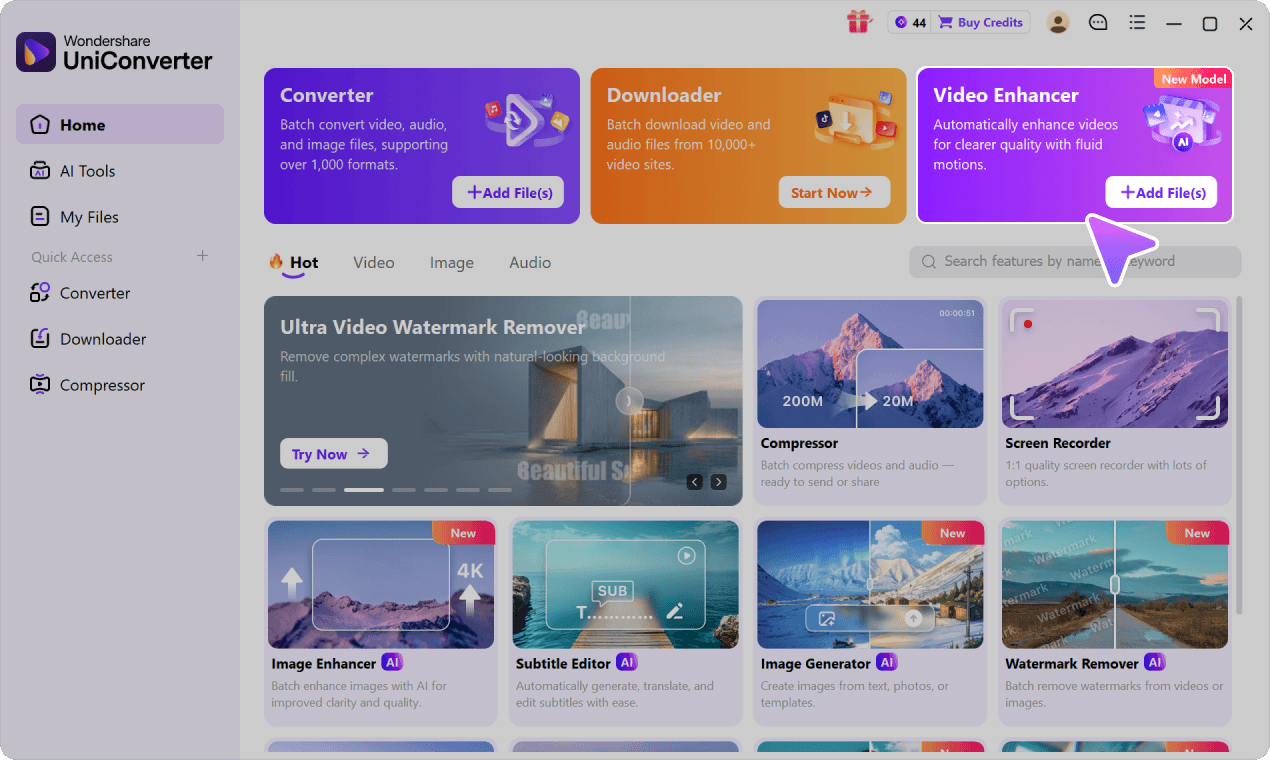
Open UniConverter Video Enhancer. Drag and drop a video, add multiple clips, or import a folder.

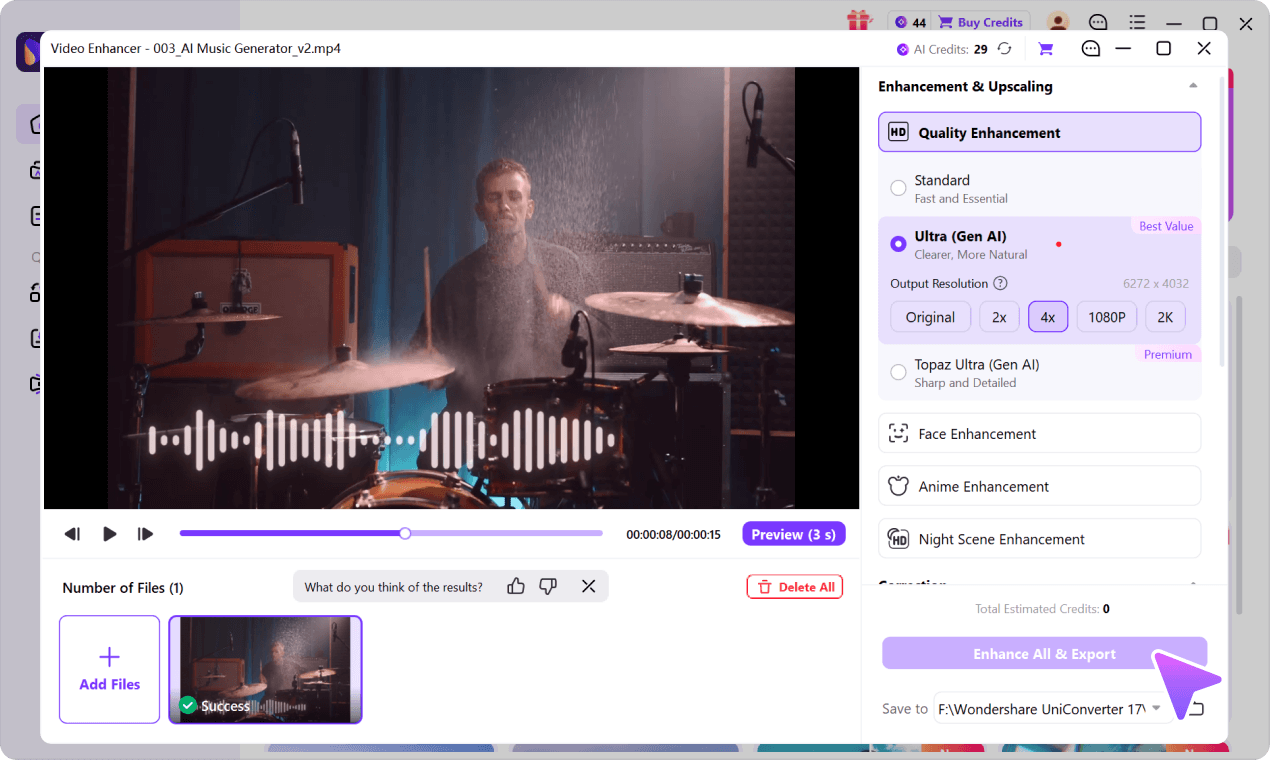
Select Quality Enhancement and choose a suitable AI mode with a 2×, 4×, HD, or 4K setting where available.

Preview the improved footage, choose where to save it, and upscale your video or export the full queue.
CHOOSE YOUR WORKFLOW
Try a browser tool for a quick one-off clip. For higher-resolution output, AI model choices, and repeat projects, download video upscaling software for Windows or Mac.
For a quick, single-clip quality check.
Online access and export rules can change; check the tool before uploading.
For more control over upscaling and repeated exports.
WHAT CAN YOU UPSCALE?
Choose your source type first; the most useful enhancement is the one that solves its actual visual problem.
Make low-resolution family recordings clearer for modern screens.
Check faces and archival authenticity in preview.Improve compressed clips before republishing or editing.
Look closely at titles, captions and motion.Improve visible surfaces and details for larger-screen presentations.
Compare fine textures with the 4K upscaling mode.Enhance line art and detailed gameplay capture without simply enlarging pixels.
Try specialized enhancement for animation.FREQUENTLY ASKED QUESTIONS
Find out how to upscale video resolution, improve blurry clips, and choose a video upscaling program for your workflow.

Download UniConverter AI video upscaling software for Windows or Mac. Enhance blurry clips, choose higher-resolution output, and make video upscaling easier with preview and batch processing.

