

UniConverter
UniConverter Online Free
Converter video, audio & image free
Free Try
AI-Powered Video Quality on Mac

AI Video Enhancer for Mac

Enhance blurry videos, recover visible detail and upscale supported footage to 4K on your Mac with AI. Choose the right quality model, refine faces and noise, and preview results before export.

  • AI video enhancement with a 4K output option in Topaz Ultra
  • Dedicated tools for portraits, anime, low light and motion
  • 3-second preview, resolution controls and batch processing
Available on:

macOS 10.15+ · Apple silicon & Intel*

✓Preview before exportChoose the result that works for your video

*Some AI features have model-specific macOS, hardware, online and credit requirements.

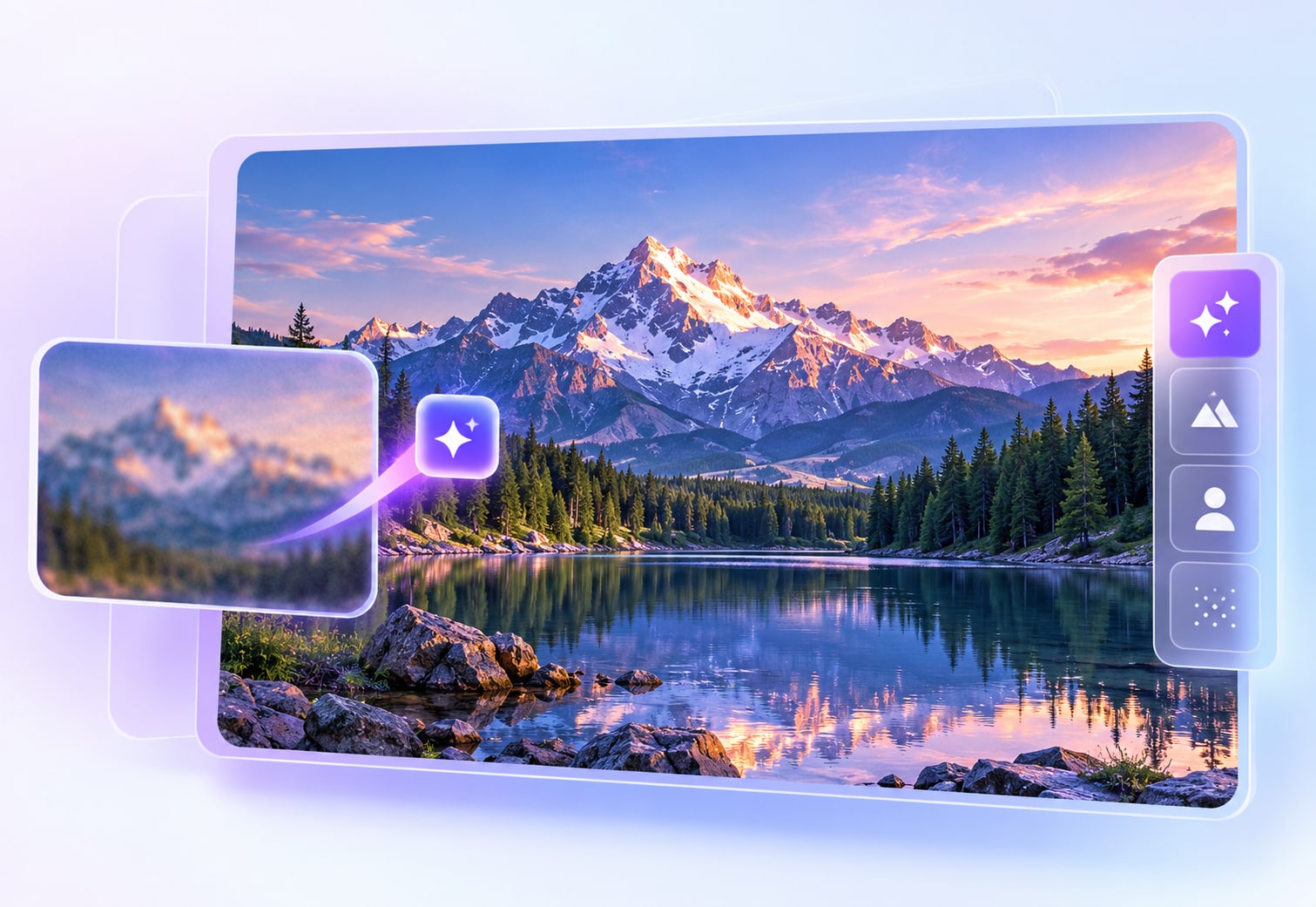
UniConverter AI Video Enhancer for Mac illustration showing blurry footage becoming clearer
QUICK ANSWER

How do you enhance video quality on a Mac?

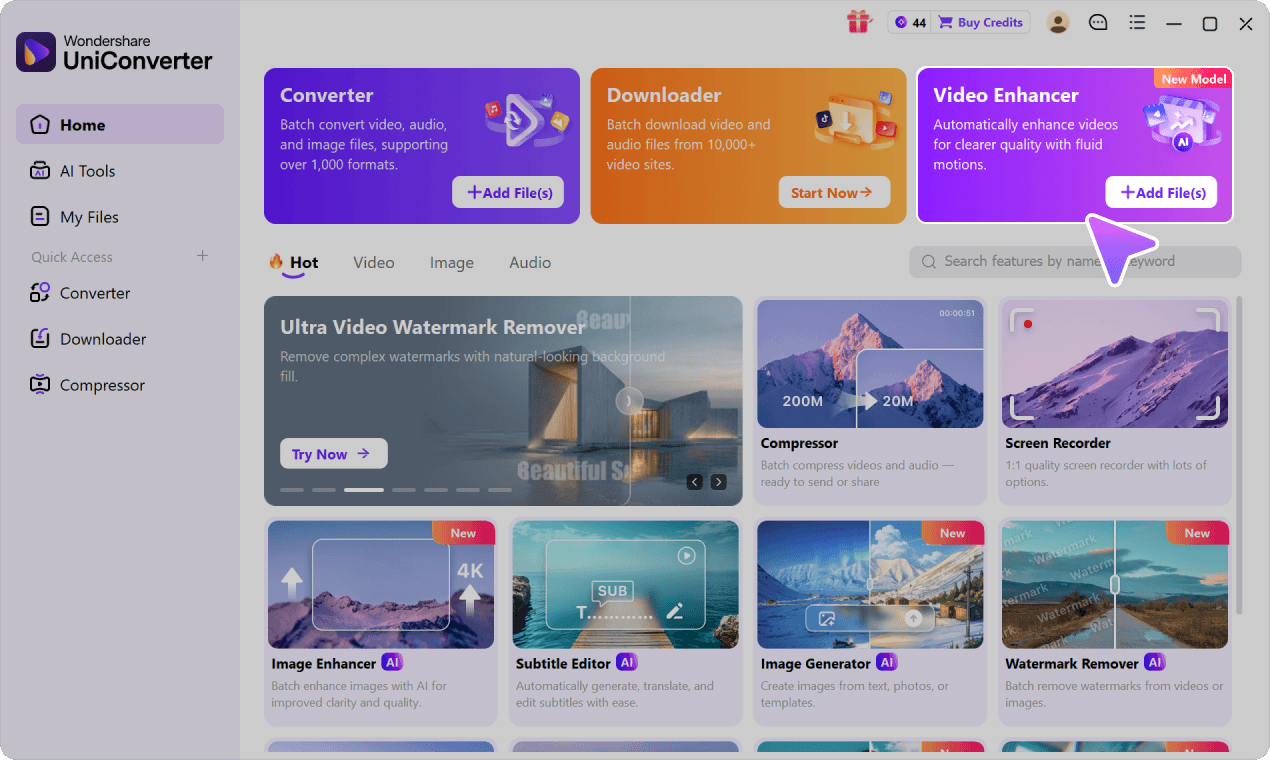
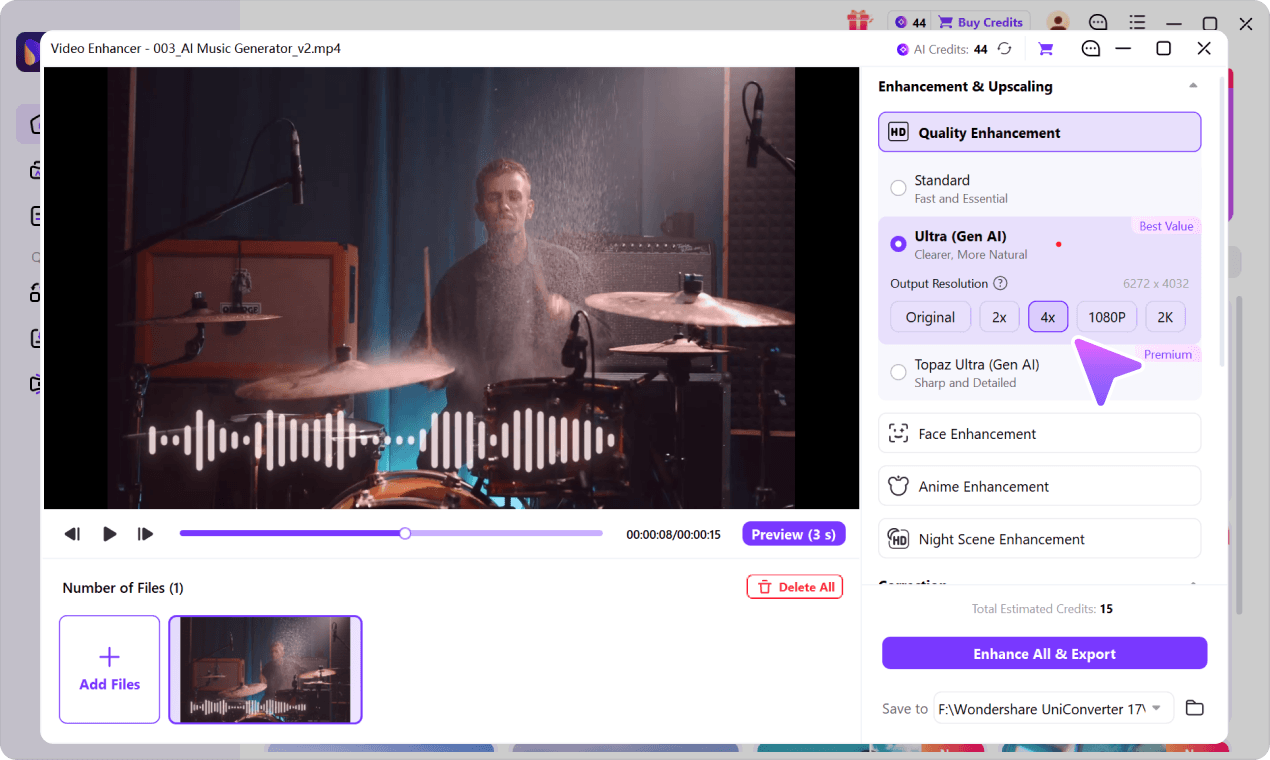
Open UniConverter for Mac, select Video Enhancer, and import a video. Choose a Quality Enhancement model: Ultra (Gen AI) offers Original, 2×, 4×, 1080p and 2K where available; Topaz Ultra (Gen AI) offers 1080p or 4K video output. Preview a short enhanced sample, review the estimated AI credits, and export. Upscaling increases pixel dimensions, while enhancement can improve visual detail without resizing. View the Mac enhancement guide.

See AI Video Quality Improvements on Mac

Move the comparison slider to explore how AI quality enhancement improves visual detail. Results depend on your original footage and selected model.

Original video frame before AI quality enhancement
Enhanced video frame after AI quality improvement

Improve Sharpness and Video Detail Without Guesswork

Compare restored texture, facial definition, and cleaner edges on supported videos. Select Original to retain dimensions where available, or upscale to a supported target size when you need a larger export.

Input problem
Blur and compressed detail
AI approach
Quality Enhancement + Upscaling
Preview first
Check frames before full export
Mac workflow
Choose output and enhance files
AI VIDEO UPSCALING ON MAC

AI Video Upscaler for Mac: Enhance Detail or Upscale to 4K

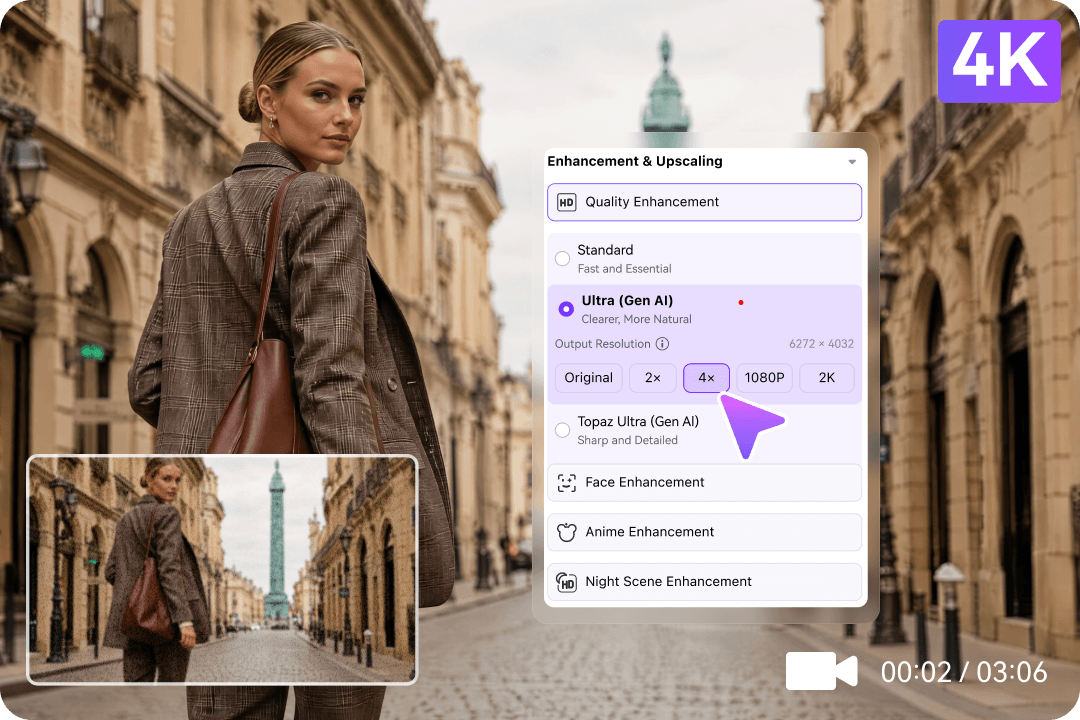
Improve video quality at the original size, enlarge footage by a supported scale factor, or select a target resolution. Ultra (Gen AI) offers Original, 2×, 4×, 1080p and 2K options; Topaz Ultra (Gen AI) provides an explicit 1080p or 4K output choice. Available settings depend on the selected model and source video.

OriginalEnhance without resizing
2× / 4×Scale original dimensions where available
1080p / 2K / 4K4K available with Topaz Ultra (Gen AI)
QUALITY ENHANCEMENT OPTIONS

Choose the Right AI Enhancement Model for Your Footage

Choose between quick everyday enhancement, natural-looking generative restoration and detail-focused output up to 4K. Each model has different processing priorities and resolution choices.

01 / ESSENTIAL

Standard

Fast and Essential

Start here for everyday phone videos, short social clips and footage that looks only slightly soft. Standard focuses on practical, efficient quality improvement without the more intensive generative detail reconstruction of the other modes. A sensible option when speed and straightforward results matter most.
03 / GENERATIVE AI

Topaz Ultra (Gen AI)

Sharp and Detailed

Prioritize crisp edges, fine textures and higher-detail results in landscapes, architecture, product footage and other detail-rich scenes. This premium generative enhancement mode provides explicit 1080p or 4K output options, making it suitable for supported high-resolution exports. Processing resources and AI credits may vary.

Output settings differ by model: Ultra (Gen AI) offers Original / 2× / 4× / 1080p / 2K, while Topaz Ultra (Gen AI) offers 1080p / 4K. The visible options may vary with platform and input. Quality Enhancement is separate from Face Enhancement; generative AI may infer details rather than recover the original pixels.

Fix Blurry, Grainy and Shaky Videos on Mac

From grainy clips and portrait close-ups to shaky footage, UniConverter provides a dedicated treatment for the video quality problem you want to solve.

VIDEO UPSCALER MAC

Improve Blurry Videos and Upscale to 4K on Mac

Improve blurry, low-resolution or heavily compressed footage, then upscale to 4K with Topaz Ultra when the 4K option is available. AI quality improvement and resolution enlargement are related but separate goals: choose the model and output that fit your project. For a dedicated resolution-first workflow, explore our AI video upscaler.

  • Standard, Ultra and Topaz Ultra offer different enhancement priorities
  • Ultra supports Original, 2×, 4×, 1080p and 2K; Topaz Ultra adds a 4K target option
  • 4K export availability, processing time and AI credit use depend on the model and footage
AI video upscaling and restoration example for low-quality Mac footage
FACE & ANIME

Enhance Portraits and Anime with Dedicated AI

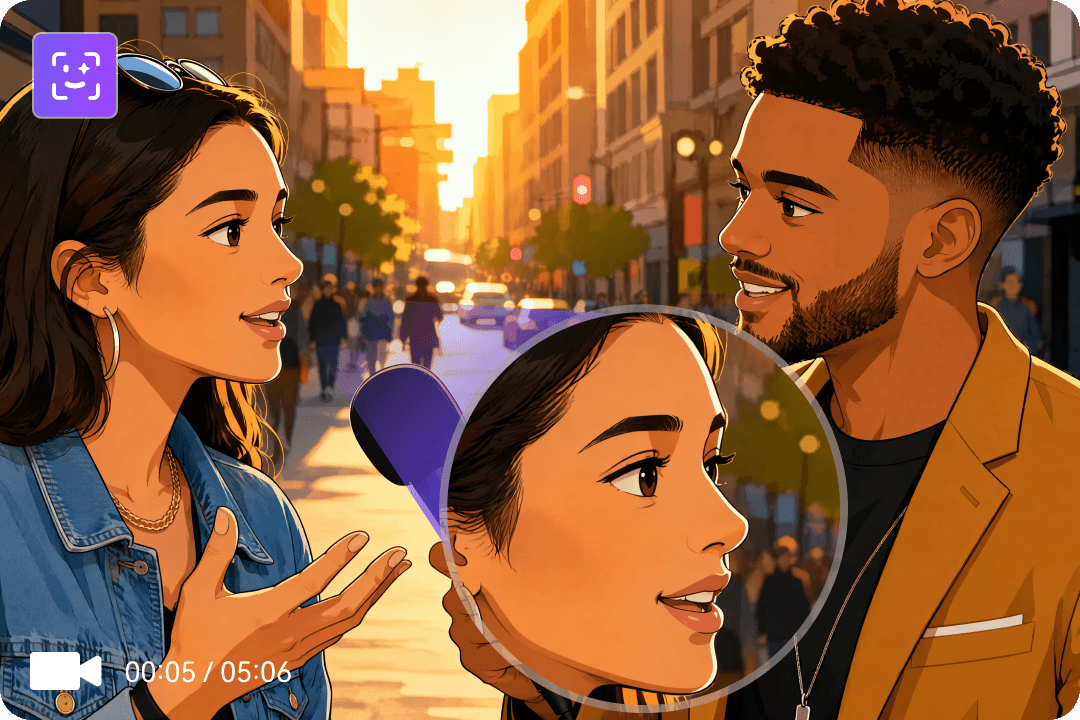
Improve visible facial detail in interviews, family videos and vlogs, or use the anime model for line art and animation. Generative face processing aims for clearer, more temporally consistent detail even in challenging footage.

  • Face Enhancement targets portraits, facial edges and texture
  • Anime Enhancement focuses on animated lines and stylistic detail
  • Preview faces and text for possible AI-generated artifacts
Face and anime AI video enhancement samples
DENOISE & COLOR

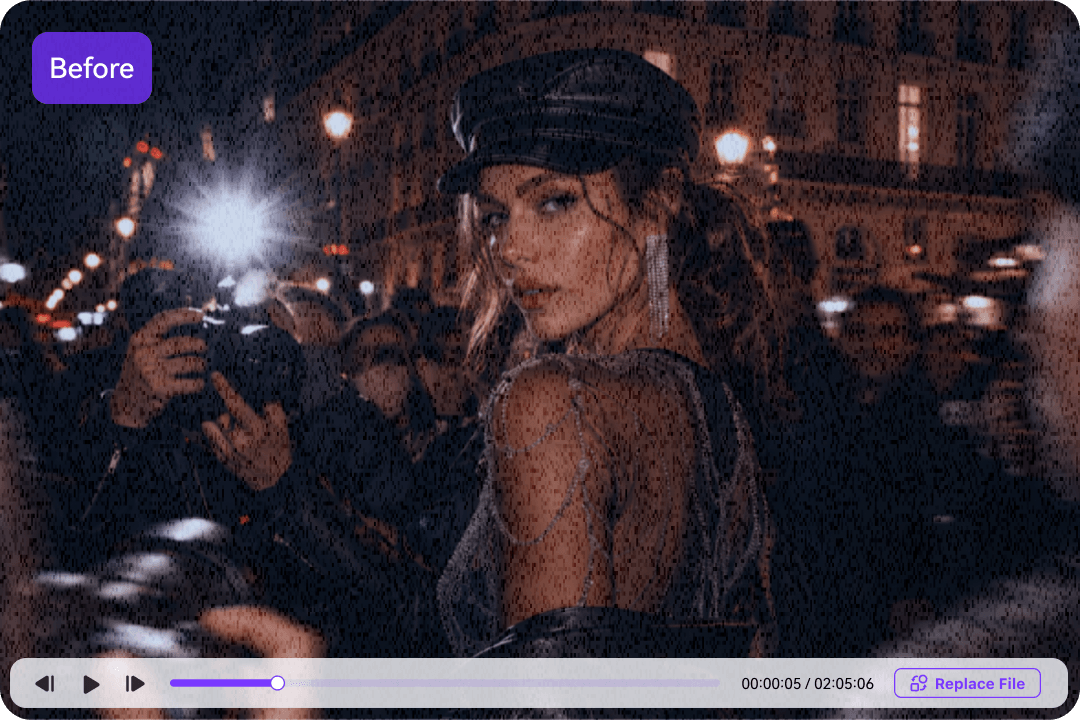
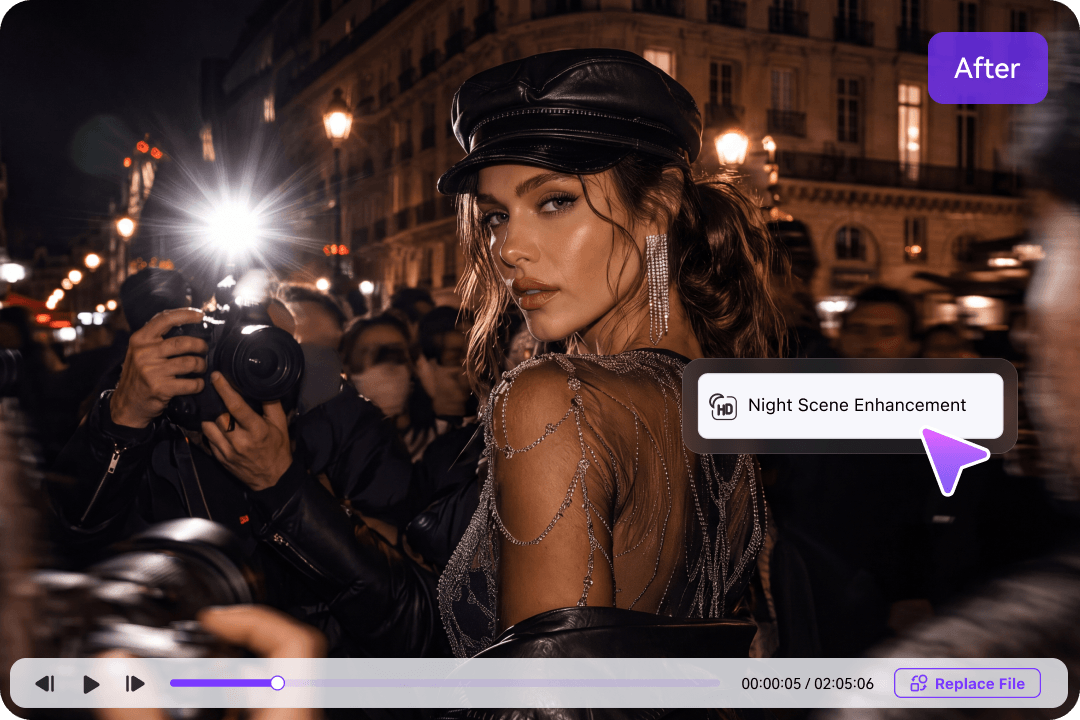
Reduce Noise, Improve Color, and Brighten Night Videos

Clean up noticeable grain, color problems, dim scenes, and brightness flicker without relying on complicated manual edits. Move the slider to examine the denoising example.

  • Use General Video Denoise to reduce distracting image grain
  • Use Color and Night Scene Enhancement for dull or dark footage
  • De-Flicker supports available intensity controls
Original grainy video frame before denoising
Enhanced video frame with less visible noise
MOTION & STABILITY

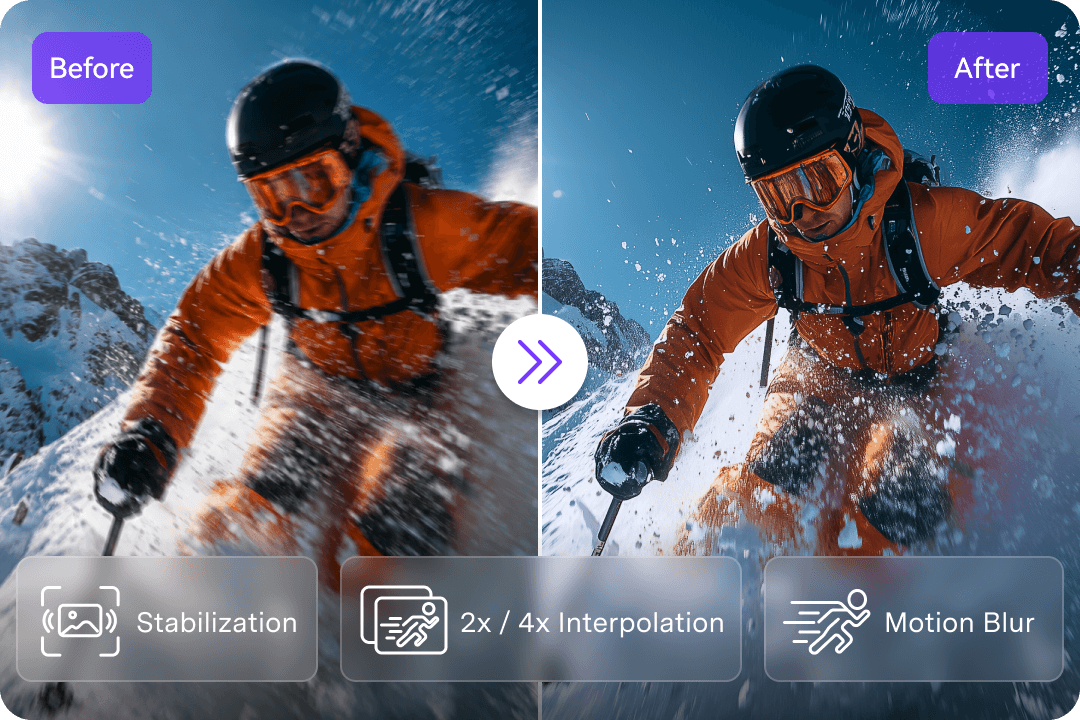
Make Shaky or Choppy Videos Smoother

Video Stabilization can reduce handheld camera shake, while Frame Interpolation helps motion look smoother. De-Flicker can lessen unwanted lighting fluctuations in affected footage.

  • Reduce handheld shake with Video Stabilization
  • Generate intermediate frames with Frame Interpolation
  • Actual settings, frame rates and results depend on the source
Video stabilization and frame interpolation illustrated on moving footage
BATCH WORKFLOW

Enhance Multiple Videos in One Mac Workflow

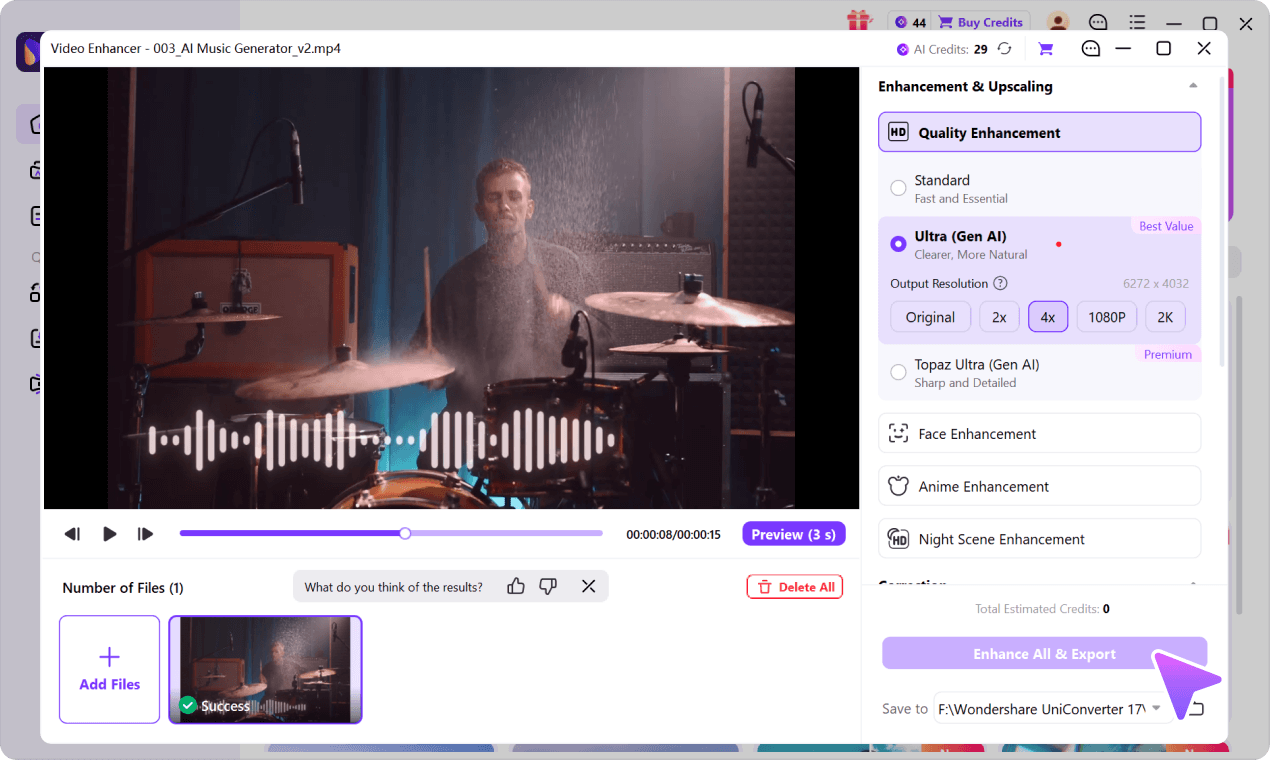
Import supported videos or a folder, compare a short preview, check estimated AI credits and export results from one workspace instead of repeating the same steps file by file.

  • Add Video, multiple files or an available folder import
  • Inspect the short Preview before processing the full video
  • Use Enhance All & Export for supported tasks
AI Video Enhancer multi-file processing and batch enhancement workflow

Visual comparisons are examples provided by UniConverter. AI enhancement may infer visual detail; results vary with source footage, chosen model and settings. Individual model limits apply.

How to Enhance Video Quality on Mac in 3 Steps

See how to import footage, select an AI enhancement model and export a clearer video. The screenshots show UniConverter desktop controls; available options can vary by model and device.

UniConverter Video Enhancer file import step
UniConverter Video Enhancer AI model and output settings step
UniConverter Video Enhancer preview and export step

What Can AI Really Improve in Video Quality on Mac?

From low resolution and compression to unwanted noise and shake, understand what AI can improve and what results to expect before you export.

Common Reasons Videos Look Blurry or Low Quality

01
Low source resolution
The original footage contains too few pixels for the intended screen size.
02
Compression and repeated exports
Social platforms and multiple conversions can remove texture and create block artifacts.
03
Poor focus, motion, or camera shake
Fast movement, handheld recording, or missed focus can soften visible detail.
04
Low light and sensor noise
Dark footage often contains grain, color noise, and weak subject separation.

Can AI Really Make a Video Clearer?

Yes. AI can improve many blurry or low-quality videos by reducing noise, strengthening visible edges, reconstructing plausible texture, enhancing faces, correcting color, and upscaling the output.

AI can improve
Visible structure, perceived sharpness, noise, color, facial detail, resolution, stability, and motion fluidity.
!
Results depend on
Source resolution, compression, blur severity, frame rate, selected feature, output settings, and hardware.

Try AI Video Enhancement Online or Go Further on Mac

Try a single short clip in your browser, or use the desktop app for model selection, supported upscaling, additional corrections, and larger processing workflows.

Quick online experience

Online Video Enhancer

Best for quickly trying core AI enhancement on one short video.

  • ✓One video at a time
  • ✓Up to 100MB per video
  • ✓Quality, face, anime, and denoise options
  • ✓Browser-based cloud processing
  • ✓Three free enhancements without signup
No Installation Free Online No Signup Easy to Use
Try Video Enhancer Online ↗
Recommended for complete enhancement

UniConverter Desktop

Designed for larger, repeated, or multi-file enhancement workflows.

  • ✓Import multiple videos or an entire folder
  • ✓Supported desktop workflows have model-specific file requirements
  • ✓Quality restoration, upscaling, face, anime, night, color, denoise, and de-flicker
  • ✓Video stabilization and frame interpolation for smoother motion
  • ✓Processing varies by AI model; some generative tools use cloud resources
  • ✓Ultra: Original, 2×, 4×, 1080p, 2K; Topaz Ultra: 1080p / 4K, where available
FREQUENTLY ASKED QUESTIONS

AI Video Enhancer for Mac FAQs

01What is the best AI video enhancer for Mac?

The best video enhancer for Mac depends on what you need to fix. For blurry videos and upscaling, start with Quality Enhancement; for portraits, use Face Enhancement; for grainy footage, try General Video Denoise. UniConverter combines these options with a short preview, so you can compare results on your own footage before exporting.

02How do I enhance video quality on Mac?

Open UniConverter for Mac, choose Video Enhancer and import your clip. Select an AI quality model or specialist feature, choose an available output resolution, preview a 3-second sample, then export. See the step-by-step Mac guide.

03Can I upscale video to 4K on a Mac?

Yes. UniConverter desktop AI Video Enhancer provides a 4K output option in Topaz Ultra (Gen AI), alongside 1080p. Ultra (Gen AI) instead offers Original, 2×, 4×, 1080p and 2K options where supported. Choose Topaz Ultra when you need a 4K target, then preview the result and check the current output settings. An upscaling multiplier does not guarantee 4K, and the result depends on your source footage and available model settings.

04Can I improve video quality on a Mac without changing the resolution?

Yes. Choose Original as the output resolution when available to improve image clarity without increasing the dimensions of the video. AI enhancement and upscaling are related, but different, operations.

05Is there free video upscaling software for Mac?

UniConverter for Mac is available as a free download and trial; advanced AI processing or full exports can require a plan or AI credits. A separate online video enhancer offers a limited free experience without installing software. Check the current trial and credit details before processing.

06Does UniConverter work on Apple silicon Macs?

UniConverter for Mac supports Apple silicon and Intel Macs. Some AI features depend on your macOS version, chip, network access or model settings; generative enhancement may use cloud processing. Check compatibility and available models in the app.

07Can AI improve blurry, grainy, or old videos on Mac?

Yes. Quality Enhancement and Video Denoise can help improve apparent clarity and reduce grain or compression artifacts. Face Enhancement may make portrait detail easier to see. Results vary with damage and source quality, and AI-generated detail is not a guaranteed reconstruction of the original scene.

08Can I enhance several videos at once on Mac?

Yes. The UniConverter desktop workflow accepts multiple videos, and supported folder-import and batch-export operations reduce repetitive processing. The maximum workload and supported enhancement options depend on the selected tools and your device.

09Is AI Video Enhancer the same as Video Upscaler?

A video upscaler increases output resolution. A video enhancer can also denoise footage, improve visible detail and color, enhance faces, stabilize shaky clips, or improve motion with frame interpolation. UniConverter provides both quality enhancement and upscaling in its desktop workflow.

10Does the AI Video Enhancer work offline on Mac?

Not all AI Video Enhancer features work offline. Some processing methods depend on the chosen model and system, and generative AI may require an internet connection and AI credits. Check the actual model requirements in UniConverter before processing offline.

11Which video formats can I import?

The documented desktop Video Enhancer workflow displays MP4, MKV, AVI, MOV and MPG among supported inputs. Available formats and limits can vary with the current model and system configuration.

12Can AI enhancement preserve the original faces and text exactly?

No AI model can guarantee an exact recovery of lost pixels. Generative models may create plausible details or distort small text, skin patterns, or facial features. Use the short preview to check faces, edges, text, and frame-to-frame consistency, especially for archival or evidence-related footage.

UNICONVERTER FOR MAC

Make Low-Quality Video Look Better on Your Mac

Enhance blurry footage, select up to 4K output with Topaz Ultra where available, and process videos with UniConverter's desktop AI enhancement workflow.

Download is free to try. Some AI tools may require credits or an eligible plan.