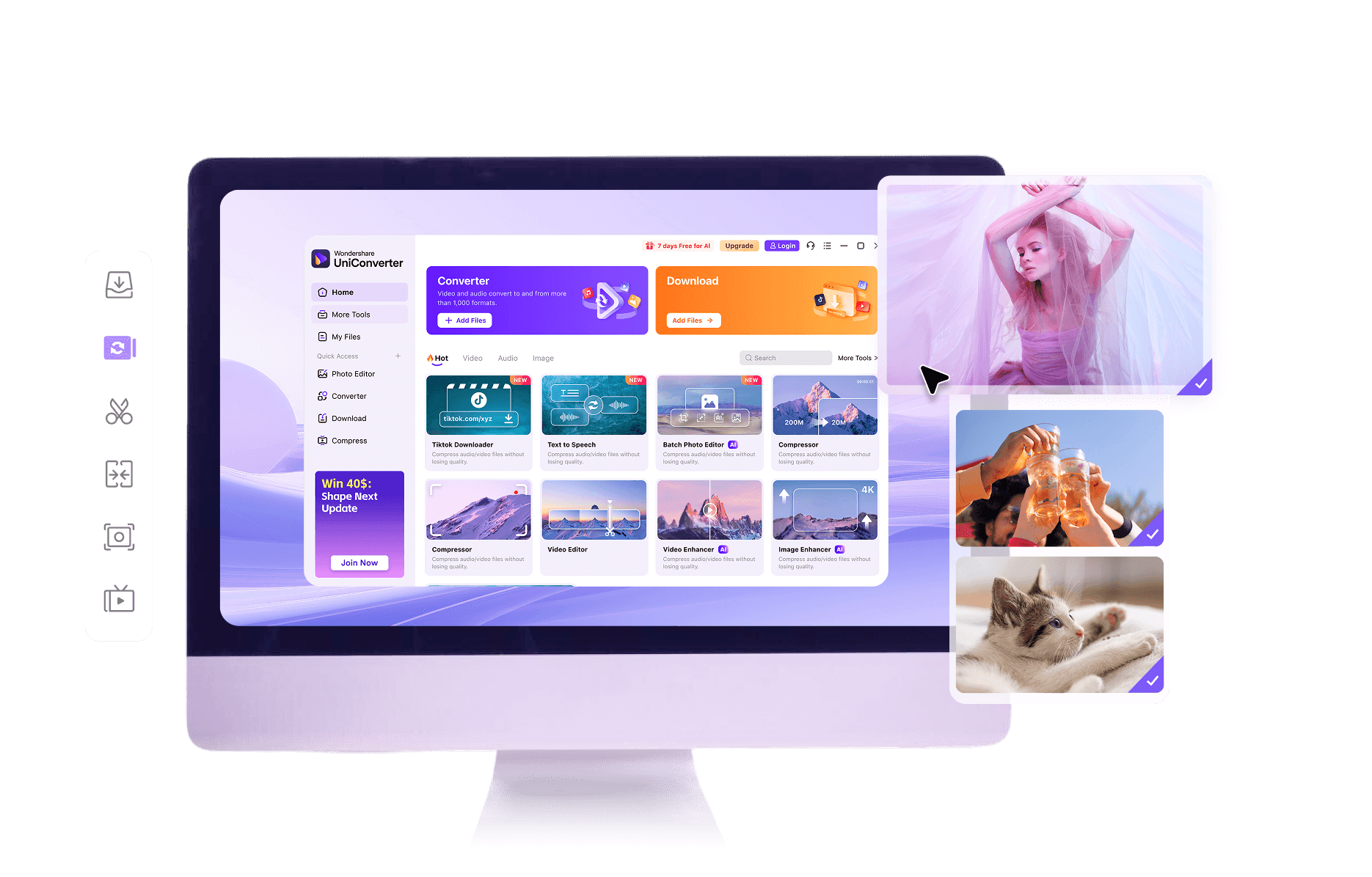
How to Plan and Export a 4K to 8K Video

Import the original 4K video
Open UniConverter Desktop’s Converter and add your local 4K recording. Keep a separate source copy. Use the 8K/4K conversion workspace for the high-resolution format workflow rather than treating an 8K label as a new extension.

Set the delivery format and resolution
Choose a video output compatible with the destination and set the resolution target to 8K UHD, 7680 × 4320. Preserve the source aspect ratio and frame rate. This is a resolution conversion; it does not establish that an AI enhancement model has been applied.

Export a sample before the full job
Set the destination folder and run a representative sample before processing a complete long recording. Confirm that the receiving system plays the result with synchronized audio. For a browser alternative, HDconvert’s independent 8K service describes high-quality processing under its premium offering.
4K and 8K UHD: What Changes in the Delivery
|
4K UHD source
|
8K UHD output
|
|
|---|---|---|
| 16:9 dimensions | 3840 × 2160 | 7680 × 4320 |
| Pixel count | About 8.3 million | About 33.2 million |
| Linear enlargement | Original width and height | Twice the width and twice the height |
| Original detail | Captured or rendered at 4K | Not equivalent to native 8K capture |
| Video container | For example MP4 or MOV | A chosen video container, not an .8k extension |
| Motion | Source frame rate | Does not automatically gain extra frames |
| Processing load | High-resolution source processing | More pixels to encode and decode |
| Delivery need | Common UHD projects and screens | Specialist production or suitable 8K playback |
Practical Choices for 4K to 8K Video Converter
Start with a real 8K requirement
An 8K export is useful when a display or production specification needs it. For ordinary Full HD or 4K viewing, a larger output can add processing and storage without a visible benefit. Keep the task tied to the destination.
Distinguish resizing from AI detail enhancement
Standard Converter output changes dimensions and encoding settings. AI enhancement analyzes content to estimate visual detail. An 8K-sized file alone is not evidence that an AI model restored information or that the source is native 8K.
Choose a destination-compatible codec
A container such as MP4 does not determine whether a system can decode 8K. Codec, hardware decoder and application support all matter. HEVC or another supported high-resolution codec should match the receiving system’s specification rather than being chosen only for a smaller file.
Plan storage from bitrate and duration
8K contains four times as many pixels as 4K UHD, but the exported file is not automatically exactly four times larger. Codec, bitrate, duration and audio settings determine size. Reserve room for the source and a separate delivery copy.
Use an independent online route when appropriate
HDconvert provides an online 8K conversion route. Its high-quality offering is premium; this page does not promise free 8K export or transfer that service’s capabilities to the UniConverter browser converter.
Review actual playback
A file can report 7680 × 4320 and still stutter on insufficient hardware. Test a representative sample on the intended system. If the destination cannot reliably decode the 8K delivery, retain a compatible 4K version rather than discarding the source.
FAQs About 4K to 8K Video Converter
What is 4K to 8K conversion?
Will a 4K video become native 8K?
Can I convert video to 8K online?
Will an 8K output be exactly four times larger?
Does 8K also mean 60 fps or HDR?
Why does my 8K video stutter?
What Users Say About UniConverter Video Workflows
Customer reviews cover UniConverter’s broader media workflows.

Build an 8K Delivery for the Right Destination