
UniConverter
UniConverter Online Free
Converter video, audio & image free
Free Try

AI Video Enhancement Software for Clearer, Sharper Videos

Improve video quality with UniConverter AI video enhancer software for Windows and Mac. Repair blurry or noisy footage, enhance faces, upscale with supported AI models, stabilize shaky clips, and process multiple videos in one desktop workflow.

  • Improve blurry, compressed, grainy and low-quality footage with AI.
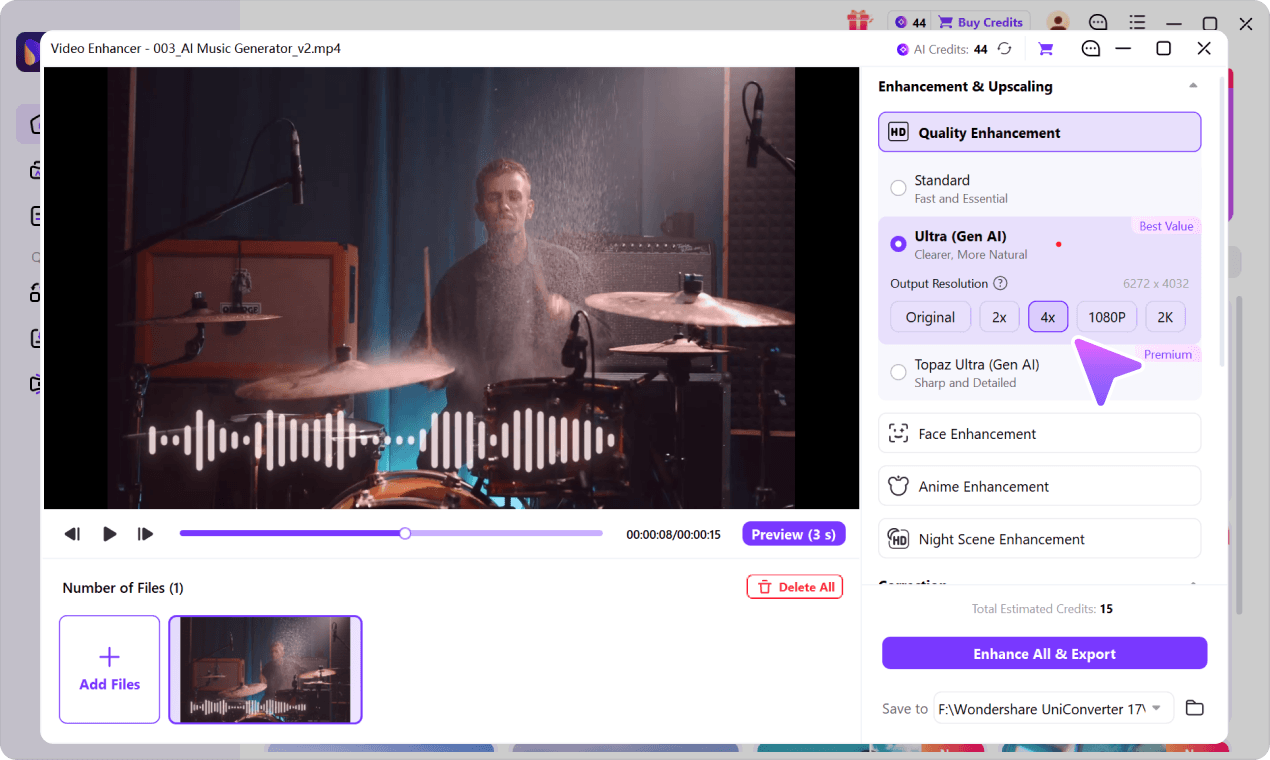
  • Choose Standard, Ultra (Gen AI), or Topaz Ultra (Gen AI), with 4K output in Topaz Ultra.
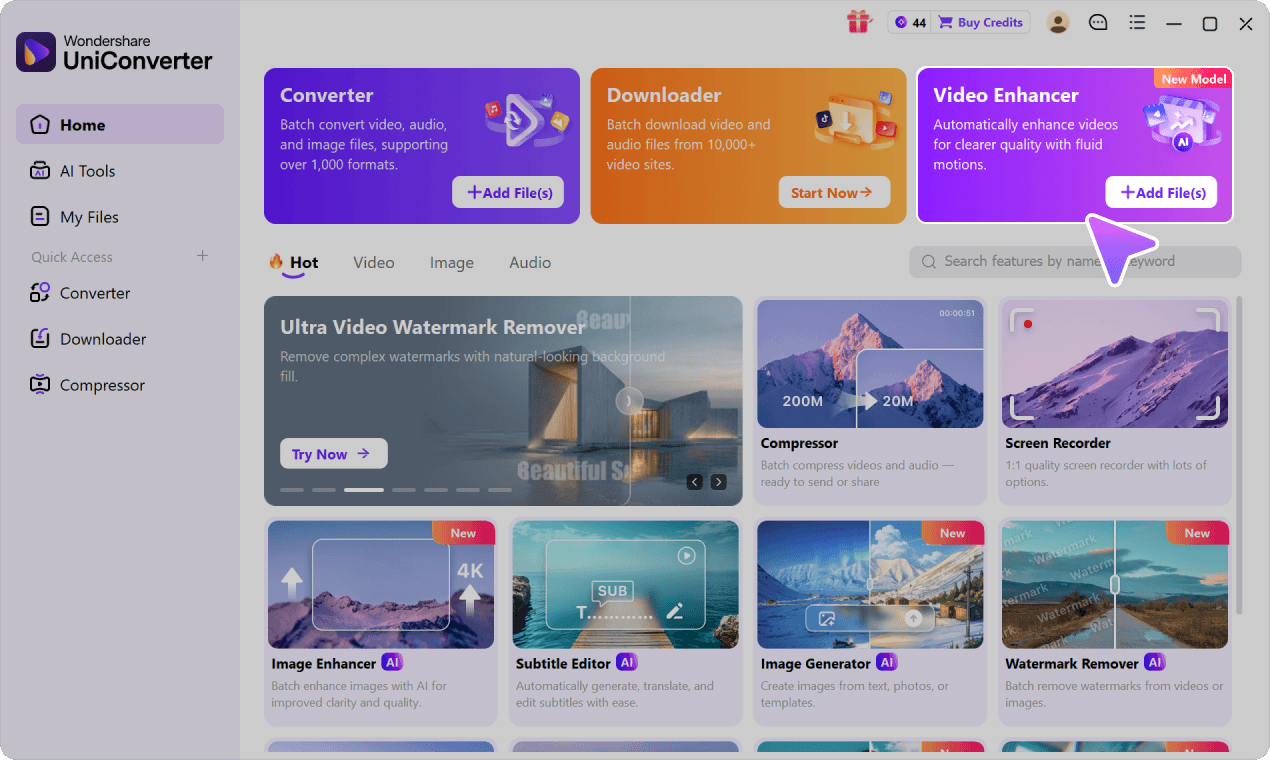
  • Import videos or folders, preview results, and enhance multiple files.

Explore the desktop AI Video Enhancer workflow. Available settings depend on your version and model.

AI Video Enhancer Software vs. Online Enhancers

Use online enhancement for a quick single-clip check. Choose desktop software for more models, output controls, correction tools and a multi-video processing queue.

Quick online experience

Online Video Enhancer

Best for quickly trying core AI enhancement on one short video.

  • ✓One video at a time
  • File size and usage limits shown in the online tool
  • ✓Quality, face, anime, and denoise options
  • ✓Browser-based cloud processing
  • Free online trial availability shown before processing
No Installation Free Online No Signup Easy to Use
Try AI Video Enhancer Online
Recommended for complete enhancement

UniConverter Desktop

Designed for larger, longer, or repeated enhancement work.

  • ✓Import multiple videos or an entire folder
  • ✓No preset single-file size limit; model requirements may apply
  • ✓Quality restoration, upscaling, face, anime, night, color, denoise, and de-flicker
  • ✓Video stabilization, frame interpolation, and motion blur controls
  • ✓Local AI processing on supported devices and models
  • ✓Original, 2x, 4x, 1080p, 2K, or 4K output where available

Which Video Quality Enhancement Software Features Do You Need?

The best program to improve video quality depends on the problem in your original clip. Start with the matching workflow instead of increasing resolution by default.

Video problemRecommended UniConverter toolWhat to check
Soft, compressed footageQuality Enhancement — Ultra (Gen AI)Natural edges and motion continuity
Small video for 4K deliveryQuality Enhancement — Topaz Ultra (Gen AI)4K option, text and texture accuracy
Blurry people or old interviewsFace EnhancementFacial consistency across frames
Grainy low-light footageGeneral Video DenoisePreservation of fine details
Handheld camera shakeVideo StabilizationNatural motion and frame edges
Choppy movementFrame InterpolationGhosting and movement artifacts

AI-enhanced detail is inferred; it cannot guarantee recovery of original footage information. Available output options depend on model and input.

See How Video Enhancement Software Improves Footage

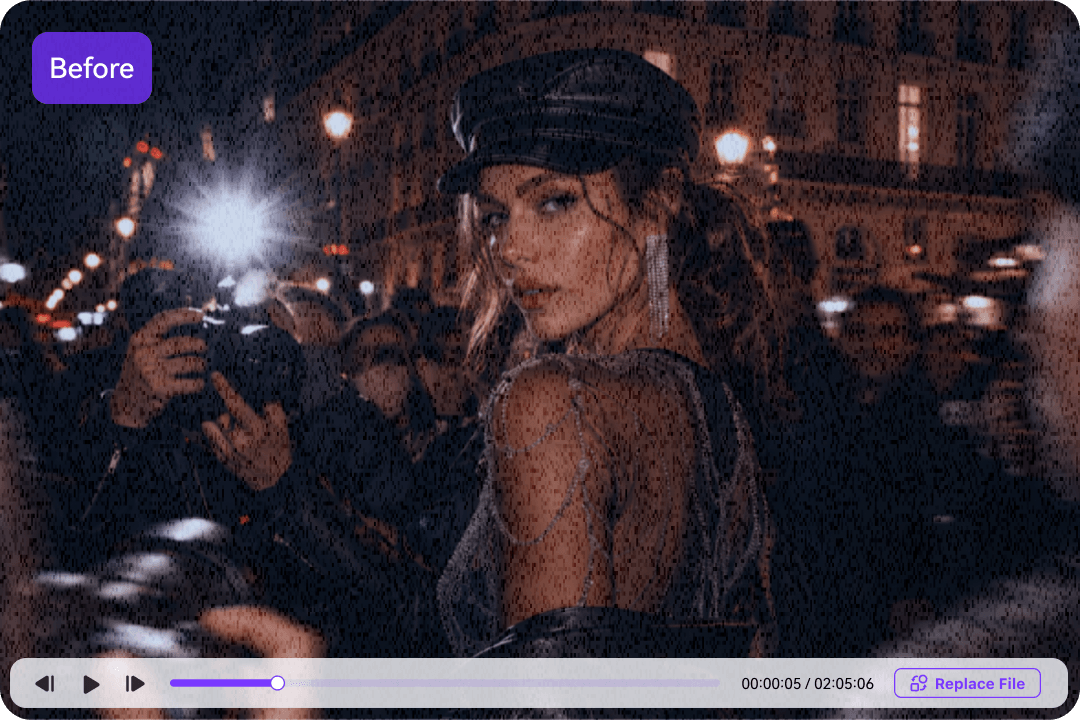
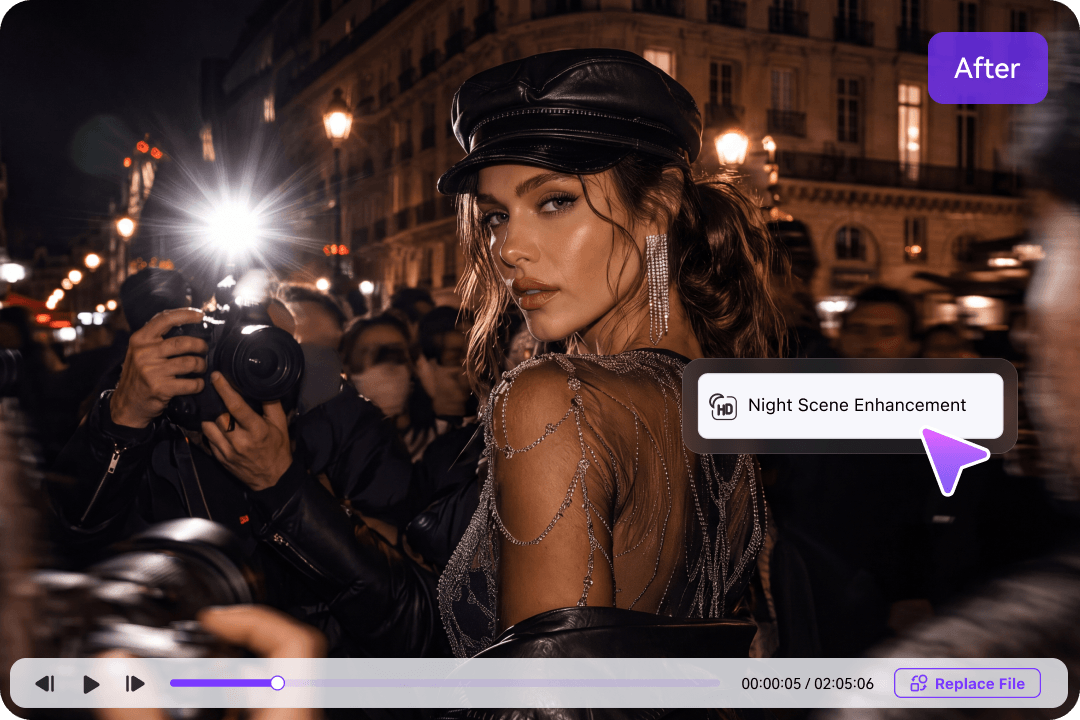
Compare visual clarity in the same frame. AI can reduce visible noise and improve perceived detail; exact results vary by source, model and settings.

Source video frame before AI video enhancement
Video frame after AI enhancement illustration

Turn Low-Quality Footage into Cleaner, More Detailed Video

Choose targeted enhancements instead of simply stretching pixels. Preview the result, check faces and fine text, then export at a supported resolution.

Input problem
Blur, grain and compression artifacts
Recommended workflow
Quality Enhancement: Standard or Ultra
Desktop advantage
Batch queue, model choices and preview
Possible output
Original, 2×, 4×, 1080P, 2K or 4K by model
Enhance Videos on Desktop Enhance Videos on Desktop

Improve Video Quality with Purpose-Built AI Software

From basic clarity improvement to specialist repair, choose a software feature that matches what actually looks wrong in your footage.

Clarity restoration and AI upscaling

Restore Blurry, Low-Quality, and Compressed Videos

Improve visible structure and texture in footage affected by low resolution, repeated compression, limited camera sharpness, or aging source material.

  • Balance everyday processing speed and quality with Standard enhancement.
  • Use generative enhancement when you want more natural-looking texture reconstruction.
  • Upscale by 2× or 4×, or choose supported 1080p, 2K, and 4K outputs.
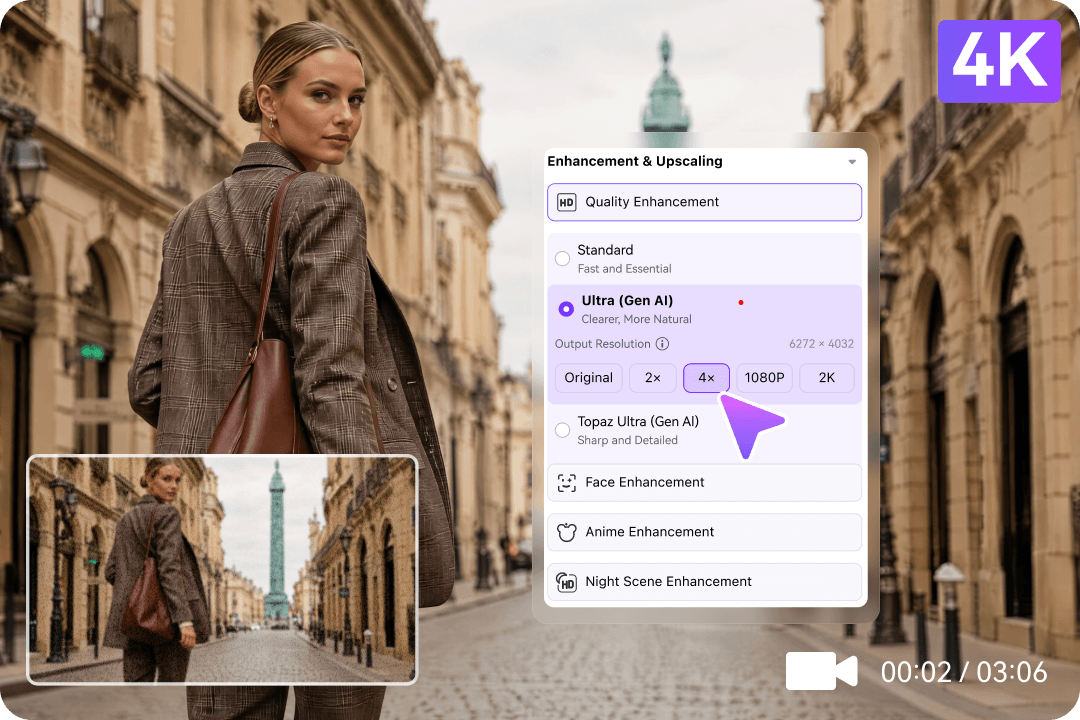
Restore blurry and compressed videos
Faces, portraits, anime, and animation

Bring Important Subjects Back into Focus

Use content-specific enhancement for footage where a generic preset is not enough, including interviews, family recordings, vlogs, animation, anime clips, and game captures.

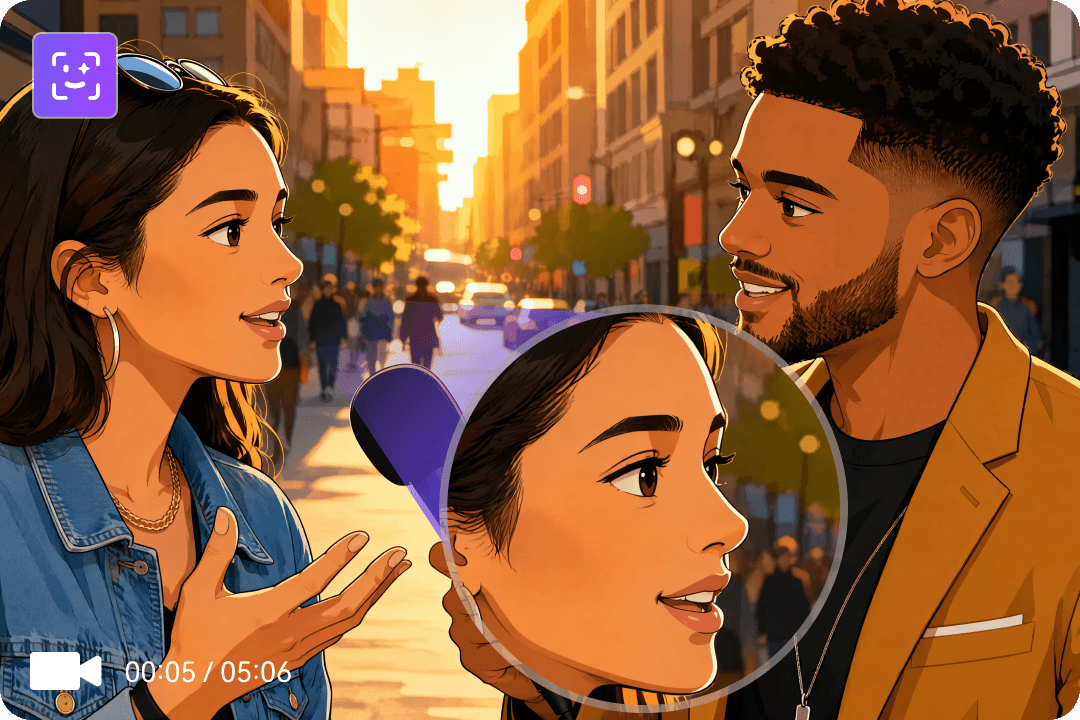
  • Recover clearer facial structure and more natural-looking skin texture.
  • Sharpen anime lines and edges while preserving the original visual style.
  • Improve multiple portrait or animation clips in one desktop workflow.
Face and anime enhancement
Noise, color, low light, and flicker

Clean Up Grainy Footage and Correct Distracting Quality Problems

Improve videos affected by low-light noise, compression artifacts, faded color, dark scenes, or brightness fluctuations.

  • Reduce grain and visual noise while keeping useful texture visible.
  • Improve brightness and color in dull, faded, or night footage.
  • Reduce flicker with Weak, Normal, or Strong intensity controls.
Source video frame before AI video enhancement
Video frame after AI enhancement illustration
Stabilization, frame interpolation, and motion blur

Make Shaky or Choppy Motion Feel More Natural

Improve the dynamic viewing experience in handheld footage, action clips, gameplay, sports, slow motion, or AI-generated video.

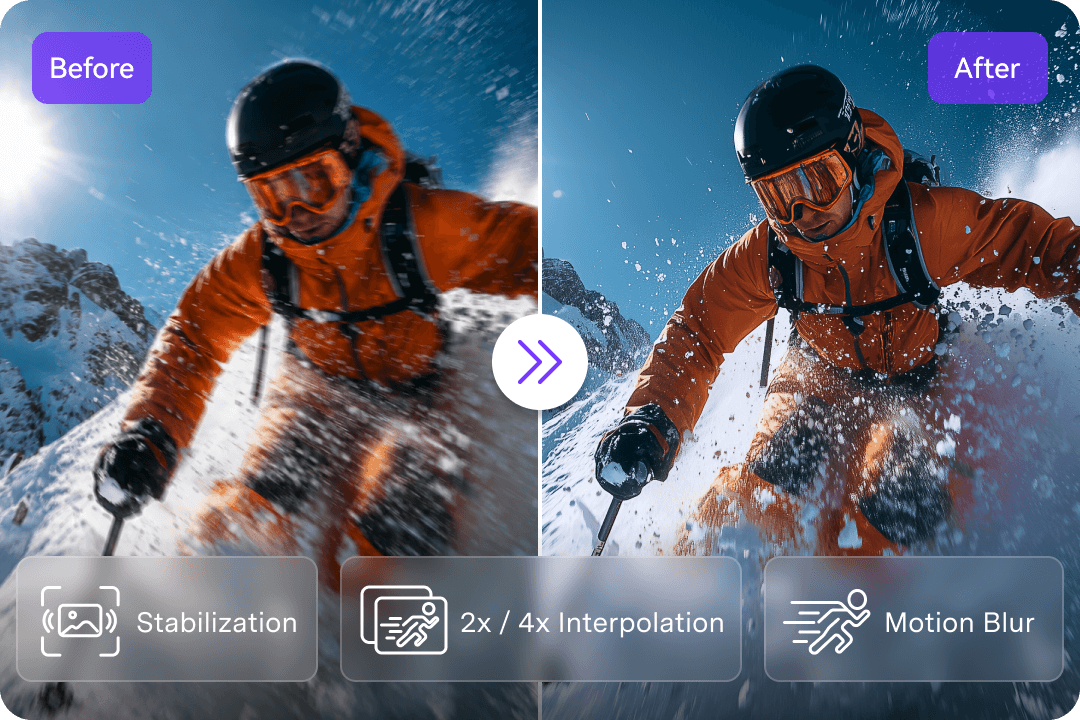
  • Choose Standard or Sport stabilization and adjust the smoothing level.
  • Generate intermediate frames with 2× or 4× interpolation, up to 240 FPS where supported.
  • Add controlled motion blur to reduce harsh, flip-book-like movement.
Video stabilization and motion improvement
Batch and local desktop workflow

Enhance Large Videos and Entire Folders Efficiently

Move beyond one-off browser tasks when you are preparing channel videos, courses, family archives, business media, or other repeatable production work.

  • Drag in multiple videos or use Add Folder to build a processing queue.
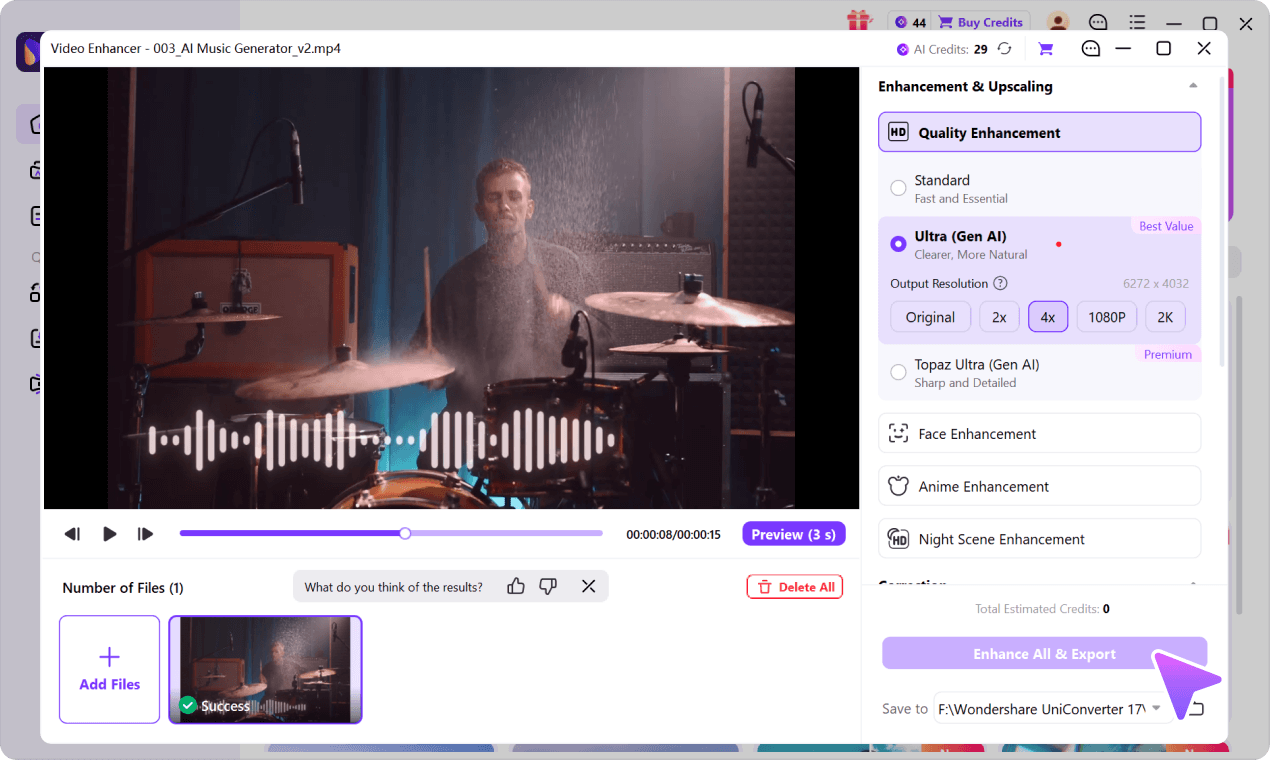
  • Preview a short result and use Enhance All & Export for the full queue.
  • Keep supported workflows on the device to avoid uploads and cloud queues.
Video stabilization and motion improvement

Compare AI Video Enhancement Software Modes for Your Footage

Different footage needs different AI processing. Compare desktop options by practical use case before selecting the model in UniConverter.

Fast everyday enhancement

Standard

Improve light softness in everyday clips where a straightforward quality pass matters most.

  • ✓ General quality enhancement
  • ✓ For everyday camera footage
  • ✓ Settings vary by version
Natural-looking detail

Ultra (Gen AI)

Generative improvement for older, compressed or visibly soft video with additional upscale options.

  • ✓ Original, 2× and 4× options
  • ✓ 1080P or 2K target options
  • ✓ Evaluate visual artifacts in preview
Detailed 4K delivery

Topaz Ultra (Gen AI)

Sharper texture and structure for landscapes, products and supported high-resolution output needs.

  • ✓ 1080P or 4K target output
  • ✓ Emphasis on detailed textures
  • ✓ Model-specific requirements apply

What Makes Video Quality Worse—and Which Software Fix Helps?

Different video defects need different treatments. Choose upscaling for a larger output, denoising for grain, face enhancement for portraits, or stabilization for camera shake.

Common Reasons Videos Look Blurry or Low Quality

01
Low source resolution
The original footage contains too few pixels for the intended screen size.
02
Compression and repeated exports
Social platforms and multiple conversions can remove texture and create block artifacts.
03
Poor focus, motion, or camera shake
Fast movement, handheld recording, or missed focus can soften visible detail.
04
Low light and sensor noise
Dark footage often contains grain, color noise, and weak subject separation.

Can AI Really Make a Video Clearer?

Yes. AI can improve many blurry or low-quality videos by reducing noise, strengthening visible edges, reconstructing plausible texture, enhancing faces, correcting color, and upscaling the output.

AI can improve
Visible structure, perceived sharpness, noise, color, facial detail, resolution, stability, and motion fluidity.
!
Results depend on
Source resolution, compression, blur severity, frame rate, selected feature, output settings, and hardware.

More Ways to Enhance Video Quality

Find platform-specific AI video enhancement software, 4K upscaling tools, and practical guides. Each resource addresses a different enhancement need.

4K AI Video Enhancer

Upscale low-resolution footage to supported 4K output.

4K AI Video Enhancer →

AI Video Enhancer for Windows

Enhance video clarity on a Windows PC.

AI Video Enhancer for Windows →

AI Video Enhancer for Mac

Improve video quality on macOS.

AI Video Enhancer for Mac →

Topaz Video Enhance AI Review

Explore a specialist video enhancer review and alternative.

Topaz Video Enhance AI Review →

HitPaw Video Enhancer Alternative

Compare video enhancement workflows and options.

HitPaw Video Enhancer Alternative →

AI Video Enhancer Online

Try improving a clip without installing software.

AI Video Enhancer Online →

How to Enhance Video Quality with AI

Follow the official desktop enhancement tutorial.

How to Enhance Video Quality with AI →

AI Video Enhancement Software FAQs

Answers to common questions about software, AI upscaling, 4K output, processing multiple videos and video quality.

01

What is the best AI video enhancement software for Windows and Mac?

The best choice depends on your footage and workflow. UniConverter combines quality enhancement, AI upscaling, face enhancement, denoising, stabilization, frame interpolation, and multi-video processing on Windows and Mac. Compare results on your own video before choosing a model.
Yes. AI enhancement software can reduce visible noise, strengthen perceived edges and generate plausible details. Severely missing or out-of-focus information cannot be reliably recovered as original fact.
Yes, the desktop Quality Enhancement > Topaz Ultra (Gen AI) model offers a 4K target output. Ultra (Gen AI) offers Original, 2×, 4×, 1080P and 2K options. Resolution options vary by selected model and video.
In a model that supports it, select Original or 1× as the output setting to improve perceived quality while retaining the source dimensions. Check the preview before exporting.
It can improve many older, compressed, or low-detail clips. For portraits, try Face Enhancement; for grainy footage, try General Video Denoise. AI-generated facial detail is an estimate, not a verified reconstruction of real features.
UniConverter desktop supports adding multiple files or folders, managing a multi-video queue and using Enhance All & Export. Available models, processing requirements and AI credits depend on the task.
UniConverter offers a desktop download and a separate browser-based video enhancer for quick tests. Free access, AI credit usage, export limits and subscription entitlements vary, so check the current product interface before processing.
Upscaling increases output pixel dimensions. Enhancement aims to improve visible quality through tools such as detail enhancement, noise reduction, face processing, color correction or motion stabilization. A higher resolution does not guarantee authentic recovered detail.
vc 16

Ready to Improve Video Quality with AI Software?

Download UniConverter AI video enhancement software for Windows or Mac. Explore specialized enhancement models, preview quality changes, and export single videos or complete queues.

AI features and credit requirements vary by plan and model