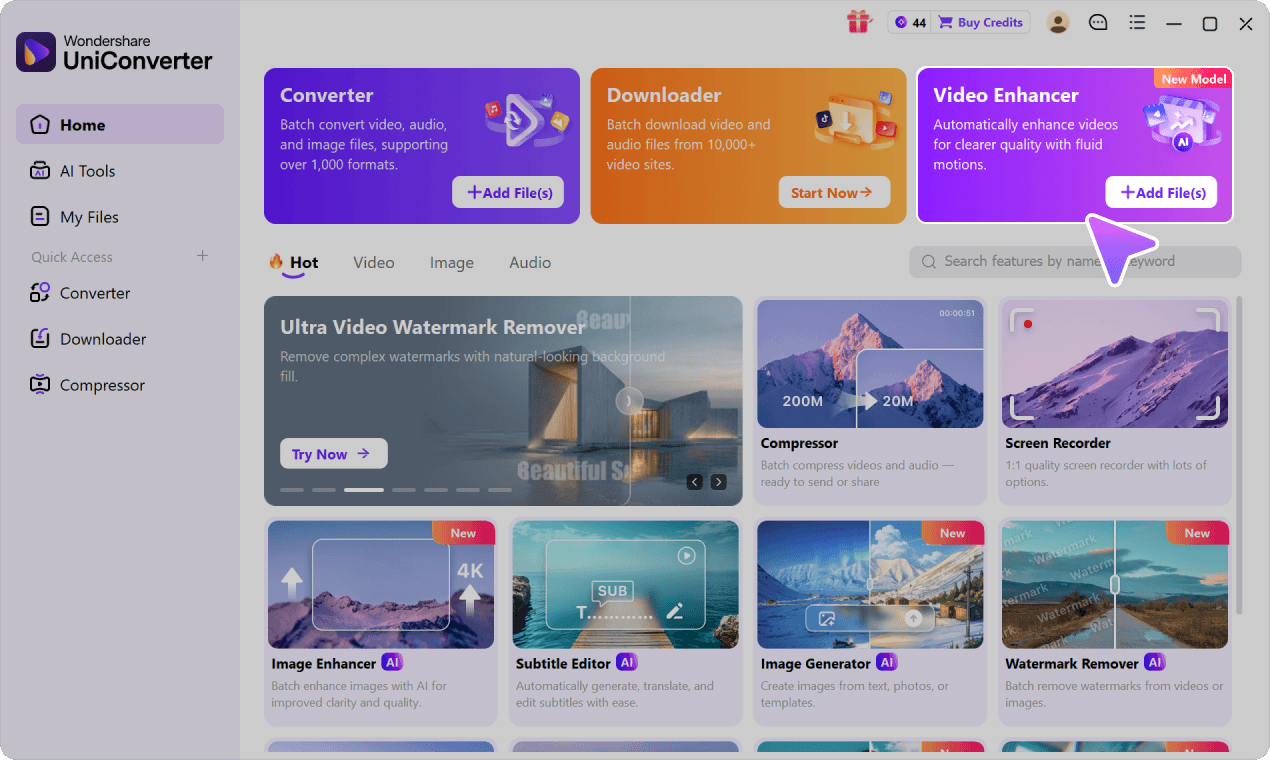
Upscale Low-Resolution Videos to 4K
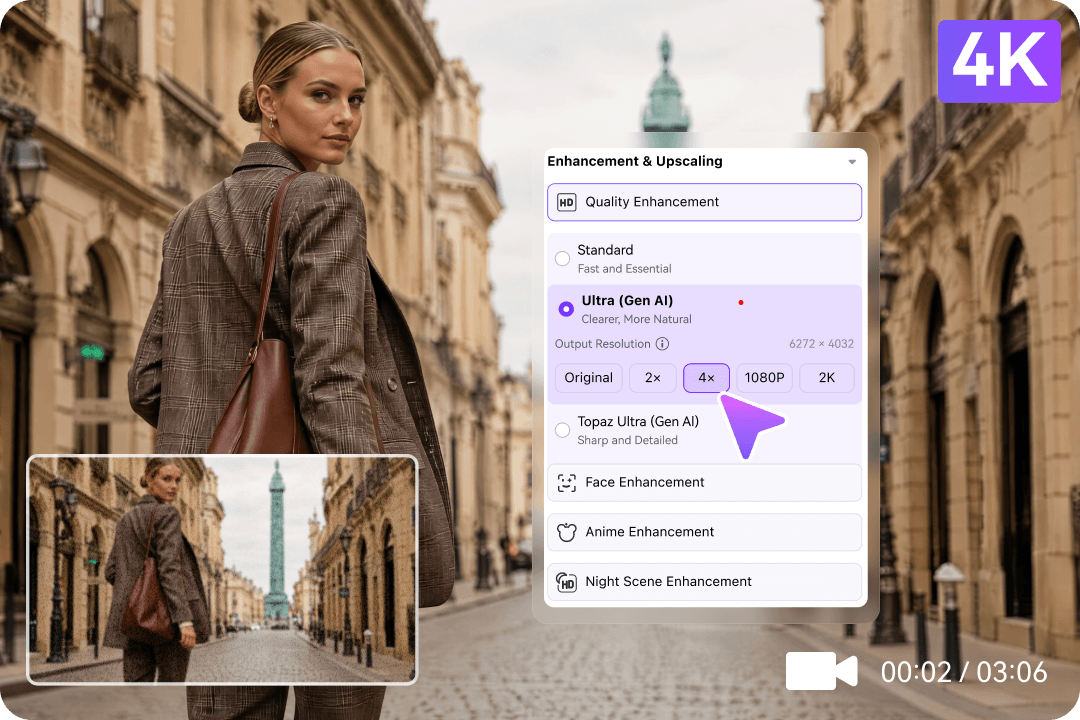
Select a model-supported 4K output with Topaz Ultra for larger screens, video projects and archived PC footage.
Explore this featureImprove blurry screen recordings, old home videos and compressed PC footage. UniConverter helps restore visible detail, reduce noise, refine faces and upscale supported videos to 4K. Preview the results before exporting one file or a batch.
*Windows support and GPU, network, and credit requirements vary by AI model. See the full system requirements below.

From AI video upscaling and blur repair to cleaner portraits and faster batch workflows, start with the enhancement that fits your footage.
Select a model-supported 4K output with Topaz Ultra for larger screens, video projects and archived PC footage.
Explore this featureReduce distracting grain and restore clearer-looking detail in compressed, low-light and older recordings.
Explore this featureImprove the visible quality of webcam calls, interviews and portraits with dedicated Face Enhancement modes.
Explore this featureImport a folder or several clips, preview your settings and export from a single Windows desktop queue.
Explore this featureDownload UniConverter for Windows, test a short preview and choose the AI model that suits your clip.
Free to download. AI export may require credits or an eligible plan; availability varies by model and device.
How do I enhance video quality on Windows? Open UniConverter's Video Enhancer, add a file, choose a quality model or task-specific tool, and preview a short result. For a selectable 4K output, use Topaz Ultra (Gen AI) where supported. Review the settings and export. View the Windows walkthrough.
See how AI enhancement can affect clarity, noise and visible texture. Drag the slider to compare example frames, then preview your own Windows video before choosing an output resolution.


Look beyond sharpness alone: inspect text, faces, movement and fine edges in your own footage. Different inputs benefit from different models, and generated detail may not match information missing from the original file.
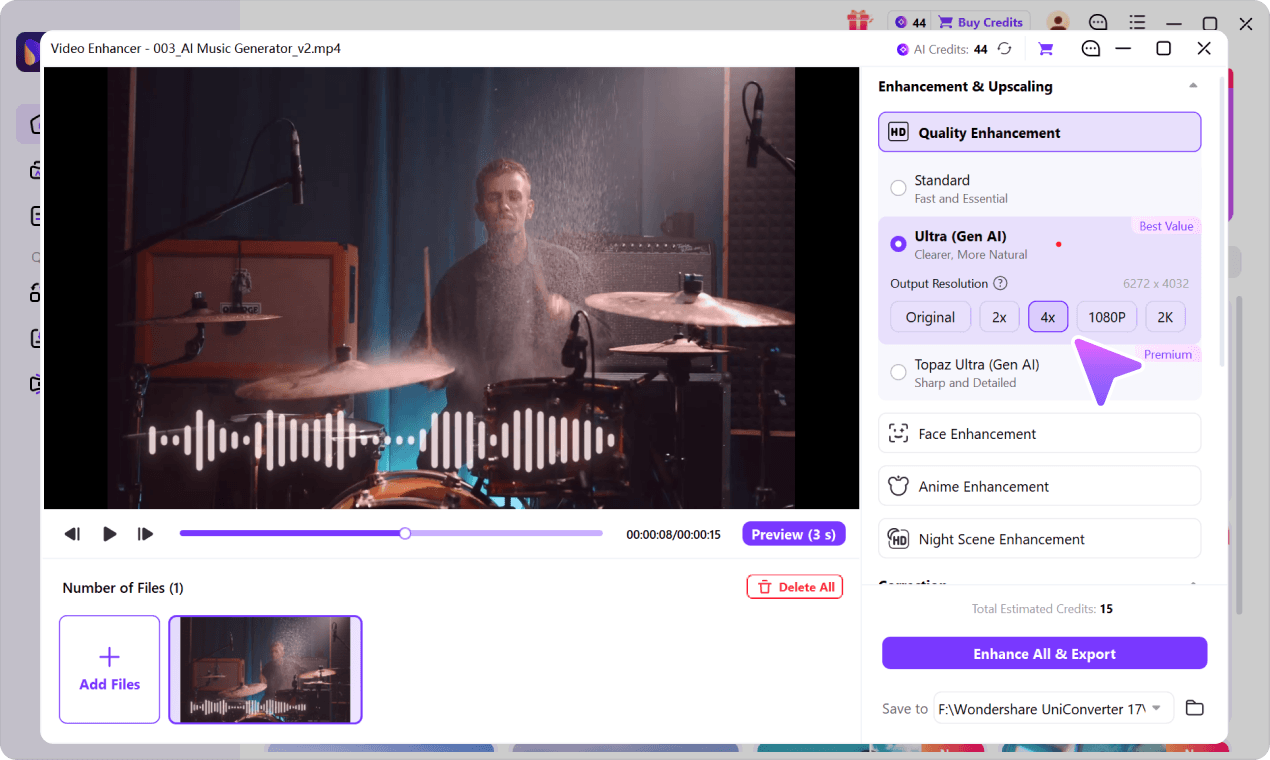
Have a 480p family recording, 720p clip or small screen capture? Start with the AI model, then choose your output. Ultra (Gen AI) provides Original, 2×, 4×, 1080p and 2K choices where supported. Topaz Ultra (Gen AI) offers a selectable 1080p or 4K output. Upscaling can improve apparent detail, but increasing resolution does not recreate the exact original information.
Use Standard for everyday cleanup, Ultra (Gen AI) for more natural-looking reconstruction, or Topaz Ultra (Gen AI) when you need a supported 4K output and more detailed enhancement.
For mildly soft meeting captures, camera clips and short web videos, Standard emphasizes essential video cleanup and straightforward processing. On eligible Windows PCs, Quality Enhancement Standard supports NVIDIA RTX 30-series or later GPU acceleration; exact availability depends on your hardware and selected feature. Do not confuse it with the separate Face Enhancement Standard mode.
For compressed recordings or older footage with missing texture, Ultra uses generative processing to produce clearer-looking edges and more coherent detail. Choose Original when keeping dimensions matters, or use supported 2×, 4×, 1080p and 2K outputs. Check fast movement and small on-screen text in Preview before processing a long file.
Use Topaz Ultra when exporting supported videos at 1080p or 4K and prioritizing fine structures such as product surfaces, buildings and landscapes. It is a premium generative mode; processing time, credits and possible AI-created artifacts depend on source quality and output selection. Choose 4K only if it meaningfully fits your project.
Output settings shown in the desktop interface: Ultra (Gen AI) — Original, 2×, 4×, 1080p, 2K; Topaz Ultra (Gen AI) — 1080p, 4K. Available output and AI credit costs are model- and source-dependent. AI-created texture is an interpretation, not a verified reconstruction of missing information.
Apply a specialized fix for the actual problem in your footage: PC recordings, webcam faces, grain and flicker, unsteady movement or a large folder of videos.
Gameplay captures and repeated MP4 exports can lose fine lines, edges and texture. Try Quality Enhancement on a representative clip, inspect gameplay HUD details and fast movement, then select the output size supported by your model. For more about resolution choices, see the AI video upscaler.
Portraits from older webcams, online interviews and low-light recordings often lose hair strands or facial definition. Face Enhancement Standard offers a local NVIDIA GPU option on compatible RTX 30-series+ Windows PCs; Face Ultra (Gen AI) uses cloud-based reconstruction for another type of result. Anime Enhancement is a separate option for animation and illustrated lines.

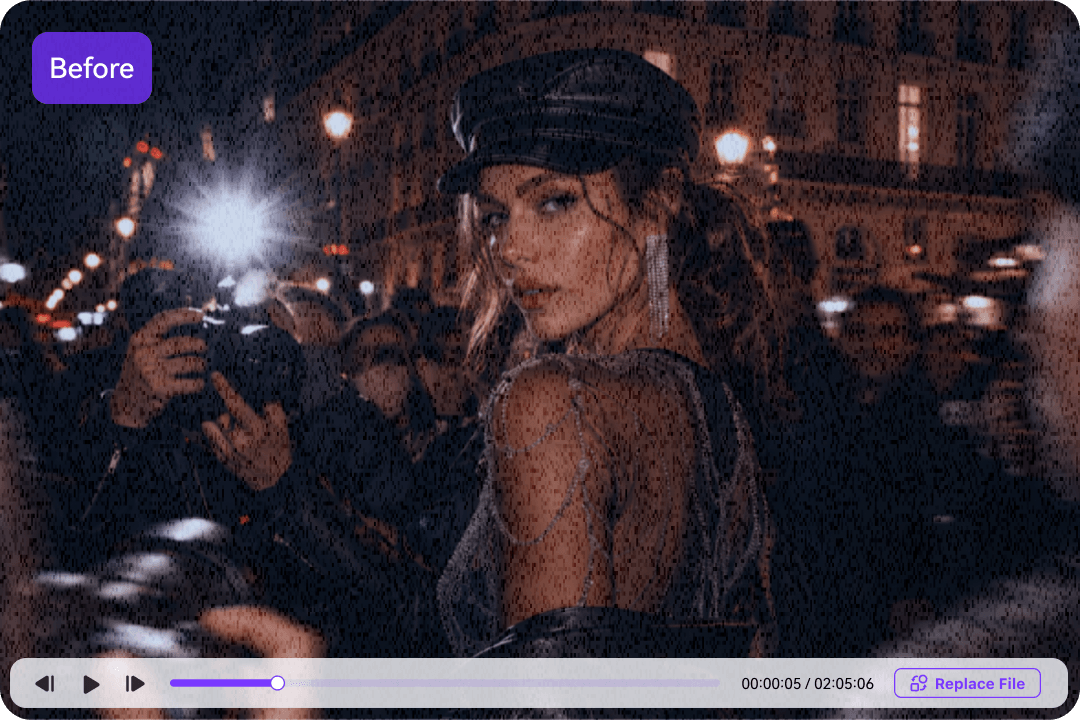
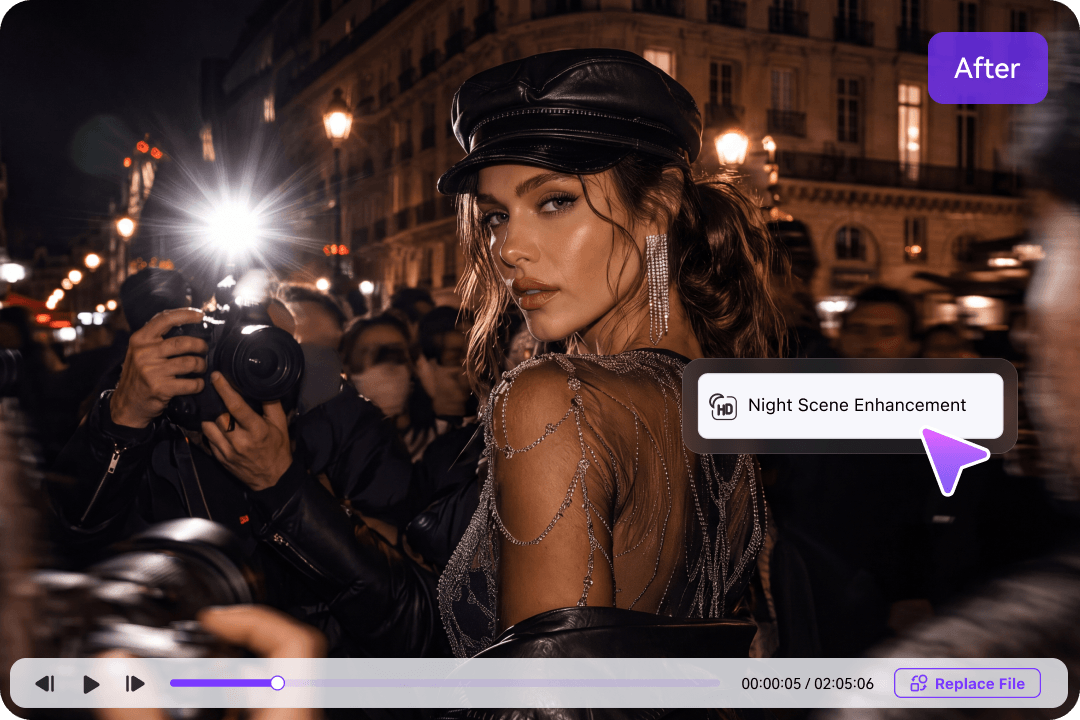
A webcam shot in a dark office, an over-compressed stream archive or a phone clip shot at night can all look noisy for different reasons. Use General Video Denoise for grain, Night Scene Enhancement for dark footage and De-Flicker for repeated brightness changes. The comparison preview helps you avoid excessive smoothing.
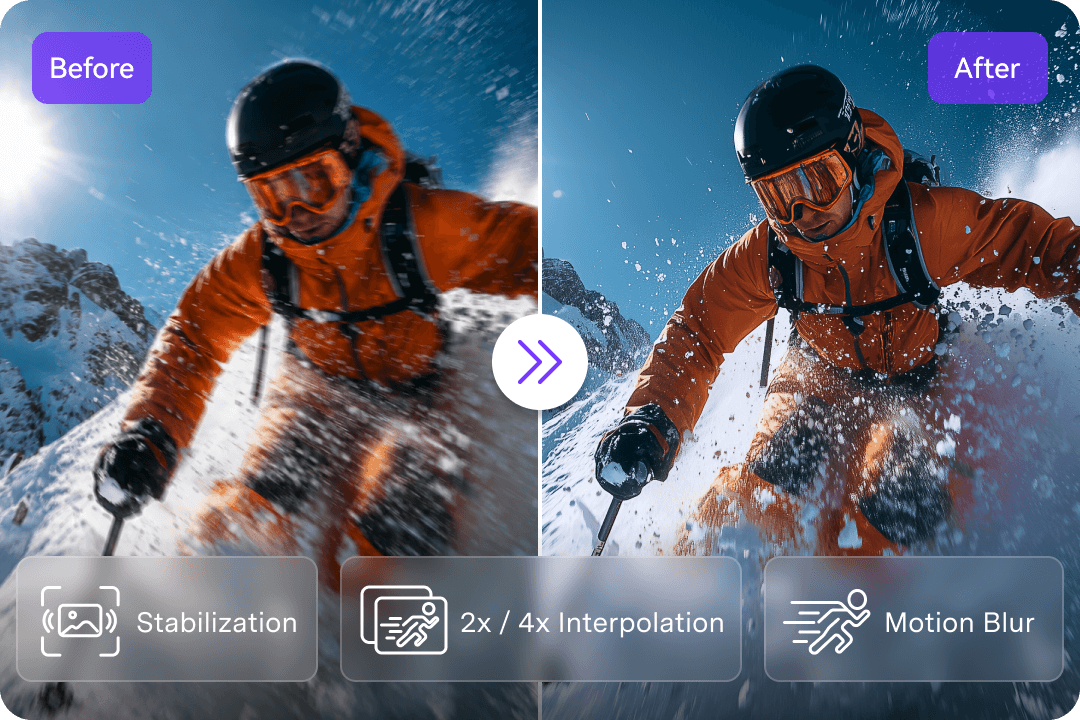
Shaky handheld shots and choppy action sequences need different fixes from a blurred still image. Video Stabilization aims to reduce camera movement, while Frame Interpolation can create intermediate frames for smoother playback. Video De-Flicker addresses pulsing illumination from problematic lighting.
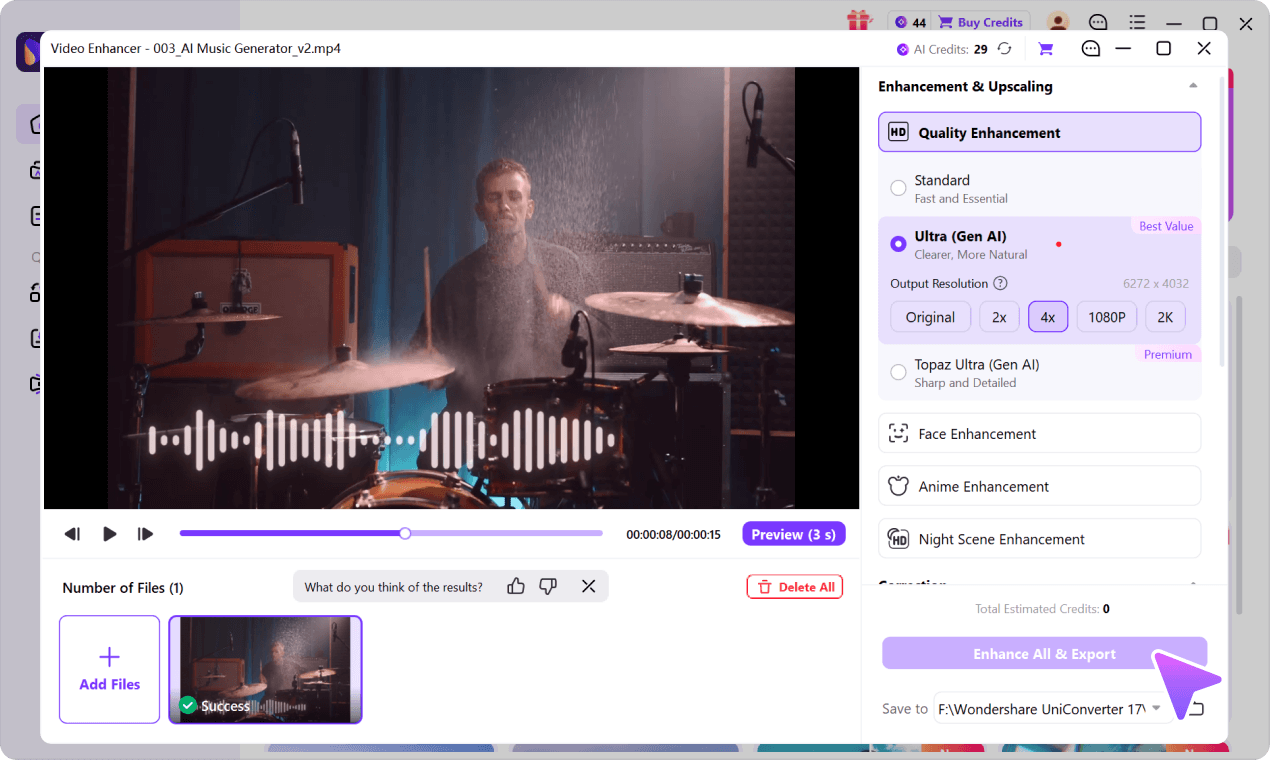
Working through recorded lessons, event footage or video archives? Import multiple supported files or a folder, choose appropriate processing settings and preview a representative result. UniConverter shows estimated AI credit use so you can decide before running the supported Enhance All & Export workflow.

The samples illustrate possible enhancement outcomes; your Windows footage, selected model and output settings determine the actual result. AI-generated textures should be checked carefully rather than treated as exact original detail.
Windows PCs can offer different enhancement paths depending on the model. Check local NVIDIA GPU requirements for eligible Standard modes, or choose supported generative processing for reconstruction and 4K targets.
On compatible Windows PCs, Quality Enhancement – Standard, Face Enhancement – Standard, and Anime Enhancement support selected NVIDIA RTX acceleration workflows. The Face Standard path is documented as local GPU processing. Requirements are model-specific.
Best next step: check GPU compatibility, then preview a short sample before committing to a long export.
Try Quality Enhancement – Ultra for natural-looking reconstruction and adjustable output choices, or Topaz Ultra for its explicit 4K target. Face Ultra (Gen AI) is a cloud-based portrait option. Some generative tasks require internet access and AI credits.
Best next step: compare faces, lettering and moving textures in the 3-second preview.
You do not need to assume that every AI feature requires the same graphics card. Start with a mode available in your installation, check the model's requirements and estimated credits, and process one representative clip before building a batch queue.
Best next step: review UniConverter system requirements for your Windows configuration.
You do not need to manually edit every frame. Follow the current Windows Video Enhancer workspace, test one output sample, and apply the same workflow to additional supported videos.
If you only need to check one small clip, the online workflow is convenient. For repeated PC exports, multiple models, an output target up to 4K and Windows GPU options, consider the desktop software.
A useful starting point for one small clip before installing Windows software.
Choose the model, preview the result, and work through a supported batch queue.
Look for the types of defects it can fix, output choices, hardware requirements, previews and batch controls. UniConverter for Windows combines Quality Enhancement, Face Enhancement, denoising, stabilization and frame interpolation. The best model depends on the footage rather than a universal preset.
Launch UniConverter and open Enhance & Clean Up → Video Enhancer. Import your clip, choose the matching quality mode and output settings, use Preview (3 s), and click Enhance All & Export. See the Windows step-by-step guide.
Yes. Topaz Ultra (Gen AI) provides a 4K target alongside 1080p in the Video Enhancer UI. Ultra (Gen AI) instead offers Original, 2×, 4×, 1080p or 2K choices when supported. A 4× scale factor is not automatically a 4K output file.
Yes. When available, Ultra (Gen AI) → Original keeps the source dimensions while enhancing visible detail. Upscaling is an optional output choice; it does not guarantee that compressed lettering or lost pixels can be restored exactly.
Not for every model. On compatible Windows PCs, selected modes—Quality Enhancement Standard, Face Enhancement Standard and Anime Enhancement—support NVIDIA RTX 30-series or later acceleration. Other AI models have their own hardware and network requirements. Consult the technical specifications.
Face Enhancement Standard uses local GPU processing on eligible Windows PCs with RTX 30-series or newer NVIDIA graphics and compatible settings. Face Ultra (Gen AI) is a cloud-based generative option. These are not the same as the similarly named Quality Enhancement modes.
No blanket offline guarantee applies to every mode. Local GPU processing is available for supported tasks, but certain generative models—such as Face Ultra—depend on online resources. Account checks and AI credits may also be needed.
Yes. You can add supported files or folders, select the desired enhancement workflow and review preview results and estimated AI credits before running Enhance All & Export. Verify model limits for longer or larger inputs.
A video upscaler changes the output pixel dimensions. A video enhancer can also address grain, faces, color, flicker and motion. UniConverter offers both approaches; use an Original output setting where available if you want an improvement without resizing.
UniConverter is available as a free Windows download and trial. Higher-resolution processing and selected AI models may require credits or paid access. For a no-install option, try the online AI video enhancer under its current free limits.
The desktop Video Enhancer interface lists MP4, MKV, AVI, MOV and MPG. Input support, length, file size and output options can vary by model. For unusual files, test one clip before building a large queue.
The two desktop platforms share many enhancement concepts, but interface paths and hardware choices can differ. For macOS-specific guidance, go to AI Video Enhancer for Mac rather than following Windows GPU instructions.
Sharpen compressed Windows video files, choose a supported 4K output when needed, and work through multiple clips in one desktop queue.
Download is free to try. Some AI tools may require credits or an eligible plan.