UniConverter
UniConverter Online Free
Converter video, audio & image free
Free Try
Upscale Multiple Videos with AI in One Desktop Workflow

Batch Video Resizer

Use Wondershare UniConverter Video Enhancer as a batch video resizer for resolution upscaling. Add multiple videos, choose the Video Upscaler AI model, select the upscaling setting you need, preview the result, and export the resized videos in one desktop workflow.

  • Batch-upload multiple videos in Video Enhancer
  • Use the Video Upscaler AI model to increase resolution
  • Preview results and batch-export the enhanced videos
Available on:

For Windows 11/10/8/7

For macOS 10.13 or later, including macOS 26 Tahoe

4.7Rated on Trustpilot
Batch Video Resizer using UniConverter Video Upscaler
120+Countries
7M+Satisfied Users
1.4M+Subscribers
21M+Downloads

Desktop or Online for Batch Video Upscaling?

The online Video Upscaler is useful for a quick single video. UniConverter Desktop is the better fit for multiple videos because Video Enhancer supports multi-file input, higher-resolution upscaling, preview, and batch export.

Compare the workflow
Recommended for larger jobsUniConverter Desktop
Best for a quick single videoOnline Video Upscaler
Batch Input
Add multiple videos or folders to Video Enhancer and keep the enhancement job together on Desktop.
Upload one smaller video when a browser-based upscale is enough.
Upscaling Workflow
Choose an AI enhancement model such as Video Upscaler and set the required upscale level or target resolution.
Choose the available online upscaling option for a single video; available limits can differ from Desktop.
Preview & Export
Preview enhanced results before export and batch-export multiple processed files from the desktop workflow.
Preview and export the single processed video from the browser workflow.
Best Fit
Choose Desktop for batch video resizing, 4K/8K upscaling, folder import, or repeated enhancement jobs.
Choose Online for a fast one-off upscale when batch processing is unnecessary.
Simple decision:
Use Online for a quick single-video upscale. Use UniConverter Desktop when multiple videos need AI Video Upscaler processing, preview, and batch export.
Download UniConverter for Desktop

Batch Resize Multiple Videos with AI Video Upscaler

UniConverter handles this resize workflow inside Video Enhancer, not the standard Video Converter. Select the Video Upscaler AI model to raise video resolution while AI analyzes frames to improve edges, textures, and overall clarity instead of simply stretching pixels.

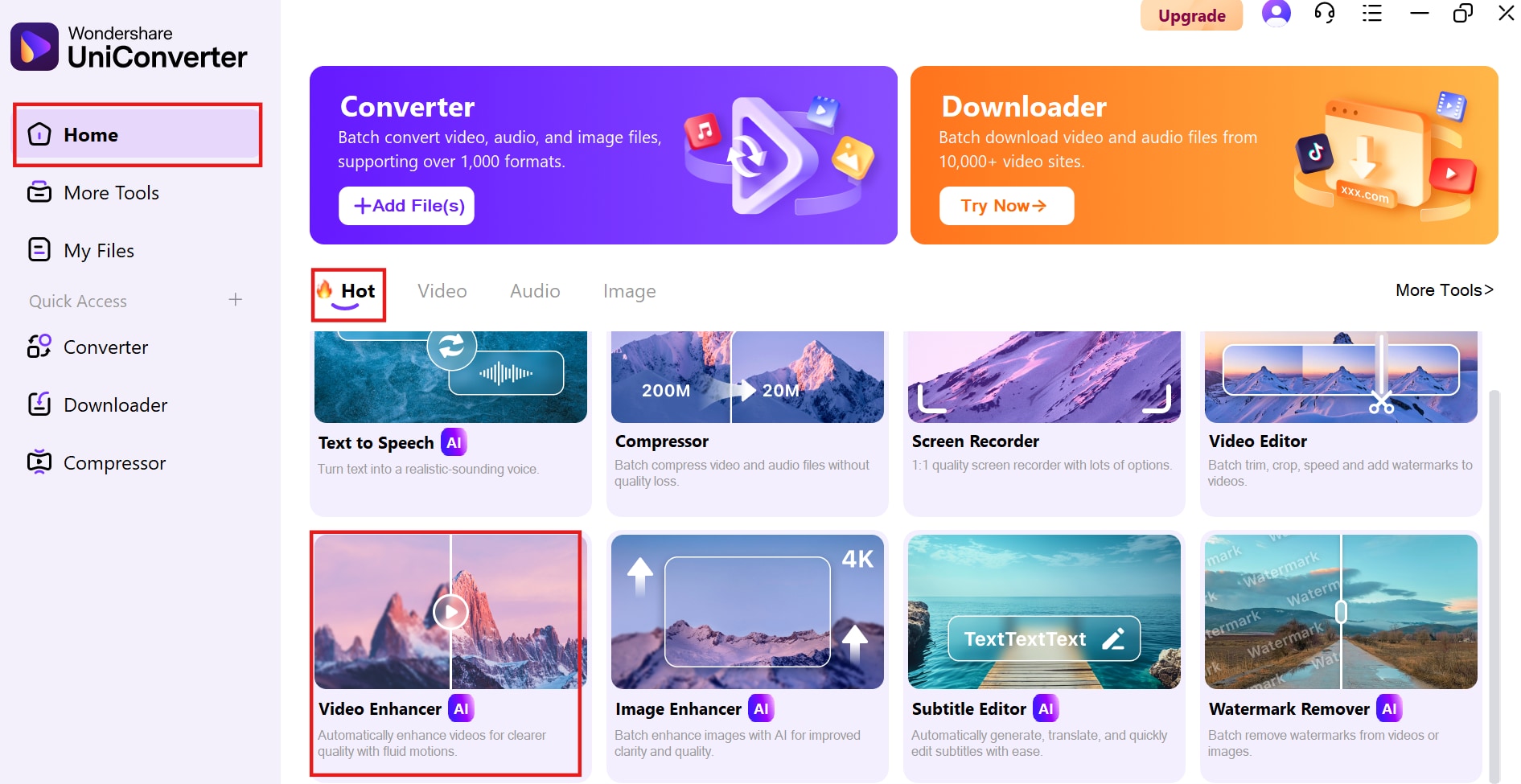
Add Multiple Videos to Video Enhancer

Open Video Enhancer and add the videos you want to resize. The desktop workflow supports multiple files and folder-based input for batch enhancement.

  • Batch-upload multiple videos
  • Add files or folders on Desktop
  • Keep the resize job in one enhancement workflow
Add Multiple Videos to Video Enhancer

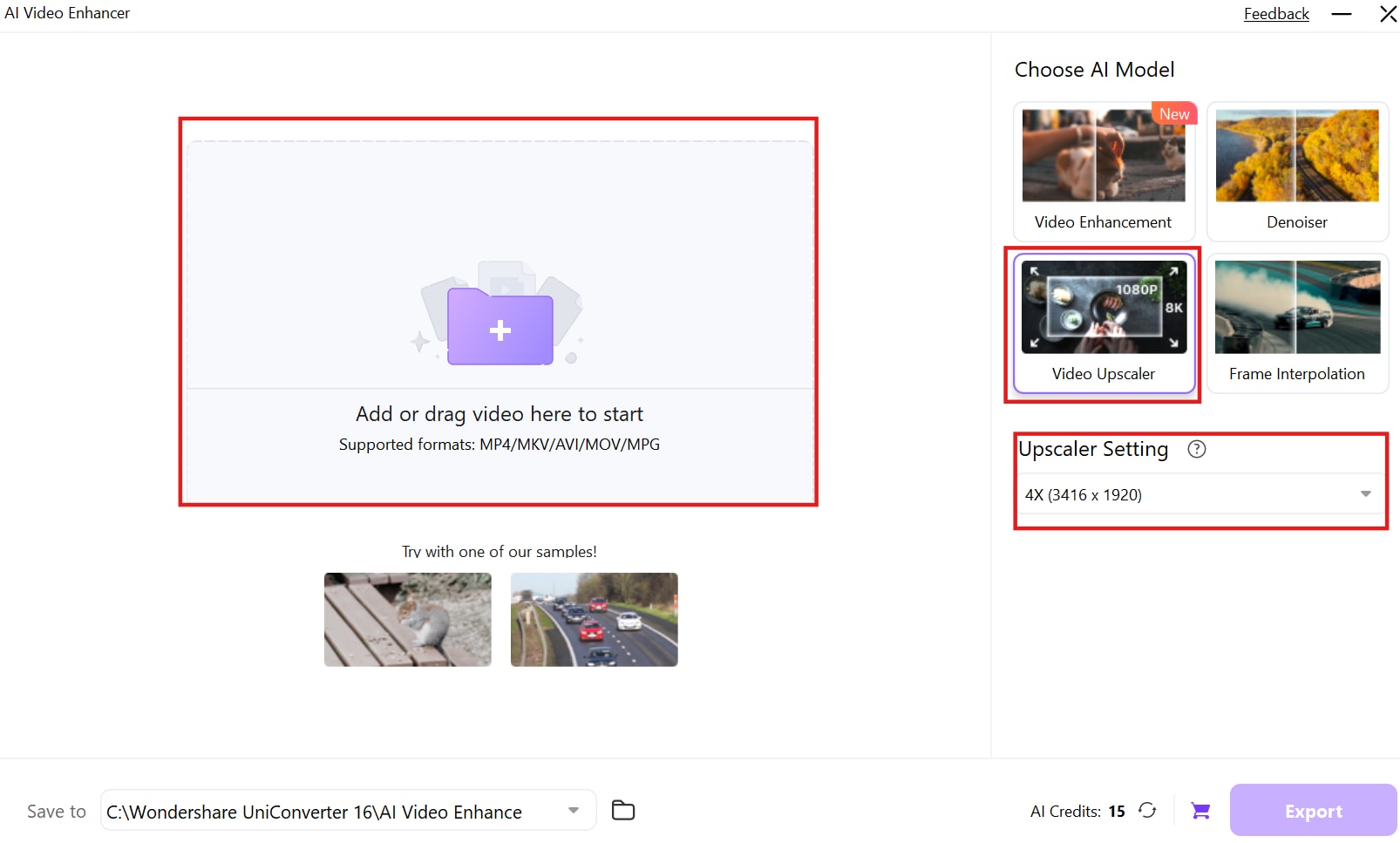
Choose the Video Upscaler AI Model

Select Video Upscaler from the available AI models when the goal is to increase video resolution. This model is designed for resolution upscaling rather than ordinary format conversion.

  • Choose Video Upscaler
  • Use AI-based frame analysis
  • Upscale resolution instead of only changing a file profile
Choose the Video Upscaler AI Model

Set the Upscaling Resolution

Choose the upscaling setting available for the current Video Upscaler workflow. Depending on the current model and source, UniConverter can upscale low-resolution video toward higher-resolution outputs such as HD, 4K, or 8K.

  • Select the required upscale level
  • Use higher-resolution output when the project needs it
  • Preview representative videos before exporting the full batch
Set the Upscaling Resolution

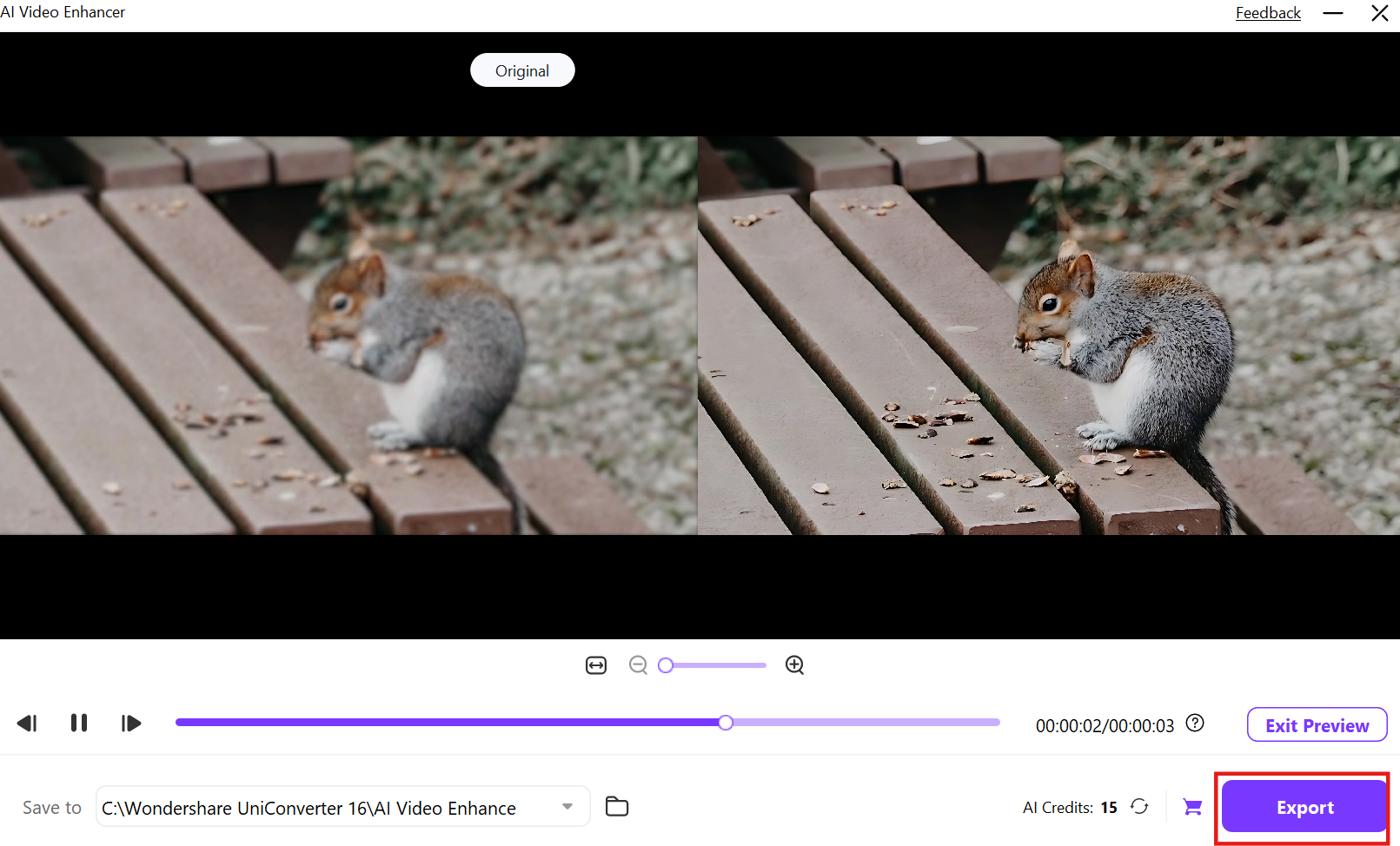
Preview and Batch Export

Preview the enhanced result before export, then process the video collection from Video Enhancer. Desktop supports batch export for multiple enhanced files.

  • Preview the enhanced video
  • Check clarity before full processing
  • Batch-export the resized videos
Preview and Batch Export

What You Can Control in the Batch Video Resizer Workflow

For this UniConverter workflow, video resizing means AI resolution upscaling through Video Enhancer. The important controls are the AI model, upscaling setting, preview, and export—not Converter settings such as codec, bitrate, or Convert All.

Video Upscaler Controls at a Glance

Choose Video Upscaler when you need a higher-resolution version of multiple videos, then preview representative results before batch export.

Batch Video Resizer controls in UniConverter Video Enhancer and Video Upscaler
Upscaler ControlWhat You Can DoWhy It Matters
Batch InputAdd multiple videos or folders to UniConverter Video Enhancer on Desktop.This keeps a multi-video resize job in one enhancement workflow instead of processing every video separately.
AI ModelSelect Video Upscaler from the available Video Enhancer models.Video Upscaler is the product path for increasing resolution; other models focus on tasks such as denoising, face enhancement, anime enhancement, or frame interpolation.
Upscaling SettingChoose the available upscale level or target resolution for the current source and model.The exact choices can vary by platform, model, source video, and UniConverter version.
AI Detail ReconstructionUse AI upscaling to analyze frames and improve edges, textures, and visible detail while increasing resolution.This is different from basic pixel stretching, although the final result still depends on source quality.
Preview & Batch ExportPreview the enhanced result, then export the processed videos from the desktop batch workflow.Checking representative output before the full export helps catch source-specific issues in a mixed video collection.

Technical references: AI Video Upscaler, AI Video Enhancer, Video Enhancer for Mac Guide, UniConverter Version History.

Available AI models, upscale levels, target resolutions, preview behavior, and batch export options can vary by source video, operating system, and UniConverter version.

How to Resize Multiple Videos in 3 Steps

Add multiple videos, choose the output resolution and related settings, then use Convert All to process the complete queue.

When to Batch Resize Videos with AI Upscaling

Use Video Upscaler when multiple videos need a higher-resolution output and better visible detail—not when the goal is only to crop, change aspect ratio, or reduce file size.

Upscale Low-Resolution Video Collections

Process a group of lower-resolution videos when you need higher-resolution output for modern displays, editing, or delivery.

Restore Older or Compressed Footage

Use AI upscaling on older, compressed, or soft-looking video collections when simple pixel enlargement would make artifacts more obvious.

Prepare Videos for Larger Displays

Increase resolution for multiple videos that will be reviewed or presented on higher-resolution screens where low-resolution sources can look soft.

Standardize an Enhancement Batch

Run a group of similar videos through the Video Upscaler model, preview representative results, and batch-export the processed collection.

What UniConverter Users Are Saying

These reviews describe users' experience with Wondershare UniConverter as a broader media conversion and AI enhancement product, rather than feedback limited specifically to Batch Video Resizer.

★★★★★

“Very configurable for the exact result you need.”

Its flexible conversion controls make it easier to prepare files for different output and delivery requirements.
JohnsonJohnson
★★★★★

“The files can be used across IT platforms so easily!”

This kind of compatibility is useful when converted media needs to move between common systems and delivery workflows.
WilliamsWilliams
★★★★★

“Wondershare UniConverter is incredibly versatile.”

The broader conversion and editing toolkit supports users who need to complete more than one isolated media task.
OliviaOlivia

Explore UniConverter reviews and independent coverage across trusted software platforms.

Batch Video Resizing FAQs

01

How do I resize multiple videos at once in UniConverter?

Open UniConverter Video Enhancer, add the videos you want to process, choose the Video Upscaler AI model, select the available upscaling setting, preview the result, and export the processed videos.
Yes. In this workflow, UniConverter uses the Video Upscaler model inside Video Enhancer to increase resolution. Desktop Video Enhancer supports processing multiple videos and batch export.
UniConverter Video Upscaler supports higher-resolution output such as 4K or 8K in supported desktop workflows. Exact output choices depend on the source video, selected model, operating system, and current product version.
Video Upscaler is designed to do more than basic pixel stretching. UniConverter describes the AI workflow as analyzing frames to rebuild edges, textures, and visible detail while increasing resolution. Results still depend on the quality of the source.
Video Upscaler increases video resolution with AI enhancement. Crop removes part of the frame. Auto Reframe changes composition for another aspect ratio. They solve different problems.
This page focuses on AI resolution upscaling through Video Enhancer. If the goal is a lower resolution, smaller file size, or format conversion, use UniConverter's Converter or Compressor workflow instead.
vc 16

Upscale Multiple Videos with AI Video Upscaler

Open Video Enhancer, choose Video Upscaler, preview the higher-resolution result, and export the processed video batch with Wondershare UniConverter.

Batch resize videos with UniConverter AI Video Upscaler